2012 BMW ACTIVEHYBRID 5 phone
[x] Cancel search: phonePage 250 of 319
Press the SOS button to contact the BMW
Assist Response Center.
TeleService
General information
TeleService supports communication with your
service center.
▷Data on the vehicle's service requirements
can be sent directly to the service center. In
this way, the service center can plan its work
in advance. This shortens the duration of the
service appointment.▷In the event of a breakdown, data on the ve‐
hicle's condition can be sent directly to
Roadside Assistance.▷The service varies by country.▷Connection costs may ensue.▷Services may be restricted abroad.
Requirements
▷BMW Assist is activated.▷Wireless reception is available.▷The ignition is switched on.
Use of TeleService
The TeleServices are typically activated in the
vehicle.
Even if TeleService Customer Service is not ac‐
tive, a voice contact to Roadside Assistance is
still possible.
To continue using or to deactivate the services,
please contact your service partner or the BMW
customer hotline.
Concierge service
General information
The BMW Assist Concierge service offers infor‐
mation on events, gas stations or hotels, and
provides phone numbers and addresses. Hotels
can be booked directly by the BMW Assist Con‐
cierge service. The Concierge service is part of
the optional BMW Convenience Plan.
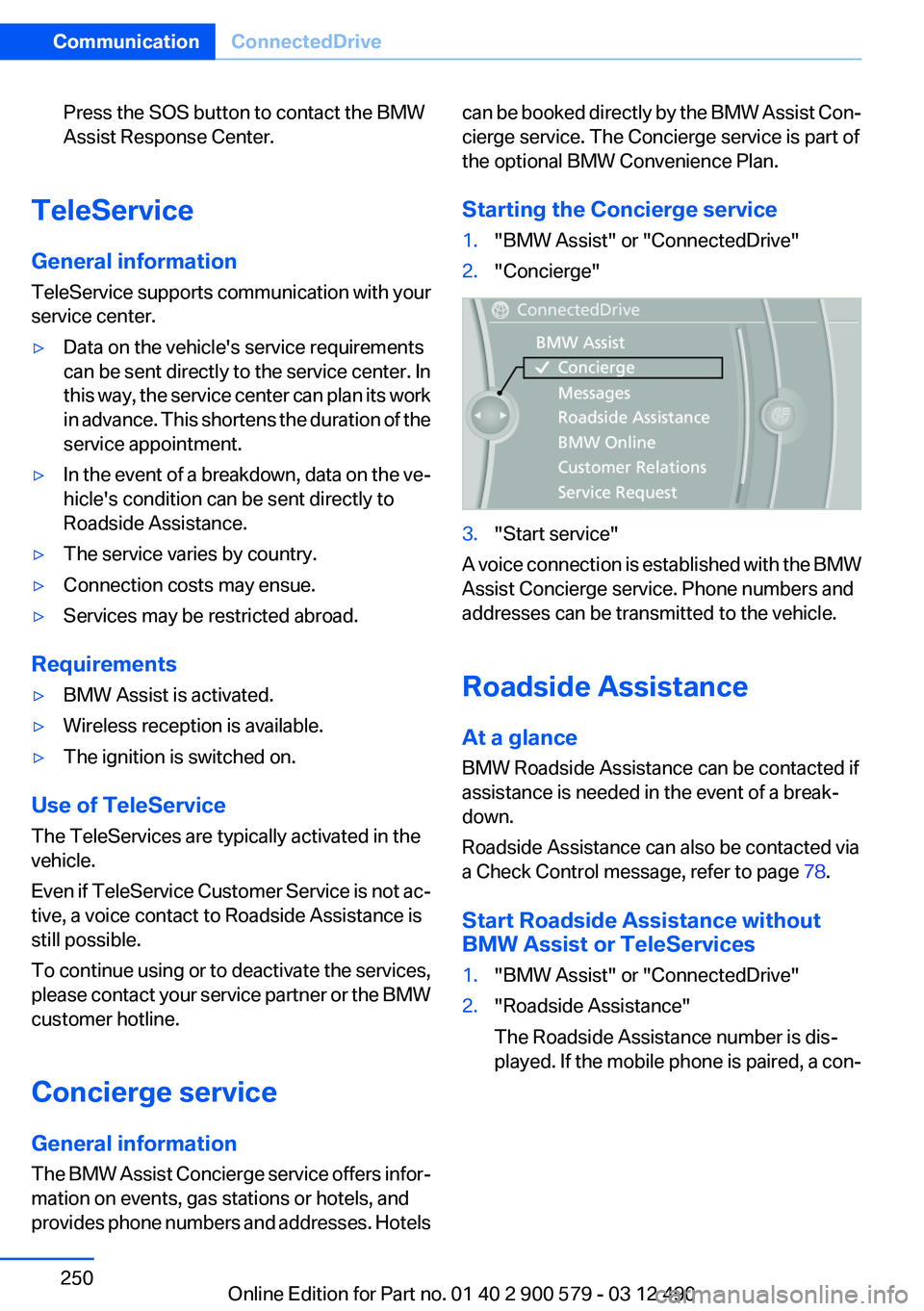
Starting the Concierge service1."BMW Assist" or "ConnectedDrive"2."Concierge"3."Start service"
A voice connection is established with the BMW
Assist Concierge service. Phone numbers and
addresses can be transmitted to the vehicle.
Roadside Assistance
At a glance
BMW Roadside Assistance can be contacted if
assistance is needed in the event of a break‐
down.
Roadside Assistance can also be contacted via
a Check Control message, refer to page 78.
Start Roadside Assistance without
BMW Assist or TeleServices
1."BMW Assist" or "ConnectedDrive"2."Roadside Assistance"
The Roadside Assistance number is dis‐
played. If the mobile phone is paired, a con‐Seite 250CommunicationConnectedDrive250
Online Edition for Part no. 01 40 2 900 579 - 03 12 490
Page 252 of 319

Opening the start page1."Options" Open.2."Display start page"
Loading a new page
1."Options" Open.2."Update"
Cancel
1."Options" Open.2."Cancel loading"
BMW Live
At a glance
BMW Live is an online portal that provides spe‐
cific services for use in the vehicle, such as in‐
formation on weather forecasts.
BMW Live is available via the SIM card in the
mobile phone.
Follow the Instructions for data transfer, refer to
page 227.
License conditions
This product contains NetFront Browser soft‐
ware of ACCESS Co., Ltd. Copyright © 2007
ACCESS Co., Ltd. All rights reserved.
NetFront is a trademark or registered trademark
of ACCESS CO., LTD., in Japan and other coun‐
tries.
This software is based in part on the work of the
Independent JPEG Group.
Requirements▷The vehicle is located within wireless net‐
work coverage.▷To be able to use some functions, an e-mail
address must be stored on the card.▷For certain services, the vehicle must be
able to determine its current position, e.g.,
in order to receive information about the cur‐
rent location.▷The date setting, refer to page 86, on the
Control Display must be current.
Starting BMW Live
1."BMW Assist" or "ConnectedDrive"2."BMW Live"
The BMW Live home page is displayed.
Using BMW Live
To select and display content:
▷Turn the controller to highlight an element.▷Press the controller to display an element.
Opening the start page
1.Open "Options".2."Display start page"
Loading a new page
1.Open "Options".2."Update"
Cancel
1.Open "Options".2."Cancel loading"
Customer Relations
At a glance
Contact Customer Relations for information on
all aspects of your vehicle.
Seite 252CommunicationConnectedDrive252
Online Edition for Part no. 01 40 2 900 579 - 03 12 490
Page 253 of 319

Calling Customer Relations
Vehicles not equipped with BMW
Assist or TeleService1."BMW Assist" or "ConnectedDrive"2."Customer Relations"
The Customer Relations phone number is dis‐
played. If the mobile phone is paired, a connec‐
tion is established to Customer Relations.
Service Request
At a glance
Sends information to your service partner to re‐
quest the arrangement of a service appoint‐
ment. The TeleService data is transmitted dur‐
ing a Service Request. If possible, your service
partner will establish contact with you.
Starting a Service Request
1."BMW Assist" or "ConnectedDrive"2."Service Request"3."Start service"
A Service Request can be started via a Check
Control message, refer to page 78.
Automatic Service Request
The TeleService data necessary for servicing
the vehicle are automatically sent to your service
partner prior to the service deadline. If possible,
the service partner will contact you and a service
appointment can be arranged.
To check when your service partner was noti‐
fied:1."Vehicle Info"2."Vehicle status"3.Open "Options".4."Last Service Request"
TeleService Report
Transmits technical data that is evaluated for the
ongoing development of BMW products from
your vehicle to BMW in regular intervals if nec‐
essary.
TeleService Report is activated in vehicles that
meet certain technical requirements and have a
valid Assist contract; this feature is free of
charge.
Neither personal data nor position data is trans‐
mitted.
Indicate when the last TeleService Report was
transmitted:
1."Vehicle Info"2."Vehicle status"Seite 253ConnectedDriveCommunication253
Online Edition for Part no. 01 40 2 900 579 - 03 12 490
Page 254 of 319

3.Open "Options".4."Last Teleservice Info"
Services status
Displaying available services
Display of all services available in the vehicle.
1."BMW Assist" or "ConnectedDrive"2."Service Status"3."Available services"
Updating BMW Assist
Manual update of all services available in the ve‐
hicle.
"Update BMW Assist"
Data transfer
During the updating of BMW services, display
the status of the data transfer.
1."BMW Assist" or "ConnectedDrive"2."Options" Open.3."Data transfer"
Apps
At a glance
Certain software applications of a suitable cell
phone can be integrated in the vehicle. These
software applications are displayed on the Con‐
trol Display.
Operation can be performed via iDrive.
Requirements▷The mobile phone is suitable.▷The cell phone operating system supports
the software applications of Apps.▷Software applications are installed on the
cell phone and ready to use.▷Corresponding mobile wireless contract.
Any additionally incurred costs are not a part
of Apps.▷Use only BMW approved software applica‐
tions; otherwise, it may result in malfunc‐
tions.
Information about suitable cell phones, available
software applications and their installation can
be found at www.bmw.com/connectivity or at
the service center.
Create the entries.
Make entries only when traffic and road
conditions allow. Otherwise, the vehicle occu‐
pants and other road users may be put in danger
because of the distraction from driving.
For reasons of safety, some software applica‐
tions are usable only while the vehicle is station‐
ary.◀
Use apps
1.Connect the cell phone via the snap-in
adapter or via the USB audio interface.2."ConnectedDrive"3.Select the desired software application.
Displaying status
Information about the currently available soft‐
ware applications can be displayed.
1."ConnectedDrive"2."BMW apps"Seite 254CommunicationConnectedDrive254
Online Edition for Part no. 01 40 2 900 579 - 03 12 490
Page 255 of 319

PlugIn
Selected functions of the cell phone are dis‐
played on the Control Display. Operation can be
performed via iDrive.1.Connect cell phone via the snap-in adapter.2."ConnectedDrive"3."PlugIn"4."Activate PlugIn"5.Navigate to the displayed functions via the
controller and select, for example, a desired
category or track.
Press button to switch within the cell
phone functions to a higher level or back.
Press button twice to switch back to the
main menu.
Notes
▷The ranges of Apps that can be displayed on
the Control Display depend on the range of
installed software applications on the cell
phone.▷The data transmission of the software ap‐
plications from the cell phone to the vehicle
can last some time. Some software applica‐
tions depend on the speed of the available
Internet connection of the cell phone.▷Some cell phones cannot simultaneously
use Apps and the Bluetooth hands-free sys‐
tem.
If necessary, restart the software application
on the cell phone after a phone conversa‐
tion.Seite 255ConnectedDriveCommunication255
Online Edition for Part no. 01 40 2 900 579 - 03 12 490
Page 283 of 319

Breakdown assistanceVehicle equipment
All standard, country-specific and optional
equipment that is offered in the model series is
described in this chapter. Therefore, equipment
is also described that is not available in a vehicle,
e. g., because of the selected optional equip‐
ment or country variant. This also applies for
safety-related functions and systems.
Hazard warning flashers
The button is located in the center console.
Emergency Request
Requirements
▷Equipment version with full preparation
package mobile phone.
An Emergency Request can be made, even
if no mobile phones are paired with the ve‐
hicle.▷BMW Assist is activated.▷The radio ready state is switched on.▷The BMW Assist system is logged in to a
wireless communications network sup‐
ported by BMW Assist.▷The Assist system is functional.
Only press the SOS button in an emergency.
Emergency Request not guaranteed
For technical reasons, the Emergency Re‐
quest cannot be guaranteed under unfavorable
conditions.◀
Service contract▷After your contract with BMW Assist has ex‐
pired, the BMW Assist system can be deac‐
tivated by the service center without you
having to visit a workshop.
After deactivation, an Emergency Request
is no longer possible.▷Under certain circumstances, the system
can be reactivated by a service center after
you sign a new contract.
Initiating an Emergency Request
1.Press the cover briefly to open it.2.Press the SOS button until the LED in the
button lights up.▷The LED lights up: an Emergency Request
was initiated.
If the situation allows, wait in your vehicle
until the voice connection has been estab‐
lished.▷The LED flashes if the connection to the
BMW Assist Response Center has been es‐
tablished.
After the Emergency Request arrives at the
BMW Assist Response Center, the BMWSeite 283Breakdown assistanceMobility283
Online Edition for Part no. 01 40 2 900 579 - 03 12 490
Page 284 of 319

Assist Response Center contacts you and
takes further steps to help you.
Even if you are unable to respond, the BMW
Assist Response Center can take further
steps to help you under certain circumstan‐
ces.
For this purpose, data that are used to de‐
termine the necessary rescue measures,
such as the current position of the vehicle if
it can be established, are transmitted to the
BMW Assist Response Center.▷If the LED is flashing but the BMW Assist
Response Center cannot be heard on the
hands-free system, the hands-free system
may be malfunctioning. However, the BMW
Assist Response Center may still be able to
hear you.
Initiating an Emergency Request
automatically
Under certain conditions, an Emergency Re‐
quest is automatically initiated immediately after
a severe accident. Automatic Collision Notifica‐
tion is not affected by pressing the SOS button.
Warning triangle
The warning triangle is located in the container
on the inside of the trunk lid.
Unscrew the wing nut to open.
First aid kit
The first aid kit is located in the container on the
inside of the trunk lid.
Unscrew the wing nut to open.
Some of the articles have a limited service life.
Check the expiration dates of the contents reg‐
ularly and replace any expired items promptly.
Roadside Assistance
Service availability
Roadside Assistance can be reached around the
clock in many countries. You can obtain assis‐
tance there in the event of a vehicle breakdown.
Roadside Assistance
The Roadside Assistance, refer to page 250,
phone number can be viewed on the iDrive or a
connection to Roadside Assistance can be es‐
tablished directly.
Jump-starting
Notes
If the battery is discharged, an engine can be
started using the battery of another vehicle and
two jumper cables. Only use jumper cables with
fully insulated clamp handles.
To prevent personal injury or damage to both
vehicles, adhere strictly to the following proce‐
dure.
Seite 284MobilityBreakdown assistance284
Online Edition for Part no. 01 40 2 900 579 - 03 12 490
Page 299 of 319

Short commands of the voice activation
systemVehicle equipment
All standard, country-specific and optional
equipment that is offered in the model series is
described in this chapter. Therefore, equipment
is also described that is not available in a vehicle,
e. g., because of the selected optional equip‐
ment or country variant. This also applies for
safety-related functions and systems.
General information
Instructions for voice activation system, refer to
page 22.To have the available spoken instructions read
out loud: ›Voice commands‹
The following short commands are valid for ve‐
hicles with voice activation system. They do not
work in equipment packages with which only the
mobile phone can be operated by voice activa‐
tion.
Adjusting
Vehicle
FunctionCommandOpen the main menu.›Main menu‹Open the options.›Options‹Open the settings.›Settings‹Info display of the instrument cluster.›Info Display‹Settings on the Control Display.›Control display‹Open the time and date.›Time and date‹Open the language and units.›Language and units‹Open the speed limit.›Speed‹Open the light.›Lighting‹Open the door lock.›Door locks‹Open the profiles.›Profiles‹Seite 299Short commands of the voice activation systemReference299
Online Edition for Part no. 01 40 2 900 579 - 03 12 490