2012 BMW ACTIVEHYBRID 5 steering
[x] Cancel search: steeringPage 157 of 319

Braking safely
Your vehicle is equipped with ABS as a standard
feature.
Applying the brakes fully is the most effective
way of braking in situations when this is neces‐
sary.
The vehicle maintains steering responsiveness.
You can still avoid any obstacles with a minimum
of steering effort.
Pulsation of the brake pedal and sounds from
the hydraulic circuits indicate that ABS is in its
active mode.
Objects in the area around the pedals No objects in the area around the pedals
Keep floor mats, carpets, and any other
objects out of the area of motion of the pedals;
otherwise, the function of the pedals could be
impeded while driving
Do not place additional floor mats over existing
mats or other objects.
Only use floor mats that have been approved for
the vehicle and can be properly fixed in place.
Ensure that the floor mats are securely fastened
again after they were removed for cleaning, for
example.◀
Driving in wet conditions
When roads are wet or there is heavy rain, briefly
exert gentle pressure on the brake pedal every
few miles.
Ensure that this action does not endanger other
road users.
The heat generated in this process helps dry the
brake discs and pads.
In this way braking efficiency will be available
when you need it.
Hills
Drive long or steep downhill gradients in the gear
in which the least braking is required. Otherwise,the brake system may overheat, resulting in a
reduction in the brake system efficiency.
You can increase the engine's braking effect by
shifting down, going all the way to first gear, if
necessary.
Automatic transmission:
You can increase the engine's braking effect by
shifting down in the manual mode of the auto‐
matic transmission.
Avoid load on the brakes
Avoid placing excessive load on the brake
system. Light but consistent brake pressure can
lead to high temperatures, brake wear and pos‐
sibly even brake failure.◀
Do not drive in neutral
Do not drive in neutral or with the engine
stopped, as doing so disables engine braking. In
addition, steering and brake assist is unavailable
with the engine stopped.◀
Brake disc corrosion
Corrosion on the brake discs and contamination
on the brake pads are furthered by:▷Low mileage.▷Extended periods when the vehicle is not
used at all.▷Infrequent use of the brakes.
Corrosion occurs when the minimum pressure
that must be exerted by the pads during brake
applications to clean the discs is not reached.
Should corrosion form on the brake discs, the
brakes will tend to respond with a pulsating ef‐
fect that generally cannot be corrected.
Condensation under the parked vehicle
When using the automatic climate control, con‐
densation water develops that exits underneath
the vehicle.
Therefore, traces of condensed water under the
vehicle are normal.
Seite 157Things to remember when drivingDriving tips157
Online Edition for Part no. 01 40 2 900 579 - 03 12 490
Page 159 of 319
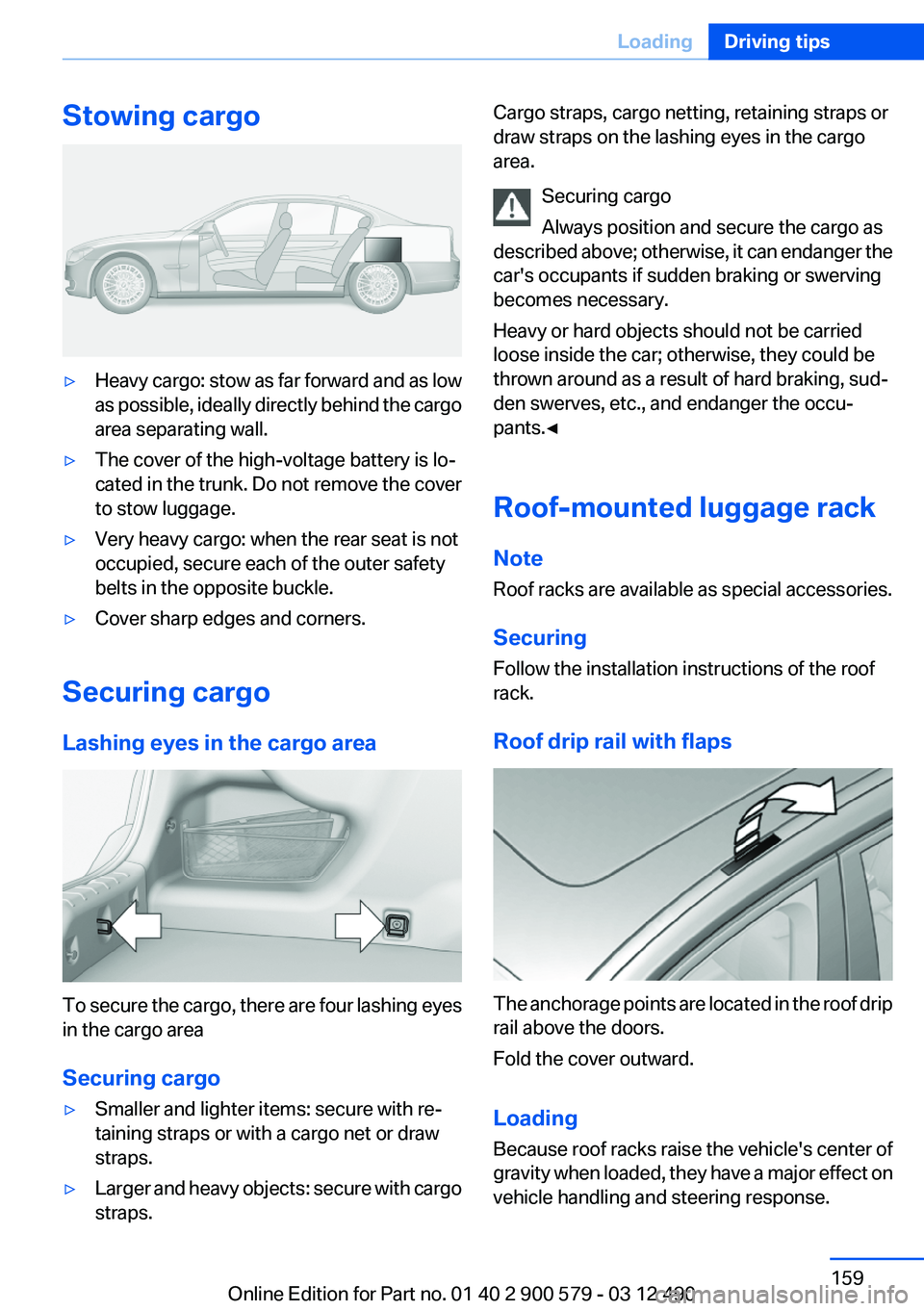
Stowing cargo▷Heavy cargo: stow as far forward and as low
as possible, ideally directly behind the cargo
area separating wall.▷The cover of the high-voltage battery is lo‐
cated in the trunk. Do not remove the cover
to stow luggage.▷Very heavy cargo: when the rear seat is not
occupied, secure each of the outer safety
belts in the opposite buckle.▷Cover sharp edges and corners.
Securing cargo
Lashing eyes in the cargo area
To secure the cargo, there are four lashing eyes
in the cargo area
Securing cargo
▷Smaller and lighter items: secure with re‐
taining straps or with a cargo net or draw
straps.▷Larger and heavy objects: secure with cargo
straps.Cargo straps, cargo netting, retaining straps or
draw straps on the lashing eyes in the cargo
area.
Securing cargo
Always position and secure the cargo as
described above; otherwise, it can endanger the
car's occupants if sudden braking or swerving
becomes necessary.
Heavy or hard objects should not be carried
loose inside the car; otherwise, they could be
thrown around as a result of hard braking, sud‐
den swerves, etc., and endanger the occu‐
pants.◀
Roof-mounted luggage rack
Note
Roof racks are available as special accessories.
Securing
Follow the installation instructions of the roof
rack.
Roof drip rail with flaps
The anchorage points are located in the roof drip
rail above the doors.
Fold the cover outward.
Loading
Because roof racks raise the vehicle's center of
gravity when loaded, they have a major effect on
vehicle handling and steering response.
Seite 159LoadingDriving tips159
Online Edition for Part no. 01 40 2 900 579 - 03 12 490
Page 172 of 319

Saying the entries▷With the Professional navigation system:
the town/city, street, and house number can
be entered as a single command.▷Countries, towns and cities, streets, and in‐
tersections can be said as whole words or
spelled, refer to page 87, in the language of
the system.
Example: to enter a town/city in a US state
as a whole word, the language of the system
must be English.▷Spell the entry if the spoken language and
the language of the system differ.▷Say the letters smoothly, and avoid exag‐
gerating the pronunciation and inserting
lengthy pauses between the letters.▷The options available for entering data de‐
pend on the navigation data and the country
and language settings.
With the Professional navigation
system: entering an address in a
command
1. Press the button on the steering
wheel.2.›Enter address‹3.Wait for a request from the system.4.Say the address in the suggested order.5.Continue making the entry as prompted by
the system.
If necessary, individually name the separate
components of the address, such as the town/
city.
Entering a town/city separately
The name of the town/city can be spoken as a
word or spelled out.
With the destination entry menu displayed:1. Press the button on the steering
wheel.2.›City‹ or ›Spell city‹.3.Wait for the system to prompt you for the
town/city.4.Say the name of the town/city, or say at least
the first three letters.
Depending on the entry, up to 20 towns/cit‐
ies may be suggested.5.Select the town/city.▷To select a recommended town/
city: ›Yes‹▷To select a different town/city: ›New
entry‹▷Select an entry: ›Entry ...‹ e.g., entry 2▷To spell an entry: ›Spell city‹6.Continue making the entry as prompted by
the system.
If there are several towns/cities with the same
name:
Towns/cities of the same name are grouped in a
list and displayed as one location followed by an
ellipsis.
1.Select an entry: ›Yes‹ or ›Entry ...‹ e.g., en‐
try 2.2.Select the desired town/city.
Entering a street or intersection
separately
Enter a street and intersection in the same way
as you would enter a town/city.
Entering a house number separately
Depending on the data in the navigation system,
house numbers up to number 2,000 can be en‐
tered.
1.›House number‹2.Say the house number.Seite 172NavigationNavigation system172
Online Edition for Part no. 01 40 2 900 579 - 03 12 490
Page 205 of 319
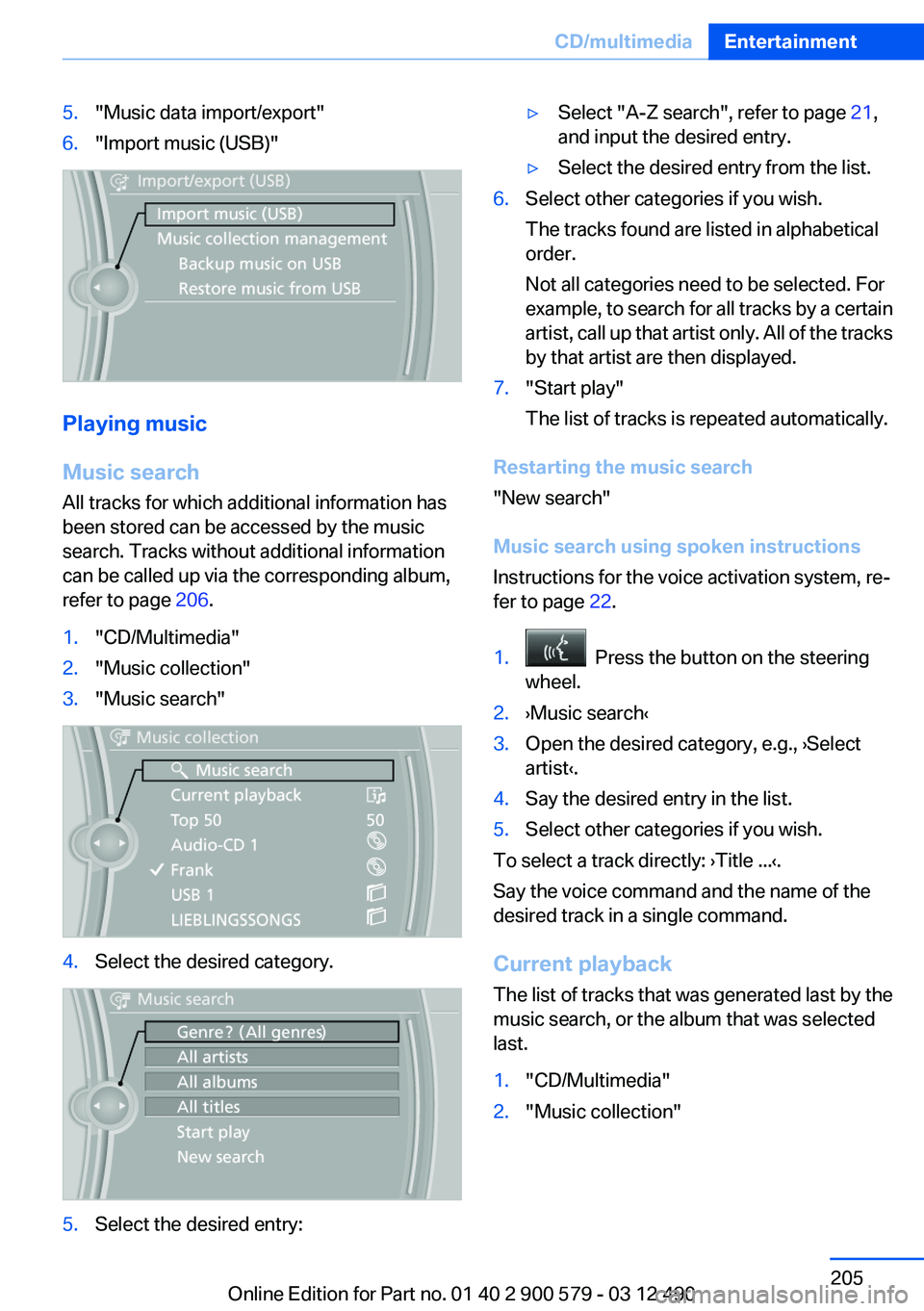
5."Music data import/export"6."Import music (USB)"
Playing music
Music search
All tracks for which additional information has
been stored can be accessed by the music
search. Tracks without additional information
can be called up via the corresponding album,
refer to page 206.
1."CD/Multimedia"2."Music collection"3."Music search"4.Select the desired category.5.Select the desired entry:▷Select "A-Z search", refer to page 21,
and input the desired entry.▷Select the desired entry from the list.6.Select other categories if you wish.
The tracks found are listed in alphabetical
order.
Not all categories need to be selected. For
example, to search for all tracks by a certain
artist, call up that artist only. All of the tracks
by that artist are then displayed.7."Start play"
The list of tracks is repeated automatically.
Restarting the music search
"New search"
Music search using spoken instructions
Instructions for the voice activation system, re‐
fer to page 22.
1. Press the button on the steering
wheel.2.›Music search‹3.Open the desired category, e.g., ›Select
artist‹.4.Say the desired entry in the list.5.Select other categories if you wish.
To select a track directly: ›Title ...‹.
Say the voice command and the name of the
desired track in a single command.
Current playback
The list of tracks that was generated last by the
music search, or the album that was selected
last.
1."CD/Multimedia"2."Music collection"Seite 205CD/multimediaEntertainment205
Online Edition for Part no. 01 40 2 900 579 - 03 12 490
Page 226 of 319

TelephoneVehicle equipment
All standard, country-specific and optional
equipment that is offered in the model series is
described in this chapter. Therefore, equipment
is also described that is not available in a vehicle,
e. g., because of the selected optional equip‐
ment or country variant. This also applies for
safety-related functions and systems.
At a glance
The concept
Mobile phones or other external devices such as
audio players can be connected to the vehicle
via Bluetooth.
After these devices are paired once, they are
recognized automatically when the ignition is
switched on as soon as they are inside the ve‐
hicle and can be operated via iDrive, the buttons
on the steering wheel, and via voice activation.
Depending on their functionality, external devi‐
ces can be used via the vehicle as a telephone
or as an audio source. The telephone functions
are described in the following.
Up to four external devices can be paired.
Certain functions may need to be enabled by the
mobile phone provider or service provider.
Using the mobile phone while driving
Make entries only when traffic and road
conditions allow. Do not hold the mobile phone
in your hand while you are driving; use the
hands-free system instead. If you do not ob‐
serve this precaution, you can endanger the ve‐
hicle occupants and other road users.◀
Snap-in adapter
The snap-in adapter is used to:▷Hold the mobile phone.▷Recharge the battery.▷Connect the mobile phone to an outside an‐
tenna of the vehicle.
This provides for better network reception
and consistent sound quality.
Approved mobile phones
Details on which mobile phones and external
devices with a Bluetooth interface are sup‐
ported by the mobile phone preparation pack‐
age can be obtained at www.bmwusa.com/blue‐
tooth.
Displaying the vehicle identification
number and software part number
The vehicle identification number and software
part number are needed to determine which mo‐
bile phones are supported by the mobile phone
preparation package. The software version of
the mobile phone may also be required.
1."Telephone"2.Open "Options".3."Bluetooth® info"4."Display system information"
These approved mobile phones with a certain
software version, support the vehicle functions
described below.
Malfunctions may occur with other mobile
phones or software versions.
Do not operate a mobile phone that is connected
to the vehicle on the mobile phone keypad, as
this may lead to a malfunction.
A software update can be performed if neces‐
sary.
Notes
At high temperatures, the charge function of the
mobile phone can be limited where appropriate
and the functions are no longer executed.
Seite 226CommunicationTelephone226
Online Edition for Part no. 01 40 2 900 579 - 03 12 490
Page 231 of 319
Via the button on the steering wheelPress the button.
Via the instrument cluster
"Accept"
Rejecting a call
Via iDrive
"Reject"
Via the instrument cluster
"Reject"
Ending a call
Via iDrive
"End call"
Via the button on the steering wheel Press the button.
Via the instrument cluster
"End call"
Entering a phone number
Dialing a number
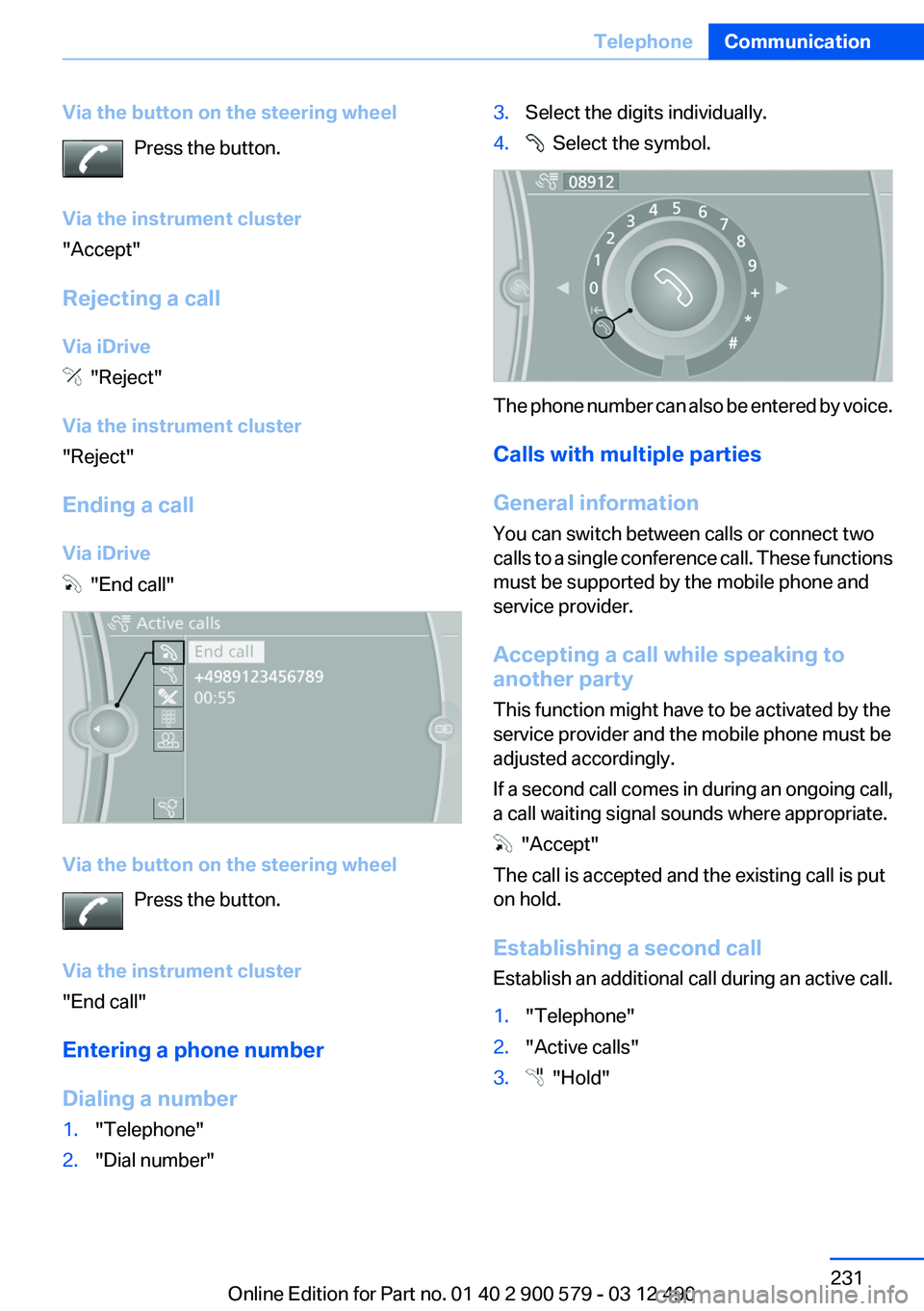
1."Telephone"2."Dial number"3.Select the digits individually.4. Select the symbol.
The phone number can also be entered by voice.
Calls with multiple parties
General information
You can switch between calls or connect two
calls to a single conference call. These functions
must be supported by the mobile phone and
service provider.
Accepting a call while speaking to
another party
This function might have to be activated by the
service provider and the mobile phone must be
adjusted accordingly.
If a second call comes in during an ongoing call,
a call waiting signal sounds where appropriate.
"Accept"
The call is accepted and the existing call is put
on hold.
Establishing a second call
Establish an additional call during an active call.
1."Telephone"2."Active calls"3. "Hold"Seite 231TelephoneCommunication231
Online Edition for Part no. 01 40 2 900 579 - 03 12 490
Page 233 of 319

Calling a contactSymbolMeaning Contact with one stored phone num‐
ber. Contact with more than one stored
phone number. Call not possible; mobile phone with‐
out reception or network, or Service
Request is active.
For contacts with one stored phone number: se‐
lect the required contact. The connection is es‐
tablished.
For contacts with more than one stored phone
number: select the required contact and the
phone number. The connection is established.
Editing a contact
Changing the entries in "Contacts". When a
contact is changed, the changes are not stored
on the mobile phone. A copy of the entry is
stored in the vehicle.
1.Highlight the contact.2.Open "Options".3."Edit entry"
The contact can be edited.
Redialing
General information
The list of dialed numbers in the mobile phone
is transmitted to the vehicle depending on the
mobile phone. The 20 phone numbers dialed
last are displayed. The sorting order of the
phone numbers depends on the particular mo‐
bile phone.
Dialing the number via the instrument
cluster
This is possible when there is no active call.1. Press the button on the steering
wheel.2.Select the desired phone number.
The connection is established.
Dialing a number via iDrive
1."Telephone"2."Redial"3.Select the desired entry and the phone num‐
ber if necessary.
The connection is established.
Deleting a single entry or all entries
The erasure of entries depends on the mobile
phone.
1.Highlight the entry.2.Open "Options".3."Delete entry" or"Delete list"
Saving an entry in the contacts
1.Highlight the entry.2.Open "Options".3."Store as new contact" or "Add to existing
contact"4.Select the contact, if necessary.5.Select the type of number: "Home",
"Business", "Mobile" or "Other"6.Complete the entries if necessary.7."Store contact"
Received calls
Displaying calls
The 20 calls that were last received are dis‐
played.
1."Telephone"Seite 233TelephoneCommunication233
Online Edition for Part no. 01 40 2 900 579 - 03 12 490
Page 234 of 319
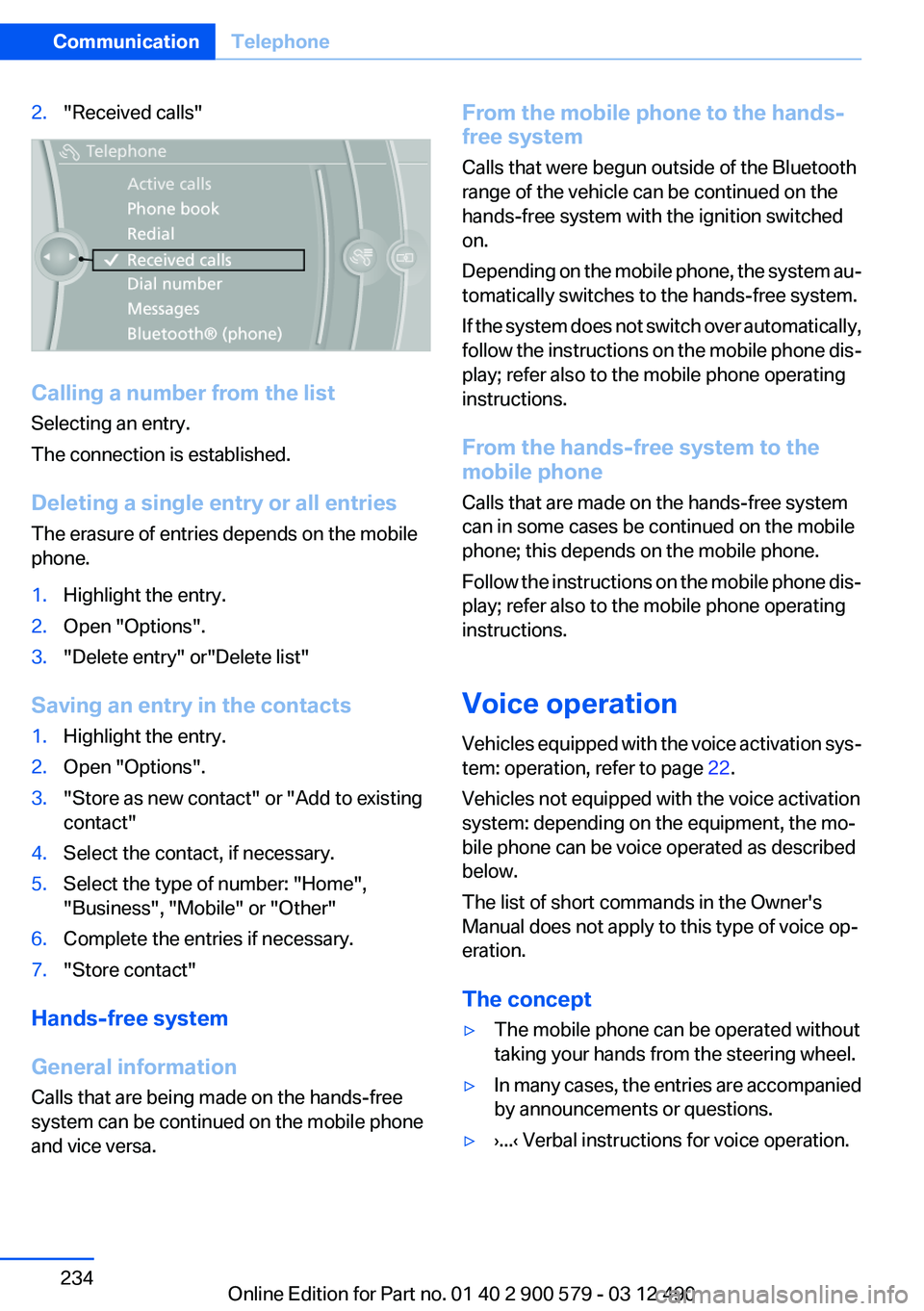
2."Received calls"
Calling a number from the list
Selecting an entry.
The connection is established.
Deleting a single entry or all entries
The erasure of entries depends on the mobile
phone.
1.Highlight the entry.2.Open "Options".3."Delete entry" or"Delete list"
Saving an entry in the contacts
1.Highlight the entry.2.Open "Options".3."Store as new contact" or "Add to existing
contact"4.Select the contact, if necessary.5.Select the type of number: "Home",
"Business", "Mobile" or "Other"6.Complete the entries if necessary.7."Store contact"
Hands-free system
General information
Calls that are being made on the hands-free
system can be continued on the mobile phone
and vice versa.
From the mobile phone to the hands-
free system
Calls that were begun outside of the Bluetooth
range of the vehicle can be continued on the
hands-free system with the ignition switched
on.
Depending on the mobile phone, the system au‐
tomatically switches to the hands-free system.
If the system does not switch over automatically,
follow the instructions on the mobile phone dis‐
play; refer also to the mobile phone operating
instructions.
From the hands-free system to the
mobile phone
Calls that are made on the hands-free system
can in some cases be continued on the mobile
phone; this depends on the mobile phone.
Follow the instructions on the mobile phone dis‐
play; refer also to the mobile phone operating
instructions.
Voice operation
Vehicles equipped with the voice activation sys‐
tem: operation, refer to page 22.
Vehicles not equipped with the voice activation
system: depending on the equipment, the mo‐
bile phone can be voice operated as described
below.
The list of short commands in the Owner's
Manual does not apply to this type of voice op‐
eration.
The concept▷The mobile phone can be operated without
taking your hands from the steering wheel.▷In many cases, the entries are accompanied
by announcements or questions.▷›...‹ Verbal instructions for voice operation.Seite 234CommunicationTelephone234
Online Edition for Part no. 01 40 2 900 579 - 03 12 490