2012 BMW 528I language
[x] Cancel search: languagePage 206 of 335
Audio playback
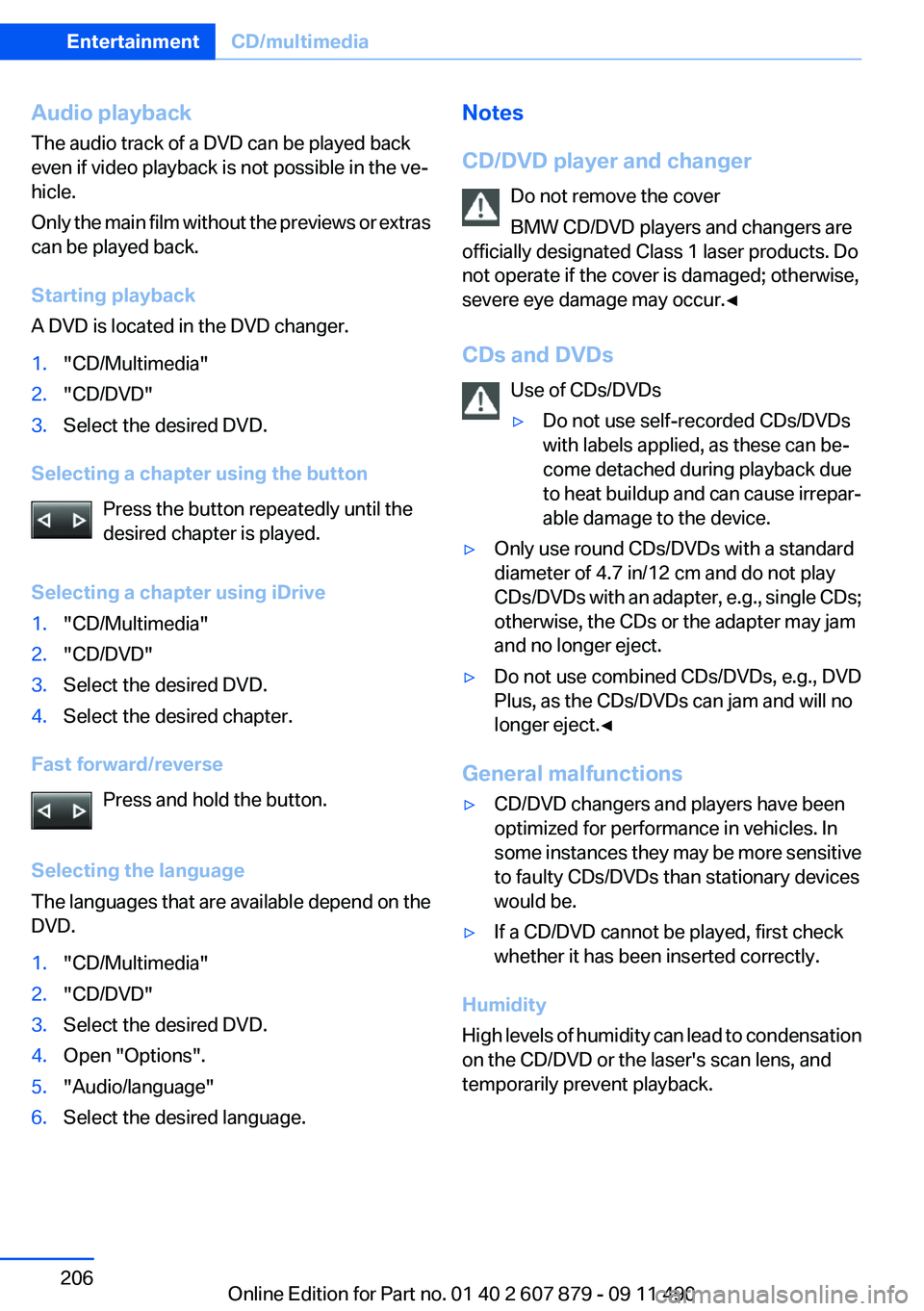
The audio track of a DVD can be played back
even if video playback is not possible in the ve‐
hicle.
Only the main film without the previews or extras
can be played back.
Starting playback
A DVD is located in the DVD changer.1."CD/Multimedia"2."CD/DVD"3.Select the desired DVD.
Selecting a chapter using the button
Press the button repeatedly until the
desired chapter is played.
Selecting a chapter using iDrive
1."CD/Multimedia"2."CD/DVD"3.Select the desired DVD.4.Select the desired chapter.
Fast forward/reverse Press and hold the button.
Selecting the language
The languages that are available depend on the
DVD.
1."CD/Multimedia"2."CD/DVD"3.Select the desired DVD.4.Open "Options".5."Audio/language"6.Select the desired language.Notes
CD/DVD player and changer Do not remove the cover
BMW CD/DVD players and changers are
officially designated Class 1 laser products. Do
not operate if the cover is damaged; otherwise,
severe eye damage may occur.◀
CDs and DVDs Use of CDs/DVDs▷Do not use self-recorded CDs/DVDs
with labels applied, as these can be‐
come detached during playback due
to heat buildup and can cause irrepar‐
able damage to the device.▷Only use round CDs/DVDs with a standard
diameter of 4.7 in/12 cm and do not play
CDs/DVDs with an adapter, e.g., single CDs;
otherwise, the CDs or the adapter may jam
and no longer eject.▷Do not use combined CDs/DVDs, e.g., DVD
Plus, as the CDs/DVDs can jam and will no
longer eject.◀
General malfunctions
▷CD/DVD changers and players have been
optimized for performance in vehicles. In
some instances they may be more sensitive
to faulty CDs/DVDs than stationary devices
would be.▷If a CD/DVD cannot be played, first check
whether it has been inserted correctly.
Humidity
High levels of humidity can lead to condensation
on the CD/DVD or the laser's scan lens, and
temporarily prevent playback.
Seite 206EntertainmentCD/multimedia206
Online Edition for Part no. 01 40 2 607 879 - 09 11 490
Page 224 of 335
Operation is the same as for the front navigation,
refer to page 172.
Suggesting a destination
A destination or trip can be sent to the front as
a suggestion. The suggestion can be adopted,
stored, or declined in the front. This function is
not available with the following setting: "Driver
control".1.Enter the destination.2."Suggest destination"
BMW Assist
Operation is the same as for BMW Assist in the
front, refer to page 253.
Adjusting
The following settings are available:
▷"Rear displays"▷"Language/Units": language can be set
globally for all screens.▷"Tone"▷If necessary. "Climate".
Vehicle information
Computer content can be displayed. Operation
is only possible in the front.
Options menu
The split screen is not available and there is no
Integrated Owner's Manual.
Operation is the same as for the front menu op‐
tions, refer to page 18.
Enabling
Enabling operation in the rear
Only possible via the iDrive in the front.
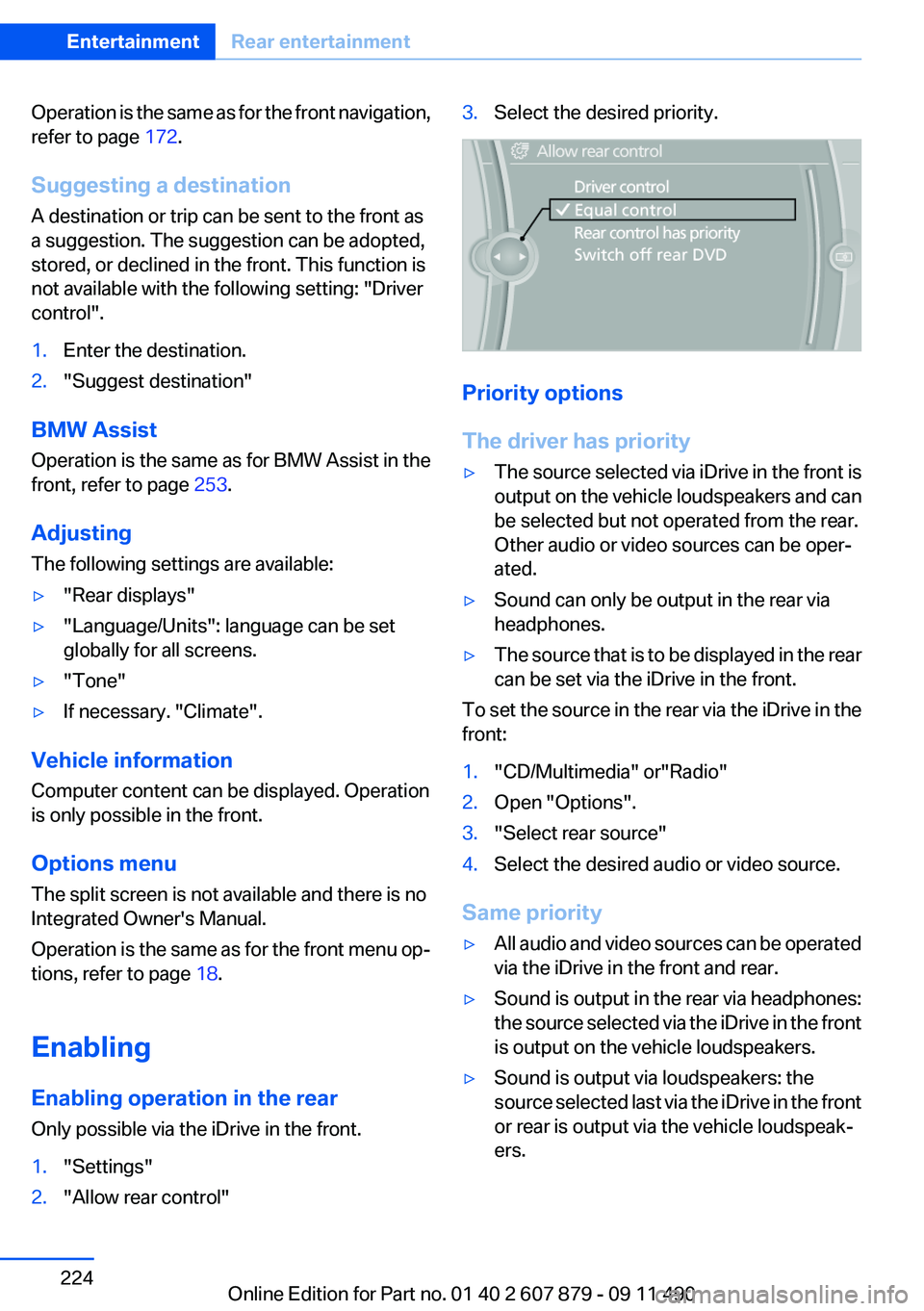
1."Settings"2."Allow rear control"3.Select the desired priority.
Priority options
The driver has priority
▷The source selected via iDrive in the front is
output on the vehicle loudspeakers and can
be selected but not operated from the rear.
Other audio or video sources can be oper‐
ated.▷Sound can only be output in the rear via
headphones.▷The source that is to be displayed in the rear
can be set via the iDrive in the front.
To set the source in the rear via the iDrive in the
front:
1."CD/Multimedia" or"Radio"2.Open "Options".3."Select rear source"4.Select the desired audio or video source.
Same priority
▷All audio and video sources can be operated
via the iDrive in the front and rear.▷Sound is output in the rear via headphones:
the source selected via the iDrive in the front
is output on the vehicle loudspeakers.▷Sound is output via loudspeakers: the
source selected last via the iDrive in the front
or rear is output via the vehicle loudspeak‐
ers.Seite 224EntertainmentRear entertainment224
Online Edition for Part no. 01 40 2 607 879 - 09 11 490
Page 240 of 335
Deleting an entry1.›Delete name‹2.Say the name after being prompted to do so.3.Confirm the query with ›Yes‹.
Deleting all entries
1.›Delete phonebook‹
The dialog for deleting the phone book is
opened.2.Confirm the query with ›Yes‹.3.Confirm the query again with ›Yes‹.
Reading and selecting entries
1.›Read phonebook‹
The dialog for reading the phone book is
opened.2.Say ›Dial number‹ when the desired entry is
read.
Selecting an entry
1.›Dial name‹2.Say the name after being prompted to do so.3.Confirm the query with ›Yes‹.
Adjusting the volume
Turn the knob during an announcement.
▷The volume remains constant even if the
volume of other audio sources is changed.▷The volume is stored for the remote control
currently in use.
Notes
Do not use the voice operation to initiate an
Emergency Request. In stressful situations, the
voice and vocal pitch can change. This can un‐
necessarily delay the establishment of a tele‐
phone connection.
Instead, use the SOS button, refer to
page 298, in the vicinity of the interior mirror.
Environmental conditions▷Say the commands, numbers, and letters
smoothly and with normal volume, empha‐
sis, and speed.▷Always say commands in the language of
the system. The language for the mobile
phone voice operation is preset and cannot
be changed in the Control Display.▷Keep the doors, windows, and glass sun‐
roof closed to prevent noise interference.▷Avoid making other noise in the vehicle
while speaking.
Snap-in adapter
General information
Detailed information about snap-in adapter,
which supports the functions of the mobile
phone, available from the service center.
Notes
At high temperatures, the charge function of the
mobile phone can be limited where appropriate
and the functions are no longer executed.
When the mobile phone is used via the vehicle,
heed the operating manual of the mobile phone.
Installation position
In the center armrest.
Inserting the snap-in adapter
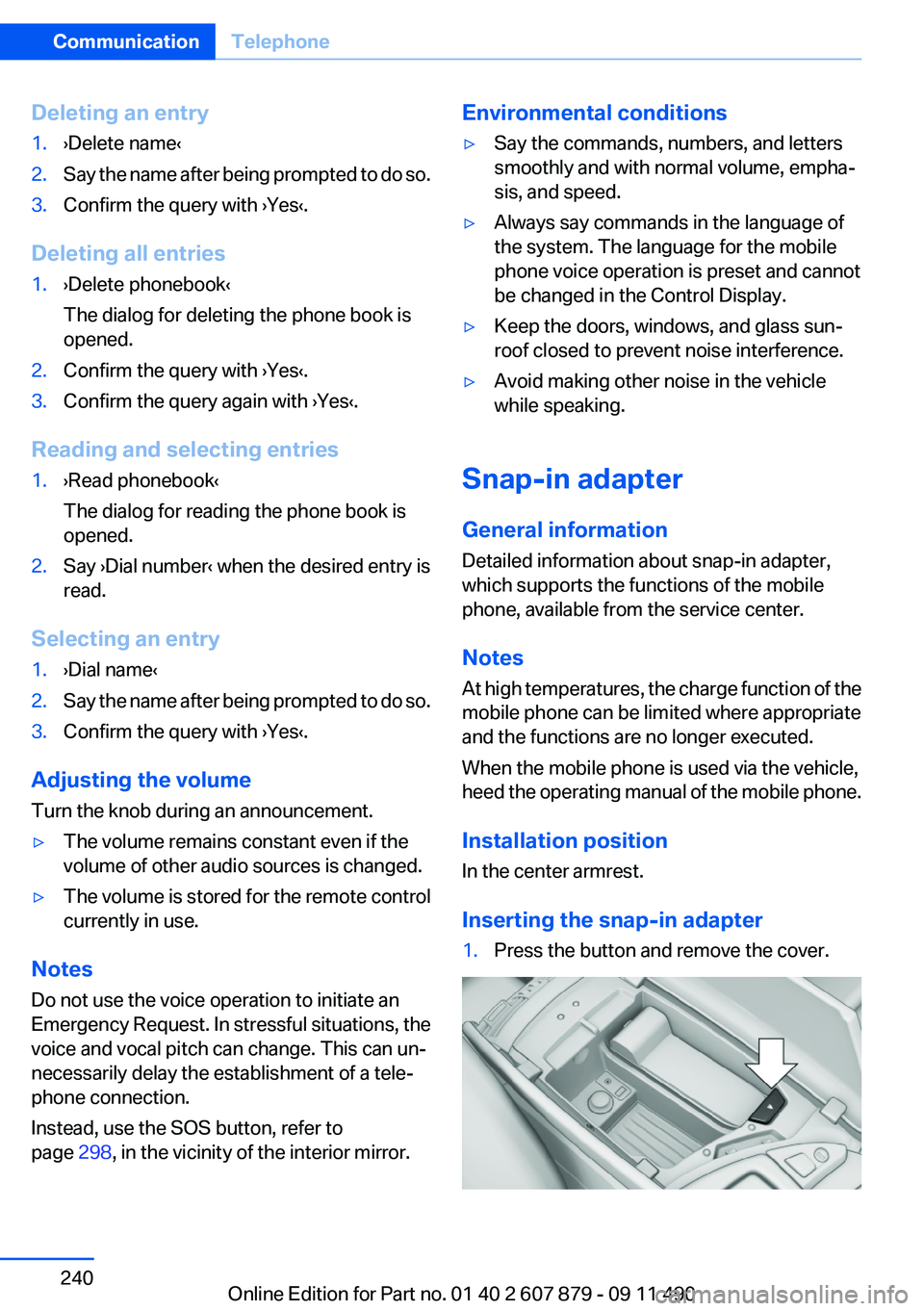
1.Press the button and remove the cover.Seite 240CommunicationTelephone240
Online Edition for Part no. 01 40 2 607 879 - 09 11 490
Page 314 of 335
Short commands of the voice activation
systemVehicle equipment
All standard, country-specific and optional
equipment that is offered in the model series is
described in this chapter. Therefore, equipment
is also described that is not available in a vehicle,
e. g., because of the selected optional equip‐
ment or country variant. This also applies for
safety-related functions and systems.
General information
Instructions for voice activation system, refer to
page 22.To have the available spoken instructions read
out loud: ›Voice commands‹
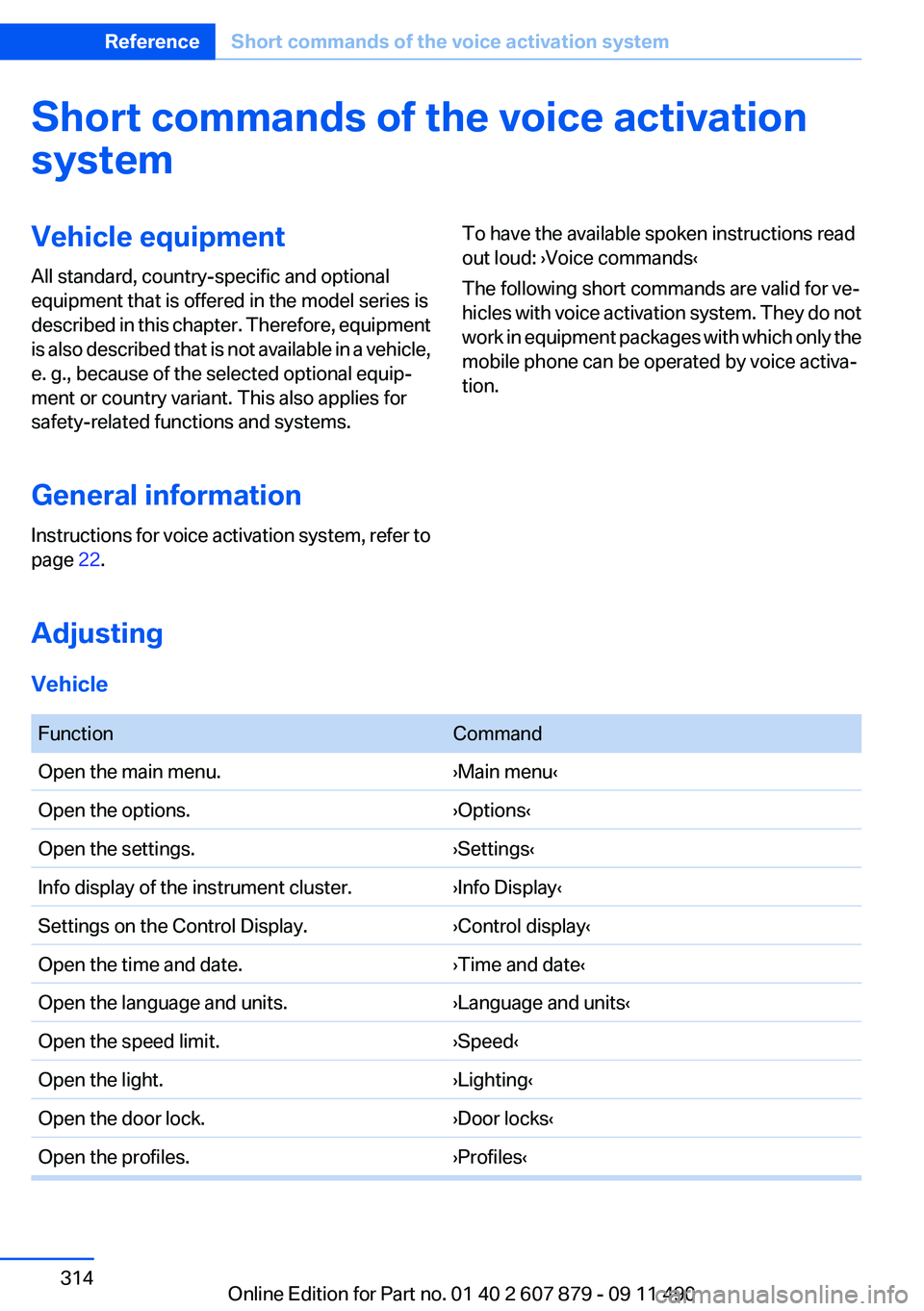
The following short commands are valid for ve‐
hicles with voice activation system. They do not
work in equipment packages with which only the
mobile phone can be operated by voice activa‐
tion.
Adjusting
Vehicle
FunctionCommandOpen the main menu.›Main menu‹Open the options.›Options‹Open the settings.›Settings‹Info display of the instrument cluster.›Info Display‹Settings on the Control Display.›Control display‹Open the time and date.›Time and date‹Open the language and units.›Language and units‹Open the speed limit.›Speed‹Open the light.›Lighting‹Open the door lock.›Door locks‹Open the profiles.›Profiles‹Seite 314ReferenceShort commands of the voice activation system314
Online Edition for Part no. 01 40 2 607 879 - 09 11 490
Page 328 of 335

Height, vehicle 310
High-beam Assistant 91
High beams 69
High beams/low beams, refer to High-beam Assistant 91
Hill Descent Control HDC 109
Hills 162
Hill start assistant, refer to Drive-off assistant 107
Hints 6
Holder for beverages 155
Homepage 6
Hood 282
Horn 12
Hotel function, trunk lid 40
Hot exhaust system 161
House number, entering for navigation 173
Hydroplaning 161
I
Ice warning, refer to External temperature warning 81
Icy roads, refer to External temperature warning 81
Identification marks, tires 276
Identification number, refer to Important in the engine com‐
partment 282
iDrive 16
Ignition key, refer to Remote control 30
Ignition off 62
Ignition on 62
Indication of a flat tire 98, 101
Individual air distribution 140
Individual settings, refer to Personal Profile 31
Inflation pressure, tires 265
Inflation pressure warning FTM, tires 100
Info display, refer to Com‐ puter 84
Information on the navigation data 186 Initialization, Integral Active
Steering 111
Initializing, Flat Tire Monitor FTM 101
Initializing, Tire Pressure Mon‐ itor TPM 98
Instrument cluster 75
Instrument cluster, electronic displays 77
Instrument lighting 93
Integral Active Steering 110
Integrated key 30
Integrated universal remote control 146
Intensity, AUTO program 140
Interactive map 177
Interior equipment 146
Interior lamps 93
Interior lamps via remote con‐ trol 35
Interior motion sensor 43
Interior rearview mirror 56
Interior rearview mirror, auto‐ matic dimming feature 56
Intermediate destinations 179
Internet page 6
Intersection, entering for navi‐ gation 173
Interval display, service re‐ quirements 82
iPod/iPhone 213
J
Jacking points for the vehicle jack 296
Jack, refer to Vehicle jack 296
Joystick, automatic transmis‐ sion 72
K
Key/remote control 30
Keyless Go, refer to Comfort Access 40 Key Memory, refer to Personal
Profile 31
Kickdown, automatic trans‐ mission 72
Knee airbag 94
L
Lamp replacement 290
Lamp replacement, front 291
Lamp replacement, rear 294
Lamps 89
Lamps and bulbs 290
Lane departure warning 102
Lane margin, warning 102
Language on Control Dis‐ play 87
Lashing eyes, securing cargo 164
LATCH child restraint fixing system 59
Leather, care 305
LEDs, light-emitting di‐ odes 291
Length, vehicle 311
Letters and numbers, enter‐ ing 21
License plate lamp, bulb re‐ placement 295
Light-alloy wheels, care 306
Light control 91
Light-emitting diodes, LEDs 291
Lighter, front 148
Lighter, rear 149
Lighting 89
Lighting via remote control 35
Light switch 89
Load 163
Loading 163
Lock, door 36
Locking/unlocking from in‐ side 37
Locking/unlocking via door lock 36 Seite 328ReferenceEverything from A to Z328
Online Edition for Part no. 01 40 2 607 879 - 09 11 490