2012 BMW 335I CD player
[x] Cancel search: CD playerPage 211 of 325
Connectors for external devices▷Connection via USB audio interface: Apple
iPod/iPhone, USB devices, e.g., MP3 play‐
ers, USB flash drives, or mobile phones that
are supported by the USB audio interface.▷Connection via snap-in adapter when equip‐
ped with extended connectivity of the music
player in the mobile phone: Apple iPhone or
mobile phones.
Playback is only possible when there is no
audio device attached to the AUX-IN port.
Due to the large number of different audio devi‐
ces available on the market, it cannot be ensured
that every audio device/mobile phone is opera‐
ble on the vehicle.
Ask your service center about suitable audio de‐
vices/mobile phones.
Audio files
Standard audio files can be played back:
▷MP3.▷WMA.▷WAV (PCM).▷AAC, M4A.▷Playback lists: M3U, WPL, PLS.
File systems
Popular file systems for USB devices are sup‐
ported. FAT 32 is the recommended format.
Connection of Apple iPod/iPhone via
USB audio interface
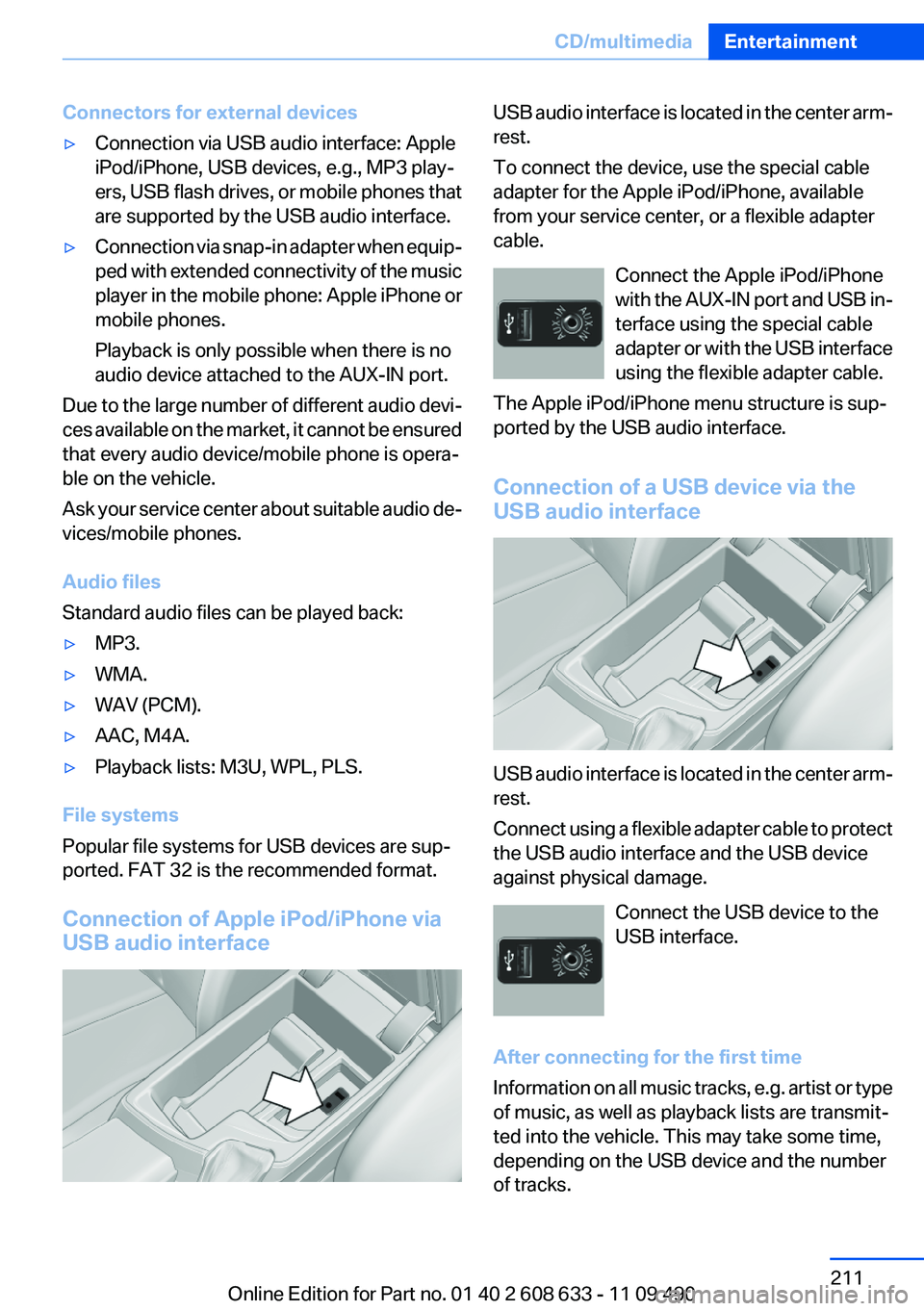
USB audio interface is located in the center arm‐
rest.
To connect the device, use the special cable
adapter for the Apple iPod/iPhone, available
from your service center, or a flexible adapter
cable.
Connect the Apple iPod/iPhone
with the AUX-IN port and USB in‐
terface using the special cable
adapter or with the USB interface
using the flexible adapter cable.
The Apple iPod/iPhone menu structure is sup‐
ported by the USB audio interface.
Connection of a USB device via the
USB audio interface
USB audio interface is located in the center arm‐
rest.
Connect using a flexible adapter cable to protect
the USB audio interface and the USB device
against physical damage.
Connect the USB device to the
USB interface.
After connecting for the first time
Information on all music tracks, e.g. artist or type
of music, as well as playback lists are transmit‐
ted into the vehicle. This may take some time,
depending on the USB device and the number
of tracks.
Seite 211CD/multimediaEntertainment211
Online Edition for Part no. 01 40 2 608 633 - 11 09 490
Page 217 of 325
extended connectivity of the music player in the
mobile phone.▷Disconnect one of the two connections; for
example, disconnect the audio connection,
refer to page 216, and restart playback.
If all points in this list have been checked and the
required function is still not available, please
contact the hotline or service center.
Software Update
The vehicle supports various external devices
depending on the current software version. With
a software update, the vehicle can support new
cell phones or new external device, for example.
The updating of the software is done via:
▷USB.
Updates and related current information is
available at www.bmw.com/update.▷TeleService.
Existing software can be updated directly via
the vehicle.
Displaying the current version
The currently installed software is displayed.
1."Settings"2."Software update"3."Show current version"
SelectDesired version to displayAdditional in‐
formation.
Updating software via USB
The software may only be updated when the ve‐
hicle is stationary.
1.Store the file for the software-update in the
main director of a USB flash drive.2.Insert the USB flash drive into the USB in‐
terface of the USB audio interface in the
center armrest. An update via the USB in‐
terface in the glove compartment is not pos‐
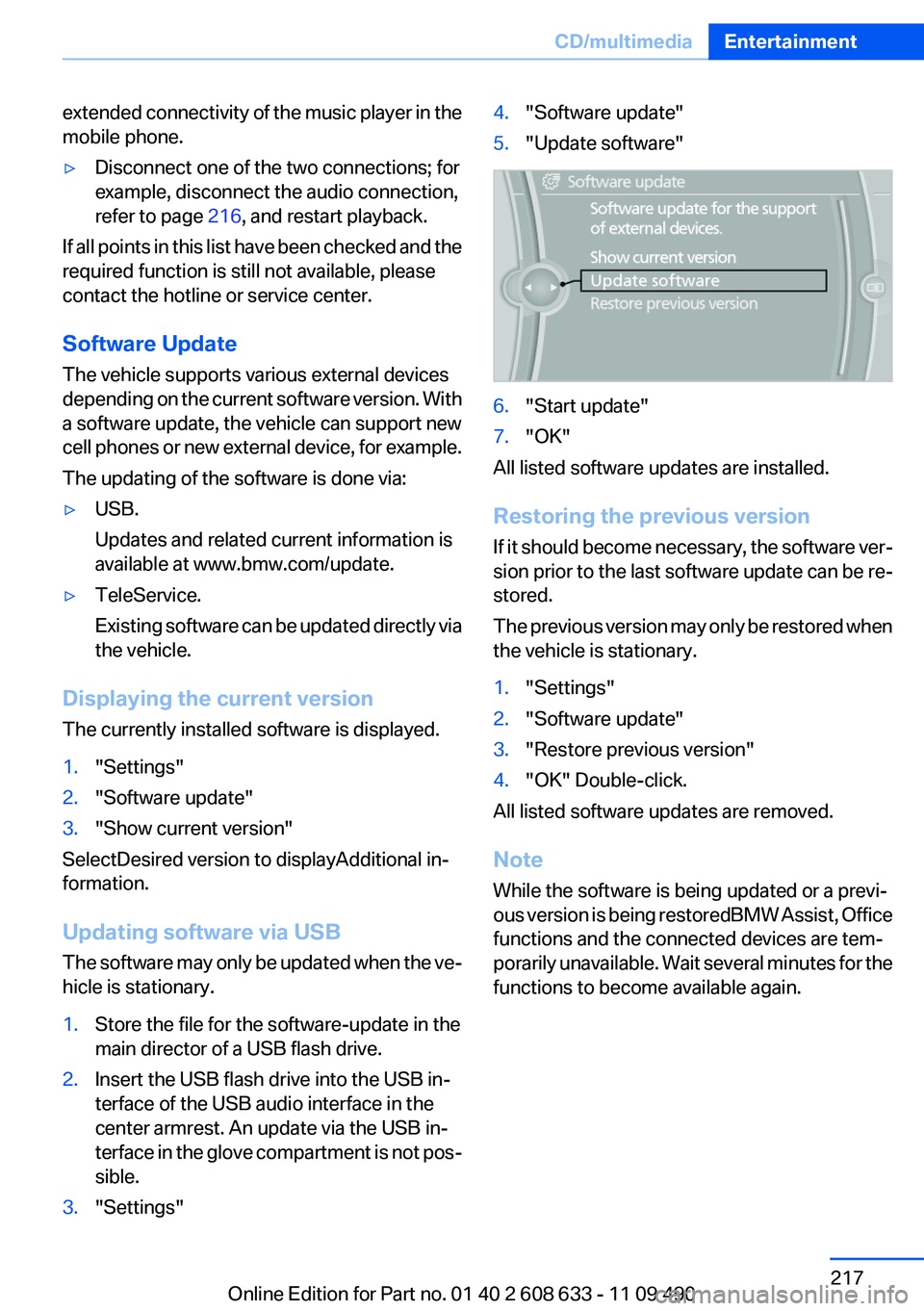
sible.3."Settings"4."Software update"5."Update software"6."Start update"7."OK"
All listed software updates are installed.
Restoring the previous version
If it should become necessary, the software ver‐
sion prior to the last software update can be re‐
stored.
The previous version may only be restored when
the vehicle is stationary.
1."Settings"2."Software update"3."Restore previous version"4."OK" Double-click.
All listed software updates are removed.
Note
While the software is being updated or a previ‐
ous version is being restoredBMW Assist, Office
functions and the connected devices are tem‐
porarily unavailable. Wait several minutes for the
functions to become available again.
Seite 217CD/multimediaEntertainment217
Online Edition for Part no. 01 40 2 608 633 - 11 09 490
Page 228 of 325
Professional mobile phone preparation
packageVehicle equipment
All standard, country-specific and optional
equipment that is offered in the model series is
described in this chapter. Therefore, equipment
is also described that is not available in a vehicle,
e. g., because of the selected optional equip‐
ment or country variant. This also applies for
safety-related functions and systems.
At a glance
The concept
Mobile phones or other external devices such as
audio players can be connected to the vehicle
via Bluetooth.
After these devices are paired once, they are
recognized automatically when the ignition is
switched on as soon as they are inside the ve‐
hicle and can be operated via iDrive, the buttons
on the steering wheel, and via voice activation.
Depending on their functionality, external devi‐
ces can be used via the vehicle as a telephone
or as an audio source.
The telephone functions are described in the
following. Operation of the audio functions, refer
to page 213.
Up to four external devices can be paired.
Certain functions may need to be enabled by the
mobile phone provider or service provider.
Using the mobile phone while driving
Make entries only when traffic and road
conditions allow. Do not hold the mobile phone
in your hand while you are driving; use the
hands-free system instead. If you do not ob‐
serve this precaution, you can endanger the ve‐
hicle occupants and other road users.◀Snap-in adapter
The snap-in adapter is used to:▷Hold the mobile phone.▷Recharge the battery.▷Connect the mobile phone to an outside an‐
tenna of the vehicle.
This provides for better network reception
and consistent sound quality.
Approved mobile phones
Details on which mobile phones and external
devices with a Bluetooth interface are sup‐
ported by the mobile phone preparation pack‐
age can be obtained at www.bmwusa.com/blue‐
tooth.
Displaying the vehicle identification
number and software part number
The vehicle identification number and software
part number are needed to determine which mo‐
bile phones are supported by the mobile phone
preparation package. The software version of
the mobile phone may also be required.
1."Telephone"2."Options" Open.3."Bluetooth® info"4."Display system information"
These approved mobile phones with a certain
software version, support the vehicle functions
described below.
Malfunctions may occur with other mobile
phones or software versions.
Do not operate a mobile phone that is connected
to the vehicle on the mobile phone keypad, as
this may lead to a malfunction.
Seite 228CommunicationProfessional mobile phone preparation package228
Online Edition for Part no. 01 40 2 608 633 - 11 09 490
Page 319 of 325

Malfunction displays, refer toCheck Control 73
Manual air distribu‐ tion 135, 138
Manual air flow 135
Manual air volume 138
Manual mode, transmis‐ sion 68
Manual operation, backup camera 124
Manual operation, door lock 37
Manual operation, exterior mir‐ rors 52
Manual operation, fuel filler flap 260
Manual operation, Park Dis‐ tance Control PDC 122
Manual operation, Side View 128
Manual operation, Top View 126
Manual transmission 67
Map, destination entry 173
Map in split screen 180
Map view 178
Marking on approved tires 270
Marking, run-flat tires 271
Master key, refer to Remote control 30
Maximum cooling 137
Maximum speed, display 79
Maximum speed, winter tires 270
Measure, units of 85
Medical kit 291
Memory, seat, mirror 51
Menu, EfficientDynamics 164
Menu in instrument cluster 80
Menus, operating, iDrive 16
Menus, refer to iDrive operat‐ ing concept 18
Message list, traffic bulle‐ tins 180
Messages 241 Messages, refer to Check
Control 73
Microfilter 136, 139
Minimum tread, tires 269
Mirror 52
Mirror memory 51
Mobile communication devi‐ ces in the vehicle 157
Mobile phone 220, 228
Mode, ECO PRO 163
Modifications, technical, refer to Safety 6
Moisture in headlamp 280
Monitor, refer to Control Dis‐ play 16
Mounting of child restraint fix‐ ing systems 55
MP3 player 210
Multifunction steering wheel, buttons 12
Music collection 205
Music search 207
Music, storing 205
N
Navigation 168
Navigation data 183
Neck restraints, front, refer to Head restraints 49
Neck restraints, rear, refer to Head restraints 50
New wheels and tires 269
No Passing Information 79
Notes 245
Number of cylinders, en‐ gine 303
Nylon rope for tow-starting/ towing 294
O
OBD Onboard Diagnos‐ tics 278
Obstacle marking, backup camera 125 Odometer 76
Office 238
Oil 274
Oil, adding 274
Oil additives 275
Oil change 275
Oil change interval, service re‐ quirements 77
Oil filler neck 274
Oil types, alternative 275
Oil types, approved 275
Old batteries, disposal 288
Onboard Diagnostics OBD 278
Onboard monitor, refer to Control Display 16
Onboard vehicle tool kit 279
Opening/closing from in‐ side 37
Opening/closing via door lock 36
Opening/closing with remote control 34
Operating concept, iDrive 16
Optional equipment, standard equipment 6
Outside air, refer to Automatic recirculated-air control 138
Overheating of engine, refer to Coolant temperature 76
P
Paint, vehicle 297
Pairing, mobile phone 220, 229
Panic mode 35
Parallel parking assistant 130
Park Distance Control PDC 121
Parked-car ventilation 139
Parked vehicle, condensa‐ tion 158
Parking aid, refer to PDC 121
Parking assistant 130
Parking brake 63 Seite 319Everything from A to ZReference319
Online Edition for Part no. 01 40 2 608 633 - 11 09 490