Page 164 of 314
163
Destination guidance
Navigation
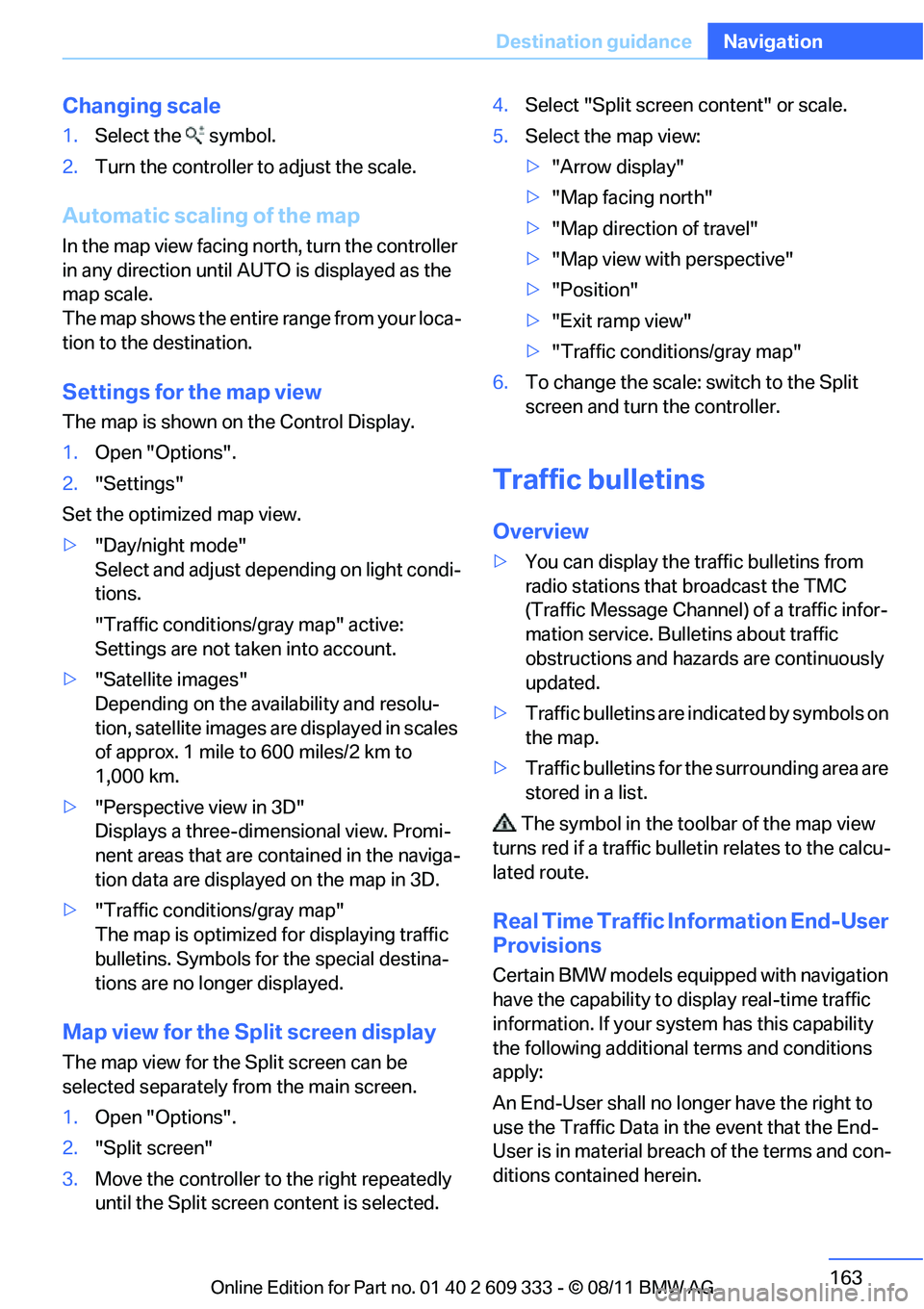
Changing scale
1.
Select the symbol.
2. Turn the controller to adjust the scale.
Automatic scaling of the map
In the map view facing north, turn the controller
in any direction until AU TO is displayed as the
map scale.
The map shows the entire range from your loca-
tion to the destination.
Settings for the map view
The map is shown on the Control Display.
1. Open "Options".
2. "Settings"
Set the optimized map view.
> "Day/night mode"
Select and adjust depe nding on light condi-
tions.
"Traffic conditions/gray map" active:
Settings are not taken into account.
> "Satellite images"
Depending on the ava ilability and resolu-
tion, satellite images ar e displayed in scales
of approx. 1 mile to 600 miles/2 km to
1,000 km.
> "Perspective view in 3D"
Displays a three-dimensional view. Promi-
nent areas that are contained in the naviga-
tion data are displayed on the map in 3D.
> "Traffic conditions/gray map"
The map is optimized for displaying traffic
bulletins. Symbols for the special destina-
tions are no longer displayed.
Map view for the Split screen display
The map view for the Split screen can be
selected separately fr om the main screen.
1. Open "Options".
2. "Split screen"
3. Move the controller to the right repeatedly
until the Split screen content is selected. 4.
Select "Split screen content" or scale.
5. Select the map view:
>"Arrow display"
> "Map facing north"
> "Map direction of travel"
> "Map view with perspective"
> "Position"
> "Exit ramp view"
> "Traffic conditions/gray map"
6. To change the scale: switch to the Split
screen and turn the controller.
Traffic bulletins
Overview
>You can display the tr affic bulletins from
radio stations that broadcast the TMC
(Traffic Message Channel) of a traffic infor-
mation service. Bulletins about traffic
obstructions and hazards are continuously
updated.
> Traffic bulletins are in dicated by symbols on
the map.
> Traffic bulletins for th e surrounding area are
stored in a list.
The symbol in the toolbar of the map view
turns red if a traffic bulle tin relates to the calcu-
lated route.
Real Time Traffic Information End-User
Provisions
Certain BMW models equi pped with navigation
have the capability to display real-time traffic
information. If your sy stem has this capability
the following additional terms and conditions
apply:
An End-User shall no longer have the right to
use the Traffic Data in the event that the End-
User is in material breach of the terms and con-
ditions contained herein.
Online Edition for Part no. 01 40 2 609 333 - \251 08/11 BMW AG
Page 295 of 314
294
ReferenceShort commands for the voice activation system
Navigation
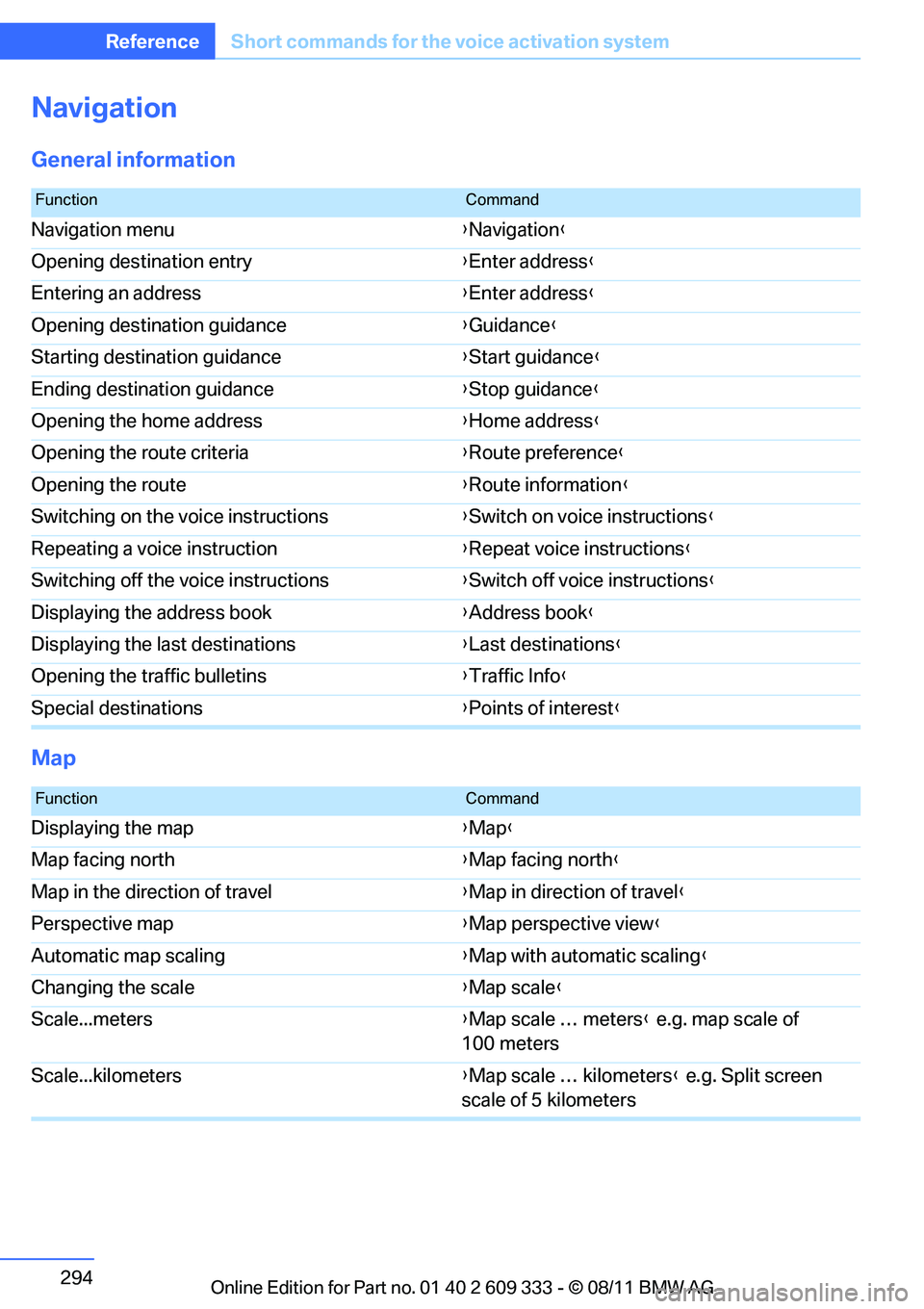
General information
Map
FunctionCommand
Navigation menu {Navigation }
Opening destination entry {Enter address }
Entering an address {Enter address }
Opening destination guidance {Guidance }
Starting destination guidance {Start guidance }
Ending destination guidance {Stop guidance }
Opening the home address {Home address }
Opening the route criteria {Route preference }
Opening the route {Route information }
Switching on the voice instructions {Switch on voice instructions }
Repeating a voice instruction {Repeat voice instructions }
Switching off the voice instructions {Switch off voice instructions }
Displaying the address book {Address book }
Displaying the last destinations {Last destinations }
Opening the traffic bulletins {Traffic Info }
Special destinations {Points of interest }
FunctionCommand
Displaying the map {Map }
Map facing north {Map facing north }
Map in the direction of travel {Map in direction of travel }
Perspective map {Map perspective view }
Automatic map scaling {Map with automatic scaling }
Changing the scale {Map scale }
Scale...meters {Map scale … meters } e.g. map scale of
100 meters
Scale...kilometers {Map scale … kilometers } e.g. Split screen
scale of 5 kilometers
Online Edition for Part no. 01 40 2 609 333 - \251 08/11 BMW AG
Page 296 of 314
295
Short commands for the voice activation system
Reference
Split screen
settings
Destination guidance with intermediate destinations
Contacts
ConnectedDrive or BMW Assist
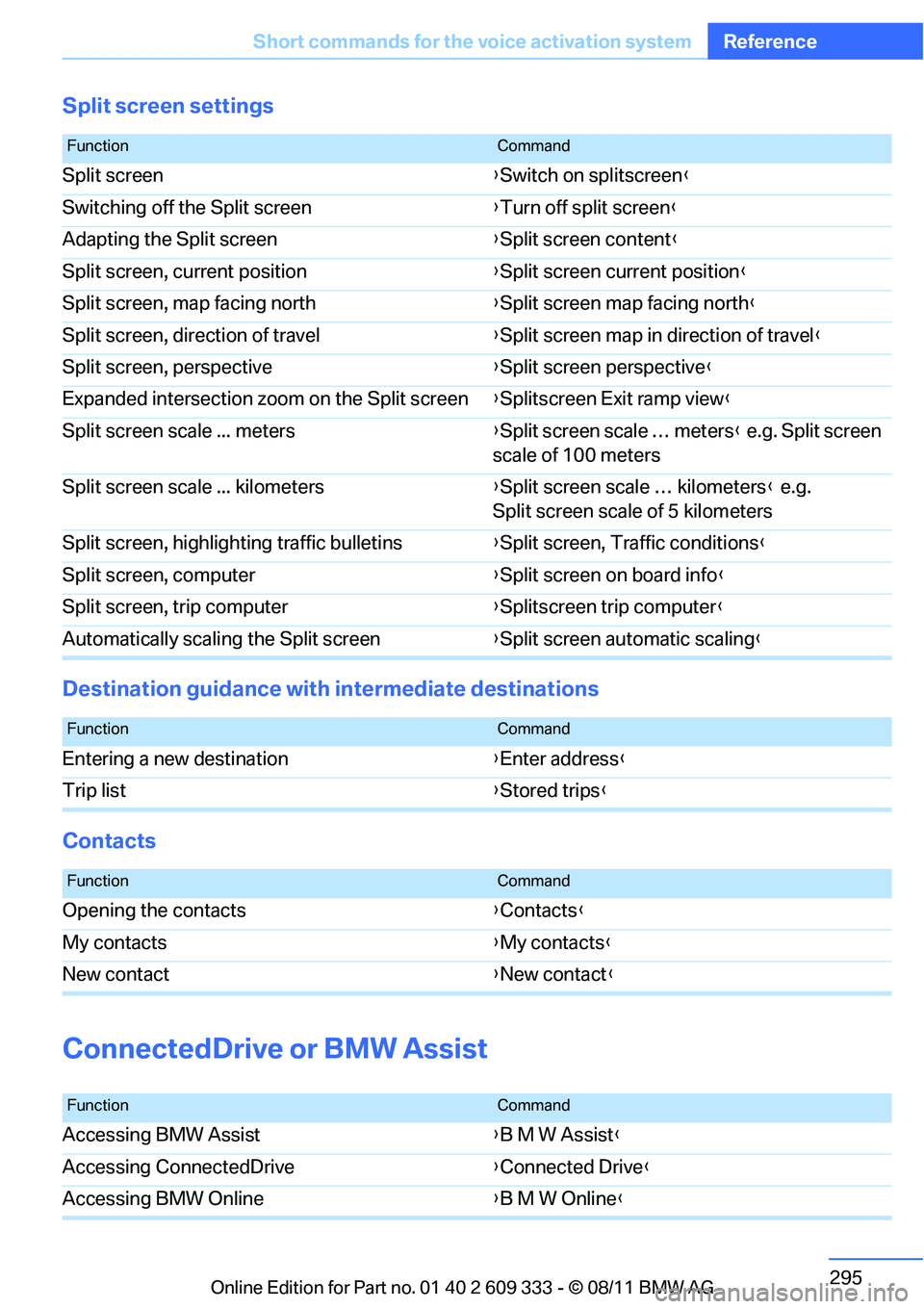
FunctionCommand
Split screen {Switch on splitscreen }
Switching off the Split screen {Turn off split screen }
Adapting the Split screen {Split screen content }
Split screen, current position {Split screen current position }
Split screen, map facing north {Split screen map facing north }
Split screen, direction of travel {Split screen map in direction of travel }
Split screen, perspective {Split screen perspective }
Expanded intersection zoom on the Split screen {Splitscreen Exit ramp view }
Split screen scale ... meters {Split screen scale … meters } e.g. Split screen
scale of 100 meters
Split screen scale ... kilometers {Split screen scale … kilometers } e.g.
Split screen scale of 5 kilometers
Split screen, highlighting traffic bulletins {Split screen, Traffic conditions }
Split screen, computer {Split screen on board info }
Split screen, trip computer {Splitscreen trip computer }
Automatically scalin g the Split screen {Split screen automatic scaling }
FunctionCommand
Entering a new destination {Enter address }
Trip list {Stored trips }
FunctionCommand
Opening the contacts {Contacts }
My contacts {My contacts }
New contact {New contact }
FunctionCommand
Accessing BMW Assist {B M W Assist }
Accessing ConnectedDrive {Connected Drive }
Accessing BMW Online {B M W Online }
Online Edition for Part no. 01 40 2 609 333 - \251 08/11 BMW AG