Page 17 of 272
At a glance
15Reference
Controls
Driving tips
Communications
Navigation
Entertainment
Mobility
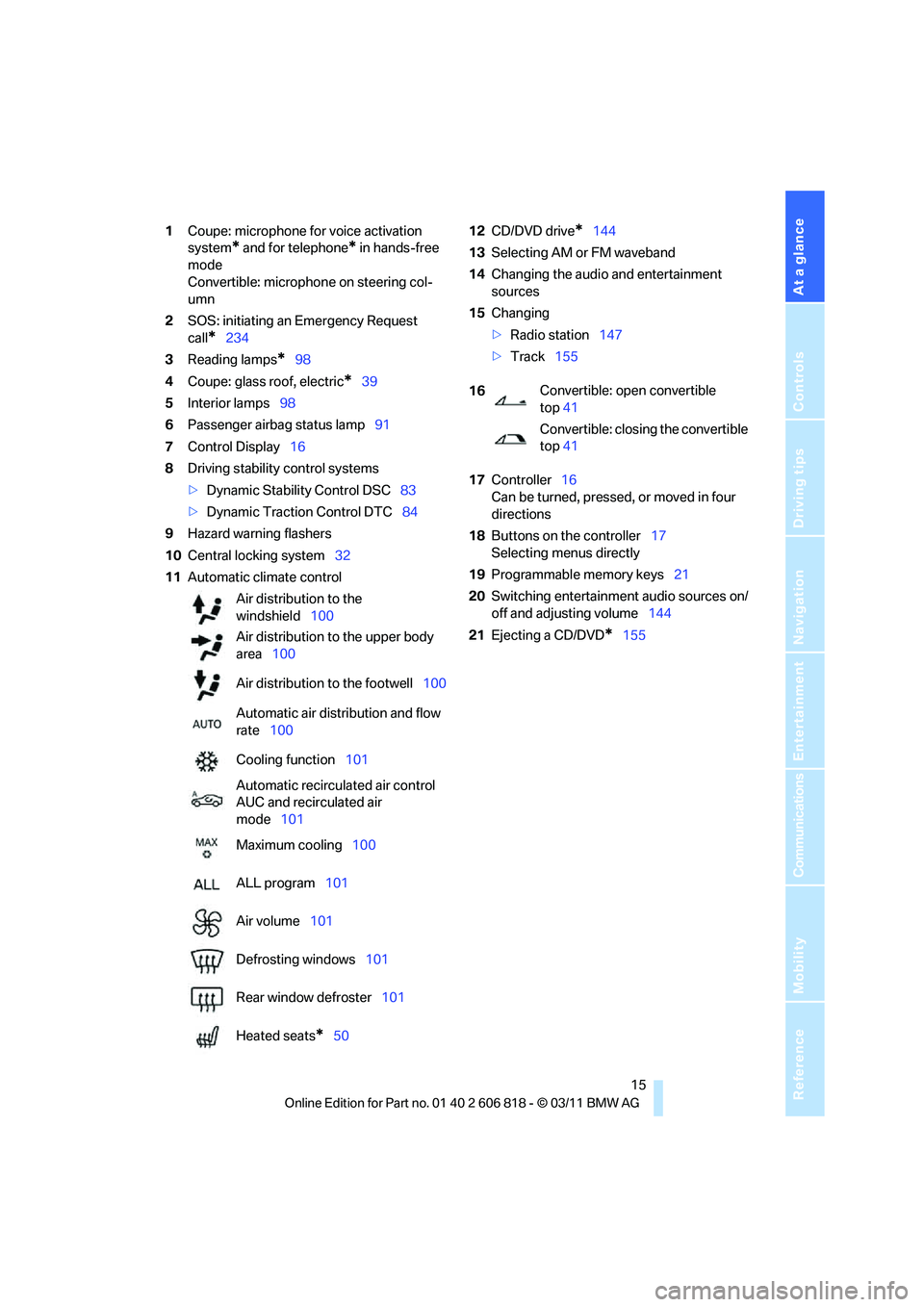
1Coupe: microphone for voice activation
system
* and for telephone* in hands-free
mode
Convertible: microphone on steering col-
umn
2SOS: initiating an Emergency Request
call
*234
3Reading lamps
*98
4Coupe: glass roof, electric
*39
5Interior lamps98
6Passenger airbag status lamp91
7Control Display16
8Driving stability control systems
>Dynamic Stability Control DSC83
>Dynamic Traction Control DTC84
9Hazard warning flashers
10Central locking system32
11Automatic climate control12CD/DVD drive
*144
13Selecting AM or FM waveband
14Changing the audio and entertainment
sources
15Changing
>Radio station147
>Track155
17Controller16
Can be turned, pressed, or moved in four
directions
18Buttons on the controller17
Selecting menus directly
19Programmable memory keys21
20Switching entertainment audio sources on/
off and adjusting volume144
21Ejecting a CD/DVD
*155 Air distribution to the
windshield100
Air distribution to the upper body
area100
Air distribution to the footwell100
Automatic air distribution and flow
rate100
Cooling function101
Automatic recirculated air control
AUC and recirculated air
mode101
Maximum cooling100
ALL program101
Air volume101
Defrosting windows101
Rear window defroster101
Heated seats
*50
16Convertible: open convertible
top41
Convertible: closing the convertible
top41
Page 19 of 272
At a glance
17Reference
Controls
Driving tips
Communications
Navigation
Entertainment
Mobility
Control Display
Notes
>Follow care instructions when cleaning the
Control Display.
>Do not store items in the region in front of
the Control Display; doing so may damage
the Control Display.
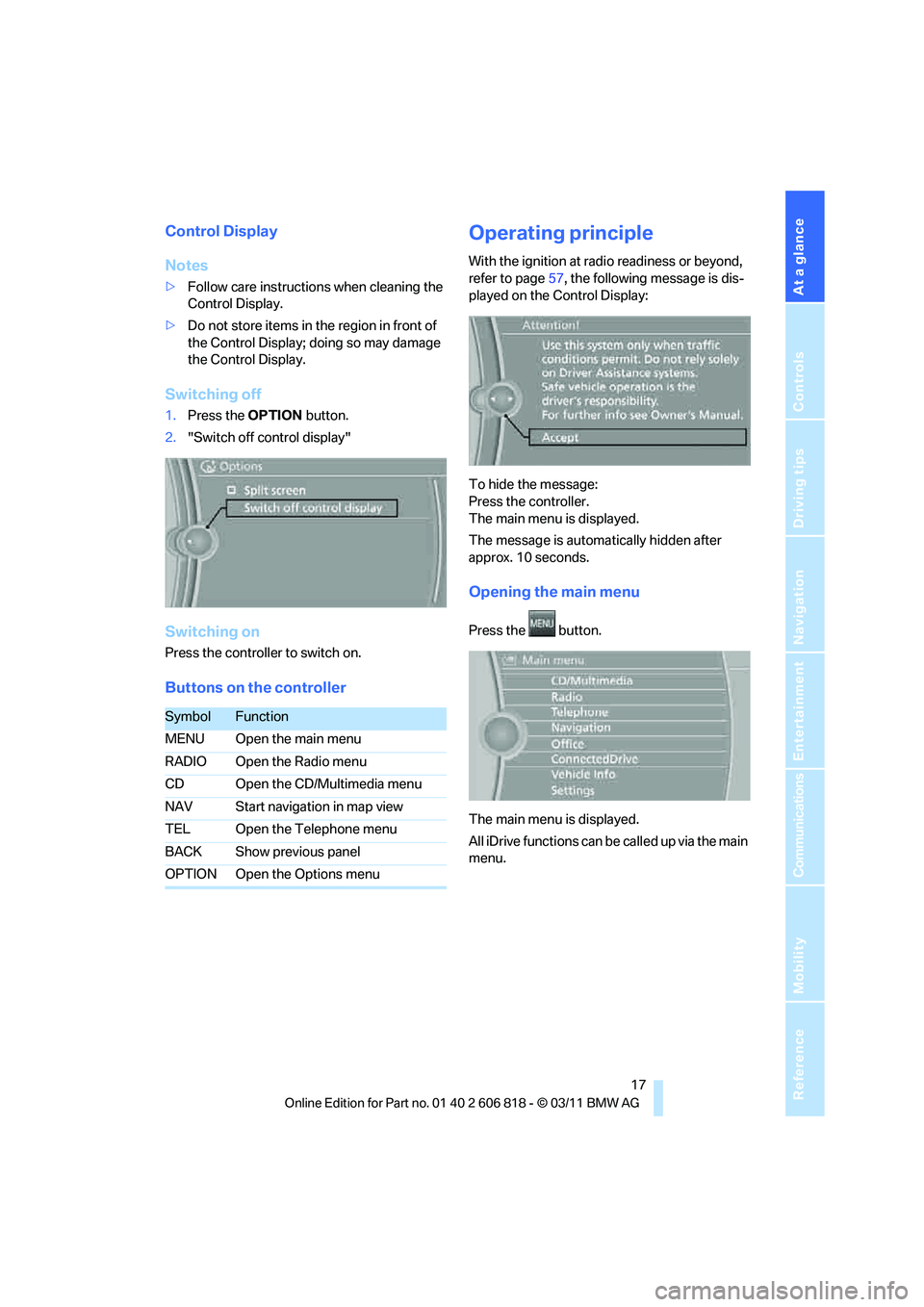
Switching off
1.Press the OPTIONbutton.
2."Switch off control display"
Switching on
Press the controller to switch on.
Buttons on the controller
Operating principle
With the ignition at radio readiness or beyond,
refer to page57, the following message is dis-
played on the Control Display:
To hide the message:
Press the controller.
The main menu is displayed.
The message is automatically hidden after
approx. 10 seconds.
Opening the main menu
Press the button.
The main menu is displayed.
All iDrive functions can be called up via the main
menu.
SymbolFunction
MENU Open the main menu
RADIO Open the Radio menu
CD Open the CD/Multimedia menu
NAV Start navigation in map view
TEL Open the Telephone menu
BACK Show previous panel
OPTION Open the Options menu
Page 21 of 272
At a glance
19Reference
Controls
Driving tips
Communications
Navigation
Entertainment
Mobility
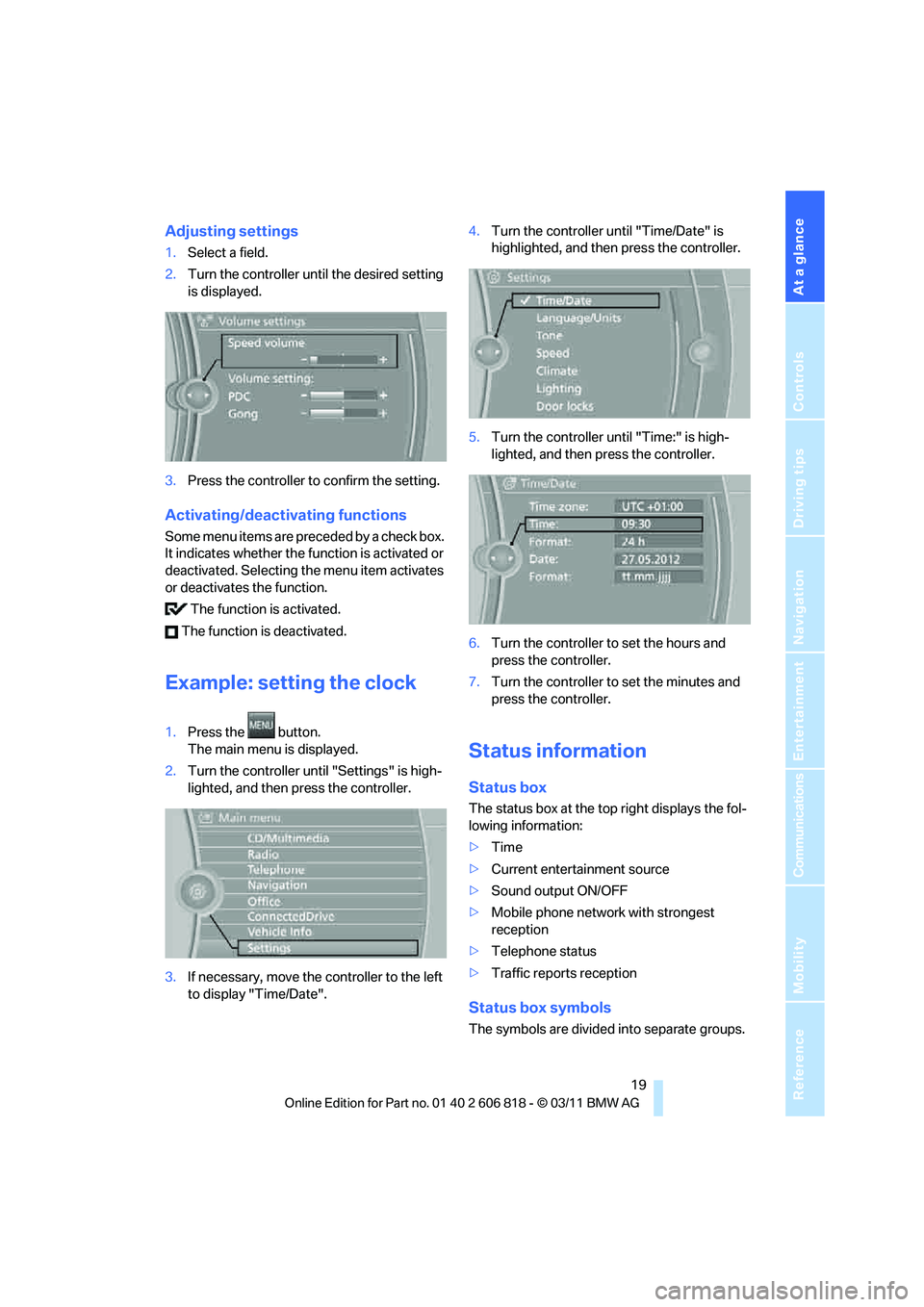
Adjusting settings
1.Select a field.
2.Turn the controller until the desired setting
is displayed.
3.Press the controller to confirm the setting.
Activating/deactivating functions
Some menu items are preceded by a check box.
It indicates whether the function is activated or
deactivated. Selecting the menu item activates
or deactivates the function.
The function is activated.
The function is deactivated.
Example: setting the clock
1.Press the button.
The main menu is displayed.
2.Turn the controller until "Settings" is high-
lighted, and then press the controller.
3.If necessary, move the controller to the left
to display "Time/Date".4.Turn the controller until "Time/Date" is
highlighted, and then press the controller.
5.Turn the controller until "Time:" is high-
lighted, and then press the controller.
6.Turn the controller to set the hours and
press the controller.
7.Turn the controller to set the minutes and
press the controller.
Status information
Status box
The status box at the top right displays the fol-
lowing information:
>Time
>Current entertainment source
>Sound output ON/OFF
>Mobile phone network with strongest
reception
>Telephone status
>Traffic reports reception
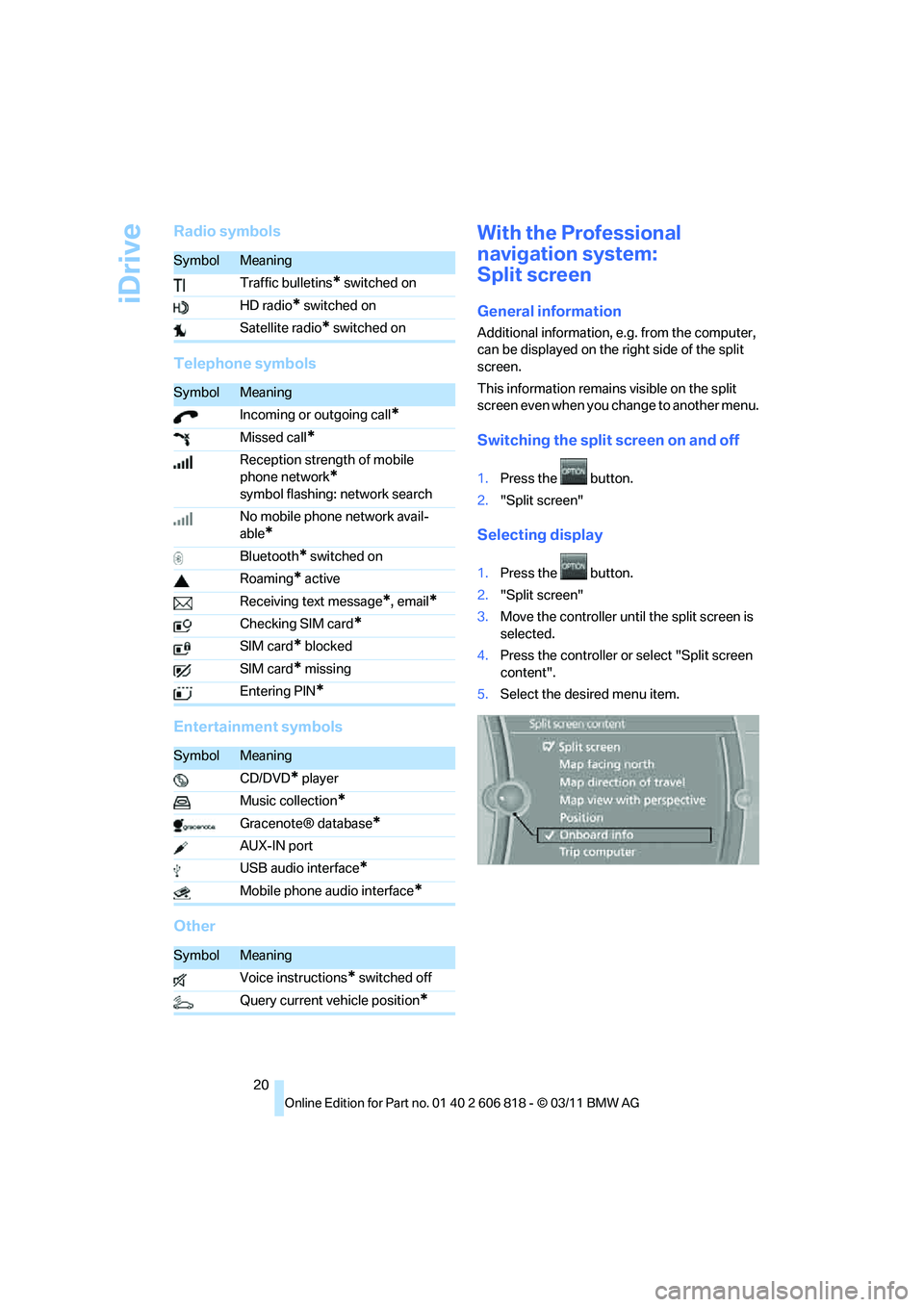
Status box symbols
The symbols are divided into separate groups.
Page 22 of 272
iDrive
20
Radio symbols
Telephone symbols
Entertainment symbols
OtherWith the Professional
navigation system:
Split screen
General information
Additional information, e.g. from the computer,
can be displayed on the right side of the split
screen.
This information remains visible on the split
screen even when you change to another menu.
Switching the split screen on and off
1.Press the button.
2."Split screen"
Selecting display
1.Press the button.
2."Split screen"
3.Move the controller until the split screen is
selected.
4.Press the controller or select "Split screen
content".
5.Select the desired menu item.
SymbolMeaning
Traffic bulletins
* switched on
HD radio
* switched on
Satellite radio
* switched on
SymbolMeaning
Incoming or outgoing call
*
Missed call*
Reception strength of mobile
phone network
*
symbol flashing: network search
No mobile phone network avail-
able
*
Bluetooth* switched on
Roaming
* active
Receiving text message
*, email*
Checking SIM card*
SIM card* blocked
SIM card
* missing
Entering PIN
*
SymbolMeaning
CD/DVD
* player
Music collection
*
Gracenote® database*
AUX-IN port
USB audio interface
*
Mobile phone audio interface*
SymbolMeaning
Voice instructions
* switched off
Query current vehicle position
*
Page 23 of 272

At a glance
21Reference
Controls
Driving tips
Communications
Navigation
Entertainment
Mobility
Programmable memory keys
General information
iDrive functions can be stored on the program-
mable memory keys and called up directly, e.g.
radio stations, navigation destinations, phone
numbers and entry points into the menu.
The settings are stored for the remote control
currently in use.
Storing functions
1.Highlight the function via the iDrive.
2.Press the desired button ...
for longer than two seconds.
Executing a function
Press the ... button.
The function is executed immediately. This
means, for example, that the number is dialed
when a phone number is selected.
Displaying memory key assignments
Touch the button with a finger. Do not wear
gloves or use objects.
The key assignment is displayed at the top
edge of the screen.
>Displaying brief information: press the but-
ton.
>Displaying detailed information: press and
hold the button.
Entering letters and numbers
1.Turn the controller: select the letters or
numbers.
2.Select additional letters or numbers if
needed.
3."OK": confirm entry.
Switching between letters and
numbers
Depending on the menu, you can switch
between entering letters and numbers:
Switching between uppercase and
lowercase letters
Depending on the menu, you can switch
between entering uppercase letters and lower-
case letters:
SymbolFunction
Press the controller: delete
one letter or number
Press the controller for an
extended period: delete all
letters or numbers
Enter a blank space
SymbolFunction
Entering letters
Entering numbers
SymbolFunction
Move the controller toward
the front: to switch from
uppercase letters to lower-
case letters
Move the controller toward
the front: to switch from low-
ercase letters to uppercase
letters
Page 25 of 272
At a glance
23Reference
Controls
Driving tips
Communications
Navigation
Entertainment
Mobility
Voice activation system
The concept
>The voice activation system can be used to
control functions by spoken commands.
>Functions that can only used when the vehi-
cle is stopped cannot be operated using the
voice activation system.
>The system includes a special microphone
on the driver's side.
>In the Owner's Manual, {...} indicates com-
mands for the voice activation system.
>In the Owner's Manual, {{...}} indicates the
answers from the voice activation system.
Prerequisite
On the Control Display, set a language that is
also supported by the voice activation system
to permit identification of the commands to be
spoken.
Setting the language, refer to page81.
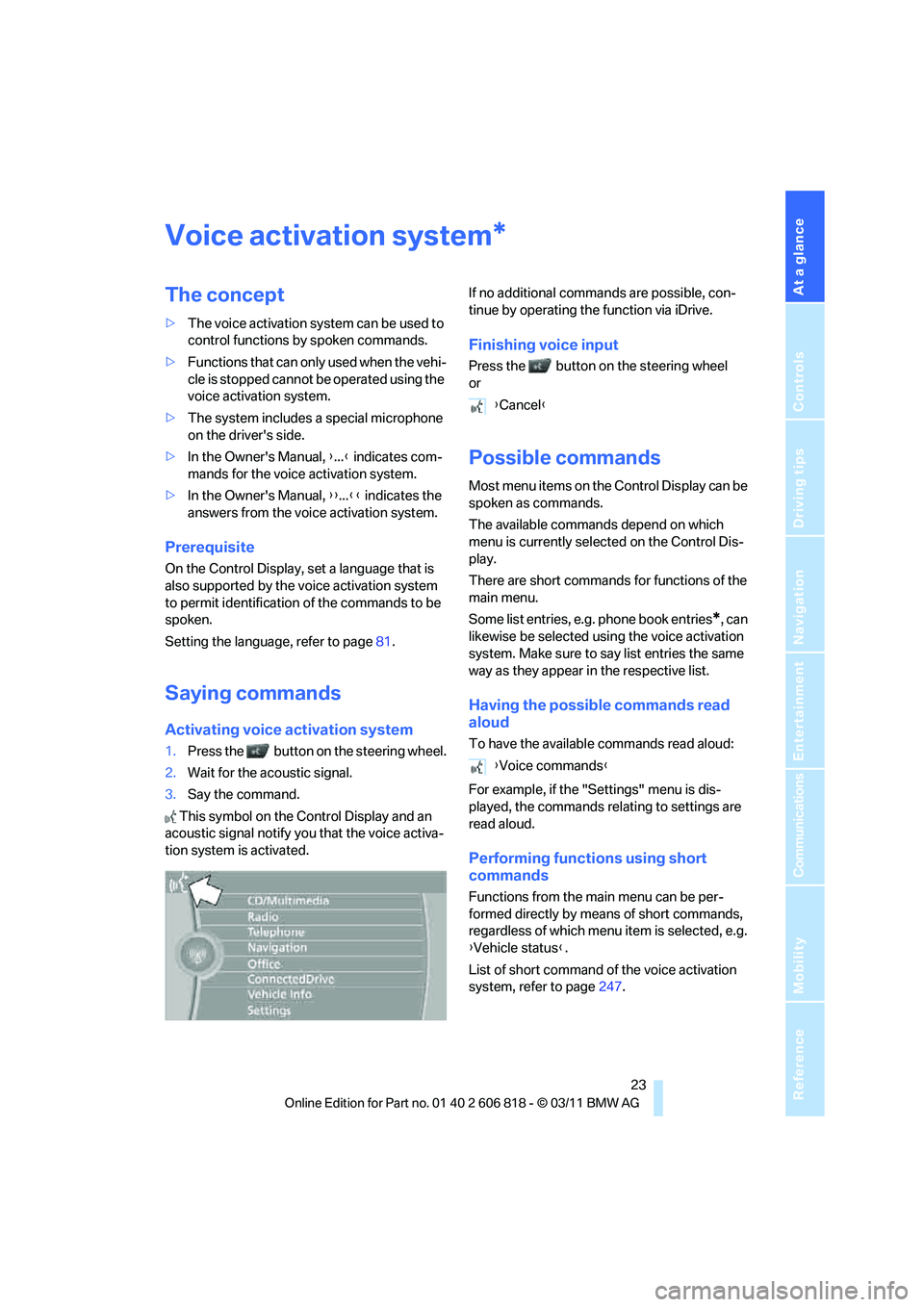
Saying commands
Activating voice activation system
1.Press the button on the steering wheel.
2.Wait for the acoustic signal.
3.Say the command.
This symbol on the Control Display and an
acoustic signal notify you that the voice activa-
tion system is activated.If no additional commands are possible, con-
tinue by operating the function via iDrive.
Finishing voice input
Press the button on the steering wheel
or
Possible commands
Most menu items on the Control Display can be
spoken as commands.
The available commands depend on which
menu is currently selected on the Control Dis-
play.
There are short commands for functions of the
main menu.
Some list entries, e.g. phone book entries
*, can
likewise be selected using the voice activation
system. Make sure to say list entries the same
way as they appear in the respective list.
Having the possible commands read
aloud
To have the available commands read aloud:
For example, if the "Settings" menu is dis-
played, the commands relating to settings are
read aloud.
Performing functions using short
commands
Functions from the main menu can be per-
formed directly by means of short commands,
regardless of which menu item is selected, e.g.
{Vehicle status}.
List of short command of the voice activation
system, refer to page247.
*
{Cancel}
{Voice commands}
Page 27 of 272
At a glance
25Reference
Controls
Driving tips
Communications
Navigation
Entertainment
Mobility
>Keep the doors, windows, glass roof*/pan-
oramic glass roof
* closed to prevent inter-
ference from ambient noise.
>Avoid ambient noise in the vehicle while
speaking.
Page 29 of 272
Controls
This chapter is intended to provide you with
information for complete control of your vehicle.
All features and accessories that are useful for
driving and your safety, comfort and
convenience, are described here.
Controls