2012 BMW 135I COUPE vin
[x] Cancel search: vinPage 191 of 272
189
Entertainment
Reference
At a glance
Controls
Driving tips Communications
Navigation
Mobility
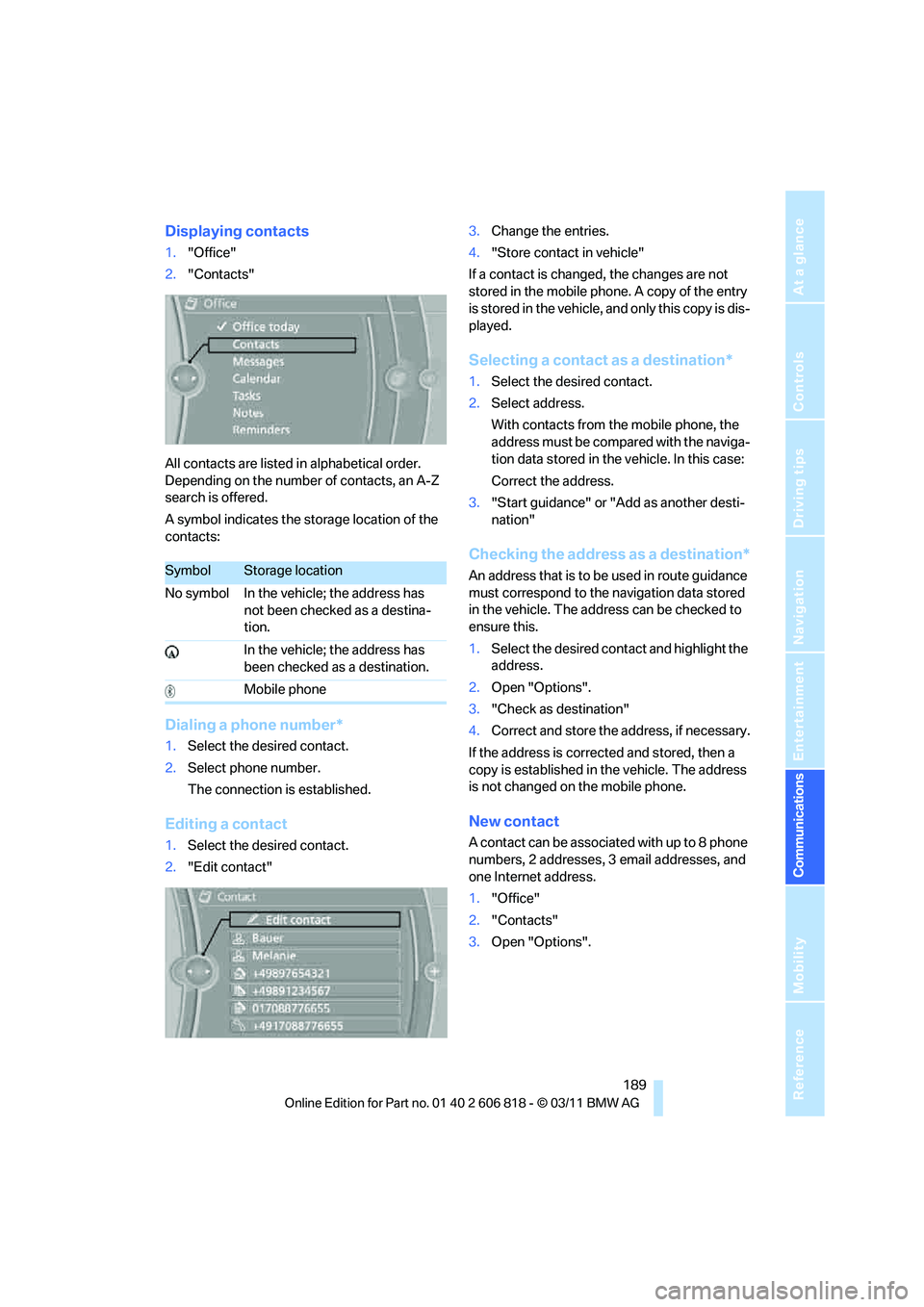
Displaying contacts
1."Office"
2."Contacts"
All contacts are listed in alphabetical order.
Depending on the number of contacts, an A-Z
search is offered.
A symbol indicates the storage location of the
contacts:
Dialing a phone number*
1.Select the desired contact.
2.Select phone number.
The connection is established.
Editing a contact
1.Select the desired contact.
2."Edit contact"3.Change the entries.
4."Store contact in vehicle"
If a contact is changed, the changes are not
stored in the mobile phone. A copy of the entry
is stored in the vehicle, and only this copy is dis-
played.
Selecting a contact as a destination*
1.Select the desired contact.
2.Select address.
With contacts from the mobile phone, the
address must be compared with the naviga-
tion data stored in the vehicle. In this case:
Correct the address.
3."Start guidance" or "Add as another desti-
nation"
Checking the address as a destination*
An address that is to be used in route guidance
must correspond to the navigation data stored
in the vehicle. The address can be checked to
ensure this.
1.Select the desired contact and highlight the
address.
2.Open "Options".
3."Check as destination"
4.Correct and store the address, if necessary.
If the address is corrected and stored, then a
copy is established in the vehicle. The address
is not changed on the mobile phone.
New contact
A contact can be associated with up to 8 phone
numbers, 2 addresses, 3 email addresses, and
one Internet address.
1."Office"
2."Contacts"
3.Open "Options".
SymbolStorage location
No symbol In the vehicle; the address has
not been checked as a destina-
tion.
In the vehicle; the address has
been checked as a destination.
Mobile phone
Page 193 of 272
191
Entertainment
Reference
At a glance
Controls
Driving tips Communications
Navigation
Mobility
separately activated. After a mobile phone is
paired for the first time, the transmission may
take several minutes. Messages are only dis-
played completely when the vehicle is stopped.
Messages from the auxiliary phone
* are not
transferred.
To display various messages:
>Text messages.
>Messages from My info
*.
>Messages from the BMW Concierge ser-
vice
*.
>Emails
* from the mobile phone.
Displaying messages
1."Office"
2."Messages"
Message type
A symbol indicates the type of message.
Read message.
Unread message.
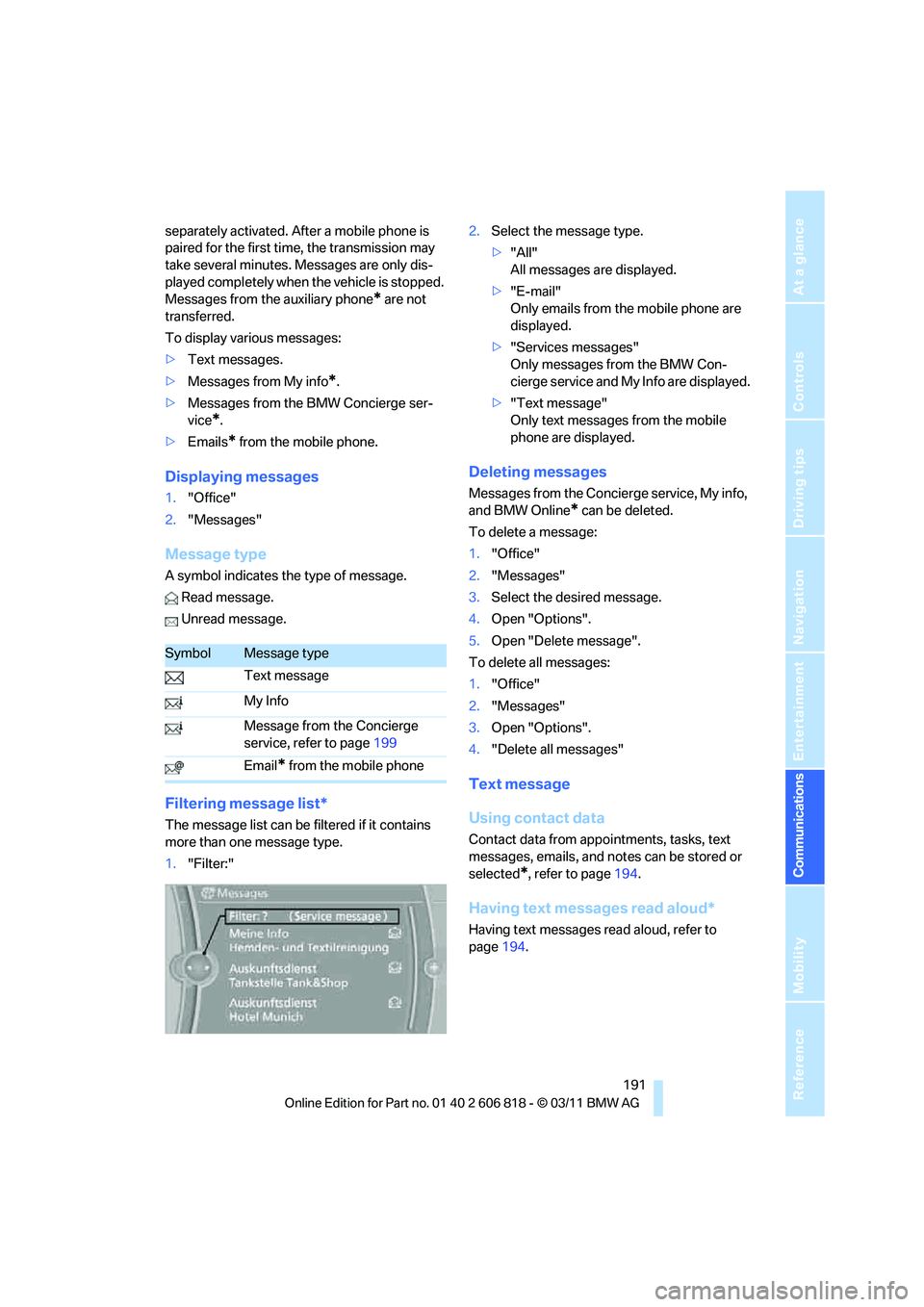
Filtering message list*
The message list can be filtered if it contains
more than one message type.
1."Filter:"2.Select the message type.
>"All"
All messages are displayed.
>"E-mail"
Only emails from the mobile phone are
displayed.
>"Services messages"
Only messages from the BMW Con-
cierge service and My Info are displayed.
>"Text message"
Only text messages from the mobile
phone are displayed.
Deleting messages
Messages from the Concierge service, My info,
and BMW Online
* can be deleted.
To delete a message:
1."Office"
2."Messages"
3.Select the desired message.
4.Open "Options".
5.Open "Delete message".
To delete all messages:
1."Office"
2."Messages"
3.Open "Options".
4."Delete all messages"
Text message
Using contact data
Contact data from appointments, tasks, text
messages, emails, and notes can be stored or
selected
*, refer to page194.
Having text messages read aloud*
Having text messages read aloud, refer to
page194.
SymbolMessage type
Text message
My Info
Message from the Concierge
service, refer to page199
Email
* from the mobile phone
Page 194 of 272
Office
192
My Info
Starting destination guidance
1.Select the desired message.
2."Start guidance" or "Add as another desti-
nation"
Dialing a number in a message
Up to 4 phone numbers can be sent with a mes-
sage.
1.Select the desired message.
2."Call":
If the message contains a number, a tele-
phone connection is established.
"Select phone number":
If the message contains more than one
number, select the desired number from the
list. A telephone connection is established.
Saving an address
1.Select the desired message.
2.Open "Options".
3."Store contact in vehicle"
Messages from the Concierge service*
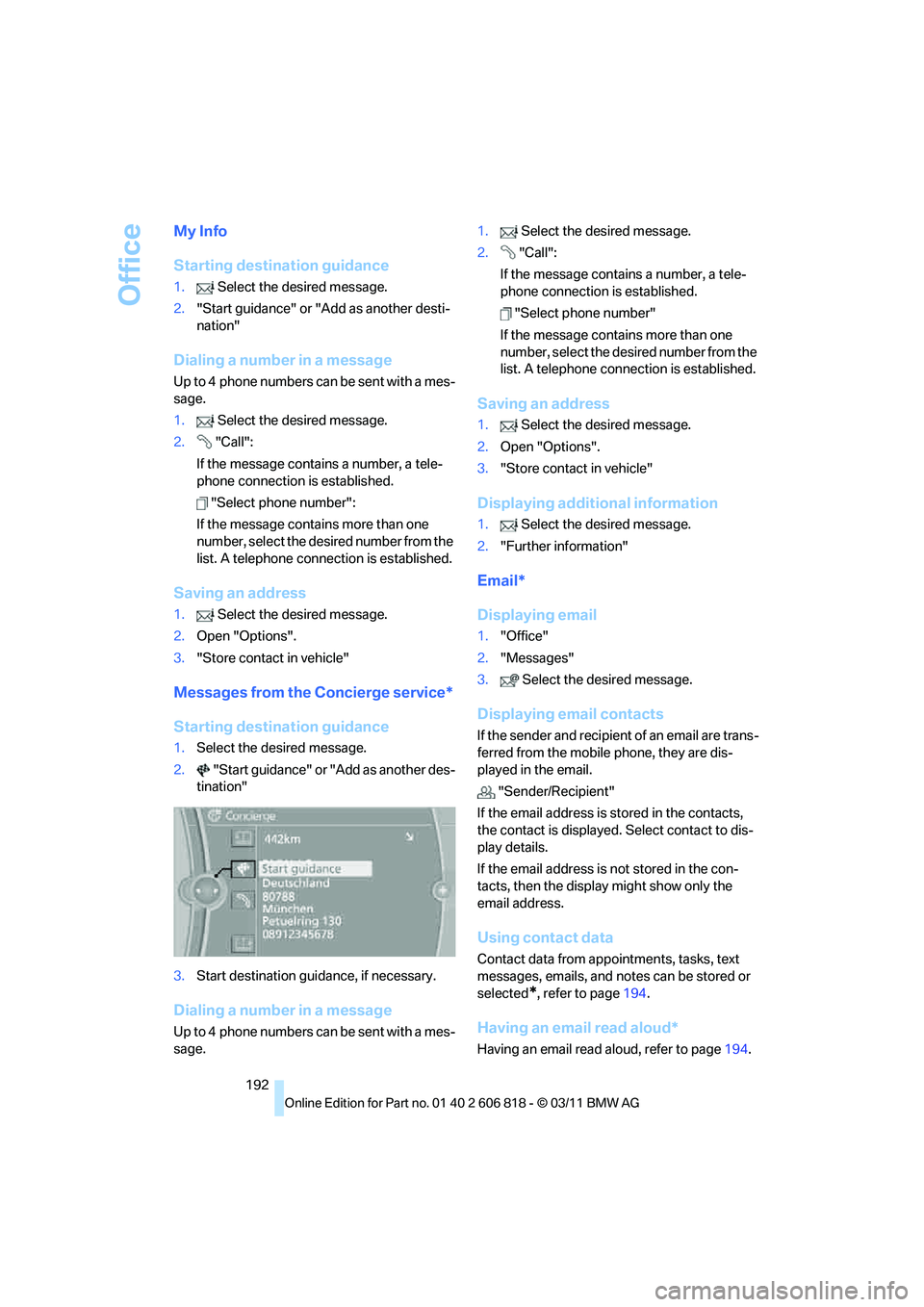
Starting destination guidance
1.Select the desired message.
2."Start guidance" or "Add as another des-
tination"
3.Start destination guidance, if necessary.
Dialing a number in a message
Up to 4 phone numbers can be sent with a mes-
sage.1.Select the desired message.
2."Call":
If the message contains a number, a tele-
phone connection is established.
"Select phone number"
If the message contains more than one
number, select the desired number from the
list. A telephone connection is established.
Saving an address
1.Select the desired message.
2.Open "Options".
3."Store contact in vehicle"
Displaying additional information
1.Select the desired message.
2."Further information"
Email*
Displaying email
1."Office"
2."Messages"
3.Select the desired message.
Displaying email contacts
If the sender and recipient of an email are trans-
ferred from the mobile phone, they are dis-
played in the email.
"Sender/Recipient"
If the email address is stored in the contacts,
the contact is displayed. Select contact to dis-
play details.
If the email address is not stored in the con-
tacts, then the display might show only the
email address.
Using contact data
Contact data from appointments, tasks, text
messages, emails, and notes can be stored or
selected
*, refer to page194.
Having an email read aloud*
Having an email read aloud, refer to page194.
Page 195 of 272
193
Entertainment
Reference
At a glance
Controls
Driving tips Communications
Navigation
Mobility
Calendar
Displaying calendar
Appointments from the last 20 days and the
next 50 days can be displayed.
1."Office"
2."Calendar"
Appointments of the current day are dis-
played.
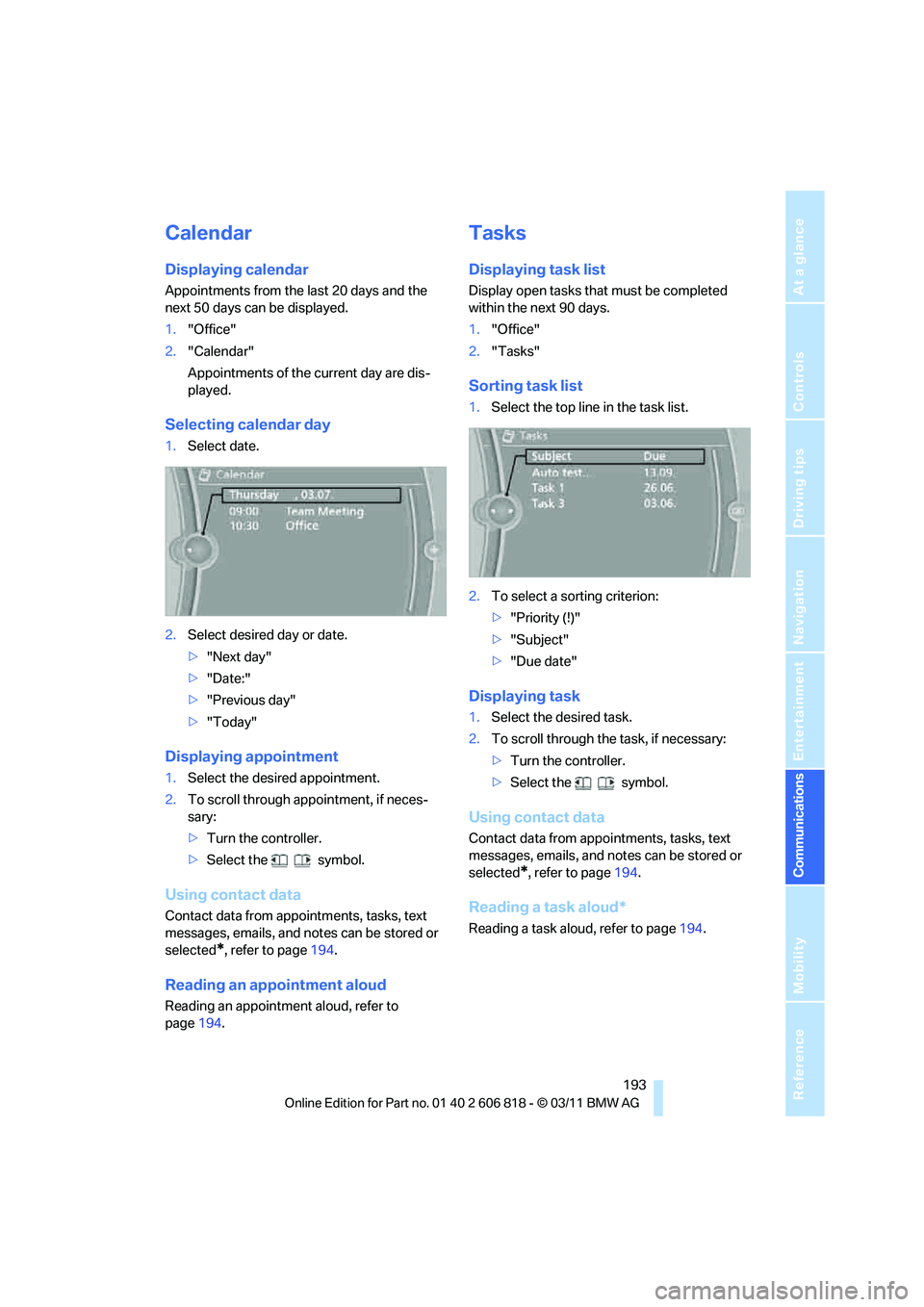
Selecting calendar day
1.Select date.
2.Select desired day or date.
>"Next day"
>"Date:"
>"Previous day"
>"Today"
Displaying appointment
1.Select the desired appointment.
2.To scroll through appointment, if neces-
sary:
>Turn the controller.
>Select the symbol.
Using contact data
Contact data from appointments, tasks, text
messages, emails, and notes can be stored or
selected
*, refer to page194.
Reading an appointment aloud
Reading an appointment aloud, refer to
page194.
Tasks
Displaying task list
Display open tasks that must be completed
within the next 90 days.
1."Office"
2."Tasks"
Sorting task list
1.Select the top line in the task list.
2.To select a sorting criterion:
>"Priority (!)"
>"Subject"
>"Due date"
Displaying task
1.Select the desired task.
2.To scroll through the task, if necessary:
>Turn the controller.
>Select the symbol.
Using contact data
Contact data from appointments, tasks, text
messages, emails, and notes can be stored or
selected
*, refer to page194.
Reading a task aloud*
Reading a task aloud, refer to page194.
Page 197 of 272
195
Entertainment
Reference
At a glance
Controls
Driving tips Communications
Navigation
Mobility
Interrupt the reading. Select again to
resume the reading.
>"Back to beginning"
Read message again from the beginning.
>Select the symbol.
Skip back one paragraph.
>Select the symbol.
Skip over a paragraph.
>To terminate the reading, move the control-
ler toward the left.
What to do if…
For information on suitable mobile phones,
refer to page176.
>Appointments, tasks, notes, texts, or
emails
* from the mobile phone are not dis-
played?
The mobile phone is not suitable for the
missing function or is not correctly con-
nected.
The mobile phone has not been assigned
the Office function.
The mobile phone is connected as an auxil-
iary phone.
The appointments are older than 20 days
and are more than 50 days in the future.
The tasks have been marked as completed
or are more than 90days in the future.
Depending on the number of appointments,
tasks, notes, and messages stored in the
mobile phone, not all of them are displayed
in the vehicle.
>Appointments or tasks from the mobile
phone are not being displayed at the correct
time?
The time zone, time, or date is incorrectly
set in the Control Display and in the mobile
phone.
>Texts of entries are not displayed com-
pletely?
Texts are already shortened by the mobile
phone.Synchronization between the mobile phone
and vehicle can take a few minutes.
>Contact pictures are not being displayed?
Up to max. 200 contact pictures can be
stored in the vehicle.
>If you have gone through all items in the list
and still cannot activate the desired func-
tion please contact Customer Relations or a
BMW center.
Page 199 of 272
197
Entertainment
Reference
At a glance
Controls
Driving tips Communications
Navigation
Mobility
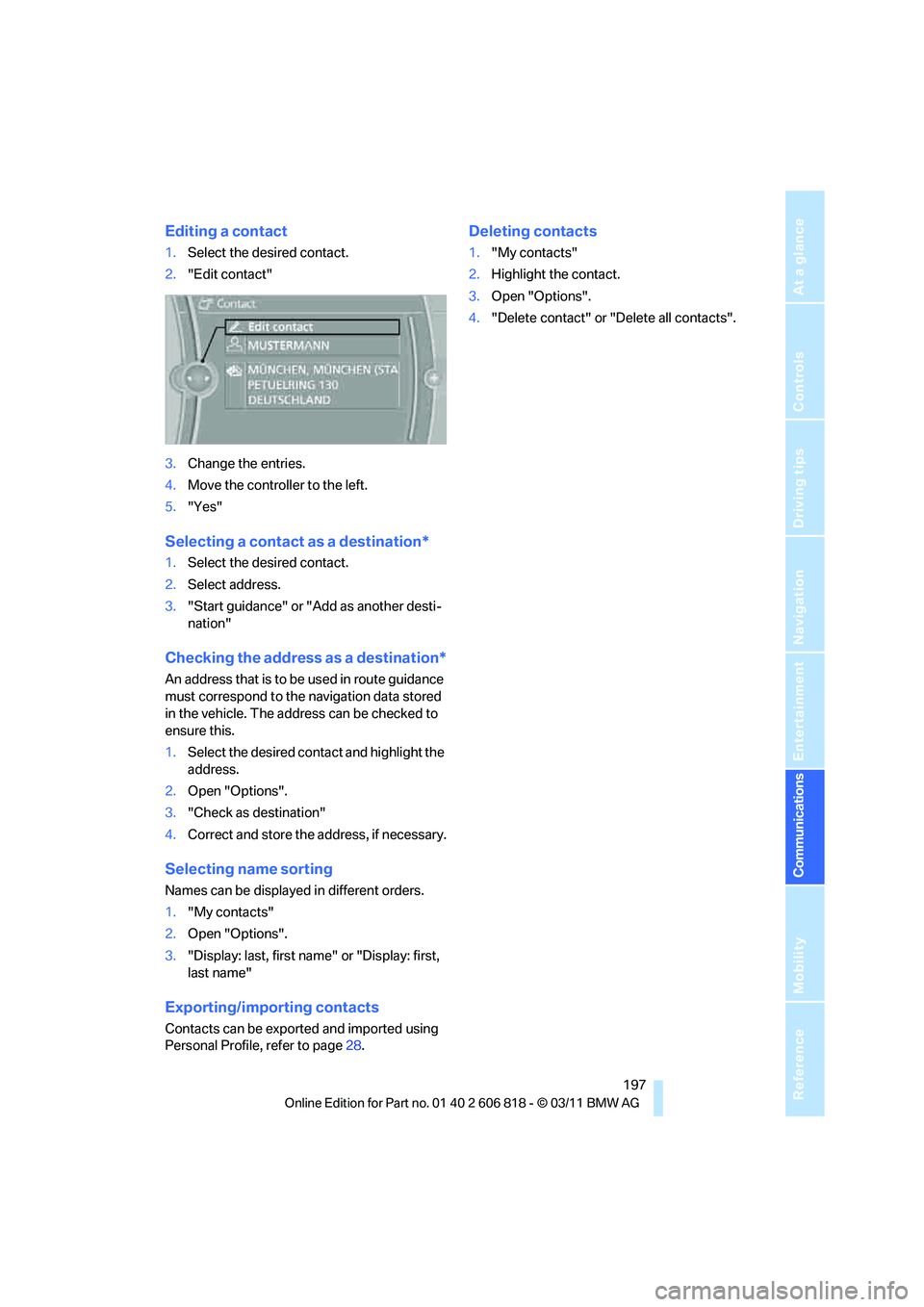
Editing a contact
1.Select the desired contact.
2."Edit contact"
3.Change the entries.
4.Move the controller to the left.
5."Yes"
Selecting a contact as a destination*
1.Select the desired contact.
2.Select address.
3."Start guidance" or "Add as another desti-
nation"
Checking the address as a destination*
An address that is to be used in route guidance
must correspond to the navigation data stored
in the vehicle. The address can be checked to
ensure this.
1.Select the desired contact and highlight the
address.
2.Open "Options".
3."Check as destination"
4.Correct and store the address, if necessary.
Selecting name sorting
Names can be displayed in different orders.
1."My contacts"
2.Open "Options".
3."Display: last, first name" or "Display: first,
last name"
Exporting/importing contacts
Contacts can be exported and imported using
Personal Profile, refer to page28.
Deleting contacts
1."My contacts"
2.Highlight the contact.
3.Open "Options".
4."Delete contact" or "Delete all contacts".
Page 200 of 272
ConnectedDrive
198
ConnectedDrive
BMW Assist*
General information
BMW Assist provides a number of different ser-
vices. For example, the position data of the
vehicle can be transmitted to the BMW Assist
Response Center when an Emergency
Request
* is sent.
Many BMW Assist services depend on the con-
tract individually agreed upon.
After the contract has expired, the BMW Assist
system will be deactivated by the BMW Assist
Response Center without you having to visit a
BMW center. After the BMW Assist system has
been deactivated, no BMW Assist services will
be available. The BMW Assist system can be
reactivated by a BMW center after a new con-
tract has been signed.
Requirements
>The installed BMW Assist system is logged
into a mobile phone network. This network
must be capable of transmitting the ser-
vices.
>To transmit position data, the vehicle must
be able to determine its current position.
>To activate and update BMW Assist, a GPS
signal must be available.
>The BMW Assist service contract was
signed with your BMW center or with the
BMW Assist Response Center. The service
must have been fully enabled.
>BMW Assist is activated.
Services offered
>Emergency Request: when you press the
SOS button, a connection to the BMW
Assist Response Center is established. The
BMW Assist Response Center then speaks
with you and takes further steps to help you.>Automatic Emergency Request: under cer-
tain conditions, a connection to the BMW
Assist Response Center is established after
a serious accident. If possible, the BMW
Assist Response Center then speaks with
you and takes further steps to help you.
>Enhanced Roadside Assistance: BMW
Roadside Assistance
* can be contacted if
assistance is needed in the event of a
breakdown. If possible, the vehicle data and
position data are transmitted during this
call.
>Customer Relations: connection to Cus-
tomer Relations for information on all
aspects of your vehicle.
>TeleServices: data on your vehicle's service
status or required inspections are transmit-
ted to your BMW center, either automati-
cally before a service due date or when you
request a BMW service appointment.
>Remote Door Unlock: the BMW Assist
Response Center provides assistance if, for
example, the remote control is not available
and the vehicle needs to be opened.
>Stolen Vehicle Recovery: after you report to
the police that your vehicle was stolen, the
BMW Assist Response Center can deter-
mine its position.
>In addition, the optional Convenience Plan
offers Concierge service and information on
route planning, the traffic situation and
weather. Using Critical Calling, a limited
number of calls can be made via the BMW
Assist Response Center, for example if the
mobile phone is not available or discharged.
Press the SOS button to contact the BMW
Assist Response Center.
*
Page 201 of 272
199
Entertainment
Reference
At a glance
Controls
Driving tips Communications
Navigation
Mobility
BMW TeleServices*
General information
TeleServices supports communication with
your BMW center.
>Data on the vehicle's service requirements
can be sent directly to the BMW center. In
this way, the BMW center can plan its work
in advance. This shortens the duration of
the service appointment.
>In the event of a breakdown, data on the
vehicle's condition can be sent directly to
Roadside Assistance
*.
>The service varies by country.
>Connection may incur charges.
>Services may be restricted abroad.
Requirements
>BMW Assist is activated.
>Wireless reception is available.
>The engine is running.
Using BMW TeleServices*
Generally, BMW TeleServices are activated in
the vehicle.
If the services of BMW TeleServices are not
activated, it is possible to establish a voice con-
tact to the BMW Group Mobile Service.
For additional uses or to deactivate the ser-
vices, consult your BMW center or contact Cus-
tomer Relations.
Concierge service*
General information
The Concierge service of BMW Assist will
inform you, for example, about upcoming
events, filling station, or hotels and supplies you
with their phone numbers and addresses. Many
hotels can be booked directly through the BMW
Assist Concierge service. Use of the Concierge
service requires an additional activation by the
BMW Assist Response Center.
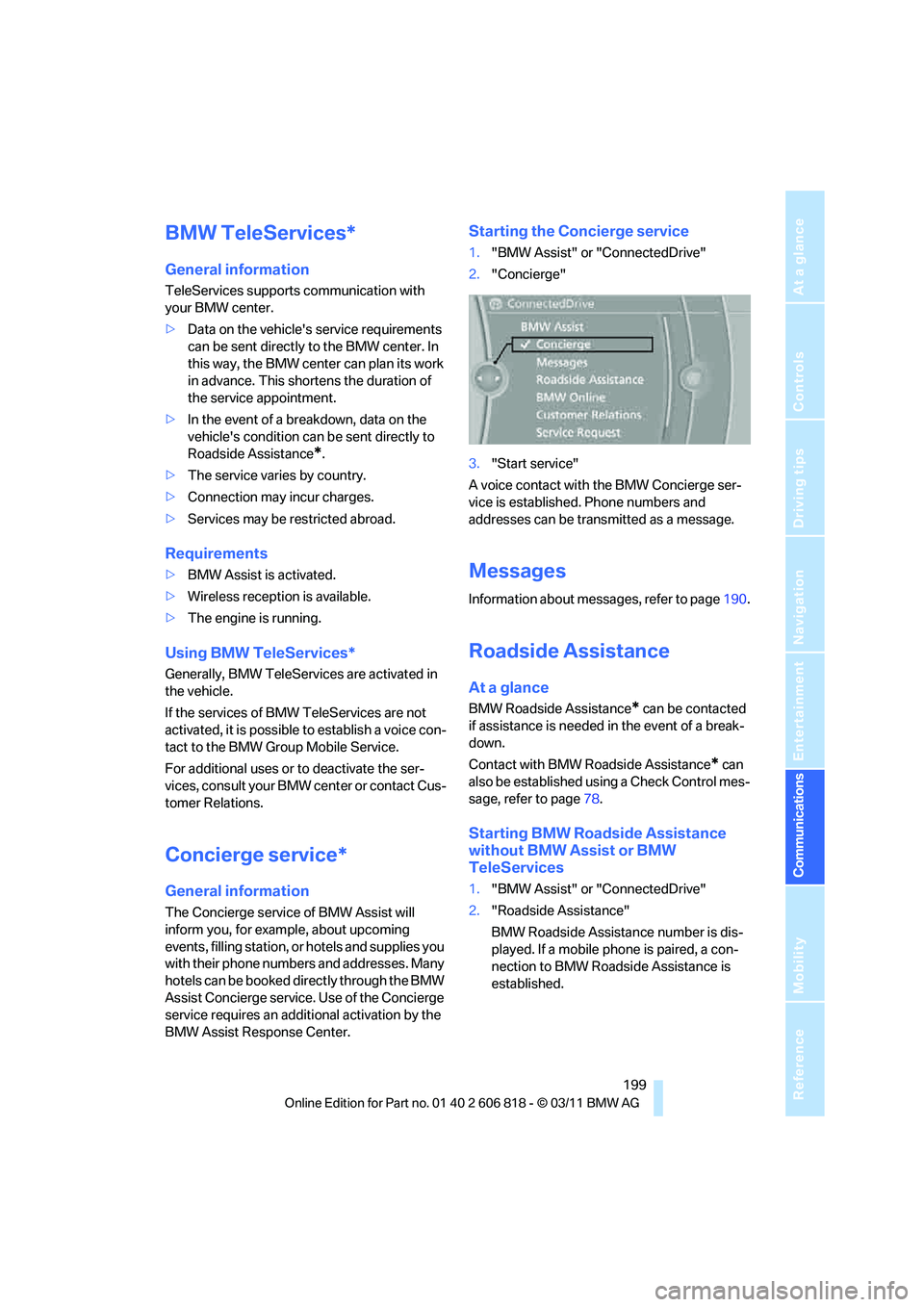
Starting the Concierge service
1."BMW Assist" or "ConnectedDrive"
2."Concierge"
3."Start service"
A voice contact with the BMW Concierge ser-
vice is established. Phone numbers and
addresses can be transmitted as a message.
Messages
Information about messages, refer to page190.
Roadside Assistance
At a glance
BMW Roadside Assistance* can be contacted
if assistance is needed in the event of a break-
down.
Contact with BMW Roadside Assistance
* can
also be established using a Check Control mes-
sage, refer to page78.
Starting BMW Roadside Assistance
without BMW Assist or BMW
TeleServices
1."BMW Assist" or "ConnectedDrive"
2."Roadside Assistance"
BMW Roadside Assistance number is dis-
played. If a mobile phone is paired, a con-
nection to BMW Roadside Assistance is
established.