2012 BMW 135I COUPE Vin
[x] Cancel search: VinPage 135 of 272
Navigation
Driving tips
133Reference
At a glance
Controls
Communications
Entertainment
Mobility
Changin a trip
Changing the trip direction
Intermediate destinations are displayed in
reverse order in the list.
1."Map"
2."Guidance"
3.Open "Options".
4."Reverse order of trip dest."
Options for intermediate destinations
1."Map"
2."Guidance"
3."Display all trip destinations"
4.Select an intermediate destination.
>"Edit destination"
>"Reposition dest. in the trip": move the
intermediate destination within the list.
>"Delete dest. in the trip"
>"Go to next dest. in the trip"
Some options are not possible for some trips.
Deleting a stored trip
1."Navigation"
2."Stored trips"
3.Select the desired trip.
4.Open "Options".
5."Delete all trips" or "Delete trip".
Selecting last trip
1."Navigation"
2."Stored trips"
3."Last trip"
4."Start guidance"
Page 136 of 272
Destination guidance
134
Destination guidance
Starting destination
guidance
1."Navigation"
2.Entering a destination, refer to page125.
3."Accept destination"
4."Start guidance"
The route is displayed on the Control Display
after it is calculated.
In the map view, the distance to the destination/
intermediate destination and the estimated
time of arrival are displayed.
The arrow display appears on the Control Dis-
play, if so desired.
Terminating destination
guidance
1."Navigation"
2."Map"
3."Guidance"
4."Stop guidance"
Continuing destination
guidance
If the destination was not reached during the
last trip, destination guidance can be resumed.
"Resume guidance"
Route criteria
General information
>You can influence the calculated route by
selecting certain trip criteria.
>Route criteria can be changed during desti-
nation entry and during route guidance.>Street types are part of the navigation data
and are taken into account in route plan-
ning, e.g. avoiding highways.
>The proposed route can differ from per-
sonal experience.
>The settings are stored for the remote con-
trol currently in use.
>Route guidance with traffic bulletins, refer
to page140.
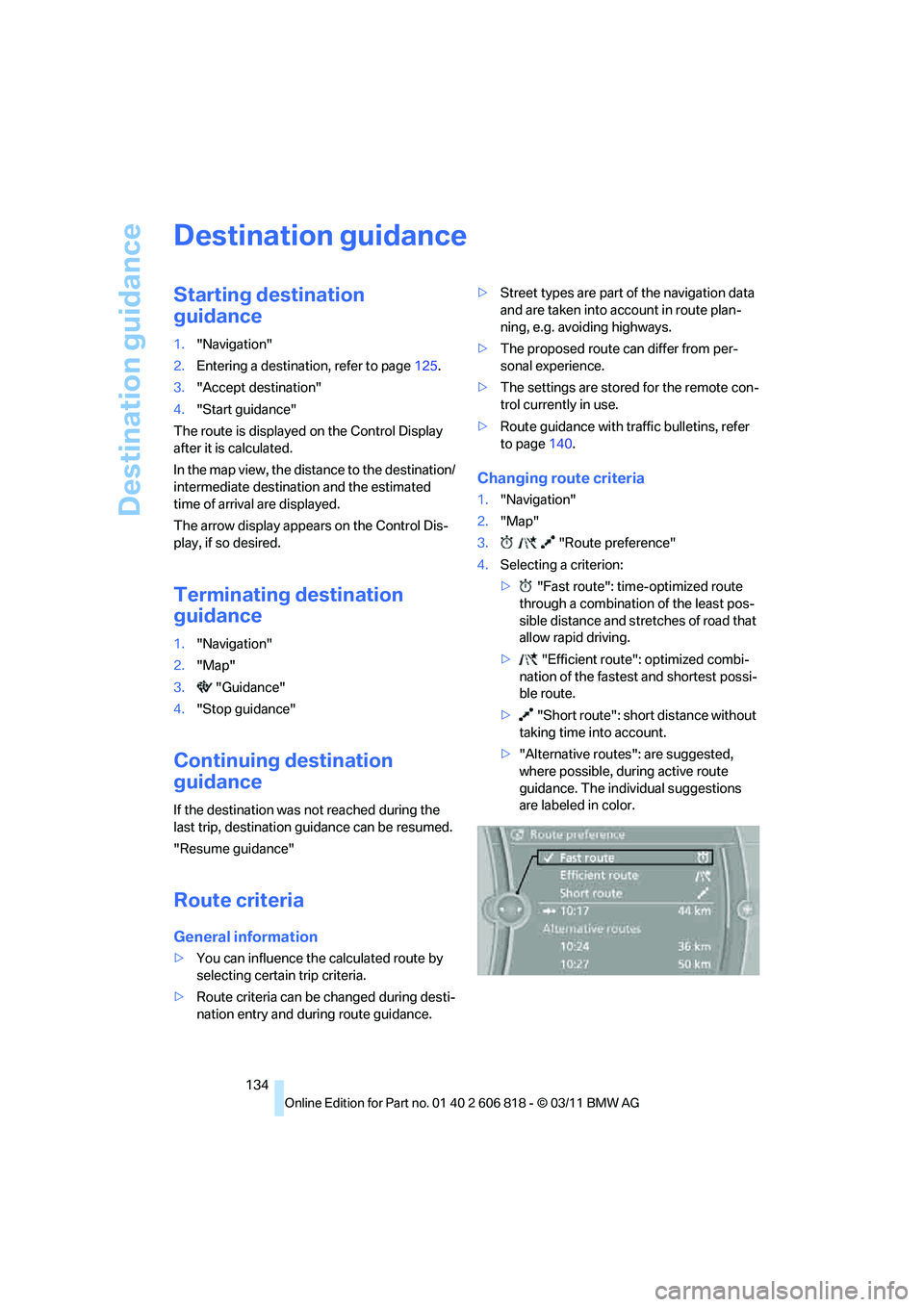
Changing route criteria
1."Navigation"
2."Map"
3."Route preference"
4.Selecting a criterion:
>"Fast route": time-optimized route
through a combination of the least pos-
sible distance and stretches of road that
allow rapid driving.
>"Efficient route": optimized combi-
nation of the fastest and shortest possi-
ble route.
>"Short route": short distance without
taking time into account.
>"Alternative routes": are suggested,
where possible, during active route
guidance. The individual suggestions
are labeled in color.
Page 137 of 272
Navigation
Driving tips
135Reference
At a glance
Controls
Communications
Entertainment
Mobility
5.Select additional route criteria, if desired.
Where possible, the selected criteria will be
avoided on the route.
>"Avoid highways": highways are avoided
where possible.
>"Avoid toll roads": toll roads are avoided
where possible.
>"Avoid ferries": ferries are avoided
where possible.
The setting applies to the current route and to
the planning of future routes.
Route
General information
Depending on your vehicle's equipment, vari-
ous views of the route are available during route
guidance:
>Arrow display on the Control Display.
>List of route segments.
>Map view, refer to page136.
Arrow display
The following information is displayed during
route guidance:
>Large arrow: current direction of travel.
>Small arrow: indicates the next change of
direction.
>Intersection view.
>Lane information.
>Traffic bulletins.
>Distance to the next change of direction.
>Street name of the next change of direction.
Lane information
In the arrow display, the recommended lanes of
multi-lane roads are each marked with a trian-
gle.
>Filled triangle: optimum lane.
>Empty triangle: likewise possible lane. It
can, however, also be possible to briefly
make additional lane changes.
Displaying the list of route segments
If the route guidance has been started, then you
can display a list of route segments. The dis-
tance to be traveled and traffic bulletins are dis-
played for each segment of the route.
1."Navigation"
2."Route information"
3.Highlight the route segment.
The route segment is displayed in the preview
map.
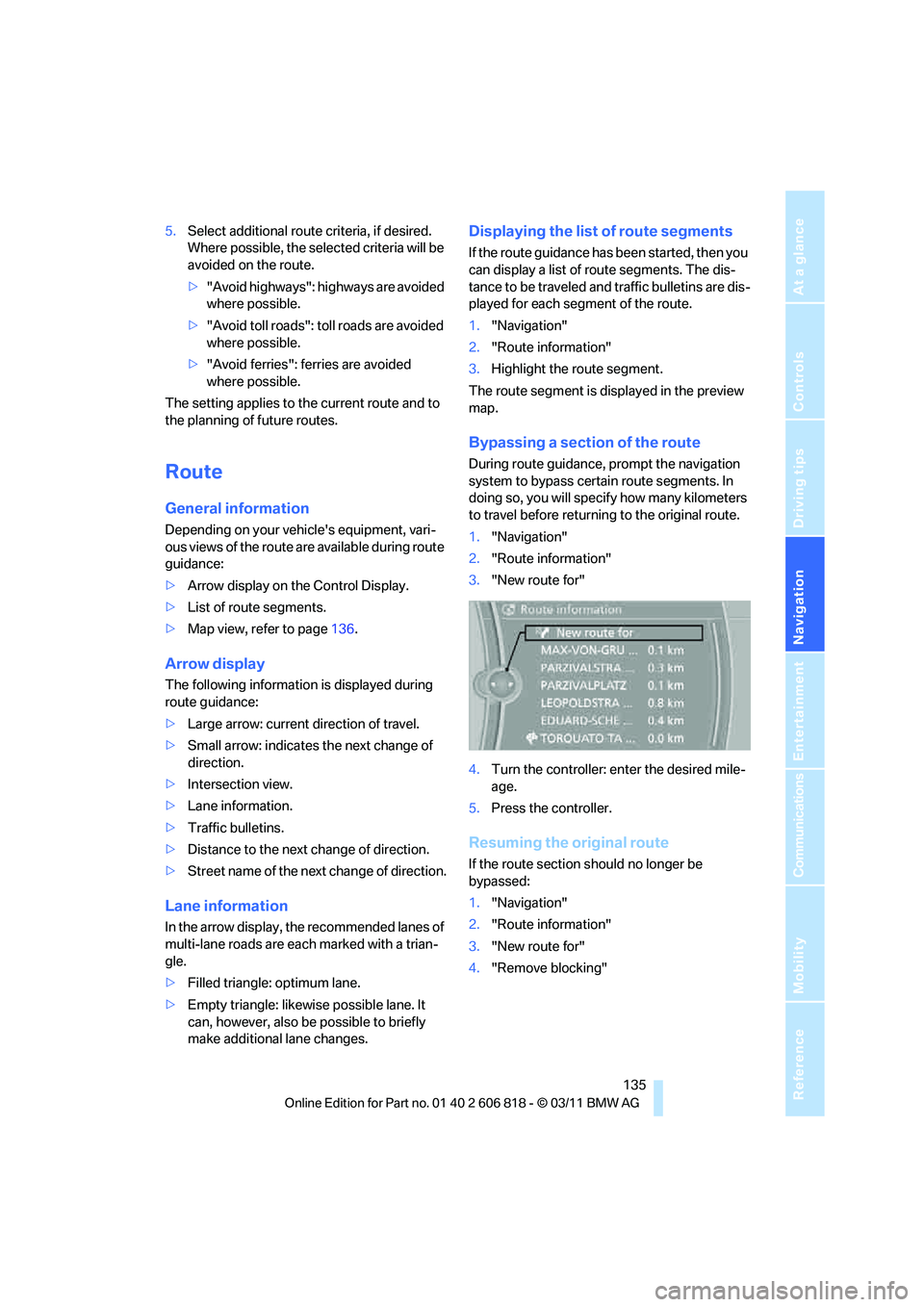
Bypassing a section of the route
During route guidance, prompt the navigation
system to bypass certain route segments. In
doing so, you will specify how many kilometers
to travel before returning to the original route.
1."Navigation"
2."Route information"
3."New route for"
4.Turn the controller: enter the desired mile-
age.
5.Press the controller.
Resuming the original route
If the route section should no longer be
bypassed:
1."Navigation"
2."Route information"
3."New route for"
4."Remove blocking"
Page 139 of 272
Navigation
Driving tips
137Reference
At a glance
Controls
Communications
Entertainment
Mobility
Traffic obstructions
Small triangles along the planned route identify
route segments with traffic obstructions,
depending on map scale. The direction of the
triangles indicates the direction of the obstruc-
tion.
Road signs classify the obstructions.
>Red road sign: the obstruction relates to the
planned route or direction of travel.
>Gray road sign: the obstruction does not
relate to the planned route or direction of
travel.
Traffic bulletins, refer to page138.
Planned route
After route guidance is started, the planned
route is displayed on the map.
Status boxes
Show/hide: press the controller.
>Upper status box: time, phone details, and
entertainment details.
>Lower status box: symbol for active route
guidance, traffic bulletin status, arrival time,
and distance from destination.
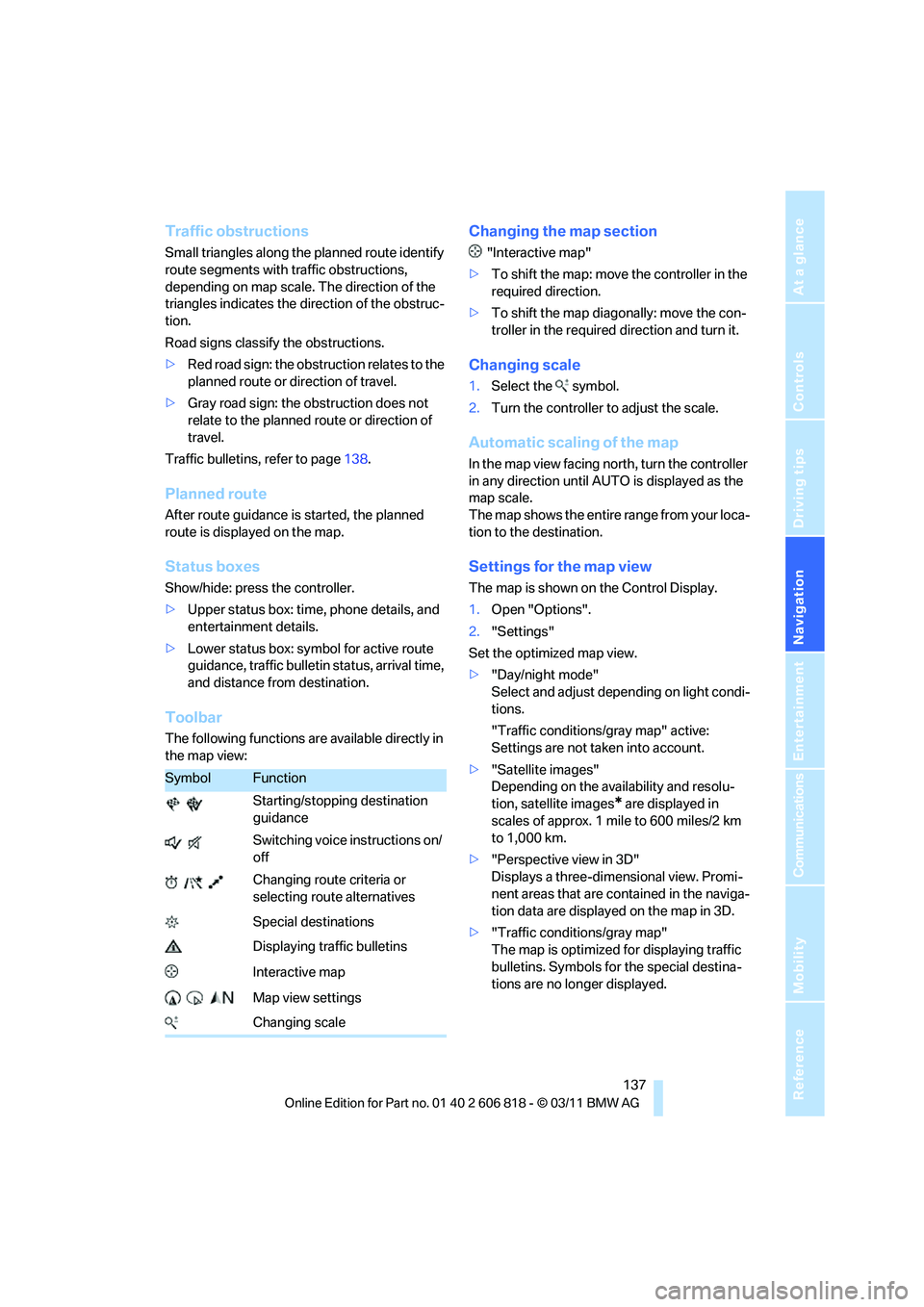
Toolbar
The following functions are available directly in
the map view:
Changing the map section
"Interactive map"
>To shift the map: move the controller in the
required direction.
>To shift the map diagonally: move the con-
troller in the required direction and turn it.
Changing scale
1.Select the symbol.
2.Turn the controller to adjust the scale.
Automatic scaling of the map
In the map view facing north, turn the controller
in any direction until AUTO is displayed as the
map scale.
The map shows the entire range from your loca-
tion to the destination.
Settings for the map view
The map is shown on the Control Display.
1.Open "Options".
2."Settings"
Set the optimized map view.
>"Day/night mode"
Select and adjust depending on light condi-
tions.
"Traffic conditions/gray map" active:
Settings are not taken into account.
>"Satellite images"
Depending on the availability and resolu-
tion, satellite images
* are displayed in
scales of approx. 1 mile to 600 miles/2 km
to 1,000 km.
>"Perspective view in 3D"
Displays a three-dimensional view. Promi-
nent areas that are contained in the naviga-
tion data are displayed on the map in 3D.
>"Traffic conditions/gray map"
The map is optimized for displaying traffic
bulletins. Symbols for the special destina-
tions are no longer displayed.
SymbolFunction
Starting/stopping destination
guidance
Switching voice instructions on/
off
Changing route criteria or
selecting route alternatives
Special destinations
Displaying traffic bulletins
Interactive map
Map view settings
Changing scale
Page 141 of 272
Navigation
Driving tips
139Reference
At a glance
Controls
Communications
Entertainment
Mobility
damages (including, without limitation, lost rev-
enues, anticipated revenues, or profits relating
to the same) arising from any claim relating
directly or indirectly to use of the traffic data,
and even if Total Traffic Network, Inrix, Inc., or
BMW NA are aware of the possibility of such
damages. These limitations apply to all claims,
including, without limitation, claims in contract
and tort (such as negligence, product liability
and strict liability). Some states do not allow the
exclusion or limitation of incidental or conse-
quential damages, so those particular limita-
tions may not apply to you.
Activating/deactivating reception
1."Navigation"
2.Open "Options".
3."Receive Traffic Info"
Accessing traffic bulletins
1."Navigation"
2."Map"
3."Traffic Info"
First, the traffic bulletins for the calculated
route are displayed.
The traffic bulletins are sorted in the order
of their distance from the current vehicle
position.
4.Select a traffic bulletin.
"More information":
Display additional information.
5.Scroll to the next or previous traffic bulletin
if desired.
Traffic bulletins on the map
"Traffic conditions/gray map" active: the Con-
trol Display changes to a grayscale display. This
enables a better view of the traffic bulletins. The
day/night mode is disregarded in this setting.
Symbols or special destinations are no longer
displayed.
1."Navigation"
2."Map"
3.Open "Options".4."Settings"
5."Traffic conditions/gray map"
Symbols in the map view
Depending on the scale of the map and the
location of the traffic obstruction along the
route, the symbols for the traffic obstructions
are displayed.
Additional information in the map view
Depending on the map scale, a traffic obstruc-
tion's length, direction and impact are displayed
on the map using triangles or gray bars along
the calculated route.
>Red: traffic congestion
>Orange: stop-and-go traffic
>Yellow: heavy traffic
>Green: clear roads
>Gray: general traffic information, e.g. con-
struction zone
The bulletins displayed depend in the respec-
tive traffic information service.
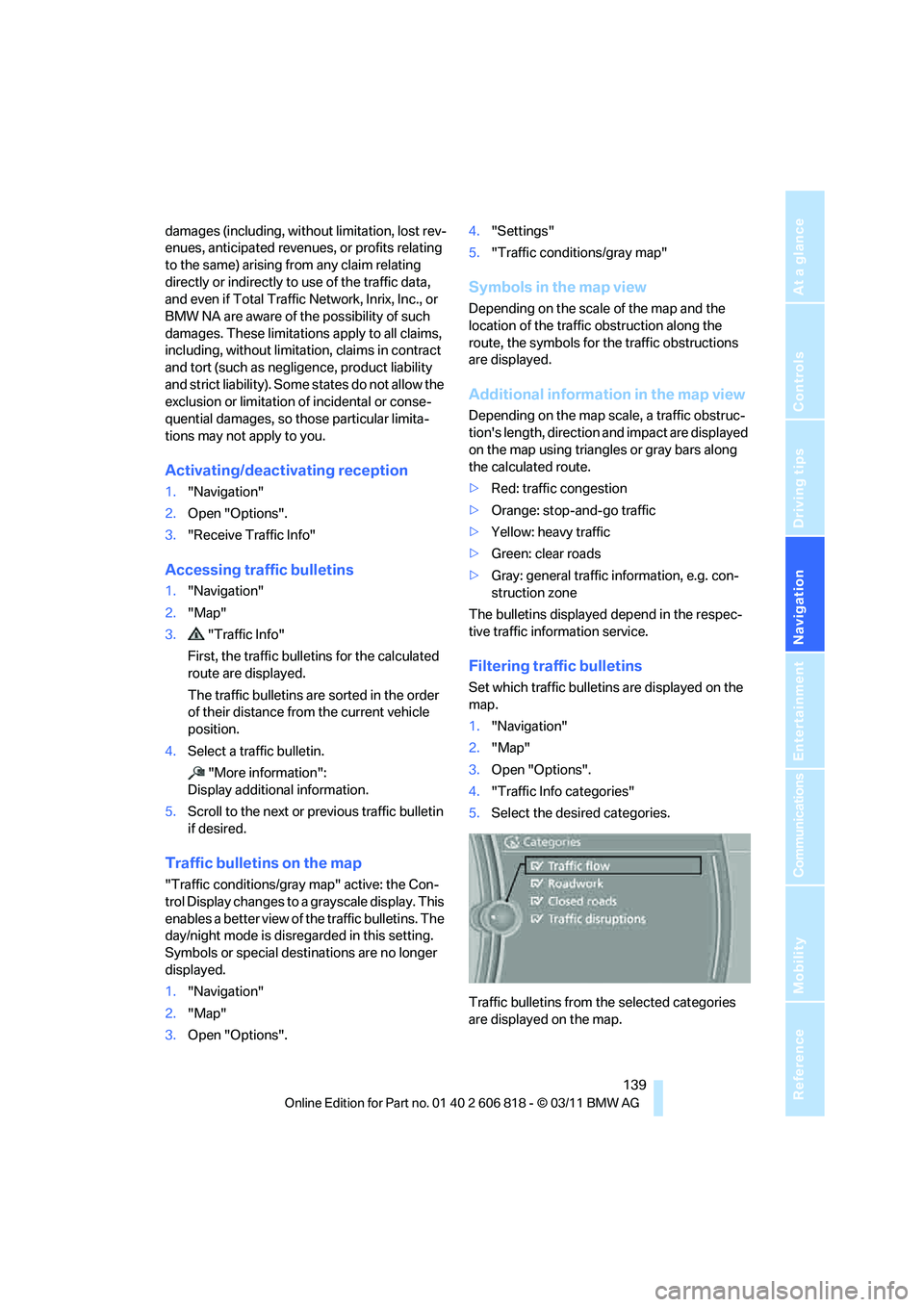
Filtering traffic bulletins
Set which traffic bulletins are displayed on the
map.
1."Navigation"
2."Map"
3.Open "Options".
4."Traffic Info categories"
5.Select the desired categories.
Traffic bulletins from the selected categories
are displayed on the map.
Page 143 of 272
Navigation
Driving tips
141Reference
At a glance
Controls
Communications
Entertainment
Mobility
What to do if …
What to do if…
>The current position cannot be displayed?
The position is in an unrecognized region, in
a poor reception area, or the system is in the
process of determining the position.
Reception is generally available when you
are in the open.
>The destination guidance does not accept a
destination without a street name?
A downtown area cannot be determined for
the town or city that has been entered. Input
any street in the selected town/city and
start destination guidance.
>The destination guidance does not accept a
destination?
The destination data is not contained in the
navigation data. Choose a destination as
close as possible to the original one.
>The letters for a destination cannot be
selected during destination entry?
The stored data do not contain the data of
the destination. Select a destination that is
as close as possible to the original.
>The map view is displayed in grayscale?
"Traffic conditions/gray map" active: the
Control Display changes to a grayscale dis-
play. This enables a better view of the traffic
bulletins.
>Voice instructions are no longer issued
before intersections during destination
guidance?
The area has not been fully recorded yet, or
you have left the recommended route and
the system requires a few seconds to calcu-
late a new route suggestion.
Page 147 of 272
Navigation
Entertainment
Driving tips
145Reference
At a glance
Controls
Communications
Mobility
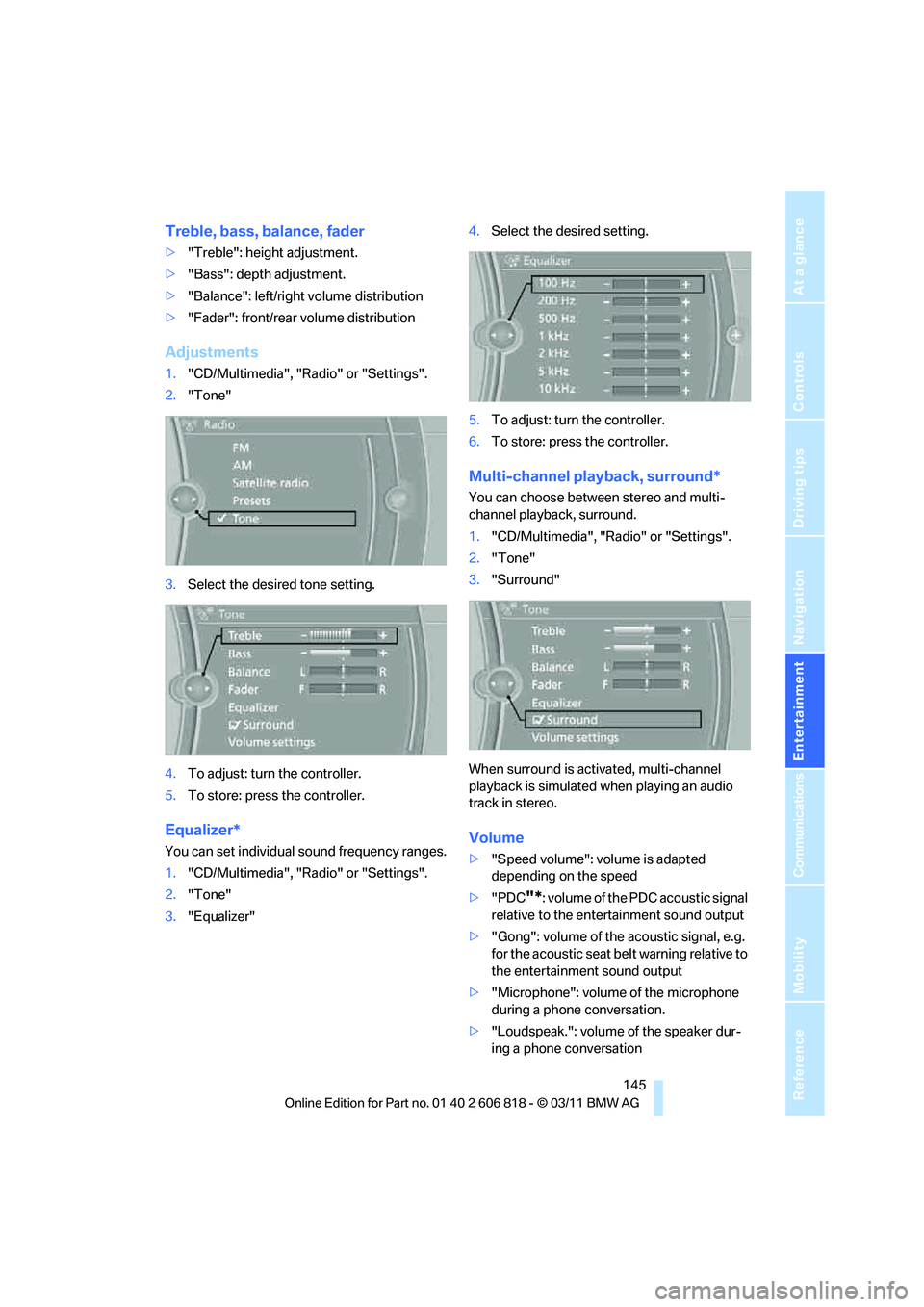
Treble, bass, balance, fader
>"Treble": height adjustment.
>"Bass": depth adjustment.
>"Balance": left/right volume distribution
>"Fader": front/rear volume distribution
Adjustments
1."CD/Multimedia", "Radio" or "Settings".
2."Tone"
3.Select the desired tone setting.
4.To adjust: turn the controller.
5.To store: press the controller.
Equalizer*
You can set individual sound frequency ranges.
1."CD/Multimedia", "Radio" or "Settings".
2."Tone"
3."Equalizer"4.Select the desired setting.
5.To adjust: turn the controller.
6.To store: press the controller.
Multi-channel playback, surround*
You can choose between stereo and multi-
channel playback, surround.
1."CD/Multimedia", "Radio" or "Settings".
2."Tone"
3."Surround"
When surround is activated, multi-channel
playback is simulated when playing an audio
track in stereo.
Volume
>"Speed volume": volume is adapted
depending on the speed
>"PDC
"*: volume of the PDC acoustic signal
relative to the entertainment sound output
>"Gong": volume of the acoustic signal, e.g.
for the acoustic seat belt warning relative to
the entertainment sound output
>"Microphone": volume of the microphone
during a phone conversation.
>"Loudspeak.": volume of the speaker dur-
ing a phone conversation
Page 149 of 272
Navigation
Entertainment
Driving tips
147Reference
At a glance
Controls
Communications
Mobility
Radio
Your radio is designed for reception of the fol-
lowing stations:
>FM and AM
>HD Radio
*
>Satellite radio*
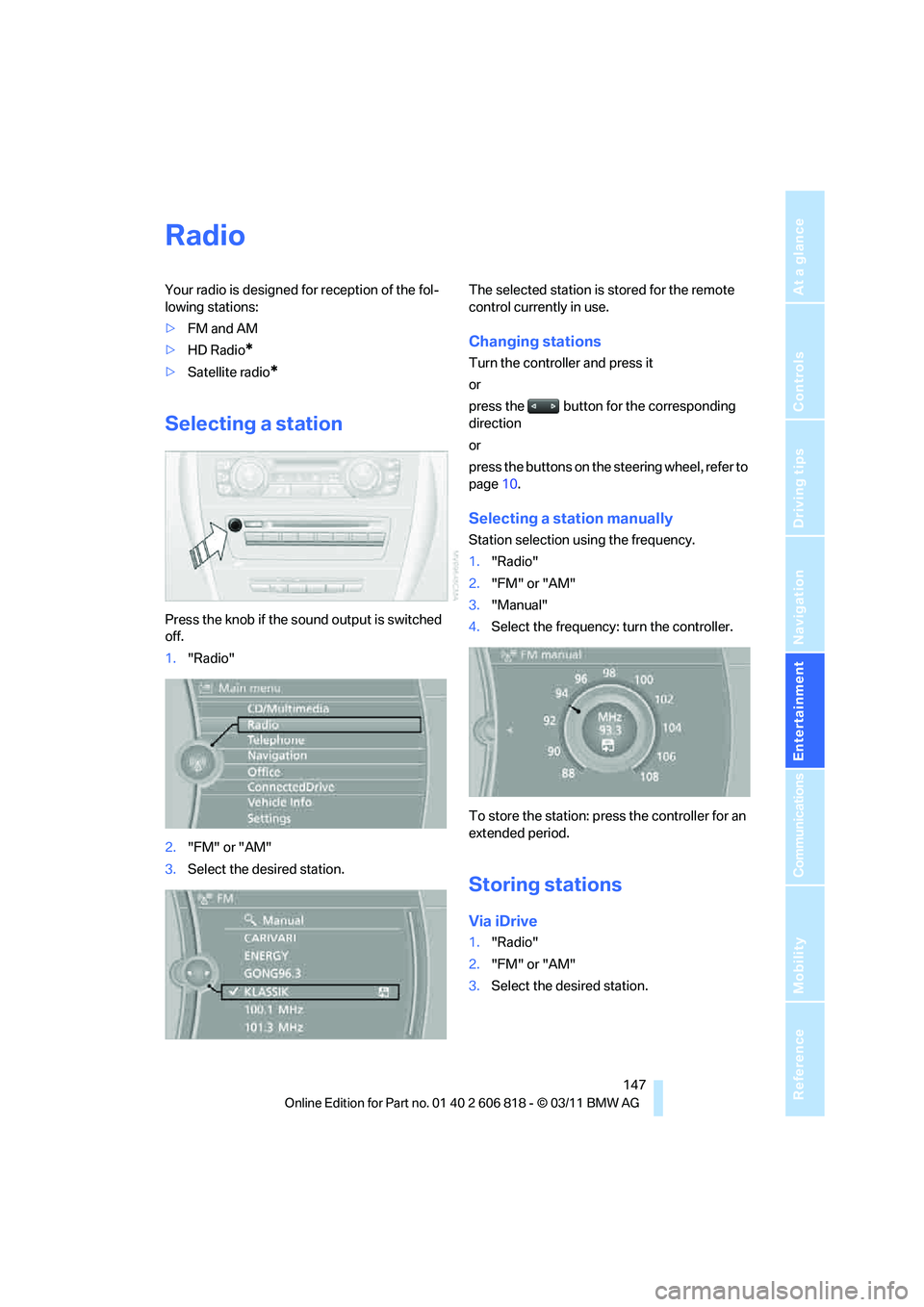
Selecting a station
Press the knob if the sound output is switched
off.
1."Radio"
2."FM" or "AM"
3.Select the desired station.The selected station is stored for the remote
control currently in use.
Changing stations
Turn the controller and press it
or
press the button for the corresponding
direction
or
press the buttons on the steering wheel, refer to
page10.
Selecting a station manually
Station selection using the frequency.
1."Radio"
2."FM" or "AM"
3."Manual"
4.Select the frequency: turn the controller.
To store the station: press the controller for an
extended period.
Storing stations
Via iDrive
1."Radio"
2."FM" or "AM"
3.Select the desired station.