Page 171 of 501

Interior features3
171
3-4. Using the hands-free
phone system
(for cellular phone)
Hands-free phone system
(for cellular phone)
features .......................... 247
Using the hands-free
phone system
(for cellular phone) ......... 252
Making a phone call ......... 262
Setting a cellular phone ... 266
Security and system
setup .............................. 271
Using the phone book ...... 275
3-5. Using the interior lights
Interior lights list ............... 282
• Interior light .................... 283
• Personal/interior lights ... 284
• Personal lights ............... 2853-6. Using the storage features
List of storage features .... 286
• Glove box....................... 287
• Console box ................... 287
• Cup holders ................... 288
• Bottle holders ................. 290
• Auxiliary boxes ............... 291
3-7. Other interior features
Sun visors ........................ 293
Vanity mirrors ................... 294
Clock ................................ 295
Ashtrays ........................... 296
Cigarette lighter................ 297
Power outlet ..................... 298
Grocery bag hook ............ 300
Seatback table ................. 302
Floor mat .......................... 303
Luggage compartment
feature............................ 304
Compass .......................... 311
Page 173 of 501
173 3-1. Using the air conditioning system and defogger
3
Interior features
Adjusting the settings
■Adjusting the temperature setting (heater)
Turn the temperature control dial clockwise to increase the temper-
ature.
■Adjusting the temperature setting (air conditioning system)
Turn the temperature control dial clockwise (warm) or counter-
clockwise (cool).
If is not pressed, the system will blow ambient temperature air or
heated air.
■Adjusting the fan speed
Turn the fan speed control dial clockwise (increase) or counter-
clockwise (decrease).
Set the dial to “0” to turn the fan off.
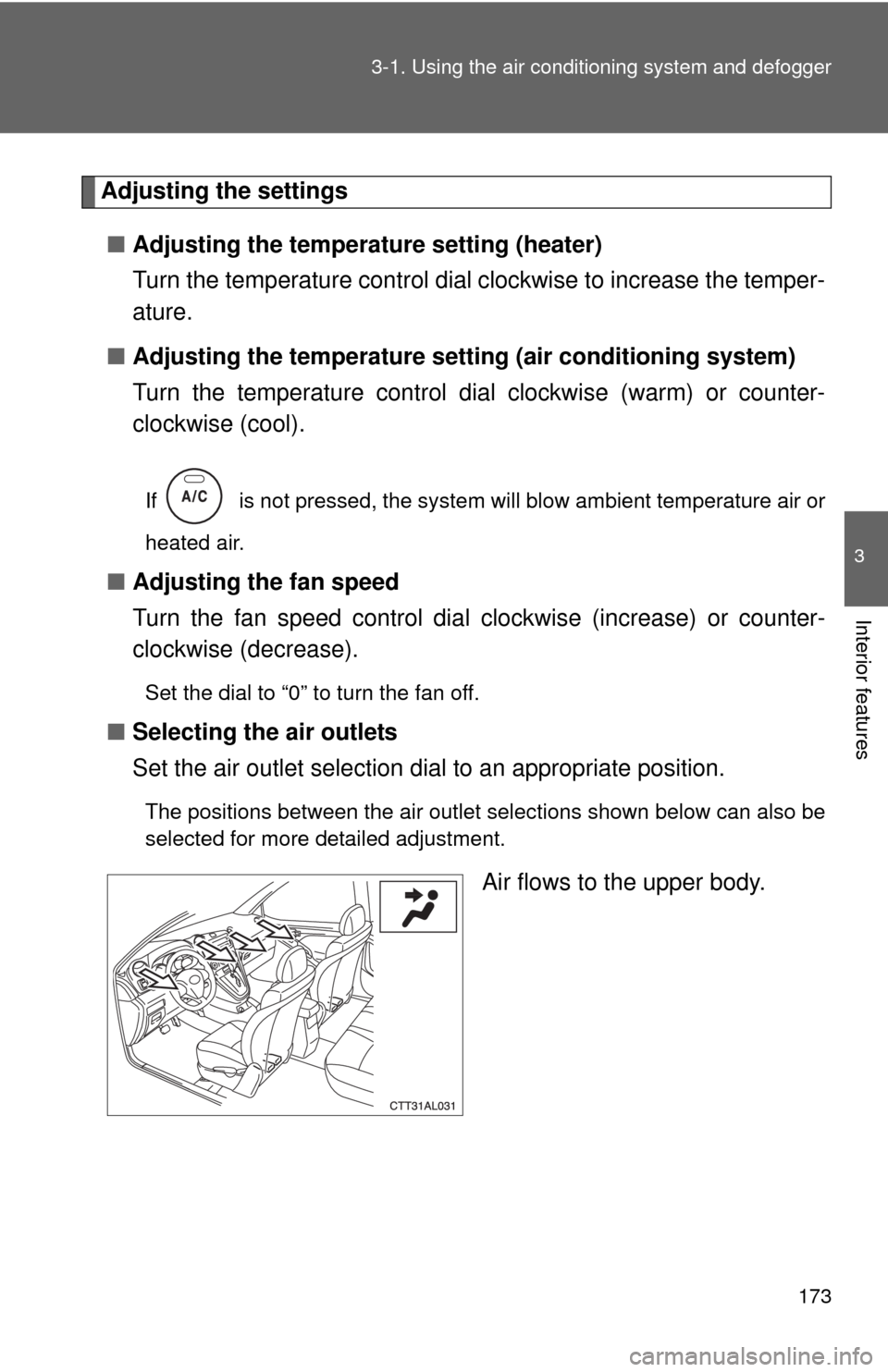
■Selecting the air outlets
Set the air outlet selection dial to an appropriate position.
The positions between the air outlet selections shown below can also be
selected for more detailed adjustment.
Air flows to the upper body.
Page 177 of 501

177 3-1. Using the air conditioning system and defogger
3
Interior features
■For quick cooling (vehicles with air conditioning system)
Turn the temperature control dial to the “MAX A/C” position and select the
recirculated air mode.
■For quick clearing of the windshield and side windows (vehicles with
air conditioning system)
Press to turn the air conditioning on.
■Using the recirculated air mode
The windows will fog up more easily if the recirculated air mode is used for
an extended period.
■When outside air temperature approaches 32°F (0°C) (vehicles with air
conditioning system)
The air conditioning system may not operate even when
is pressed.
■When
is selected for the air outlets used
For your driving comfort, air flowing to the feet may be warmer than air flow-
ing to the upper body depending on the position of the temperature adjust-
ment dial.
■Air conditioning odors
●During use, various odors from inside and outside the vehicle may enter
into and accumulate in the air conditioning system. This may then cause
odor to be emitted from the vents.
●To reduce potential odors from occurring:
It is recommended that the air conditioning system be set to outside air
mode prior to turning the vehicle off.
CAUTION
■To prevent the windshield from fogging up
Do not set the air outlet selection dial to during cool air operation in
extremely humid weather. The difference between the temperature of the
outside air and that of the windshield can cause the outer surface of the
windshield to fog up, blocking your vision.
Page 248 of 501

248 3-4. Using the hands-free phone system (for cellular phone)
TitlePage
Using the hands-free phone system
■Operating the system using a voice
command
■Using the hands-free phone system for
the first time
■Menu list of the hands-free phone
systemP. 252
Making a phone call
■Dialing by inputting a number
■Dialing by inputting a name
■Speed dialing
■When receiving a phone call
■Transferring a phone call
■Using the call historyP. 262
Setting a cellular phone
■Registering a cellular phone
■Selecting a cellular phone to be used
■Changing a registered name
■Listing the registered cellular phones
■Deleting a cellular phone
■Changing the passkey
■Turning the hands-free phone
automatic connection on/offP. 266
Security and system setup
■Setting or changing the PIN
■Locking or unlocking the phone book
■Setting voice guidance volume
■InitializationP. 271
Using the phone book
■Adding a new phone number
■Setting speed dials
■Changing a registered name
■Deleting registered data
■Deleting speed dials
■Listing the registered dataP. 275
Page 259 of 501
259 3-4. Using the hands-free phone system (for cellular phone)
3
Interior features
Setup
(Setup)SecuritySet PIN Setting a PIN code
Phonebook Lock
(Phone book
lock)Locking the phone book
Phonebook
Unlock (Phone
book unlock)Unlocking the phone book
Phone
SetupPair PhoneRegistering the cellular
phone to be used
Change Phone
Name (Change
name)Changing a registered name
of a cellular phone
Delete PhoneDeleting a registered cellular
phone
List phonesListing the registered cellular
phones
Select phoneSelecting a cellular phone to
be used
Set Passkey Changing the passkey
Handsfree
PowerTurning the Hands-free
power on/off
System
SetupGuidance Vol-
umeSetting voice guidance vol-
ume
Device NameDisplaying a device’s infor-
mation
Reset Setting Initialization
First menuSecond
menuThird menuOperation detail
Page 271 of 501
271
3-4. Using the hands-free phone system (for cellular phone)
3
Interior features
Security and system setup
Setting or changing the PIN
■Setting a PIN
Select “Set PIN” using a voice command or .
Enter a PIN using a voice command or .
When using , input the code 1 digit at a time.
To enter the menu of each setting, follow the steps below:
■Security setting items and operation procedure
●Setting or changing the PIN (Personal Identification Number)
1. “Setup (Setup)” 2. “Security” 3. “Set PIN”
●Locking the phone book
1. “Setup (Setup)” 2. “Security” 3. “Phonebook Lock
(Phone book lock)”
●Unlocking the phone book
1. “Setup (Setup)” 2. “Security” 3. “Phonebook Unlock
(Phone book unlock)”
■System setup items and operation procedure
●Setting voice guidance volume
1. “Setup (Setup)” 2. “System Setup” 3. “Guidance Vol-
ume”
●Initialization
1. “Setup (Setup)” 2. “System Setup” 3. “Reset Settings”
can only be used for system setup operation.
STEP1
STEP2
Page 272 of 501
272 3-4. Using the hands-free phone system (for cellular phone)
■Changing the PIN
Select “Set PIN” using a voice command or .
Enter the registered PIN using a voice command or .
Enter a new PIN using a voice command or .
When using , input the code 1 digit at a time.
Locking or unlocking the phone book
Select “Phonebook Lock (Phone book lock)” or “Phonebook
Unlock (Phone book unlock)” using a voice command or
.
Input the PIN by either of the following methods and select
“Confirm” using a voice command or :
a. Press the talk switch and say the registered PIN.
b. Input a new PIN using .
STEP1
STEP2
STEP3
STEP1
STEP2
Page 273 of 501
273 3-4. Using the hands-free phone system (for cellular phone)
3
Interior features
Setting voice guidance volume
Select “Guidance Vol” using .
Change the voice guidance volume.
To decrease the volume: Turn counterclockwise.
To increase the volume: Turn clockwise.
Initialization
Select “Reset Settings” and then “Confirm” using .
Select “Confirm” using .
STEP1
STEP2
STEP1
STEP2