Page 181 of 529

181
2-5. Driving information
2
When driving
CAUTION
■
To avoid accident or injury
●Do not exceed the trailer hitch assembly weight, gross vehicle weight,
gross axle weight and trailer tongue load capacities.
● Never load more weight in the back than in the front of the trailer. About
60% of the load should be in the front half of the trailer, and the remaining
40% in the rear.
■ Hitches
●If you wish to install a trailer hitch, contact your Toyota dealer.
● Use only a hitch that conforms to the total trailer weight requirement.
● Follow the directions supplied by the hitch manufacturer.
● Lubricate the hitch ball with a light coat of grease.
● Remove the trailer hitch whenever you are not towing a trailer. After
removing the hitch, seal any mounting hole in the vehicle body to prevent
entry of any substances into the vehicle.
■ When towing a trailer
●If the gross trailer weight exceeds 1000 lb. (453 kg), trailer brakes are
required. Toyota recommends trailers wi th brakes that conform to all appli-
cable federal and state/provincial regulations.
● Never tap into your vehicle's hydraulic system, as this will lower the vehi-
cle's braking effectiveness.
● Never tow a trailer without using a safety chain securely attached to both
the trailer and the vehicle. If damage occurs to the coupling unit or hitch
ball, there is danger of the trailer wandering into another lane.
Page 191 of 529

Interior features3
191
3-3. Using the Bluetooth®
audio system
Bluetooth
® audio
system ........................... 259
Using the Bluetooth
®
audio system.................. 262
Operating a Bluetooth
®
enabled portable
player ............................. 267
Setting up a Bluetooth
®
enabled portable
player ............................. 269
Bluetooth
® audio system
setup .............................. 274
3-4. Using the hands-free phone system
(for cellular phone)
Hands-free phone system (for cellular phone)
features .......................... 275
Using the hands-free phone system ................ 279
Making a phone call ......... 289
Setting a cellular phone ... 293
Security and system setup .............................. 298
Using the phone book ...... 302 3-5. Using the interior lights
Interior lights list ............... 309
• Interior light .................... 311
• Personal lights ............... 311
• Personal/interior lights .............................. 312
3-6. Using the storage features
List of storage features .... 313
• Glove box....................... 314
• Console box ................... 314
• Cup holders ................... 316
• Auxiliary boxes ............... 318
• Bottle holders ................. 320
3-7. Other interior features Sun visors ........................ 321
Vanity mirrors ................... 322
Clock ................................ 323
Ashtray ............................. 324
Cigarette lighter................ 325
Power outlet ..................... 326
Seat heaters..................... 327
Floor mat .......................... 329
Compass .......................... 330
Page 215 of 529
215
3-2. Using the audio system
3
Interior features
■
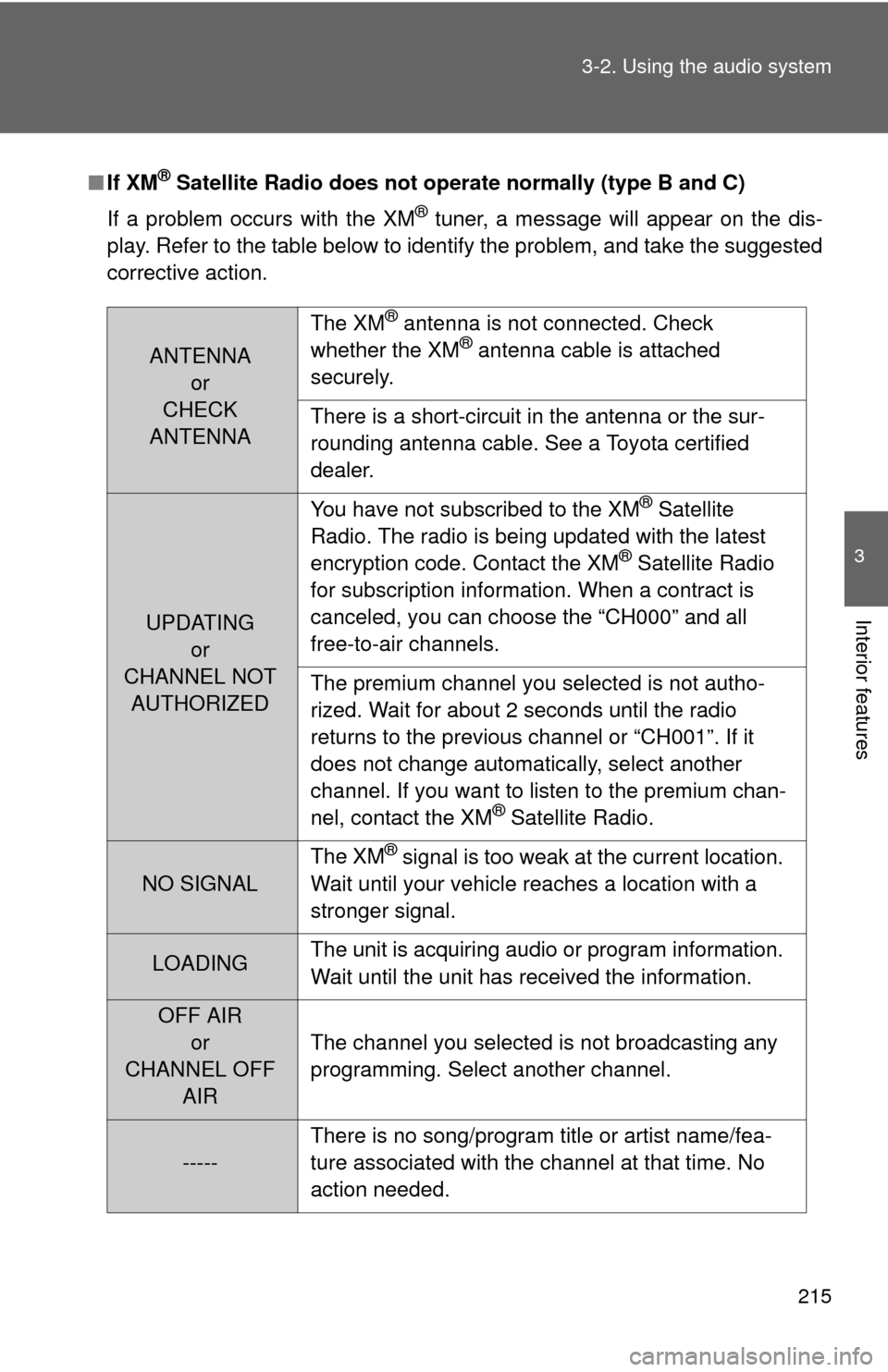
If XM® Satellite Radio does not operate normally (type B and C)
If a problem occurs with the XM
® tuner, a message will appear on the dis-
play. Refer to the table below to identify the problem, and take the suggested
corrective action.
ANTENNA or
CHECK
ANTENNA The XM
® antenna is not connected. Check
whether the XM® antenna cable is attached
securely.
There is a short-circuit in the antenna or the sur-
rounding antenna cable. See a Toyota certified
dealer.
UPDATING or
CHANNEL NOT AUTHORIZED You have not subscribed to the XM
® Satellite
Radio. The radio is being updated with the latest
encryption code. Contact the XM
® Satellite Radio
for subscription information. When a contract is
canceled, you can choose the “CH000” and all
free-to-air channels.
The premium channel you selected is not autho-
rized. Wait for about 2 seconds until the radio
returns to the previous channel or “CH001”. If it
does not change automatically, select another
channel. If you want to listen to the premium chan-
nel, contact the XM
® Satellite Radio.
NO SIGNAL The XM
® signal is too weak at the current location.
Wait until your vehicle reaches a location with a
stronger signal.
LOADING The unit is acquiring audio or program information.
Wait until the unit has received the information.
OFF AIR
or
CHANNEL OFF AIR The channel you selected is not broadcasting any
programming. Select another channel.
-----
There is no song/program title or artist name/fea-
ture associated with the channel at that time. No
action needed.
Page 276 of 529

276 3-4. Using the hands-free phone system (for cellular phone)
TitlePage
Using the hands-free phone system ■ Operating the system using a voice
command
■ Using the hands-free phone system for
the first time
■ Menu list of the hands-free phone
system P. 279
Making a phone call ■ Dialing by inputting a number
■ Dialing by inputting a name
■ Speed dialing
■ When receiving a phone call
■ Transferring a phone call
■ Using the call history P. 289
Setting a cellular phone ■ Registering a cellular phone
■ Selecting a cellular phone to be used
■ Changing a registered name
■ Listing the registered cellular phones
■ Deleting a cellular phone
■ Changing the passkey
■ Turning the hands-free phone
automatic connection on/off P. 293
Security and system setup ■ Setting or changing the PIN
■ Locking or unlocking the phone book
■ Setting voice guidance volume
■ Initialization P. 298
Using the phone book ■ Adding a new phone number
■ Setting speed dials
■ Changing a registered name
■ Deleting registered data
■ Deleting speed dials
■ Listing the registered data P. 302
Page 286 of 529
286 3-4. Using the hands-free phone system (for cellular phone)
Setup
(Setup)Security
Set PIN Setting a PIN code
Phonebook Lock
(Phone book
lock)
Locking the phone book
Phonebook
Unlock (Phone
book unlock) Unlocking the phone book
Phone
Setup Pair Phone
Registering the cellular
phone to be used
Change Phone
Name (Change
name) Changing the registered
name of a cellular phone
Delete Phone Deleting a registered cellular
phone
List Phones Listing the registered cellular
phones
Select Phone Selecting a cellular phone to
be used
Set Passkey Changing the passkey
Handsfree
Power Turning the Hands-free
power on/off
System
Setup Guidance Vol-
ume
Setting voice guidance vol-
ume
Device Name Displaying a device’s infor-
mation
Reset Setting Initialization
First menuSecond menuThird menuOperation detail
Page 298 of 529
298
3-4. Using the hands-free phone system (for cellular phone)
Security and system setup
Setting or changing the PIN■ Setting a PIN
Select “Set PIN” using a voice command or .
Enter a PIN using a voice command or .
When using , input the code 1 digit at a time.
To enter the menu of each setting, follow the steps below:
■Security setting items and operation procedure
● Setting or changing t he PIN (Personal Identification Number)
1. “Setup (Setup)” 2. “Security” 3. “Set PIN”
● Locking the phone book
1. “Setup (Setup)” 2. “Security” 3. “Phonebook Lock
(Phone book lock)”
● Unlocking the phone book
1. “Setup (Setup)” 2. “Security” 3. “Phonebook Unlock
(Phone book unlock)”
■ System setup items and operation procedure
●Setting voice guidance volume
1. “Setup (Setup)” 2. “System Setup” 3. “Guidance Vol-
ume”
● Initialization
1. “Setup (Setup)” 2. “System Setup” 3. “Reset Settings”
can only be used for system setup operation.
STEP 1
STEP 2
Page 301 of 529
301
3-4. Using the hand
s-free phone system (for cellular phone)
3
Interior features
■Initialization
●The following data in the system can be initialized:
• Phone book
• Outgoing and incoming call history
• Speed dials
• Registered cellular phone data
• Security code
● Once the initialization has been completed, the data cannot be restored
to its original state.
■ When the phone book is locked
The following functions cannot be used:
●Dialing by inputting a name
● Speed dialing
● Dialing a number stored in the call history
● Using the phone book
Page 329 of 529

329
3-7. Other interior features
3
Interior features
Floor mat
CAUTION
Observe the following precautions.
Failure to do so may cause the driver's floor mat to slip, possibly interfering
with the pedals while driving. An unexpectedly high speed may result or it may
become difficult to stop the vehicle, leading to a serious accident.
■When installing the driver's floor mat
●Do not use floor mats designed for other models or different model year
vehicles, even if they are Toyota Genuine floor mats.
● Only use floor mats designed for the driver's seat.
● Always install the floor mat securely using the retaining hooks (clips) pro-
vided.
● Do not use two or more floor mats on top of each other.
● Do not place the floor mat bottom-side up or upside-down.
■ Before driving
Use only floor mats designed specifically for vehicles of the same
model and model year as your vehic le. Fix them securely in place
onto the carpet.
Fix the floor mat in place using
the retaining hooks (clips) pro-
vided.
The shape of the retaining
hooks (clips) and the fixing
procedure of the floor mat for
your vehicle may differ from
those shown in the illustration.
For details, refer to the floor
mat retention clip installation
instructions supplied with the
clips.
● Check that the floor mat is securely
fixed in the right place with all the pro-
vided retaining hooks (clips). Be espe-
cially careful to perform this check after
cleaning the floor.
● With the engine stopped and the shift
lever in P (automatic transmission) or N
(manual transmission), fully depress
each pedal to the floor to make sure it
does not interfere with the floor mat.


