Page 4 of 564

TABLE OF CONTENTSIndex
4
AVALON_U (OM41428U)
3-1. Using the air conditioning
system and defogger
Automatic air conditioning
system .............................. 216
Using the steering wheel climate
control switches................ 224
Rear window and outside rear
view mirror defoggers....... 225
3-2. Using the audio system
Audio system type .............. 227
Using the radio ................... 231
Using the CD player ........... 239
Playing back MP3 and
WMA discs ....................... 247
Operating an iPod .............. 255
Operating a USB
memory ............................ 262
Optimal use of the audio
system .............................. 270
Using the AUX port ............ 273
Using the steering
switches ........................... 2743-3. Using the Bluetooth
® audio
system
Bluetooth
® audio
system .............................. 277
Using the Bluetooth
®
audio system .................... 280
Operating a Bluetooth
®
enabled portable
player ................................ 287
Setting up a Bluetooth
®
enabled portable
player ................................ 289
Bluetooth
® audio system
setup ................................. 295
3-4. Using the hands-free system
(for cellular phone)
Hands-free system
(for cellular phone) ........... 296
Using the hands-free
system .............................. 299
Making a phone call............ 308
Setting a cellular phone ...... 313
Security and system
setup ................................. 320
Using the phone book......... 325
3-5. Using the interior lights
Interior lights list.................. 334
3Interior features
Page 214 of 564
214
AVALON_U (OM41428U)
3-1. Using the air conditioning system and defogger
Automatic air conditioning system ........................... 216
Using the steering wheel climate control
switches ......................... 224
Rear window and outside rear view mirror defoggers .... 225
3-2. Using the audio system Audio system type............ 227
Using the radio ................. 231
Using the CD player ......... 239
Playing back MP3 and WMA discs ..................... 247
Operating an iPod ............ 255
Operating a USB memory .......................... 262
Optimal use of the audio system ........................... 270
Using the AUX port .......... 273
Using the steering switches ......................... 274
Interior features3
Page 228 of 564
228 3-2. Using the audio system
AVALON_U (OM41428U)
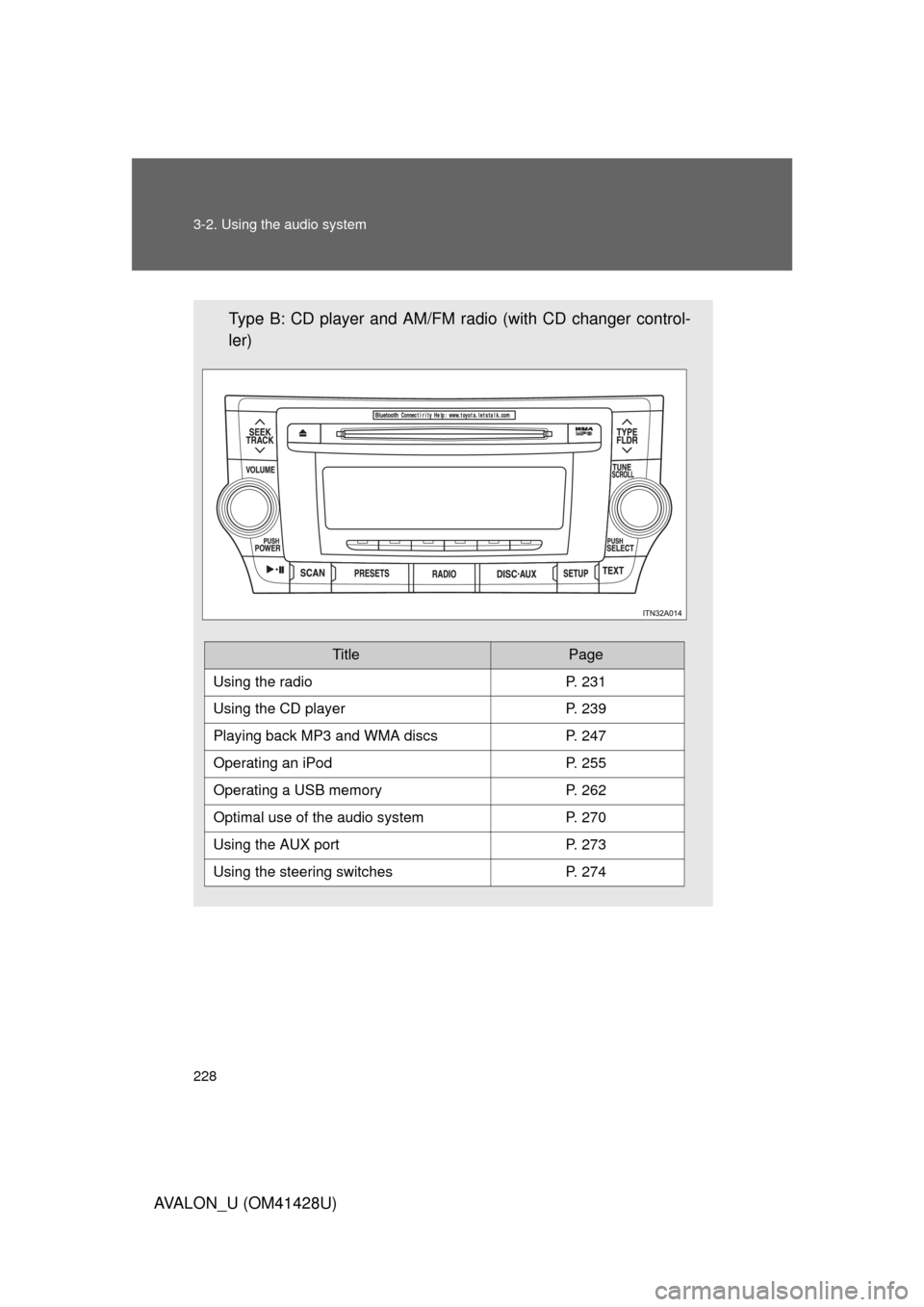
Type B: CD player and AM/FM radio (with CD changer control-
ler)
TitlePage
Using the radioP. 231
Using the CD playerP. 239
Playing back MP3 and WMA discs P. 247
Operating an iPodP. 255
Operating a USB memoryP. 262
Optimal use of the audio systemP. 270
Using the AUX portP. 273
Using the steering switchesP. 274
Page 260 of 564
260 3-2. Using the audio system
AVALON_U (OM41428U)
■Error messages
“iPod ERROR”: This indicates a problem in the iPod, inside the USB
box or the connection between them.
“NO SONGS”: This indicates that there is no music data in the
iPod.
“UPDATE YOUR iPod”: This indicates that the version of the iPod is not
compatible.
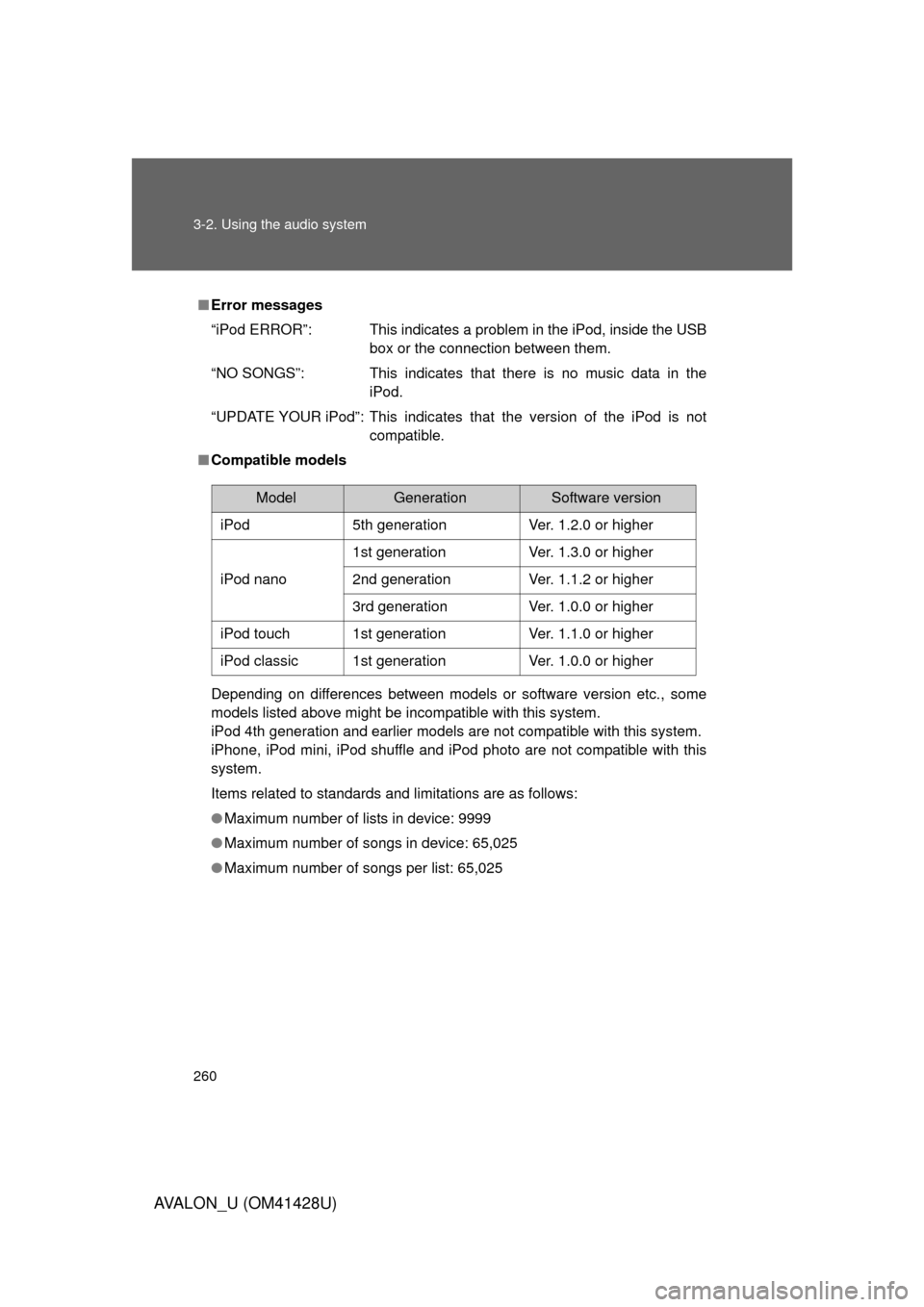
■Compatible models
Depending on differences between models or software version etc., some
models listed above might be incompatible with this system.
iPod 4th generation and earlier models are not compatible with this system.
iPhone, iPod mini, iPod shuffle and iPod photo are not compatible with this
system.
Items related to standards and limitations are as follows:
●Maximum number of lists in device: 9999
●Maximum number of songs in device: 65,025
●Maximum number of songs per list: 65,025
ModelGenerationSoftware version
iPod5th generationVer. 1.2.0 or higher
iPod nano
1st generationVer. 1.3.0 or higher
2nd generationVer. 1.1.2 or higher
3rd generationVer. 1.0.0 or higher
iPod touch1st generationVer. 1.1.0 or higher
iPod classic1st generationVer. 1.0.0 or higher
Page 262 of 564
262
3-2. Using the audio system
AVALON_U (OM41428U)
Operating a USB memor y
Connecting a USB memory enables you to enjoy music from the
vehicle speakers.
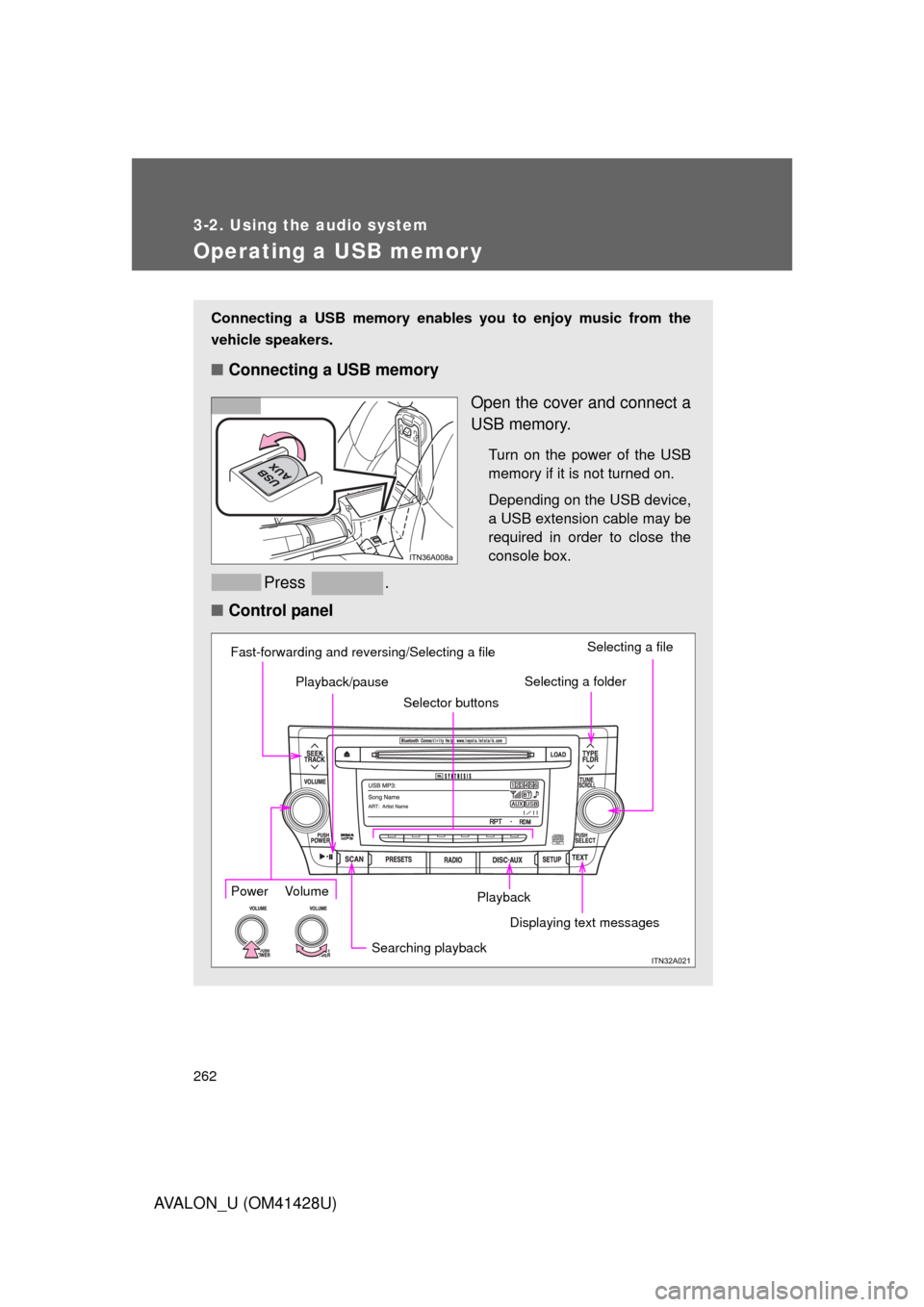
■Connecting a USB memory
Open the cover and connect a
USB memory.
Turn on the power of the USB
memory if it is not turned on.
Depending on the USB device,
a USB extension cable may be
required in order to close the
console box.
Press .
■Control panel
Playback Playback/pause
Searching playbackDisplaying text messagesSelecting a folderSelecting a file
Selector buttons Fast-forwarding and reversing/Selecting a filePower Volume
Page 264 of 564
264 3-2. Using the audio system
AVALON_U (OM41428U)
Playing and pausing files
Press .
Fast-forwarding and rewinding files
Press and hold “
” or “” on .
Random playback
■Playing files from a folder in random order
Press that corresponds to “RDM”.
To cancel, press the button twice.
■Playing all the files from a USB memory in random order
Press that corresponds to “RDM” twice.
To cancel, press the button again.
Repeat play
■Repeating a file
Press that corresponds to “RPT”.
To cancel, press the button twice.
■Repeating all the files in a folder
Press that corresponds to “RPT” twice.
To cancel, press the button again.
Page 265 of 564
265 3-2. Using the audio system
3
Interior features
AVALON_U (OM41428U)
Switching the display
Press .
Each time the button is pressed, the display changes in the following
order: Track title Track title/Artist name Track title/Album name
Track title/Elapsed time.
■When using the USB port
You may be unable to use the instrument panel power outlet if a device is
connected to the USB port at the same time.
■USB memory functions
Depending on the USB memory that is connected to the system, certain
functions may not be available. Disconnecting the device and reconnecting it
once again may resolve some malfunctions.
■Error messages
“USB ERROR”: This indicates a problem either in the USB memory or
inside the USB box or connection between them.
“NO MUSIC”: This indicates that no MP3/WMA files are included in the
USB memory.
Page 266 of 564

266 3-2. Using the audio system
AVALON_U (OM41428U)
■USB memory
●Compatible devices
USB memory that can be used for MP3 and WMA playback.
Depending on the type of USB device, playback may not be possible.
●Compatible device formats
The following device formats can be used:
• USB communication formats: USB2.0 FS (12mbps)
• File formats: FAT16/32 (Windows)
• Correspondence class: Mass storage class
MP3 and WMA files written in any format other than those listed above
may not play correctly, and their file names and folder names may not be
displayed correctly.
Items related to standards and limitations are as follows:
• Maximum directory hierarchy: 8 levels
• Maximum number of folders in a device: 999 (including the root)
• Maximum number of files in a device: 65025
• Maximum number of files per folder: 255
●MP3 and WMA files
MP3 (MPEG Audio LAYER 3) is a standard audio compression format.
Files can be compressed to approximately 1/10 of their original size using
MP3 compression.
WMA (Windows Media Audio) is a Microsoft audio compression format.
This format compresses audio data to a size smaller than that of the MP3
format.
There is a limit to the MP3 and WMA file standards that can be used and to
the media/formats on which the files are recorded.