2011 SUBARU IMPREZA key
[x] Cancel search: keyPage 126 of 458

: Deactivated
NOTE . Your vehicle ’s initial movement
setting of the meter/gauge needles
has been set for activation “
”at the
time of shipment from the factory. . It is not possible to cancel the initial
movement setting of the meter/gauge
needles when the ignition switch is inthe “ON ”position. Cancel the setting
whentheignitionswitchisinthe“ LOCK ”or “Acc ”position.
& Meter/Gauge needle illumi-
nation setting (turbo models
except STI)
When the setting is activated or deacti-
vated, the meter needles and gauge
needles illuminate and turn off as follows. Activated:
When the driver ’s door is opened while
theignitionswitchisinthe “LOCK ”
position, the needles illuminate and turn
off after approximately 20 seconds. The
illumination of the needles gradually turns
off after the ignition switch is turned fromthe “ON ”position to the “LOCK ”position.
Deactivated:
The needles do not illuminate when thedriver ’s door is opened while the ignition switch is in the
“LOCK ”position. The
illumination of the needles turns off im-
mediately after the ignition switch is turned
from the “ON ”position to the “LOCK ”
position.
NOTE . Even during the illumination after
the driver ’s door is opened, if the
ignition switch is turned to the “ON ”
position, the combination meter will
illuminate as usual.. If the doors are locked by the remote
keyless entry system during the illumi-
nation after the driver ’s door is opened,
the illumination will be turned off.. Even while the illumination gradu-
ally turns off after the ignition switch is
turned to the “LOCK ”position, if the
ignition switch is turned to the “ON ”
position, the combination meter illumi-
nate as usual.
To change the setting:
1. Turn the ignition switch to the “LOCK ”
or “Acc ”position.
2. Press the trip knob to show “”or
“” on the odometer and trip meter
display. The display can be switched as
shown in the following illustration by
pressing the trip knob.
*: “”or “”, and “”or “”cannot
Instruments and controls
3-7
– CONTINUED –
Page 144 of 458
!Traction Control OFF indicator light (green –STI)
The light illuminates when the Vehicle
Dynamics Control mode switch is pressed
briefly. For details, refer to “Traction mode ”
F 7-36.
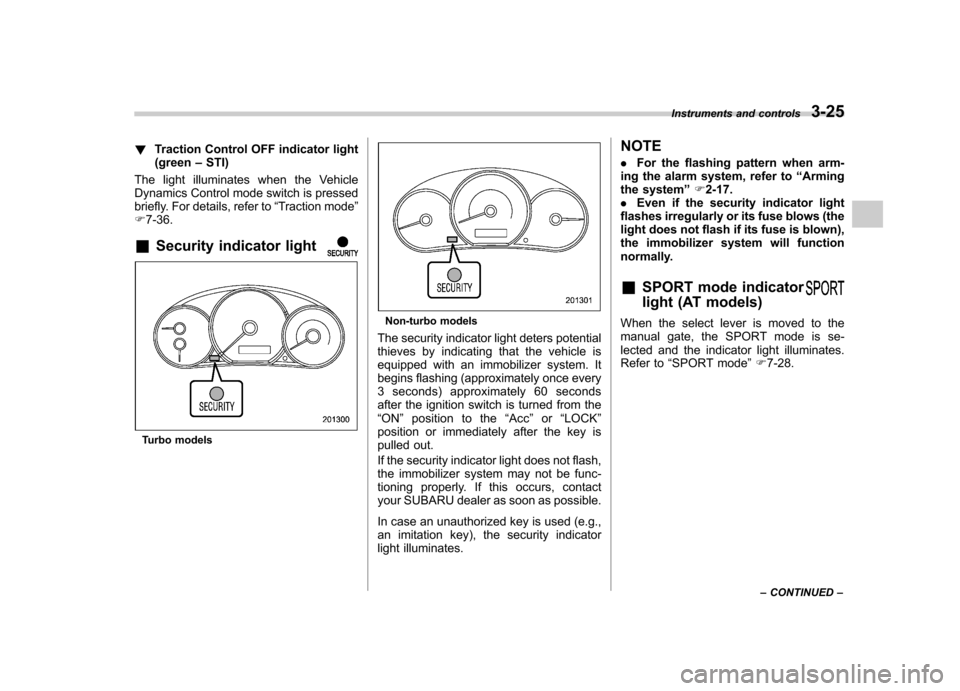
& Security indicator light
Turbo models
Non-turbo models
The security indicator light deters potential
thieves by indicating that the vehicle is
equipped with an immobilizer system. It
begins flashing (approximately once every
3 seconds) approximately 60 seconds
after the ignition switch is turned from the“ ON ”position to the “Acc ”or “LOCK ”
position or immediately after the key is
pulled out.
If the security indicator light does not flash,
the immobilizer system may not be func-
tioning properly. If this occurs, contact
your SUBARU dealer as soon as possible.
In case an unauthorized key is used (e.g.,
an imitation key), the security indicator
light illuminates. NOTE .
For the flashing pattern when arm-
ing the alarm system, refer to “Arming
the system ”F 2-17.
. Even if the security indicator light
flashes irregularly or its fuse blows (the
light does not flash if its fuse is blown),
the immobilizer system will function
normally.
& SPORT mode indicator
light (AT models)When the select lever is moved to the
manual gate, the SPORT mode is se-
lected and the indicator light illuminates.
Refer to “SPORT mode ”F 7-28.
Instruments and controls
3-25
– CONTINUED –
Page 150 of 458

corresponding to that trip meter indica-
tion is not shown until the vehicle has
subsequently covered a distance of 1
mile (or 1 km). &Turn off display of fuel con-
sumption indicator
The display of the fuel consumption
indicator can be turned off.
To turn off the display of the indicator, turn
the ignition switch to the “LOCK ”position
and press the “+ ” button adjacent to the
information display for approximately 5
seconds. Then, the information display
and the clock display will blink for 3
seconds to notify that the display of the
fuel consumption has been turned off.
To restore the indicator, once again pressthe “+ ” button for approximately 5 sec-
onds. NOTE . The initial display setting of the fuel
consumption indicator of your vehicle
has been set to operational at the time
of shipment from the factory. . The average fuel consumption is
calculated even while the indicator is
not displayed.. Even if you turn off the fuel con-
sumption indicator, the fuel consump-
tion indicator will automatically turn on when the battery voltage is discon-
nected and then reconnected for bat-
tery replacement or fuse replacement.
Light control switch
The light control switch operates when the
key is inserted into the ignition switch.
Regardless of the position of the light
control switch, the illuminated lights are
turned off when the key is removed from
the ignition switch. NOTE
Even if the key is removed from the
ignition switch, the lights can be illu-
minated by operating the light control
switch from
“OFF ”to the “
”or “”
position. In this case, if the driver ’s
door is opened, a chirp sound will
inform the driver that the lights are illuminated.
CAUTION
. Use of any lights for a long period
of time while the engine is not
running can cause the battery todischarge.
. Before leaving the vehicle, make
sure that the light control switch
is turned to the “OFF ”position. If
the vehicle is left unattended for
a long time with the light control
switch set to a position otherthan “OFF ”, the battery may be
Instruments and controls
3-31
– CONTINUED –
Page 232 of 458

Bluetooth®audio (type C
audio)
This function enables you to play back
audio sources recorded in Bluetooth
®
audio devices. You need to register theBluetooth®audio device in the system
before using it. & Media format
Bluetooth
®audio devices cannot be
connected if they are not compatible with
the following Bluetooth
®profiles.
. A2DP (Advanced Audio Distribution
Profile) . AVRCP (Audio/Video Remote Control
Profile) & Setting Bluetooth
®audio
1. Select the “BT-A SETUP ”menu by
pressing the “MENU ”button.
2. Perform the following procedure while “ BT-A ”is displayed.
NOTE
You cannot set a Bluetooth
®audio
while driving. !
Registering (pairing) device
1. Select the “PAIR AUDIO ”menu by
operating the “TUNE/TRACK/CH ”dial. If a
device is already registered, “MEMORY
FULL ”is displayed and the mode changes
to the Bluetooth
®audio setting mode.
2. After the passkey is shown on the
display, input the passkey into the cell
phone. If you input the correct passkey,“ PAIRED ”is displayed and the registering
procedure is finished. If you input an
incorrect passkey, “FAILED ”is displayed,
the registering procedure was not suc-
cessful and the mode changes to theBluetooth
®audio setting mode.
! Selecting device
1. Select the “SELECT AUDIO ”menu by
operating the “TUNE/TRACK/CH ”dial. If
no devices are registered, “EMPTY ”is
displayed and the mode changes to theBluetooth
®audio setting mode.
2. Select the “CONFIRM ”menu by oper-
ating the “TUNE/TRACK/CH ”dial. If the
device is connected, “SELECTED ”is
displayed and the selecting procedure is
finished. If the device cannot be con-nected, “FAILED ”is displayed and the
selecting procedure was not successful. !
Setting passkey
1. Select the “SET PASSKEY ”menu by
operating the “TUNE/TRACK/CH ”dial.
After the currently set passkey is dis-
played, a new passkey can be entered.
2. Input the new passkey by operating the “TUNE/TRACK/CH ”dial.
3. Select the “CONFIRM ”menu by oper-
ating the “TUNE/TRACK/CH ”dial. The
new passkey is displayed, the passkey is
changed and the mode changes to theBluetooth
®audio setting mode.
! Deleting device
1. Select the “DELETE AUDIO ”menu by
operating the “TUNE/TRACK/CH ”dial. If
no devices are registered, “EMPTY ”is
displayed and the mode changes to theBluetooth
®audio setting mode.
2. Select the “CONFIRM ”menu by oper-
ating the “TUNE/TRACK/CH ”dial. “DE-
LETED ”is displayed and the mode
changes to the Bluetooth
®audio setting
mode. & Bluetooth
®audio operation
NOTE
Depending on the connected device, it
may not activate as per the following
items or not work smoothly. Audio
5-45
– CONTINUED –
Page 237 of 458

5-50Audio
OFF hook switch
. To turn off the
Hands-free mode, press the ON hook switch
.
! Preparation for using the Hands-
free system
Before using the Hands-free system, it is
necessary to register a cell phone in the
system. Perform the following procedure
to register a cell phone.
1. Press the OFF hook switch
.
2. Select “ENGLISH ”/“ FRANÇAIS ”by
operating the “TUNE/TRACK/CH ”dial.
Then “WELCOME! ”will be displayed.
3. Press the “TUNE/TRACK/CH ”dial or
the talk switch
.
4. Select the “RECORD NAME ”menu.
5. Say the name to be registered.
6. Select the “CONFIRM ”menu. After
“ CAR M_MEDIA ”is displayed, a pass key
is displayed.
7. Input the displayed pass key into the
cell phone while “PKY: **** ”is displayed. If
you input the correct pass key, “PAIRED ”
is displayed and the registration proce-
dure is finished. If you input an incorrect
pass key, “FAILED ”is displayed and the
registration procedure was not successful. !
Updating phonebook data
! Registering by voice
1. Select the “PHONE BOOK ”menu.
2. Select the “ADD ENTRY ”menu.
3. Select the “BY VOICE ”menu.
4. Press the talk switch
.
5. Say the phone number to be regis- tered.
6. Select the “CONFIRM ”menu.
7. Select the “RECORD NAME ”menu by
operating the “TUNE/TRACK/CH ”dial or
press the talk switch
.
8. Say the name (voice tag) to be registered.
9. Select the “CONFIRM ”menu. Then
“ STORED ”is displayed and the mode
changes to the registering speed dial
mode. Refer to “Registering speed dial ”
F 5-51.
! Registering by phone
1. Select the “PHONE BOOK ”menu.
2. Select the “ADD ENTRY ”menu.
3. Select the “BY PHONE ”menu.
4. Select the “CONFIRM ”menu. Then
“ TRANSFER ”is displayed.
5. Transfer the data from the cell phone.
For details about transferring the data,
refer to the Owner ’s Manual of the cell phone.
6. Select the
“RECORD NAME ”menu by
operating the “TUNE/TRACK/CH ”dial or
press the talk switch
.
7. Say the name (voice tag) to be registered.
8. Select the “CONFIRM ”menu. Then
“ STORED ”is displayed and the mode
changes to the registering speed dial
mode. Refer to “Registering speed dial ”
F 5-51.
! Registering by inputting manually
1. Select the “PHONE BOOK ”menu.
2. Select the “ADD ENTRY ”menu.
3. Select the “MANUAL INPUT ”menu by
operating the “TUNE/TRACK/CH ”dial.
4. Input the phone number to be regis-tered.
5. Select the “RECORD NAME ”menu by
operating the “TUNE/TRACK/CH ”dial or
press the talk switch
.
6. Say the name (voice tag) to be registered.
7. Select the “CONFIRM ”menu. Then
“ STORED ”is displayed and the mode
changes to the registering speed dial
mode. Refer to “Registering speed dial ”
F 5-51.
Page 244 of 458

First menu Second menu Third menuDetails
SETUP SECURITY SET PIN Setting a PIN code
PHBK LOCK* Locking the phonebook
PHBK UNLOCK* Unlocking the phonebook
GO BACK
PHONE SETUP PAIR PHONE Registering a new cell phone
SELECT PHONE Selecting a cell phone to be used
CHANGE NAME Changing the registered name of the cell phone
LIST PHONES Showing the list of the registered cell phones
SET PASSKEY Changing the pass key
DELETE Deleting the registered cell phone
GO BACK
SYSTEM SETUP GUIDANCE VOL Setting the volume of the voice guidance
INITIALIZE Initialization
SEL LANGUAGE Selecting the language (using the Hands-free system)
GO BACK
GO BACK —
*: If a PIN code is not registered, the menu described in the chart is not available. Audio
5-57
– CONTINUED –
Page 246 of 458

38 security sécurité
39 pair phonejumeler le télé- phone
40 change name modifier le nom
41 select phone sélectionner le tél- éphone
42 list phones lister les télé-phones
43 set pass key configurer le
passe-partout
44 add entry ajouter l ’entrée
45 delete entry supprimer l ’entrée
46 delete speed dial supprimer compo-
sition abrégée
47 by voice vocalement
48 by phone par téléphone
49 call history historique d ’appels
50 set speed dial configurer compo-
sition abrégée
51 incoming entrant
52 outgoing sortant
53 list names lister les noms
54 set PIN configurer NIP
55 phone book lock verrouiller le regis- tre&
Bluetooth®setting
! Security setting
! Setting PIN code
The PIN code is a 4-digit number and is
used when locking the phonebook.
1. Select the “SETUP ”menu.
2. Select the “SECURITY ”menu.
3. Select the “SET PIN ”menu. Then
“ CURRENT PIN? ”is displayed.
4. Input the current PIN code by operat-
ing the “TUNE/TRACK/CH ”dial or saying
the number.
5. Select the “CONFIRM ”menu.
6. Input the new PIN code by operating the “TUNE/TRACK/CH ”dial or saying the
number.
7. Select the “CONFIRM ”menu.
! Locking the phonebook
1. Select the “SETUP ”menu.
2. Select the “SECURITY ”menu.
3. Select “PHBK LOCK ”by operating the
“ TUNE/TRACK/CH ”dial or say “PHONE-
BOOK LOCK ”. Then “CURRENT PIN? ”is
displayed.
4. Input the PIN code by operating the “ TUNE/TRACK/CH ”dial or saying the
number.
5. Select the “CONFIRM ”menu. If the inputted PIN code is correct,
“LOCKED ”is
displayed and the phonebook is locked.
NOTE
While the phonebook is locked, if the
operation restricted menu is selected,“ PHBK LOCK ”is displayed.
! Unlocking the phonebook
1. Select the “SETUP ”menu.
2. Select the “SECURITY ”menu.
3. Select the “PHBK UNLOCK ”menu by
operating the “TUNE/TRACK/CH ”dial or
say “PHONEBOOK UNLOCK ”. Then
“ CURRENT PIN? ”is displayed.
NOTE
If the phonebook is not locked, “UN-
LOCK ”is displayed and the mode
changes to the security mode.
4. Input the PIN code by operating the “ TUNE/TRACK/CH ”dial or saying the
number.
5. Select the “CONFIRM ”menu. If the
inputted PIN code is correct, “UN-
LOCKED ”is displayed and the phone-
book is unlocked. Audio
5-59
– CONTINUED –
Page 247 of 458

5-60Audio
! Phone setup
! Setting pair phone
Refer to “Preparation for using the Hands-
free system ”F 5-50.
! Selecting phone
To select the registered cell phone for
connecting to the in-vehicle equipment,
perform the following procedure.
1. Select the “SETUP ”menu.
2. Select the “PHONE SETUP ”menu.
3. Select the “SELECT PHONE ”menu. If
no cell phones are registered, “EMPTY ”is
displayed and the mode changes to the “ PHONE SETUP ”mode.
4. Select the cell phone by operating the“ TUNE/TRACK/CH ”dial or saying the
voice tag.
5. Select the “CONFIRM ”menu. “SE-
LECTED ”is displayed, the selected cell
phone is connected to the in-vehicle
equipment and the mode changes to the“ PHONE SETUP ”mode.
! Changing the voice tag of the cellphone
1. Select the “SETUP ”menu.
2. Select the “PHONE SETUP ”menu.
3. Select the “CHANGE NAME ”menu. If
no cell phones are registered, “EMPTY ”is displayed and the mode changes to the“
PHONE SETUP ”mode.
4. Select the cell phone by operating the“ TUNE/TRACK/CH ”dial or saying the
voice tag.
5. Select the “RECORD NAME ”menu.
6. Register the voice tag. For details,
refer to “Preparation for using the Hands-
free system ”F 5-50.
! List phones function
The cell phone voice tags saved in the cell
phone list are spoken by using the list
phones function.
1. Select the “SETUP ”menu.
2. Select the “PHONE SETUP ”menu.
3. Select the “LIST PHONES ”menu. If
no cell phones are registered, “EMPTY ”is
displayed and the mode changes to the “ PHONE SETUP ”mode.
4. Registered cell phones are displayed
on the saved side. While displayed, if the“ TUNE/TRACK/CH ”dial is turned, the
next registered cell phone is displayed.
Press the ON hook button
to close the
Hands-free menu.
5. Select a cell phone by operating the “ TUNE/TRACK/CH ”dial or pressing the
talk switch
. Then “SELECTED ”is
displayed.
6. Select the following menus. .
“SELECT PHONE ”to connect the
selected cell phone. “CHANGE NAME ”to change the voice
tag. “DELETE ”to delete the selected cell
phone from the list. “GO BACK ”to go back to the “PHONE
SETUP ”mode
! Setting passkey
1. Select the “SETUP ”menu.
2. Select the “PHONE SETUP ”menu.
3. Select the “SET PASSKEY ”menu.
After the currently set passkey is dis-
played, a new passkey can be entered.
4. Input the new passkey by operating the “TUNE/TRACK/CH ”dial or saying the
passkey.
5. Select the “CONFIRM ”menu. The new
passkey is displayed, the passkey is
changed and the mode changes to the“ PHONE SETUP ”mode.
! Deleting registered cell phone from
the list
1. Select the “SETUP ”menu.
2. Select the “PHONE SETUP ”menu.
3. Select the “DELETE ”menu.
4. Select a cell phone to be deleted by
operating the “TUNE/TRACK/CH ”dial or