Page 206 of 458
&Band selection
Type A and B audio
Type C audio
Push the “SAT ”button when the radio is
off to turn on the radio.
Push the “SAT ”button when the radio is on to select SAT1, SAT2 or SAT3 recep- tion.
& Channel and category selec- tion
! Channel selection
Type A and B audio
Type C audio
Turn the “TUNE/TRACK/CH ”dial clock-
wise to select the next channel and turn the “TUNE/TRACK/CH ”dial counterclock-
wise to select the previous channel. Audio
5-19
– CONTINUED –
Page 207 of 458
5-20Audio
! Skip channel selection
Type A and B audio
Type C audio
When in the SAT mode, press the “SEEK ”
button “
”or “”continuously to
change to the channel selection mode. Pressing the
“SEEK ”button “
”changes
the channel up by 10 steps each time. Pressing “
”changes the channel down
by 10 steps each time. ! Category selection
Type A and B audio
Type C audio
To activate the category search mode,
press the “PTY/CAT ”button. To deactivate
the category search mode, press the“ PTY/CAT ”button again.
Type A and B audio
Page 208 of 458
Type C audio
When in the category search mode,
pressing the “FOLDER/PTY/CAT ”button
“
” changes the category up by one step.
Pressing “”changes the category down
by one step.
When a category is selected, turning the “ TUNE/TRACK/CH ”dial selects channels
only within the selected category.
The control function returns to the normal
mode after approximately 10 seconds. !
Channel scan
Type A and B audio
Type C audio
Press the “SCAN ”button to change the
radio to the SCAN mode. In this mode,
under the selected category, the radio scans through the channel until a station
is found. The radio will stop at the station
for 5 seconds while displaying the channel
number, after which scanning will continue
until the entire channel has been scanned
from the low end to the high end.
Press the
“SCAN ”button again to cancel
the SCAN mode and to stop on any
displayed channel. & Channel preset
Preset buttons (type A and B audio) Audio
5-21
– CONTINUED –
Page 209 of 458
5-22Audio
Preset buttons (type C audio)
! How to preset channels
1. Press the “SAT ”button to select SAT1,
SAT2 and SAT3 reception.
2. Select the desired channel.
3. Press one of the preset buttons for
more than 1.5 seconds to store the
channel. If the button is pressed for less
than 1.5 seconds, the preceding selection
will remain in memory. NOTE
If the connection between the radio and
battery is broken for any reason such
as vehicle maintenance or radio re-
moval, all channels stored in the preset
buttons are cleared. If this occurs, it is
necessary to reset the preset buttons. !
Selecting preset channels
Presetting a channel with a preset button
allows you to select that channel in a
single operation. Up to six SAT1, SAT2
and SAT3 channels each may be preset. & Display selection
Type A and B audio
Type C audio
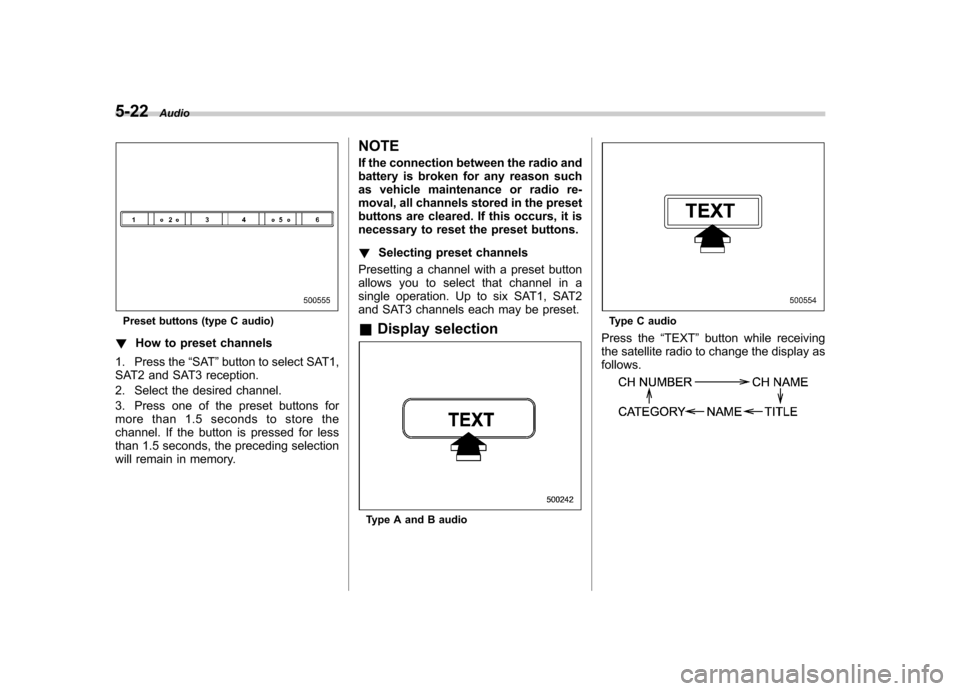
Press the “TEXT ”button while receiving
the satellite radio to change the display as follows.
Page 210 of 458
CD player operation NOTE .Make sure to always insert a disc
with the label side up. If a disc is
inserted with the label side down, the
player displays “CHECK DISC ”. Refer
to “When the following messages are
displayed ”F 5-33.
. If a disc is inserted during a radio
broadcast, the disc will interrupt thebroadcast.. After the last song finishes, the disc
will automatically return to track 1 (the
first track on the disc) and will auto-
matically play back. . The player is designed to be able to
play music CD-Rs and music CD-RWs,
but it may not be able to play certainones.. CDs (i.e., 8 cm/3 inch CDs) are not
supported, and if inserted, they will be
immediately ejected.. Copyright protected WMA/AAC files
will not be played by the system. The
player will automatically skip to the
next file (track).. CDs that can be played back are
accompanied by the following restric-tions.
–Maximum number of folders: 255
– Maximum number of files in a folder: 255 –
Maximum number of files on a
CD: 510
& Play file
MP3: . Based on MPEG1, 2 and 2.5 Layer3
. Sampling rate (kHz): 48, 44.1, 32, 24,
22.05, 16, 12, 11.025, 8. Bit rate (kbps): 8 to 320
. Supports variable bit rates
WMA:. Based on Windows Media Audio 9
. Bit rate (kbps): 32 to 192
AAC (type C audio):. Based on MPEG4 AAC (ISO/IEC
14496-12: 2003+iTune Meta-data Specifi- cation) . Sampling rate (kHz): 48, 44.1, 32, 24,
22.05, 16, 12, 11.025, 8. Bit rate (kbps): 8 to 320
. Number of channels: 1 to 2ch
& How to insert a CD (type A
and C)
Hold a disc with a finger in the center hole
while gripping the edge of the disc, then
insert it into the slot (with the label side up) and the player will automatically pull the
disc into position. NOTE
DO NOT INSERT TWO DISCS INTO THE
DISC INSERTION SLOT AT THE SAME TIME. &
How to insert a CD(s) (type B)
1. Briefly press the “LOAD ”button. If the
magazine in the player has an idle
position where you can insert a disc, the
disc number indicator associated with the
idle position will blink.
If no indicator blinks, it means that there is
no idle position in the magazine.
2. When the “LOAD ”indicator illumi-
nates, insert the disc. Once you have Audio
5-23
– CONTINUED –
Page 211 of 458

5-24Audio
inserted the disc, the “LOAD ”indicator will
turn off. The disc will then be automatically
drawn in, and the player will begin to play
back the first track of the disc. . To insert more discs in succession,
repeat Steps 1 and 2. The magazine will
be loaded with discs in the ascending
order of position number.
If you do not insert any disc in 15 seconds
after you have pressed the “LOAD ”button,
the player will begin to play back the first
track of the last disc you have inserted. . The disc indicator steadily lights up if a
disc is already inserted in the correspond-
ing position of the magazine. . While the player is in the loading mode,
if you press “FM/AM ”or “SAT ”button, the
player will enter the standby mode. Press the “CD/AUX ”button to start playback.
! Inserting a disc in a desired posi-tion
1. Briefly press the “LOAD ”button. If the
magazine in the player has an idle
position where you can insert a disc, the
disc number indicator associated with the
idle position will blink.
The positions in the magazine the indica-
tor of which steadily lights up are already
loaded with discs.
Disc select buttons
2. Press the disc select button at the
position where you want to insert a disc.
3. When the “LOAD ”indicator illumi-
nates, insert the disc. Once you have
inserted the disc, the “LOAD ”indicator will
turn off. The disc will then be automatically
drawn in, and the player will begin to play
the first track on the disc. . If you wish to insert another disc,
repeat the procedure beginning with step 1.
If you do not insert any disc in 15 seconds
after you have pressed the “LOAD ”button,
the player will begin to play back the first
track of the last disc you have inserted. . While the player is in the loading mode,
if you press “FM/AM ”or “SAT ”button, the player will enter standby mode. Press the “
CD/AUX ”button to start playback.
! Loading all the magazine (full disc
loading mode)
1. If you continue to press the “LOAD ”
button for more than 1.5 seconds, the
player will produce beep sound and will
enter the full disc loading mode.
2. When the disc number indicator
flashes and “ALL LOAD ”indicator illumi-
nates, insert a disc within 15 seconds. If a
disc is successfully loaded during this
period, the disc number indicator will stop
blinking and will steadily light.
3. When the loading of a disc is com-
plete, the next disc number indicator will
blink. Then repeat Step 2.
4. When the magazine is filled with discs
by repeating Steps 2 and 3, the player will
start playback of the discs, beginning with
the one inserted first.
If you fail to insert any disc during each 15
seconds interval, the full disc loading
mode will be canceled, and the player will
start playback of the disc inserted first.
& How to play back a CD
! When there is no CD inserted
Properly insert a CD. Refer to “How to
insert a CD (type A and C) ”F 5-23/ “How
Page 212 of 458
to insert a CD(s) (type B)”F 5-23.
When a CD is loaded, the player will start
playback of the CD, beginning with the
first track. ! When CD is in the player (type A)
When the “CD/AUX ”button is pressed, the
player will start playback. !
When there are CDs loaded (type B)
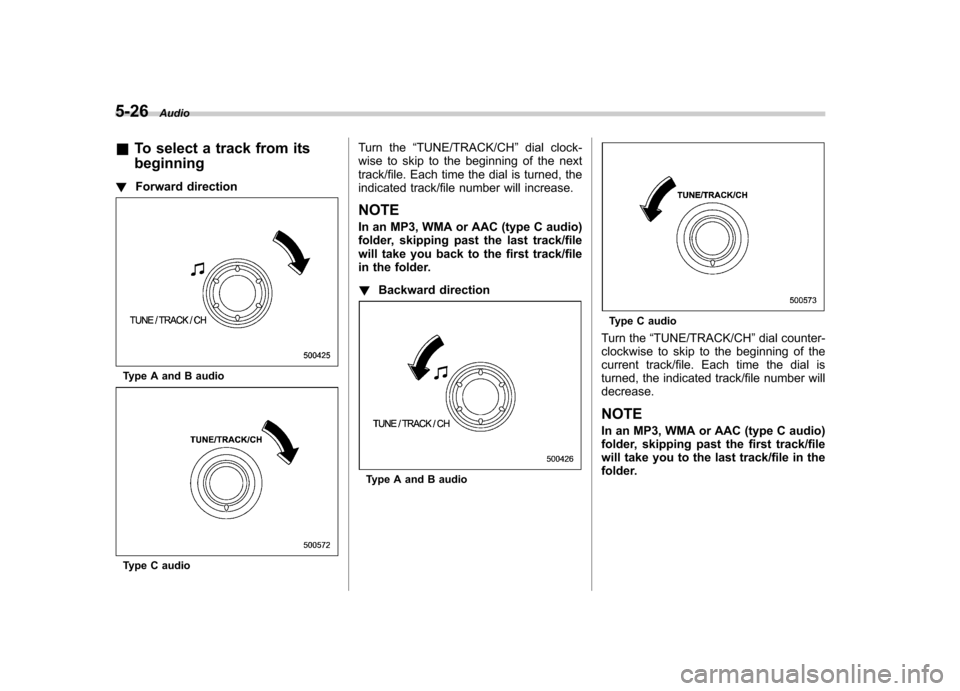
Disc select buttons
Press a desired one of the disc select
buttons the disc number indicator of which
steadily lights up. The player will then start
playback of the selected CD, beginning
with the first track.
If a disc that the player cannot read has
been loaded, the player will display themessage “CHECK DISC ”. !
When CD is in the player (type C)Each brief press of the “CD/AUX ”button
changes the modes in the following sequence.
When the CD mode is selected, the player
will start playback. Audio
5-25
– CONTINUED –
Page 213 of 458
5-26Audio
& To select a track from its beginning
! Forward direction
Type A and B audio
Type C audio Turn the
“TUNE/TRACK/CH ”dial clock-
wise to skip to the beginning of the next
track/file. Each time the dial is turned, the
indicated track/file number will increase. NOTE
In an MP3, WMA or AAC (type C audio)
folder, skipping past the last track/file
will take you back to the first track/file
in the folder. ! Backward direction
Type A and B audio
Type C audio
Turn the “TUNE/TRACK/CH ”dial counter-
clockwise to skip to the beginning of the
current track/file. Each time the dial is
turned, the indicated track/file number willdecrease.
NOTE
In an MP3, WMA or AAC (type C audio)
folder, skipping past the first track/file
will take you to the last track/file in the
folder.