2011 SUBARU FORESTER CD player
[x] Cancel search: CD playerPage 203 of 446

5-24Audio
! Inserting a disc in a desired posi- tion
1. Briefly press the
button. If the
magazine in the player has an idle
position where you can insert a disc, the
disc number indicator associated with the
idle position will blink.
The positions in the magazine the indica-
tor of which steadily lights up are already
loaded with discs.
2. Press the disc select button (from
to) at the position where you
want to insert a disc.
3. When the “LOAD ”indicator illumi-
nates, insert the disc. Once you have
inserted the disc, the “LOAD ”indicator will
turn off. The disc will then be automatically
drawn in, and the player will begin to play
the first track on the disc. . If you wish to insert another disc,
repeat the procedure beginning with step 1.
If you do not insert any disc in 15 seconds
after you have pressed the
button,
the player will begin to play back the first
track of the last disc you have inserted. . While the player is in the loading mode,
if you press
orbutton, the
player will enter standby mode. Press the
button to start playback. !
Loading all the magazine (full disc
loading mode)
1. If you continue to press the
button for more than 1.5 seconds, the
player will produce beep sound and will
enter the full disc loading mode.
2. When the disc number indicator
flashes and “ALL LOAD ”indicator illumi-
nates, insert a disc within 15 seconds. If a
disc is successfully loaded during this
period, the disc number indicator will stop
blinking and will steadily light.
3. When the loading of a disc is com-
plete, the next disc number indicator will
blink. Then repeat step 2.
4. When the magazine is filled with discs
by repeating steps 2 and 3, the player will
start playback of the discs, beginning with
the one inserted first.
If you fail to insert any disc during each 15
seconds interval, the full disc loading
mode will be canceled, and the player will
start playback of the disc inserted first. & How to play back a CD
! When there is no CD inserted
Properly insert a CD. Refer to “How to
insert a CD (type A, C and D) ”F 5-23 /
“ How to insert a CD(s) (type B) ”F 5-23.
When a CD is loaded, the player will start
playback of the CD, beginning with the first track. !
When CD is in the player (type A)
When thebutton is pressed, the
player will start playback. ! When there are CDs loaded (type B)
Press a desired one of the disc select
buttons (from
to) the disc
number indicator of which steadily lights
up. The player will then start playback of
the selected CD, beginning with the firsttrack.
If a disc that the player cannot read has
been loaded, the player will display themessage “CHECK DISC ”.
! When CD is in the player (type C
and D)
Each brief press of the
button
changes the modes in the following sequence.
*: For type C audio, “BT-A ”is displayed.
When the CD mode is selected, the player
will start playback.
Page 204 of 446

&To select a track from its beginning
Type A and B audio
Type C and D audio
Turn the “TUNE/TRACK/CH ”dial clock-
wise to skip to the beginning of the next
track/file. Each time the dial is turned, the
indicated track/file number will increase.
Turn the “TUNE/TRACK/CH ”dial counter-
clockwise to skip to the beginning of the
current track/file. Each time the dial is
turned, the indicated track/file number willdecrease.
NOTE
With an MP3, WMA or AAC (type C and
D audio): . Skipping past the last track/file will
take you back to the first track/file in
the folder.. Skipping past the first track/file will
take you to the last track/file in the
folder. &
Fast-forwarding and fast-re- versing
! Fast-forwarding
Type A and B audio
Type C audio
Type D audio
Press the “”button continuously to fast-
forward the disc/folder.
Release the button to stop fast-forwarding.
NOTE
If you fast-forward to the end of the last
track/file, fast-forwarding will stop and
the player will start playback beginning
with the first track/file. In an MP3, WMA
or AAC (type C and D audio) folder, the
player will start playback beginning
with the first track/file of the current
folder. !
Fast-reversing
Type A and B audio
Type C audio
Type D audio
Press the “”button continuously to fast-
reverse the disc/folder.
Release the button to stop fast-reversing. NOTE
If you fast-reverse to the beginning of
the first track/file, fast-reversing will
stop and the player will start playback.
In an MP3, WMA or AAC folder (type C
and D audio), the player will start
playback beginning with the first
track/file of the current folder. Audio
5-25
– CONTINUED –
Page 208 of 446

Type D audio:To select the next folder
To go back to the
previous folder
& How to eject a CD from the
player (type A, C and Daudio)
When a disc is being played back or when
a disc is in the player, press the
button. The disc will be ejected. NOTE . Avoid driving the vehicle with a CD
sticking out, because vibration might
make it fall out.. If the disc is left ejected for more
than approximately 15 seconds after
the ignition switch is turned to the“ OFF ”position, a disc protection func-
tion will operate, automatically reload-
ing the disc. In this case, the disc is not played. &
How to eject CDs from the
player (type B)
! Ejecting a CD from the player
You can select and remove only one disc
at a time from the discs that are loaded.
1. Use the disc select button (from
to) to select the disc to be ejected.
2. Briefly press the
button. The
selected disc will be ejected. The disc
number indicator will flash at this time.
When you remove the ejected disc, the
disc number indicator will turn off.
To remove more discs in succession,
repeat steps 1 and 2. ! Ejecting all discs from the player
(all disc ejection mode)
1. If you continue to press the
button, the player will produce beep sound
and will enter the all disc ejection mode. At
this time, the disc number indicator and“ ALL EJECT ”indicator will flash.
2.Removethediscthathasbeen
ejected. The other discs loaded will then
be ejected one after another. If you do not
remove the disc that has been ejected, the“ All disc ejection mode ”will be canceled. NOTE .
Avoid driving the vehicle with a CD
sticking out, because vibration might
make it fall out.. If you press the
button while
the player is in all disc ejection mode,
the mode will be cancelled following
ejection of the disc that is currently
being ejected.. If you press the
button orbutton while the player is in all disc
ejection mode, the player will draw in
the discs that have been ejected and
play them. & When the following mes-
sages are displayed
If one of the following messages is
displayed while operating the CD player,
determine the cause based on the follow-
ing information. If you cannot clear those
messages, please contact your SUBARU
dealer. ! When “PUSH EJECT ”is displayed
Press the eject button to unload the disc.
Check the disc for damage or deforma-
tion, and also check that the correct disc is
inserted. Do not try to unload the disc
forcibly. Single CDs (i.e., 8 cm/3 inch CDs)
are not supported, and if inserted, they will
be immediately ejected and this message Audio
5-29
– CONTINUED –
Page 209 of 446

5-30Audio
will be displayed. If the disc cannot be
unloaded or this message remains dis-
played, please contact your SUBARU
dealer. !When “CHECK DISC ”is displayed
Press the eject button to unload the discs.
Check that the disc is not damaged or
scratched, and also check that the disc is
inserted correctly. This message may
appear when using some CD-RW discs.
Check that the disc type (i.e., 8 cm/3 inch
CDs are not supported) and data format
are correct. This player can only play
MP3, WMA (all models) and AAC (type C
and D audio) data formats. If the disc
cannot be unloaded or this message
remains displayed, please contact your
SUBARU dealer. Auxiliary input jack (if equipped)
1) Models without Hands-free system
2) Models with Hands-free system
By connecting a commercial audio pro-
duct to the vehicle, such as a portable
audio player, you can hear its sound via
the vehicle ’s speakers.
An auxiliary (AUX) input jack is present in
the center console. A stereo mini pin plug
(3.5ø) can be inserted in this jack. The
connection cable is available at electrical
appliance or similar stores.
To use the AUX input jack:
1. Connect a portable audio player to the
AUX input jack. Type A and B audio
Type C and D audio
2. Press the
“CD/AUX ”button on the
audio control panel to turn on the auxiliary
audio input.
3. Play back the portable audio player.
Refer to the Owner ’s Manual for the
portable audio player. NOTE . The AUX input jacks of the models
with the genuine SUBARU navigation
system are the RCA type. For detailed
information, refer to the Owner ’s Man-
ual supplement for the navigation sys-tem.. The output sound of the portable
audio player is not loud, and the sound
via the vehicle ’s speakers that are
connected to the vehicle audio set
may be very low. If you turn up the
volume of the audio set, the volume
becomes louder. However, when you
change from one portable audio player
to another one, the volume levels via
the vehicle ’s speakers may be signifi-
cantly louder compared to the prior
Page 210 of 446
device. To avoid a large volume differ-
ence, turn down the volume when you
change between portable audioplayers..In some cases, when the sound
volume of the portable audio player is
low, the sound becomes bad when you
turn up the volume of the vehicle audio
system. In this case, adjust the sound
volume of the portable audio player.. In some cases, noise occurs be-
cause of a bad connection between the
portable player and the vehicle audio
system. Try cleaning the stereo jack
and audio plug.. If noise is not reduced, check for
disconnection of the cord or malfunc-
tions of the portable player. Precautions to observe when
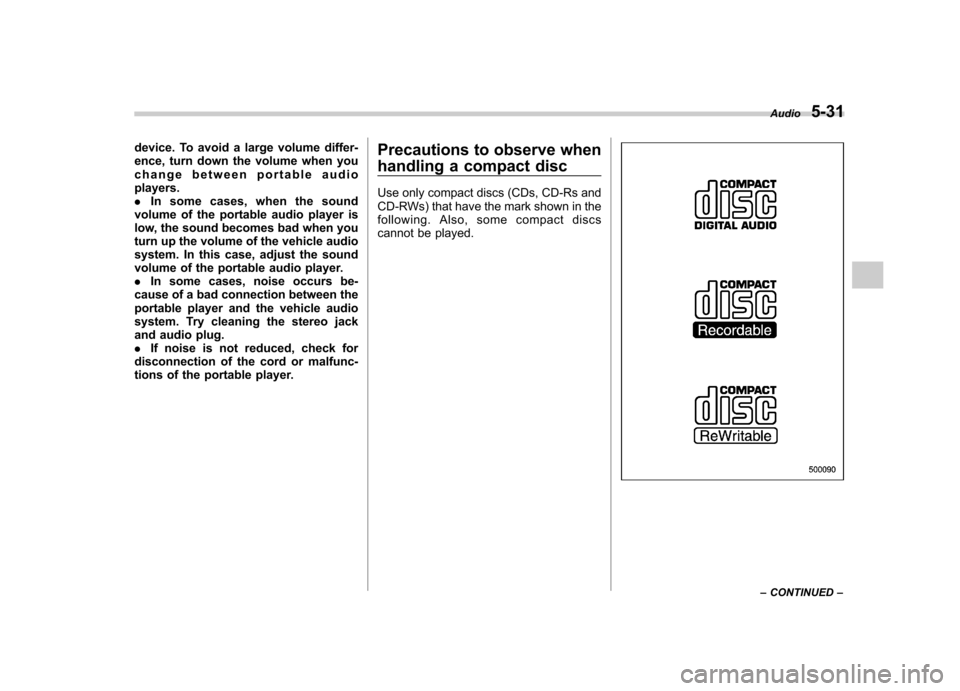
handling a compact disc
Use only compact discs (CDs, CD-Rs and
CD-RWs) that have the mark shown in the
following. Also, some compact discs
cannot be played.
Audio
5-31
– CONTINUED –
Page 211 of 446

5-32Audio
.You cannot use a DualDisc in the CD
player. If you insert a DualDisc into the
player, the disc may not come out again,
possibly causing the player to malfunction. . In cold and/or rainy weather, dew can
form inside the CD player, preventing
normal operation. If this happens, eject
the CD and wait for the player to dry out. . Skipping may occur when the CD
player is subjected to severe vibration
(for example, when the vehicle is driven
on a rough surface). . To remove a disc from the case, press
the center of the case and hold both
edges of the disc. If the disc surface is
touched directly, contamination could
cause poor tone quality. Do not touch the
disc surface. . Use a clean disc whenever possible. If there are deposits, wipe the disc surface
from the center outward with a dry, soft
cloth. Be sure not to use a hard cloth,
thinner, benzine, alcohol, etc. .
Do not use any disc that is scratched,
deformed, or cracked. Also, do not use
any disc that has a non-standard shape
(for example, a heart shape). Malfunctions
or problems might result. . A disc is vulnerable to heat. Never
keep it either in places exposed to direct
sunlight, near heaters or in vehicles
parked in the sun or on hot days. . Insert discs one by one into the CD
player (type B audio).
Page 214 of 446

Guide that comes with the iPod®.
. If an iPod®and the connection cable
are connected improperly, the iPod®
cannot be powered on or will not be
recognized by in-vehicle equipment. In
this case, disconnect the connection
cable from the iPod
®, and then connect
it again.
The USB connector is located in the
center console. Use the connector to
connect a USB storage device/iPod
®.
& How to play back
1. Connect a USB storage device/iPod
®.
2. Press the
button. Each time you
briefly press the button, the mode
changes in the following sequence. Type C audio:
*: Only when a Media Hub is connected.
Type D audio:
When the USB/iPod®mode is selected,
the player will start playback of the USB
storage device/iPod
®.
NOTE . Depending on the number of files
stored in an iPod
®and the firmware
version, the iPod®may not activate
smoothly after operation or not work
properly.. Do not disconnect the connector
from an iPod
®during iPod®operation. &
To select a track/index from
its beginning
Select a track/index in the same way that
a track is selected when a CD is played.
For details, refer to “To select a track from
its beginning ”F 5-25.
& To select a chapter from its
beginning when connecting iPod
®
While podcasts or audiobooks are playing,
select a chapter in the same way that a
track is selected when a CD is played. For
details, refer to “To select a track from its
beginning ”F 5-25.
& Fast-forwarding and fast-re- versing
Fast forward or reverse is operated in the
same way a CD is played. For details,
refer to “Fast-forwarding and fast-rever-
sing ”F 5-25.
NOTE
When connecting iPod
®:
. When the end of an index is reached
while fast forwarding, fast forwarding
ends and play begins from the begin-
ning of the next index.. When the beginning of an index is
reached while rewi nding, rewindingAudio
5-35
– CONTINUED –
Page 218 of 446

Models with Hands-free system
The “MODE ”button is used to select the
desiredaudiomode.Eachtimeitis
pressed, the mode changes to the next
one in the following sequence:
Type A and B audio:
Type C and D audio:
*1: The frequency last received in the selected
waveband will be displayed.
*2: Only when a CD is in the player.
*3: Only when the device is connected. ! Models with Hands-free system
Press this button for more than 1.5
seconds if you wish to immediately cut
the volume to zero.
The audio display will show “MUTE ”.
If you press the button for more than 1.5
seconds again, the original sound volume
will return and “MUTE ”turns off. &
“
”and “”buttons
Models without Hands-free system
Models with Hands-free system Audio
5-39
– CONTINUED –