Page 237 of 340

235
01
1. Rotary control:
- Short press engine not running: on/off.
- Short press engine running: mute on/off.
- Rotation: volume adjustment (each source
is independent, including TA messages
and navigation information).
2. Radio source, access to the" FM/AM band
"
menu and display the list of stations.
3. Access to the " MEDIA
" menu and display the
list of tracks.
4. Access to the " Navigation - guidance
" menu
and display the last destinations.
5. Access to the " Traffi c information
" menu
and display the current traffi c alerts.
6. Access to the " Telephone
" menu and display
the recent calls list or accept an incoming
call.
7. Access to the " Confi guration
" menu.
Long press: access to the GPS coverage and
the navigation demonstration mode.
8. MODE
button:
Selection of the type of permanent display.
9. ESC: abandon the operation in progress, up
one level in the menu.
Long press: return to permanent display.
10. CD eject.
Continuous press: reinitialisation of the
system.
11. According to context:
Selection of the previous/next line in a list or
menu.
Selection of the previous/next media folder.
Step by step selection of the previous/next
radio frequency.
Selection of the next/previous MP3 folder.
Move up/down in " Move the map
" mode.
12. According to context:
Automatic selection of the next lower/higher
radio frequency
Selection of the previous/next CD, MP3 or
media track
Selection of left/right on the screen when a
menu is displayed.
Move left/right in " Move the map
" mode.
13. Buttons 1 to 6:
Short press: selection of the stored radio
station.
Long press: store the current radio station.
14. Dial for selection and OK confi rmation:
Selection of an item on the screen or in a
list in a menu, then confi rmation with a short
press.
Other than for menus and lists, a short press
displays a contextual menu depending on the
current screen.
Rotation with map displayed: zoom the map
scale in and out.
15. Access to " Audio settings
": musical
ambience, base, treble, loudness,
distribution, left/right balance, front/rear
balance, automatic volume correction.
16. TA (Traffi c Announcement) function On/Off.
17. Display black screen (DARK).
18. Selection of audio source:
CD, USB, AUX, Bluetooth, Radio.
19. Display the list of stations received, the CD/
MP3 tracks or folders.
Long press: manage the sorting of MP3/WMA
fi les/update the list of stations received.
20. Selection of FM and AM wavebands.
21. Display the list of contacts/Access to the
"Directory of contacts" menu.
22. Reject an incoming call or end the call in
progress.
FIRST STEPS
Page 244 of 340
242
1
04
2
1
2
33
4
Select " Select destination
" and
confi rm, then select " GPS coordinates
"
and confi rm.
Enter the GPS coordinates and confi rm
" OK
" to start the guidance.
Press NAV
to display the
" Navigation - guidance
" menu.
NAVIGATION - GUIDANCE
TOWARDS GPS COORDINATES
TOWARDS A POINT ON THE MAP
With the map displayed, press OK
to
display the contextual menu. Select
" Move the map
" and confi rm.
Press OK
to display the contextual
menu for " Move the map
" mode.
Select " Select as destination
" or
" Select as stage
" and confi rm.
Move the cursor using the screen
navigation buttons �
, �
, �
, �
to
identify the desired destination.
Page 249 of 340
247
04
1
4
3
1
3
22
NAVIGATION - GUIDANCE
ADDING A STAGE
Press NAV
to display the
" Navigation - guidance
" menu.
Select " Journey leg and route
" then
confi rm.
Select " Close to
" a route passing
close to the stage or " Strict
" for a route
passing through the stage.
Confi rm " OK
" to start the guidance, and
give a general indication of the guidance
route.
Select " Add a stage
" then confi rm.
The address of the stage is entered as
a destination, by " Enter an address
",
a contact in " Directory
", ou " Previous
destinations
".
ORGANISING STAGES
To organise stages, carry out operations
1 to 2 again, then select " Order/delete
journey legs
" and confi rm.
Select and confi rm to save the
modifi cations.
Select the stage that you want to move
in the order, using the �
and �
buttons
until the desired position is reached.
Select " Delete
" to delete the stage.
Page 270 of 340
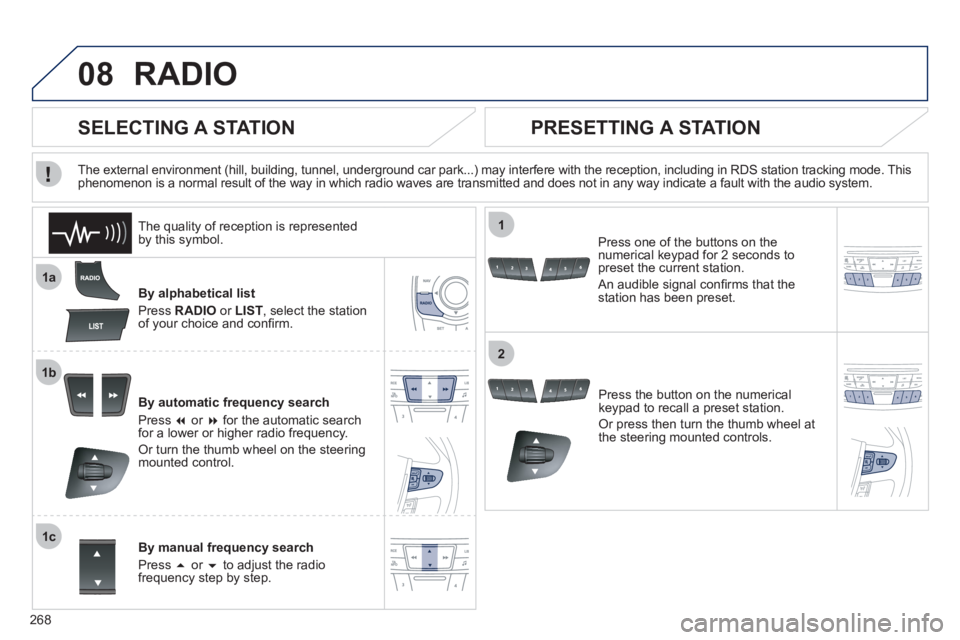
268
08
1a
1b
1c
1
2
RADIO
By alphabetical list
Press RADIO
or LIST
, select the station
of your choice and confi rm.
By automatic frequency search
Press �
or �
for the automatic search
for a lower or higher radio frequency.
Or turn the thumb wheel on the steering
mounted control.
By manual frequency search
Press �
or �
to adjust the radio
frequency step by step.
Press the button on the numerical
keypad to recall a preset station.
Or press then turn the thumb wheel at
the steering mounted controls.
SELECTING A STATION
The external environment (hill, building, tunnel, underground car park...) may interfere with the reception, including in RDS station tracking mode. This
phenomenon is a normal result of the way in which radio waves are transmitted and does not in any way indicate a fault with the audio system.
PRESETTING A STATION
Press one of the buttons on the
numerical keypad for 2 seconds to
preset the current station.
An audible signal confi rms that the
station has been preset.
The quality of reception is represented
by this symbol.
Page 290 of 340

288
01
1
274
5
6
3
8910
1311
1214
FIRST STEPS
1. On/Off and volume adjustment.
2. CD eject.
3. Selection of the display on the screen from
the following modes:
Full screen: Audio (or if a telephone call is in
progress)/
New window: Audio (or telephone if a call is
in progress) - Time or Trip computer
Long press: black screen (DARK).
4. Selection of source:
Radio, CD, AUX, USB, Streaming.
Accept an incoming call.
5. Selection of FM1, FM2, DAB and AM
wavebands.
6. Buttons 1 to 6:
Selection of a preset radio station.
Long press: preset a station.
7. Display the list of stations received, the
CD/MP3 tracks or folders.
Long press: MP3/WMA fi le order/update the
list of stations received.
8. TA (Traffi c Announcement)
function on/off.
Long press: access to the type of information.
9. Confi rmation or display of contextual menu.
10. Abandon current operation
Up one level (menu or folder).
11. Automatic search for a lower/higher radio
frequency.
Selection of previous/next CD, USB,
streaming track.
Navigation in a list.
12. Manual step by step search for a lower/
higher radio frequency.
Selection of the previous/next MP3 folder.
Selection of the previous/next USB device
folder/genre/artist/playlist.
Navigation in a list.
13. Main menu.
14. Audio settings:
equalizer, treble, bass, loudness,
distribution, left/right balance, front/rear,
automatic volume.
Page 296 of 340
294
04
1
2
3
AUDIO
AUDIO CD
Insert 12 cm diameter circular compact discs only.
Some anti-pirating systems, on original discs or CDs copied using a
personal recorder, may cause faults which are no refl ection on the
quality of the original player.
Without pressing the EJECT
button, insert a CD in the player, play
begins automatically.
To play a disc which has already been
inserted, press the SOURCE
button
several times in succession and
select " CD
".
Press one of the buttons to select a
track on the CD.
PLAYING A CD
Press LIST
to display the list of tracks
on the CD.
Press and hold one of the buttons for
fast forward or backward.
Page 298 of 340

296
04
1
3
2
4
5
CD, USB
AUDIO
PLAYING A COMPILATION
Insert an MP3 compilation in the CD player or
connect a memory stick to the USB port, directly or
via an extension lead.
The system creates playlists (temporary memory) the creation time
for which can take from a few seconds to several minutes.
The playlists are updated every time the ignition is switched off or a
USB memory stick is connected.
Play starts automatically after a period which depends on the
capacity of the USB memory stick.
At a fi rst connection, the order suggested is by folder.
When connecting again, the order previously chosen is
retained.
To play a disc or memory stick which
has already been inserted, press
SOURCE
several times in succession
and select " CD
" or " USB
".
Press one of the buttons to select the
next or previous track.
Press one of the buttons to select the
next or previous folder in the order
chosen.
Press and hold one of the buttons for
fast forwards or backwards.
Press LIST
to display the menu of
folders in the compilation.
Page 306 of 340
304
1
2
1
4
2
3
3
05 USING THE TELEPHONE
To display the " TELEPHONE
" menu:
- Make along press on SOURCE
.
- Or, press OK
to display the
contextual menu. Select " Call
" and
confi rm.
- Or, press MENU
, select
" Telephone
" and confi rm. Select
" Call
" and confi rm.
Select " Dial
" to enter a number and
confi rm.
Repeat the previous step 1
to display
the " TELEPHONE
" menu.
Select OK
and confi rm to start the
call.
Select " Calls list
" and confi rm.
MAKING A CALL - DIALLING
Select numbers one at a time using
the �
and �
buttons and confi rm.
MAKING A CALL - RECENTLY CALLED
NUMBERS *
Select the number and confi rm to
start the call.
The calls list includes calls sent and received in the vehicle using the
connected telephone.
*
Depending on the compatibility of the telephone.
Correction allows numbers to be deleted one at a time.
It is possible to make a call directly from the telephone; park the
vehicle fi rst as a safety measure.


