Page 218 of 248
216
03 MAIN MENU
AUDIO FUNCTIONS: radio,CD, USB, options.
> MONOCHROME SCREEN C
For a detailed global view of the menus available, refer to the"Screen menu map" section.
TELEPHONE: Bluetooth hands-free, pairing, management of a call.
PERSONALISATION-CONFIGURATION: vehicleparameters, display, languages.
TRIP COMPUTER: entering of distances, alerts, status of functions.
> MONOCHROME SCREEN A
Page 219 of 248
217
04
1
2
3
4
1
2
3
4
AUDIO
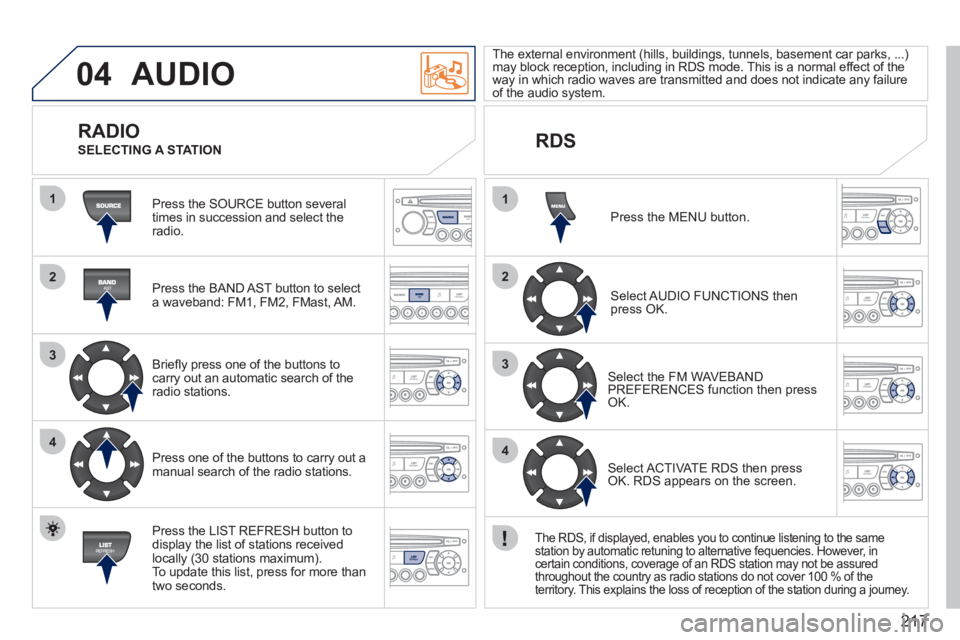
Press the SOURCE button several
times in succession and select theradio.
Press the BAND A
ST button to select
a waveband: FM1, FM2, FMast, AM.
Brie
fl y press one of the buttons to carry out an automatic search of theradio stations.
Press one of the buttons to carr
y out a manual search of the radio stations.
Press the LI
ST REFRESH button to
display the list of stations received
locally (30 stations maximum).
To update this list, press for more than
two seconds. The external environment
(hills, buildings, tunnels, basement car parks, ...) may block reception, including in RDS mode. This is a normal effect of the
way in which radio waves are transmitted and does not indicate any failure of the audio system.
RDS RADIO
SELECTING A STATION
Pr
ess the MENU button.
Select AUDIO FUNCTIONS thenpress OK.
Select the FM WAVEBANDPREFERENCES function then pressOK.
Select ACTIVATE RDS then pressOK. RDS appears on the screen.
The RDS, if displayed, enables you to continue listening to the same station by automatic retuning to alternative fequencies. However, incertain conditions, coverage of an RDS station may not be assured
throughout the country as radio stations do not cover 100 % of the
territory. This explains the loss of reception of the station during a journey.
Page 220 of 248
218
04
1
2
3
AUDIO
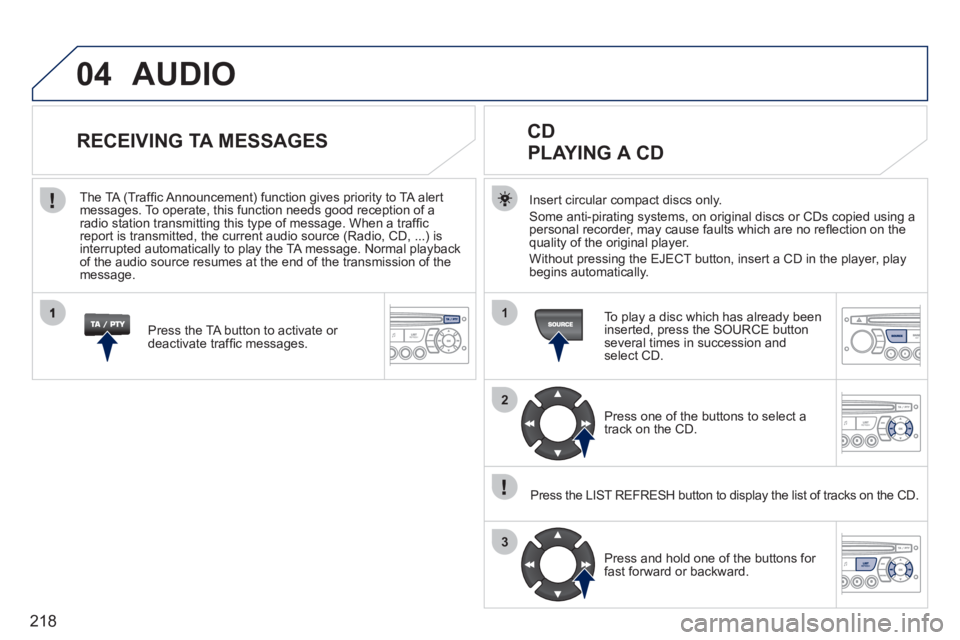
Insert circular compact discs only.
Some anti-pirating systems, on original discs or CDs copied using a
personal recorder, may cause faults which are no refl ection on the quality of the original player.
Without pressin
g the EJECT button, insert a CD in the player, playbegins automatically.
CD
PLAYING A CD
To play a disc which has already been
inserted, press the SOURCE buttonseveral times in succession andselect CD.
Pr
ess one of the buttons to select a
track on the CD.
Press the LIST REFRESH button to displa
y the list of tracks on the CD.
Pr
ess and hold one of the buttons for
fast forward or backward.
RECEIVING TA MESSAGES
Press the TA button to activate or
deactivate traffi c messages.
The TA
(Traffi c Announcement) function gives priority to TA alert messages. To operate, this function needs good reception of a
radio station transmitting this type of message. When a traffi c
report is transmitted, the current audio source (Radio, CD, ...) is
interrupted automatically to play the TA message. Normal playbackof the audio source resumes at the end of the transmission of themessage.
Page 226 of 248

224
06
2
1
2
2
3
RECEIVING A CALL
display on the multifunction screen.Initiate the pairing between the telephone and
the vehicle. This pairing can be initiated from
the vehicle's telephone function menu or via the
telephone's keypad. See steps 1 to 10 on the
previous pages. During the pairing phase, the vehicle
must be stationary with the key in the ignition.
Select the telephone to be connected from the telephone functionmenu.
The audio system connects to a newly paired telephone
automatically.
Select the YES tab on the display
using the buttons and confi rm bypressing OK.
Press the steerin
g mounted control OK to accept
the call.
BLUETOOTH AUDIO STREAMING
Wireless transmission of the telephone's music fi les via the audio equipment. The telephone must be able to manage the appropriate
bluetooth profi les (Profi les A2DP/AVRCP).
*
In certain cases, playing of the Audio fi les must be initiated from the
keypad.
**
If the tele
phone supports the function.
Activate the streamin
g source by
pressing the SOURCE button * . The
tracks to be played can be controlled as usual via the buttons on theRadio control panel and the steering
mounted controls ** . The contextual
information can be displayed on the screen.
MAKING A CALL
From the Bluetooth telephone function Audio menu, select Manage
the telephone call then Call, Call list or Directory.
Press the end o
f the steering mounted control for more than two seconds to gain access to your
directory.
Or
To dial a number, use
your telephone's keypad,with the vehicle stationary.
BLUETOOTH
Page 230 of 248
228
09 SCREEN MENU MAP
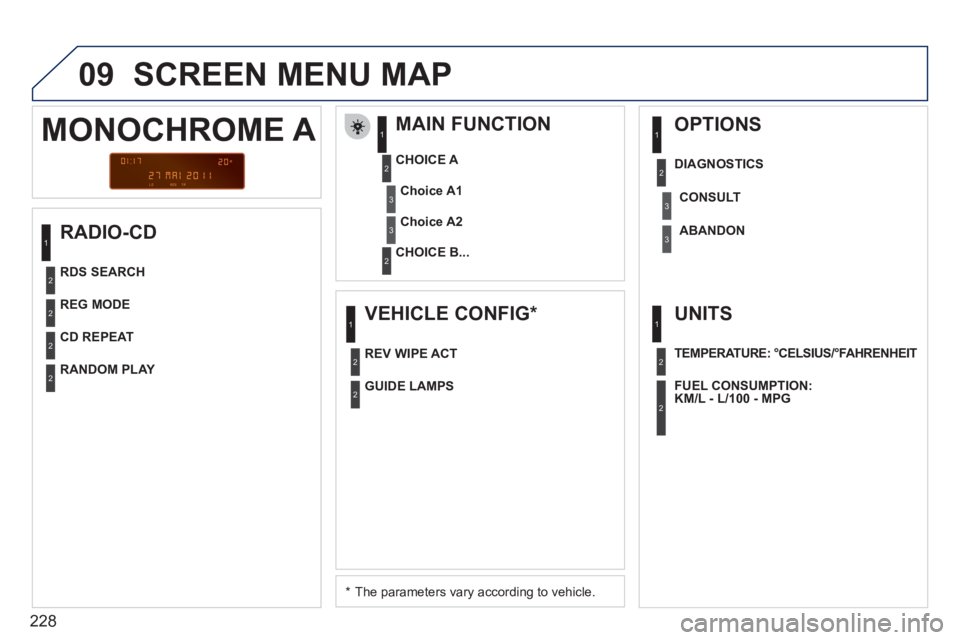
RADIO-CD
MAIN FUNCTION
*
The parameters vary according to vehicle.
CHOICE A
CHOICE B...
MONOCHROME A
Choice A1
Choice A2
REG MODE
CD REPEAT
RANDOM PLAY
VEHICLE CONFIG *
REV WIPE ACT
OPTIONS
GUIDE LAMPS
DIAGNO
STICS
RDS SEARCHCONSUL
T
ABANDON
UNITS
TEMPERATURE: °CELSIUS/°FAHRENHEIT
FUEL CONSUMPTION:
KM/L - L/100 - MPG
1
2
3
31
2
2
2
2
1
2
3
2
3
1
2
2
1
2
2
Page 232 of 248
230
09SCREEN MENU MAP
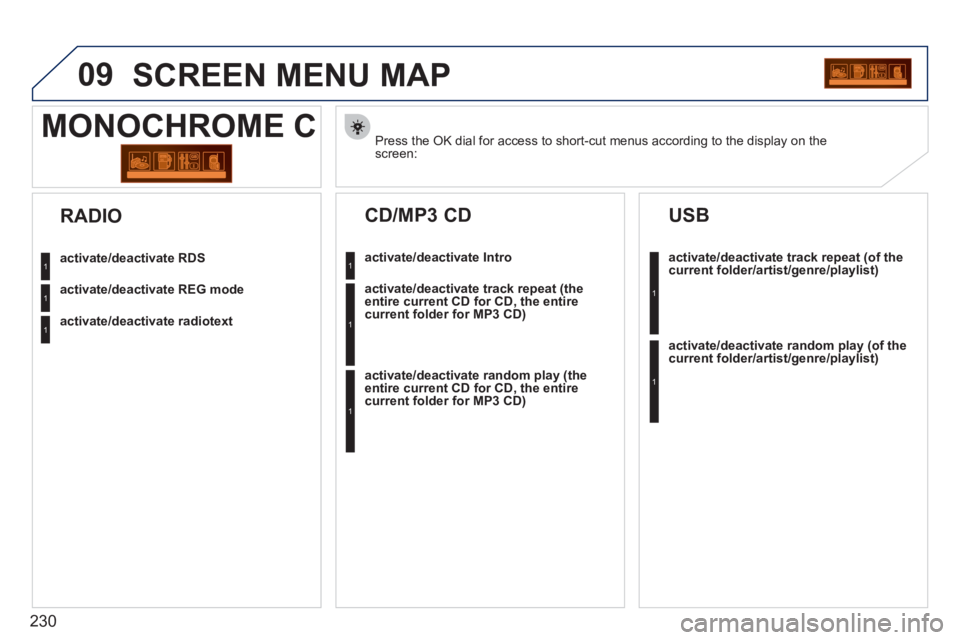
Press the OK dial for access to short-cut menus according to the display on thescreen:
MONOCHROME C
activate/deactivate RDS
activate/deactivate REG mode
activate/deactivate radiotext
RADIO
activate/deactivate Intro
CD/MP3 CD
activate/deactivate track repeat (the
entire current CD for CD, the entire
current folder for MP3 CD)
activate/deactivate random play (the
entire current CD for CD, the entire
current folder for MP3 CD)
activate/deactivate track repeat (of the current folder/artist/genre/playlist)
USB
activate/deactivate random play(of thecurrent folder/artist/genre/playlist)
1
1
1
1
1
1
1
1
Page 233 of 248
231
09
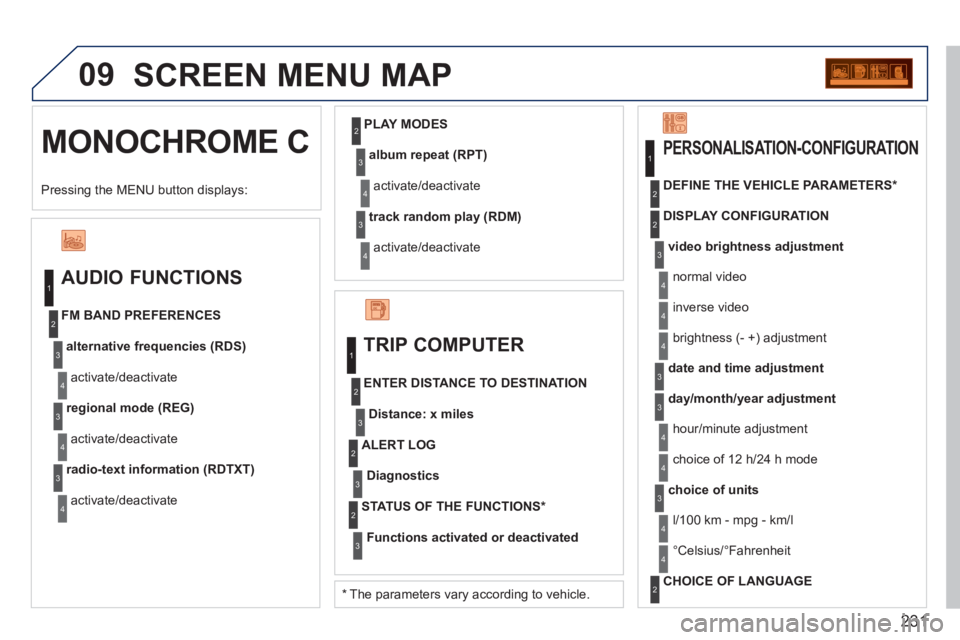
MONOCHROME C SCREEN MENU MAP
AUDIO FUNCTIONS
alternative frequencies (RDS)
activate/deactivate FM BAND PREFERENCES
regional mode (REG)
activate/deactivate
radio-text information (RDTXT)
activate/deactivate
1
2
3
4
3
4
3
4
PLAY MODES
album repeat (RPT)
activate/deactivate
track random play (RDM)
activate/deactivate
2
3
4
3
4
TRIP COMPUTER
Distance: x miles
ENTER DISTANCE TO DESTINATION
Diagnostics
ALERT LOG
Functions activated or deactivated
STATUS OF THE FUNCTIONS *
1
2
3
3
2
3
2
video brightness adjustment
DISPLAY CONFIGURATION DEFINE THE VEHICLE PARAMETERS *
PERSONALISATION-CONFIGURATION
normal video
inverse video
brightness (- +) adjustment
date and time adjustmen
t
day/month/year adjustment
hour/minute adjustment
choice of 12 h/24 h mode
choice of units
l/100 km - mp
g - km/l
°
Celsius/°Fahrenheit
CHOICE OF LANGUAGE
1
2
4
3
2
4
4
3
3
4
4
2
3
4
4
Pressing the MENU button displays:
*
The parameters vary according to vehicle.
Page 235 of 248
233
FREQUENTLY ASKED QUESTIONS
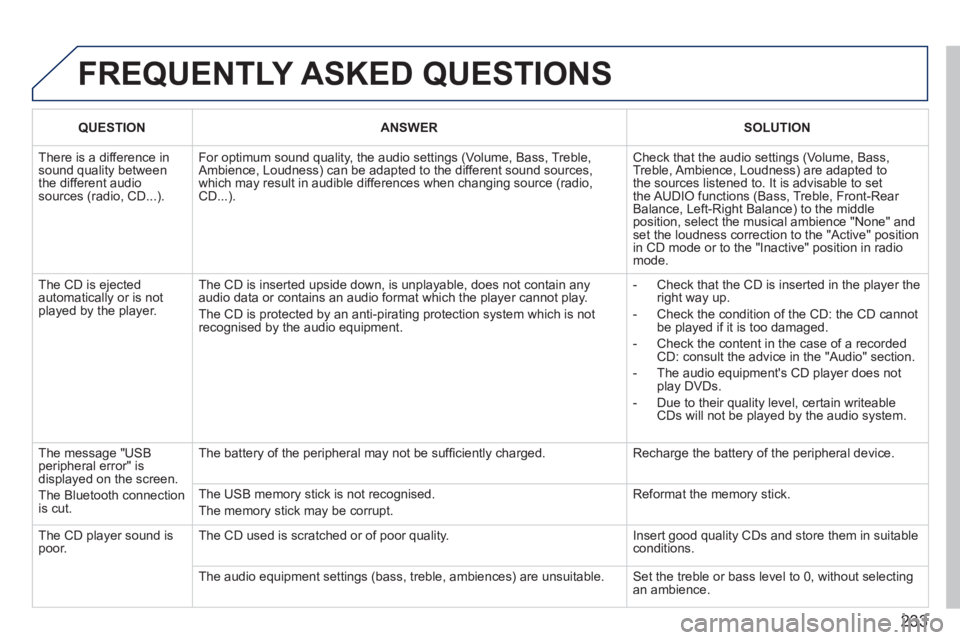
QUESTIONANSWERSOLUTION
There is a difference in sound quality betweenthe different audiosources (radio, CD...).
For optimum sound quality, the audio settings (Volume, Bass, Treble, Ambience, Loudness) can be adapted to the different sound sources,which may result in audible differences when changing source (radio,CD...).
Check that the audio settings (Volume, Bass, Treble, Ambience, Loudness) are adapted tothe sources listened to. It is advisable to setthe AUDIO functions (Bass, Treble, Front-Rear Balance, Left-Right Balance) to the middle position, select the musical ambience "None" and set the loudness correction to the "Active" position in CD mode or to the "Inactive" position in radio mode.
The CD is ejected automatically or is not played by the player.
The CD is inserted upside down, is unplayable, does not contain any audio data or contains an audio format which the player cannot play.
The CD is protected by an anti-pirating protection system which is not recognised by the audio equipment.
- Check that the CD is inserted in the player the right way up.
- Check the condition of the CD: the CD cannot be played if it is too damaged.
- Check the content in the case of a recordedCD: consult the advice in the "Audio" section.
- The audio equipment's CD player does notplay DVDs.
- Due to their quality level, certain writeableCDs will not be played by the audio system.
The message "USB peripheral error" isdisplayed on the screen.
The Bluetooth connectionis cut.
The battery of the peripheral may not be suffi ciently charged.
Recharge the battery of the peripheral device.
The USB memory stick is not recognised.
The memory stick may be corrupt.
Reformat the memory stick.
The CD player sound ispoor.The CD used is scratched or of poor quality.
Insert good quality CDs and store them in suitable conditions.
The audio equipment settings (bass, treble, ambiences) are unsuitable. Set the treble or bass level to 0, without selectingan ambience.