Page 141 of 350
INTERIOR TRUNK LID RELEASE
WARNING
Closely supervise children when they are
around cars to prevent them from playing
and becoming locked in the trunk where
they could be seriously injured. Keep the
car locked, with the rear seatback and
trunk lid securely latched when not in use,
and prevent children’s access to car keys.
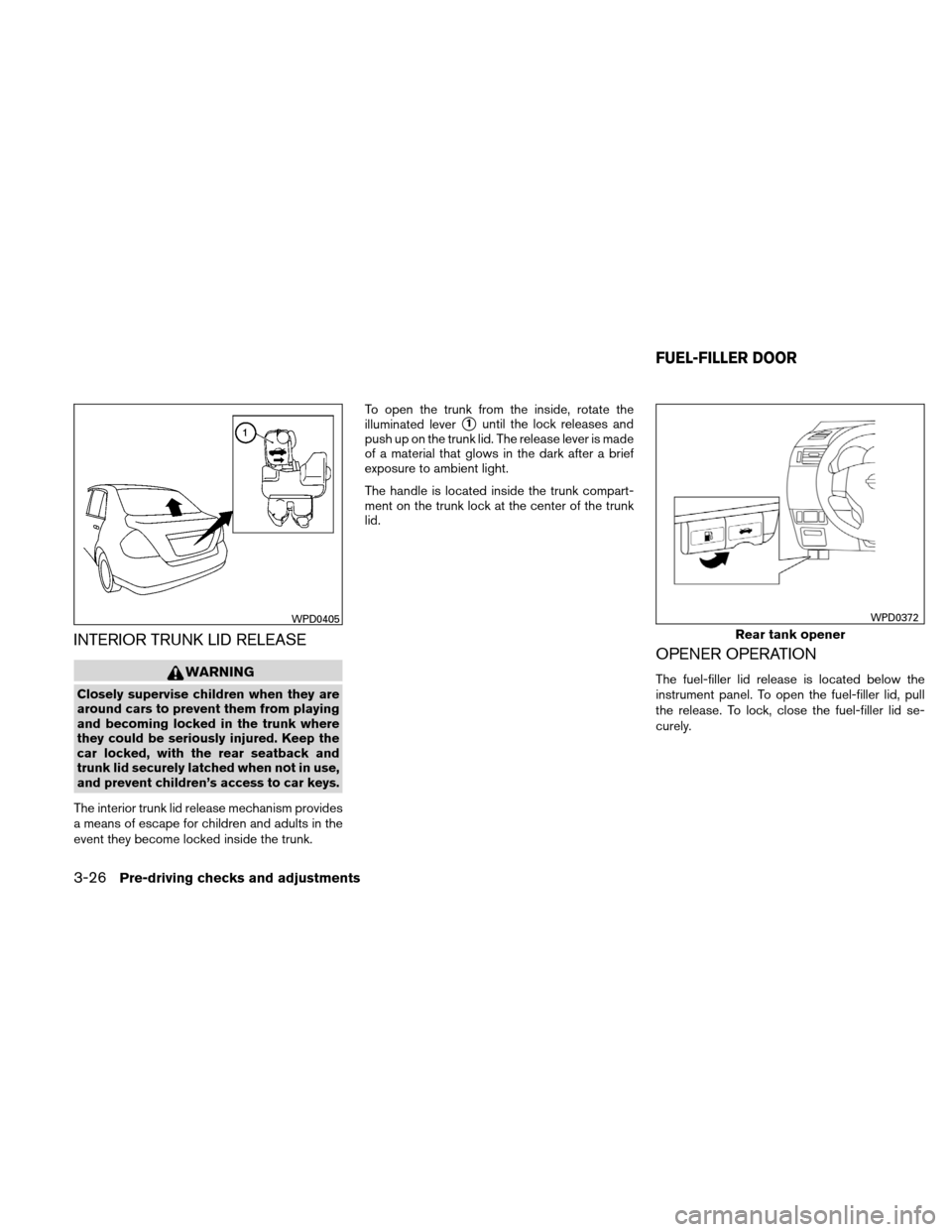
The interior trunk lid release mechanism provides
a means of escape for children and adults in the
event they become locked inside the trunk. To open the trunk from the inside, rotate the
illuminated lever
�1until the lock releases and
push up on the trunk lid. The release lever is made
of a material that glows in the dark after a brief
exposure to ambient light.
The handle is located inside the trunk compart-
ment on the trunk lock at the center of the trunk
lid.
OPENER OPERATION
The fuel-filler lid release is located below the
instrument panel. To open the fuel-filler lid, pull
the release. To lock, close the fuel-filler lid se-
curely.
WPD0405
Rear tank opener
WPD0372
FUEL-FILLER DOOR
3-26Pre-driving checks and adjustments
Page 150 of 350
*For Navigation system control buttons, refer to
the separate Navigation System Owner’s
Manual.
When you use this system, make sure the engine
is running.
If you use the system with the engine not
running (ignition ON or ACC) for a long
time, it will discharge the battery, and the
engine will not start.
Reference symbols:
“Example” — Words marked in quotes refer to a
key shown only on the display. These keys can be
selected by touching the screen.
HOW TO USE THE TOUCH
SCREEN
CAUTION
●The glass display screen may break if it
is hit with a hard or sharp object. If the
glass screen breaks, do not touch it.
Doing so could result in an injury.
● To clean the display, never use a rough
cloth, alcohol, benzine, thinner or any
kind of solvent or paper towel with a
chemical cleaning agent. They will
scratch or deteriorate the panel. ●
Do not splash any liquid such as water
or car fragrance on the display. Contact
with liquid will cause the system to
malfunction.
To help ensure safe driving, some functions can-
not be operated while driving.
The on-screen functions that are not available
while driving will be “grayed out” or muted.
Park the vehicle in a safe location and then oper-
ate the navigation system.
WARNING
● ALWAYS give your full attention to
driving.
● Avoid using vehicle features that could
distract you. If distracted, you could
lose control of your vehicle and cause
an accident.Touch screen operation
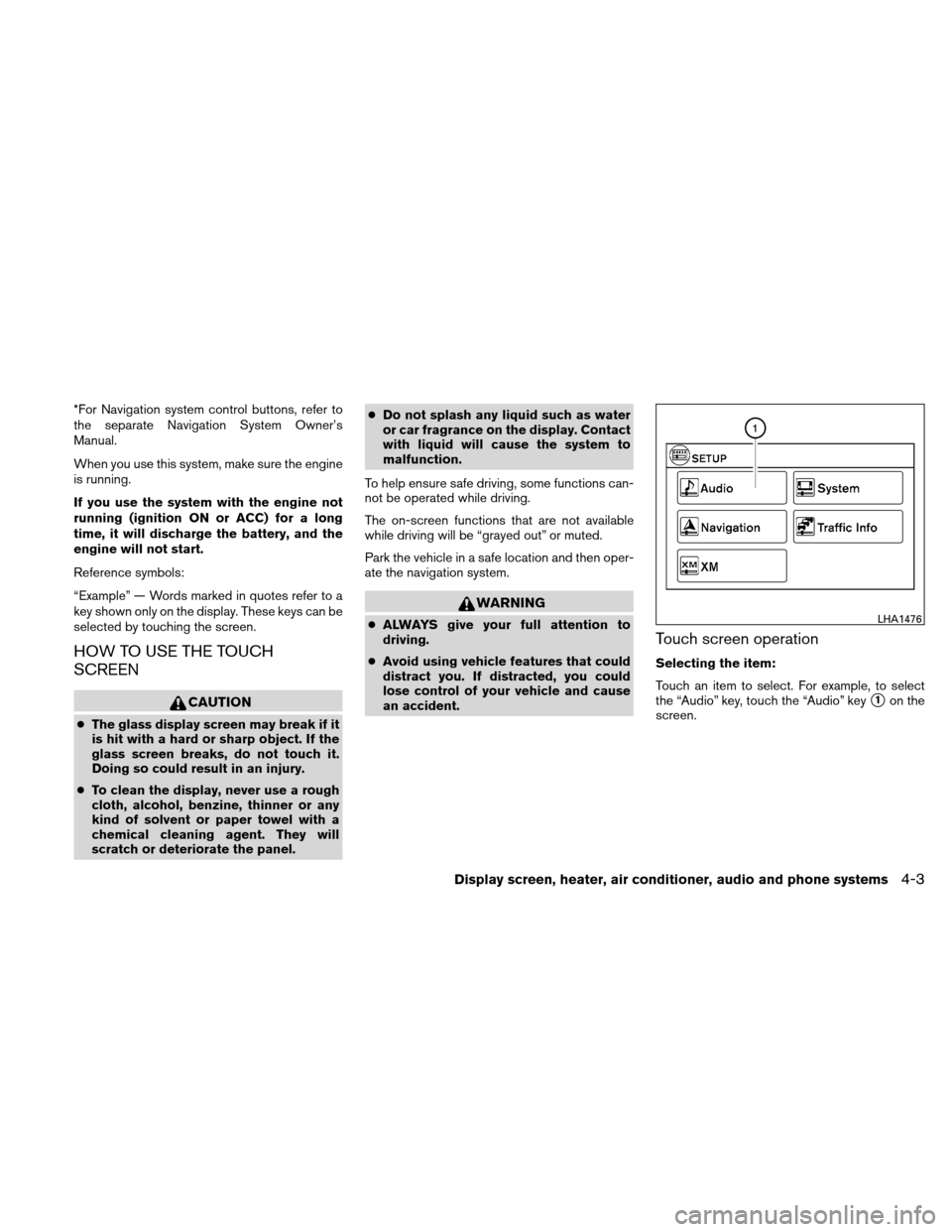
Selecting the item:
Touch an item to select. For example, to select
the “Audio” key, touch the “Audio” key
�1on the
screen.
LHA1476
Display screen, heater, air conditioner, audio and phone systems4-3
Page 151 of 350
Adjusting the item:
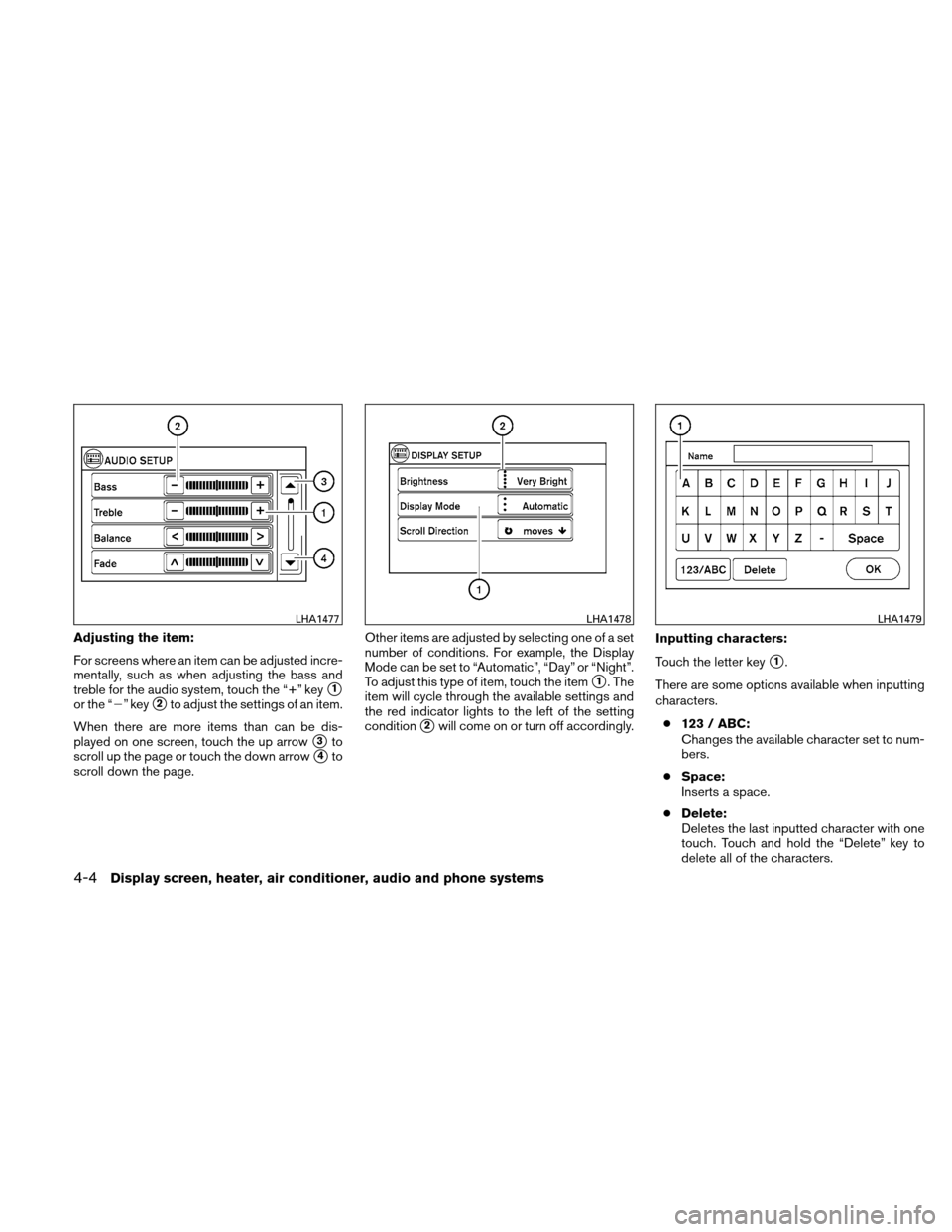
For screens where an item can be adjusted incre-
mentally, such as when adjusting the bass and
treble for the audio system, touch the “+” key
�1
or the “�” key�2to adjust the settings of an item.
When there are more items than can be dis-
played on one screen, touch the up arrow
�3to
scroll up the page or touch the down arrow
�4to
scroll down the page. Other items are adjusted by selecting one of a set
number of conditions. For example, the Display
Mode can be set to “Automatic”, “Day” or “Night”.
To adjust this type of item, touch the item
�1. The
item will cycle through the available settings and
the red indicator lights to the left of the setting
condition
�2will come on or turn off accordingly. Inputting characters:
Touch the letter key
�1.
There are some options available when inputting
characters. ● 123 / ABC:
Changes the available character set to num-
bers.
● Space:
Inserts a space.
● Delete:
Deletes the last inputted character with one
touch. Touch and hold the “Delete” key to
delete all of the characters.
LHA1477LHA1478LHA1479
4-4Display screen, heater, air conditioner, audio and phone systems
Page 153 of 350
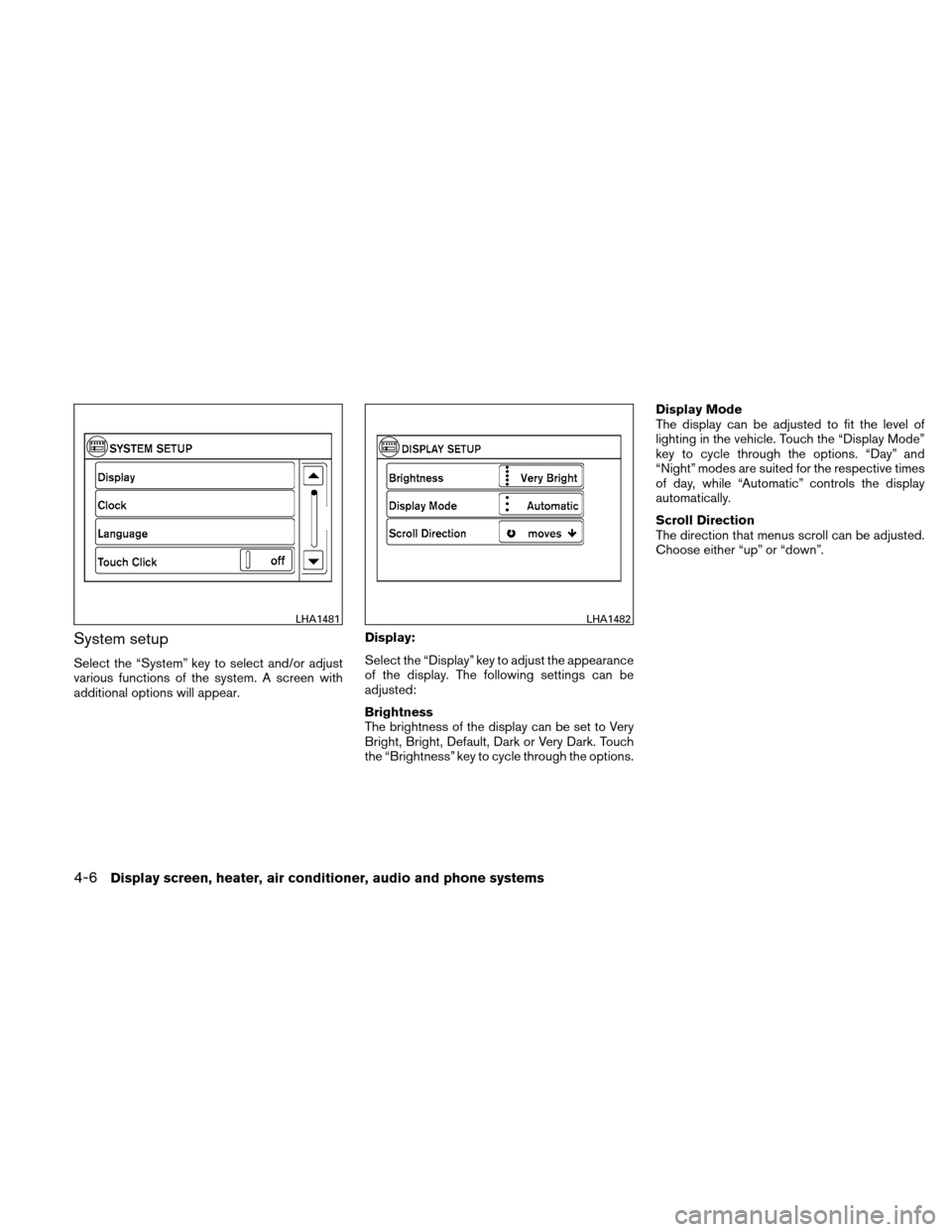
System setup
Select the “System” key to select and/or adjust
various functions of the system. A screen with
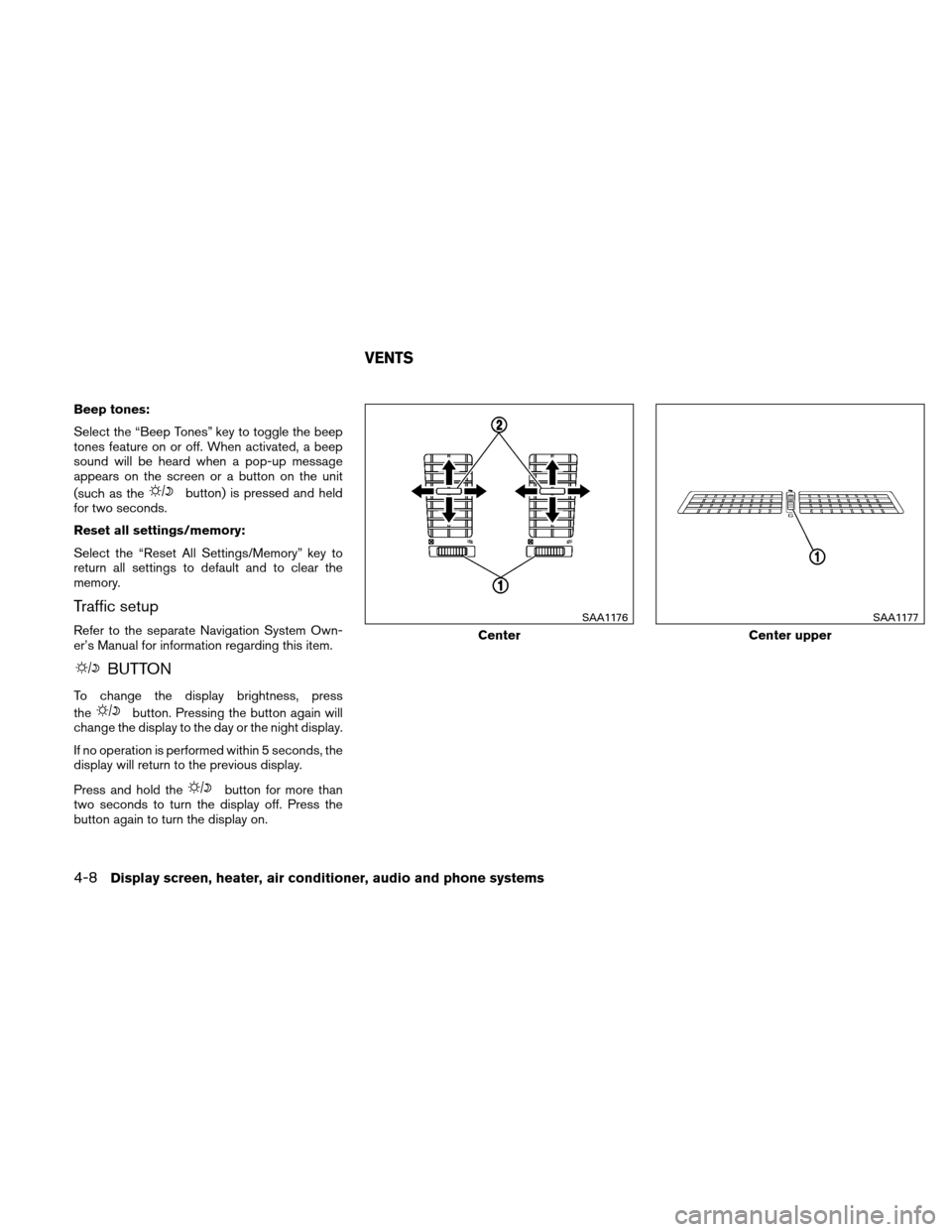
additional options will appear.Display:
Select the “Display” key to adjust the appearance
of the display. The following settings can be
adjusted:
Brightness
The brightness of the display can be set to Very
Bright, Bright, Default, Dark or Very Dark. Touch
the “Brightness” key to cycle through the options.Display Mode
The display can be adjusted to fit the level of
lighting in the vehicle. Touch the “Display Mode”
key to cycle through the options. “Day” and
“Night” modes are suited for the respective times
of day, while “Automatic” controls the display
automatically.
Scroll Direction
The direction that menus scroll can be adjusted.
Choose either “up” or “down”.
LHA1481LHA1482
4-6Display screen, heater, air conditioner, audio and phone systems
Page 154 of 350
Clock:
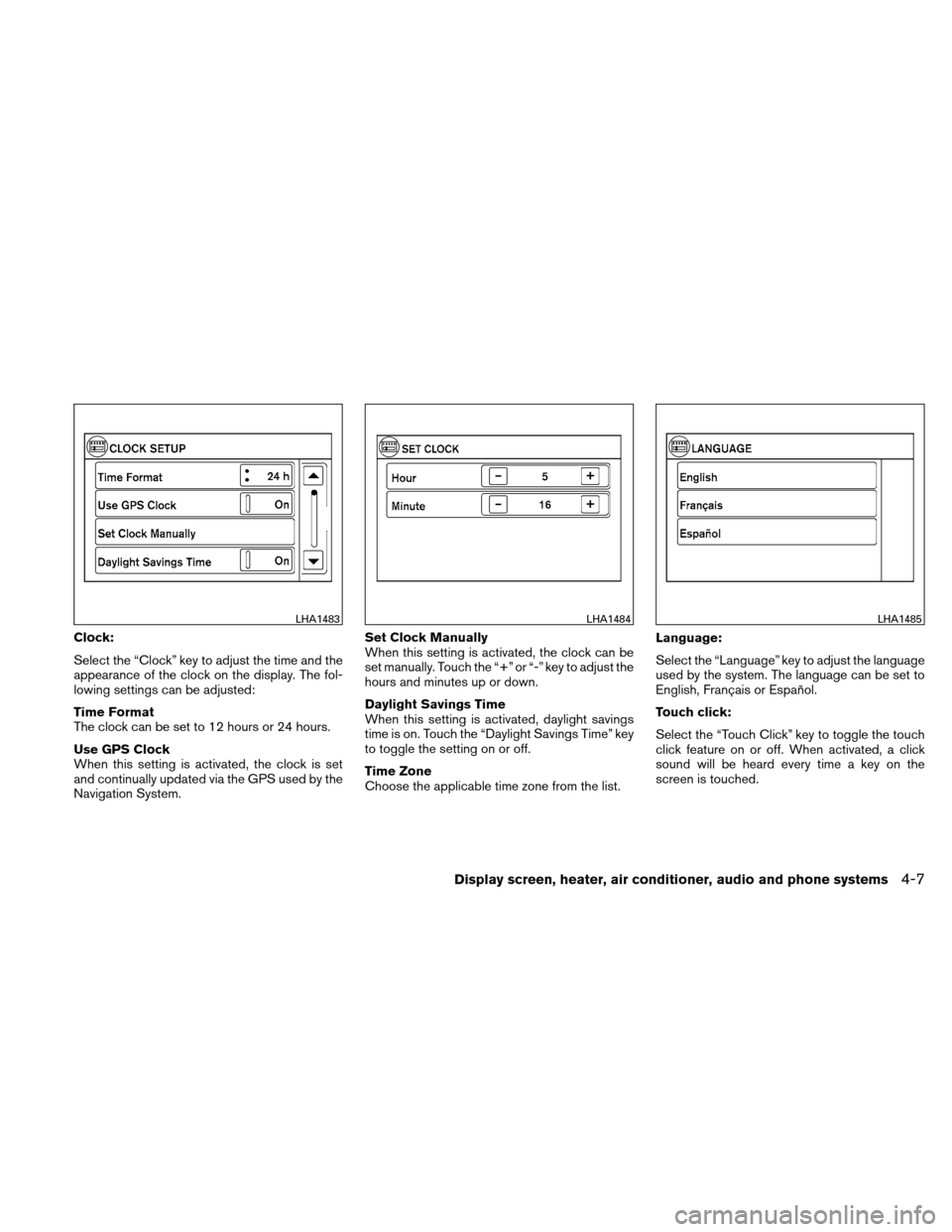
Select the “Clock” key to adjust the time and the
appearance of the clock on the display. The fol-
lowing settings can be adjusted:
Time Format
The clock can be set to 12 hours or 24 hours.
Use GPS Clock
When this setting is activated, the clock is set
and continually updated via the GPS used by the
Navigation System.Set Clock Manually
When this setting is activated, the clock can be
set manually. Touch the “+” or “-” key to adjust the
hours and minutes up or down.
Daylight Savings Time
When this setting is activated, daylight savings
time is on. Touch the “Daylight Savings Time” key
to toggle the setting on or off.
Time Zone
Choose the applicable time zone from the list.
Language:
Select the “Language” key to adjust the language
used by the system. The language can be set to
English, Français or Español.
Touch click:
Select the “Touch Click” key to toggle the touch
click feature on or off. When activated, a click
sound will be heard every time a key on the
screen is touched.
LHA1483LHA1484LHA1485
Display screen, heater, air conditioner, audio and phone systems4-7
Page 155 of 350
Beep tones:
Select the “Beep Tones” key to toggle the beep
tones feature on or off. When activated, a beep
sound will be heard when a pop-up message
appears on the screen or a button on the unit
(such as the
button) is pressed and held
for two seconds.
Reset all settings/memory:
Select the “Reset All Settings/Memory” key to
return all settings to default and to clear the
memory.
Traffic setup
Refer to the separate Navigation System Own-
er’s Manual for information regarding this item.
BUTTON
To change the display brightness, press
the
button. Pressing the button again will
change the display to the day or the night display.
If no operation is performed within 5 seconds, the
display will return to the previous display.
Press and hold the
button for more than
two seconds to turn the display off. Press the
button again to turn the display on.
Center
SAA1176
Center upper
SAA1177
VENTS
4-8Display screen, heater, air conditioner, audio and phone systems
Page 173 of 350
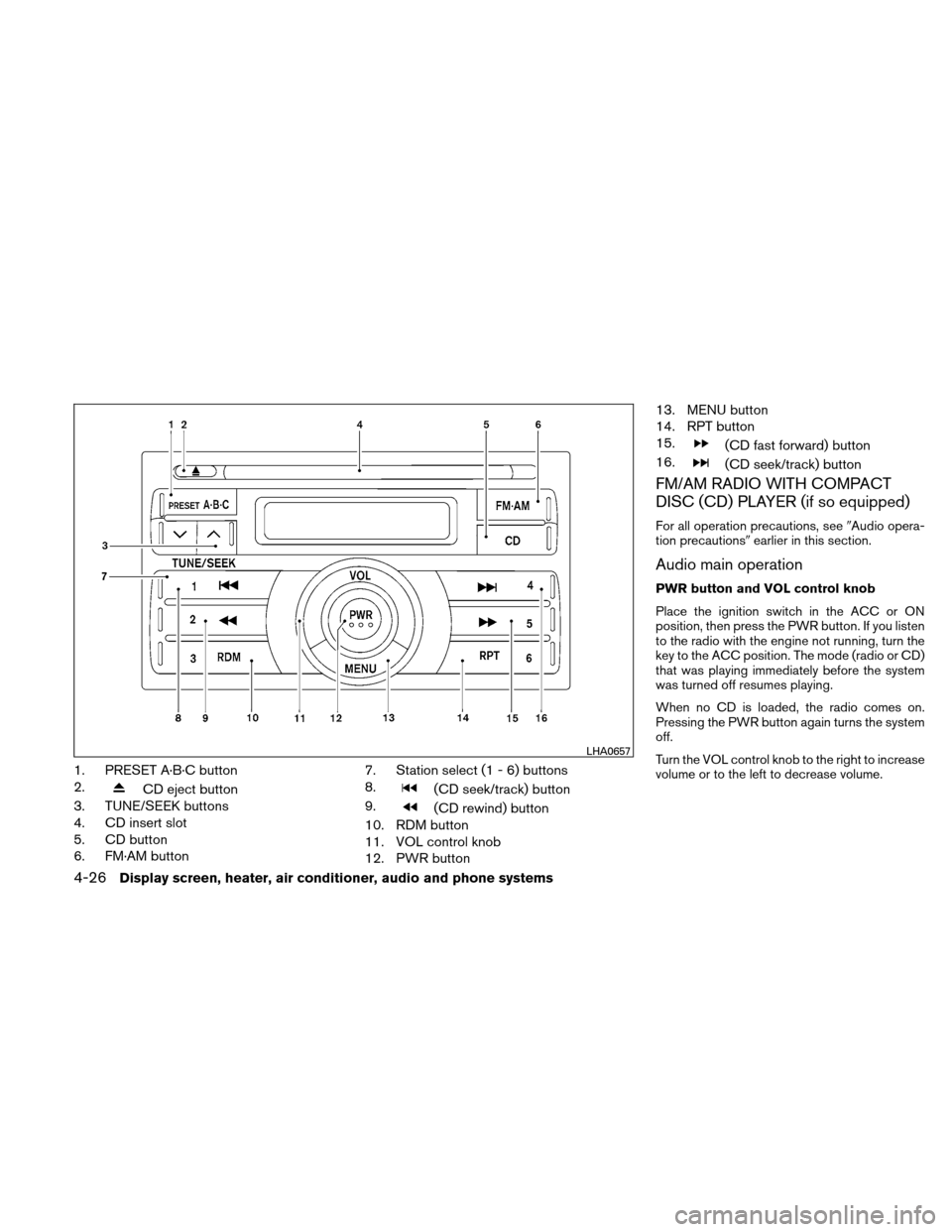
1. PRESET A·B·C button
2.
CD eject button
3. TUNE/SEEK buttons
4. CD insert slot
5. CD button
6. FM·AM button 7. Station select (1 - 6) buttons
8.(CD seek/track) button
9.
(CD rewind) button
10. RDM button
11. VOL control knob
12. PWR button 13. MENU button
14. RPT button
15.
(CD fast forward) button
16.
(CD seek/track) button
FM/AM RADIO WITH COMPACT
DISC (CD) PLAYER (if so equipped)
For all operation precautions, see �Audio opera-
tion precautions� earlier in this section.
Audio main operation
PWR button and VOL control knob
Place the ignition switch in the ACC or ON
position, then press the PWR button. If you listen
to the radio with the engine not running, turn the
key to the ACC position. The mode (radio or CD)
that was playing immediately before the system
was turned off resumes playing.
When no CD is loaded, the radio comes on.
Pressing the PWR button again turns the system
off.
Turn the VOL control knob to the right to increase
volume or to the left to decrease volume.
LHA0657
4-26Display screen, heater, air conditioner, audio and phone systems
Page 178 of 350
service subscription is active. Satellite radio can
only be installed in vehicles that were factory
pre-wired for satellite radio. Satellite radio is not
available in Alaska, Hawaii and Guam.
Audio main operation
PWR and VOL control:
Turn the ignition key to ACC or ON, and then
press the PWR button while the system is off to
call up the mode (radio or CD) which was playing
immediately before the system was turned off.
To turn the system off, press the PWR button.
Turn the VOL control knob to adjust the volume.
This vehicle may be equipped with Speed Sen-
sitive Volume (SSV) for audio. The audio volume
changes as the driving speed changes.
AUDIO button (BASS, TREBLE, BALANCE,
FADE, SSV and BEEP):
Press the AUDIO button to change the mode as
follows:
Bass→Treble →Balance →Fade →SPD VOL
(SSV if so equipped) →Beep ON/OFF →Audio
→ Bass
To adjust Bass, Treble, Balance and Fade, press
the AUDIO button until the desired mode ap-
pears in the display. Press the
TUNE/FF·REW/FOLDER button to adjust Bass and Treble to the desired level. You can also use
the TUNE/FF·REW/FOLDER button to adjust
Balance and Fade modes. Balance adjusts the
sound between the right and left speakers and
Fade adjusts the sound level between the front
and rear speakers.
To change the SSV mode to OFF, LOW, MID or
HIGH, press the TUNE/FF·REW/FOLDER but-
ton up or down.
To change the Beep to ON or OFF, press the
TUNE/FF·REW/FOLDER button up or down.
This will enable or disable the beep sound heard
during menu selection.
Once you have adjusted the sound quality to the
desired level, press the AUDIO button repeatedly
until the radio or CD display reappears. Other-
wise, the radio or CD display will automatically
reappear after about 10 seconds.
Clock operation
Pressing the CLOCK button displays the clock
with the radio on or off. Press the CLOCK button
again to turn off the clock display.
Clock set
1. Press and hold the CLOCK button until it beeps for more than 1.5 seconds to enter
the clock set mode. 2. The time will start flashing. Press the
SEEK/TRACK/FILE button
orto adjust the hours.
3. Press the TUNE/FF·REW/FOLDER button
orto adjust the minutes.
4. Press the CLOCK button again to exit the clock set mode.
The display will return to the regular clock display
after 10 seconds, or you may press the CLOCK
button again to return to the regular clock display.
DISP (display) button:
The DISP (display) button will show text about
FM stations, CD or MP3 and SAT (satellite, if so
equipped) information in the audio display.
FM display mode
To change the text displayed while listening to an
FM station that broadcasts with Radio Data Sys-
tem (RDS) , press the DISP button. The DISP
button will allow you to change RDS information
as follows: Station call number →Program type
→ Station information →Station call number.
● Station call number displays the radio fre-
quency number of the station.
● Program type displays the type or category
of radio station.
Display screen, heater, air conditioner, audio and phone systems4-31