2011 NISSAN MURANO mirror
[x] Cancel search: mirrorPage 191 of 433
Black plate (189,1)
Model "Z51-D" EDITED: 2010/ 7/ 23
.
(Stop)
Select the “
” key to stop the slideshow.
.
(Next)
Select the “
” key to display the next file.
.
(Previous)
Select the “
” key to display the previous
file.
Setting the Image Viewer:
The Image Viewer setting display will appear
when selecting the “Settings” key on the full
screen display. The following settings are
available for the full screen display.
. Slideshow Speed
Select the “Slideshow Speed” key. From the
following display, select the changing time
from 5, 10, 30, 60 seconds or “No Auto
Change”.
. Slideshow Order
Select the “Slideshow Order” key. From the
following display, select “Random” or “Order
List”. For “Order List”, the image order is the
order of the files as stored on the USB
memory. Operating tips:
.
Only files that meet the following conditions
will be displayed.
— Image type: JPEG
— File Extensions: *.jpg, *jpeg
— Maximum Resolution: 2048 61536
pixels
— Maximum Size: 2-MB
— Colors: 32768 (15-bit)
— Maximum File Name lengths: 253-Bytes
— Maximum Folders: 500
— Maximum Images per Folder: 1024
. If an electronic device (such as a digital
camera) is directly connected to the vehicle
using a USB cable, no image will be
displayed on the screen.
. If the file name is too long, some file names
may not be entirely displayed.
. When the total number of characters in the
file name exceeds 100 or if 1 file name in a
directory exceeds 100 characters, all files
will show a shortened 8-character version.
The image will still be displayed when
selected. When the selector lever is shifted into the R
(Reverse) position, the monitor display shows
the view to the rear of the vehicle.
The system is designed as an aid to the driver in
detecting large stationary objects to help avoid
damaging the vehicle. The system will not detect
small objects below the bumper and may not
detect objects close to the bumper or on the
ground.
WARNING
.
The rear view camera is a conve-
nience but it is not a substitute for
proper backing up. Always turn and
check that it is safe to do so before
backing up. Always back up slowly.
. Objects viewed in the RearView
Monitor differ from actual distance
because a wide-angle lens is used.
Objects in the RearView Monitor
will appear visually opposite than
when viewed in the rear view and
outside mirrors.
. Make sure that the lift gate is
securely closed when backing up.
. Underneath the bumper and the
corner areas of the bumper cannot
be viewed on the RearView MonitorREARVIEW MONITOR (if so
equipped)
Center display, heater, air conditioner, audio, phone and voice recognition systems
4-21
Page 193 of 433
Black plate (191,1)
Model "Z51-D" EDITED: 2010/ 7/ 23
.On a snow-covered or slippery road,
there may be a difference between
the predicted course line and the
actual course line.
. If the battery is disconnected or
becomes discharged, the predicted
course lines may be displayed in-
correctly. If this occurs, drive the
vehicle on a straight road for more
than 5 minutes.
. When the steering wheel is turned
with the ignition switch in the ACC
position, the predicted course lines
may be displayed incorrectly.
. The displayed lines will appear
slightly off to the right because the
rear view camera is not installed in
the rear center of the vehicle.
. The distance guide line and the
vehicle width line should be used
as a reference only when the vehicle
is on a level paved surface. The
distance viewed on the monitor is
for reference only and may be
different than the actual distance
between the vehicle and displayed
objects.
. When backing-up the vehicle up a hill objects viewed in the monitor
are further than they appear. When
backing-up the vehicle down a hill,
objects viewed in the monitor are
closer than they appear. Use the
inside mirror or glance over your
shoulder to properly judge dis-
tances to other objects.
The vehicle width and predicted course
lines are wider than the actual width and
course.
SAA1897
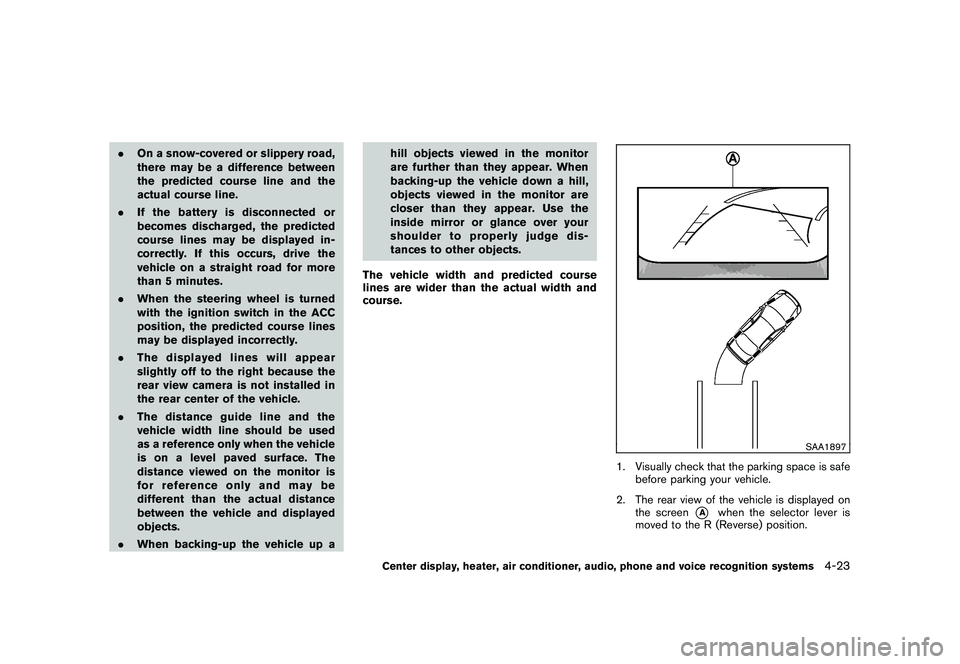
1. Visually check that the parking space is safe before parking your vehicle.
2. The rear view of the vehicle is displayed on the screen
*A
when the selector lever is
moved to the R (Reverse) position.
Center display, heater, air conditioner, audio, phone and voice recognition systems
4-23
Page 199 of 433
Black plate (197,1)
Model "Z51-D" EDITED: 2010/ 7/ 23
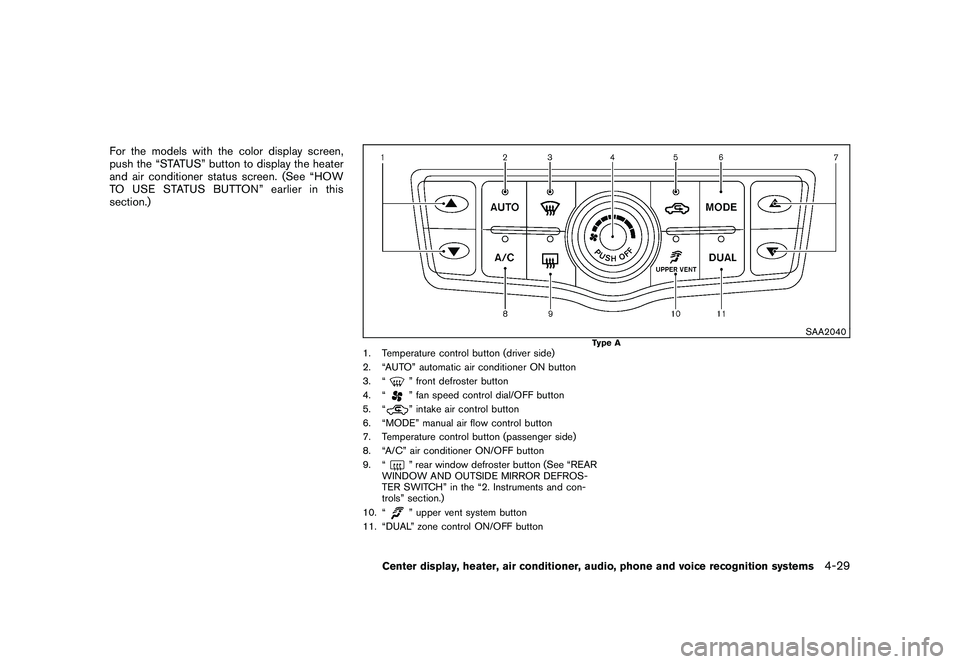
For the models with the color display screen,
push the “STATUS” button to display the heater
and air conditioner status screen. (See “HOW
TO USE STATUS BUTTON” earlier in this
section.)
SAA2040
Type A
1. Temperature control button (driver side)
2. “AUTO” automatic air conditioner ON button
3. “
” front defroster button
4. “” fan speed control dial/OFF button
5. “” intake air control button
6. “MODE” manual air flow control button
7. Temperature control button (passenger side)
8. “A/C” air conditioner ON/OFF button
9. “” rear window defroster button (See “REAR
WINDOW AND OUTSIDE MIRROR DEFROS-
TER SWITCH” in the “2. Instruments and con-
trols” section.)
10. “” upper vent system button
11. “DUAL” zone control ON/OFF button
Center display, heater, air conditioner, audio, phone and voice recognition systems
4-29
Page 200 of 433
Black plate (198,1)
Model "Z51-D" EDITED: 2010/ 7/ 23
SAA2834
Type B
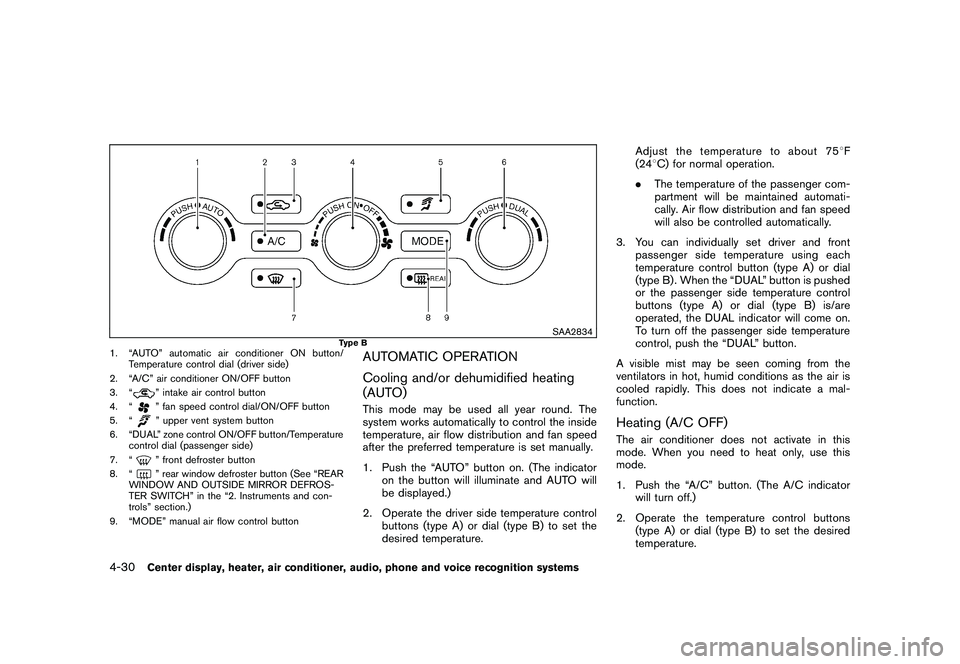
1. “AUTO” automatic air conditioner ON button/Temperature control dial (driver side)
2. “A/C” air conditioner ON/OFF button
3. “
” intake air control button
4. “” fan speed control dial/ON/OFF button
5. “” upper vent system button
6. “DUAL” zone control ON/OFF button/Temperature control dial (passenger side)
7. “” front defroster button
8. “” rear window defroster button (See “REAR
WINDOW AND OUTSIDE MIRROR DEFROS-
TER SWITCH” in the “2. Instruments and con-
trols” section.)
9. “MODE” manual air flow control button
AUTOMATIC OPERATION
Cooling and/or dehumidified heating
(AUTO)This mode may be used all year round. The
system works automatically to control the inside
temperature, air flow distribution and fan speed
after the preferred temperature is set manually.
1. Push the “AUTO” button on. (The indicator on the button will illuminate and AUTO will
be displayed.)
2. Operate the driver side temperature control buttons (type A) or dial (type B) to set the
desired temperature. Adjust the temperature to about 75
8F
(24 8C) for normal operation.
. The temperature of the passenger com-
partment will be maintained automati-
cally. Air flow distribution and fan speed
will also be controlled automatically.
3. You can individually set driver and front passenger side temperature using each
temperature control button (type A) or dial
(type B) . When the “DUAL” button is pushed
or the passenger side temperature control
buttons (type A) or dial (type B) is/are
operated, the DUAL indicator will come on.
To turn off the passenger side temperature
control, push the “DUAL” button.
A visible mist may be seen coming from the
ventilators in hot, humid conditions as the air is
cooled rapidly. This does not indicate a mal-
function.
Heating (A/C OFF)The air conditioner does not activate in this
mode. When you need to heat only, use this
mode.
1. Push the “A/C” button. (The A/C indicator will turn off.)
2. Operate the temperature control buttons (type A) or dial (type B) to set the desired
temperature.
4-30
Center display, heater, air conditioner, audio, phone and voice recognition systems
Page 263 of 433
Black plate (261,1)
Model "Z51-D" EDITED: 2010/ 7/ 23
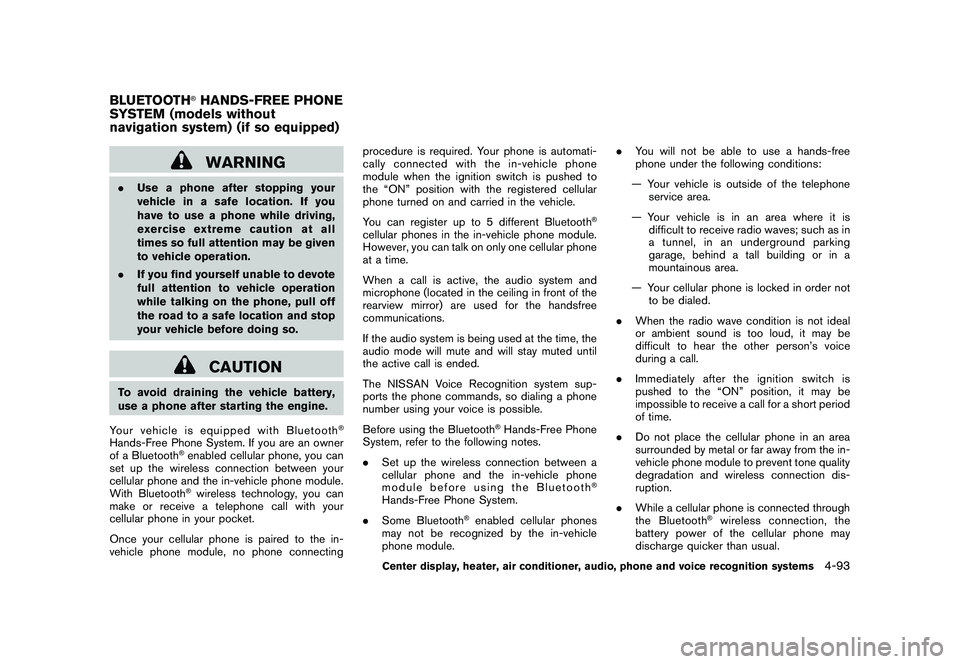
WARNING
.Use a phone after stopping your
vehicle in a safe location. If you
have to use a phone while driving,
exercise extreme caution at all
times so full attention may be given
to vehicle operation.
. If you find yourself unable to devote
full attention to vehicle operation
while talking on the phone, pull off
the road to a safe location and stop
your vehicle before doing so.
CAUTION
To avoid draining the vehicle battery,
use a phone after starting the engine.
Your vehicle is equipped with Bluetooth
®
Hands-Free Phone System. If you are an owner
of a Bluetooth
®enabled cellular phone, you can
set up the wireless connection between your
cellular phone and the in-vehicle phone module.
With Bluetooth®wireless technology, you can
make or receive a telephone call with your
cellular phone in your pocket.
Once your cellular phone is paired to the in-
vehicle phone module, no phone connecting procedure is required. Your phone is automati-
cally connected with the in-vehicle phone
module when the ignition switch is pushed to
the “ON” position with the registered cellular
phone turned on and carried in the vehicle.
You can register up to 5 different Bluetooth
®
cellular phones in the in-vehicle phone module.
However, you can talk on only one cellular phone
at a time.
When a call is active, the audio system and
microphone (located in the ceiling in front of the
rearview mirror) are used for the handsfree
communications.
If the audio system is being used at the time, the
audio mode will mute and will stay muted until
the active call is ended.
The NISSAN Voice Recognition system sup-
ports the phone commands, so dialing a phone
number using your voice is possible.
Before using the Bluetooth
®Hands-Free Phone
System, refer to the following notes.
. Set up the wireless connection between a
cellular phone and the in-vehicle phone
module before using the Bluetooth
®
Hands-Free Phone System.
. Some Bluetooth
®enabled cellular phones
may not be recognized by the in-vehicle
phone module. .
You will not be able to use a hands-free
phone under the following conditions:
— Your vehicle is outside of the telephone service area.
— Your vehicle is in an area where it is difficult to receive radio waves; such as in
a tunnel, in an underground parking
garage, behind a tall building or in a
mountainous area.
— Your cellular phone is locked in order not to be dialed.
. When the radio wave condition is not ideal
or ambient sound is too loud, it may be
difficult to hear the other person’s voice
during a call.
. Immediately after the ignition switch is
pushed to the “ON” position, it may be
impossible to receive a call for a short period
of time.
. Do not place the cellular phone in an area
surrounded by metal or far away from the in-
vehicle phone module to prevent tone quality
degradation and wireless connection dis-
ruption.
. While a cellular phone is connected through
the Bluetooth
®wireless connection, the
battery power of the cellular phone may
discharge quicker than usual.
BLUETOOTH
®HANDS-FREE PHONE
SYSTEM (models without
navigation system) (if so equipped)
Center display, heater, air conditioner, audio, phone and voice recognition systems
4-93
Page 266 of 433
Black plate (264,1)
Model "Z51-D" EDITED: 2010/ 7/ 23
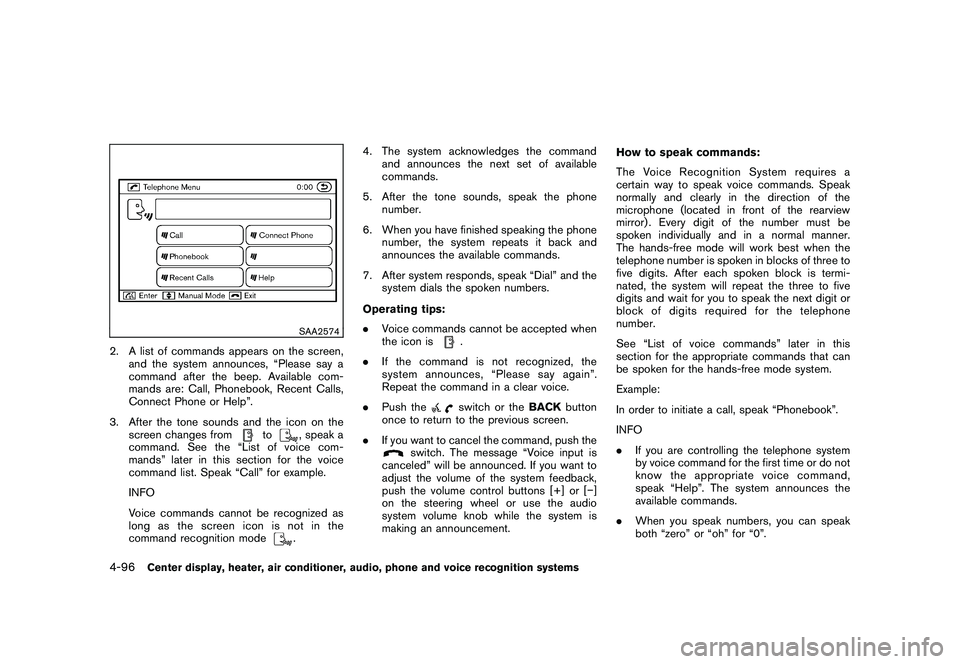
SAA2574
2. A list of commands appears on the screen,and the system announces, “Please say a
command after the beep. Available com-
mands are: Call, Phonebook, Recent Calls,
Connect Phone or Help”.
3. After the tone sounds and the icon on the screen changes from
to
, speak a
command. See the “List of voice com-
mands” later in this section for the voice
command list. Speak “Call” for example.
INFO
Voice commands cannot be recognized as
long as the screen icon is not in the
command recognition mode. 4. The system acknowledges the command
and announces the next set of available
commands.
5. After the tone sounds, speak the phone number.
6. When you have finished speaking the phone number, the system repeats it back and
announces the available commands.
7. After system responds, speak “Dial” and the system dials the spoken numbers.
Operating tips:
. Voice commands cannot be accepted when
the icon is
.
. If the command is not recognized, the
system announces, “Please say again”.
Repeat the command in a clear voice.
. Push theswitch or the BACKbutton
once to return to the previous screen.
. If you want to cancel the command, push the
switch. The message “Voice input is
canceled” will be announced. If you want to
adjust the volume of the system feedback,
push the volume control buttons [+] or [ ]
on the steering wheel or use the audio
system volume knob while the system is
making an announcement. How to speak commands:
The Voice Recognition System requires a
certain way to speak voice commands. Speak
normally and clearly in the direction of the
microphone (located in front of the rearview
mirror) . Every digit of the number must be
spoken individually and in a normal manner.
The hands-free mode will work best when the
telephone number is spoken in blocks of three to
five digits. After each spoken block is termi-
nated, the system will repeat the three to five
digits and wait for you to speak the next digit or
block of digits required for the telephone
number.
See “List of voice commands” later in this
section for the appropriate commands that can
be spoken for the hands-free mode system.
Example:
In order to initiate a call, speak “Phonebook”.
INFO
.
If you are controlling the telephone system
by voice command for the first time or do not
know the appropriate voice command,
speak “Help”. The system announces the
available commands.
. When you speak numbers, you can speak
both “zero” or “oh” for “0”.
4-96
Center display, heater, air conditioner, audio, phone and voice recognition systems
Page 315 of 433

Black plate (313,1)
Model "Z51-D" EDITED: 2010/ 7/ 23
so may cause damage to the equip-
ment.
. Make sure the Intelligent Key is in
the correct direction when inserting
it to the key port. The engine may
not start if it is in the incorrect
direction.
. Remove the Intelligent Key from the
key port after the ignition switch is
pushed to the OFF position. .
Make sure the area around the vehicle is
clear.
. Check fluid levels such as engine oil, cool-
ant, brake fluid and window washer fluid as
frequently as possible, or at least whenever
you refuel.
. Check that all windows and lights are clean.
. Visually inspect tires for their appearance
and condition. Also check tires for proper
inflation.
. Lock all doors.
. Position seats and adjust head restraints/
headrests.
. Adjust inside and outside mirrors.
. Fasten seat belts and ask all passengers to
do likewise.
. Check the operation of warning lights when
the ignition switch is pushed to the ON
position. (See “WA RNING/INDICATOR
LIGHTS AND AUDIBLE REMINDERS” in
the “2. Instruments and controls” section.) 1. Apply the parking brake.
2. Move the selector lever to the P (Park) or N
(Neutral) position. (P is recommended.)
The starter is designed not to operate unless
the selector lever is in either of the above
positions.
3. Push the ignition switch to the ON position. Depress the brake pedal and push the
ignition switch to start the engine.
To start the engine immediately, push and
release the ignition switch while depressing
the brake pedal with the ignition switch in
any position.
.If the engine is very hard to start in
extremely cold weather or when restart-
ing, depress the accelerator pedal a little
(approximately 1/3 to the floor) and
while holding, crank the engine. Release
the accelerator pedal when the engine
starts.
. If the engine is very hard to start
because it is flooded, depress the
accelerator pedal all the way to the floor
and hold it. Push the ignition switch to
the ON position to start cranking the
engine. After 5 or 6 seconds, stop
cranking by pushing the ignition switch
to OFF. After cranking the engine,
release the accelerator pedal. Crank
BEFORE STARTING THE ENGINE STARTING THE ENGINE
Starting and driving
5-13
Page 383 of 433
Black plate (385,1)
Model "Z51-D" EDITED: 2010/ 7/ 23
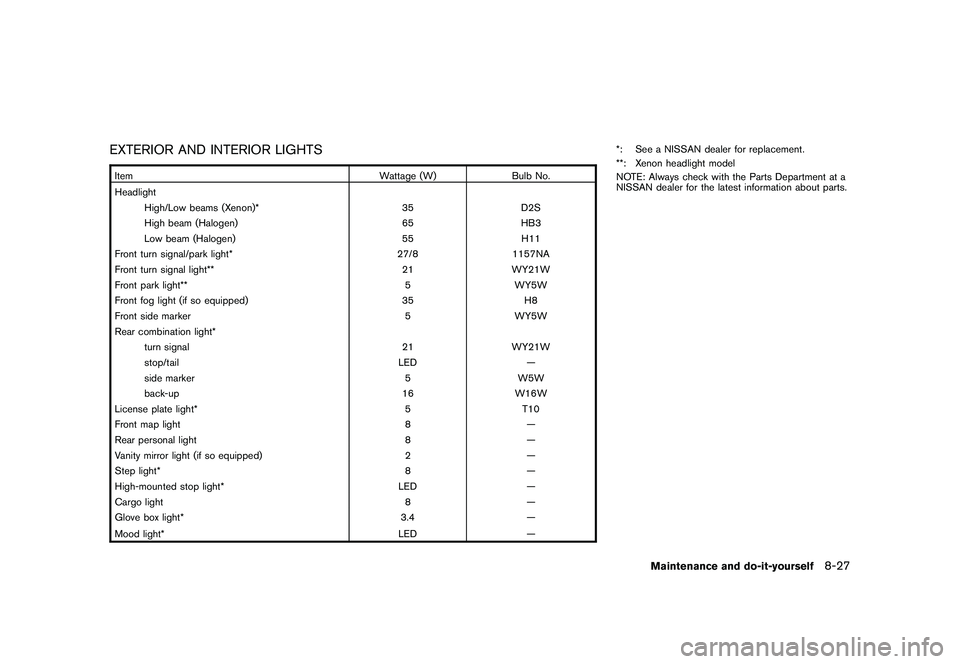
EXTERIOR AND INTERIOR LIGHTSItemWattage (W)Bulb No.
Headlight High/Low beams (Xenon)* 35D2S
High beam (Halogen) 65HB3
Low beam (Halogen) 55H11
Front turn signal/park light* 27/81157NA
Front turn signal light** 21WY21W
Front park light** 5WY5W
Front fog light (if so equipped) 35H8
Front side marker 5WY5W
Rear combination light* turn signal 21WY21W
stop/tail LED—
side marker 5W5W
back-up 16W16W
License plate light* 5T10
Front map light 8—
Rear personal light 8—
Vanity mirror light (if so equipped) 2—
Step light* 8—
High-mounted stop light* LED—
Cargo light 8—
Glove box light* 3.4—
Mood light* LED
—*: See a NISSAN dealer for replacement.
**: Xenon headlight model
NOTE: Always check with the Parts Department at a
NISSAN dealer for the latest information about parts.
Maintenance and do-it-yourself
8-27