2011 NISSAN GT-R audio
[x] Cancel search: audioPage 230 of 312

Black plate (236,1)
Model "R35-N" EDITED: 2009/ 10/ 30
Help Command:CommandAction
Navigation Commands Displays the navigation command list.
Phone Commands Displays the phone command list.
Audio Commands Displays the audio command list.
Information Commands Displays the information command list.
Help Commands Displays the help command list.
User Guide Displays the User Guide
Speaker Adaptation The system memorizes the voices of up to three persons for better voice recognition performance.8-18
Voice recognition
Page 232 of 312
Black plate (238,1)
Model "R35-N" EDITED: 2009/ 10/ 30
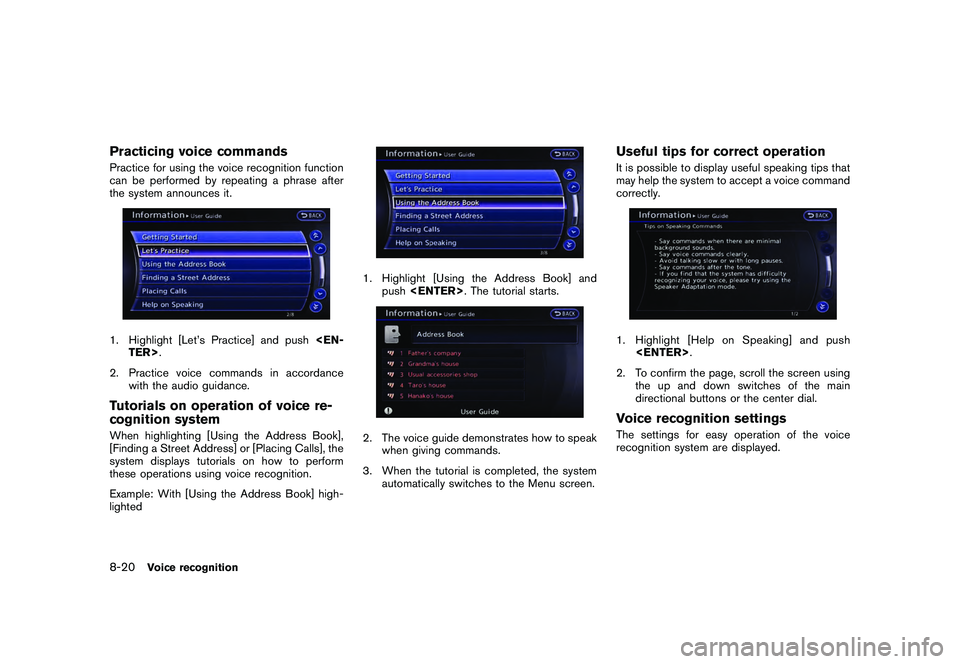
Practicing voice commandsPractice for using the voice recognition function
can be performed by repeating a phrase after
the system announces it.1. Highlight [Let’s Practice] and push
2. Practice voice commands in accordance with the audio guidance.Tutorials on operation of voice re-
cognition systemWhen highlighting [Using the Address Book],
[Finding a Street Address] or [Placing Calls], the
system displays tutorials on how to perform
these operations using voice recognition.
Example: With [Using the Address Book] high-
lighted
1. Highlight [Using the Address Book] andpush
when giving commands.
3. When the tutorial is completed, the system automatically switches to the Menu screen.
Useful tips for correct operationIt is possible to display useful speaking tips that
may help the system to accept a voice command
correctly.1. Highlight [Help on Speaking] and push
2. To confirm the page, scroll the screen using the up and down switches of the main
directional buttons or the center dial.Voice recognition settingsThe settings for easy operation of the voice
recognition system are displayed.
8-20
Voice recognition
Page 234 of 312

Black plate (240,1)
Model "R35-N" EDITED: 2009/ 10/ 30
GIVING VOICE COMMANDS1. Push<
>located on the steering wheel.
2. A list of commands appears on the screen,
and the system announces, “Please say a
command”.
3. After the tone sounds and the icon on the screen changes from [
]to[
], speak
a command.
Operating tips. If the command is not recognized, the
system announces, “Please say again”.
Repeat the command in a clear voice.
. Push <
>once to return to the previous
screen.
. To cancel the command, push and hold
<
>. The message, “Voice canceled” will
be announced.
. Push <
>to stop the voice prompt and give the command at once. Remember to
wait for the tone before speaking.
. To adjust the volume of the system feed-
back, push the volume control buttons [+] or
[] on the steering wheel or use the audio
system volume control knob while the
system is making an announcement.
How to speak numbersNISSAN Voice Recognition requires a certain
way to speak numbers when giving voice
commands. Refer to the following examples.General rule:Only single digits 0 (zero) to 9 can be used. For
example, to speak 500, “five zero zero” can be
used, but “five hundred” cannot.Examples:1-800-662-6200
“One eight zero zero six six two six two zero
zero”
Improving Recognition of Phone numbers:
Recognition of phone numbers can be improved
by speaking the phone number in 3 groups of
numbers. For example, to call 800-662-6200,
speak “Eight Zero Zero” first, and the system will
then ask to speak the next three digits. Then,
speak “Six Six Two”. After recognition, the
system will then ask to speak the last 4 digits. Speak, “Six Two Zero Zero”. Using this method
of phone digit entry can improve recognition
performance.
INFO:
For best recognition, speak “zero” for the
number “0” and “oh” for the letter “o”.
SYSTEM FEEDBACK ANNOUNCE-
MENT MODESIt is possible to select two modes, long or short,
for the announcement by the system.How to set1. Push
2. Highlight [Others] and push
3. Highlight [Voice Recognition] and push
push
8-22
Voice recognition
Page 235 of 312

Black plate (241,1)
Model "R35-N" EDITED: 2009/ 10/ 30
and the system announcement mode
switches to the short mode.
5. Push
screen. Push
Page 297 of 312

Black plate (34,1)
11 Troubleshooting guide
Customer assistance......................................... 11-2
Navigation ...................................................... 11-3
Basic operations .......................................... 11-3
Vehicle icon ................................................ 11-4
Route calculation and visual guidance ............... 11-6Voice guidance
............................................ 11-8
Traffic information ......................................... 11-9
Audio system ................................................ 11-10
Bluetooth ®
Hands-Free Phone System ............... 11-11
Voice recognition ........................................... 11-12
Page 299 of 312
Black plate (305,1)
Model "R35-N" EDITED: 2009/ 10/ 30
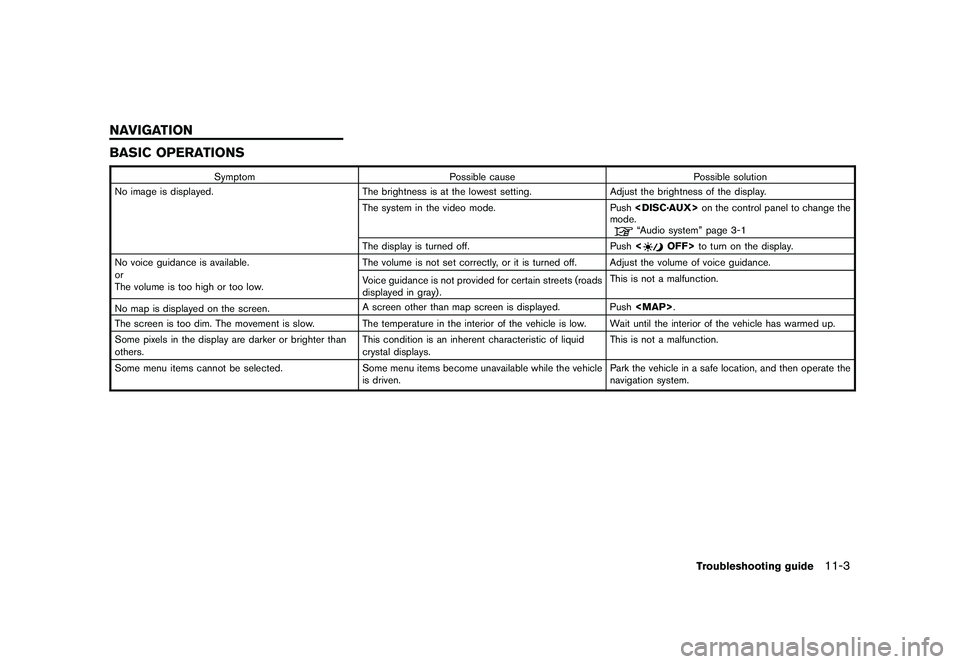
BASIC OPERATIONS
SymptomPossible cause Possible solution
No image is displayed. The brightness is at the lowest setting.Adjust the brightness of the display.
The system in the video mode. Push
mode.
“Audio system” page 3-1
The display is turned off. Push <
OFF>to turn on the display.
No voice guidance is available.
or
The volume is too high or too low. The volume is not set correctly, or it is turned off. Adjust the volume of voice guidance.
Voice guidance is not provided for certain streets (roads
displayed in gray) .
This is not a malfunction.
No map is displayed on the screen. A screen other than map screen is displayed. Push
Page 306 of 312

Black plate (312,1)
Model "R35-N" EDITED: 2009/ 10/ 30
SymptomCause and Countermeasure
Cannot play Check if the disc or USB device was inserted correctly.
Check if the disc is scratched or dirty.
Check if there is condensation inside the player, and if there is, wait until the condensation is gone (about 1 hour) before using the
player.
If there is a temperature increase error, the player will play correctly after it returns to the normal temperature.
If there is a mixture of music CD files (CD-DA data) and compressed audio files on a CD, only the music CD files (CD-DA data) will be
played.
Files with extensions other than “.MP3 (.mp3)”, “.WMA (.wma)”, “.AAC (.aac)”, “.M4A (.m4a)”, or “.AA3 (.aa3)” cannot be played. In
addition, the character codes and number of characters for folder names and file names should be in compliance with the
specifications.
Check if the disc or the file is generated in an irregular format. This may occur depending on the variation or the setting of compressed
audio writing applications or other text editing applications.
Check if the finalization process, such as session close and disc close, is done for the disc.
Check if the disc or USB device is protected by copyright.
Poor sound quality Check if the disc is scratched or dirty.
It takes a relatively long time before
the music starts playing. If there are many folder or file levels on the disc or USB device, some time may be required before the music starts playing.
Music cuts off or skips The writing software and hardware combination might not match, or the writing speed, writing depth, writing width, etc., might not
match the specifications. Try using the slowest writing speed.
Skipping with high bit rate files Skipping may occur with large quantities of data, such as for high bit rate data.
Move immediately to the next song
when playing. If an unsupported compressed audio file has been given a supported extension like .MP3, or when play is prohibited by copyright
protection, the player will skip to the next song.
The songs do not play back in the
desired order. The playback order is the order in which the files were written by the writing software, so the files might not play in the desired order.
Random/Shuffle may be active on the audio system or on a USB device.
11-10
Troubleshooting guide
AUDIO SYSTEM
Page 309 of 312

Black plate (1,1)
12 Index
A
About map data ................................... 10-13
About multi function meter .......................... 9-2
About route guidance ............................. 2-47
Acceleration screen ................................ 9-20
Address book ........................................ 2-2
Air flow control ....................................... 5-6
Air recirculation ...................................... 5-5
Alternate command mode ......................... 8-13
Antenna ............................................. 3-12
Audio operation precautions ........................ 3-2
Audio settings ........................................ 7-3
Audio system ................................ 3-2, 11-10
Automatic air intake control ......................... 5-5
Automatic operation ................................. 5-2
Automatic reroute .................................... 2-2
Automatically display warnings/watches ......... 6-21
Avoid area ............................................ 2-2
B
Basic operations ................................... 11-3
Basics of voice guidance ......................... 10-7
Before starting ................................ 8-4, 8-21
Birdview
TM............................................ 2-3
BirdviewTM
(3D) map ................................ 2-5
Bluetooth streaming audio ........................ 3-21
Bluetooth®Hands-Free Phone System . . . 4-2, 11-11
Braking screen ..................................... 9-22
Building graphics .................................... 2-5 C
Car phone or CB radio ............................ 3-32
CD/DVD/USB memory care and cleaning ....... 3-31
Changing map view ............................... 2-11
Changing scale of map .............................. 2-9
Character (letters and numbers) input screen . . . 1-16
Characteristics of liquid crystal display ......... 10-16
Clock settings ........................................ 7-7
Comfort & conv. settings ............................ 7-8
Confirming how to use voice commands . . . 8-2, 8-19
Connecting procedure .............................. 4-4
Control buttons ...................................... 4-4
Control buttons and functions ...................... 1-6
Control panel ......................................... 1-6
Cooling and/or dehumidified heating (AUTO) ..... 5-2
Current vehicle location ........................... 10-2
Custom view screen ................................. 9-7
Customer assistance .............................. 11-2
D
Dehumidified defrosting or defogging .............. 5-4
Delete destination .................................. 2-42
Delete stored items ................................ 2-98
Deleting stored item ............................... 2-88
Destination screen ................................. 2-23
Destination weather on suggested route
screen .............................................. 6-20
Detailed Map Coverage Areas (MCA) for
navigation system .................................. 10-5
Detour ................................................ 2-3
Digital media slots ................................... 1-9 Directions provided and distances to guide
points
............................................... 10-8
Display adjustment ................................... 7-4
Display of current vehicle location ................ 10-2
Display settings ...................................... 7-4
Display urgent traffic information ................. 6-10
Displaying current vehicle location ................. 2-6
Displaying how to operate Voice Recognition
System .............................................. 8-13
Displaying weather information screen ........... 6-14
Driver’s notes screen .............................. 9-32
Driving record screen .............................. 9-28
Driving support screen ............................ 9-20
During a call .......................................... 4-7
DVD (DIGITAL VERSATILE DISC) player
operation ........................................... 3-16
E
Editing address book .............................. 2-77
End-user terms .................................... 10-14
Example of touch panel operation ................ 1-15
F
Fan speed control ................................... 5-5
Features of multi function display system .......... 1-2
Features of this navigation system ................. 2-2
Finding address .................................... 2-25
Finding place ....................................... 2-26
FM-AM-SAT radio with Compact Disc (CD)
player ............................................... 3-12
Fuel economy information ........................... 6-4
Fuel economy screen .............................. 9-27
Model "R35-N" EDITED: 2009/ 12/ 7