2011 NISSAN GT-R change time
[x] Cancel search: change timePage 214 of 312

Black plate (220,1)
Model "R35-N" EDITED: 2009/ 10/ 30
NISSAN Voice Recognition allows hands-free
operation of the navigation system and other
systems equipped on this vehicle, in one of two
modes, Standard Mode or Alternate Command
Mode. Standard Mode allows the operation of
Navigation, Phone, Audio, Information and Help.
The commands that are available are always
shown on the display and announced by the
system. To perform operations, simply follow the
prompts given by the system. In Standard Mode,
hands-free operation of Change map view,
Route selection and Bluetooth Audio, etc. is
not available through Voice Recognition.
Alternate Command Mode allows advanced
operations. When this mode is active, an
expanded list of commands can be spoken after
pushing<
>, and the voice command menu
prompts are turned off. Note that in this mode
the recognition success rate may be affected
because the number of available commands and
ways of speaking each command are increased.
Otherwise, it is recommended that Alternate
Command Mode be turned OFF and Standard
Mode be used for the best recognition perfor-
mance.
“Alternate Command Mode” page 8-13INFO:
. To improve recognition success when Alter-
nate Command Mode is active, try using the Speaker Adaptation function available in that
mode.
“SPEAKER ADAPTATION” page 8-23
Otherwise, it is recommended that Alternate
Command Mode be turned OFF and Stan-
dard Mode be used for the best recognition
performance.
. For the voice commands for the audio,
phone and other systems, refer to the
vehicle Owner’s Manual. The following sec-
tions refer only to the navigation, phone and
information systems.
. If the air conditioner is set to “Auto”, the fan
speed is automatically lowered so that
commands can be recognized more easily.
CONFIRMING HOW TO USE VOICE
COMMANDSWhen operating the voice recognition system
for the first time or if help is preferred to use the
system, the User Guide can be displayed.
It is possible to confirm how to use voice
commands by accessing a simplified User
Guide, which contains basic instructions and
tutorials for several voice commands.Basic operation1. Push
2. Highlight [Others] and push
3. Highlight [Voice Recognition] and push
4. Highlight [User Guide] and push
5. Highlight the preferred item and push
8-2
Voice recognition
NISSAN VOICE RECOGNITION STANDARD MODE
Page 221 of 312

Black plate (227,1)
Model "R35-N" EDITED: 2009/ 10/ 30
VOICE COMMAND EXAMPLESTo use the voice recognition function, speaking
one command is sometimes sufficient, but at
other times it is necessary to speak two or more
commands. As examples, some additional basic
operations that can be performed by voice
commands are described here.Example 1: Setting destination by
street address1. Push<
>located on the steering wheel.
2. The system announces, “Would you like to
access Phone, Navigation, Information,
Audio or Help?”.
3. Speak “Navigation”.
4. Speak “Address”.
INFO:
Press
the user guide screen.
5. Speak the name of the state, “California”.
6. Speak the name of the city, “Gardena”.7. Voice feedback will be provided when the command is accepted, and the list of city
names is displayed.
8. After the tone sounds and the icon on the screen changes again, speak “Four”.
Voice recognition
8-9
Page 237 of 312
![NISSAN GT-R 2011 Owners Manual Black plate (243,1)
Model "R35-N" EDITED: 2009/ 10/ 30
INFO:
With [Continuous Learning] set to on, the
system does not go back to the command
list screen, allowing to continue voice
command learning b](/manual-img/5/58175/w960_58175-236.png "NISSAN GT-R 2011 Owners Manual Black plate (243,1)
Model \"R35-N\" EDITED: 2009/ 10/ 30
INFO:
With [Continuous Learning] set to on, the
system does not go back to the command
list screen, allowing to continue voice
command learning b")
Black plate (243,1)
Model "R35-N" EDITED: 2009/ 10/ 30
INFO:
With [Continuous Learning] set to on, the
system does not go back to the command
list screen, allowing to continue voice
command learning by the system.
12. If the system has learned the command correctly, “None” will change to “Stored”.
Editing registered itemsIt is possible to edit user names and select
learning function settings.
1. Push
2. Highlight [Others] and push
3. Highlight [Voice Recognition] and push
5. Highlight a user to edit, and push
7. Highlight an item to edit, and push
Setting items
. [Edit User Name]:
Edit the user name.
. [Delete Voice Data]:
Reset the user voice that the voice
recognition system has learned.
. [Continuous Learning]:
Have the system learn the voice com-
mands of the user in succession, without
selecting commands one by one.VOICE COMMAND EXAMPLESTo use the voice recognition function, speaking
one command is sometimes sufficient, but at
other times it is necessary to speak two or more
commands. As examples, some additional basic
operations by voice commands are described
here.
Voice recognition
8-25
Page 254 of 312

Black plate (260,1)
Model "R35-N" EDITED: 2009/ 10/ 30
Transmission oil temperatureDisplays the transmission oil temperature.
Large panel screenSmall panel screen
INFO:
. When this meter displays in red, reduce the
vehicle speed and drive at a reduced speed.
. Driving while the transmission oil tempera-
ture is high may cause transmission da-
mage.
. After first starting the engine, it may take a
short period of time for the oil pressure to
stabilize. This is not a malfunction.
. When screens other than the FUNCTION
screen are displayed, the screen will not
change, even if the meter values register red
zone readings.
Transmission oil pressureDisplays the transmission oil pressure.
Large panel screenSmall panel screen
9-12
Multi function meter
Page 262 of 312
Black plate (268,1)
Model "R35-N" EDITED: 2009/ 10/ 30
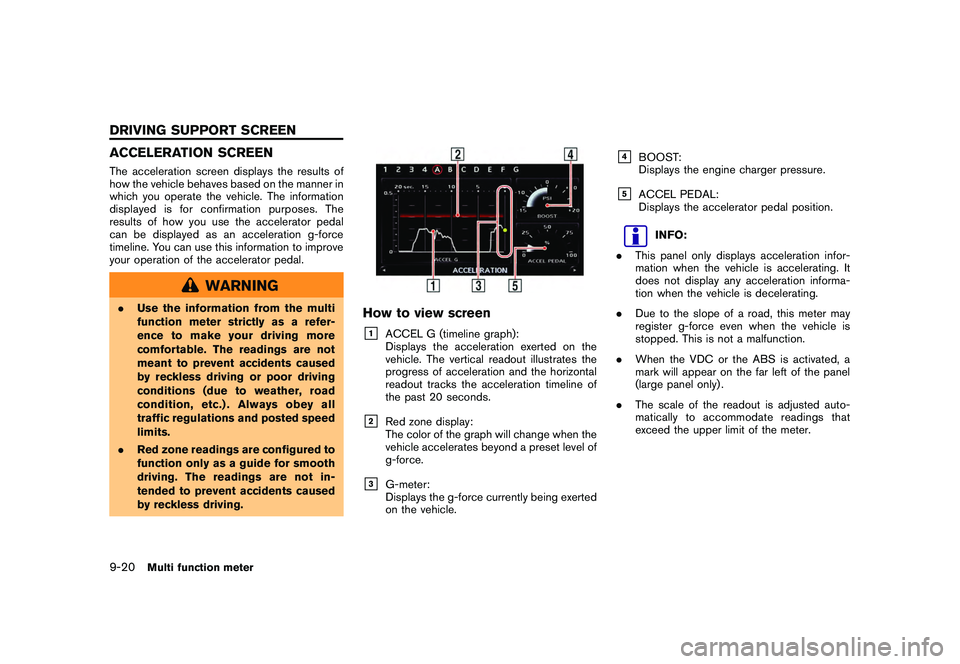
ACCELERATION SCREENThe acceleration screen displays the results of
how the vehicle behaves based on the manner in
which you operate the vehicle. The information
displayed is for confirmation purposes. The
results of how you use the accelerator pedal
can be displayed as an acceleration g-force
timeline. You can use this information to improve
your operation of the accelerator pedal.
WARNING
.Use the information from the multi
function meter strictly as a refer-
ence to make your driving more
comfortable. The readings are not
meant to prevent accidents caused
by reckless driving or poor driving
conditions (due to weather, road
condition, etc.) . Always obey all
traffic regulations and posted speed
limits.
. Red zone readings are configured to
function only as a guide for smooth
driving. The readings are not in-
tended to prevent accidents caused
by reckless driving.
How to view screen&1
ACCEL G (timeline graph):
Displays the acceleration exerted on the
vehicle. The vertical readout illustrates the
progress of acceleration and the horizontal
readout tracks the acceleration timeline of
the past 20 seconds.
&2
Red zone display:
The color of the graph will change when the
vehicle accelerates beyond a preset level of
g-force.
&3
G-meter:
Displays the g-force currently being exerted
on the vehicle.
&4
BOOST:
Displays the engine charger pressure.
&5
ACCEL PEDAL:
Displays the accelerator pedal position.
INFO:
. This panel only displays acceleration infor-
mation when the vehicle is accelerating. It
does not display any acceleration informa-
tion when the vehicle is decelerating.
. Due to the slope of a road, this meter may
register g-force even when the vehicle is
stopped. This is not a malfunction.
. When the VDC or the ABS is activated, a
mark will appear on the far left of the panel
(large panel only) .
. The scale of the readout is adjusted auto-
matically to accommodate readings that
exceed the upper limit of the meter.
9-20
Multi function meter
DRIVING SUPPORT SCREEN
Page 264 of 312

Black plate (270,1)
Model "R35-N" EDITED: 2009/ 10/ 30
BRAKING SCREENThe braking screen displays the results of how
the vehicle behaves based on the manner in
which the driver operates the vehicle. The
information displayed is for confirmation pur-
poses. The results of how the brake pedal is
used are displayed as a timeline of g-force
exerted on the vehicle during deceleration. Use
the information to improve your operation of the
brake pedal.
WARNING
.Use the information from the multi
function meter strictly as a refer-
ence to make your driving more
comfortable. The readings are not
meant to prevent accidents caused
by reckless driving or poor driving
conditions (due to weather, road
condition, etc.) . Always obey all
traffic regulations and posted speed
limits.
. Red zone readings are configured to
function only as a guide for smooth
driving. The readings are not in-
tended to prevent accidents caused
by reckless driving.
How to view the screen&1
BRAKE G (timeline graph):
Displays the deceleration of the g-force
being exerted on the vehicle. The vertical
readout illustrates the progress of accel-
eration and the horizontal readout tracks the
deceleration timeline of the past 20 sec-
onds.
&2
Red zone display:
The color of the graph will change when the
level of g-force exerted on the vehicle while
decelerating exceeds a preset level.
&3
G-meter:
Displays the g-force currently being exerted
due on the vehicle due to deceleration.
&4
SPEED:
Displays the current driving speed.
&5
BRAKE PEDAL:
Displays the brake pedal position.
INFO:
. The reading that the brake meter displays
when the pedal is being depressed may
vary, depending on the vehicle speed and
road conditions. The brake meter may not
display a reading of “100%” even when the
brake is being fully depressed. This is not a
malfunction.
. This panel only displays acceleration infor-
mation when the vehicle is decelerating. It
does not display any acceleration informa-
tion when the vehicle is accelerating.
. Due to the slope of a road, this meter may
register g-force even when the vehicle is
stopped. This is not a malfunction.
. When the VDC or the ABS is activated, a
mark will appear on the far left side of the
panel (large panel only) .
. The scale of the readout is adjusted auto-
matically to accommodate readings that
exceed the upper limit of the meter.
9-22
Multi function meter
Page 266 of 312

Black plate (272,1)
Model "R35-N" EDITED: 2009/ 10/ 30
STEERING SCREENThe steering screen allows you to confirm how
the vehicle responds to your driving by display-
ing the results of how you operate the vehicle.
The results of your driving are displayed as a
timeline of the g-force exerted on the vehicle.
Use the displayed information to improve your
steering smoothness.
WARNING
.Use the information from the multi
function meter strictly as a refer-
ence to make your driving more
comfortable. The readings are not
meant to prevent accidents caused
by reckless driving or poor driving
conditions (due to weather, road
condition, etc.) . Always obey all
traffic regulations and posted speed
limits.
. Red zone readings are configured to
function only as a guide for smooth
driving. The readings are not in-
tended to prevent accidents caused
by reckless driving.
How to view screen&1
CORNERING G (timeline graph of lateral g-
force):
Displays the lateral g-force exerted on the
vehicle. The horizontal readout displays
lateral g-force while the vertical readout
displays a timeline of the past 20 seconds
of driving. G-force exerted on the vehicle
when turning left is displayed on the right
side of the screen. G-force exerted on the
vehicle when turning right is displayed on
the left side of the screen. The g-force
timeline will begin to scroll down automa-
tically after a short period of time.
&2
Red zone display:
The color of the graph will change when the
level of g-force exerted on the vehicle while
decelerating exceeds a preset level.
&3
G-meter:
Displays the g-force currently being exerted
on the vehicle due to deceleration.
&4
SPEED:
Displays the current driving speed.
&5
STEERING:
Displays the angle of the steering wheel.
INFO:
. The extent to which the steering of the
vehicle is displayed on the meter may vary
depending on the vehicle speed.
. Due to the slope of a road, this meter may
register g-force even when the vehicle is
stopped. This is not a malfunction
. When the VDC or the ABS is activated, a
mark will appear on the far left side of the
panel (large panel only) .
. The scale of the readout is adjusted auto-
matically to accommodate readings that
exceed the upper limit of the meter.
9-24
Multi function meter
Page 273 of 312
![NISSAN GT-R 2011 Owners Manual Black plate (279,1)
Model "R35-N" EDITED: 2009/ 10/ 30
3. Select the record you would like to display.The menu screen will be displayed.4. Select [Transfer Stop Watch Times to USBMemory]. The time rec](/manual-img/5/58175/w960_58175-272.png "NISSAN GT-R 2011 Owners Manual Black plate (279,1)
Model \"R35-N\" EDITED: 2009/ 10/ 30
3. Select the record you would like to display.The menu screen will be displayed.4. Select [Transfer Stop Watch Times to USBMemory]. The time rec")
Black plate (279,1)
Model "R35-N" EDITED: 2009/ 10/ 30
3. Select the record you would like to display.The menu screen will be displayed.4. Select [Transfer Stop Watch Times to USBMemory]. The time record is saved to the
USB memory.
NOTICE
Inserting objects other than a USB
memory into the USB connector can
cause damage. Do not insert anything
other than a USB memory into the USB
connector.
INFO:
. Time records are saved to the USB memory
in the CSV format.
. While records are being saved to the USB
memory, do not change the key position or
remove the USB memory.
. To save all records to the USB memory,
select [Transfer All Stop Watch Times to
USB Mem.].
Deleting recordsUse the following procedure to delete time
records saved in the system.1. Select [TIME LOG]. The list screen will be
displayed.2. Select the record you would like to display.
The menu screen will be displayed.
Multi function meter
9-31