Page 177 of 312
![NISSAN GT-R 2011 Owners Manual Black plate (181,1)
Model "R35-N" EDITED: 2009/ 10/ 30
Available items
.[Fuel Economy]:
Displays the fuel economy information.
“FUEL ECONOMY INFORMATION”
page 6-4
. [Tire Pressure]:
Displays the t](/manual-img/5/58175/w960_58175-176.png "NISSAN GT-R 2011 Owners Manual Black plate (181,1)
Model \"R35-N\" EDITED: 2009/ 10/ 30
Available items
.[Fuel Economy]:
Displays the fuel economy information.
“FUEL ECONOMY INFORMATION”
page 6-4
. [Tire Pressure]:
Displays the t")
Black plate (181,1)
Model "R35-N" EDITED: 2009/ 10/ 30
Available items
.[Fuel Economy]:
Displays the fuel economy information.
“FUEL ECONOMY INFORMATION”
page 6-4
. [Tire Pressure]:
Displays the tire pressure information.“TIRE PRESSURE INFORMATION”
page 6-5
. [Maintenance]:
Displays the vehicle maintenance informa-
tion.“MAINTENANCE INFORMATION”
page 6-6
. [Where am I?]:
Displays information regarding the current
vehicle location.“VIEWING INFORMATION ABOUT
CURRENT VEHICLE LOCATION” page 6-3
. [Traffic Info]:
Allows Traffic Info. setup.“VIEWING AVAILABLE TRAFFIC IN-
FORMATION” page 6-7
. [Weather Info]:
Displays weather information.“VIEWING AVAILABLE WEATHER
INFORMATION” page 6-13 .
[Others]:
— [Map Update]: Display the map version and enable
updating of the map data.
“MAP UPDATE” page 6-23
— [Navigation Version]: Displays the current navigation system
version.“VIEWING NAVIGATION SYS-
TEM VERSION INFORMATION” page
6-24
— [GPS Position]: Displays GPS information regarding the
current vehicle location.“VIEWING GPS CURRENT LO-
CATION INFORMATION” page 6-24
— [Voice Recognition]: Displays the voice recognition list.“Voice recognition” page 8-1
This displays the information about the vehicle
location on the route when driving according to
route guidance.BASIC OPERATION1. Push .
2. Highlight [Where am I?] and push
TER>.
3. Push <
>to return to the previous
screen. Push
Page 178 of 312

Black plate (182,1)
Model "R35-N" EDITED: 2009/ 10/ 30
Contents of vehicle location infor-
mation*1
Next Street:
Displays the next street on the route.
*2
Current Street:
Displays the current street on the route.
*3
Previous Street:
Displays the previous street on the route.
*4
Displays the distance to the next intersec-tion on the route.
*5
Displays the distance traveled from theprevious intersection on the route.
Setting by voice command
1. Push <
>located on the steering wheel.
2. After the tone sounds, speak a command.
To display the information about the vehicle
location:
“Information” “Where am I?” (Standard Mode)
“Where am I?” (Alternate Command Mode)
FUEL ECONOMY INFORMATIONThe distance to empty, average fuel economy
and current fuel economy (shown on the right
side bar) will be displayed for reference.To reset the Average Fuel Economy, highlight
[Reset Fuel Eco] and push .
If [Fuel Eco History] is highlighted and
TER> is pushed, the average fuel consumption
history will be displayed in graph form along with
the average for the previous Reset-to-Reset
period.
The unit can be converted between “US” and
“Metric”.
“UNIT SETTINGS” page 7-10Setting by voice command
1. Push <
>located on the steering wheel.
2. After the tone sounds, speak a command.
To display the fuel economy information:
“Information” “Fuel Economy” (Standard Mode)
“Fuel Economy” (Alternate Command Mode)
6-4
Viewing technical information
VEHICLE INFORMATION DISPLAY
Page 179 of 312

Black plate (183,1)
Model "R35-N" EDITED: 2009/ 10/ 30
TIRE PRESSURE INFORMATIONThe tire pressure will be displayed for reference.The pressure indication “** psi” on the screen
means that the tire pressure is being measured.
After a few driving trips, the pressure for each
tire will be displayed.
In case of low tire pressure, LOW PRESSURE
information will be displayed on the screen.
Check the pressure for all tires.
Tire pressure rises and falls depending on the
heat caused by the vehicle’s traveling condition
and the temperature.
To change the measurement units, highlight
[Select Units] and press.
“UNIT SETTINGS” page 7-10
WARNING
.When a wheel is replaced, tire
pressure will not be indicated, the
TPMS will not function and the low
tire pressure warning light will flash
for approximately 1 minute. The
light will remain on after 1 minute.
Contact your NISSAN dealer or GT-R
certified NISSAN dealer as soon as
possible for tire replacement and/or
system resetting.
. Replacing tires with those not ori-
ginally specified by NISSAN could
affect the proper operation of the
TPMS.
Tire malfunctionWhen the system detects a tire malfunction, the
following message is displayed.
.Low pressureThe low-pressure tire is displayed in orange, and
a warning message appears.
.Flat tireWhen the system detects a puncture, the
punctured tire is displayed in red, and a warning
message appears.
Viewing technical information
6-5
Page 180 of 312

Black plate (184,1)
Model "R35-N" EDITED: 2009/ 10/ 30
.TPMS malfunctionWhen the system displays the tire pressure as
“**”, the pressure values for the tires are not
displayed.
INFO:
When a tire malfunction occurs, a warning
message will also be displayed in Vehicle
Information.Setting by voice command
1. Push <
>located on the steering wheel.
2. After the tone sounds, speak a command.
To display the tire pressure information:
“Tire Pressure” (Alternate Command Mode)
MAINTENANCE INFORMATIONThe maintenance intervals can be displayed for
your desired maintenance items.To set the maintenance interval for the engine oil,
oil filter, tire and other reminders, choose an item
and push .
You can also set to display a message to remind
you that the maintenance needs to be per-
formed.
The following example shows how to set the
engine oil maintenance information. Use the
same steps to set the other maintenance
information.
1. Reset the driving distance to the new maintenance schedule.
2. Set the interval (mileage) of the maintenance schedule. To determine the recommended
maintenance interval, refer to your “NISSAN
Service and Maintenance Guide”.
3. To display the reminder automatically when the set trip distance is reached, highlight
[Reminder] and push .
4. To return the display to MAINTENANCE INFO., push <
>.
Maintenance information display cannot be
operated when the vehicle is moving. Stop the
vehicle in a safe place to see the information.
The unit can be converted between “US” and
“Metric”.
“UNIT SETTINGS” page 7-10
6-6
Viewing technical information
Page 182 of 312
Black plate (186,1)
Model "R35-N" EDITED: 2009/ 10/ 30
warning. Relying only on XM NavTraf-
fic®information may lead to a collision
and could result in serious personal
injury.
NOTICE
Flow information is provided only for
roads equipped with traffic sensors and
is not available in all markets covered
by the service. Flow data may not be
available on portions of a road that is
under construction.
XM NavTraffic
®information is available in limited
markets. To subscribe or to check if this service
is available in the area:
call 1-800-XM-RADIO (1-800-967-2346) or
see www.xmradio.com/navtraffic
INFO:
If a contract is not completed for XM NavTraffic
®
traffic information service, a message appears,
and it will not be possible to check the
information on the traffic information system.
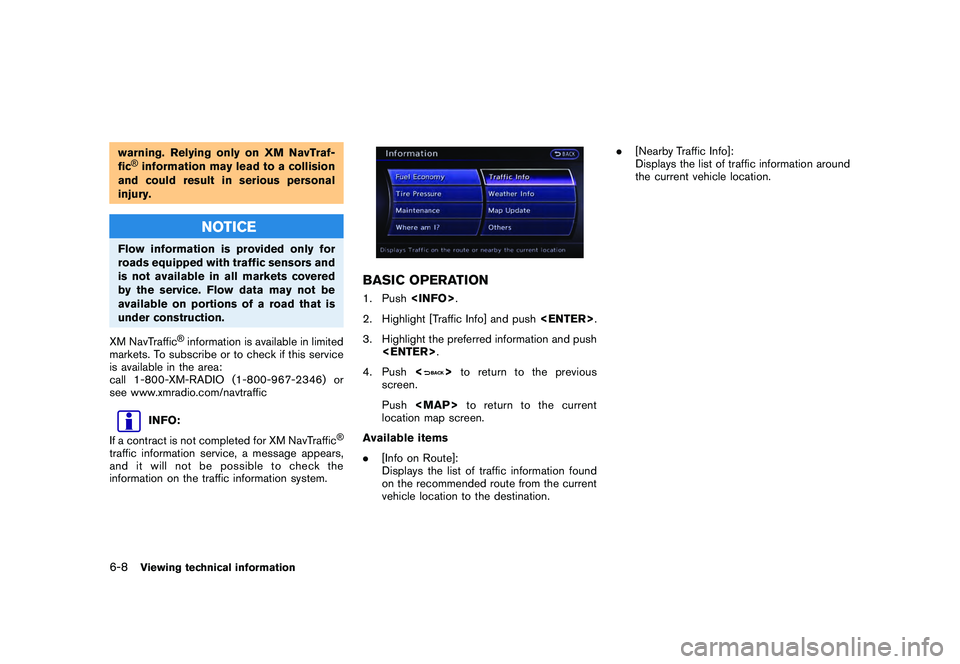
BASIC OPERATION1. Push .
2. Highlight [Traffic Info] and push .
3. Highlight the preferred information and push .
4. Push <
>to return to the previous
screen.
Push
Page 183 of 312

Black plate (187,1)
Model "R35-N" EDITED: 2009/ 10/ 30
INFO ON ROUTEThis is only available when a route is set.
The list of traffic information found on the
recommended route from the current vehicle
location to the destination is displayed. The
detailed information about displayed events can
also be checked.1. Highlight [Info on Route] and push
TER>. A list screen is displayed.2. Highlight the event to check the detailed information, and push
.
3. The map screen centered around the
selected event is displayed. On the left
screen, the detailed information about the
event is displayed.
The message can be scrolled using the up/
down button of the directional switch or the
steering wheel.
4. Push to return to the previous
screen.
NEARBY TRAFFIC INFO.The list of available traffic information around the
current vehicle location is displayed.1. Highlight [Nearby Traffic Info] and push . A list screen is displayed.2. Highlight the event to check the detailed
information for and push .
Viewing technical information
6-9
Page 186 of 312

Black plate (190,1)
Model "R35-N" EDITED: 2009/ 10/ 30
Traffic information display and scale
levels
2D map and Birdview Map
5 miles 10 km
2 miles 4 km 1 mile 2 km
1/2 mile 1 km
1/4 mile 500 m
1/8 mile 200 m
1/16 mile 100 m
1/32 mile 50 m
1/64 mile 25 m
Checking detailed information for
traffic information icons on map1. Place the cross pointer over the traffic
information icon. The general description of
the icon is displayed.
2. Push or touch [Detail]. The
screen for showing the detailed information
for the traffic information icon is displayed.3. The map screen centered around the selected event is displayed. On the left
screen, the detailed information about the event is displayed. You can scroll the
message by using the up/down button of
the directional switch or the steering wheel.
4. Push
Page 187 of 312

Black plate (191,1)
Model "R35-N" EDITED: 2009/ 10/ 30
4. Highlight the preferred setting and push . The indicator for the selected
setting illuminates.
Available setting items
. Use Traffic Info.:
Enables all traffic information related func-
tions.
. Show Incidents on Map:
Displays the traffic incidents (e.g., accident)
on the map screen.
. Show Traffic Flow on Map:
Displays the traffic flow with an arrow on the
map screen.
. Blink Red Traffic Flow:
Blinks the red traffic flow lines that represent
congestions.
. Traffic Announcements:
Announces the traffic information event on
the route.
INFO:
. Even when “Show Traffic Flow on Map” and
“Show Incidents on Map” are set to off, the
list display of “Info on Route” and “Nearby
Traffic Info” will not be affected.
. Even when “Traffic Announcement” is set to
off, the route guidance will not be affected.
Also, the announcement of emergency
information and weather information will not
be turned off.Setting by voice command
1. Push <
>located on the steering wheel.
2. After the tone sounds, speak a command.
To turn on or off the traffic information system:
“Information” “Traffic Information” (Standard
Mode)
“Traffic Information” (Alternate Command Mode)
XM NavWeather
TM
information is a subscription
service offered by XM®Satellite Radio.
This service provides real-time information
regarding current weather, temperature, warn-
ings, road conditions and forecasts where
available. The weather information is broadcast
to the vehicle by the XM satellites.
The service enables you to view the following
information on the navigation system.
*Current weather information icon of the desti-
nation on the screen of suggested route
*Detailed weather information and forecasts of
an area of interest
*Countrywide and local maps with the current
weather, temperature, warnings and road con-
dition information
*List of warning/watches events detected
around the current location
*Pop-up messages on the navigation screen
with voice announcements when warnings and
watches are detected around the current loca-
tion
WARNING
XM NavWeather
TM
information is not a
substitute for attentive driving. Weather
conditions change constantly and
Viewing technical information
6-13
VIEWING AVAILABLE WEATHER
INFORMATION