Page 287 of 446
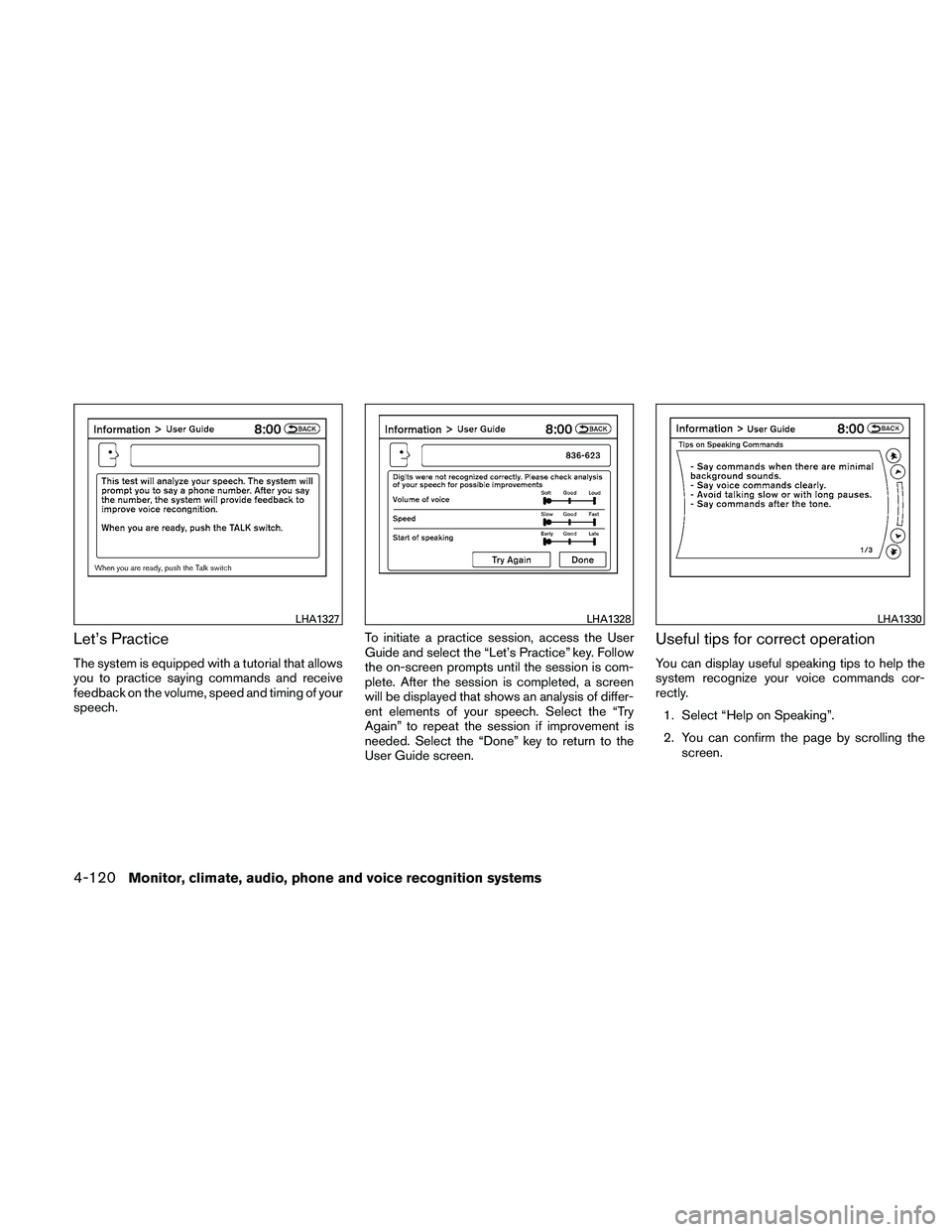
Let’s Practice
The system is equipped with a tutorial that allows
you to practice saying commands and receive
feedback on the volume, speed and timing of your
speech.To initiate a practice session, access the User
Guide and select the “Let’s Practice” key. Follow
the on-screen prompts until the session is com-
plete. After the session is completed, a screen
will be displayed that shows an analysis of differ-
ent elements of your speech. Select the “Try
Again” to repeat the session if improvement is
needed. Select the “Done” key to return to the
User Guide screen.
Useful tips for correct operation
You can display useful speaking tips to help the
system recognize your voice commands cor-
rectly.
1. Select “Help on Speaking”.
2. You can confirm the page by scrolling the screen.
Page 297 of 446
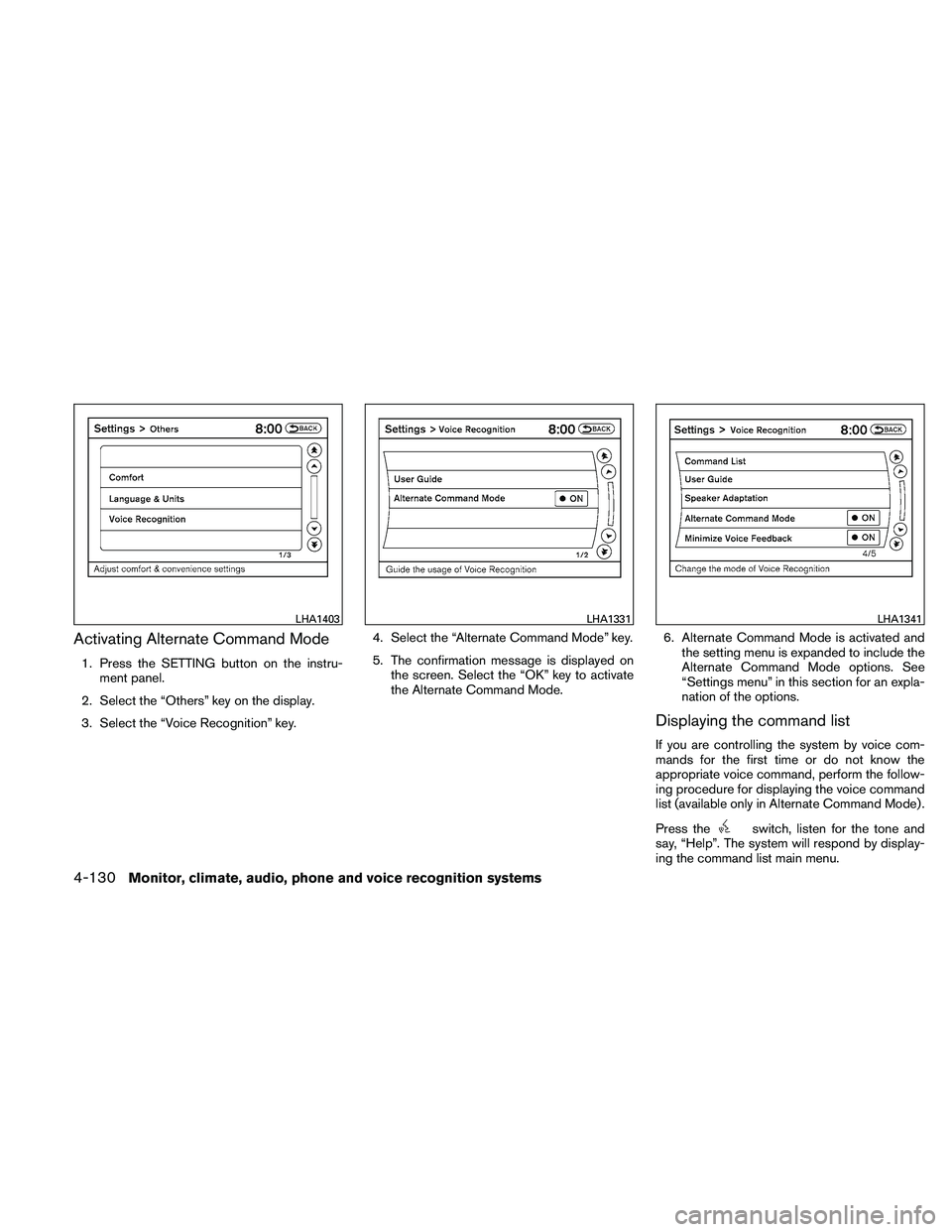
Activating Alternate Command Mode
1. Press the SETTING button on the instru-ment panel.
2. Select the “Others” key on the display.
3. Select the “Voice Recognition” key. 4. Select the “Alternate Command Mode” key.
5. The confirmation message is displayed on
the screen. Select the “OK” key to activate
the Alternate Command Mode. 6. Alternate Command Mode is activated and
the setting menu is expanded to include the
Alternate Command Mode options. See
“Settings menu” in this section for an expla-
nation of the options.
Displaying the command list
If you are controlling the system by voice com-
mands for the first time or do not know the
appropriate voice command, perform the follow-
ing procedure for displaying the voice command
list (available only in Alternate Command Mode) .
Press the
Page 298 of 446
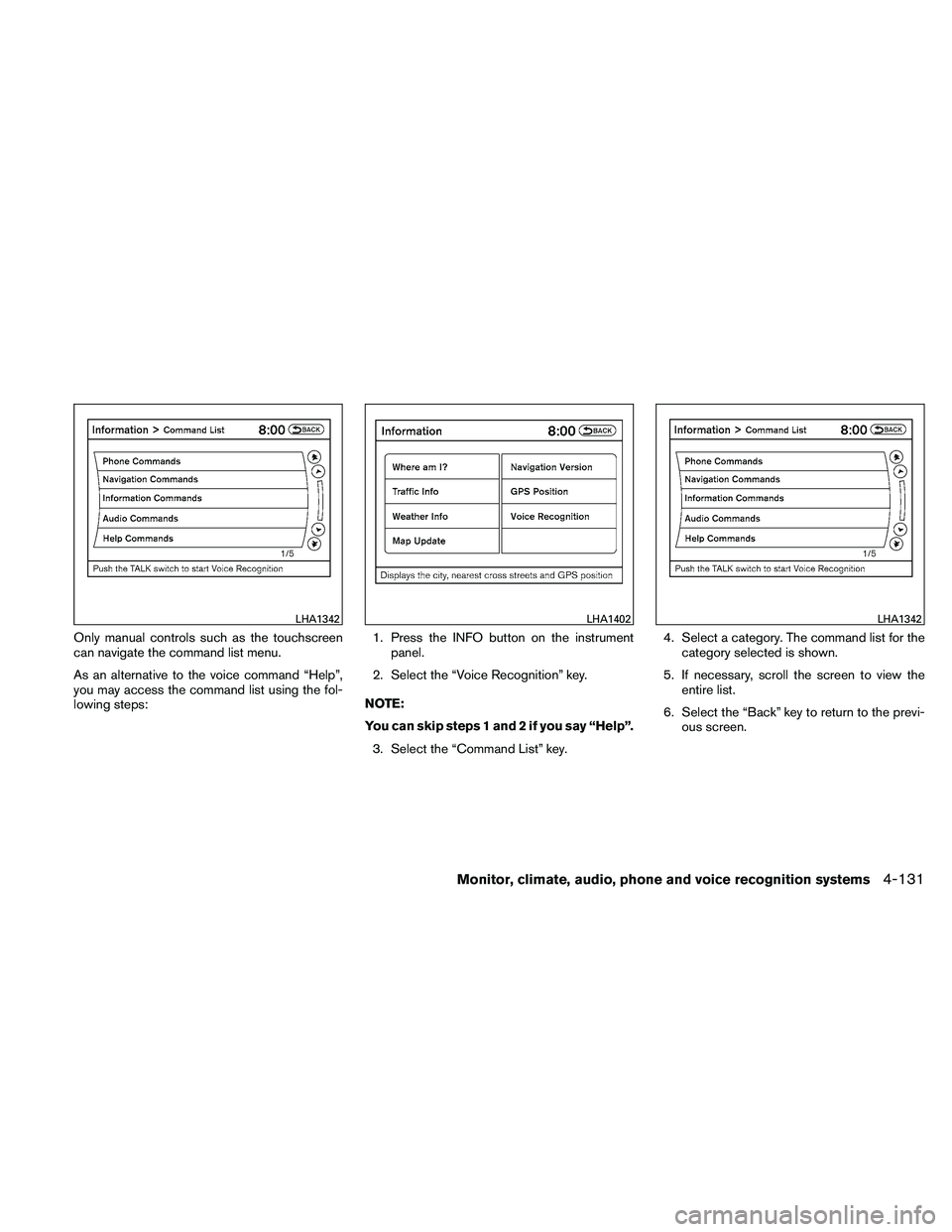
Only manual controls such as the touchscreen
can navigate the command list menu.
As an alternative to the voice command “Help”,
you may access the command list using the fol-
lowing steps:1. Press the INFO button on the instrument
panel.
2. Select the “Voice Recognition” key.
NOTE:
You can skip steps 1 and 2 if you say “Help”. 3. Select the “Command List” key. 4. Select a category. The command list for the
category selected is shown.
5. If necessary, scroll the screen to view the entire list.
6. Select the “Back” key to return to the previ- ous screen.
Page 302 of 446
Displaying user guide
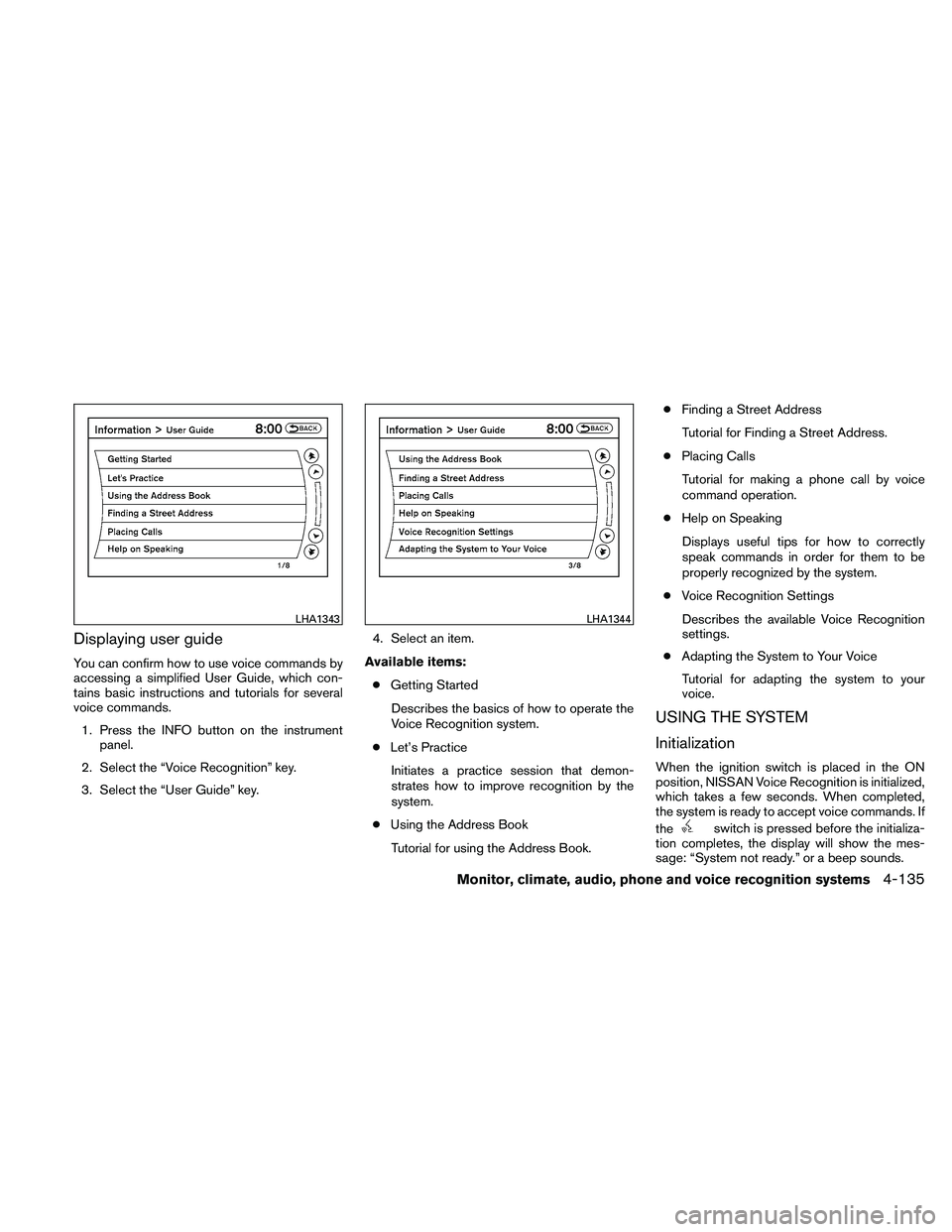
You can confirm how to use voice commands by
accessing a simplified User Guide, which con-
tains basic instructions and tutorials for several
voice commands.1. Press the INFO button on the instrument panel.
2. Select the “Voice Recognition” key.
3. Select the “User Guide” key. 4. Select an item.
Available items: ● Getting Started
Describes the basics of how to operate the
Voice Recognition system.
● Let’s Practice
Initiates a practice session that demon-
strates how to improve recognition by the
system.
● Using the Address Book
Tutorial for using the Address Book. ●
Finding a Street Address
Tutorial for Finding a Street Address.
● Placing Calls
Tutorial for making a phone call by voice
command operation.
● Help on Speaking
Displays useful tips for how to correctly
speak commands in order for them to be
properly recognized by the system.
● Voice Recognition Settings
Describes the available Voice Recognition
settings.
● Adapting the System to Your Voice
Tutorial for adapting the system to your
voice.
USING THE SYSTEM
Initialization
When the ignition switch is placed in the ON
position, NISSAN Voice Recognition is initialized,
which takes a few seconds. When completed,
the system is ready to accept voice commands. If
the
Page 305 of 446
Speaker Adaptation:
Starts a system training procedure to learn the
specific sounds of your voice. See “Speaker ad-
aptation function” in this section.
Alternate Command Mode:
For advanced operation, an Alternate Command
Mode is provided. This setting enables control of
the Audio and Climate Control systems in addi-
tion to additional commands for the Phone and
Navigation systems. With this setting active, the
system does not announce or display the avail-
able commands at each step. When this mode is
activated, the Voice Recognition Settings will
change to show more options.
Minimize Voice Feedback:
Reduces the amount of the information spoken
for each voice instruction.
SPEAKER ADAPTATION FUNCTION
The Voice Recognition system has a function to
learn the user’s voice for better voice recognition
performance. The system can memorize the
voices of up to three persons.
Having the system learn the user’s
voice
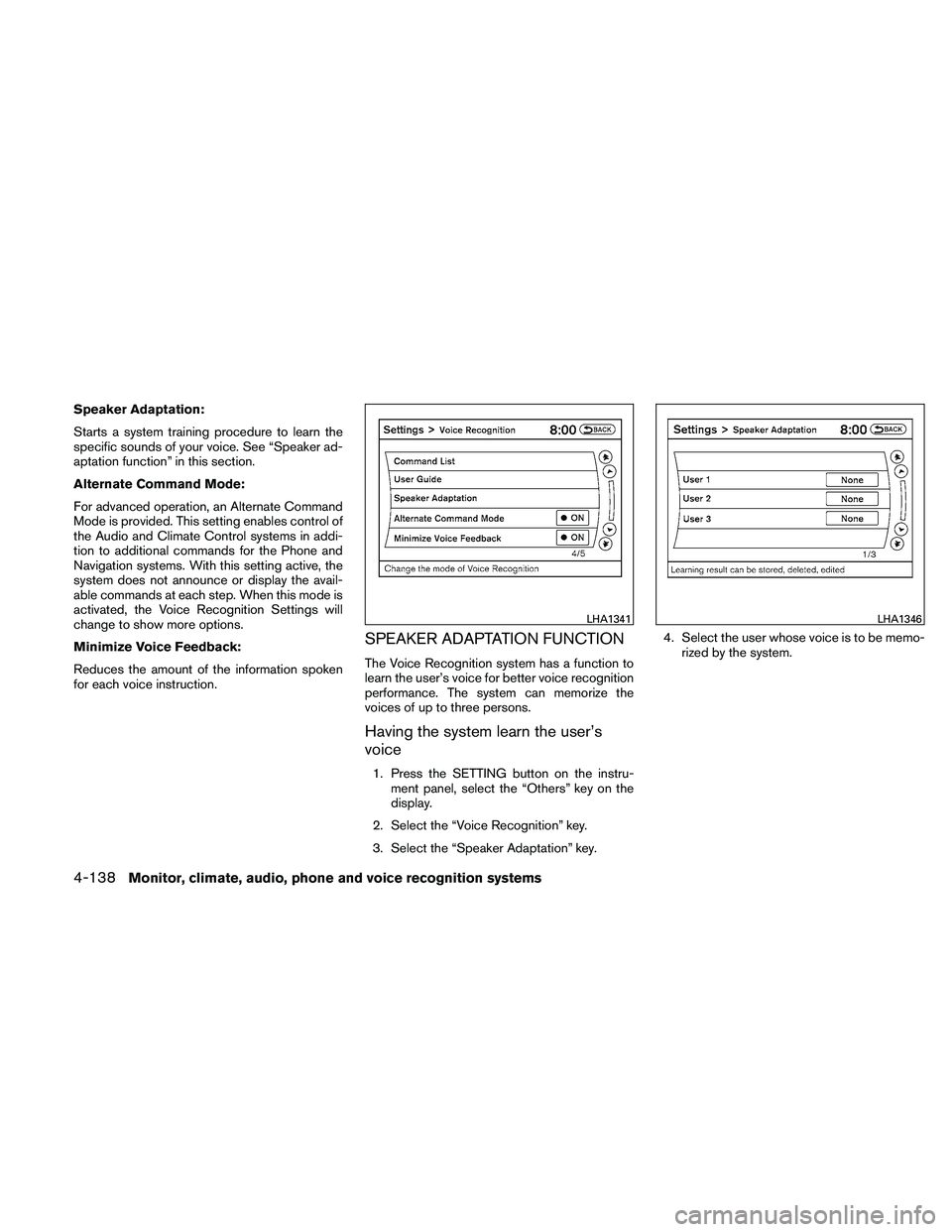
1. Press the SETTING button on the instru-ment panel, select the “Others” key on the
display.
2. Select the “Voice Recognition” key.
3. Select the “Speaker Adaptation” key. 4. Select the user whose voice is to be memo-
rized by the system.
Page 309 of 446
WARNING
●Do not leave children or adults who
would normally require the assistance
of others alone in your vehicle. Pets
should also not be left alone. They
could accidentally injure themselves or
others through inadvertent operation of
the vehicle. Also, on hot, sunny days,
temperatures in a closed vehicle could
quickly become high enough to cause
severe or possibly fatal injuries to
people or animals.
● Closely supervise children when they
are around cars to prevent them from
playing and becoming locked in the
trunk where they could be seriously in-
jured. Keep the car locked, with the rear
seatback and trunk lid securely latched
when not in use, and prevent children’s
access to car keys.
EXHAUST GAS (carbon monoxide)
Page 315 of 446
The ignition lock is designed so that the ignition
switch position cannot be switched to OFF until
the shift selector is moved to the P (Park) position
(CVT) or N (Neutral) position (M/T) .
When the ignition switch cannot be pushed to-
ward the OFF position, proceed as follows:1. Move the shift selector into the P (Park) position (CVT) or N (Neutral) position (M/T) .
2. Push the ignition switch. The ignition switch position will change to the ON position.
3. Push the ignition switch again to the OFF position.
The shift selector can be moved from the P
(Park) position if the ignition switch is in
the ON position and the brake pedal is
depressed.
If the battery of the vehicle is discharged,
the push-button ignition switch cannot be
moved from the LOCK position.
Some indicators and warnings for operation are
displayed on the vehicle information display. See
“Vehicle information display” in the “Instruments
and controls” section.PUSH-BUTTON IGNITION SWITCH
POSITIONS
LOCK (Normal parking position):
The ignition switch can only be locked in this
position.
The ignition switch will be unlocked when it is
pushed to the ACC position while carrying the
Intelligent Key or with the Intelligent Key inserted
in the port.
The ignition switch will lock when any door is
opened or closed with the ignition switched off.
OFF:
The ignition switch is in the OFF position when
the engine is turned off using the ignition switch.
No lights will illuminate on the ignition switch.
ACC (Accessories):
This position activates electrical accessories,
such as the radio, when the engine is not running.
ACC has a battery saver feature that will turn the
ignition switch to the OFF position after 30 min-
utes under the following conditions:
● all doors are closed.
● shift selector is in P (Park) . The battery saver feature will be cancelled if any
of the following occur:
● any door is opened.
● shift selector is moved out of the P (Park) .
● ignition switch changes position.
ON (Normal operating position):
This position turns on the ignition system and
electrical accessories.
Page 316 of 446
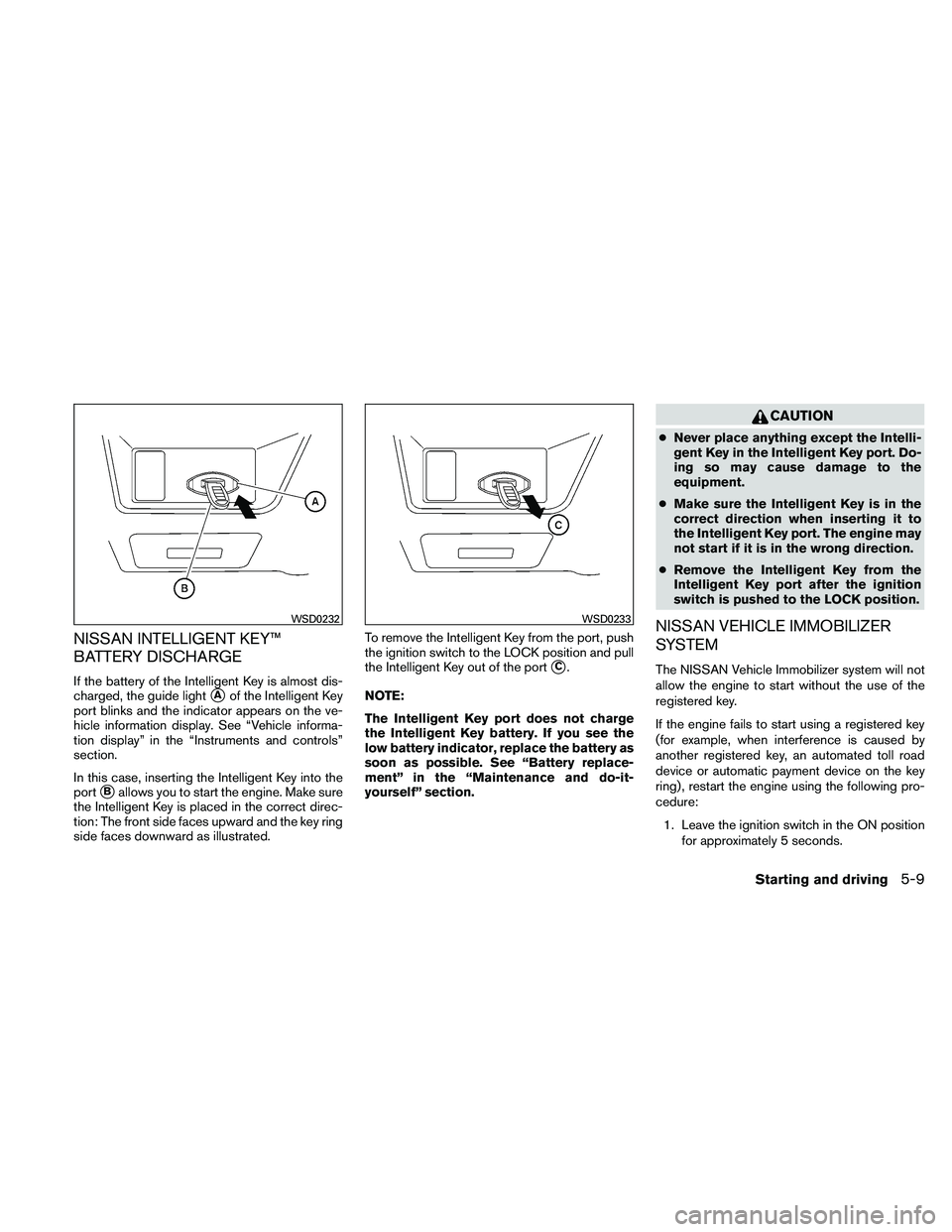
NISSAN INTELLIGENT KEY™
BATTERY DISCHARGE
If the battery of the Intelligent Key is almost dis-
charged, the guide light
�Aof the Intelligent Key
port blinks and the indicator appears on the ve-
hicle information display. See “Vehicle informa-
tion display” in the “Instruments and controls”
section.
In this case, inserting the Intelligent Key into the
port
�Ballows you to start the engine. Make sure
the Intelligent Key is placed in the correct direc-
tion: The front side faces upward and the key ring
side faces downward as illustrated. To remove the Intelligent Key from the port, push
the ignition switch to the LOCK position and pull
the Intelligent Key out of the port
�C.
NOTE:
The Intelligent Key port does not charge
the Intelligent Key battery. If you see the
low battery indicator, replace the battery as
soon as possible. See “Battery replace-
ment” in the “Maintenance and do-it-
yourself” section.