2011 MINI Clubman battery
[x] Cancel search: batteryPage 166 of 256

CommunicationsMobile phone preparation Bluetooth
164
Mobile phone preparation
Bluetooth
Overview
The concept
Mobile phones or other external devices, e.g.
audio players, can be connected to the vehicle
via Bluetooth.
Bluetooth® is a registered trademark of Blue-
tooth® SIG, Inc.
After being paired once, when the ignition is
switched on, these devices are automatically
detected as soon as they are present in the vehi-
cle and can be controlled via the on-board com-
puter, the buttons on the steering wheel, and by
voice
*.
Depending on whether they are functioning as a
telephone and/or as an audio source, external
devices can be used via the vehicle. The tele-
phone functions will be described below. Oper-
ation of audio functions, refer to page 146.
It may be necessary for some functions to be
activated by the mobile phone provider.
Only make entries when traffic conditions
permit. Do not hold the mobile phone in
your hand while you are driving; use the hands-
free system instead. If you do not observe this
precaution, your being distracted can endanger
vehicle occupants and other road users. <
Snap-in adapter*
The snap-in adapter, refer to page175, makes it
possible to:
> Accommodate the mobile phone.
> Recharge its battery.
> Connect it to an exte rnal antenna of the
vehicle.
This assures a better network connection
and constant sound quality. A mobile phone that is connected to the vehicle
should not be operated via the mobile phone
keypad; otherwise, ma
lfunctions may occur.
Suitable mobile phones
For precise information as to which mobile
phones and external devices with Bluetooth
interfaces are supported by the mobile phone
preparation, go to ww w.mini.com/connectivity.
With a certain software version, these suitable
mobile phones support the vehicle functions
described below.
With other mobile phones or software versions,
malfunctions may occur.
It is possible to perform a software update
*,
refer to page 149.
Displaying vehicle identification number
and software part number
Checking which mobile phones are supported
by the mobile phone preparation requires the
vehicle identification number and software part
number. The software version of the mobile
phone may also be required.
1."Telephone"
2. Open "Options".
3. "Bluetooth® info"
4. "Display system information"
Pairing/unpairing mobile
phone
Overview
>Using a mobile phone as a telephone.
> Using a mobile phone as an auxiliary
phone
*.
*
Page 170 of 256
CommunicationsMobile phone preparation Bluetooth
168
1.Activating and connecting mobile phone in
vehicle, refer to page 166.
2. "Use for audio"
The mobile phone is connected as an audio
source. The previous audio source is no
longer connected to the vehicle.
Unpairing device
1."Telephone"
2. "Bluetooth® (phone)"
All paired mobile phones are listed.
3. Highlight the device to be unpaired.
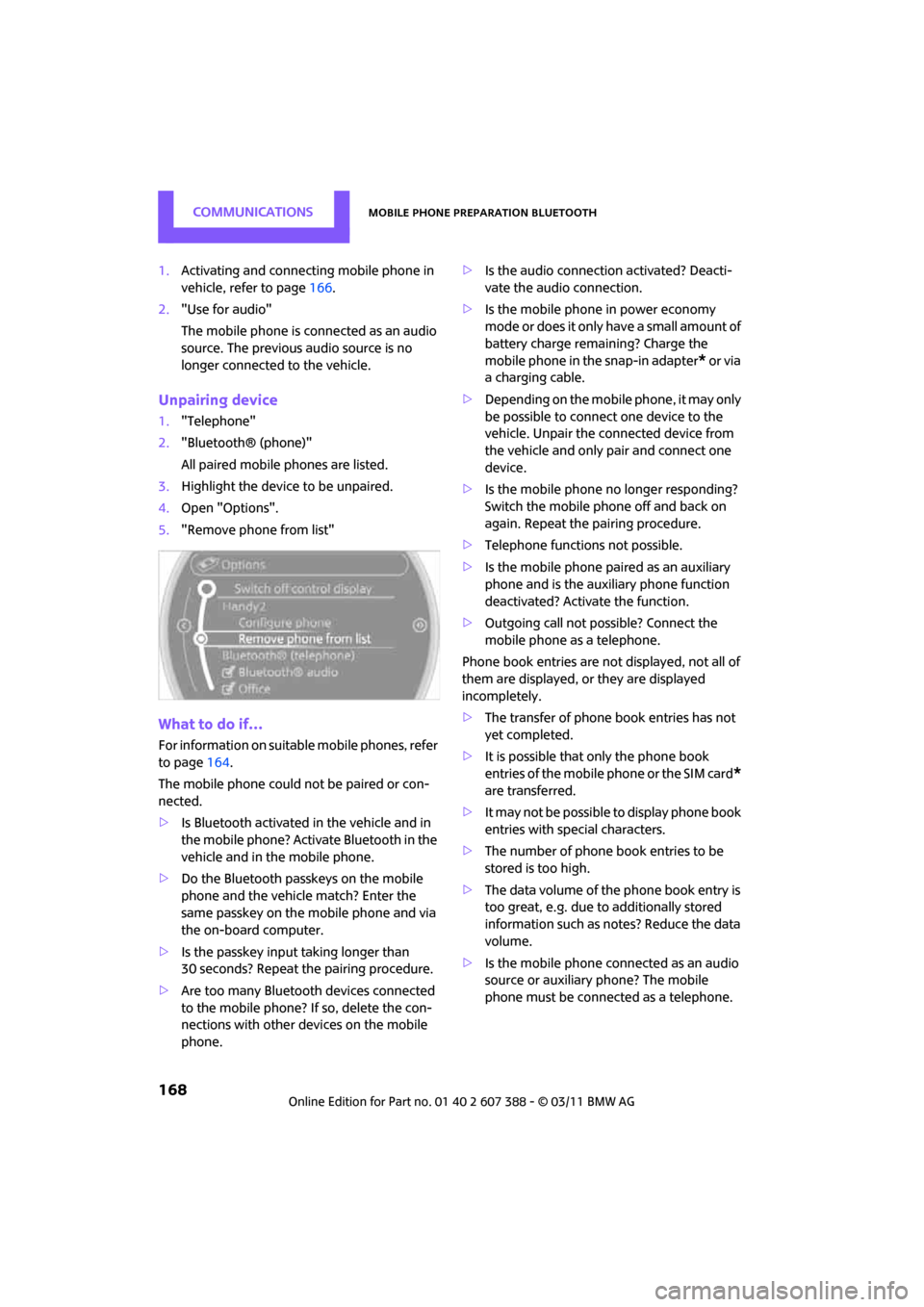
4. Open "Options".
5. "Remove phone from list"
What to do if…
For information on suitab le mobile phones, refer
to page 164.
The mobile phone could not be paired or con-
nected.
> Is Bluetooth activated in the vehicle and in
the mobile phone? Activate Bluetooth in the
vehicle and in the mobile phone.
> Do the Bluetooth passkeys on the mobile
phone and the vehicle match? Enter the
same passkey on the mobile phone and via
the on-board computer.
> Is the passkey input taking longer than
30 seconds? Repeat th e pairing procedure.
> Are too many Bluetoot h devices connected
to the mobile phone? If so, delete the con-
nections with other devices on the mobile
phone. >
Is the audio connection activated? Deacti-
vate the audio connection.
> Is the mobile phone in power economy
m o d e o r d o e s i t o n l y have a small amount of
battery charge remaining? Charge the
mobile phone in the snap-in adapter
* or via
a charging cable.
> Depending on the mobile phone, it may only
be possible to connect one device to the
vehicle. Unpair the connected device from
the vehicle and only pair and connect one
device.
> Is the mobile phone no longer responding?
Switch the mobile phone off and back on
again. Repeat the pairing procedure.
> Telephone functions not possible.
> Is the mobile phone paired as an auxiliary
phone and is the auxiliary phone function
deactivated? Activate the function.
> Outgoing call not possible? Connect the
mobile phone as a telephone.
Phone book entries are not displayed, not all of
them are displayed, or they are displayed
incompletely.
> The transfer of phone book entries has not
yet completed.
> It is possible that only the phone book
entries of the mobile phone or the SIM card
*
are transferred.
> It may not be possible to display phone book
entries with special characters.
> The number of phone book entries to be
stored is too high.
> The data volume of the phone book entry is
too great, e.g. due to additionally stored
information such as notes? Reduce the data
volume.
> Is the mobile phone connected as an audio
source or auxiliary phone? The mobile
phone must be connected as a telephone.
Page 201 of 256

Under the hoodMOBILITY
199
Important parts of the engine compartment
1Vehicle identification number*
2Battery, under the cover 219
3 Engine oil dipstick 199
4 Engine oil filler neck 200 5
Coolant expansion tank 200
6 Reservoir for washer fl uid for the headlamp
and window washer system 53
7 Engine compartment fuse box 218
Engine oil
The engine oil consumption is dependent on
driving style and driving conditions.
Check the engine oil level regularly, e.g. when
refueling.
Checking engine oil level
1.With the vehicle's engi ne at normal operat-
ing temperature, i.e. after uninterrupted
driving for at least 6 miles/10 km, park the
vehicle on a level surface.
2. Switch off the engine.
3. Pull the dipstick out after approx. 5 minutes
and wipe it off with a lint-free cloth, paper
towel or similar material. 4.
Carefully push the dipstick all the way into
the guide tube and pull it out again.
The oil level should be between the two
marks on the dipstick.
The oil quantity corresponding to the difference
between the two marks on the dipstick is
1 US quart/1 liter.
Page 219 of 256

Replacing componentsMOBILITY
217
3.Jack the vehicle up until the wheel you are
changing is raised off the ground.
Mounting the space-saver spare tire
1.Unscrew the lug bolts and remove the
wheel.
2. Remove accumulations of mud or dirt from
the mounting surfaces of the wheel and
hub. Clean the lug bolts.
3. Lift the new wheel into place.
4. Screw at least two lug bolts finger-tight into
opposite bolt holes.
5. Screw in the remaining bolts.
6. Tighten all the lug bolts firmly in a diagonal
pattern.
7. Lower the vehicle.
8. Remove the jack.
Tightening the lug bolts
Tighten the lug bolts in a diagonal pattern.
Immediately have the wheels checked
with a calibrated torque wrench to ensure
that the lug bolts are firmly seated. Otherwise,
incorrectly tightened lug bolts can present a
safety hazard. <
Tightening torque: 103.3 lb ft or 140 Nm.
Replace the defective tire as soon as possible
and have the new wheel/tire assembly bal-
anced.
Vehicle battery
Maintenance
The battery is 100 % maintenance-free, the
electrolyte will last for the life of the battery
when the vehicle is operated in a temperate cli-
mate.
Battery replacement
Only use vehicle batteries that have been
approved for your vehicle by the manu-
facturer; otherwise, the vehicle could be dam-
aged and systems or func tions may not be fully
available. <
After a battery replacement, have the battery
registered on the vehicle by your dealer to
ensure that all comfort functions are fully avail-
able.
Charging the battery
Only charge the battery in the vehicle when the
engine is off. Connection s, refer to Jump-start-
ing on page 219.
Disposal
After replacing old batteries, return the
used batteries to your MINI dealer or to a
recycling center. Maintain the battery in an
upright position for transport and storage.
Always secure the battery against tipping over
during transport. <
Power failure
After a temporary power loss, some equipment
may not be fully functional and may require ini-
tialization. Individual se ttings are also lost and
must be reprogrammed:
> Time and date
These values must be updated, page 63.
> Navigation system
Operability must be waited for, page 108.
> Glass roof
*, electric
It may only be possible to raise the roof, if
applicable. The system must be initialized.
Contact your nearest MINI dealer.
Page 221 of 256

Giving and receiving assistanceMOBILITY
219
Giving and receiving assistance
Roadside Assistance
Roadside Assistance is available by phone
24 hours a day in many countries. You can
receive assistance there in the event of an emer-
gency.
First aid pouch*
Some of the articles co ntained in the first aid
pouch have a limited se rvice life. Therefore,
check the expiration dates of the contents regu-
larly and replace any items in good time, if nec-
essary.
The first aid pouch is located on the rear cargo
well by the left side trim panel or under the flat
load floor.
Warning triangle*
In the cargo area under the loading sill. Open the center lock to take it out.
Jump-starting
If the car's own battery is flat, your MINI's engine
can be started by connecting two jumper cables
to another vehicle's battery. You can also use
the same method to help start another vehicle.
Only use jumper cables with fully-insulated
clamp handles.
Do not touch any electrically live parts
w hen the e ngin e is run ning, or a fatal acci-
dent may occur. Carefully adhere to the follow-
ing sequence, both to prevent damage to one or
both vehicles, and to guard against possible per-
sonal injuries. <
Preparation
1.Check whether the battery of the other vehi-
cle has a voltage of 12 volts and approxi-
mately the same capacitance in Ah. This
information can be found on the battery.
2. Switch off the engine of the support vehicle.
3. Switch off any consumers in both vehicles.
There must not be any contact between
the bodies of the two vehicles; otherwise,
there is a danger of shorting. <
Connecting jumper cables
Connect the jumper cables in the correct
o r d e r , s o t h a t n o s parks which could cause
injury occur. <
Page 222 of 256

MOBILITYGiving and receiving assistance
220
1.Open the battery cover in the engine com-
partment to access the positive terminal of
your MINI.
2. Release the tabs on the left and right sides of
the positive terminal cover
*, arrows 1, and
lift the cover to open, arrow 2.
3. Attach one terminal clamp of the plus/+
jumper cable to the positive terminal of the
battery or to a starting-aid terminal of the
vehicle providing assistance.
4. Attach the second terminal clamp of the
plus/+ jumper cable to the positive terminal
of the battery or a starting-aid terminal of
the vehicle to be started.
5. Attach one terminal clamp of the minus/–
jumper cable to the negative terminal of the
battery or to an engine or body ground of
the assisting vehicle. Body ground in MINI:
6.
Attach the second te rminal clamp of the
minus/– jumper cable to the negative termi-
nal of the battery or to the engine or body
ground of the vehicle to be started.
Starting the engine
1. Start the engine of the donor vehicle and
allow it to run for a few minutes at slightly
increased idle speed.
2. Start the engine of the other vehicle in the
usual manner.
If the first start attempt is not successful,
wait a few minutes before another attempt
in order to allow the discharged battery to
recharge.
3. Let the engines run for a few minutes.
4. Disconnect the jumper cables by reversing
the above connecting sequence.
If necessary, have the battery checked and
recharged. Never use spray fluids to start the
engine. <
Tow-starting, towing
away
Observe the applicable laws and regula-
tions for tow-starting and towing vehi-
cles. <
Do not transport any passengers other
than the driver in a vehicle that is being
towed. <
Page 241 of 256

Everything from A to ZREFERENCE
239
B
Background lighting, refer to
Ambient lighting 84
Backrests, refer to Seats 38
Backup lamps
– replacing bulb 212
Band-aids, refer to First aid pouch 219
Bar, refer to Tow-starting,
towing away 221
Base plate for telephone or mobile phone
– refer to Snap-in adapter 175
Bass sounds, refer to Tone control 131
Battery 217
– charging 217
– disposal 35,217
– jump-starting 219
– temporary power failure 217
Battery renewal
– remote control 35
Being towed 221
Belt tensioner, refer to Safety
belts 40
Belts, refer to Safety belts 40
Beverage holders, refer to
Cupholders 94
Black ice, refer to External
temperature warning 57
Blower, refer to Air flow rate 86,88
Bluetooth, activating/ deactivating 154,165
Bluetooth audio 146
– device pairing 146
– disconnecting an audio connection 148
– playback 147
– unpairing device 148
– What to do if... 148
Bottle holders, refer to Cupholders 94
Brake Assist 69
Brake fluid, refer to Service requirements 60 Brake lamps
– replacing bulbs
212
Brake pads, breaking in 98
Brake rotors 99
– brakes 98
– breaking in 98
Brake system 98
– breaking in 98
– disc brakes 99
– MINI Maintenance
System 202
Brakes
– ABS 69
– b
reaking in 98
– MINI Maintenance System 202
– parking brake 48
– service requirements 60
Brakes, refer to Braking
safely 99
Breakdown service, refer to Roadside Assistance 219
Break-in period 98
Breaking in the clutch 98
Bulb changing, refer to Lamps
and bulbs 209
Button for starting the engine 46
Buttons on the steering wheel 11
C
Calendar 180
– displaying appointment 181
– selecting calendar day 181
California Proposition 65 warning 5
Call
– accepting 157,169
– ending 157,170
– muting the
microphone 158,171
– rejecting 157,169
Calling, refer to Phone
numbers, dialing 157,170 Can holders, refer to
Cupholders 94
Capacities 229
Car battery, refer to Vehicle
battery 217
Car care 204
Car key, refer to Keys/remote
controls 26
Car phone
– installation location, refer to
Center armrest 93
– refer to separate Owner's Manual
Car phone, refer to Telephone 154,164
Car radio, refer to Radio 132
Car wash, care 204
Car washes 204
Care 204
– car washes 204
– car-care products 204
– CD/DVD drives 207
– external 204
– high-pressure washers 205
– internal 206
– leather 206
– manual washing 205
– upholstery and fabrics 206
– windows 205
– wiper blades 205
Cargo area 100
– capacity 228
– Comfort Access 34
– doors, refer to Split Rear Barn Doors 31
– lamp 84
– opening from outside 31
– trunk lid, refer to Split Rear Barn Doors 31
Cargo area doors, refer to Split Re
ar Barn Doors 31
Cargo area, expanding 100
Cargo area lamp 84
Cargo area partition net, refer to Cargo net 101
Page 242 of 256

REFERENCEEverything from A to Z
240
Cargo loading102
– securing cargo 103
– stowing cargo 103
– vehicle 100
Cargo net 101
Cargo, securing 103
Carpets, care 206
Catalytic conver ter, refer to
Hot exhaust system 98
CD, audio playback 140
CD player 140
– controls 130
– fast forward/reverse 141
– random order 141
– selecting a track 140
– switching on/off 130
– tone control 131
– volume 130
Center armrest 93
Center brake lamp 213
Center console, refer to Around the center
console 14
Central locking system 27
– Comfort Access 33
– from inside 30
– from outside 27
Changing bulbs 209
Changing the language on the Control Display 66
Changing the measurement units on the Control
Display 60
Changing wheels 215
Chassis number, refer to Engine compartment 199
Check Control 64
Child restraint fixing system LATCH 44
Child restraint systems 43
Child seats 43
Chrome parts, care 206
Chrome parts, refer to Care 204
Cigarette lighter 94
Cleaning headlamps 52
– washer fluid 53 Clock
– 12 h/24 h mode
63
– setting time 63
Closing
– from inside 30
– from outside 27
Clothes hooks 93
Club Door 30
Cockpit 10
Cold start, refer to Starting the
en
gine 47
Comfort Access 33
– replacing the battery 34
– what to observe before entering a car wash 34
Comfort area, refer to Around
the center console 14
Compartment for remote control, refer to Ignition
lock 46
Computer 57
– displays on Control
Display 58
Condensation, refer to When the vehicle is parked 100
Condition Based Service CBS 202
Configuring settings, refer to
Personal Profile 26
Connecting vacuum cleaner,
refer to Connecting electrical
appliances 94
Consumption, refer to Average
fuel consumption 57
Contacts 161,177
– deleting 163,180
– displaying 162
– editing 162
– exporting/importing 180
– new contact 179
Control Display
– settings 59
Control Display, refer to iDrive
– switching on/off 19
Control Display, refer to On-
board computer 16Control stick, refer to On-board
computer 16
Control unit, refer to On-board computer 16
Controls and displays 10
Convenient access, refer to Comfort Access 33
Convenient operation
– windows 28
Convenient star t, refer to
Starting the engine 47
Coolant 200
– checking level 201
– filling 201
Coolant temperature 201
Cooling fluid, refer to
Coolant 200
Cooling, maximum 88
Copyright 2
Cornering light, refer to Adaptive Light Control 82
Criteria for route 118
Cruise control
– in
dicator lamp 13
Cruising range 57
Cupholders 94
Curb weight, refer to Weights 228
Current fuel consumption 57
Current playback
– external devices 145
D
Dashboard instruments, refer
to Displays 12
Dashboard lighting, refer to Instrument lighting 83
Dashboard, refer to Cockpit 10
Data 226
– capacities 229
– dimensions 227
– engine 226
– weights 228
Data memory 203