2011 MERCEDES-BENZ SLS AMG lock
[x] Cancel search: lockPage 140 of 436
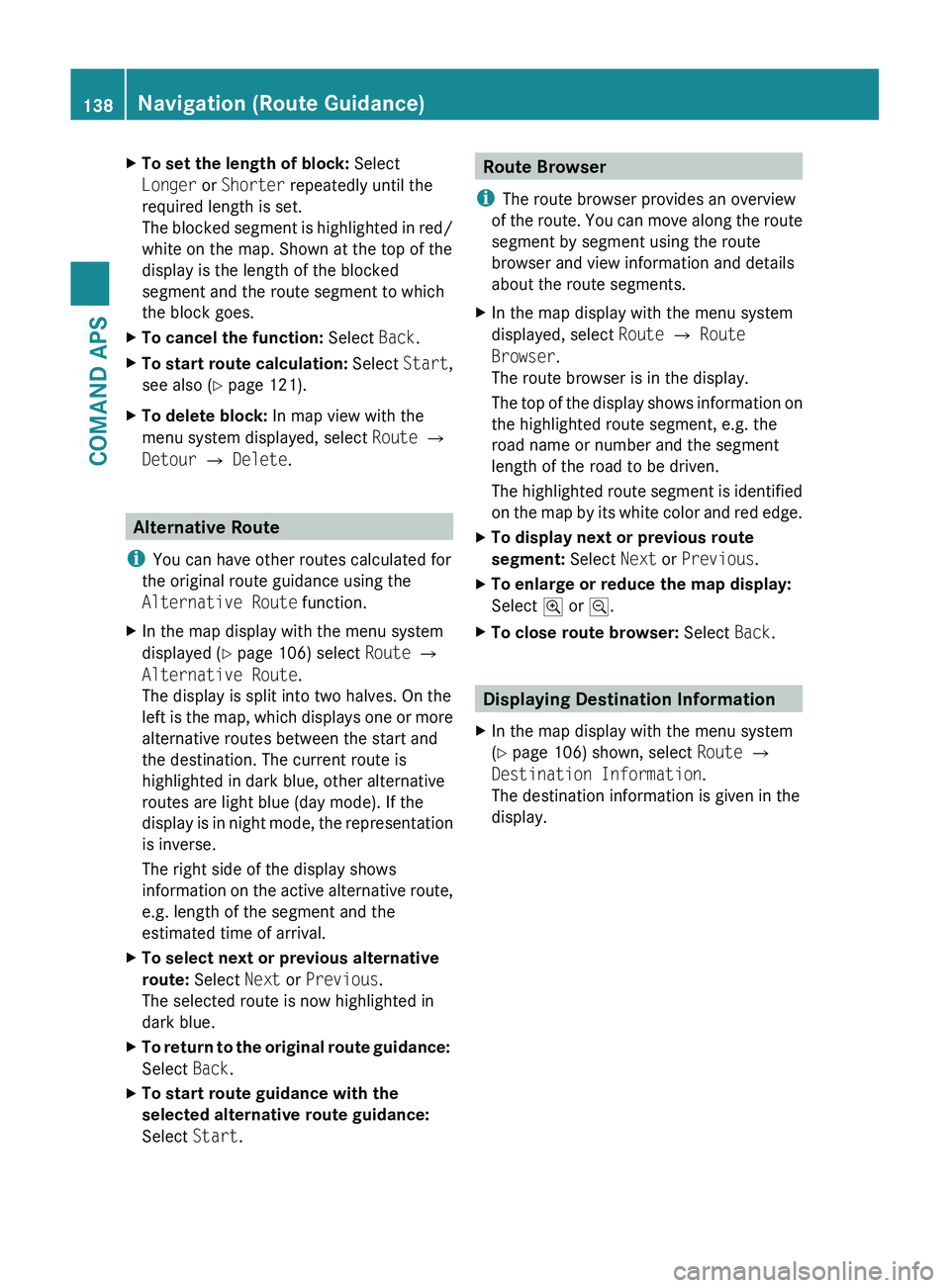
XTo set the length of block: Select
Longer or Shorter repeatedly until the
required length is set.
The blocked segment is highlighted in red/
white on the map. Shown at the top of the
display is the length of the blocked
segment and the route segment to which
the block goes.XTo cancel the function: Select Back.XTo start route calculation: Select Start,
see also ( Y page 121).XTo delete block: In map view with the
menu system displayed, select Route £
Detour £ Delete .
Alternative Route
i You can have other routes calculated for
the original route guidance using the
Alternative Route function.
XIn the map display with the menu system
displayed ( Y page 106) select Route £
Alternative Route .
The display is split into two halves. On the
left is the map, which displays one or more
alternative routes between the start and
the destination. The current route is
highlighted in dark blue, other alternative
routes are light blue (day mode). If the
display is in night mode, the representation
is inverse.
The right side of the display shows
information on the active alternative route,
e.g. length of the segment and the
estimated time of arrival.XTo select next or previous alternative
route: Select Next or Previous .
The selected route is now highlighted in
dark blue.XTo return to the original route guidance:
Select Back.XTo start route guidance with the
selected alternative route guidance:
Select Start.Route Browser
i The route browser provides an overview
of the route. You can move along the route
segment by segment using the route
browser and view information and details
about the route segments.XIn the map display with the menu system
displayed, select Route £ Route
Browser .
The route browser is in the display.
The top of the display shows information on
the highlighted route segment, e.g. the
road name or number and the segment
length of the road to be driven.
The highlighted route segment is identified
on the map by its white color and red edge.XTo display next or previous route
segment: Select Next or Previous .XTo enlarge or reduce the map display:
Select ; or :.XTo close route browser: Select Back.
Displaying Destination Information
XIn the map display with the menu system
( Y page 106) shown, select Route £
Destination Information .
The destination information is given in the
display.138Navigation (Route Guidance)COMAND APS
BA 197 USA, CA Edition A 2011; 1; 27, en-UShereepeVersion: 3.0.3.52010-03-24T15:31:10+01:00 - Seite 138
Page 142 of 436
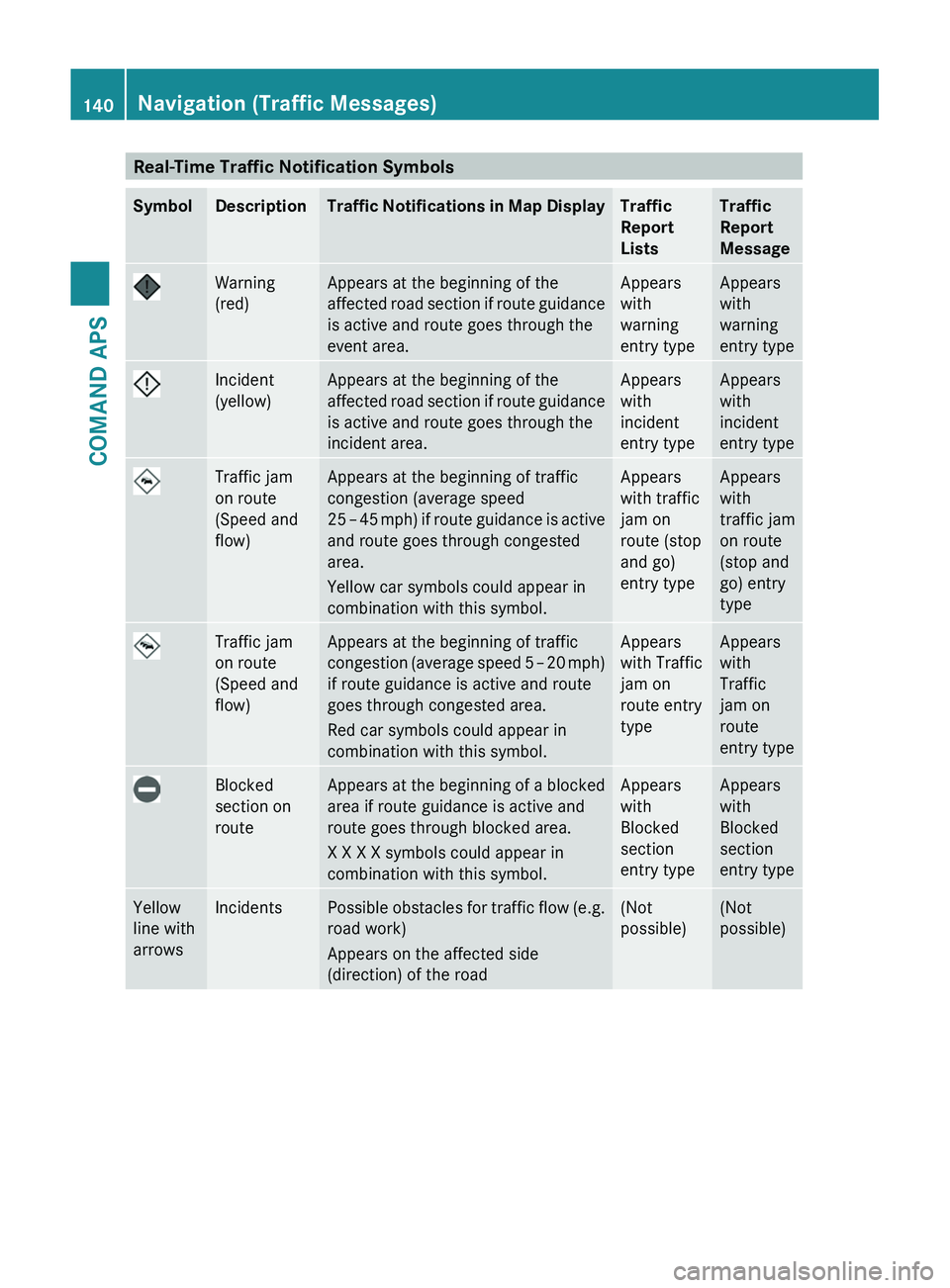
Real-Time Traffic Notification SymbolsSymbolDescriptionTraffic Notifications in Map DisplayTraffic
Report
Lists
Traffic
Report
Message
Warning
(red)
Appears at the beginning of the
affected road section if route guidance
is active and route goes through the
event area.
Appears
with
warning
entry type
Appears
with
warning
entry type
Incident
(yellow)
Appears at the beginning of the
affected road section if route guidance
is active and route goes through the
incident area.
Appears
with
incident
entry type
Appears
with
incident
entry type
Traffic jam
on route
(Speed and
flow)
Appears at the beginning of traffic
congestion (average speed
25 – 45 mph) if route guidance is active
and route goes through congested
area.
Yellow car symbols could appear in
combination with this symbol.
Appears
with traffic
jam on
route (stop
and go)
entry type
Appears
with
traffic jam
on route
(stop and
go) entry
type
Traffic jam
on route
(Speed and
flow)
Appears at the beginning of traffic
congestion (average speed 5 – 20 mph)
if route guidance is active and route
goes through congested area.
Red car symbols could appear in
combination with this symbol.
Appears
with Traffic
jam on
route entry
type
Appears
with
Traffic
jam on
route
entry type
Blocked
section on
route
Appears at the beginning of a blocked
area if route guidance is active and
route goes through blocked area.
X X X X symbols could appear in
combination with this symbol.
Appears
with
Blocked
section
entry type
Appears
with
Blocked
section
entry type
Yellow
line with
arrows
IncidentsPossible obstacles for traffic flow (e.g.
road work)
Appears on the affected side
(direction) of the road
(Not
possible)
(Not
possible)
140Navigation (Traffic Messages)COMAND APS
BA 197 USA, CA Edition A 2011; 1; 27, en-UShereepeVersion: 3.0.3.52010-03-24T15:31:10+01:00 - Seite 140
Page 212 of 436
iYou can still operate your phone using the
keypad.
Commands
“Phone”
Use the “Phone” command to select the
phone application. Use this command if you
wish the digits entered to be shown on the
display.
“Help Phone”
Voice control has an extensive help function.
Using the “Help Phone” command, you can
have all the essential commands for the
phone read out ( Y page 226).
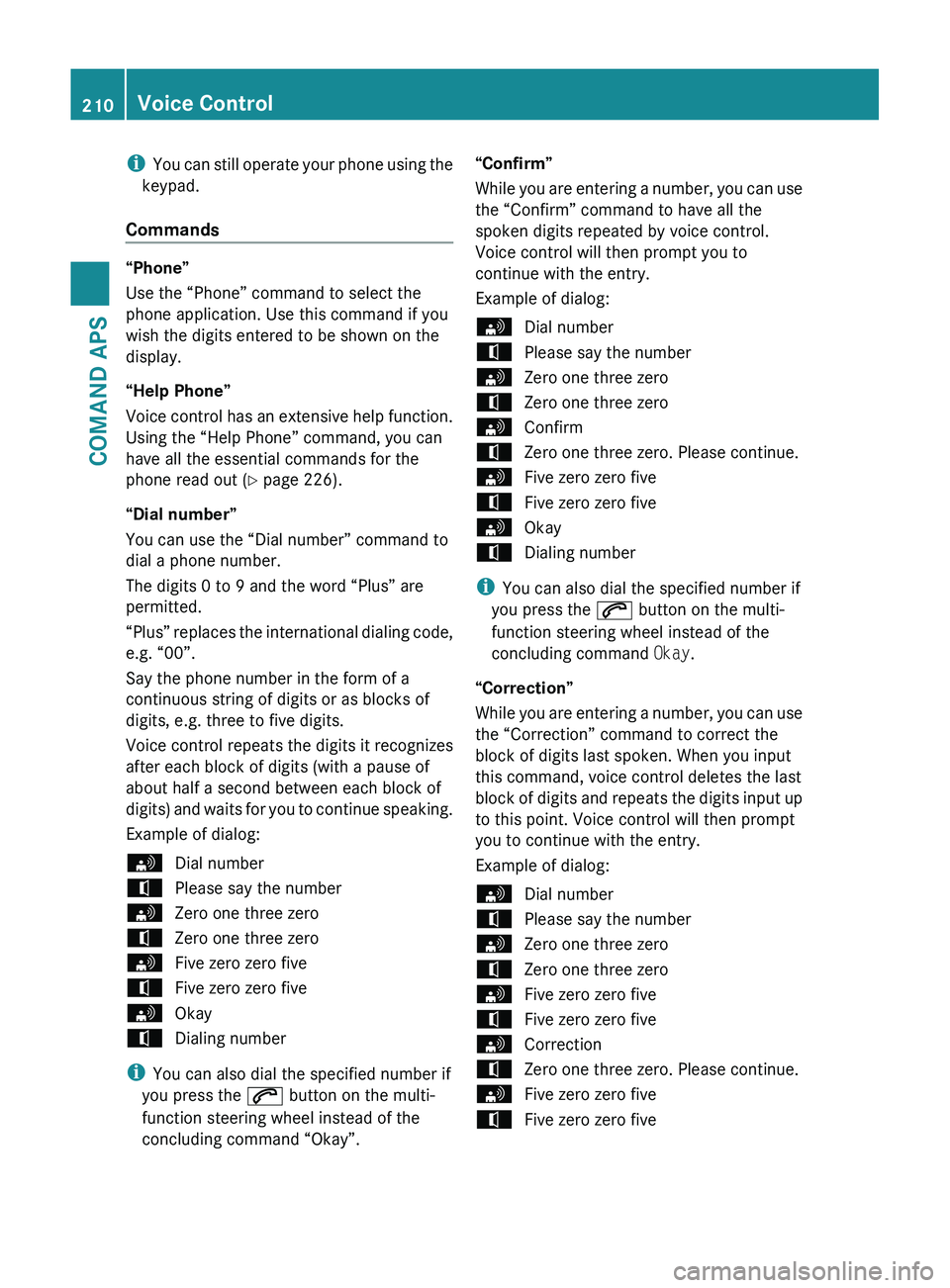
“Dial number”
You can use the “Dial number” command to
dial a phone number.
The digits 0 to 9 and the word “Plus” are
permitted.
“ Plus” replaces the international dialing code,
e.g. “00”.
Say the phone number in the form of a
continuous string of digits or as blocks of
digits, e.g. three to five digits.
Voice control repeats the digits it recognizes
after each block of digits (with a pause of
about half a second between each block of
digits) and waits for you to continue speaking.
Example of dialog:
sDial numbertPlease say the numbersZero one three zerotZero one three zerosFive zero zero fivetFive zero zero fivesOkaytDialing number
i You can also dial the specified number if
you press the 006A button on the multi-
function steering wheel instead of the
concluding command “Okay”.
“Confirm”
While you are entering a number, you can use
the “Confirm” command to have all the
spoken digits repeated by voice control.
Voice control will then prompt you to
continue with the entry.
Example of dialog:sDial numbertPlease say the numbersZero one three zerotZero one three zerosConfirmtZero one three zero. Please continue.sFive zero zero fivetFive zero zero fivesOkaytDialing number
i You can also dial the specified number if
you press the 006A button on the multi-
function steering wheel instead of the
concluding command Okay.
“Correction”
While you are entering a number, you can use
the “Correction” command to correct the
block of digits last spoken. When you input
this command, voice control deletes the last
block of digits and repeats the digits input up
to this point. Voice control will then prompt
you to continue with the entry.
Example of dialog:
sDial numbertPlease say the numbersZero one three zerotZero one three zerosFive zero zero fivetFive zero zero fivesCorrectiontZero one three zero. Please continue.sFive zero zero fivetFive zero zero five210Voice ControlCOMAND APS
BA 197 USA, CA Edition A 2011; 1; 27, en-UShereepeVersion: 3.0.3.52010-03-24T15:31:10+01:00 - Seite 210
Page 221 of 436
Commands
“Address Book”
XTo open the address book: Say the
command “Address book”.
“Help Address Book”
XUsing the “Help address book” command,
you can have all the essential commands
for the address book read out.
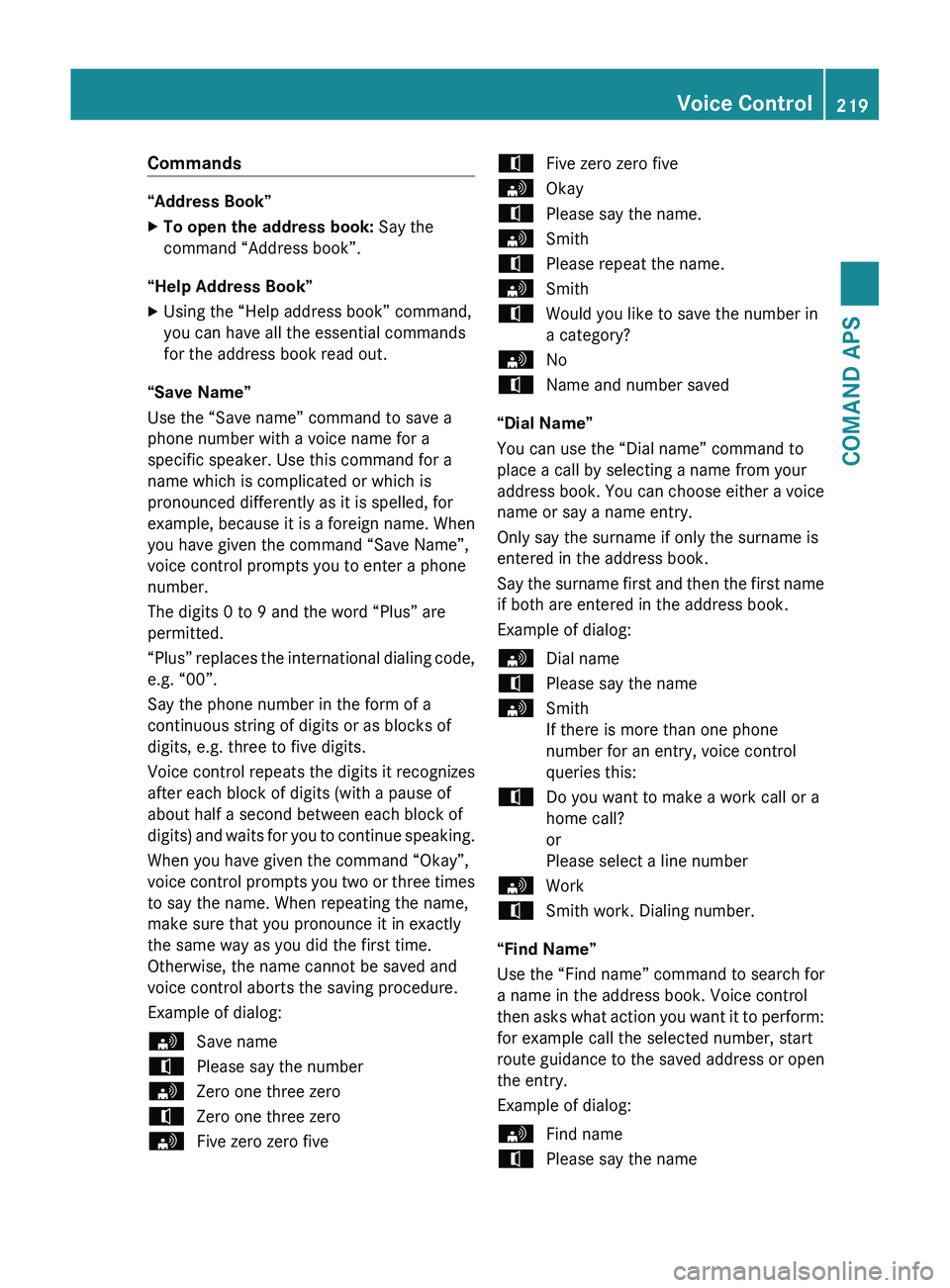
“Save Name”
Use the “Save name” command to save a
phone number with a voice name for a
specific speaker. Use this command for a
name which is complicated or which is
pronounced differently as it is spelled, for
example, because it is a foreign name. When
you have given the command “Save Name”,
voice control prompts you to enter a phone
number.
The digits 0 to 9 and the word “Plus” are
permitted.
“ Plus” replaces the international dialing code,
e.g. “00”.
Say the phone number in the form of a
continuous string of digits or as blocks of
digits, e.g. three to five digits.
Voice control repeats the digits it recognizes
after each block of digits (with a pause of
about half a second between each block of
digits) and waits for you to continue speaking.
When you have given the command “Okay”,
voice control prompts you two or three times
to say the name. When repeating the name,
make sure that you pronounce it in exactly
the same way as you did the first time.
Otherwise, the name cannot be saved and
voice control aborts the saving procedure.
Example of dialog:
sSave nametPlease say the numbersZero one three zerotZero one three zerosFive zero zero fivetFive zero zero fivesOkaytPlease say the name.sSmithtPlease repeat the name.sSmithtWould you like to save the number in
a category?sNotName and number saved
“Dial Name”
You can use the “Dial name” command to
place a call by selecting a name from your
address book. You can choose either a voice
name or say a name entry.
Only say the surname if only the surname is
entered in the address book.
Say the surname first and then the first name
if both are entered in the address book.
Example of dialog:
sDial nametPlease say the namesSmith
If there is more than one phone
number for an entry, voice control
queries this:tDo you want to make a work call or a
home call?
or
Please select a line numbersWorktSmith work. Dialing number.
“Find Name”
Use the “Find name” command to search for
a name in the address book. Voice control
then asks what action you want it to perform:
for example call the selected number, start
route guidance to the saved address or open
the entry.
Example of dialog:
sFind nametPlease say the nameVoice Control219COMAND APSBA 197 USA, CA Edition A 2011; 1; 27, en-UShereepeVersion: 3.0.3.52010-03-24T15:31:10+01:00 - Seite 219Z
Page 237 of 436
Vehicle equipment ............................236
Locking and unlocking .....................236
Starter switch positions ...................241
Seats .................................................. 243
Multifunction steering wheel ..........245
Mirrors ............................................... 246
Memory function .............................. 249
Lighting .............................................. 249
Wipers ................................................ 253
Power windows ................................. 255
Driving and parking ..........................257
AMG SPEEDSHIFT DCT 7-SPEED
Transmission ..................................... 263
Instrument cluster ............................271
Control system .................................. 272
Driving systems ................................ 290
Climate control system ....................298
Rear window defroster .....................304
Loading and storing ..........................304
Useful features ................................. 306235Controls in detailBA 197 USA, CA Edition A 2011; 1; 27, en-UShereepeVersion: 3.0.3.52010-03-24T15:31:10+01:00 - Seite 235
Page 238 of 436
Vehicle equipment
i This Operator’s Manual describes all
features, standard or optional, potentially
available for your vehicle at the time of
purchase. Please be aware that your
vehicle might not be equipped with all
features described in this manual.
Locking and unlocking
Notes
GObserve Safety notes, see page 57.
When unlocking or locking the vehicle with
the SmartKey an acoustic signal sounds. You
can switch the acoustic signal on and off via
the control system ( Y page 286).
When unlocking the vehicle, all turn signal
lamps flash once. An acoustic signal sounds
once, and the locking knobs in the doors
move up.
The outside door handles move out.
The anti-theft alarm system is disarmed.
When locking the vehicle, all turn signal lamps
flash three times. An acoustic signal sounds
three times, and the locking knobs in the
doors move down.
The outside door handles retract.
The anti-theft alarm system is armed.
All doors and the trunk must be closed.
If you cannot lock or unlock the vehicle with
the SmartKey, the battery in the SmartKey is
discharged, the SmartKey is malfunctioning,
or the vehicle battery is drained.
XCheck the battery in the SmartKey
( Y page 237) and replace them if
necessary.XUse the mechanical key to unlock the
driver’s door ( Y page 398) and the trunk
( Y page 398).XUse the mechanical key to lock the vehicle
( Y page 398).XHave the vehicle battery and the vehicle
battery connections checked at an
authorized Mercedes-Benz Center.
If the SmartKey is malfunctioning, contact
Roadside Assistance or an authorized
Mercedes-Benz Center.
SmartKey
Your vehicle comes supplied with two
SmartKeys, each with remote control and a
removable mechanical key.
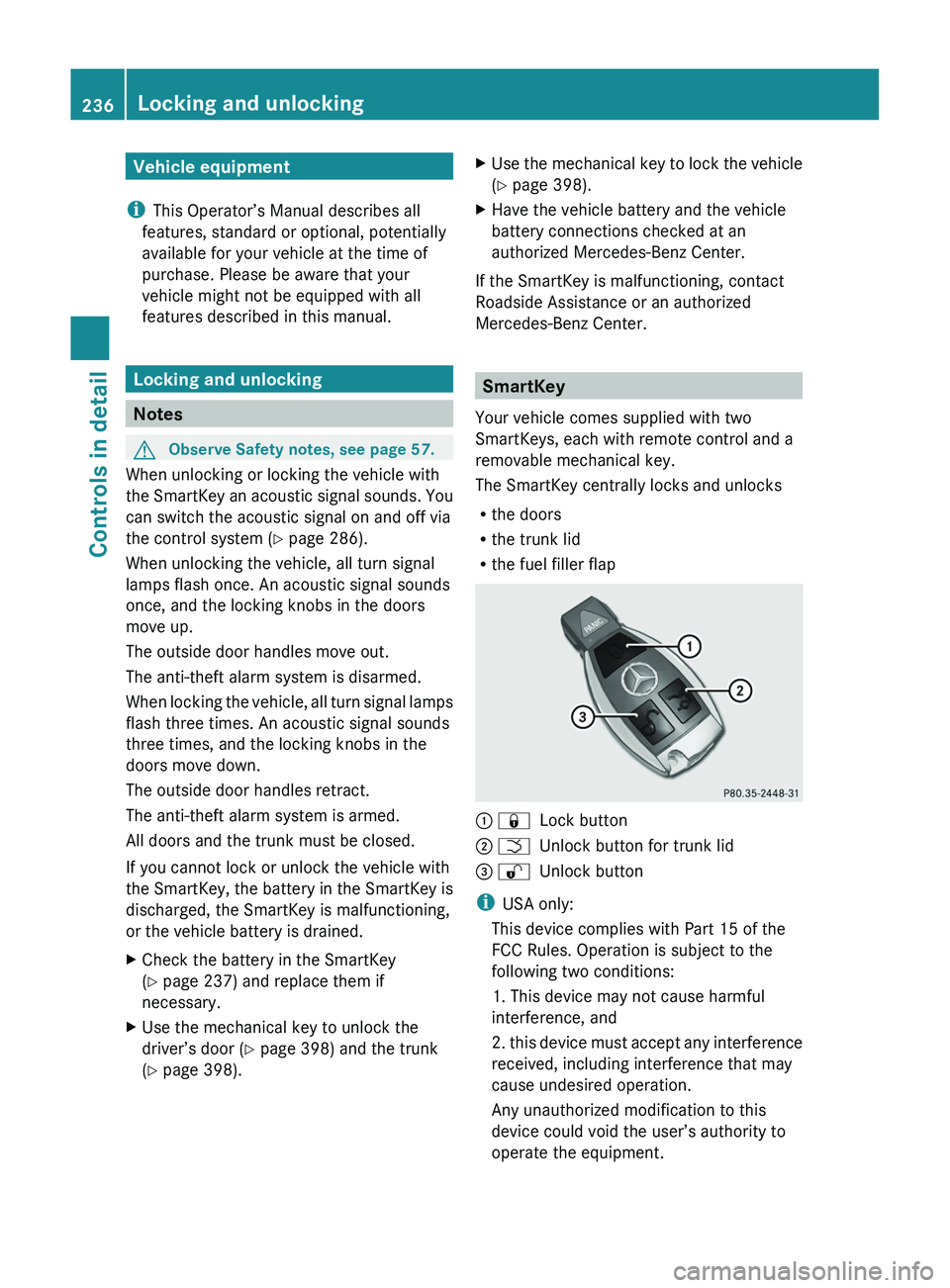
The SmartKey centrally locks and unlocks
R the doors
R the trunk lid
R the fuel filler flap
0046 0037Lock button0047 0054Unlock button for trunk lid008A 0036Unlock button
i
USA only:
This device complies with Part 15 of the
FCC Rules. Operation is subject to the
following two conditions:
1. This device may not cause harmful
interference, and
2. this device must accept any interference
received, including interference that may
cause undesired operation.
Any unauthorized modification to this
device could void the user’s authority to
operate the equipment.
236Locking and unlockingControls in detail
BA 197 USA, CA Edition A 2011; 1; 27, en-UShereepeVersion: 3.0.3.52010-03-24T15:31:10+01:00 - Seite 236
Page 239 of 436
The product label with FCC ID and IC
certification number can be found in the
battery case.
i Canada only:
This device complies with RSS-210 of
Industry Canada. Operation is subject to
the following two conditions:
1. This device may not cause interference,
and
2. this device must accept any interference
received, including interference that may
cause undesired operation of the device.
Any unauthorized modification to this
device could void the user’s authority to
operate the equipment.
The product label with FCC ID and IC
certification number can be found in the
battery case.
Factory setting XGlobal unlocking: Press button 0036.
Unless you open a door or the trunk within
approximately 40 seconds after unlocking
the vehicle:
R The vehicle will be locked again.
R The anti-theft alarm system will be
rearmed.
XGlobal locking: Press button 0037.
Selective setting
If you frequently travel alone, you may wish
to reprogramm the SmartKey. Pressing
button 0036 will then only unlock the driver’s
door and the fuel filler flap.
XSwitching on/off: Press and hold buttons
0036 and 0037 simultaneously for
approximately 6 seconds until the battery
check lamp ( Y page 237) flashes twice.
The SmartKey will then function as follows:
XUnlocking driver’s door and fuel filler
flap: Press button 0036 once.XGlobal unlocking: Press button 0036
twice.XGlobal locking: Press button 0037.
Checking SmartKey battery
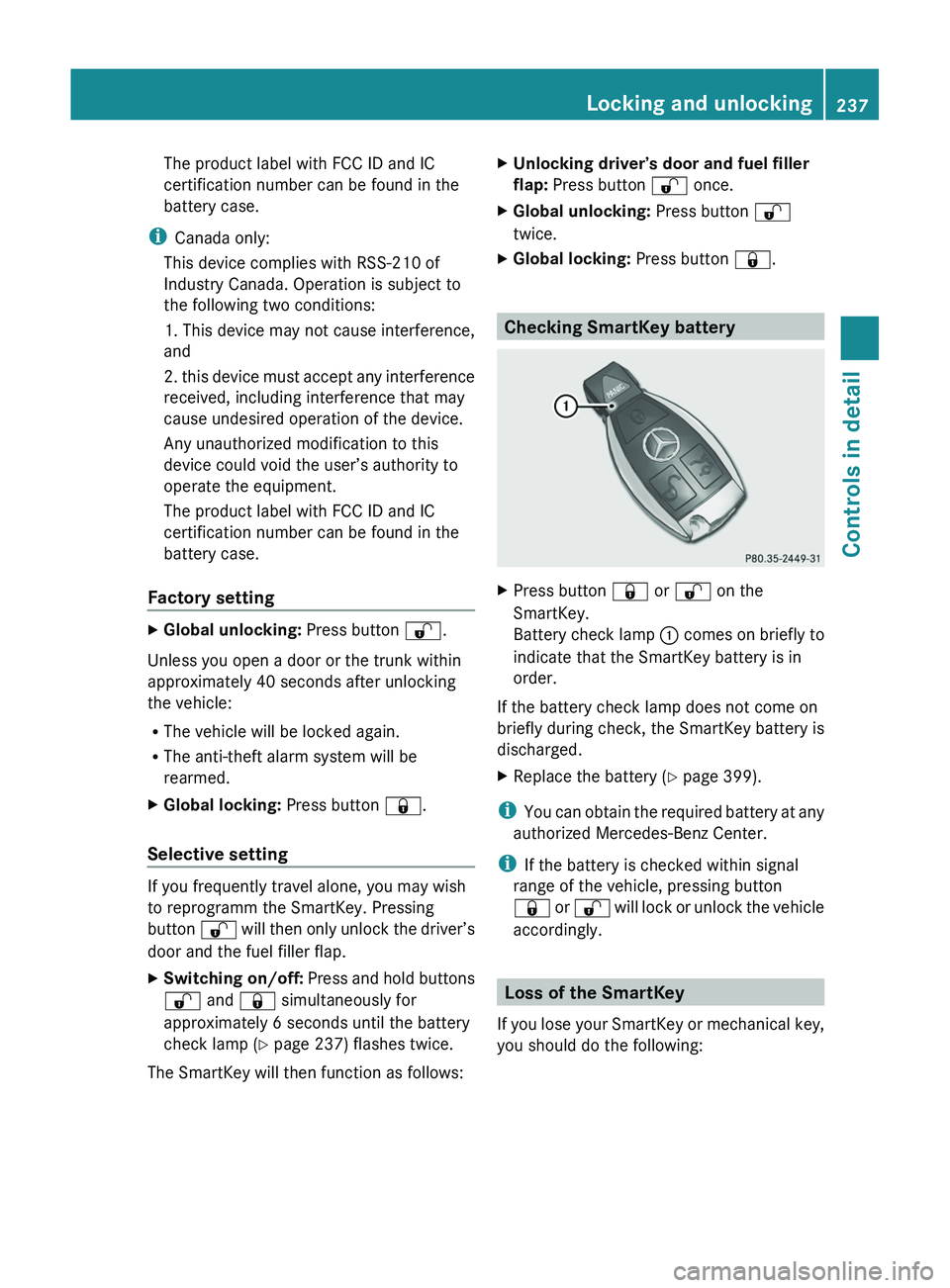
XPress button 0037 or 0036 on the
SmartKey.
Battery check lamp 0046 comes on briefly to
indicate that the SmartKey battery is in
order.
If the battery check lamp does not come on
briefly during check, the SmartKey battery is
discharged.
XReplace the battery ( Y page 399).
i
You can obtain the required battery at any
authorized Mercedes-Benz Center.
i If the battery is checked within signal
range of the vehicle, pressing button
0037 or 0036 will lock or unlock the vehicle
accordingly.
Loss of the SmartKey
If you lose your SmartKey or mechanical key,
you should do the following:
Locking and unlocking237Controls in detailBA 197 USA, CA Edition A 2011; 1; 27, en-UShereepeVersion: 3.0.3.52010-03-24T15:31:10+01:00 - Seite 237
Page 240 of 436
XHave the SmartKey deactivated by an
authorized Mercedes-Benz Center.
XReport the loss of the SmartKey or the
mechanical key to your car insurance
company immediately.
XHave the mechanical lock replaced if
necessary.
Any authorized Mercedes-Benz Center will be
glad to supply you with a replacement. For
information on replacing the SmartKey, see
“Replacing the SmartKey” (Y page 238).
Replacing the SmartKey
Only you, or someone authorized by you can
order a replacement key from any Mercedes-
Benz Center. In order to do so, the Mercedes-
Benz Center will require proof of identity and
vehicle ownership with original documents,
including the following:
If you are the current owner of the vehicle:
Rthe vehicle’s current state registration
Ra current identity card, passport, or drivers
license
If you are an authorized person:
Rthe vehicle’s current state registration
Ra current identity card, passport, or drivers
license for the authorized individual
Rsigned and dated authorization from the
owner of the vehicle for which the key is
being requested
iDuplicated or photocopied
documentation will not be accepted.
Activating the key
Once you, or an authorized person, has
provided the appropriate documents, the
Mercedes-Benz Center will need to
synchronize the key to your vehicle before it
can be used. In order to do so, the Mercedes-
Benz Center need access to your vehicle.
Doors
! The doors swing up when opened. Make
sure there is sufficient space above the
vehicle.
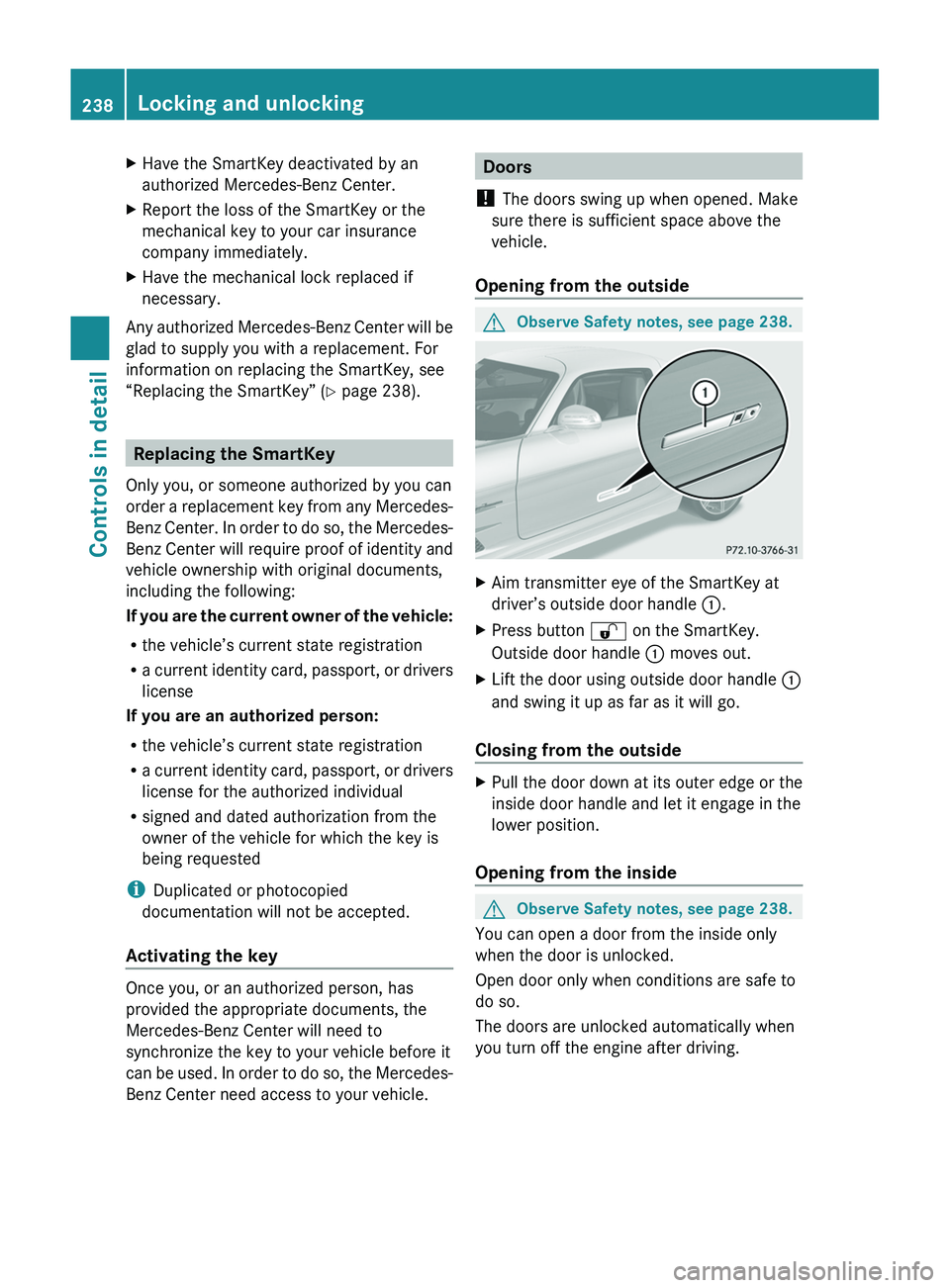
Opening from the outside
GObserve Safety notes, see page 238.XAim transmitter eye of the SmartKey at
driver’s outside door handle \000F.
XPress button \0006 on the SmartKey.
Outside door handle \000F moves out.
XLift the door using outside door handle \000F
and swing it up as far as it will go.
Closing from the outside
XPull the door down at its outer edge or the
inside door handle and let it engage in the
lower position.
Opening from the inside
GObserve Safety notes, see page 238.
You can open a door from the inside only
when the door is unlocked.
Open door only when conditions are safe to
do so.
The doors are unlocked automatically when
you turn off the engine after driving.
238Locking and unlockingControls in detail
BA 197 USA, CA Edition A 2011; 1; 27, en-UShereepeVersion: 3.0.3.52010-03-24T15:31:10+01:00 - Seite 238