2011 MERCEDES-BENZ SLS AMG ECO mode
[x] Cancel search: ECO modePage 158 of 436
made during phone mode when a mobile
phone is connected to COMAND.
The particular menu item can only be
selected if calls have already been received
or made from COMAND.
The display of missed calls in the COMAND
display is not possible with all mobile
phones.
iThe menu item Call lists is not active
if no mobile phone is connected to
COMAND.
iIf the mobile phone does not support
PBAP, COMAND automatically deletes the
call lists if a mobile phone other than the
last used is connected.
iThe instrument cluster control system
displays a list of the last dialed calls.
iFor many operating functions you can
also use the buttons on the multifunction
steering wheel, e.g. the \000@, \000>,
\000<, \000=, \000d, \000j or \000 buttons,
for selecting a menu, scrolling through lists
or initiating or ending a call (Y page 84).
Calling up the List
XIn the phone main menu select Call
Lists.
A menu appears.
XSelect Calls Received or Calls
Dialed.
The appropriate list appears.
or
XWhen the main telephone menu is
displayed, press the \000o button on
COMAND or the \000j button on the multi-
function steering wheel.
A list of the last dialed calls appears.
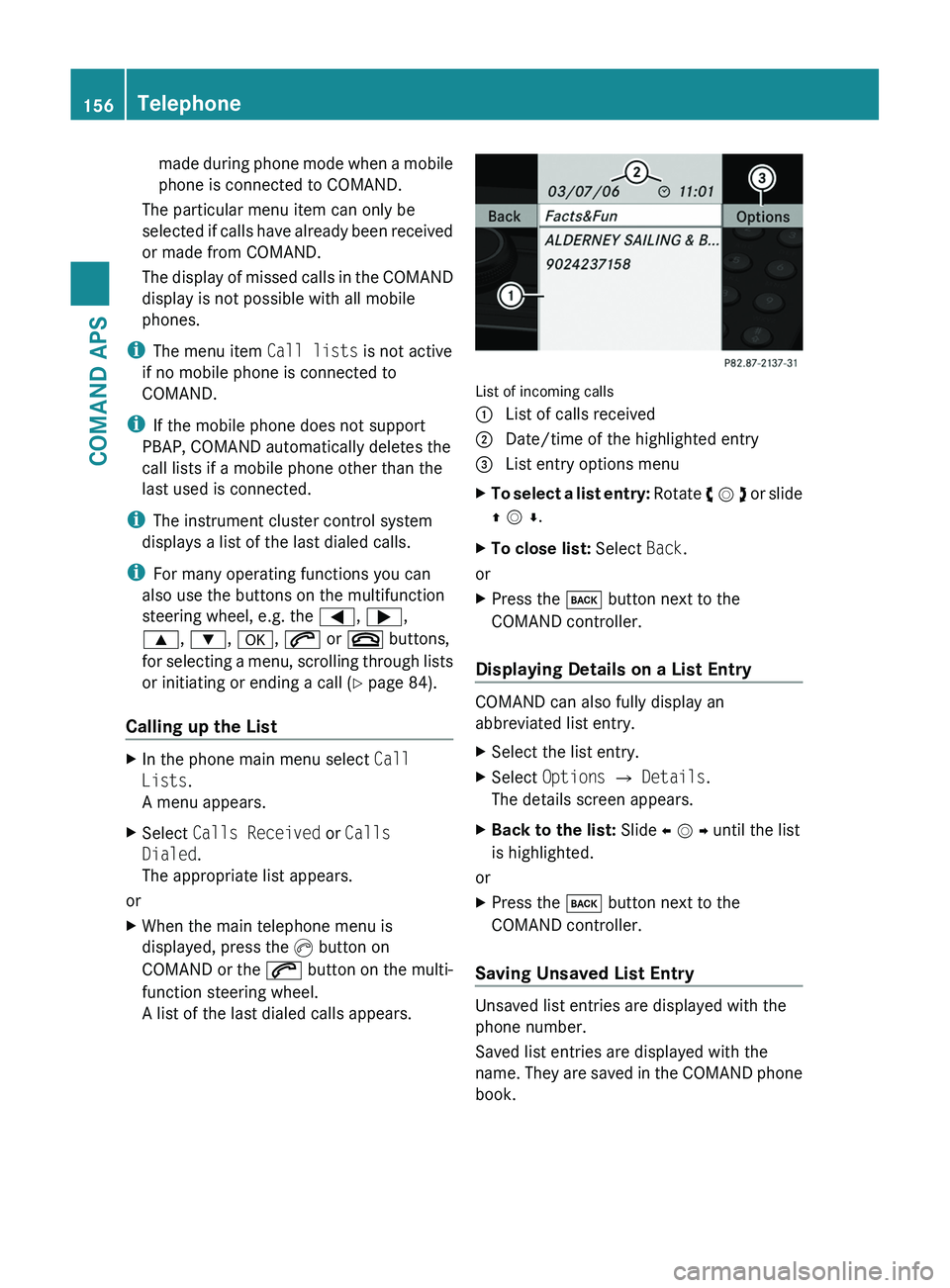
List of incoming calls
1 List of calls received2 Date/time of the highlighted entry3 List entry options menuXTo select a list entry: Rotate y m z or slide
q m r.
XTo close list: Select Back.
or
XPress the \000= button next to the
COMAND controller.
Displaying Details on a List Entry
COMAND can also fully display an
abbreviated list entry.
XSelect the list entry.XSelect Options £ Details.
The details screen appears.
XBack to the list: Slide o m p until the list
is highlighted.
or
XPress the \000= button next to the
COMAND controller.
Saving Unsaved List Entry
Unsaved list entries are displayed with the
phone number.
Saved list entries are displayed with the
name. They are saved in the COMAND phone
book.
156TelephoneCOMAND APS
BA 197 USA, CA Edition A 2011; 1; 27, en-UShereepeVersion: 3.0.3.52010-03-24T15:31:10+01:00 - Seite 156
Page 162 of 436
Initiating a Call to a Call List Entry or
COMAND Phone Book Entry
XCall up a call list and select an entry
(Y page 156).
or
XOpen the COMAND phone book and select
an entry (Y page 153).
XTo initiate call: Press n.
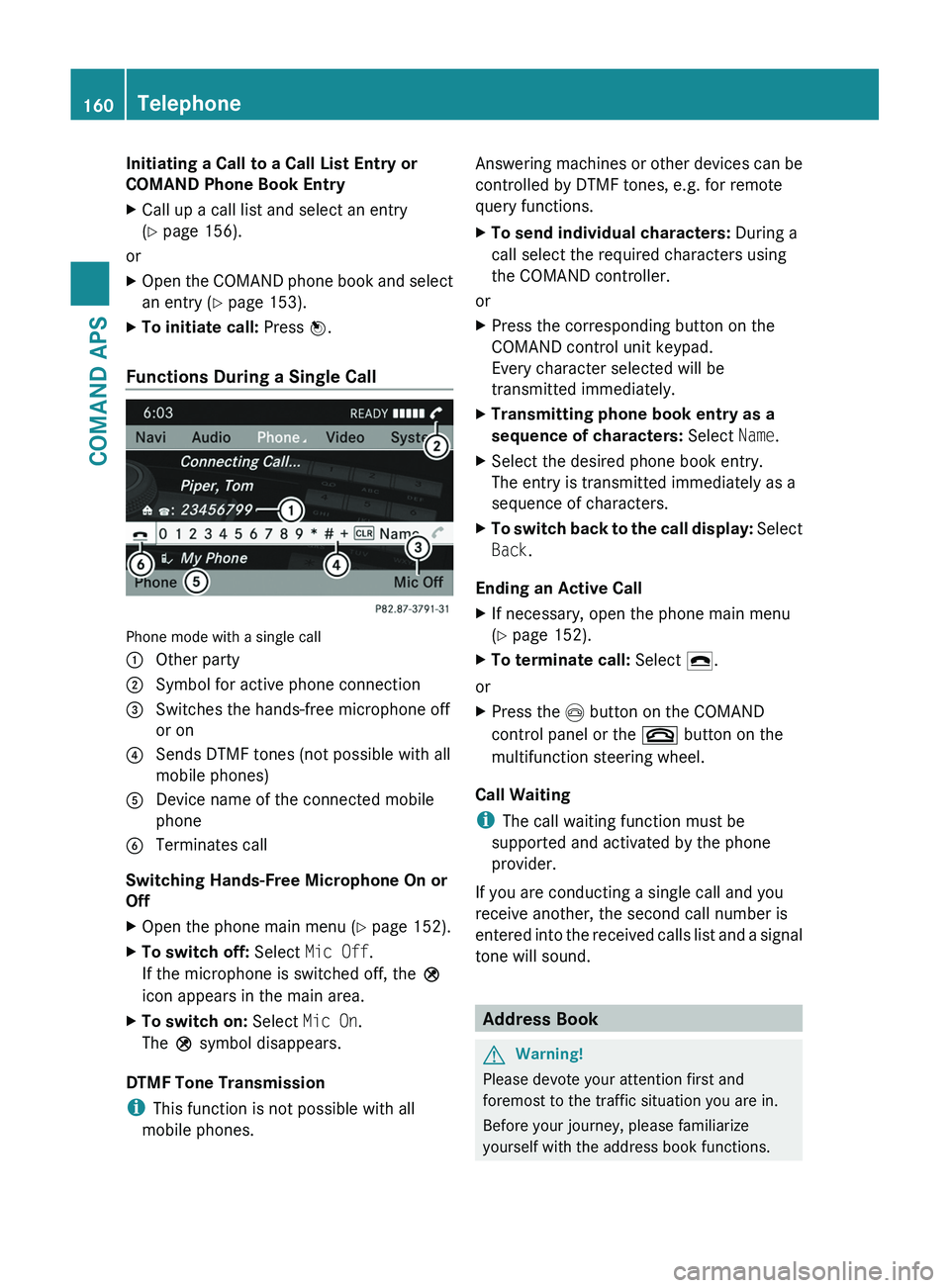
Functions During a Single Call
Phone mode with a single call
1 Other party2 Symbol for active phone connection3 Switches the hands-free microphone off
or on
4 Sends DTMF tones (not possible with all
mobile phones)
5 Device name of the connected mobile
phone
6 Terminates call
Switching Hands-Free Microphone On or
Off
XOpen the phone main menu (Y page 152).XTo switch off: Select Mic Off.
If the microphone is switched off, the >
icon appears in the main area.
XTo switch on: Select Mic On.
The > symbol disappears.
DTMF Tone Transmission
iThis function is not possible with all
mobile phones.
Answering machines or other devices can be
controlled by DTMF tones, e.g. for remote
query functions.
XTo send individual characters: During a
call select the required characters using
the COMAND controller.
or
XPress the corresponding button on the
COMAND control unit keypad.
Every character selected will be
transmitted immediately.
XTransmitting phone book entry as a
sequence of characters: Select Name.
XSelect the desired phone book entry.
The entry is transmitted immediately as a
sequence of characters.
XTo switch back to the call display: Select
Back.
Ending an Active Call
XIf necessary, open the phone main menu
(Y page 152).
XTo terminate call: Select 4.
or
XPress the \000m button on the COMAND
control panel or the \000 button on the
multifunction steering wheel.
Call Waiting
iThe call waiting function must be
supported and activated by the phone
provider.
If you are conducting a single call and you
receive another, the second call number is
entered into the received calls list and a signal
tone will sound.
Address Book
GWarning!
Please devote your attention first and
foremost to the traffic situation you are in.
Before your journey, please familiarize
yourself with the address book functions.
160TelephoneCOMAND APS
BA 197 USA, CA Edition A 2011; 1; 27, en-UShereepeVersion: 3.0.3.52010-03-24T15:31:10+01:00 - Seite 160
Page 180 of 436
Notes on MP3 Mode
Permissible Storage Media
R CD-R and CD-RW
R DVD+R and DVD+RW
R DVD-R and DVD-RW
R PCMCIA memory card
Permissible File Systems
R ISO9660/Joliet for CD storage media
R UDF for DVDs
R FAT16 or FAT32 for PCMCIA memory card
with storage medium
Multisession CDs
On multisession CDs, the content of the first
session determines how COMAND handles
the CD.
If the first session, for example, contains data
in CD Audio format and the second session
contains MP3 tracks, COMAND handles the
CD as a conventional Audio CD. This means
that the MP3 tracks cannot be accessed.
Similarly, if the first session contains MP3
tracks and the second session contains data
in CD Audio format, COMAND handles the CD
as an MP3 CD. Only the MP3 tracks can be
accessed.
File Structure of Storage Medium
When creating an MP3 storage medium, you
can organize MP3 tracks into folders. A folder
can also contain additional folders. A storage
medium may have a maximum of 255 folders
in total. A maximum of 255 tracks and 255
folders are permissible per folder. A
maximum of 4000 tracks in total are
permissible per storage medium.
Track Names and Folder Names
When creating an MP3 storage medium, you
can assign names to the MP3 tracks and to
the folders.
COMAND uses these names in MP3 mode for
the corresponding display. Empty folders or
folders containing data other than MP3 tracks
will not be displayed by COMAND.
If MP3 files are stored in the root directory
itself, the root directory also counts as a
folder. COMAND will then display the root
directory name as a folder name.
Please note the following when assigning
track names:
R Track names must contain at least one
character.
R Track names must have the extension
“mp3”.
R A period must appear between the track
name and the extension.
i COMAND does not support ID3 tags.
Permissible Formats
COMAND supports the following formats:
R MPEG1 audio layer 3 format
R Microsoft Windows ®
Media Audio V2, V7,
V8 and V9 (WMA).
Notes on Copyright
The music tracks that you can create for
playback in MP3 mode are generally
copyright-protected under applicable
international and national laws.
In many countries, the reproduction of
copyrighted material is not permitted even if
only for personal use without the express
prior consent of the copyright holder.
Please check the current copyright laws for
your country and comply with them.
These restrictions do not apply, for example,
to your own compositions and recordings or
for recordings for which authorization has
been obtained from the copyright holder.
Notes about DVD Audio Discs
COMAND can playback commercially
available, prerecorded Audio DVDs that bear
the following label. You will usually find the
label on the DVD booklet, the inlay or the DVD
itself.178AudioCOMAND APS
BA 197 USA, CA Edition A 2011; 1; 27, en-UShereepeVersion: 3.0.3.52010-03-24T15:31:10+01:00 - Seite 178
Page 187 of 436
Within the Audio FunctionXSelect Audio £ Disc or Memory card in
the audio menu display.
i Disc accesses audio discs in the DVD
changer. Memory Card selects the slot for
the PCMCIA memory card.
XSelect CD/DVD Audio/MP3 as required
(Y page 186).
The desired disc mode is activated.
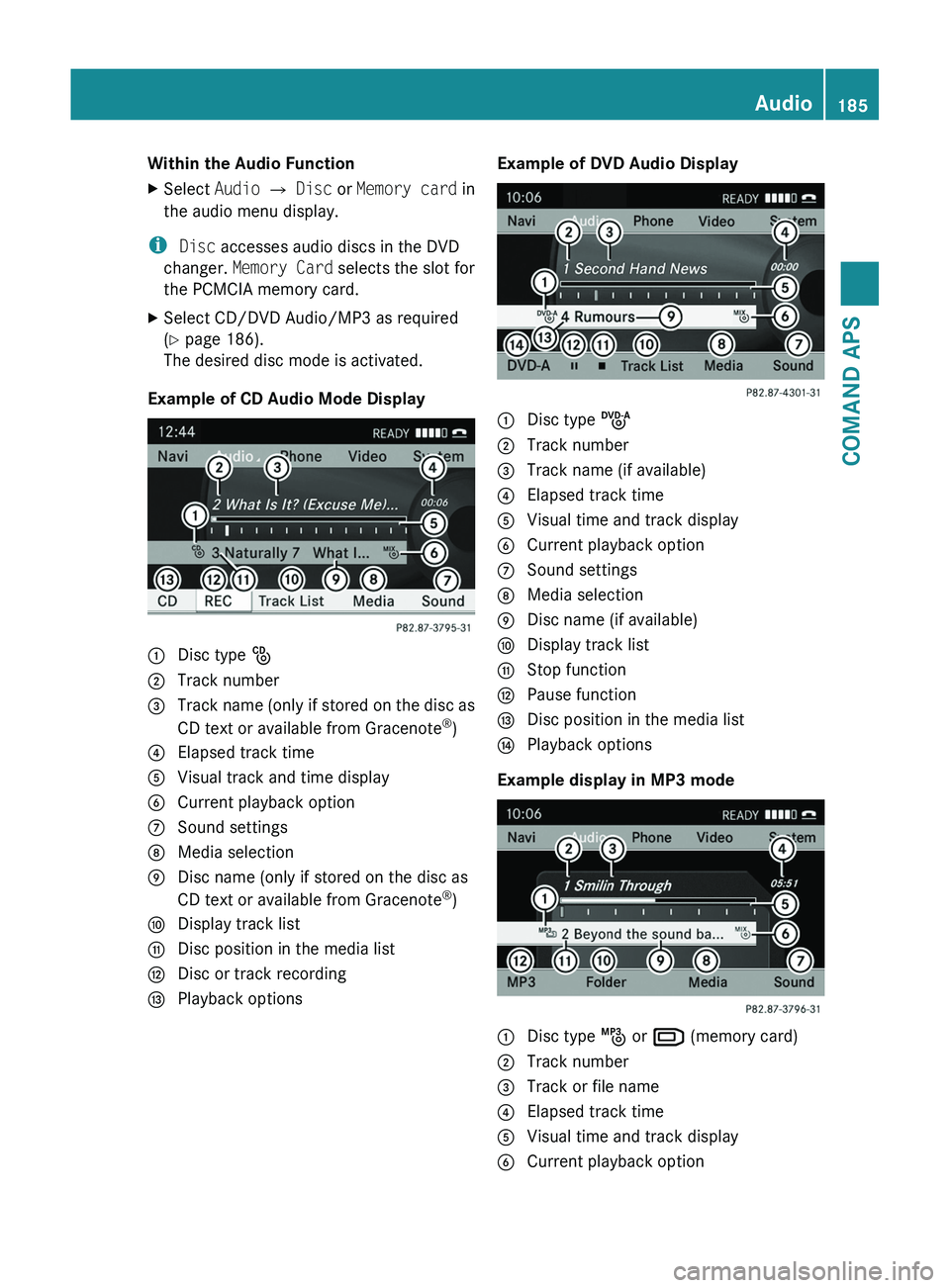
Example of CD Audio Mode Display
1 Disc type _2 Track number3 Track name (only if stored on the disc as
CD text or available from Gracenote®)
4 Elapsed track time5 Visual track and time display6 Current playback option7 Sound settings8 Media selection9 Disc name (only if stored on the disc as
CD text or available from Gracenote®)
a Display track listb Disc position in the media listc Disc or track recordingd Playback optionsExample of DVD Audio Display1 Disc type ü2 Track number3 Track name (if available)4 Elapsed track time5 Visual time and track display6 Current playback option7 Sound settings8 Media selection9 Disc name (if available)a Display track listb Stop functionc Pause functiond Disc position in the media liste Playback options
Example display in MP3 mode
1 Disc type þ or º (memory card)2 Track number3 Track or file name4 Elapsed track time5 Visual time and track display6 Current playback optionAudio185COMAND APSBA 197 USA, CA Edition A 2011; 1; 27, en-UShereepeVersion: 3.0.3.52010-03-24T15:31:10+01:00 - Seite 185Z
Page 189 of 436
Selecting a Track
iFor many operating functions you can
also use the buttons on the multifunction
steering wheel, e.g. the \000<, \000=
buttons, for selecting a track, a menu or
scrolling through lists (Y page 81).
Selection via Track Skip
XTo skip forwards or backwards to a
track: Rotate y m z when the main area is
highlighted.
or
XPress the \000H or \000I button.
i“Forward track skip” skips to the next
track. “Backward track skip” skips to the
beginning of the current track, if the track
has been playing for more than 8 seconds.
If the track has been playing for less than
8 seconds, it will skip to the beginning of
the previous track. If the playback option
Random Tracks is switched on, the track
sequence is random.
Selecting via Track List
XIn CD Audio and DVD Audio mode: Select
Track List.
or
XIn MP3 mode: Press n when the main
area window is highlighted.
The track list appears. The R dot indicates
the current track.
XTo select a track: Rotate y m z or slide
q m r.
XPress n.
iIn MP3 mode, the list shows all the tracks
in alphabetical order.
Fast Forward/Reverse XWhen the main area is highlighted: Slide
and hold o m p until the desired position is
reached.
or
XPress and hold the \000H or \000I button
until the desired position has been
reached.
Selecting Folders
iThis function is only available in MP3
mode.
XSwitch to MP3 mode (Y page 184).XSelect Folder.
or
XPress n when the main area is highlighted.
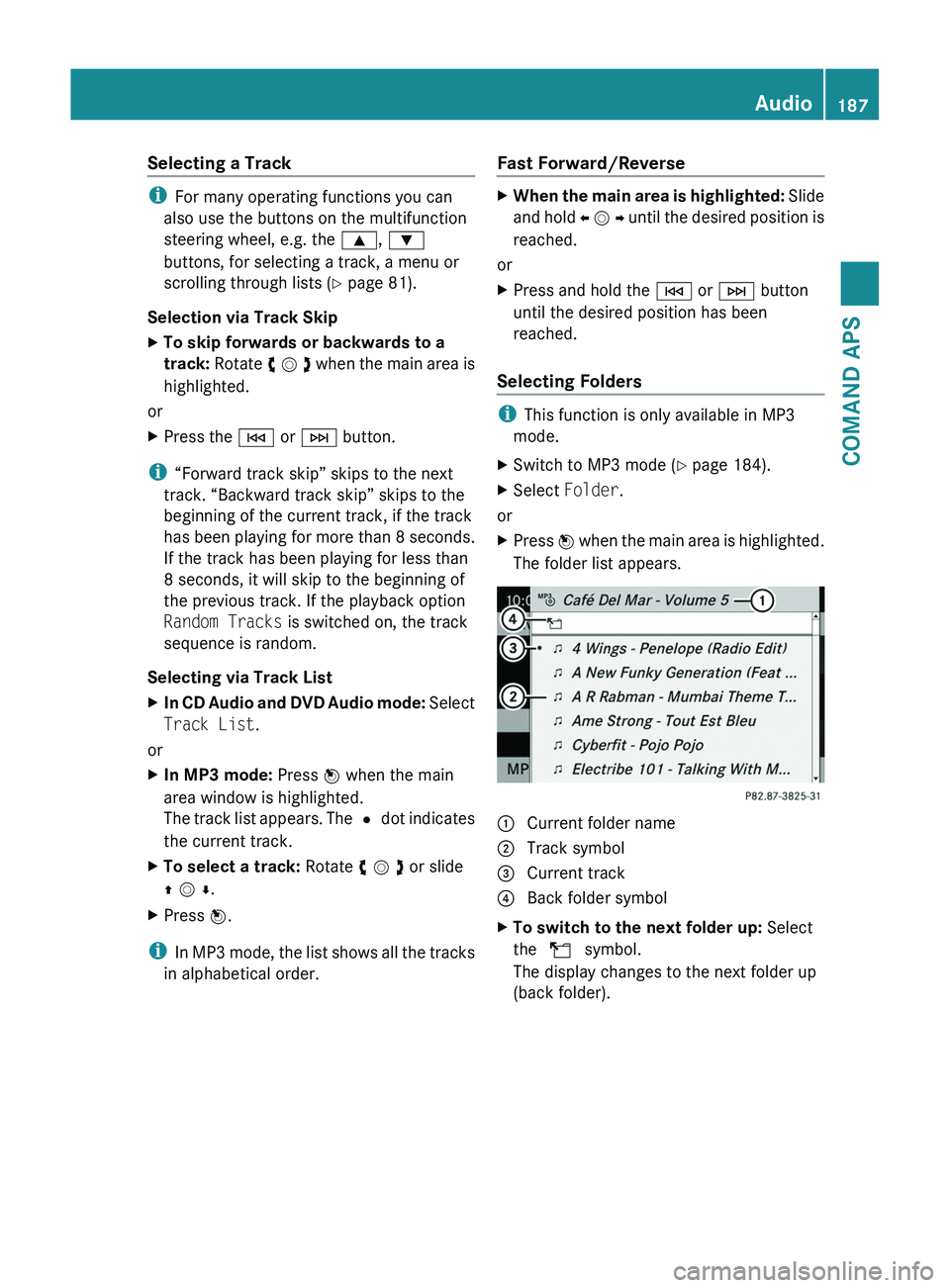
The folder list appears.
1 Current folder name2 Track symbol3 Current track4 Back folder symbolXTo switch to the next folder up: Select
the Q symbol.
The display changes to the next folder up
(back folder).
Audio187COMAND APSBA 197 USA, CA Edition A 2011; 1; 27, en-UShereepeVersion: 3.0.3.52010-03-24T15:31:10+01:00 - Seite 187Z
Page 190 of 436
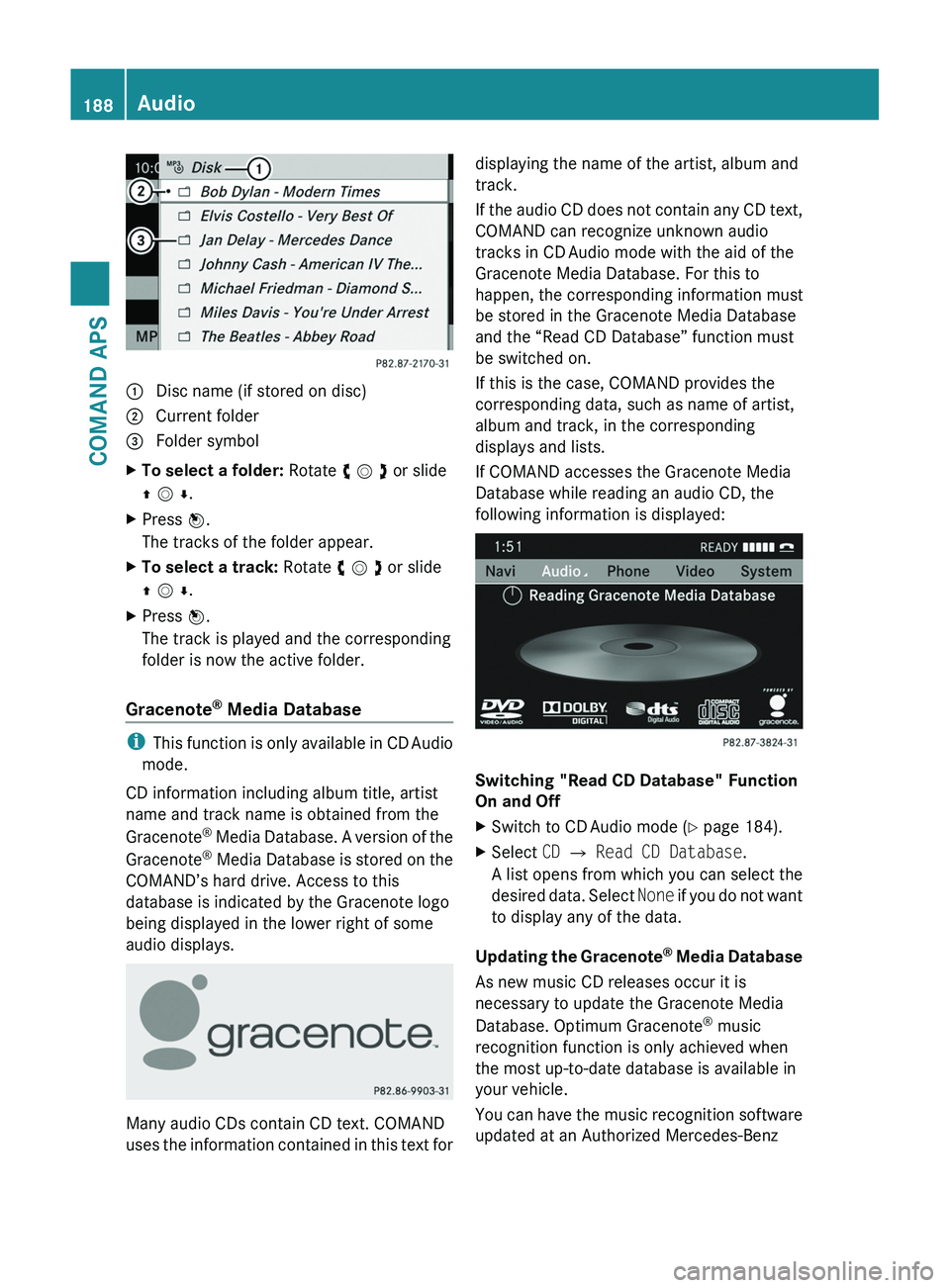
1 Disc name (if stored on disc)2 Current folder3 Folder symbolXTo select a folder: Rotate y m z or slide
q m r.
XPress n.
The tracks of the folder appear.
XTo select a track: Rotate y m z or slide
q m r.
XPress n.
The track is played and the corresponding
folder is now the active folder.
Gracenote® Media Database
iThis function is only available in CD Audio
mode.
CD information including album title, artist
name and track name is obtained from the
Gracenote® Media Database. A version of the
Gracenote® Media Database is stored on the
COMAND’s hard drive. Access to this
database is indicated by the Gracenote logo
being displayed in the lower right of some
audio displays.
Many audio CDs contain CD text. COMAND
uses the information contained in this text for
displaying the name of the artist, album and
track.
If the audio CD does not contain any CD text,
COMAND can recognize unknown audio
tracks in CD Audio mode with the aid of the
Gracenote Media Database. For this to
happen, the corresponding information must
be stored in the Gracenote Media Database
and the “Read CD Database” function must
be switched on.
If this is the case, COMAND provides the
corresponding data, such as name of artist,
album and track, in the corresponding
displays and lists.
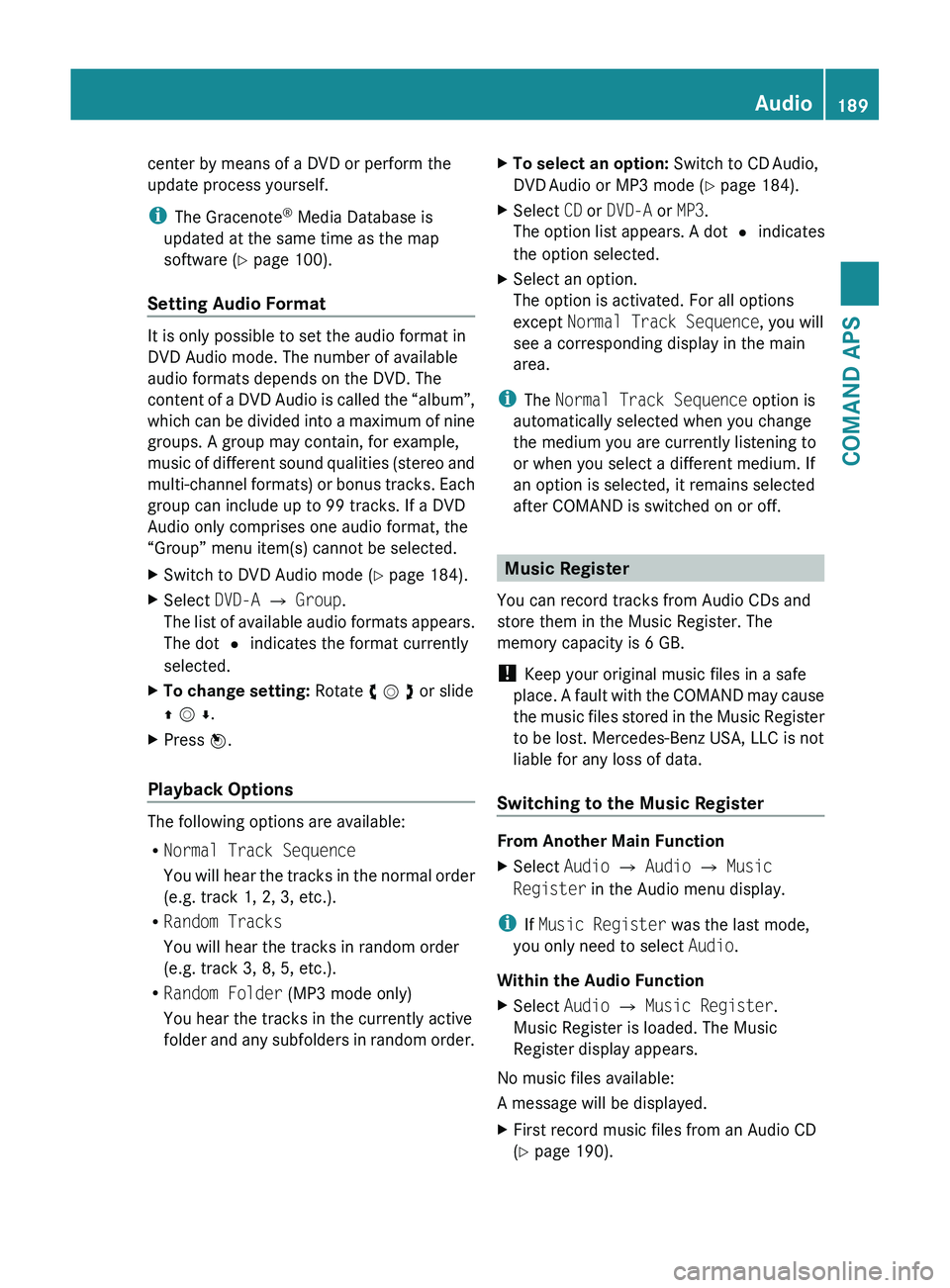
If COMAND accesses the Gracenote Media
Database while reading an audio CD, the
following information is displayed:
Switching "Read CD Database" Function
On and Off
XSwitch to CD Audio mode (Y page 184).XSelect CD £ Read CD Database.
A list opens from which you can select the
desired data. Select None if you do not want
to display any of the data.
Updating the Gracenote® Media Database
As new music CD releases occur it is
necessary to update the Gracenote Media
Database. Optimum Gracenote® music
recognition function is only achieved when
the most up-to-date database is available in
your vehicle.
You can have the music recognition software
updated at an Authorized Mercedes-Benz
188AudioCOMAND APS
BA 197 USA, CA Edition A 2011; 1; 27, en-UShereepeVersion: 3.0.3.52010-03-24T15:31:10+01:00 - Seite 188
Page 191 of 436
center by means of a DVD or perform the
update process yourself.
i The Gracenote ®
Media Database is
updated at the same time as the map
software ( Y page 100).
Setting Audio Format
It is only possible to set the audio format in
DVD Audio mode. The number of available
audio formats depends on the DVD. The
content of a DVD Audio is called the “album”,
which can be divided into a maximum of nine
groups. A group may contain, for example,
music of different sound qualities (stereo and
multi-channel formats) or bonus tracks. Each
group can include up to 99 tracks. If a DVD
Audio only comprises one audio format, the
“Group” menu item(s) cannot be selected.
XSwitch to DVD Audio mode ( Y page 184).XSelect DVD-A £ Group .
The list of available audio formats appears.
The dot R indicates the format currently
selected.XTo change setting: Rotate y m z or slide
q m r .XPress n.
Playback Options
The following options are available:
R Normal Track Sequence
You will hear the tracks in the normal order
(e.g. track 1, 2, 3, etc.).
R Random Tracks
You will hear the tracks in random order
(e.g. track 3, 8, 5, etc.).
R Random Folder (MP3 mode only)
You hear the tracks in the currently active
folder and any subfolders in random order.
XTo select an option: Switch to CD Audio,
DVD Audio or MP3 mode ( Y page 184).XSelect CD or DVD-A or MP3 .
The option list appears. A dot R indicates
the option selected.XSelect an option.
The option is activated. For all options
except Normal Track Sequence , you will
see a corresponding display in the main
area.
i The Normal Track Sequence option is
automatically selected when you change
the medium you are currently listening to
or when you select a different medium. If
an option is selected, it remains selected
after COMAND is switched on or off.
Music Register
You can record tracks from Audio CDs and
store them in the Music Register. The
memory capacity is 6 GB.
! Keep your original music files in a safe
place. A fault with the COMAND may cause
the music files stored in the Music Register
to be lost. Mercedes-Benz USA, LLC is not
liable for any loss of data.
Switching to the Music Register
From Another Main Function
XSelect Audio £ Audio £ Music
Register in the Audio menu display.
i
If Music Register was the last mode,
you only need to select Audio.
Within the Audio Function
XSelect Audio £ Music Register .
Music Register is loaded. The Music
Register display appears.
No music files available:
A message will be displayed.
XFirst record music files from an Audio CD
( Y page 190).Audio189COMAND APSBA 197 USA, CA Edition A 2011; 1; 27, en-UShereepeVersion: 3.0.3.52010-03-24T15:31:10+01:00 - Seite 189Z
Page 203 of 436
Submenu OverviewDVD-Video«/X±MediaSoundDVD functions« Pauses
playback
± Stops
playback
Medium
selection
TrebleBrightnessX Resumes
playback
BassContrastX Restarts
playback
BalanceColorSurround sound16:9 Optimized4:3WidescreenDVD Video
Switching to DVD Video
From the Control Panel
XInsert a DVD Video (Y page 180).
COMAND loads the medium inserted and
starts playing it.
or
XFrom another main function: Press the
\0005 function button.
The function button takes you directly to
the last active disc mode (CD Audio , DVD
Audio , MP3 CD, Media Interface or DVD
Video). COMAND accesses all discs in the
DVD changer.
If you previously selected DVD Video mode,
it will now be switched on.
If you have another disc mode activated:
XSelect Media.
The media list appears.
XSelect a DVD Video (Y page 202).
Via COMAND Controller
XSelect Video from the main function line.Displaying/Hiding Control MenuXTo show: Slide q m r.XTo hide: Slide q m r.
or
XWait approximately eight seconds.
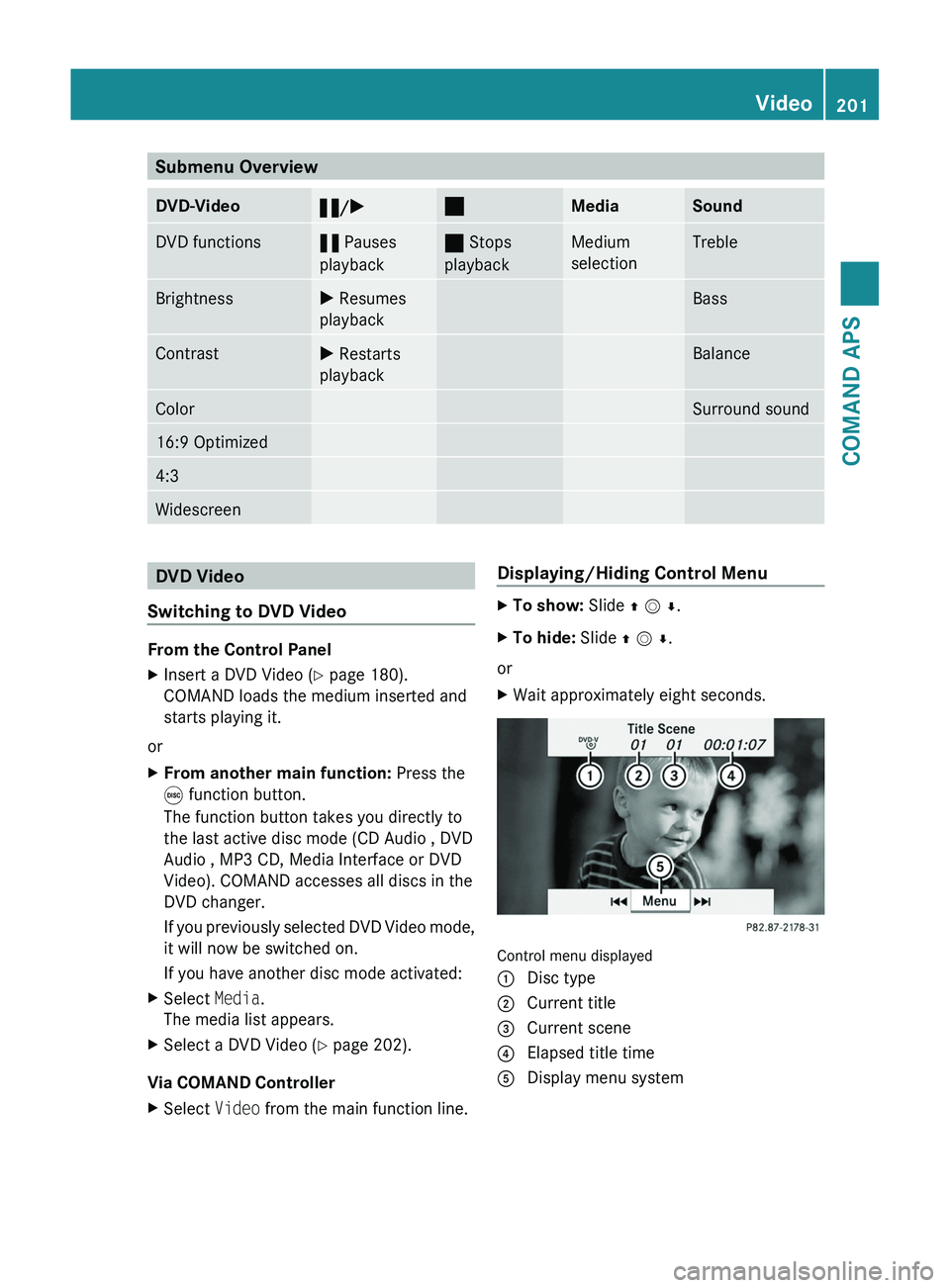
Control menu displayed
1 Disc type2 Current title3 Current scene4 Elapsed title time5 Display menu systemVideo201COMAND APSBA 197 USA, CA Edition A 2011; 1; 27, en-UShereepeVersion: 3.0.3.52010-03-24T15:31:10+01:00 - Seite 201Z