Page 235 of 654
234
3-1. Using the touch screen
GS_G_U (OM30C11U)
October 28, 2011 5:15 pm
Fuel consumption■ Consumption
Press .
Touch “Fuel Consumption” on the “Information” screen.
If the “Consumption” screen does not appear, touch “Consumption”.
Fuel consumption in the past 30
minutes
Cruising range
■ Past record (with navigation system)
Press .
Touch “Fuel Consumption” on the “Information” screen.
If the “Past Record” screen does not appear, touch “Past Record”.
Average fuel consumption
(today)
Average fuel consumption
(past 5 days)
Best past fuel consumption
STEP1
STEP2
STEP1
STEP2
■Resetting the data
Selecting “Clear” on the “Consumption” screen will reset the consumption data.
Selecting “Clear” on the “Past Record” screen will reset the past record data.
Page 239 of 654
238
3-1. Using the touch screen
GS_G_U (OM30C11U)
October 28, 2011 5:15 pm
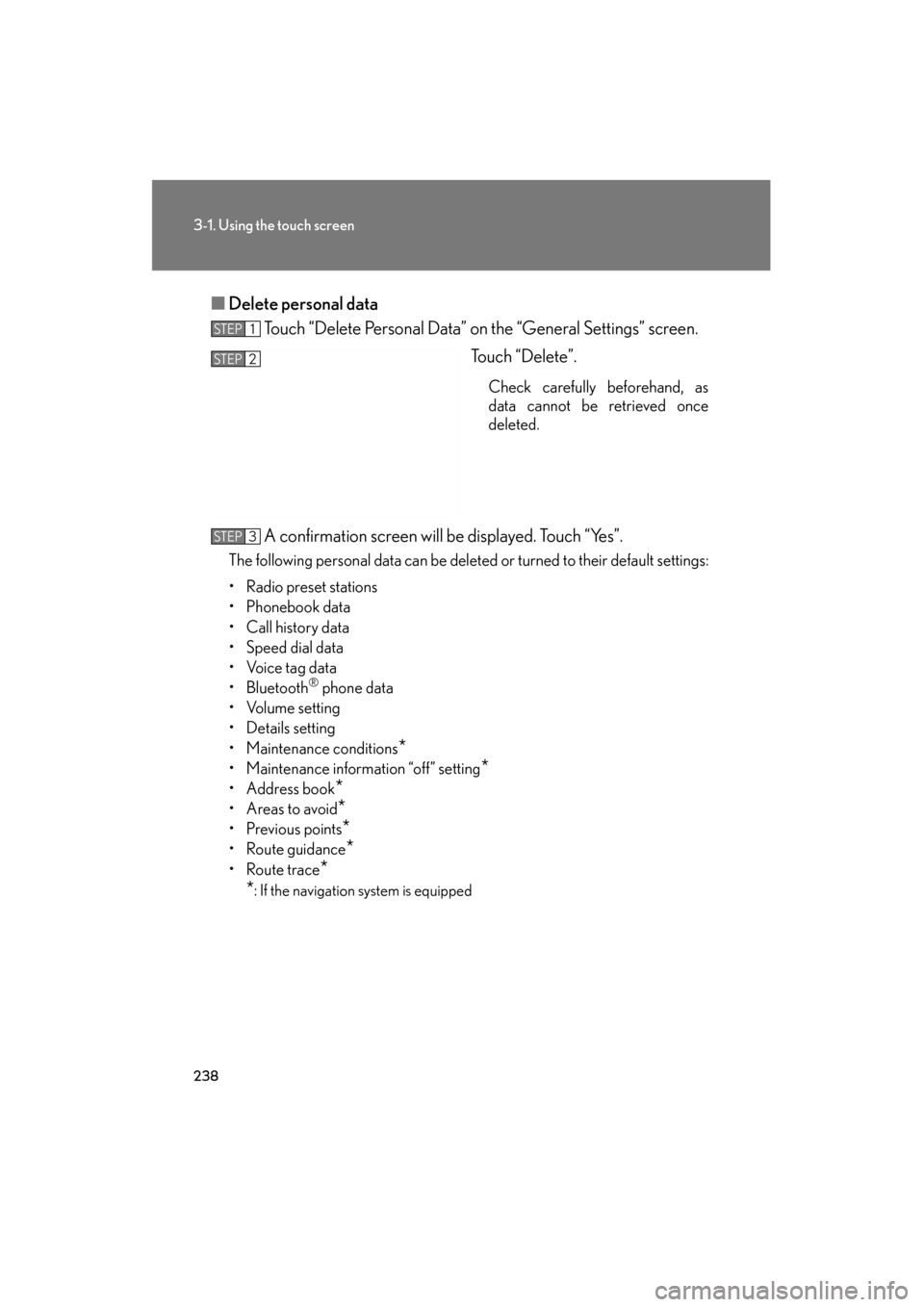
■Delete personal data
Touch “Delete Personal Data” on the “General Settings” screen.
Touch “Delete”.
Check carefully beforehand, as
data cannot be retrieved once
deleted.
A confirmation screen will be displayed. Touch “Yes”.
The following personal data can be deleted or turned to their default settings:
• Radio preset stations
•Phonebook data
•Call history data
• Speed dial data
• Voice tag data
• Bluetooth
® phone data
• Volume setting
• Details setting
• Maintenance conditions
*
• Maintenance information “off” setting*
• Address book*
• Areas to avoid*
•Previous points*
•Route guidance*
•Route trace*
*
: If the navigation system is equipped
STEP1
STEP2
STEP3
Page 261 of 654
260
3-3. Using the audio system
GS_G_U (OM30C11U)
October 28, 2011 5:15 pm
Using the radio
Audio control screen display button
Po we r Vo l u m e Seek frequency Preset tuning
Adjust the
frequency
(AM, FM mode) or
channel (SAT mode)
AM ⋅FM/SAT mode buttons Preset stations
Setting the sound
( → P. 3 2 6 )
Scan for
receivable stations
Tr a f f i c
information
Page 262 of 654
261
3-3. Using the audio system
3
Interior features
GS_G_U (OM30C11U)
October 28, 2011 5:15 pm
Setting station presets (excluding XM® Satellite Radio)
Search for desired stations by turning
or pressing
∧ or ∨ on .
Touch and hold one of the preset stations (1 - 6) until you hear a
beep.
Scanning radio stations (excluding XM® Satellite Radio)
■ Scanning the preset radio stations
Touch “SCAN” on the screen until “P ⋅SCAN” appears.
Preset stations will be played for a few seconds each.
When the desired station is reached, touch “SCAN” once again.
■ Scanning all radio stations within range
Touch “SCAN” on the screen.
“SCAN” appears on the screen and all stations with reception will be
played for a few seconds each.
When the desired station is reached, touch “SCAN” once again.
STEP1
STEP2
STEP1
STEP2
STEP1
STEP2
Page 265 of 654
264
3-3. Using the audio system
GS_G_U (OM30C11U)
October 28, 2011 5:15 pm
XM® Satellite Radio (if equipped)
■ Receiving XM
® Satellite Radio
Press or touch “SAT” tab on
the screen.
The display changes as follows
each time the switch is pressed.
SAT1 → SAT2 → SAT3
Turn to select a desired channel from all the categories or
press ∧ or ∨ on to select a desired channel in the current
category.
■ Presetting XM
® Satellite Radio channels
Select the desired channel. Touch one of the preset stations (1 - 6) and
hold it until you hear a beep.
■ Changing the channel category
Touch “ Type” or “Type ” on the screen.
STEP1
STEP2
Page 266 of 654
265
3-3. Using the audio system
3
Interior features
GS_G_U (OM30C11U)
October 28, 2011 5:15 pm
■Scanning XM® Satellite Radio channels
● Scanning channels in the current category
Touch “SCAN” on the screen.
“SCAN” appears on the screen.
When the desired channel is reached, touch “SCAN” once
again.
● Scanning preset channels
Touch “SCAN” on the screen and hold it until you hear a
beep.
“P⋅SCAN” appears on the screen.
When the desired channel is reached, touch “SCAN” once
again.
■ Displaying the title and artist name
Touch “Text” on the screen.
The screen will display up to 16
characters.
Touch the switch once again to
return to the previous screen.
STEP1
STEP2
STEP1
STEP2
Page 267 of 654

266
3-3. Using the audio system
GS_G_U (OM30C11U)
October 28, 2011 5:15 pm
■When the 12 volt battery is disconnected
All preset stations are erased.
■Reception sensitivity
●Maintaining perfect radio reception at all times is difficult due to the continually
changing position of the antenna, differences in signal strength and surrounding
objects, such as trains, transmitters, etc.
●The radio antenna is mounted inside the rear window. To maintain clear radio
reception, do not attach metallic window tinting or other metallic objects to the
antenna wire mounted inside the rear window.
■Receiving XM® Satellite Radio
An XM
® Satellite Radio is a tuner designed exclusively to receive broadcasts pro-
vide under a separate subscription. Availability is limited to the 48 contiguous
states and 10 Canadian provinces.
●XM® subscriptions
For detailed information about XM® Satellite Radio or to subscribe:
U. S .A .-
Visit on the web at www.xmradio.com
or call 1-877-515-3987.
Canada-
Visit on the web at www.xmradio.ca
or call 1-877-515-3987.
●Radio ID
You will need the radio ID when activating XM
® service or reporting a prob-
lem. Select “CH000” using the dial, and the receiver’s 8-character ID
number will appear.
●Satellite tuner
The tuner supports only Audio Services (Music and Talk) and the accompany-
ing Text Information of XM
® Satellite Radio.
*: Terms and services provided by XM® Satellite Radio are subject to change with-
out notice.
Page 321 of 654

320
3-3. Using the audio system
GS_G_U (OM30C11U)
October 28, 2011 5:15 pm
Repeat play■ Repeating a file/track
Touch “RPT” on the screen.
■ Repeating a all of the files in a folder (USB memory only)
Touch and hold “RPT” on the screen until “FLD.RPT” appears.
■Canceling random and repeat playback
Touch “RAND” or “RPT” on the screen once again.
■About iPod
●Apple is not responsible for the operation of this device or its compliance with
safety and regulatory standards.
●iPod is a trademark of Apple Inc., registered in the U.S. and other countries.
■iPod functions
●When an iPod is connected and the audio source is changed to iPod mode, the
iPod will resume play from the same point in which it was last used.
●Depending on the iPod that is connected to the system, certain functions may
not be available. Disconnecting the device and reconnecting it once again may
resolve some malfunctions.
■USB memory functions
Depending on the USB memory that is connected to the system, certain functions
may not be available. Disconnecting the device and reconnecting it once again may
resolve some malfunctions.
■iPod problems
To resolve most problems encountered when using your iPod, disconnect your iPod
from the vehicle iPod connection and reset it. For instructions on how to reset your
iPod, refer to your iPod Owner’s Manual.