2011 KIA Soul display
[x] Cancel search: displayPage 181 of 356
4109
Features of your vehicle
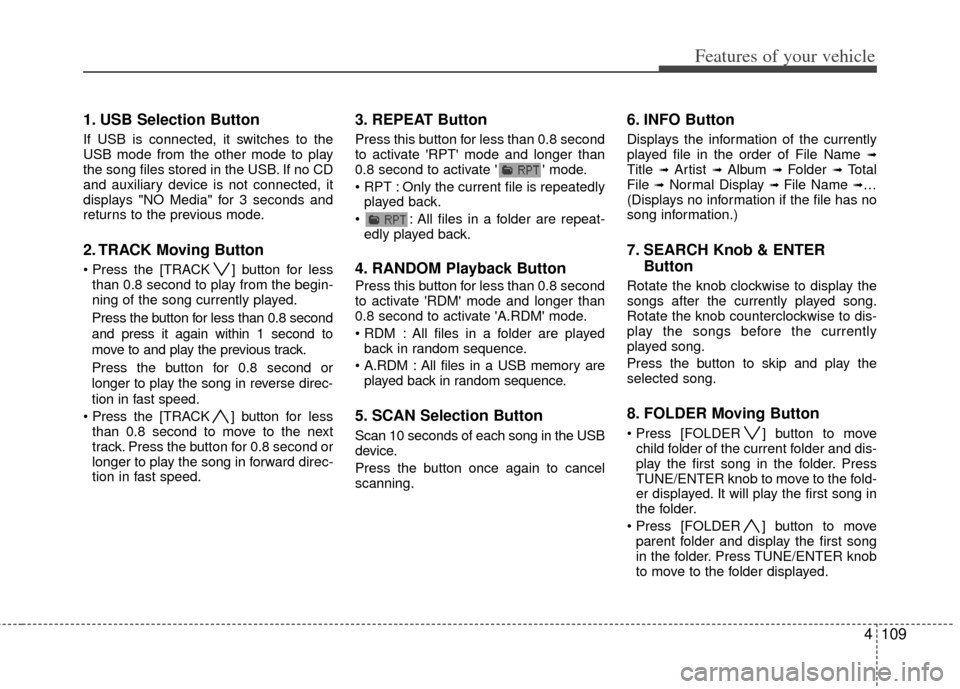
1. USB Selection Button
If USB is connected, it switches to the
USB mode from the other mode to play
the song files stored in the USB. If no CD
and auxiliary device is not connected, it
displays "NO Media" for 3 seconds and
returns to the previous mode.
2. TRACK Moving Button
] button for lessthan 0.8 second to play from the begin-
ning of the song currently played.
Press the button for less than 0.8 second
and press it again within 1 second to
move to and play the previous track.
Press the button for 0.8 second or
longer to play the song in reverse direc-
tion in fast speed.
] button for less
than 0.8 second to move to the next
track. Press the button for 0.8 second or
longer to play the song in forward direc-
tion in fast speed.
3. REPEAT Button
Press this button for less than 0.8 second
to activate 'RPT' mode and longer than
0.8 second to activate ' ' mode.
Only the current file is repeatedly played back.
: All files in a folder are repeat- edly played back.
4. RANDOM Playback Button
Press this button for less than 0.8 second
to activate 'RDM' mode and longer than
0.8 second to activate 'A.RDM' mode.
All files in a folder are playedback in random sequence.
All files in a USB memory are played back in random sequence.
5. SCAN Selection Button
Scan 10 seconds of each song in the USB
device.
Press the button once again to cancel
scanning.
6. INFO Button
Displays the information of the currently
played file in the order of File Name ➟Title ➟ Artist ➟ Album ➟ Folder ➟ Total
File ➟Normal Display ➟ File Name ➟…
(Displays no information if the file has no
song information.)
7. SEARCH Knob & ENTER Button
Rotate the knob clockwise to display the
songs after the currently played song.
Rotate the knob counterclockwise to dis-
play the songs before the currently
played song.
Press the button to skip and play the
selected song.
8. FOLDER Moving Button
] button to move
child folder of the current folder and dis-
play the first song in the folder. Press
TUNE/ENTER knob to move to the fold-
er displayed. It will play the first song in
the folder.
] button to move parent folder and display the first song
in the folder. Press TUNE/ENTER knob
to move to the folder displayed.
Page 185 of 356

4113
Features of your vehicle
1. iPod®Selection Button
If iPod is connected, it switches to the
iPod mode from the current mode to play
the song files stored in the iPod. If there
is no iPod connected, it displays "No
Media" for 3 seconds and returns to the
previous mode.
2. TRACK Moving Button
] button for less
than 0.8 second to play from the begin-
ning of the song currently played.
Press the button for less than 0.8 second
and press it again within 1 second to
move to and play the previous track.
Press the button for 0.8 second or
longer to play the song in reverse direc-
tion in fast speed.
] button for less
than 0.8 second to move to the next
track. Press the button for 0.8 second or
longer to play the song in forward direc-
tion in fast speed.
3. REPEAT Button
Repeats the song currently played.
4. RANDOM Playback Button
Press the button for less than 0.8 second
to start or stop the random playback of
the songs within the current category.
Press the button for longer than 0.8 sec-
ond to randomly play all songs in the
entire album of the iPod.
Press the button once again to cancel the
mode.
5. INFO Button
Displays the information of the file cur-
rently played in the order of Title ➟ Artist➟ Album ➟… (Displays no information if
the file has no song information.)
6. SEARCH Knob & ENTER Button
When you rotate the knob clockwise, it
will display the songs (category) next to
the song currently played (category in
the same level).
Also, when you rotate the knob counter-
clockwise, it will display the songs (cate-
gory) before the song currently played
(category in the same level).
To listen to the song displayed in the
song category, press the button to skip to
and play the selected song.
7. CATEGORY Selection Button
Moves to the upper category from cur-
rently played category of the iPod.
To move to (play) the category (song)
displayed, press TUNE/ENTER knob.
You will be able to search through the
lower category of the selected category.
The order of iPod’s category is Playlist,
Albums, Artists, Genres, songs, com-
posers.
Page 189 of 356
4117
Features of your vehicle
How to Use SIRIUS Satellite
Radio
Your Kia vehicle is equipped with a 3
month complimentary period of SIRIUS
Satellite Radio so you have access to
over 130 channels of music, information,
and entertainment programming.
Activation
In order to extend or reactivate your sub-
scription to SIRIUS Satellite Radio, you
will need to contact SIRIUS Customer
Care at 888-539-7474. Have your 12 digit
SID (Sirius Identification Number)/ESN
(Electronic Serial Number) ready. To
retrieve the SID/ESN, turn on the radio,
press the [SAT] button and tune to chan-
nel zero. Please note that the vehicle will
need to be turned on, in Sirius mode, and
have an unobstructed view of the sky in
order for the radio to receive the activa-
tion signal.
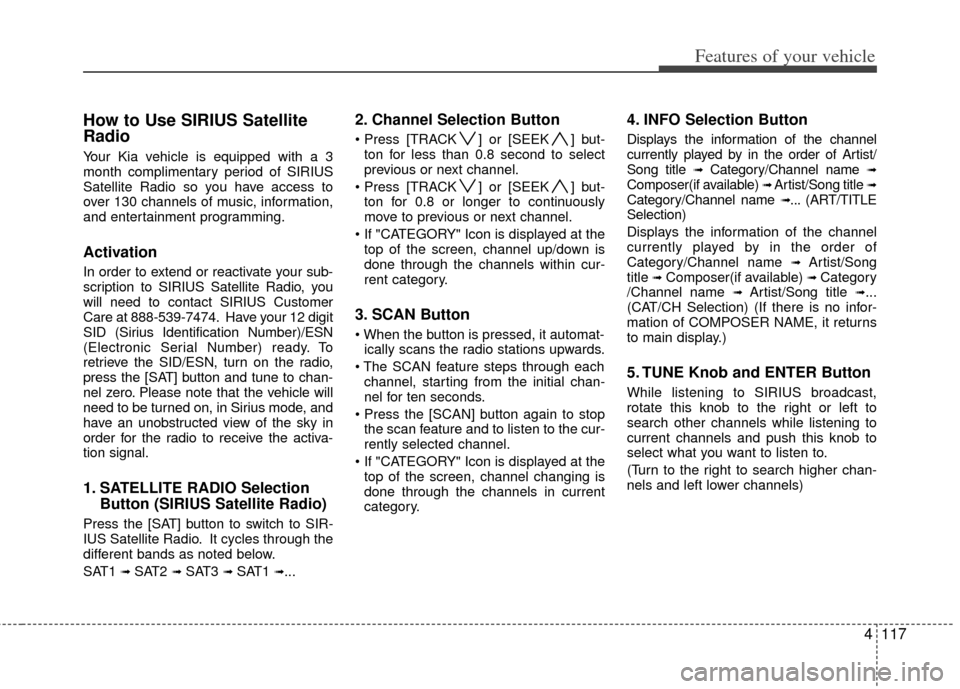
1. SATELLITE RADIO SelectionButton (SIRIUS Satellite Radio)
Press the [SAT] button to switch to SIR-
IUS Satellite Radio. It cycles through the
different bands as noted below.
SAT1
➟ SAT2 ➟ SAT3 ➟ SAT1 ➟...
2. Channel Selection Button
] or [SEEK ] but-
ton for less than 0.8 second to select
previous or next channel.
] or [SEEK ] but- ton for 0.8 or longer to continuously
move to previous or next channel.
top of the screen, channel up/down is
done through the channels within cur-
rent category.
3. SCAN Button
ically scans the radio stations upwards.
channel, starting from the initial chan-
nel for ten seconds.
the scan feature and to listen to the cur-
rently selected channel.
top of the screen, channel changing is
done through the channels in current
category.
4. INFO Selection Button
Displays the information of the channel
currently played by in the order of Artist/
Song title
➟Category/Channel name ➟Composer(if available) ➟ Artist/Song title ➟Category/Channel name ➟... (ART/TITLE
Selection)
Displays the information of the channel
currently played by in the order of
Category/Channel name
➟ Artist/Song
title ➟Composer(if available) ➟ Category
/Channel name ➟ Artist/Song title ➟...
(CAT/CH Selection) (If there is no infor-
mation of COMPOSER NAME, it returns
to main display.)
5. TUNE Knob and ENTER Button
While listening to SIRIUS broadcast,
rotate this knob to the right or left to
search other channels while listening to
current channels and push this knob to
select what you want to listen to.
(Turn to the right to search higher chan-
nels and left lower channels)
Page 190 of 356
![KIA Soul 2011 1.G Owners Manual Features of your vehicle
118
4
6. CAT/FOLDER Button
] or [FOLDER ] button
to enter the Category List Mode, it dis-
plays category items and highlights the
category that currently tuned channel
bel](/manual-img/2/2930/w960_2930-189.png "KIA Soul 2011 1.G Owners Manual Features of your vehicle
118
4
6. CAT/FOLDER Button
] or [FOLDER ] button
to enter the Category List Mode, it dis-
plays category items and highlights the
category that currently tuned channel
bel")
Features of your vehicle
118
4
6. CAT/FOLDER Button
] or [FOLDER ] button
to enter the Category List Mode, it dis-
plays category items and highlights the
category that currently tuned channel
belongs to.
buttons to navigate category list.
Press [ENTER] button to select the low- est channel in highlighted category.
gory "CATEGORY" Icon is displayed at
the top of the screen.
7. Preset Selection Button
ond to play the channel saved in each
button.
second or longer to save current chan-
nel. An audible beep will play to confirm
the preset is stored.
✽ ✽ Troubleshooting
1. Antenna Error
If this message is displayed, the anten-
na or antenna cable is broken or
unplugged. Please consult with your
Kia dealership.
2. Acquiring Signal If this message is displayed, it means
that the antenna is covered and that
the SIRIUS Satellite Radio signal is
not available. Ensure the antenna is
uncovered and has a clear view of the
sky.
Page 192 of 356

Features of your vehicle
120
4
■Bluetooth®Language Setting
The system language can be changed by
the following steps:
1. Power on the audio system with the
volume set to an audible level.
2. Press and hold button on the steering wheel until the audio displays
“Please Wait”.
- The Bluetooth
®system will reply in
currently selected language that it is
changing to the next language.
- System language cycles between English, Canadian French and US Spanish.
- Press and hold the button on the steering wheel for over 10 seconds.
3. When completed, the audio display returns to normal.
4. Repeat steps 2 and 3 for the next lan- guage selection.
NOTE:
The phone needs to be paired again
after changing system language.
- Avoid resting your thumb or fingeron the button as the language
could unintentionally change.
■Receiving a Phone Call
When receiving a phone call, a ringtone
is audible from speakers and the audio
system changes into telephone mode.
When receiving a phone call, “Incoming
call” message and incoming phone num-
ber (if available) are displayed on the
audio.
- Press button on the steering wheel.
- Press button on the steering wheel.
- Use VOLUME buttons on the steeringwheel.
Call):
- Press and hold button on the steering wheel until the audio system
transfers a call to the phone.
■Talking on the Phone
When talking on the phone, “Active Call”
message and the other party’s phone
number (if available) are displayed on the
audio.
- Press button on the steering wheel.
✽ ✽ NOTICE
In the following situations, you or the
other party may have difficulty hearing
each other:
1. Speaking at the same time, your voice
may not reach each other parties. (This
is not a malfunction.) Speak alternate-
ly with the other party on the phone.
2. Keep the Bluetooth
®volume to a low
level. High-level volume may result in
distortion and echo.
3. When driving on a rough road.
4. When driving at high speeds.
5. When the window is open.
6. When the air conditioning vents are facing the microphone.
7. When the sound of the air condition- ing fan is loud.
Page 193 of 356
4121
Features of your vehicle
■Bluetooth®Audio Music Streaming
The audio system supports Bluetooth®
A2DP (Audio Advanced Distribution
Profile) and AVRCP (Audio Video
Remote Control Profile) technologies.
Both profiles provide steaming of music
via compatible “PAIRED” Bluetooth
®
Cellular phone.
To stream music from the Bluetooth® cel-
lular phone, play your music files on your
cellular phone according to your cellular
phone user’s manual and press the button on the audio system until
“MP3 play” is displayed on the LCD.
The audio system head unit displays
‘MP3 MODE’.
NOTE:
all music and sound files your cellu-
lar phone supports can be played
by the audio system.
®compatible cellular
phones must include A2DP and
AVRCP capabilities.
AVRCP compatible Bluetooth
®cellular phones may not
play music through the audio sys-
tem initially. These cellular phones
may need to have the Bluetooth
®
streaming enabled, for example;
i.e : Menu
➟Filemanager➟Music➟Option➟Play via Bluetooth
cellular phone for more information.
To cancel Bluetooth
®cellular phone
music streaming, stop music play-
back on the cellular phone or
change the audio mode to AM/FM,
SIRIUS, CD, iPod, ect.
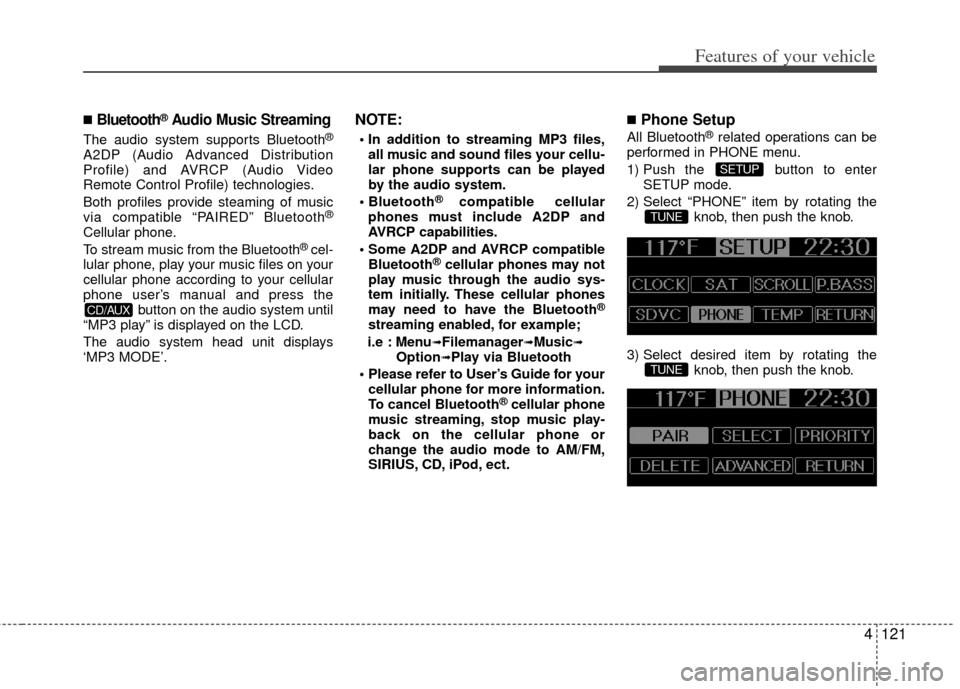
■Phone Setup
All Bluetooth®related operations can be
performed in PHONE menu.
1) Push the button to enter SETUP mode.
2) Select “PHONE” item by rotating the knob, then push the knob.
3) Select desired item by rotating the knob, then push the knob.
TUNE
TUNE
SETUP
CD/AUX
Page 194 of 356
Features of your vehicle
122
4
Before using Bluetooth®features, the
phone must be paired (registered) with
the audio system. Up to 5 phones can be
paired with the system.
NOTE:
• The pairing procedure of the phone varies according to each phone
model. Before attempting to pair
phone, please see your phone’s
User’s Guide for instructions.
• Once pairing with the phone is com- pleted, there is no need to pair with
that phone again unless the phone
is deleted manually from the audio
system (refer “Deleting a Phone”
section) or the vehicle’s information
is removed from the phone.
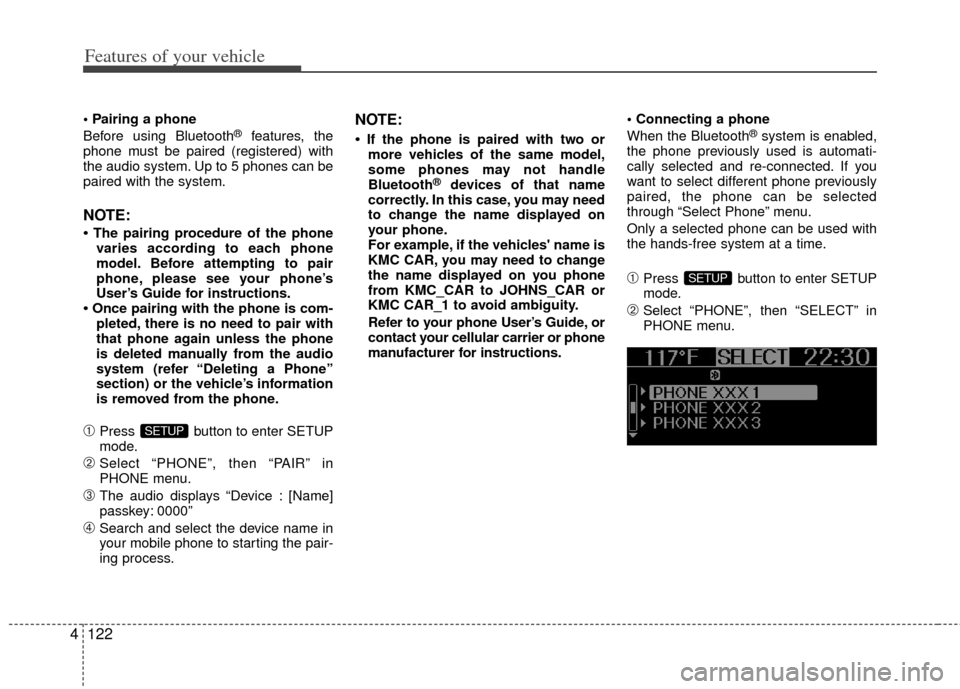
\bPress button to enter SETUP
mode.
➁Select “PHONE”, then “PAIR” in
PHONE menu.
➂The audio displays “Device : [Name]
passkey: 0000”
➃Search and select the device name in
your mobile phone to starting the pair-
ing process.
NOTE:
• If the phone is paired with two ormore vehicles of the same model,
some phones may not handle
Bluetooth
®devices of that name
correctly. In this case, you may need
to change the name displayed on
your phone.
For example, if the vehicles' name is
KMC CAR, you may need to change
the name displayed on you phone
from KMC_CAR to JOHNS_CAR or
KMC CAR_1 to avoid ambiguity.
Refer to your phone User’s Guide, or
contact your cellular carrier or phone
manufacturer for instructions.
When the Bluetooth
®system is enabled,
the phone previously used is automati-
cally selected and re-connected. If you
want to select different phone previously
paired, the phone can be selected
through “Select Phone” menu.
Only a selected phone can be used with
the hands-free system at a time.
\bPress button to enter SETUP
mode.
➁Select “PHONE”, then “SELECT” in
PHONE menu.
SETUP
SETUP
Page 195 of 356
4123
Features of your vehicle
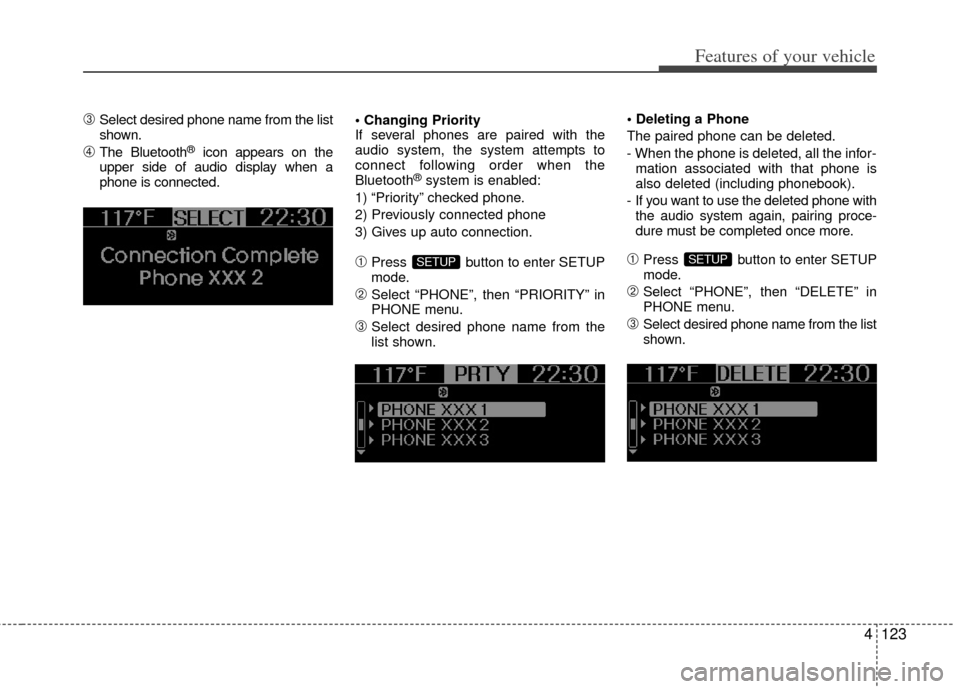
➂Select desired phone name from the list
shown.
➃The Bluetooth®icon appears on the
upper side of audio display when a
phone is connected.
If several phones are paired with the
audio system, the system attempts to
connect following order when the
Bluetooth
®system is enabled:
1) “Priority” checked phone.
2) Previously connected phone
3) Gives up auto connection.
\bPress button to enter SETUP
mode.
➁Select “PHONE”, then “PRIORITY” in
PHONE menu.
➂Select desired phone name from the
list shown.
The paired phone can be deleted.
- When the phone is deleted, all the infor-
mation associated with that phone is
also deleted (including phonebook).
- If you want to use the deleted phone with the audio system again, pairing proce-
dure must be completed once more.
\bPress button to enter SETUP
mode.
➁Select “PHONE”, then “DELETE” in
PHONE menu.
➂Select desired phone name from the list
shown.
SETUPSETUP