Page 129 of 490
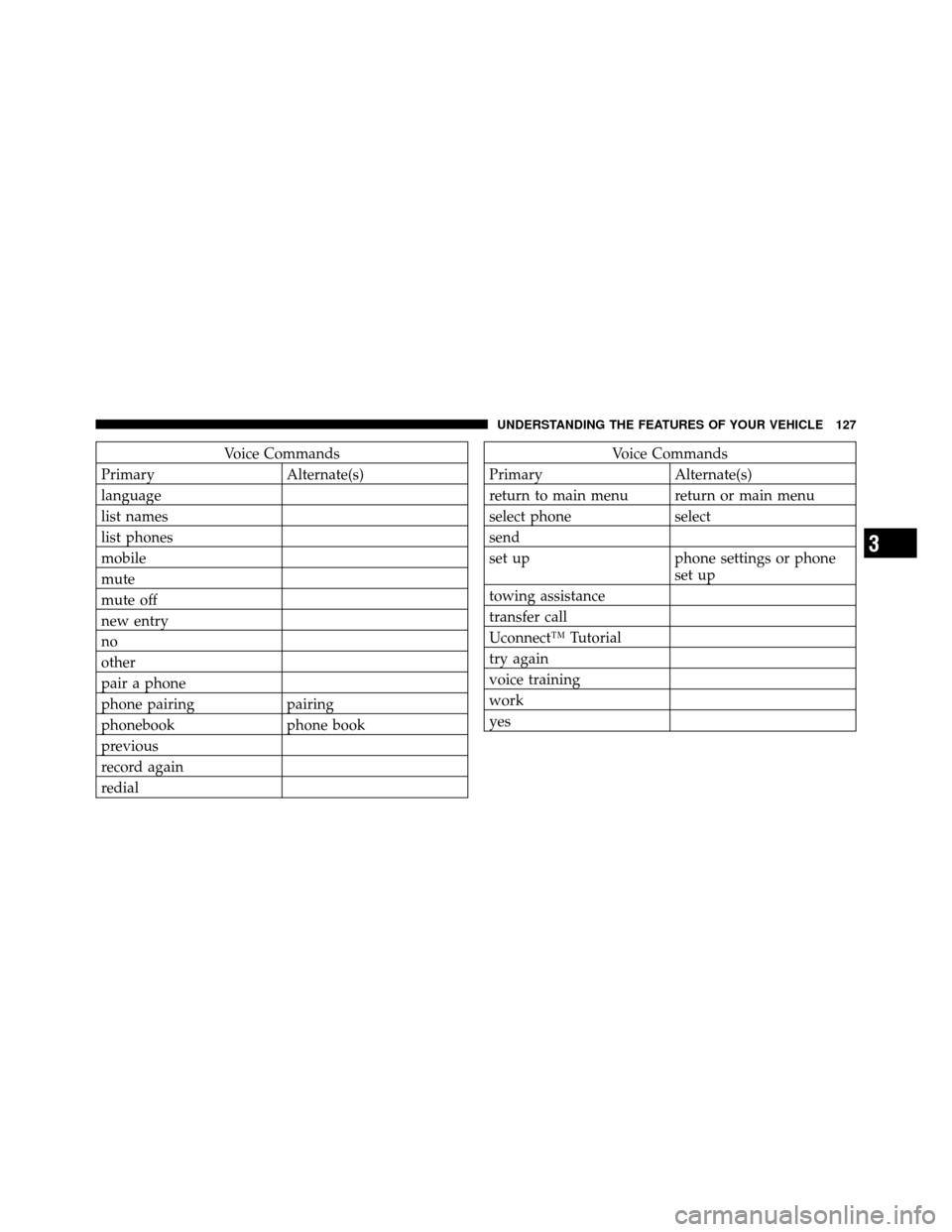
Voice Commands
Primary Alternate(s)
language
list names
list phones
mobile
mute
mute off
new entry
no
other
pair a phone
phone pairing pairing
phonebook phone book
previous
record again
redialVoice Commands
Primary Alternate(s)
return to main menu return or main menu
select phone select
send
set up phone settings or phone set up
towing assistance
transfer call
Uconnect™ Tutorial
try again
voice training
work
yes
3
UNDERSTANDING THE FEATURES OF YOUR VEHICLE 127
Page 134 of 490

Memo
To switch to the voice recorder mode, say “Memo”. In
this mode, you may say the following commands:
•“New Memo” (to record a new memo) — During the
recording, you may press the Voice Command
button to stop recording. You proceed by saying one of
the following commands:
“Save” (to save the memo)
“Continue” (to continue recording)
“Delete” (to delete the recording)
•“Play Memos” (to play previously recorded memos)
— During the playback you may press the Voice
Command
button to stop playing memos. You
proceed by saying one of the following commands:
“Repeat” (to repeat a memo)
“Next” (to play the next memo)
“Previous” (to play the previous memo)
“Delete” (to delete a memo)
•“Delete All” (to delete all memos)
Setup
To switch to system setup, you may say on of the
following:
•“Change to setup”
•“Switch to system setup”
•“Change to setup”
•“Main menu setup” or
•“Switch to setup”
In this mode, you may say the following commands:
•“Language English”
•“Language French”
132 UNDERSTANDING THE FEATURES OF YOUR VEHICLE
Page 135 of 490
•“Language Spanish”
•“Tutorial”
•“Voice Training”
NOTE: Keep in mind that you have to press the Voice
Command
button first and wait for the beep
before speaking the “Barge In” commands.
Voice Training
For users experiencing difficulty with the system recog-
nizing their voice commands or numbers the Uconnect™
Voice “Voice Training” feature may be used. 1. Press the Voice Command
button, say “System
Setup” and once you are in that menu then say “Voice
Training.” This will train your own voice to the system
and will improve recognition.
2. Repeat the words and phrases when prompted by
Uconnect™ Voice. For best results, the “Voice Training”
session should be completed when the vehicle is parked,
engine running, all windows closed, and the blower fan
switched off. This procedure may be repeated with a new
user. The system will adapt to the last trained voice only.
3
UNDERSTANDING THE FEATURES OF YOUR VEHICLE 133
Page 217 of 490
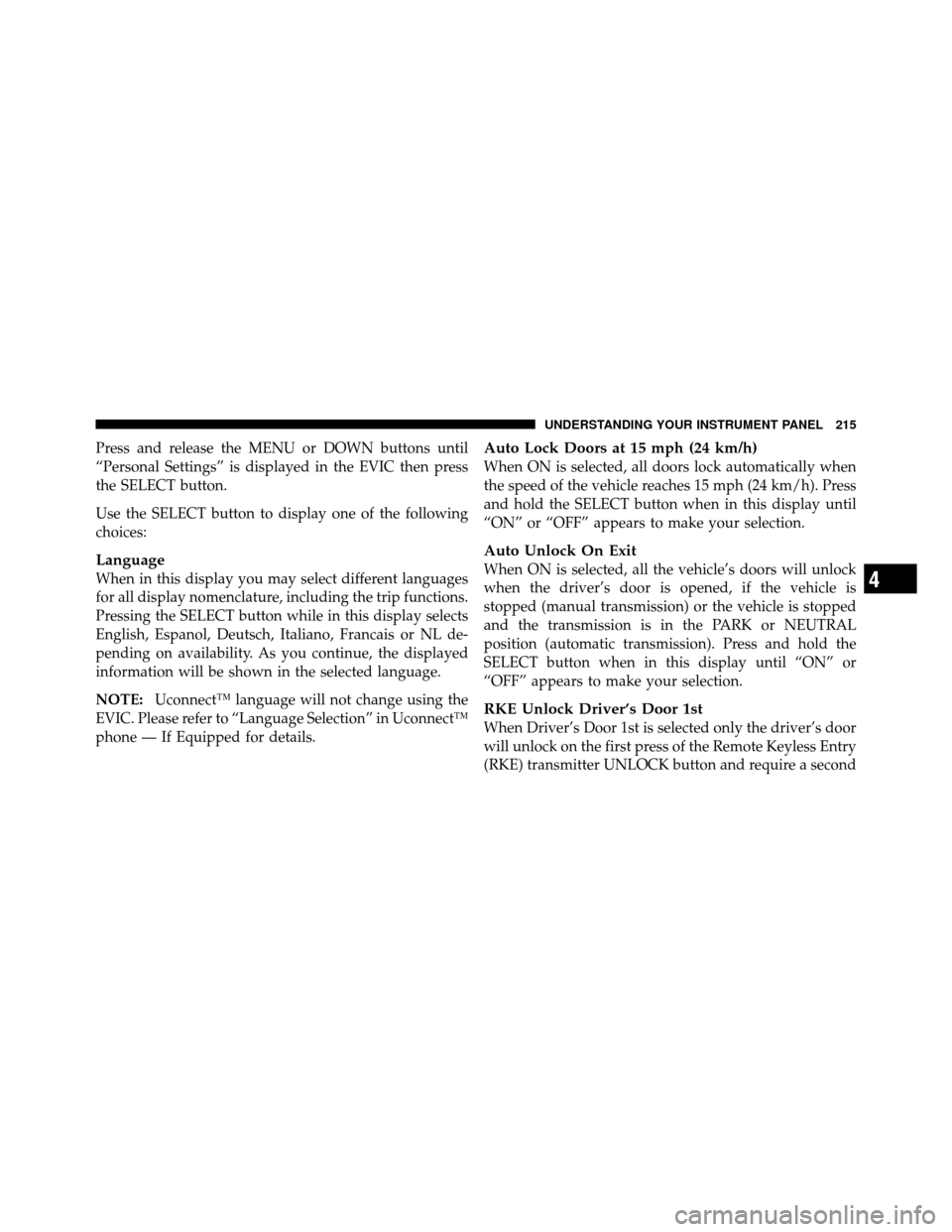
Press and release the MENU or DOWN buttons until
“Personal Settings” is displayed in the EVIC then press
the SELECT button.
Use the SELECT button to display one of the following
choices:
Language
When in this display you may select different languages
for all display nomenclature, including the trip functions.
Pressing the SELECT button while in this display selects
English, Espanol, Deutsch, Italiano, Francais or NL de-
pending on availability. As you continue, the displayed
information will be shown in the selected language.
NOTE:Uconnect™ language will not change using the
EVIC. Please refer to “Language Selection” in Uconnect™
phone — If Equipped for details.
Auto Lock Doors at 15 mph (24 km/h)
When ON is selected, all doors lock automatically when
the speed of the vehicle reaches 15 mph (24 km/h). Press
and hold the SELECT button when in this display until
“ON” or “OFF” appears to make your selection.
Auto Unlock On Exit
When ON is selected, all the vehicle’s doors will unlock
when the driver’s door is opened, if the vehicle is
stopped (manual transmission) or the vehicle is stopped
and the transmission is in the PARK or NEUTRAL
position (automatic transmission). Press and hold the
SELECT button when in this display until “ON” or
“OFF” appears to make your selection.
RKE Unlock Driver’s Door 1st
When Driver’s Door 1st is selected only the driver’s door
will unlock on the first press of the Remote Keyless Entry
(RKE) transmitter UNLOCK button and require a second
4
UNDERSTANDING YOUR INSTRUMENT PANEL 215
Page 226 of 490
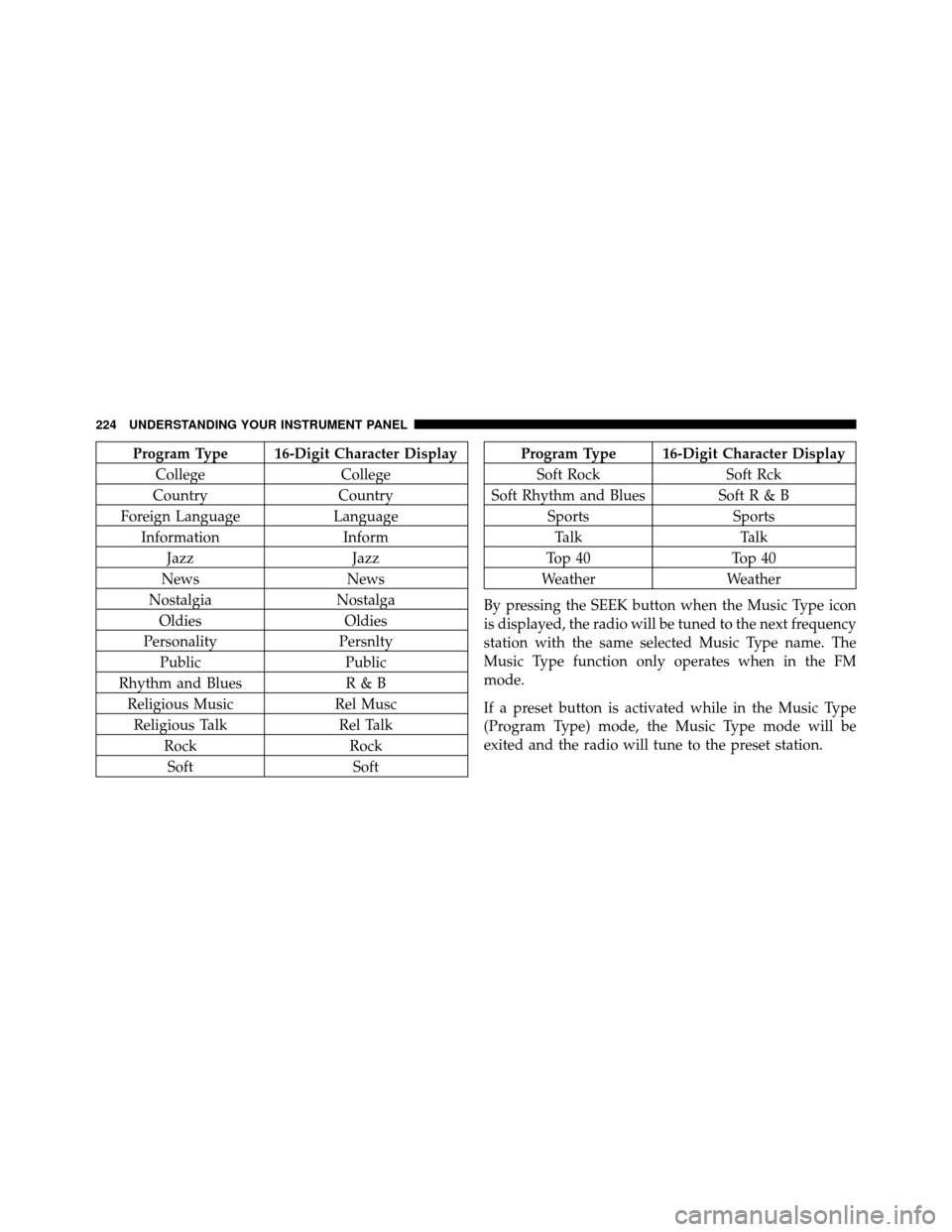
Program Type 16-Digit Character DisplayCollege College
Country Country
Foreign Language Language
Information Inform
Jazz Jazz
News News
Nostalgia Nostalga
Oldies Oldies
Personality Persnlty
Public Public
Rhythm and Blues R & B
Religious Music Rel Musc
Religious Talk Rel Talk
Rock Rock
Soft SoftProgram Type 16-Digit Character Display
Soft Rock Soft Rck
Soft Rhythm and Blues SoftR&B Sports Sports
Talk Talk
Top 40 Top 40
Weather Weather
By pressing the SEEK button when the Music Type icon
is displayed, the radio will be tuned to the next frequency
station with the same selected Music Type name. The
Music Type function only operates when in the FM
mode.
If a preset button is activated while in the Music Type
(Program Type) mode, the Music Type mode will be
exited and the radio will tune to the preset station.
224 UNDERSTANDING YOUR INSTRUMENT PANEL
Page 227 of 490
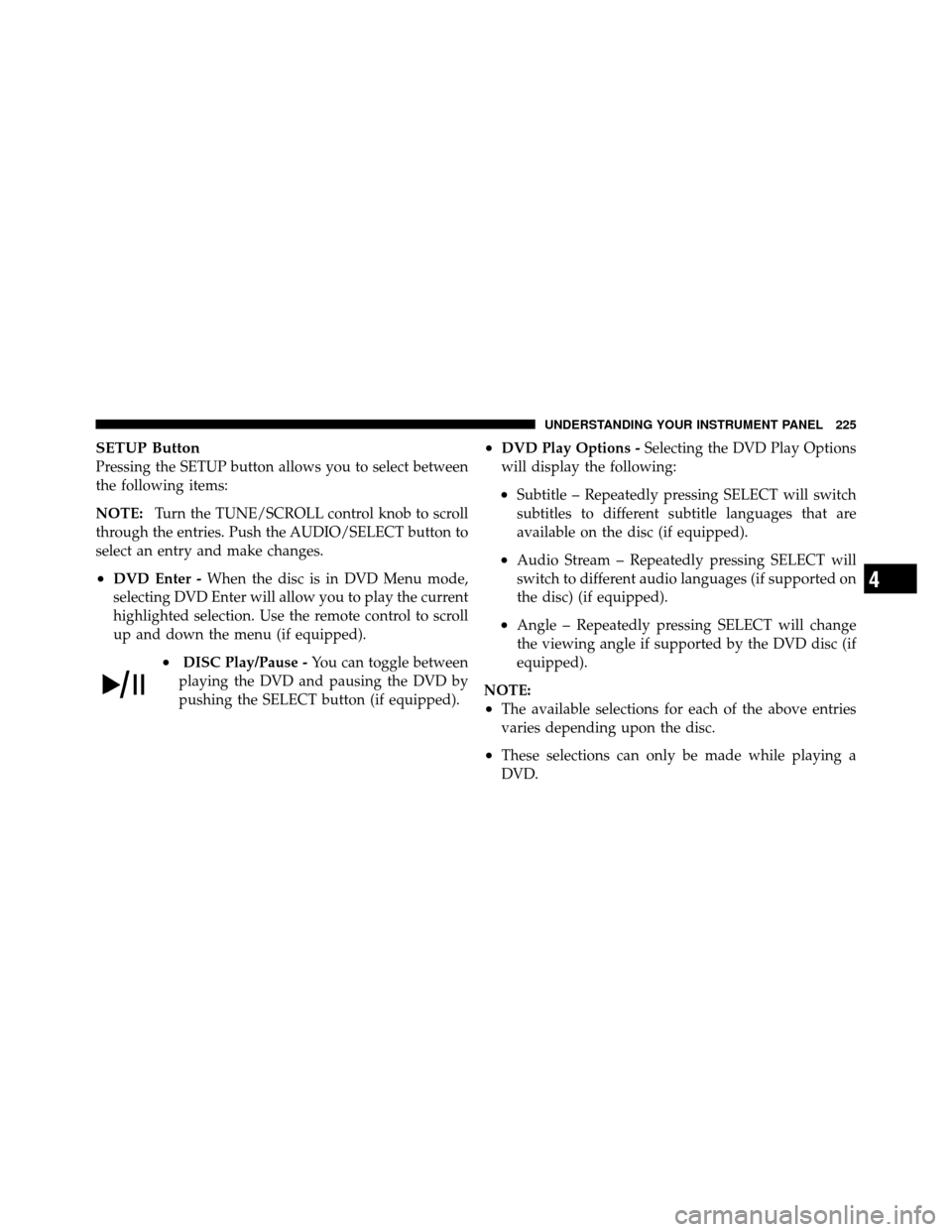
SETUP Button
Pressing the SETUP button allows you to select between
the following items:
NOTE:Turn the TUNE/SCROLL control knob to scroll
through the entries. Push the AUDIO/SELECT button to
select an entry and make changes.
•DVD Enter - When the disc is in DVD Menu mode,
selecting DVD Enter will allow you to play the current
highlighted selection. Use the remote control to scroll
up and down the menu (if equipped).
•DISC Play/Pause - You can toggle between
playing the DVD and pausing the DVD by
pushing the SELECT button (if equipped).
•DVD Play Options - Selecting the DVD Play Options
will display the following:
•Subtitle – Repeatedly pressing SELECT will switch
subtitles to different subtitle languages that are
available on the disc (if equipped).
•Audio Stream – Repeatedly pressing SELECT will
switch to different audio languages (if supported on
the disc) (if equipped).
•Angle – Repeatedly pressing SELECT will change
the viewing angle if supported by the DVD disc (if
equipped).
NOTE:
•The available selections for each of the above entries
varies depending upon the disc.
•These selections can only be made while playing a
DVD.
4
UNDERSTANDING YOUR INSTRUMENT PANEL 225
Page 228 of 490

•VES™ Power -Allows you to turn VES™ ON and
OFF (if equipped).
•VES™ Lock - Locks out rear VES™ remote controls (if
equipped).
•VES™ CH1/CH2 - Allows the user to change the
mode of either the IR1 or IR2 wireless headphones by
pressing the AUDIO/SELECT button (if equipped).
•Set Home Clock - Pressing the SELECT button allows
you to set the clock. Turn the TUNE/SCROLL control
knob to adjust the hours and then press and turn the
TUNE/SCROLL control knob to adjust the minutes.
Press the TUNE/SCROLL control knob again to save
changes.
•Player Defaults - Selecting this item will allow the
user to scroll through the following items and set
defaults according to customer preference. Menu Language — If Equipped
Selecting this item will allow the user to choose the
default startup DVD menu language (effective only if
language supported by disc). If you want to select a
language not listed, then scroll down and select
�other.�
Enter the four-digit country code using the TUNE/
SCROLL control knob to scroll up and down to select the
number and then push to select.
Audio Language — If Equipped
Selecting this item allows you to choose a default audio
language (effective only if the language is supported by
the disc). You can select a language not listed by scrolling
down and selecting �other.�Enter the country code using
the TUNE/SCROLL control knob to scroll up and down
to select the number and then push to select.
Subtitle Language — If Equipped
Selecting this item allows you to choose a default subtitle
language (effective only if the language is supported by
226 UNDERSTANDING YOUR INSTRUMENT PANEL
Page 229 of 490
the disc). You can select a language not listed by scrolling
down and selecting�other.�Enter the country code using
the TUNE/SCROLL control knob to scroll up and down
to select the number and then push to select.
Subtitles — If Equipped
Selecting this item allows you to choose between subtitle
Off or On.
Audio DRC — If Equipped
Selecting this item allows you to limit maximum audio
dynamic range. The default is set to �High,�and under
this setting, dialogues will play at 11 db higher than if the
setting is �Normal.�
Aspect Ratio — If Equipped
Selecting this item allows you to choose between wide
screen, pan scan, and letter box. AutoPlay — If Equipped
When this is set to On and a DVD video is inserted, it will
bypass the DVD menu screen and automatically play the
movie. In some rare cases, the DVD player may not
auto-play the main title. In such cases, use the MENU
button on the remote control to select desired title to play.
NOTE:
The user will have to set these defaults before
loading a disc. If changes are made to these settings after
a disc is loaded, changes will not be effective. Also, the
defaults are effective only if the disc supports the
customer-preferred settings.
AM and FM Buttons
Press the buttons to select AM or FM mode.
SET Button — To Set the Pushbutton Memory
When you are receiving a station that you wish to
commit to pushbutton memory, press the SET button.
The symbol SET 1 will now show in the display window.
Select the button (1-6) you wish to lock onto this station
4
UNDERSTANDING YOUR INSTRUMENT PANEL 227