CONSEQUENTIAL OR INCIDENTAL DAMAGES OR
FOR ANY LOST PROFITS OR LOST REVENUES.
Copyright :
Music recognition technology and related data
are provided by Gracenote�. Gracenote is the
industry standard in music recognition technol-
ogy and related content delivery. For more
information, please visit www.gracenote.com.
CD and music-related data from Gracenote, Inc.,
copyright © 2000-2009 Gracenote. Gracenote
Software, copyright © 2000-2009 Gracenote.
This product and service may practice one or
more of the following U.S. Patents: #5,987,525;
#6,061,680; #6,154,773, #6,161,132,
#6,230,192, #6,230,207, #6,240,459,
#6,330,593, and other patents issued or pend-
ing. Some services supplied under license from
Open Globe, Inc. for U.S. Patent: #6,304,523.
Gracenote and CDDB are registered trademarks
of Gracenote. The Gracenote logo and logotype,
and the “Powered by Gracenote” logo are trade-
marks of Gracenote.
AUXILIARY INPUT JACKS (if so
equipped)
The auxiliary input jacks are located in the
center console. NTSC compatible devices such
as video games, camcorders and portable video
players can be connected to the auxiliary jacks.
Compatible audio devices, such as some MP3
players, can also be connected to the system
through the auxiliary jacks.The auxiliary jacks are color coded for identifi-
cation purposes.
●
Yellow - video input
● White - left channel audio input
● Red - right channel audio input
Before connecting a device to a jack, turn off the
power of the portable device.
With a compatible device connected to the
jacks, push the AUX button to switch to the AUX
mode. The output from the device will be played
through the monitor and audio system.
SAA2990
4-80Monitor, climate, audio, phone and voice recognition systems
AUX Menu
When the “Setting” key on the display is se-
lected while in the AUX mode, the menu screen
will be displayed.
Display Mode :
Choose the display mode from the following
items.
●Normal
● Wide
● Cinema
CD/DVD/USB MEMORY CARE AND
CLEANING
CD/DVD
●Handle a CD/DVD by its edges. Never touch
the surface of the disc. Do not bend the disc.
● Always place the discs in the storage case
when they are not being used.
● To clean a disc, wipe the surface from the
center to the outer edge using a clean, soft
cloth. Do not wipe the disc using a circular
motion.
Do not use a conventional record cleaner or
alcohol intended for industrial use. ●
A new disc may be rough on the inner and
outer edges. Remove the rough edges by
rubbing the inner and outer edges with the
side of a pen or pencil as illustrated.
USB memory
●Never touch the terminal portion of the USB
memory.
● Do not place heavy objects on the USB
memory.
● Do not store the USB memory in highly
humid locations.
● Do not expose the USB memory to direct
sunlight.
● Do not spill any liquids on the USB memory.
Refer to the USB memory Owner’s Manual for
the details.
SAA1567SAA0451
Monitor, climate, audio, phone and voice recognition systems4-81
●Pushing the menu control switch (models
with navigation system) will show the CD
Menu.
DVD (models with navigation system) :
● Tilting up/down for less than 1.5 seconds
will increase or decrease the track number.
● Tilting up/down for more than 1.5 seconds
will increase or decrease the title number.
● Pushing the menu control switch will select
an item from the DVD display.
● When the transparent operation menu ap-
pears, the switch will control the menu.
USB (if so equipped) :
● Tilting up/down for less than 1.5 seconds
will increase or decrease the track number.
● Tilting up/down for more than 1.5 seconds
will increase/decrease the folder number
● Pushing the menu control switch will show
the USB Menu.
Music Box� (if so equipped) :
● Tilting up/down for less than 1.5 seconds
will increase or decrease the track number.
● Tilting up/down for more than 1.5 seconds
will increase/decrease the album (folder)
number (if playing compressed audio files). ●
Pushing the menu control switch will show
the Music Box� Menu.
Bluetooth� Audio (models with navigation sys-
tem) :
● Tilting up/down for less than 1.5 seconds
will increase or decrease the track number.
AUX (if so equipped) :
● Pushing the menu control switch (models
with navigation system) will show the AUX
Menu.
BACK switch (models with
navigation system)
Push this switch to go back to the previous
screen or cancel the selection if it is not com-
pleted.
Volume control switches
Push the upper (+) or lower (�) side switch to
increase or decrease the volume.
Audio source switch
Push the audio source switch to change the
mode as follows. Type A:
●
Models with navigation system
AM →FM →SAT →CD/DVD →Music Box�
→ USB/iPod� →Bluetooth� Audio
● Models without navigation system
AM →FM →CD →Music Box� →USB/iPod�
→ SAT
Type B:
Preset A →Preset B →Preset C →CD
ANTENNA
Window antenna
The antenna pattern is printed inside the rear
window.
CAUTION
●Do not place metalized film near the rear
window glass or attach any metal parts to it.
This may cause poor reception or noise.
● When cleaning the inside of the rear window,
be careful not to scratch or damage the rear
window antenna. Lightly wipe along the an-
tenna with a dampened soft cloth.
Monitor, climate, audio, phone and voice recognition systems4-83
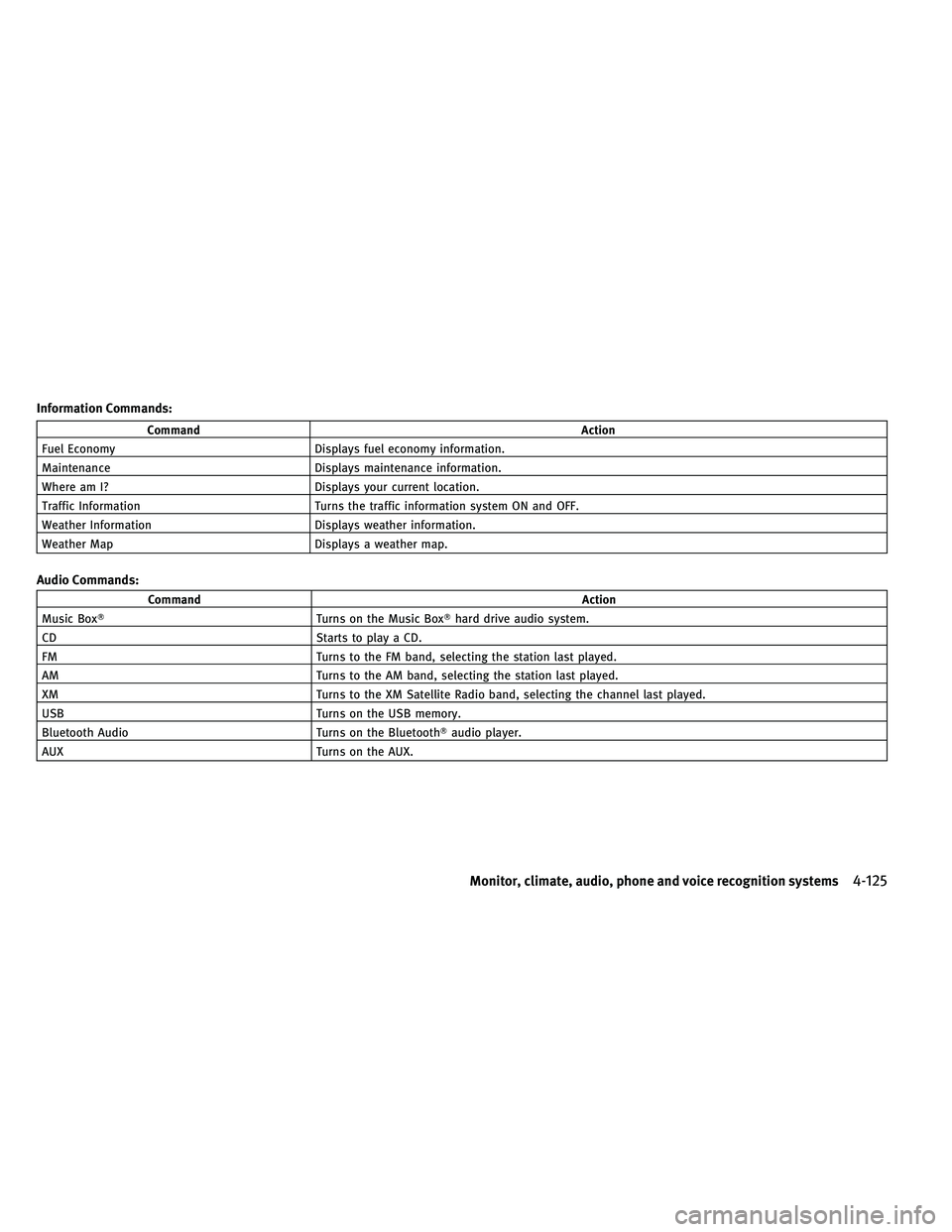
Information Commands:
CommandAction
Fuel Economy Displays fuel economy information.
Maintenance Displays maintenance information.
Where am I? Displays your current location.
Traffic Information Turns the traffic information system ON and OFF.
Weather Information Displays weather information.
Weather Map Displays a weather map.
Audio Commands:
Command Action
Music Box� Turns on the Music Box�hard drive audio system.
CD Starts to play a CD.
FM Turns to the FM band, selecting the station last played.
AM Turns to the AM band, selecting the station last played.
XM Turns to the XM Satellite Radio band, selecting the channel last played.
USB Turns on the USB memory.
Bluetooth Audio Turns on the Bluetooth�audio player.
AUX Turns on the AUX.
Monitor, climate, audio, phone and voice recognition systems4-125