2011 Hyundai Sonata ECO mode
[x] Cancel search: ECO modePage 203 of 380
4 123
Features of your vehicle
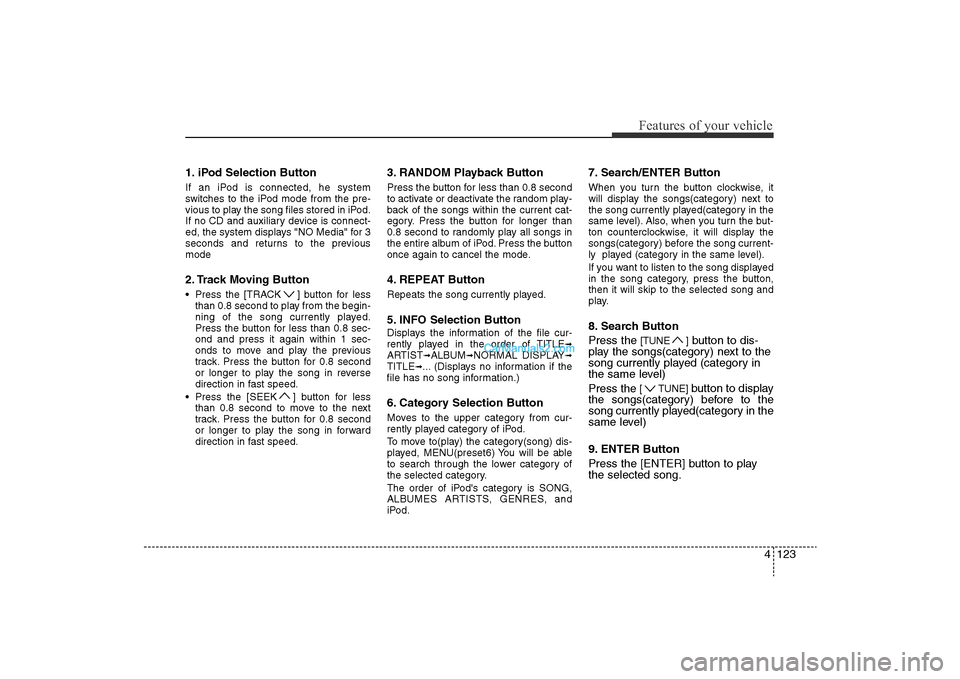
1. iPod Selection ButtonIf an iPod is connected, he system
switches to the iPod mode from the pre-
vious to play the song files stored in iPod.
If no CD and auxiliary device is connect-
ed, the system displays "NO Media" for 3
seconds and returns to the previous
mode2. Track Moving Button• Press the [TRACK ] button for lessthan 0.8 second to play from the begin-
ning of the song currently played.
Press the button for less than 0.8 sec-
ond and press it again within 1 sec-
onds to move and play the previous
track. Press the button for 0.8 second
or longer to play the song in reverse
direction in fast speed.
• Press the [SEEK ] button for less than 0.8 second to move to the next
track. Press the button for 0.8 second
or longer to play the song in forward
direction in fast speed.
3. RANDOM Playback ButtonPress the button for less than 0.8 second
to activate or deactivate the random play-
back of the songs within the current cat-
egory. Press the button for longer than
0.8 second to randomly play all songs in
the entire album of iPod. Press the button
once again to cancel the mode.4. REPEAT ButtonRepeats the song currently played.5. INFO Selection ButtonDisplays the information of the file cur-
rently played in the order of TITLE
➟
ARTIST
➟ALBUM
➟NORMAL DISPLAY
➟
TITLE
➟... (Displays no information if the
file has no song information.)
6. Category Selection ButtonMoves to the upper category from cur-
rently played category of iPod.
To move to(play) the category(song) dis-
played, MENU(preset6) You will be able
to search through the lower category of
the selected category.
The order of iPod's category is SONG,
ALBUMES ARTISTS, GENRES, and
iPod.
7. Search/ENTER ButtonWhen you turn the button clockwise, it
will display the songs(category) next to
the song currently played(category in the
same level). Also, when you turn the but-
ton counterclockwise, it will display the
songs(category) before the song current-
ly played (category in the same level).
If you want to listen to the song displayed
in the song category, press the button,
then it will skip to the selected song and
play.8. Search Button
Press the
[TUNE ]
button to dis-
play the songs(category) next to the
song currently played (category in
the same level)
Press the
[ TUNE]
button to display
the songs(category) before to the
song currently played(category in the
same level)
9. ENTER Button
Press the [ENTER] button to play
the selected song.
YF HMA 4-104~(AUDIO).QXP 12/24/2009 5:22 PM Page 123
Page 205 of 380
4 125
Features of your vehicle
Using XM satellite RadioYour vehicle is equipped with 3 months
complimentary period of XM Satellite
Radio. XM provides access to over 130
channels of music, information, and
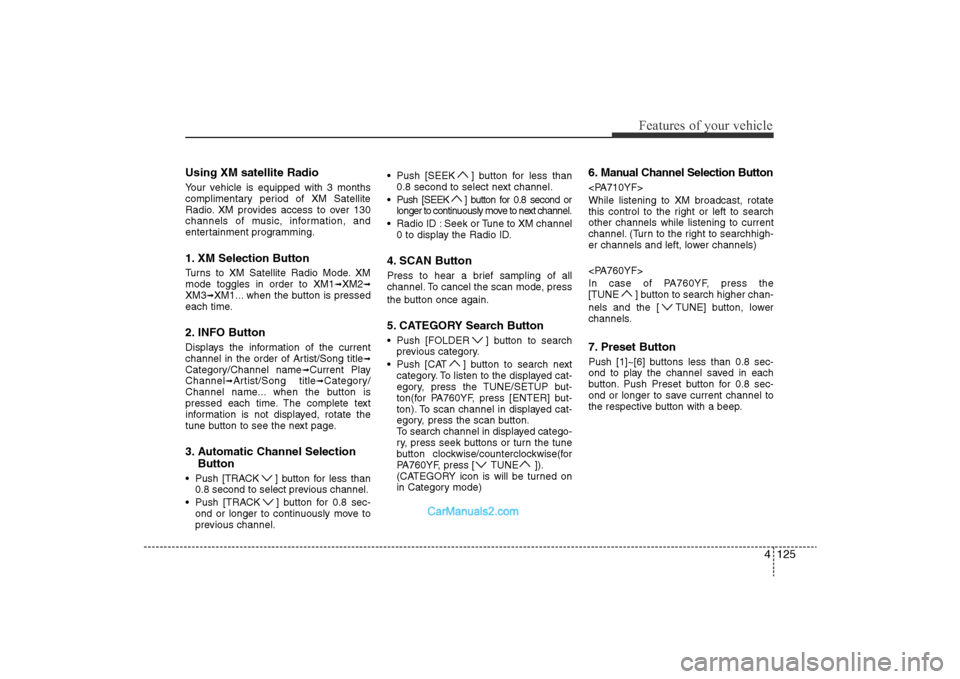
entertainment programming.1. XM Selection ButtonTurns to XM Satellite Radio Mode. XM
mode toggles in order to XM1
➟XM2
➟
XM3
➟XM1... when the button is pressed
each time.
2. INFO ButtonDisplays the information of the current
channel in the order of Artist/Song title
➟
Category/Channel name
➟Current Play
Channel
➟Artist/Song title
➟Category/
Channel name... when the button is
pressed each time. The complete text
information is not displayed, rotate the
tune button to see the next page.
3. Automatic Channel Selection Button• Push [TRACK ] button for less than
0.8 second to select previous channel.
• Push [TRACK ] button for 0.8 sec- ond or longer to continuously move to
previous channel. • Push [SEEK ] button for less than
0.8 second to select next channel.
• Push [SEEK ] button for 0.8 second or longer to continuously move to next channel.
• Radio ID : Seek or Tune to XM channel 0 to display the Radio ID.
4. SCAN ButtonPress to hear a brief sampling of all
channel. To cancel the scan mode, press
the button once again.5. CATEGORY Search Button• Push [FOLDER ] button to searchprevious category.
• Push [CAT ] button to search next category. To listen to the displayed cat-
egory, press the TUNE/SETUP but-
ton(for PA760YF, press [ENTER] but-
ton). To scan channel in displayed cat-
egory, press the scan button.
To search channel in displayed catego-
ry, press seek buttons or turn the tune
button clockwise/counterclockwise(for
PA760YF, press [ TUNE ]).
(CATEGORY icon is will be turned on
in Category mode)
6. Manual Channel Selection Button
While listening to XM broadcast, rotate
this control to the right or left to search
other channels while listening to current
channel. (Turn to the right to searchhigh-
er channels and left, lower channels)
In case of PA760YF, press the
[TUNE ] button to search higher chan-
nels and the [ TUNE] button, lower
channels.7. Preset ButtonPush [1]~[6] buttons less than 0.8 sec-
ond to play the channel saved in each
button. Push Preset button for 0.8 sec-
ond or longer to save current channel to
the respective button with a beep.
YF HMA 4-104~(AUDIO).QXP 12/24/2009 5:22 PM Page 125
Page 207 of 380

4 127
Features of your vehicle
HD RADIO
TM
INFORMATION
Licensing informationHD Radio
TM
Technology Manufactured
Under License From Biquity Digital
Corporation. U.S. and Foreign Patents.
HD Radio
TM
and the HD and HD Radio
logos are proprietary trademarks of
iBiquity Digital Corporation.
Availability informationHD Radio
TMreception is available in the
United States, including Alaska and
Hawaii.
What is HD Radio
TM
technology?
The vehicle audio system (if equipped) is
able to receive standard analog FM/AM
radio broadcasting as well as digital HD
Radio
TMFM/AM broadcasting.
HD RadioTM
technology provides digital
and analog reception using existing FM
and AM broadcasting frequencies. Currently, radio stations broadcasting an
HD Radio
TM
signal are operating in a
hybrid mode of both, analog and digital,
in order to reach both receivers. In both
modes, analog and digital, the broad-
casted program contents is the
same(except of multicasting, see below).
Eventually, as analog receivers are
replaced by digital ones, radio stations
may be able to turn off their analog
broadcasting and use only digital broad-
casting.
MulticastingHD Radio
TM
FM stations are able to
broadcast multiple digital program
streams(channels) over a single FM fre-
quency. For example, a HD Radio
TM
FM
station can run a main channel of music
and a sub channel of news(or even two
different music channels) at one frequen-
cy.
But only the program content of the main
channel is broadcasted in analog.
HD Radio
TM
signal delay
To overcome the delay that digital sys-
tems inherently produce, HD Radio
TM
technology first uses the audio signal of
the analog broadcasting when you tune
to an AM station or to the main channel
of a FM station. After that, the system will
blend from analog to digital signal.
Normally, this blending is very smooth. If
you experience a skip in program content
of several seconds, the radio station has
not implemented HD Radio
TMbroadcast-
ing correctly. This is not a problem with
your audio system.
Due to the fact that sub channels are only
broadcasting digital, blending from analog
to digital signal is not possible if you tune
to a sub channel. In this case playback of
the sub channel starts after several sec-
onds, this is a normal function.
YF HMA 4-104~(AUDIO).QXP 12/24/2009 5:22 PM Page 127
Page 211 of 380

4 131
Features of your vehicle
■Voice Recognition Activation• The voice recognition engine containedin the Bluetooth System can be activat-
ed in the following conditions:
- Button Activation The voice recognition system will be
active when the button is
pressed and after the sound of a
Beep.
- Active Listening The voice recognition system will be
active for a period of time when the
Voice Recognition system has asked
for a customer response.
• The system can recognize single digits- from zero to nine while numbers greater
than ten will not be recognized.
• If the command is not recognized, the system will announce "Pardon" or No
input voice signal from microphone. (No
response)
• The system shall cancel voice recogni- tion mode in following cases : When
pressing the button and saying
cancel following the beep. When not
making a call and pressing the but-
ton. When voice recognition has failed 3
consecutive times.
• At any time if you say “help”, the system
will announce what commands are
available.
■Menu treeThe menu tree identifies available voice
recognition Bluetooth
®functions.
■Voice Operation TipTo get the best performance out of the
Voice Recognition System, observe the
following:
- Keep the interior of the vehicle as quietas possible. Close the window to elimi-
nate surrounding noise (traffic noise,
vibration sounds, etc), which may dis-
turb recognizing the voice command
correctly.
- Speak a command after a beep sound within 5 seconds. Otherwise the com-
mand will not be received properly.
- Speak in a natural voice without paus- ing between words.
The Bluetooth
®
icon appears on the
upper side of audio display when a
phone is connected.
Pair phone
Select phone
Change priority
Delete phone
Bluetooth off
Setup
Add entry
Phonebook
Change
Delete name
By Phone
By voice
Call
By name
By number
YF HMA 4-104~(AUDIO).QXP 12/24/2009 5:22 PM Page 131
Page 212 of 380
Features of your vehicle132
4■Phone SetupAll Bluetooth
®related operations can be
performed by voice command or by man-
ual operation.<
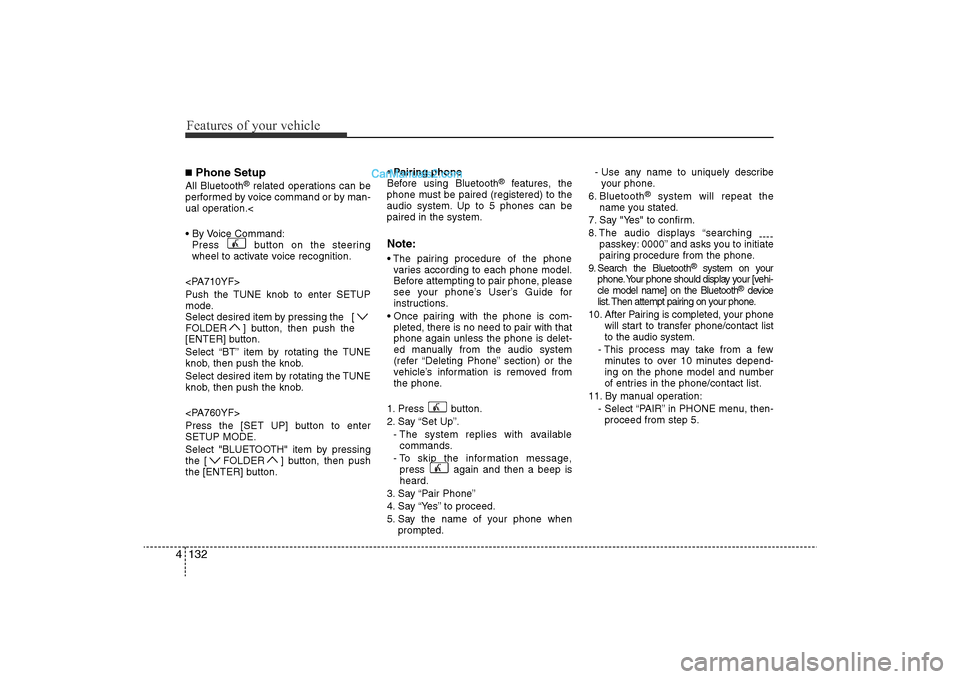
• By Voice Command: Press button on the steeringwheel to activate voice recognition.
Push the TUNE knob to enter SETUP
mode.
Select desired item by pressing the [
FOLDER ] button, then push the
[ENTER] button.
Select “BT” item by rotating the TUNE
knob, then push the knob.
Select desired item by rotating the TUNE
knob, then push the knob.
Press the [SET UP] button to enter
SETUP MODE.
Select "BLUETOOTH" item by pressing
the [ FOLDER ] button, then push
the [ENTER] button. • Pairing phone
Before using Bluetooth
®
features, the
phone must be paired (registered) to the
audio system. Up to 5 phones can be
paired in the system.
Note:• The pairing procedure of the phone varies according to each phone model.
Before attempting to pair phone, please
see your phone’s User’s Guide for
instructions.
• Once pairing with the phone is com- pleted, there is no need to pair with that
phone again unless the phone is delet-
ed manually from the audio system
(refer “Deleting Phone” section) or the
vehicle’s information is removed from
the phone.
1. Press button.
2. Say “Set Up”. - The system replies with availablecommands.
- To skip the information message, press again and then a beep is
heard.
3. Say “Pair Phone”
4. Say “Yes” to proceed.
5. Say the name of your phone when prompted. - Use any name to uniquely describe
your phone.
6. Bluetooth
®
system will repeat the
name you stated.
7. Say "Yes" to confirm.
8. The audio displays “searching ----
passkey: 0000” and asks you to initiate
pairing procedure from the phone.
9. Search the Bluetooth
®
system on your
phone. Your phone should display your [vehi-
cle model name] on the Bluetooth
®device
list. Then attempt pairing on your phone.
10. After Pairing is completed, your phone will start to transfer phone/contact list
to the audio system.
- This process may take from a few minutes to over 10 minutes depend-
ing on the phone model and number
of entries in the phone/contact list.
11. By manual operation: - Select “PAIR” in PHONE menu, then-proceed from step 5.
YF HMA 4-104~(AUDIO).QXP 12/24/2009 5:22 PM Page 132
Page 215 of 380

4 135
Features of your vehicle
• Adding Entry by Phone
1. Press button.
2. Say "Phonebook".
3. Say "Add Entry" after prompt.
4. Say "By Phone" to proceed.
5. Say “Yes” to confirm.
6. Your phone will start to transferphone/contact list to the audio system.
This process may take over 10 minutes
depending on the phone model and
number of entries
7. Wait till the audio displays “Transfer Complete” message.
• Changing Name
The registered names can be modified.
1. Press button.
2. Say “Phonebook”
3. Say “Change Name” after prompt.
4. Say the name of the entry (voice tag).
5. Say “Yes” to confirm.
6. Say new desired name.
• Deleting Name
The registered names can be deleted.
1. Press button.
2. Say “Phonebook”
3. Say “Delete Name” after prompt.
4. Say the name of the entry (voice tag)
5. Say “Yes” to confirm.
■Making a Phone Call• Calling by Name
A phone call can be made by speaking
names registered in the audio system.
1. Press button.
2. Say "Call".
3. Say “Name” when prompted.
4. Say desired name (voice tag).
5. Say desired location (phone number type). Only stored locations can be
selected.
6. Say “Yes” to confirm and make a call.
✽ TipA shortcut to each of the following func-
tions is available:
1. Say “Call Name”
2. Say “Call
3. Say “Call
A phone call can be made by dialing the
spoken numbers. The system can recog-
nize single digits from zero to nine.
1. Press button.
2. Say “Call”.
3. Say “Number” when prompted.
4. Say desired phone numbers.
5. Say “Dial” to complete the number and
make a call. ✽
Tip
A shortcut to each of the following func-
tions is available:
1. Say “Dial Number”
2. Say “Dial
is audible from speakers and the audio
system changes into telephone mode.
When receiving a phone call, “Incoming”
message and incoming phone number
(if available) are displayed on the audio.
• To Answer a Call:
- Press button on the steering wheel.
• To Reject a Call: - Press button on the steeringwheel.
• To Adjust Ring Volume: - Use VOLUME buttons on the steeringwheel.
• To Transfer a Call to the Phone (Secret Call): - Press and hold button on the steer-ing wheel until the audio system trans-
fers a call to the phone.
YF HMA 4-104~(AUDIO).QXP 12/24/2009 5:22 PM Page 135
Page 226 of 380
Driving your vehicle10
5✽
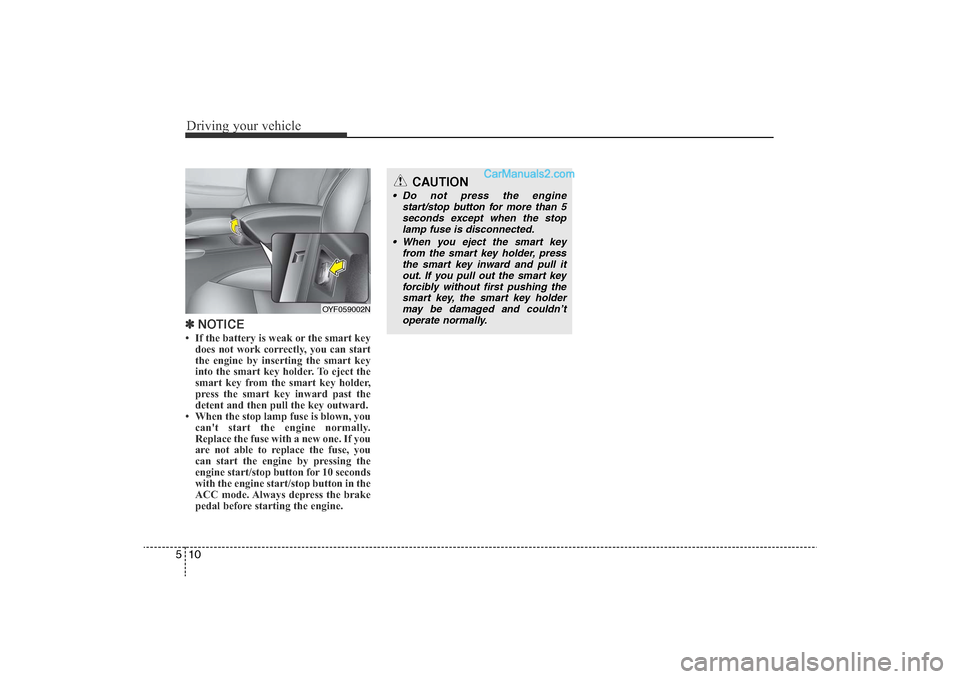
NOTICE• If the battery is weak or the smart key
does not work correctly, you can start
the engine by inserting the smart key
into the smart key holder. To eject the
smart key from the smart key holder,
press the smart key inward past the
detent and then pull the key outward.
• When the stop lamp fuse is blown, you can't start the engine normally.
Replace the fuse with a new one. If you
are not able to replace the fuse, you
can start the engine by pressing the
engine start/stop button for 10 seconds
with the engine start/stop button in the
ACC mode. Always depress the brake
pedal before starting the engine.
OYF059002N
CAUTION
• Do not press the engine
start/stop button for more than 5seconds except when the stop lamp fuse is disconnected.
• When you eject the smart key from the smart key holder, pressthe smart key inward and pull itout. If you pull out the smart keyforcibly without first pushing the smart key, the smart key holdermay be damaged and couldn’t operate normally.
YF hma 5.qxp 11/25/2009 5:42 PM Page 10
Page 234 of 380
![Hyundai Sonata 2011 Owners Manual
Driving your vehicle18
5With the shift lever in the D position
The paddle shifter can operate when the
vehicle speed is more than 10km/h.
Pull the [+] or [-] paddle shifter once to
shift up or down](/manual-img/35/16817/w960_16817-233.png "Hyundai Sonata 2011 Owners Manual
Driving your vehicle18
5With the shift lever in the D position
The paddle shifter can operate when the
vehicle speed is more than 10km/h.
Pull the [+] or [-] paddle shifter once to
shift up or down")
Driving your vehicle18
5With the shift lever in the D position
The paddle shifter can operate when the
vehicle speed is more than 10km/h.
Pull the [+] or [-] paddle shifter once to
shift up or down one gear and the system
changes from automatic mode to manual
mode.
If the vehicle speed is lower than 10km/h,
if you depress the accelerator pedal for
more than 7 seconds or if you shift the
shift lever from D to sport mode and shift
it from sport mode to D again, the system
will change from manual mode to auto-
matic mode.
With the shift lever in the sport mode
Pull the [+] or [-] paddle shifter once to
shift up or down one gear.✽
NOTICEIf you pull the [+] and [-] paddle shifters
at the same time, you can't shift the gear.
Shift lock system For your safety, the automatic transaxle
has a shift lock system which prevents
shifting the transaxle from P (Park) or N
(Neutral) into R (Reverse) unless the
brake pedal is depressed.
To shift the transaxle from P (Park) or N
(Neutral) into R (Reverse):
1. Depress and hold the brake pedal.
2. Start the engine or turn the ignition
switch to the ON position.
3. Move the shift lever.
If the brake pedal is repeatedly
depressed and released with the shift
lever in the P (Park) position, a chattering
noise near the shift lever may be heard.
This is a normal condition. Shift-lock override
If the shift lever cannot be moved from
the P (Park) or N (Neutral) position into R
(Reverse) position with the brake pedal
depressed, continue depressing the
brake, then do the following:
1. Carefully remove the cap (1) covering
the shift-lock access hole.
2. Insert a key (or screwdriver) into the access hole and press down on the
key (or screwdriver).
3. Move the shift lever.
4. Have your vehicle inspected by an authorized HYUNDAI dealer immedi-
ately.
OYF059011N
WARNING
Always fully depress the brake
pedal before and while shifting out
of the P (Park) position into anoth-
er position to avoid inadvertent
motion of the vehicle which could
injure persons in or around the car.
YF hma 5.qxp 11/25/2009 5:44 PM Page 18