Page 204 of 404
Features of your vehicle
110 4
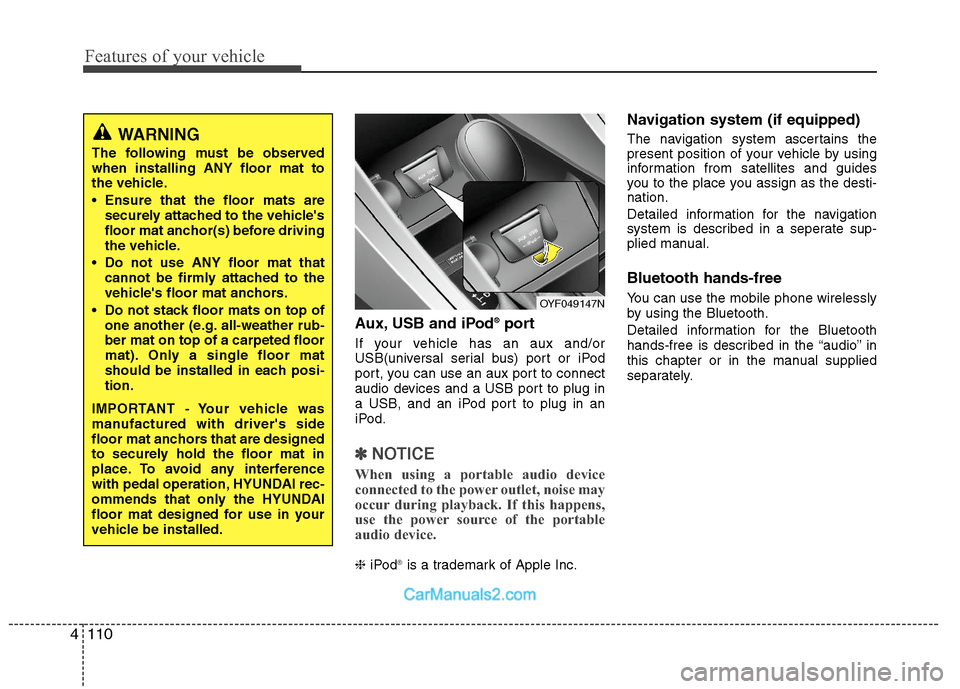
Aux, USB and iPod®port
If your vehicle has an aux and/or
USB(universal serial bus) port or iPod
port, you can use an aux port to connect
audio devices and a USB port to plug in
a USB, and an iPod port to plug in an
iPod.
✽ ✽
NOTICE
When using a portable audio device
connected to the power outlet, noise may
occur during playback. If this happens,
use the power source of the portable
audio device.
❈iPod®is a trademark of Apple Inc.
Navigation system (if equipped)
The navigation system ascertains the
present position of your vehicle by using
information from satellites and guides
you to the place you assign as the desti-
nation.
Detailed information for the navigation
system is described in a seperate sup-
plied manual.
Bluetooth hands-free
You can use the mobile phone wirelessly
by using the Bluetooth.
Detailed information for the Bluetooth
hands-free is described in the “audio” in
this chapter or in the manual supplied
separately.
WARNING
The following must be observed
when installing ANY floor mat to
the vehicle.
Ensure that the floor mats are
securely attached to the vehicle's
floor mat anchor(s) before driving
the vehicle.
Do not use ANY floor mat that
cannot be firmly attached to the
vehicle's floor mat anchors.
Do not stack floor mats on top of
one another (e.g. all-weather rub-
ber mat on top of a carpeted floor
mat). Only a single floor mat
should be installed in each posi-
tion.
IMPORTANT - Your vehicle was
manufactured with driver's side
floor mat anchors that are designed
to securely hold the floor mat in
place. To avoid any interference
with pedal operation, HYUNDAI rec-
ommends that only the HYUNDAI
floor mat designed for use in your
vehicle be installed.
OYF049147N
Page 210 of 404
Features of your vehicle
116 4
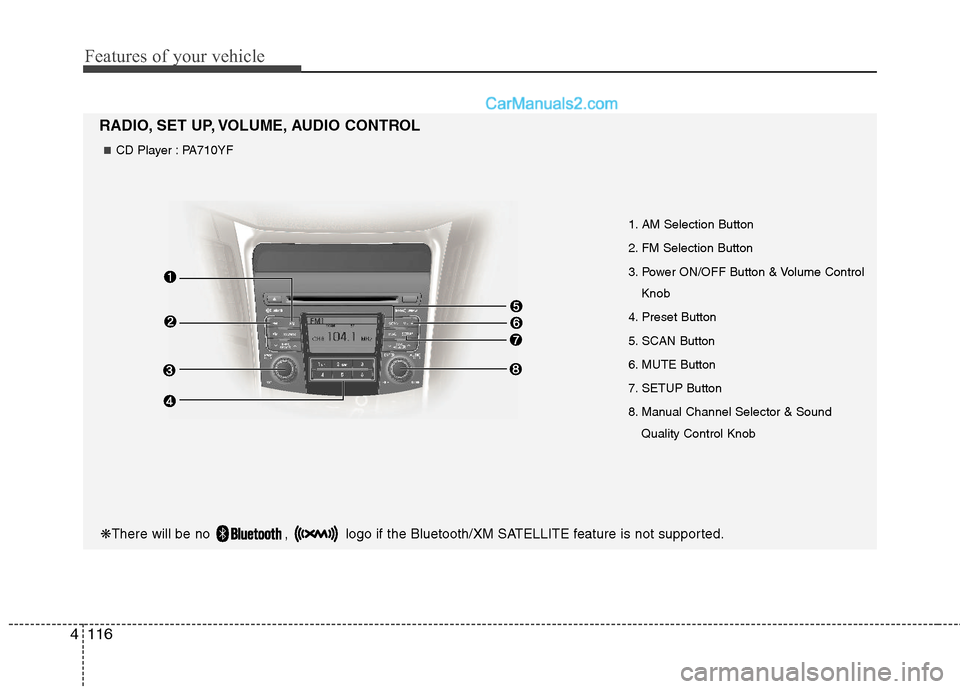
1. AM Selection Button
2. FM Selection Button
3. Power ON/OFF Button & Volume Control
Knob
4. Preset Button
5. SCAN Button
6. MUTE Button
7. SETUP Button
8. Manual Channel Selector & Sound
Quality Control Knob
RADIO, SET UP, VOLUME, AUDIO CONTROL
❋There will be no , logo if the Bluetooth/XM SATELLITE feature is not supported.
CD Player : PA710YF
Page 213 of 404
4119
Features of your vehicle
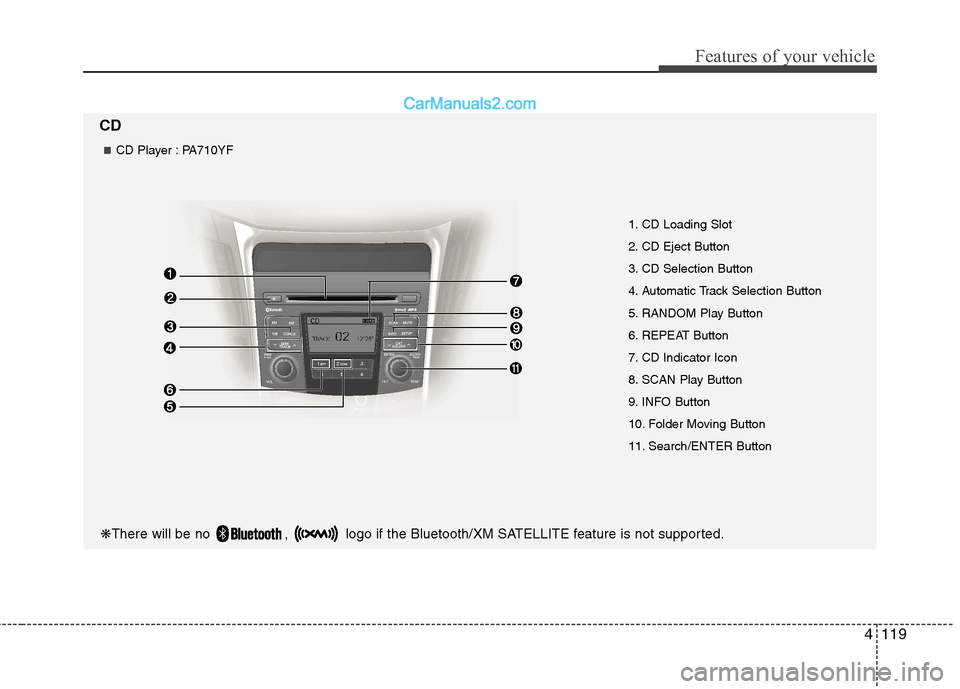
CD
1. CD Loading Slot
2. CD Eject Button
3. CD Selection Button
4. Automatic Track Selection Button
5. RANDOM Play Button
6. REPEAT Button
7. CD Indicator Icon
8. SCAN Play Button
9. INFO Button
10. Folder Moving Button
11. Search/ENTER Button
❋There will be no , logo if the Bluetooth/XM SATELLITE feature is not supported.
CD Player : PA710YF
Page 218 of 404
Features of your vehicle
124 4
USING USB
1. USB Selection Button
2. Track Moving Button
3. RANDOM Playback Button
4. REPEAT Button
5. SCAN Selection Button
6. INFO Selection Button
7. Folder Moving Button
8. Search/ENTER Button
❋There will be no , logo if the Bluetooth/XM SATELLITE feature is not supported.
CD Player : PA710YF
Page 220 of 404

Features of your vehicle
126 4
✽
✽
NOTICE FOR USING THE
iPod®DEVICE
• Some iPod models might not sup-
port the communication protocol
and the files will not be played.
Supported iPod models:
- iPod Mini
- iPod 4th(Photo) ~ 6th(Classic)
generation
- iPod Nano 1st~4th generation
- iPod Touch 1st~2nd generation
• The order of search or playback of
songs in the iPod can be different
from the order searched in the
audio system.
• If the iPod disabled due to its own
malfunction, reset the iPod. (Reset:
Refer to iPod manual)
• An iPod may not operate normally
on low battery.
• Some iPod devices, such as the
iPhone, can be connected through the
Bluetooth
®interface. The device
must have audio Bluetooth®capabili-
ty (such as for stereo headphone
Bluetooth
®). The device can play, but
it will not be controlled by the audio
system.
(Continued)
When the iPod cable is connected,
the system can be switched to AUX
mode even without iPod device
and may cause noise. Disconnect
the iPod cable when you are not
using the iPod device.
When not using iPod with car
audio, detach the iPod cable from
iPod. Otherwise, iPod may remain
in accessory mode, and may not
work properly.CAUTION IN USING THE
iPod®DEVICE
The Hyundai iPod Power Cable is
needed in order to operate iPod
with the audio buttons on the
audio system. The USB cable pro-
vided by Apple may cause mal-
function and should not be used
for Hyundai vehicles.
❋ The Hyundai iPod Power Cable
may be purchased through your
Hyundai Dealership.
When connecting iPod with the
iPod Power Cable, insert the con-
nector to the multimedia socket
completely. If not inserted com-
pletely, communications between
iPod and audio may be interrupted.
When adjusting the sound effects of
the iPod and the audio system, the
sound effects of both devices will
overlap and might reduce or distort
the quality of the sound.
Deactivate (turn off) the equalizer
function of an iPod when adjust-
ing the audio system’s volume,
and turn off the equalizer of the
audio system when using the
equalizer of an iPod.
(Continued)
Page 221 of 404
4127
Features of your vehicle
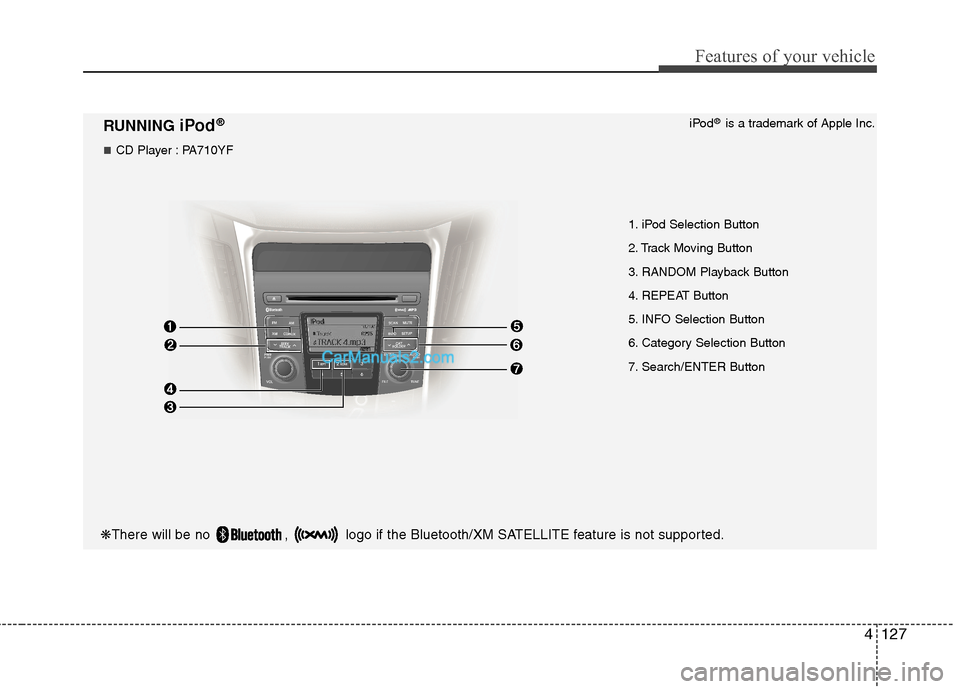
RUNNING iPod®
1. iPod Selection Button
2. Track Moving Button
3. RANDOM Playback Button
4. REPEAT Button
5. INFO Selection Button
6. Category Selection Button
7. Search/ENTER Button iPod
®is a trademark of Apple Inc.
❋There will be no , logo if the Bluetooth/XM SATELLITE feature is not supported.
CD Player : PA710YF
Page 223 of 404
4129
Features of your vehicle
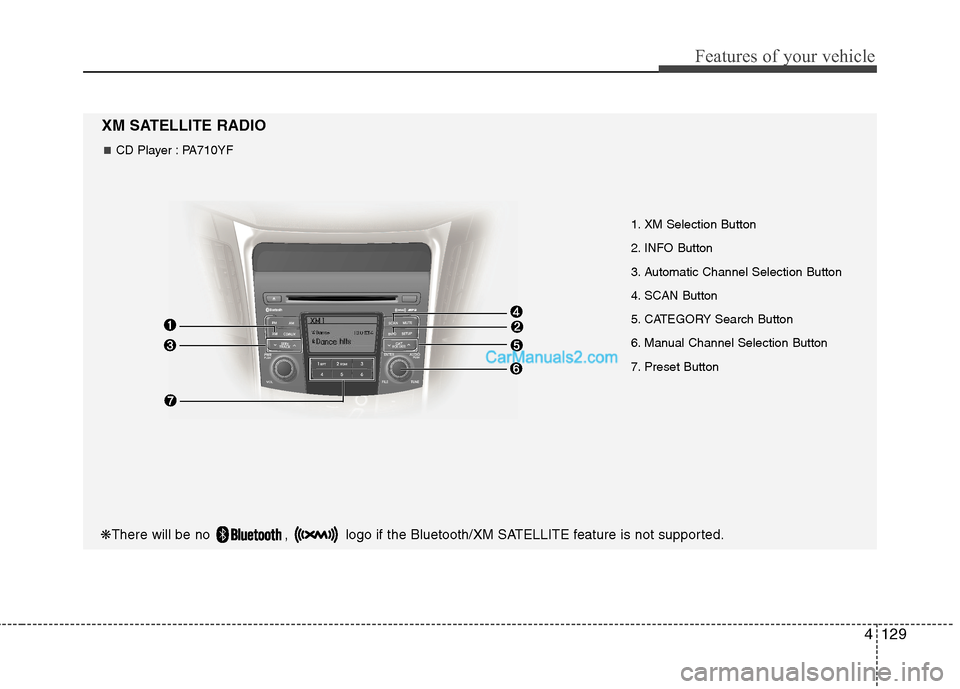
1. XM Selection Button
2. INFO Button
3. Automatic Channel Selection Button
4. SCAN Button
5. CATEGORY Search Button
6. Manual Channel Selection Button
7. Preset Button
XM SATELLITE RADIO
❋There will be no , logo if the Bluetooth/XM SATELLITE feature is not supported.
CD Player : PA710YF
Page 225 of 404

4131
Features of your vehicle
CAUTION IN USING
BLUETOOTH®CELLULAR
PHONE
Do not use a cellular phone or
perform Bluetooth®settings (e.g.
pairing a phone) while driving.
Some Bluetooth
®-enabled phones
may not be recognized by the
system or fully compatible with
the system.
Before using Bluetooth
®related
features of the audio system,
refer your phone’s User’s Manual
for phone-side Bluetooth
®opera-
tions.
The phone must be paired to the
audio system to use Bluetooth®
related features.
You will not be able to use the
hands-free feature when your
phone (in the car) is outside of
the cellular service area (e.g. in a
tunnel, in a underground, in a
mountainous area, etc.).
If the cellular phone signal is poor
or the vehicles interior noise is
too loud, it may be difficult to hear
the other person’s voice during a
call.
(Continued)
(continued)
Do not place the phone near or
inside metallic objects, otherwise
communications with Bluetooth
®
system or cellular service sta-
tions can be disturbed.
While a phone is connected
through Bluetooth
®your phone
may discharge quicker than usual
for additional Bluetooth
®-related
operations.
Some cellular phones or other
devices may cause interference
noise or malfunction to audio
system. In this case, store the
device in a different location may
resolve the situation.