2011 Hyundai Santa Fe diff
[x] Cancel search: diffPage 119 of 408
Features of your vehicle
40
4
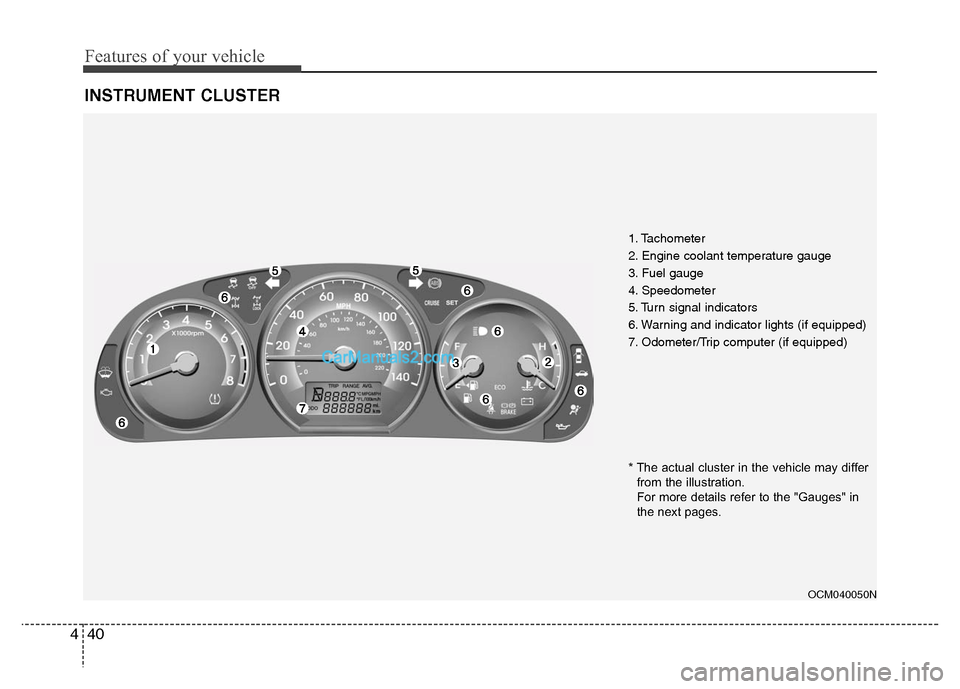
INSTRUMENT CLUSTER
1. Tachometer
2. Engine coolant temperature gauge
3. Fuel gauge
4. Speedometer
5. Turn signal indicators
6. Warning and indicator lights (if equipped)
7. Odometer/Trip computer (if equipped)
OCM040050N
* The actual cluster in the vehicle may differ
from the illustration.
For more details refer to the "Gauges" in
the next pages.
Page 126 of 408
447
Features of your vehicle
✽
✽NOTICE
• If the vehicle is not on level ground or
the battery power has been interrupt-
ed, the “Distance to empty” function
may not operate correctly.
The trip computer may not register
additional fuel if less than 1.6 gallons
(6 liters) of fuel are added to the vehi-
cle.
• The fuel consumption and distance to empty values may vary significantly
based on driving conditions, driving
habits, and condition of the vehicle.
• The distance to empty value is an esti- mate of the available driving distance.
This value may differ from the actual
driving distance available.
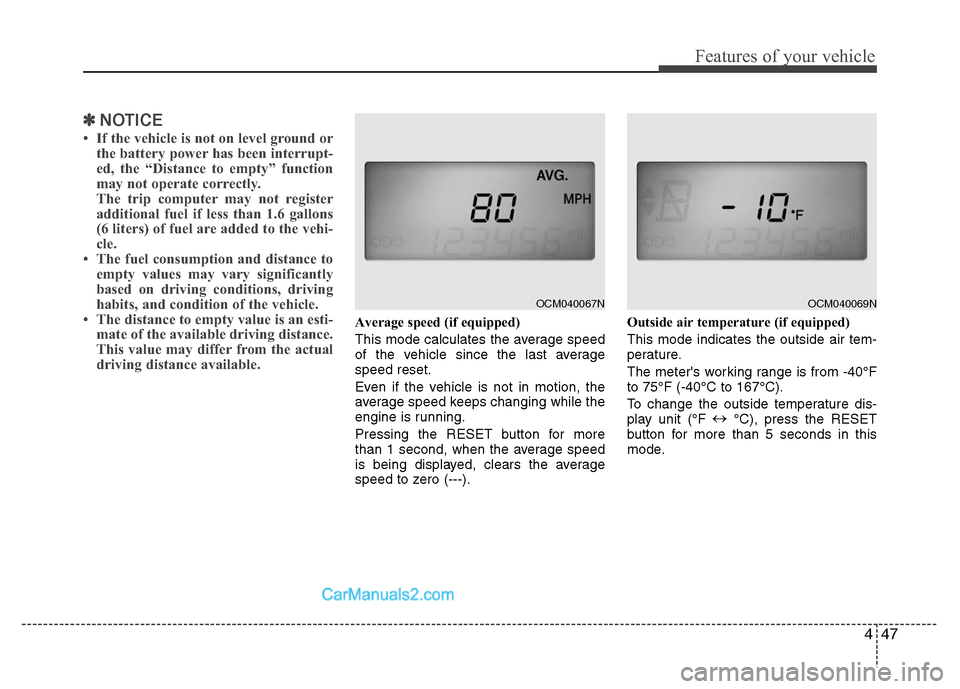
Average speed (if equipped)
This mode calculates the average speed
of the vehicle since the last average
speed reset.
Even if the vehicle is not in motion, the
average speed keeps changing while the
engine is running.
Pressing the RESET button for more
than 1 second, when the average speed
is being displayed, clears the average
speed to zero (---). Outside air temperature (if equipped)
This mode indicates the outside air tem-
perature.
The meter's working range is from -40°F
to 75°F (-40°C to 167°C).
To change the outside temperature dis-
play unit (°F
↔
°C), press the RESET
button for more than 5 seconds in this
mode.
OCM040067N
OCM040069N
Page 139 of 408
Features of your vehicle
60
4
If an indicator stays on and does not
flash or if it flashes abnormally, one of the
turn signal bulbs may be burned out and
will require replacement.
✽ ✽
NOTICE
If an indicator flash is abnormally quick
or slow, bulb may be burned out or have
a poor electrical connection in the cir-
cuit.
D190700AFD
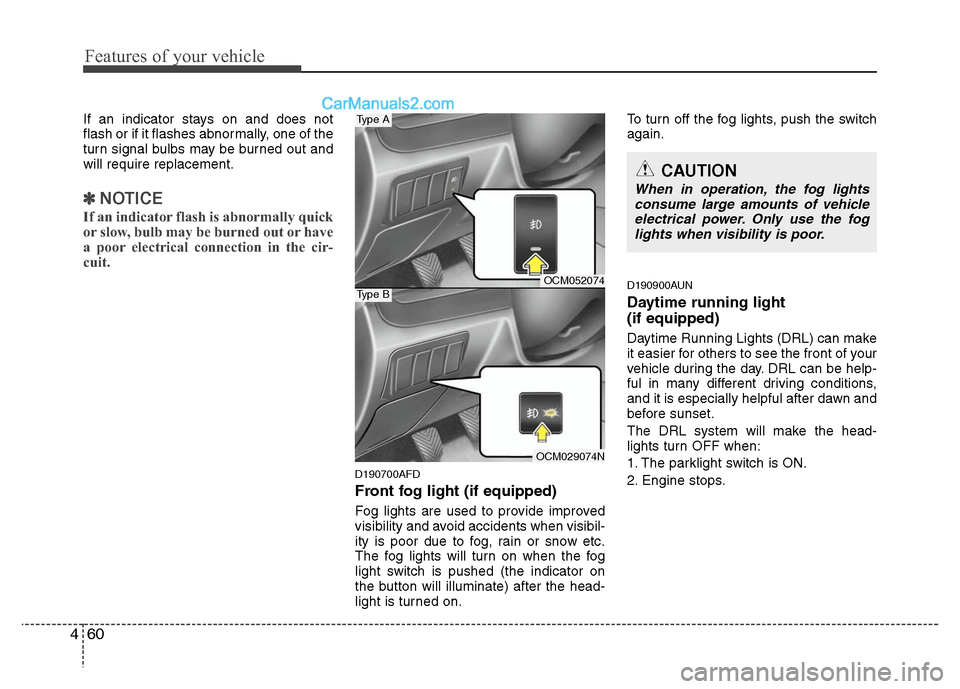
Front fog light (if equipped)
Fog lights are used to provide improved
visibility and avoid accidents when visibil-
ity is poor due to fog, rain or snow etc.
The fog lights will turn on when the fog
light switch is pushed (the indicator on
the button will illuminate) after the head-
light is turned on. To turn off the fog lights, push the switch
again.
D190900AUN
Daytime running light
(if equipped)
Daytime Running Lights (DRL) can make
it easier for others to see the front of your
vehicle during the day. DRL can be help-
ful in many different driving conditions,
and it is especially helpful after dawn and
before sunset.
The DRL system will make the head-
lights turn OFF when:
1. The parklight switch is ON.
2. Engine stops.
CAUTION
When in operation, the fog lights
consume large amounts of vehicleelectrical power. Only use the foglights when visibility is poor.
OCM052074
OCM029074N
Type A
Type B
Page 191 of 408
Features of your vehicle
112
4
CAUTION IN USING
USB DEVICE
To use the external USB device,
make sure the device is notmounted when starting up the vehicle and mount the deviceafter starting up.
If you start the vehicle when the USB device is mounted, it maydamage the USB device. (USB isnot ESA)
If the vehicle is started up or turned off while the external USBdevice is connected, the externalUSB device may not work.
It may not play inauthentic MP3 or WMA files.
1) It can only play MP3 files with the compression rate between8Kbps~320Kbps.
2) It can only play WMA music files with the compression ratebetween 8Kbps~320Kbps.
Take cautions for static electricity when mounting or dismountingthe external USB device.
Encoded MP3 PLAYER is not rec- ognizable.
(Continued)
(Continued) Depending on the condition of the external USB device, the con-nected external USB device canbe unrecognizable.
When the formatted byte/sector setting of External USB devices isnot either 512BYTE or 2048BYTE,then the device will not be recog-nized.
Only use an USB device format- ted to FAT 12/16/32.
USB device without USB IF authen- tication may not be recognizable.
Make sure the USB connection terminal does not come in contactwith human body or any object.
If you repeat mounting or dis- mounting USB device in a shortperiod of time, it may break thedevice.
You might hear strange noise when mounting or dismounting aUSB device.
(Continued)(Continued) If you dismount the external USB device during playback in USBmode, the external USB device canbe damaged or malfunction.Therefore, mount the external USB device when the engine is turnedoff or in another mode.
Depending on the type and capac- ity of the external USB device orthe type of the files stored in the device, there is a difference in thetime taken for recognition of the device, but this is not a trouble.Please wait for a moment.
Do not use the USB device for other purposes than playing music files.
Use of USB accessories such as the recharger or heater using USBI/F may lower the performance orcause trouble.
If you use devices such as the USB hub you purchased separate-ly, the vehicle’s audio system maynot recognize the USB device.Connect the USB device directlyto the multimedia terminal of thevehicle.
(Continued)
Page 199 of 408
Features of your vehicle
120
4
✽
✽
NOTICE FOR USING iPod
DEVICE
• Some iPod models might not sup- port the communication protocol
and the files will not be played.
(iPod models supported: Mini, 4G,
Photo, Nano, 5G)
• The order of search or playback of songs in the iPod can be different
from the order searched in the
audio system.
• If the iPod crashes due to its own trouble, reset iPod. (Reset: Refer to
iPod manual)
• iPod may not operate normally on low battery.
(Continued)
When the iPod cable is connected, the system can be switched to theAUX mode even without the iPoddevice and can cause noise.Disconnect iPod cable when youare not using the iPod device.
When the iPod is not used at audio system, iPod cable has tobe separate from iPod device.Origin display of iPod may not bedisplayed.CAUTION IN USING
iPod DEVICE
You need the power cable exclu-
sive for iPod in order to operateiPod with the buttons on the audiosystem. The PC cable provided byApple may cause malfunction anddo not use it for vehicle use.
When connecting the device with iPod cable, push in the jack fullynot to interfere with communica-tion.
When adjusting the sound effects of iPod and the audio system, thesound effects of both devices willoverlap each and might causereduce or distort the quality of thesound.
Deactivate (turn off) the equalizer function of iPod when adjustingthe audio system’s volume, andturn off the equalizer of the audiosystem when using the equalizerof iPod.
(Continued)
Page 206 of 408
4127
Features of your vehicle
will announce what commands are
available.
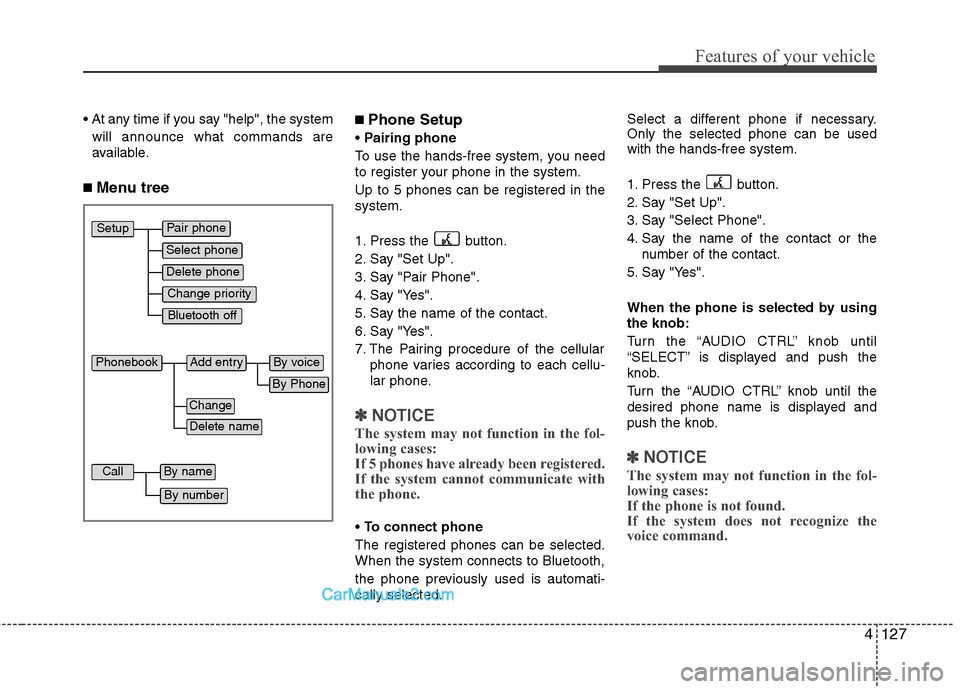
■ Menu tree
■Phone Setup
Pairing phone
To use the hands-free system, you need
to register your phone in the system.
Up to 5 phones can be registered in the
system.
1. Press the button.
2. Say "Set Up".
3. Say "Pair Phone".
4. Say "Yes".
5. Say the name of the contact.
6. Say "Yes".
7. The Pairing procedure of the cellular phone varies according to each cellu-
lar phone.
✽ ✽NOTICE
The system may not function in the fol-
lowing cases:
If 5 phones have already been registered.
If the system cannot communicate with
the phone.
To connect phone
The registered phones can be selected.
When the system connects to Bluetooth,
the phone previously used is automati-
cally selected. Select a different phone if necessary.
Only the selected phone can be used
with the hands-free system.
1. Press the button.
2. Say "Set Up".
3. Say "Select Phone".
4. Say the name of the contact or the
number of the contact.
5. Say "Yes".
When the phone is selected by using
the knob:
Turn the “AUDIO CTRL” knob until
“SELECT” is displayed and push the
knob.
Turn the “AUDIO CTRL” knob until the
desired phone name is displayed and
push the knob.
✽ ✽ NOTICE
The system may not function in the fol-
lowing cases:
If the phone is not found.
If the system does not recognize the
voice command.
Pair phone
Select phone
Change priority
Delete phone
Bluetooth off
Setup
Add entry
Phonebook
Change
Delete name
By Phone
By voice
Call
By name
By number
Page 209 of 408
Features of your vehicle
130
4
■ Receiving a phone call
When receiving a phone call, a ring tone
is audible and the system changes into
telephone mode.
When receiving a phone call, the phone
number and the message "Incoming" will
be displayed.
Do either one of the following:
Press the send switch to take the call.
Press the end switch to refuse the call.
To adjust the ring volume, push "+" or "-" on the steering volume controls.
Volume adjustment cannot be made
using the audio system.
To transfer a call to the phone: The received call can be transferred
from the hands-free system to the cel-
lular phone that is connected to
Bluetooth.
For details, please refer to you user's
manual for the cellular phone or go to
the Key matrix in this manual (next
page).
■Using the head unit as Bluetooth
music
The head unit supports A2DP (Audio
Advanced Distribution Profile) and
AVRCP(Audio Video Remote Control
Profile).
Both profiles are available for listening to
the MP3 music via Bluetooth cellular
phone supporting above Bluetooth pro-
files.
To play MP3 music from the Bluetooth
cellular phone, press the [AUX] button
until the mp3 mode is displayed.
Then try playing music by phone.
When playing music from the Bluetooth
cellular phone, the head unit displays
MP3 MODE.
✽ ✽ NOTICE
•The Bluetooth cellular phones shall fea-
ture A2DP and AVRCP functions.
• Some A2DP and AVRCP Bluetooth cel-
lular phones may not play music
through the head unit on first try.
Please try the below;
i.e : Menu
➟File manager➟Music➟Option➟Play via Bluetooth
• Do Please refer to your Bluetooth cel- lular phone User Guide for more
details. To stop music, try stop music
by phone then push the FM or CD but-
ton.
■ Talking on the phone
When talking on the phone, the display
will differ depending on whether or not
the vehicle is in motion.
Number and "active call" is displayed.
When the call is finished, press the end
switch.
✽ ✽ NOTICE
In the following situations, your voice
may not reach the other party:
1. Talk alternately with the other party
on the phone. If you talk at the same
time, the voice may not reach each
other parties. (This is not a malfunc-
tion.) (It is not a malfunction.)
2. Keep the volume of receiving voice to a low level. Otherwise, high volumes
may result in an echo. When you talk
on the phone, speak clearly towards
the microphone.
3. When driving on a rough road.
4. When driving at high speeds.
5. When the window is open.
6. When the air conditioning vents are facing the microphone.
7. When the sound of the air condition- ing fan is loud.
Page 212 of 408
4133
Features of your vehicle
✽
✽NOTICE
The RSE requires a few seconds of set
up time after the ignition switch is
turned ON or to ACC mode.
Your RSE system is already set up and
ready for use, and can be turned on by
pushing the POWER/VOLUME knob on
the RSE control panel or the POWER
ON/OFF button on the remote
controll. The vehicle's ignition must be
turned on or in accessory power mode.
The RSE system can also be turned OFF
by the Audio Unit.
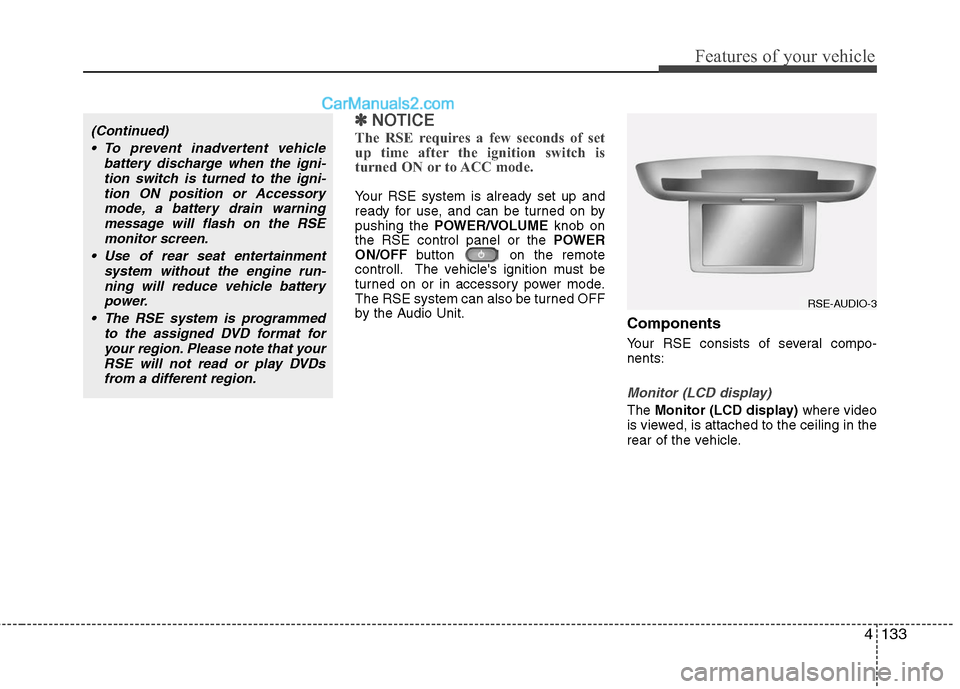
Components
Your RSE consists of several compo-
nents:
Monitor (LCD display)
The Monitor (LCD display) where video
is viewed, is attached to the ceiling in the
rear of the vehicle.
(Continued)
To prevent inadvertent vehicle battery discharge when the igni-tion switch is turned to the igni-tion ON position or Accessorymode, a battery drain warningmessage will flash on the RSEmonitor screen.
Use of rear seat entertainment system without the engine run-ning will reduce vehicle battery power.
The RSE system is programmed to the assigned DVD format foryour region. Please note that yourRSE will not read or play DVDsfrom a different region.
RSE-AUDIO-3