Page 178 of 574

Fail to press a memory button
within 5 seconds.
To cancel the storing procedure
af ter pressing the SET button, do
any of the f ollowing:
Pressing the SET button again
within 5 seconds.
Readjusting the outside mirror
position. Readjust the seat position. To select a memorized position, do
this:
Make sure the shif t lever is in the
Park (P) position.
Press the desired memory button
(1 or 2) until you hear a beep, then
release the button.
Each memory button stores only one
driving position. Storing a new
position erases the previous setting
stored in that button’s memory. If
you want to add a new position while
retaining the current one, use the
other memory button.
All stored driving positions will be
lost if your vehicle’s battery goes
dead or is disconnected.
The system will move the seat and
outside mirrors to the memorized
positions. The indicator in the
selected memory button will f lash
during movement. When the
adjustments are complete, you will
hear two beeps, and the indicator will
remain on. 1.
2.
Driving Position Memory System
Selecting a Memorized Position
174
10/01/26 18:53:11 31SZA620_179
2011 Pilot
Page 243 of 574
�µ�µ
�µ
�µ
CONT INUED
Youcanstoreupto12
preset channels using the six preset
buttons. Each button stores one
channel f rom the XM1 band and one
channel f rom the XM2 band.
To store a channel: Press the XM button. Either XM1
or XM2 will show in the display.
Use the selector knob,
CATEGORY bar, or SCAN button
to tune to a desired channel.
Pick the preset button you want
f or that channel. Press and hold
the button until you hear a beep. In category mode, only channels
within that category can be
selected. In channel mode, all
channels can be selected. Repeat steps 2 and 3 to store the
f irst six channels.
Press the XM button again. The
other XM band will show. Store
the next six channels using steps 2
and 3.
Once a channel is stored, simply
press and release the proper preset
button to tune to it.
Thepresetsmaybelostif your
vehicle’s battery goes dead, is
disconnected, or the radio f use is
removed. XM is loading the
audio or program inf ormation.
The channel
currently selected is no longer
broadcasting.
The encryption
code is being updated. Wait until the
encryption code is f ully updated.
Channels 0 and 1 should still work
normally.
3. 4.
5.
2. 1.
Playing the XMRadio (EX-L and U.S. EX models)
Preset XM Radio Display Messages
‘‘L OA DING’’
‘‘OFF A IR’’
‘‘UPDA T ING’’
Features
239
10/01/26 19:04:11 31SZA620_244
2011 Pilot
Page 317 of 574

Your vehicle’s audio system may
disable itself if it is disconnected
f rom electrical power f or any reason.
To make it work again, you must
enter a specif ic f ive-digit code with
the preset buttons. Because there
are hundreds of number
combinations possible f rom the f ive
digits, making the system work
without knowing the exact code is
nearly impossible.
Youshouldhavereceivedacardthat
lists your audio system code number
and serial number. It is best to store
this card in a saf e place at home. In
addition, you should write the audio
system’s serial number in this owner’s
manual.
If you lose the card, you must obtain
the code number f rom your dealer.
To do this, you will need the audio
system’s serial number.If you make a mistake entering the
code, do not start over; complete the
f ive-digit sequence, then enter the
correct code. You have ten tries to
enter the correct code. If you are
unsuccessful in ten attempts, you
must then leave the system on for 1
hour bef ore trying again. If your vehicle’s battery is discon-
nected or goes dead, or the radio
f use is removed, the audio system
will disable itself . If this happens,
youwillsee‘‘ ’’intheaudio
display the next time you turn on the
system. Use the preset buttons to
enter the f ive-digit code. The code is
locatedontheradiocodecard
included in your owner’s manual kit.
When it is entered correctly, the
radio will start playing.The system will retain your AM and
FM presets even if power is
disconnected.
Radio T hef t Protection
Features
313
10/01/26 19:16:24 31SZA620_318
2011 Pilot
Page 318 of 574
You can quickly set the time to the
nearest hour. If the displayed time is
bef ore the half hour, press and hold
the CLOCK button, then press the R
(reset) button to set the time back to
the previous hour. If the displayed
time is af ter the half hour, the same
procedure sets the time f orward to
the beginning of the next hour.
For example: 1:06 will reset to 1:001:52 will reset to 2:00
The navigation system receives
signals f rom the global positioning
system (GPS), and the displayed
time is updated automatically by the
GPS. Ref er to the navigation system
manual f or how to adjust the time.
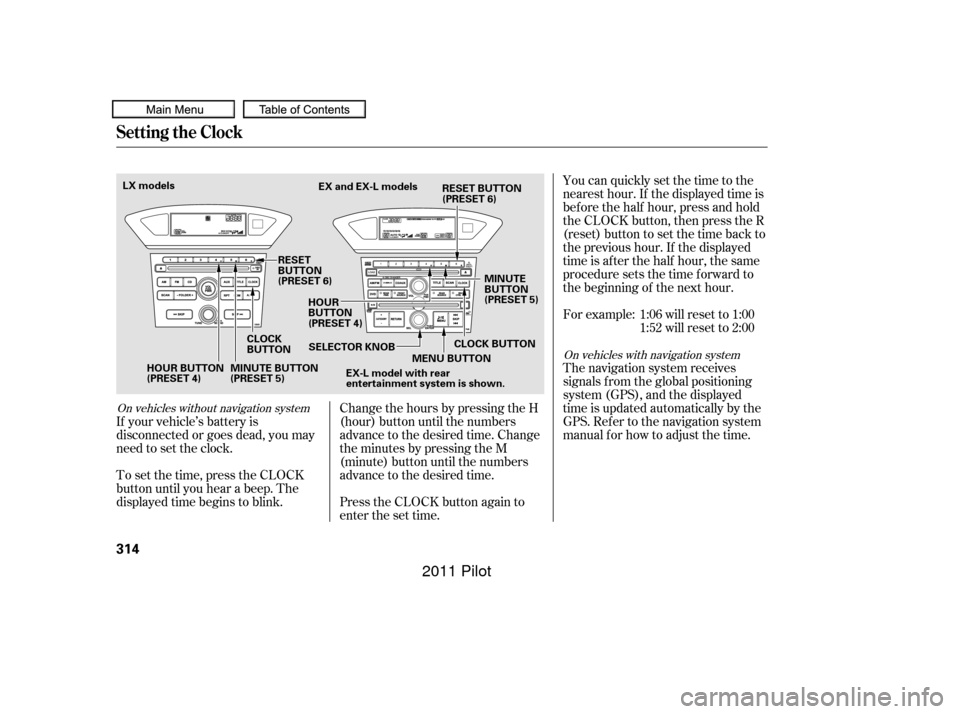
If your vehicle’s battery is
disconnected or goes dead, you may
need to set the clock.
To set the time, press the CLOCK
button until you hear a beep. The
displayed time begins to blink. Change the hours by pressing the H
(hour) button until the numbers
advance to the desired time. Change
the minutes by pressing the M
(minute) button until the numbers
advance to the desired time.
Press the CLOCK button again to
enter the set time.
On vehicles without navigation system
On vehicles with navigation system
Setting the Clock
314
HOUR BUTTON
(PRESET 4)
CLOCK
BUTTONEX and EX-L models
RESET
BUTTON
(PRESET 6) HOUR
BUTTON
(PRESET 4) MINUTE
BUTTON
(PRESET 5)
MINUTE BUTTON
(PRESET 5) SELECTOR KNOB
MENU BUTTON
EX-L model with rear
entertainment system is shown.
LX models
CLOCK BUTTON
RESET BUTTON
(PRESET 6)
10/01/26 19:16:39 31SZA620_319
2011 Pilot
Page 347 of 574
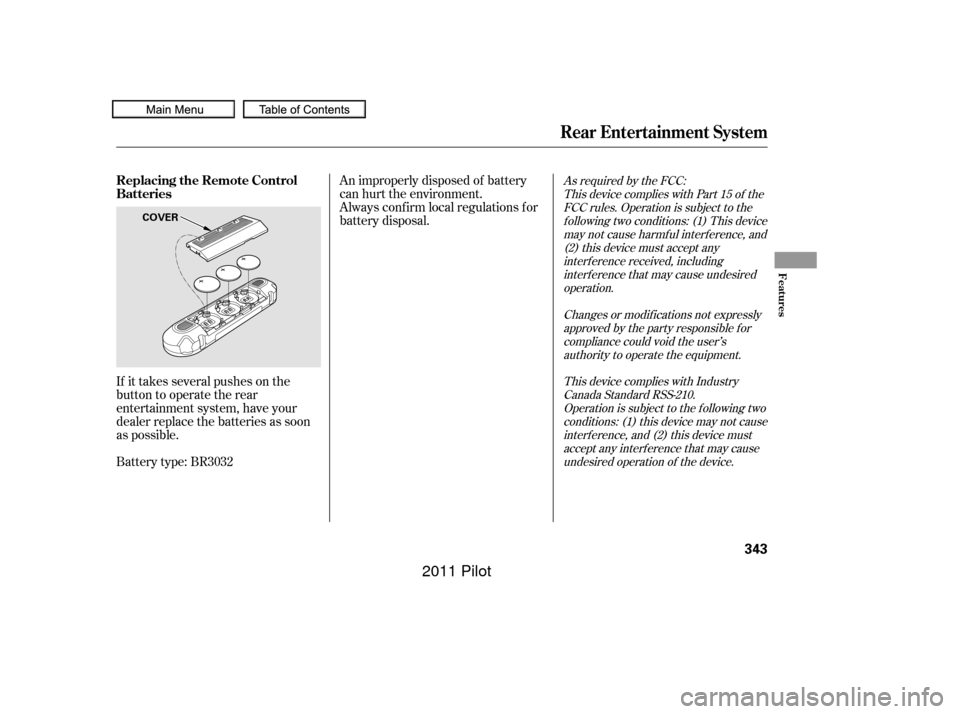
If it takes several pushes on the
button to operate the rear
entertainment system, have your
dealer replace the batteries as soon
as possible.
Battery type: BR3032An improperly disposed of battery
can hurt the environment.
Always conf irm local regulations f or
battery disposal.
As required by the FCC:
This device complies with Part 15 of theFCC rules. Operation is subject to thef ollowing two conditions: (1) This devicemay not cause harmf ul interf erence, and(2) this device must accept anyinterf erence received, includinginterf erence that may cause undesiredoperation.
Changes or modif ications not expresslyapproved by the party responsible f orcompliance could void the user’sauthority to operate the equipment.
This device complies with IndustryCanada Standard RSS-210.Operation is subject to the f ollowing twoconditions: (1) this device may not causeinterf erence, and (2) this device mustaccept any interf erence that may causeundesired operation of the device.
Rear Entertainment System
Replacing the Remote Control
Batteries
Features
343
COVER
10/01/26 19:21:33 31SZA620_348
2011 Pilot
Page 351 of 574
CONT INUED
Auxiliary input jacks and headphone
connectors f or the rear
entertainment system are on the
back of the center console
compartment.
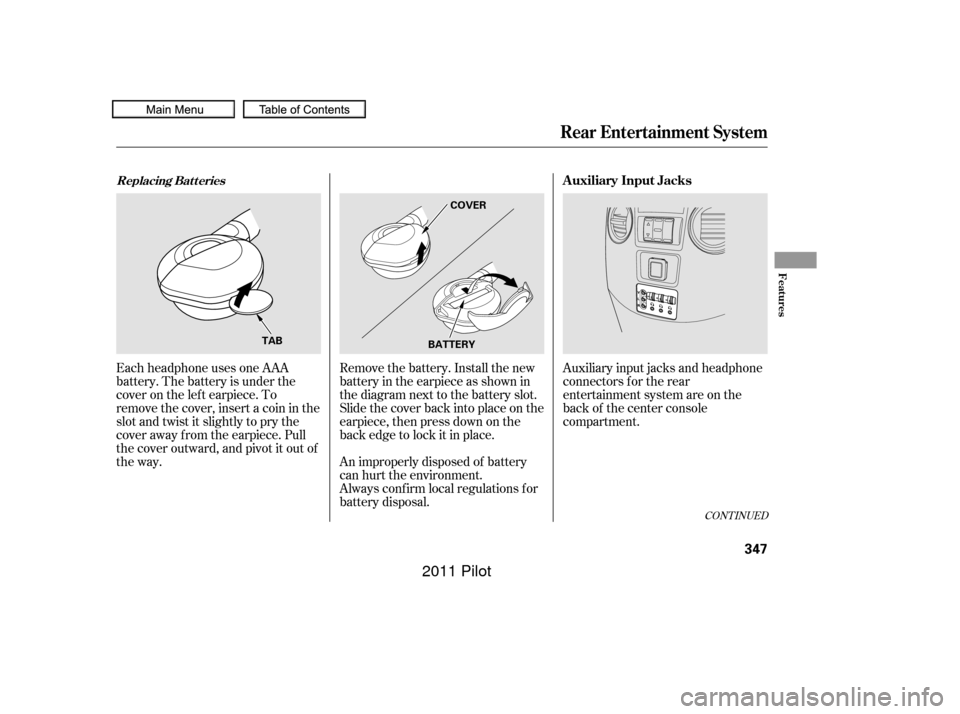
Remove the battery. Install the new
battery in the earpiece as shown in
the diagram next to the battery slot.
Slide the cover back into place on the
earpiece, then press down on the
back edge to lock it in place.
Each headphone uses one AAA
battery. The battery is under the
cover on the lef t earpiece. To
remove the cover, insert a coin in the
slot and twist it slightly to pry the
cover away f rom the earpiece. Pull
the cover outward, and pivot it out of
the way.
An improperly disposed of battery
can hurt the environment.
Always conf irm local regulations f or
battery disposal.
Rear Entertainment System
Replacing Bat t eriesAuxiliary Input Jacks
Features
347
COVER
BATTERY
TAB
10/01/26 19:22:12 31SZA620_352
2011 Pilot
Page 367 of 574
CONT INUED
To hear general HFL inf ormation,
including help on pairing a phone
or setting up the system, say
‘‘Tutorial.’’
For help at any time, including a
list of available commands, say
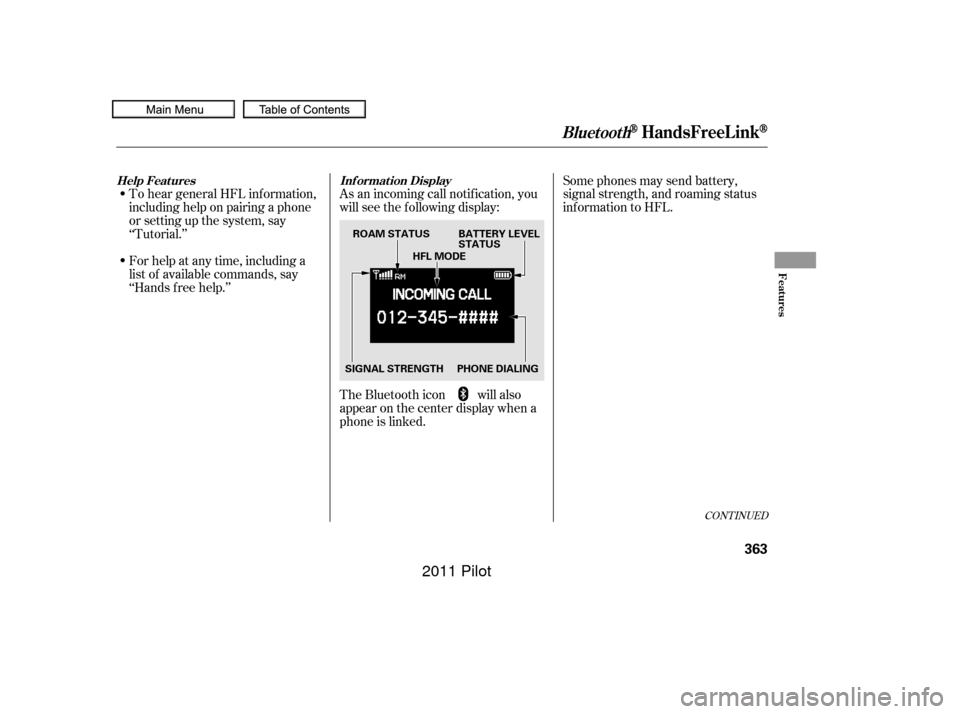
‘‘Hands f ree help.’’As an incoming call notif ication, you
will see the f ollowing display:
Some phones may send battery,
signal strength, and roaming status
inf ormation to HFL.
The Bluetooth icon will also
appear on the center display when a
phone is linked.
BluetoothHandsFreeL ink
Help Features Inf ormation Display
Features
363
PHONE DIALINGBATTERY LEVEL
STATUS
SIGNAL STRENGTH HFL MODE
ROAM STATUS
10/01/26 19:24:56 31SZA620_368
2011 Pilot
Page 372 of 574

To use HFL, you need to pair your
Bluetooth-compatible cell phone to
the system.This command group is available f or
paired cell phones.
You cannot pair your phone while
the vehicle is moving.
Your phone must be in discovery
or search mode to pair. Ref er to
your phone’s manual.
Up to six phones can be paired.
Your phone’s battery may drain
f aster when it is paired to HFL.
If af ter three minutes your phone
is not ready to pair or a phone is
not f ound, the system will time out
andreturntoidle. Press and release the HFL Talk
button. If you are pairing a phone
f or the f irst time, HFL will give
you inf ormation about the pairing
process. If it is not the f irst phone
you are pairing, say ‘‘
’’ and say ‘‘ .’’
Follow the HFL prompts and put
your phone in discovery or search
mode. HFL will give you a 4-digit
pairing code and begin searching
foryourphone.
When your phone f inds a
Bluetooth device, select HFL f rom
the options and enter the 4-digit
code f rom the previous step.
Follow the HFL prompts and
name the newly paired phone.
1.
2.
3.
4.
Phone Setup
Phone
setup Pair
Phone pairing tips T o pair a cell phone:
BluetoothHandsFreeL ink
368
10/01/26 19:25:36 31SZA620_373
2011 Pilot