Page 178 of 356
To Change or Select Files
Use the SKIP button while an iPod is
playing to select passages and
change files. SKIP�Each time you press the
SKIP +button (Preset 6), the
system skips forward to the
beginning of the next file. Press theSKIP �button (Preset 5), to skip
backward to the beginning of the
current file. Press it again to skip to
the beginning of the previous file.
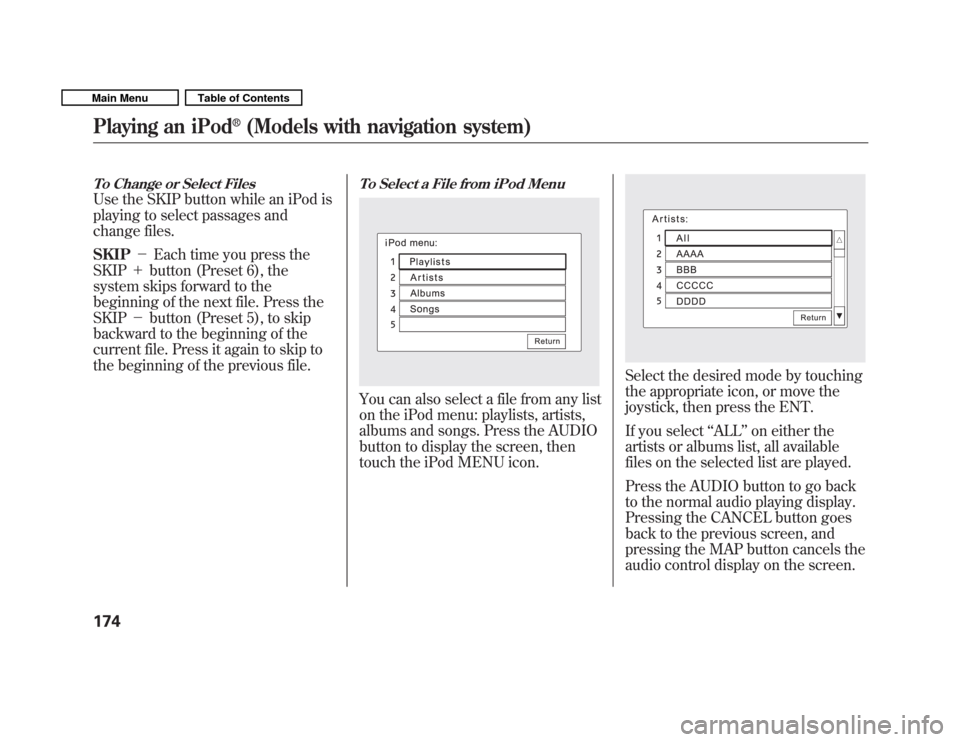
To Select a File from iPod Menu
You can also select a file from any list
on the iPod menu: playlists, artists,
albums and songs. Press the AUDIO
button to display the screen, then
touch the iPod MENU icon.
Select the desired mode by touching
the appropriate icon, or move the
joystick, then press the ENT.
If you select ‘‘ALL ’’on either the
artists or albums list, all available
files on the selected list are played.
Press the AUDIO button to go back
to the normal audio playing display.
Pressing the CANCEL button goes
back to the previous screen, and
pressing the MAP button cancels the
audio control display on the screen.
Playing an iPod
Page 185 of 356
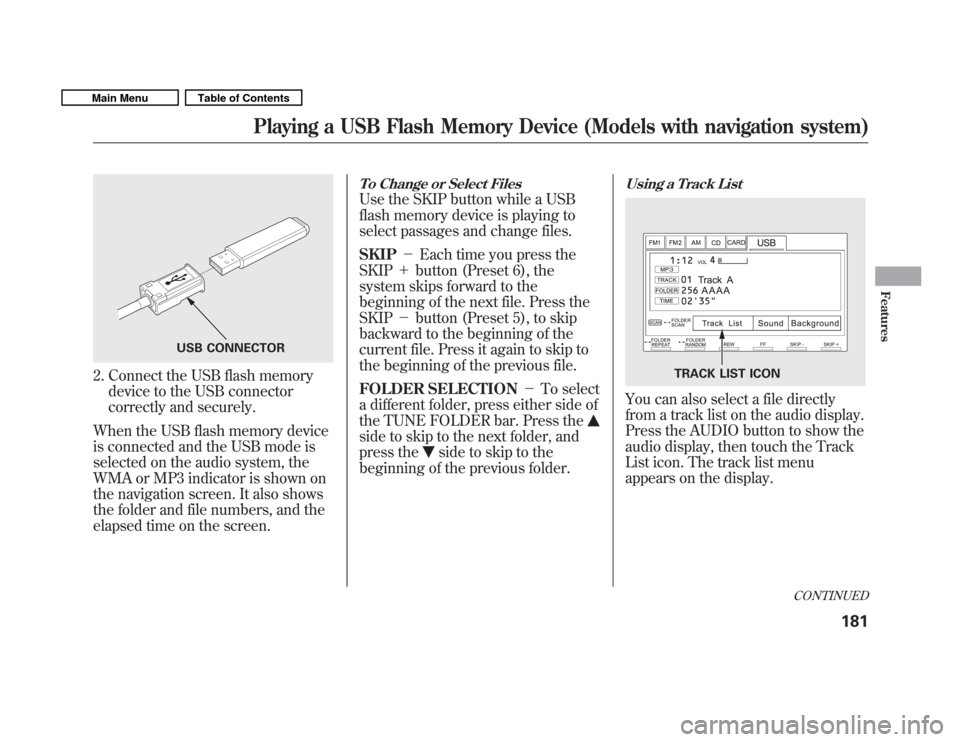
2. Connect the USB flash memorydevice to the USB connector
correctly and securely.
When the USB flash memory device
is connected and the USB mode is
selected on the audio system, the
WMA or MP3 indicator is shown on
the navigation screen. It also shows
the folder and file numbers, and the
elapsed time on the screen.
To Change or Select Files
Use the SKIP button while a USB
flash memory device is playing to
select passages and change files. SKIP �Each time you press the
SKIP +button (Preset 6), the
system skips forward to the
beginning of the next file. Press theSKIP �button (Preset 5), to skip
backward to the beginning of the
current file. Press it again to skip to
the beginning of the previous file.
FOLDER SELECTION �To select
a different folder, press either side of
the TUNE FOLDER bar. Press the
side to skip to the next folder, and
press the
side to skip to the
beginning of the previous folder.
Using a Track List
You can also select a file directly
from a track list on the audio display.
Press the AUDIO button to show the
audio display, then touch the Track
List icon. The track list menu
appears on the display.
USB CONNECTOR
TRACK LIST ICON
CONTINUED
Playing a USB Flash Memory Device (Models with navigation system)
181
Features
Main MenuTable of Contents
Page 194 of 356
On vehicles with navigation system
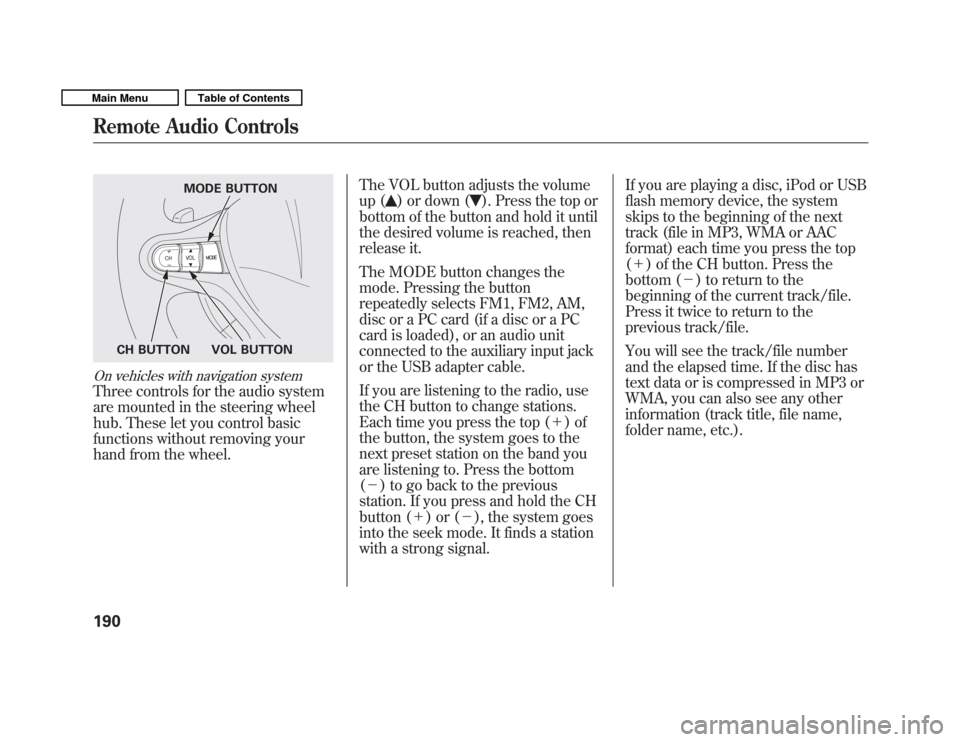
Three controls for the audio system
are mounted in the steering wheel
hub. These let you control basic
functions without removing your
hand from the wheel.The VOL button adjusts the volume
up (
) or down (). Press the top or
bottom of the button and hold it until
the desired volume is reached, then
release it.
The MODE button changes the
mode. Pressing the button
repeatedly selects FM1, FM2, AM,
disc or a PC card (if a disc or a PC
card is loaded), or an audio unit
connected to the auxiliary input jack
or the USB adapter cable.
If you are listening to the radio, use
the CH button to change stations.
Each time you press the top ( +)of
the button, the system goes to the
next preset station on the band you
are listening to. Press the bottom( � ) to go back to the previous
station. If you press and hold the CH
button ( +)or( �), the system goes
into the seek mode. It finds a station
with a strong signal. If you are playing a disc, iPod or USB
flash memory device, the system
skips to the beginning of the next
track (file in MP3, WMA or AAC
format) each time you press the top(
+ ) of the CH button. Press the
bottom ( �) to return to the
beginning of the current track/file.
Press it twice to return to the
previous track/file.
You will see the track/file number
and the elapsed time. If the disc has
text data or is compressed in MP3 or
WMA, you can also see any other
information (track title, file name,
folder name, etc.).
MODE BUTTON
VOL BUTTON
CH BUTTON
Remote Audio Controls
190
Main MenuTable of Contents
Page 197 of 356
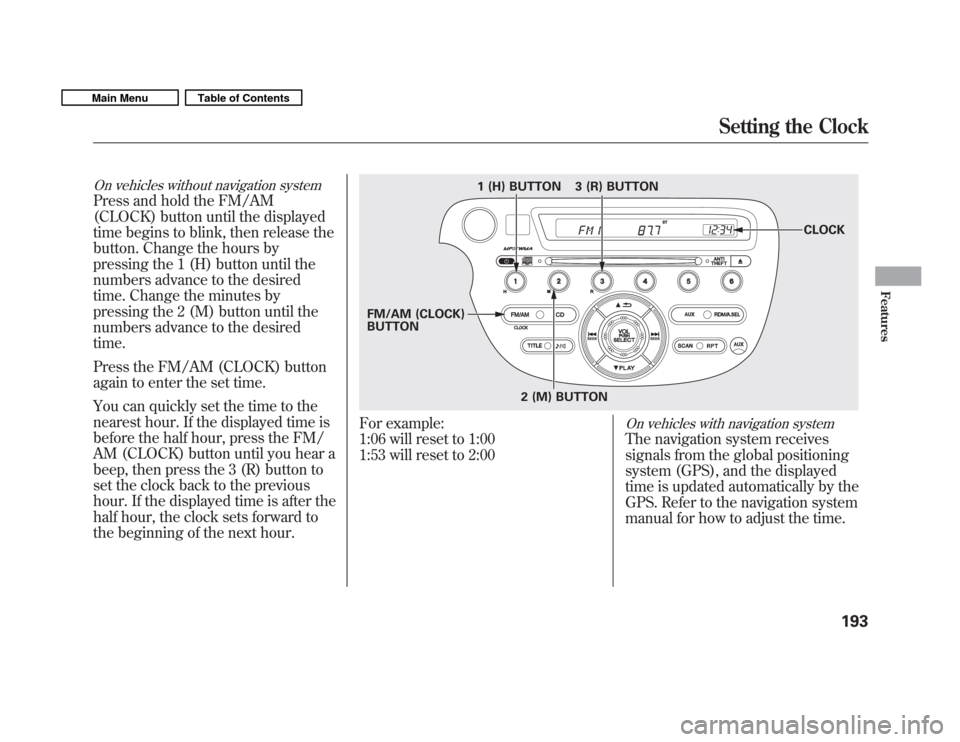
On vehicles without navigation system
Press and hold the FM/AM
(CLOCK) button until the displayed
time begins to blink, then release the
button. Change the hours by
pressing the 1 (H) button until the
numbers advance to the desired
time. Change the minutes by
pressing the 2 (M) button until the
numbers advance to the desiredtime.
Press the FM/AM (CLOCK) button
again to enter the set time.
You can quickly set the time to the
nearest hour. If the displayed time is
before the half hour, press the FM/
AM (CLOCK) button until you hear a
beep, then press the 3 (R) button to
set the clock back to the previous
hour. If the displayed time is after the
half hour, the clock sets forward to
the beginning of the next hour.
For example:
1:06 will reset to 1:00
1:53 will reset to 2:00On vehicles with navigation system
The navigation system receives
signals from the global positioning
system (GPS), and the displayed
time is updated automatically by the
GPS. Refer to the navigation system
manual for how to adjust the time.
1 (H) BUTTON
FM/AM (CLOCK) BUTTON 3 (R) BUTTON
CLOCK
2 (M) BUTTON
Setting the Clock
193
Features
Main MenuTable of Contents
Page 204 of 356
Break-in Period
Help assure your vehicle's future
reliability and performance by paying
extra attention to how you drive
during the first 600 miles (1,000 km).
During this period: Avoid full-throttle starts and rapidacceleration.
Avoid hard braking for the first 200
miles (300 km).
Do not change the oil until the
scheduled maintenance time.
You should also follow these
recommendations with an
overhauled or exchanged engine, or
when the brakes are replaced. Fuel Recommendation
Your vehicle is designed to operate
on unleaded gasoline with a pump
octane number of 87 or higher. Use
of a lower octane gasoline can cause
a persistent, heavy metallic rapping
noise that can lead to enginedamage.
We recommend using quality
gasoline containing detergent
additives that help prevent fuel
system and engine deposits: In
addition, in order to maintain good
performance, fuel economy, and
emissions control, we strongly
recommend the use of gasoline that
does NOT contain harmful
manganese-based fuel additives such
as MMT, if such gasoline is available.Use of gasoline with these additives
may adversely affect performance,
and cause the malfunction indicator
lamp on your instrument panel to
come on. If this happens, contact
your authorized dealer for service.
Some gasoline today is blended with
oxygenates such as ethanol. Your
vehicle is designed to operate on
oxygenated gasoline containing up to
10% ethanol by volume. Do not use
gasoline containing methanol. If you
notice any undesirable operating
symptoms, try another service
station or switch to another brand ofgasoline.
Break-in Period, Fuel Recommendation
200
Main MenuTable of Contents
Page 238 of 356
If the ABS indicator and the brake
system indicator come on together,
and the parking brake is fully
released, the EBD system may also
be shut down.
Test your brakes as instructed on
page 307. If the brakes feel normal,
drive slowly and have your vehicle
repaired by your dealer as soon as
possible. Avoid sudden hard braking
which could cause the rear wheels to
lock up and possibly lead to a loss ofcontrol.Important Safety Reminders
ABS does not reduce the time or
distance it takes to stop thevehicle.
It only helps with the
steering control during braking.
ABS will not prevent a skid that
results from changing directionabruptly, such as trying to take a
corner too fast or making a sudden
lane change. Always drive at a safe
speed for the road and weatherconditions.
ABS cannot prevent a loss of stability. Always steer moderately
when you are braking hard. Severe
or sharp steering wheel movement
can still cause your vehicle to veer
into oncoming traffic or off the road. A vehicle with ABS may require a
longer distance to stop
on loose or
uneven surfaces, such as gravel or
snow, than a vehicle without anti-lock.
Anti-lock Brakes (ABS)
234
Main MenuTable of Contents
Page 253 of 356
The maintenance item code or codes
indicate the main and sub items
required at the time of the oil change
(see page 250).
You can switch the information
display from the engine oil life
display to the odometer or the trip
meter. Press and release the select/
reset knob on the instrument panel.
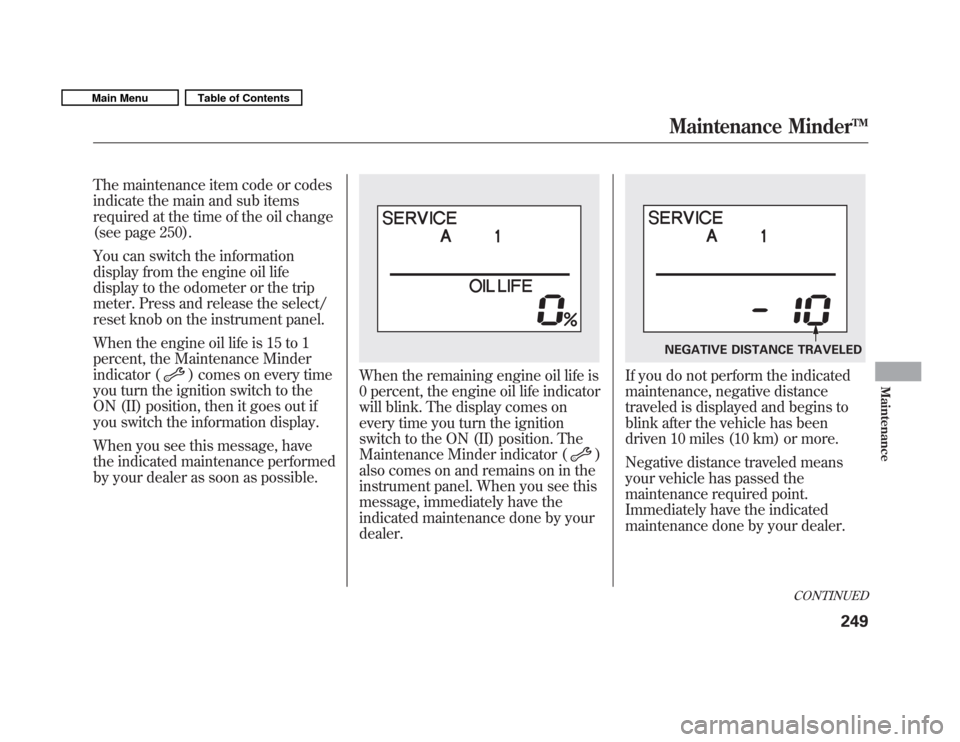
When the engine oil life is 15 to 1
percent, the Maintenance Minder
indicator (
) comes on every time
you turn the ignition switch to the
ON (II) position, then it goes out if
you switch the information display.
When you see this message, have
the indicated maintenance performed
by your dealer as soon as possible.When the remaining engine oil life is
0 percent, the engine oil life indicator
will blink. The display comes on
every time you turn the ignition
switch to the ON (II) position. The
Maintenance Minder indicator (
)
also comes on and remains on in the
instrument panel. When you see this
message, immediately have the
indicated maintenance done by yourdealer.
If you do not perform the indicated
maintenance, negative distance
traveled is displayed and begins to
blink after the vehicle has been
driven 10 miles (10 km) or more.
Negative distance traveled means
your vehicle has passed the
maintenance required point.
Immediately have the indicated
maintenance done by your dealer.
NEGATIVE DISTANCE TRAVELED
CONTINUED
Maintenance MinderTM
249
Maintenance
Main MenuTable of Contents
Page 254 of 356
To change the information display
from the engine oil life display to the
odometer, the trip meter or average
fuel economy, press and release the
select/reset knob.
When the engine oil life is 0 percent
or negative distance traveled, the
Maintenance Minder indicator (
)
remains on even if you change the
information display.
Immediately have the service
performed, and make sure to reset
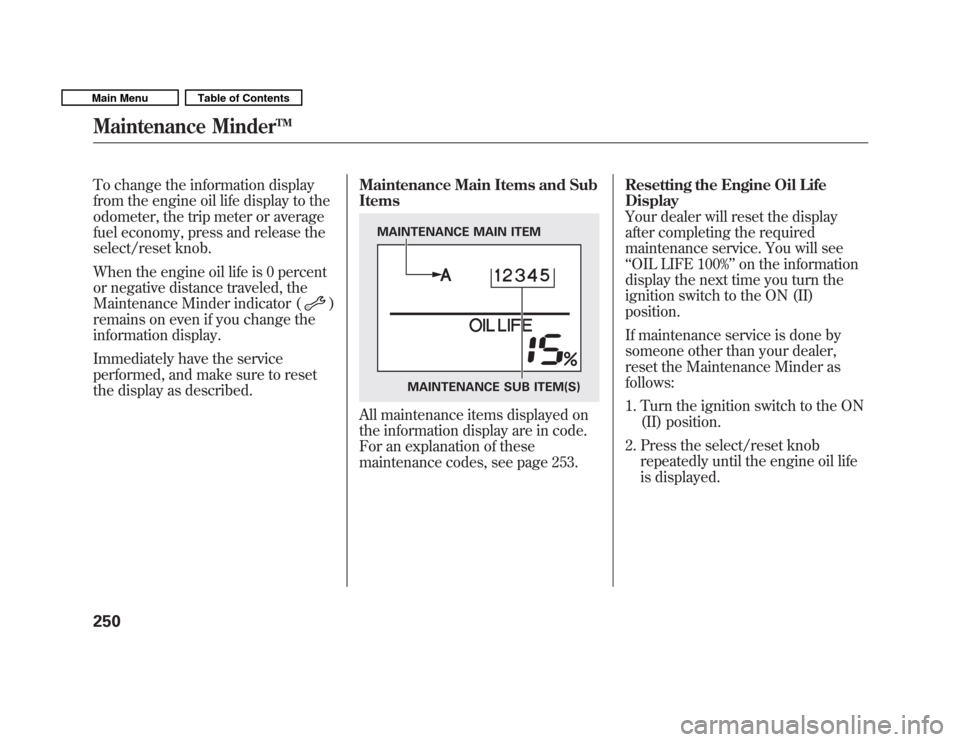
the display as described. Maintenance Main Items and Sub Items
All maintenance items displayed on
the information display are in code.
For an explanation of these
maintenance codes, see page 253. Resetting the Engine Oil LifeDisplay
Your dealer will reset the display
after completing the required
maintenance service. You will see‘‘
OIL LIFE 100% ’’on the information
display the next time you turn the
ignition switch to the ON (II)position.
If maintenance service is done by
someone other than your dealer,
reset the Maintenance Minder asfollows:
1. Turn the ignition switch to the ON (II) position.
2. Press the select/reset knob repeatedly until the engine oil life
is displayed.
MAINTENANCE MAIN ITEM
MAINTENANCE SUB ITEM(S)
Maintenance MinderTM
250
Main MenuTable of Contents