2011 HONDA CR-Z buttons
[x] Cancel search: buttonsPage 157 of 333
156
Features
Audio with Navigation System Playing a Disc
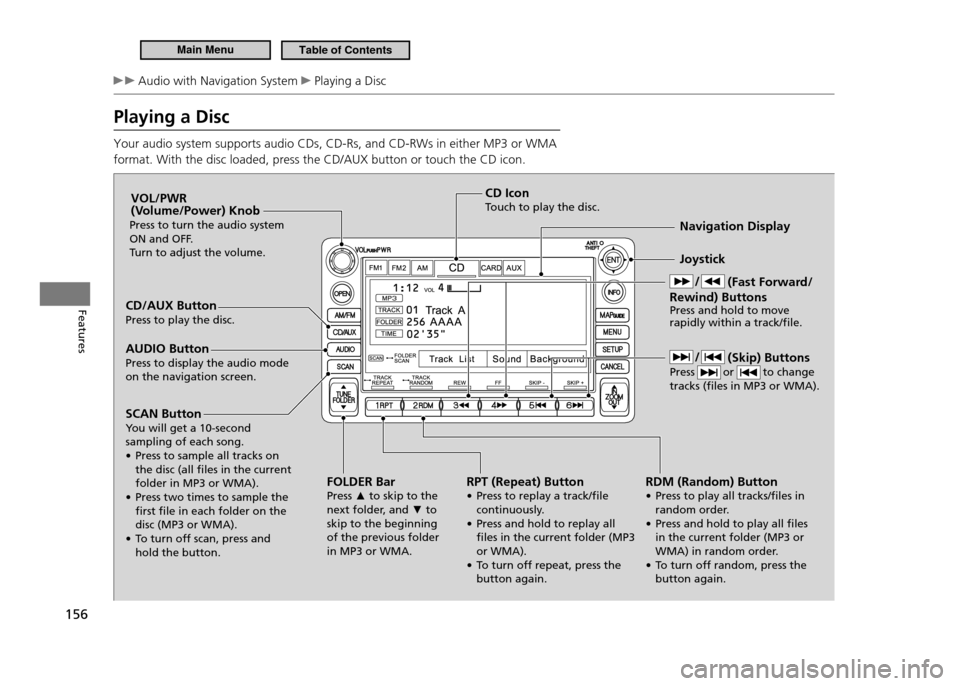
Playing a Disc Your audio system supports audio CDs, CD-Rs, and CD-RWs in either MP3 or WMA format. With the disc loaded, press the CD/AUX button or touch the CD icon.
CD/AUX Button Press to play the disc.FOLDER BarPress ▲ to skip to the
next folder, and ▼ to
skip to the beginning of the previous folder in MP3 or WMA. Joystick
Navigation Display
AUDIO Button
Press to display the audio mode on the navigation screen. VOL/PWR
(Volume/Power) Knob
Press to turn the audio system
ON and OFF.
Turn to adjust the volume.
RPT (Repeat) Button
• Press to replay a track/ile continuously.
• Press and hold to replay all iles in the current folder (MP3 or WMA).
• To turn off repeat, press the button again.CD Icon
Touch to play the disc.
SCAN Button
You will get a 10-second sampling of each song.
• Press to sample all tracks on the disc (all iles in the current folder in MP3 or WMA).
• Press two times to sample the irst ile in each folder on the disc (MP3 or WMA).
• To turn off scan, press and hold the button. (Fast Forward/
Rewind) Buttons Press and hold to move rapidly within a track/ile.
RDM (Random) Button
• Press to play all tracks/iles in random order.
• Press and hold to play all iles in the current folder (MP3 or
WMA) in random order.
• To turn off random, press the button again. (Skip) Buttons
Press or to change tracks (iles in MP3 or WMA).
Main MenuTable of Contents
Page 159 of 333
158
Features
Audio with Navigation System Playing a PC Card
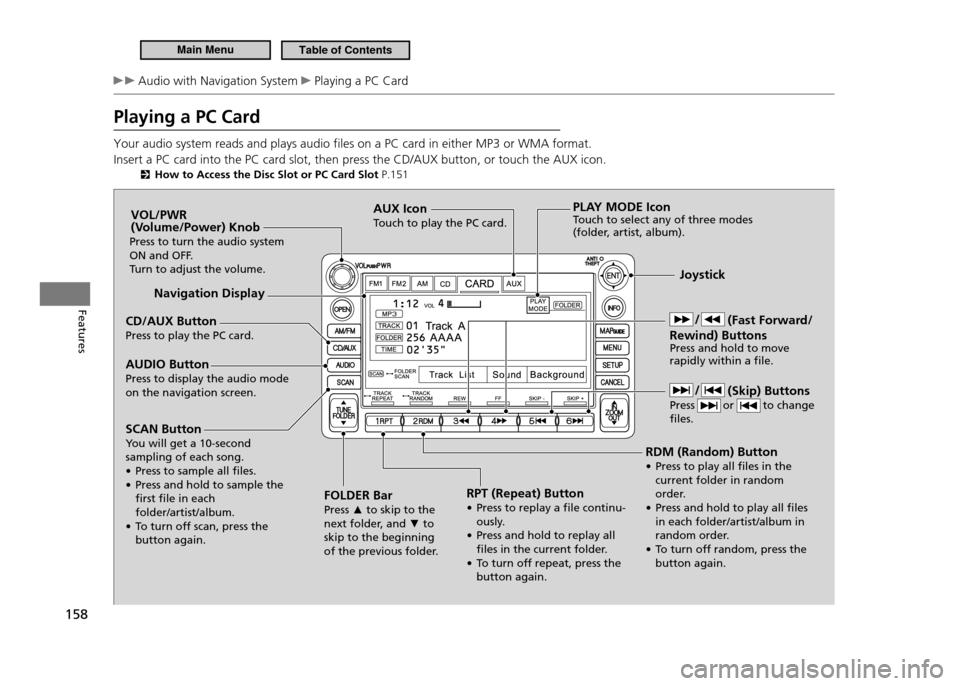
Playing a PC Card Your audio system reads and plays audio files on a PC card in either MP3 or WMA format. Insert a PC card into the PC card slot, then press the CD/AUX button, or touch the AUX icon.
How to Access the Disc Slot or PC Card Slot P.151
CD/AUX Button Press to play the PC card. Joystick
Navigation Display
AUDIO Button Press to display the audio mode on the navigation screen. VOL/PWR
(Volume/Power) Knob
Press to turn the audio system
ON and OFF.
Turn to adjust the volume.
RPT (Repeat) Button
• Press to replay a ile continu-ously.
• Press and hold to replay all iles in the current folder.
• To turn off repeat, press the button again.
AUX Icon
Touch to play the PC card.
SCAN Button
You will get a 10-second sampling of each song.
• Press to sample all iles.
• Press and hold to sample the irst ile in each folder/artist/album.
• To turn off scan, press the button again. RDM (Random) Button
• Press to play all iles in the
current folder in random
order.
• Press and hold to play all iles in each folder/artist/album in
random order.
• To turn off random, press the button again.
PLAY MODE Icon
Touch to select any of three modes
(folder, artist, album).
FOLDER Bar Press ▲ to skip to the
next folder, and ▼ to
skip to the beginning
of the previous folder. (Fast Forward/
Rewind) Buttons Press and hold to move rapidly within a ile.
(Skip) Buttons
Press or to change iles.
Main MenuTable of Contents
Page 163 of 333
162
Features
Audio with Navigation System Playing an iPod®
Playing an iPod ®
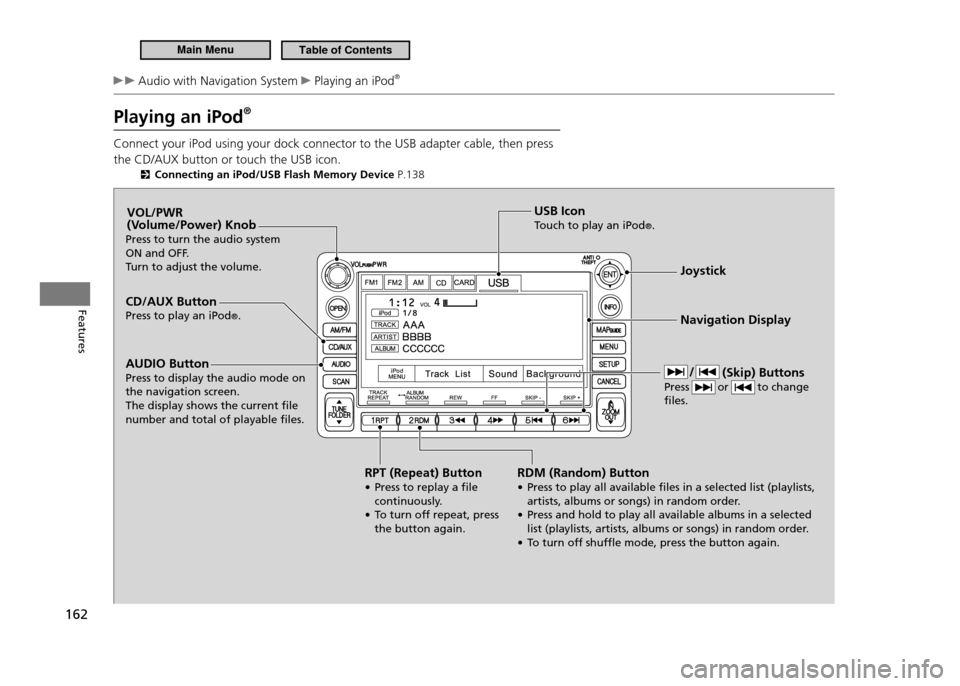
Connect your iPod using your dock connector to the USB adapter cable, then press the CD/AUX button or touch the USB icon.
Connecting an iPod/USB Flash Memory Device P.138
CD/AUX Button Press to play an iPod®. Joystick Navigation Display
AUDIO Button
Press to display the audio mode on the navigation screen.The display shows the current ile number and total of playable iles. VOL/PWR
(Volume/Power) Knob
Press to turn the audio system
ON and OFF.
Turn to adjust the volume.
RPT (Repeat) Button
• Press to replay a ile continuously.
• T o turn off repeat, press
the button again. USB Icon
Touch to play an iPod
®.
RDM (Random) Button
• Press to play all available iles in a selected list (playlists, artists, albums or songs) in random order.
• Press and hold to play all available albums in a selected list (playlists, artists, albums or songs) in random order.
• T o turn off shufle mode, press the button again. (Skip) Buttons
Press or to change iles.
Main MenuTable of Contents
Page 164 of 333

163
Features
Audio with Navigation System Playing an iPod®
How to Select a File from the iPod Menu
■
1. Touch the iPod MENU icon. Touch any of the mode icons (playlists,
2.
artists, albums, and songs). Touch an item on the displayed list.
3.
Touch the Return icon to go back to
the previous screen.
Touch the ▲ or ▼ icon to scroll through
the list.
Playing an iPod ®
Use only compatible iPods with the latest software.
This audio system cannot operate an iPod as a mass storage device.
General Information P.13 7
Available operating functions vary on models or versions. Some functions may not be available on the vehicle’s audio system.
If there is a problem, you may see an error message on the display.
iPod ®
Error Messages P.1 6 8
Voice Control System You can select the AUX mode by using the navigation system voice control buttons, but you cannot operate the play mode functions by voice. Pressing the CANCEL button goes back to the
previous screen. To exit the play mode screen, pres s
the AUDIO button.
Main MenuTable of Contents
Page 166 of 333

165
Features
Audio with Navigation System Playing a USB Flash Memory Device
Playing a USB Flash Memory Device Your audio system reads and plays audio files on a USB flash memory device in either MP3, WMA or AAC*1
format.
Connect your USB flash memory device to the USB adapter cable, then press the CD/AUX button or touch the USB icon.
Connecting an iPod/USB Flash Memory Device P.138
* 1: Only AAC format iles recorded with iTunes ®
are playable on this audio unit.
CD/AUX Button Press to play a USB lash memory device. Joystick Navigation Display
AUDIO Button Press to display the audio mode on the navigation screen. VOL/PWR
(Volume/Power) Knob
Press to turn the audio system
ON and OFF.
Turn to adjust the volume.
RPT (Repeat) Button
• Press to replay a ile continuously.
• Press and hold to replay all iles in the current folder.
• To turn off repeat, press the button again. USB Icon
Touch to play a USB lash memory device.
SCAN Button
You will get a 10-second sampling of each song.
• Press to sample all iles in the current folder.
• Press to sample irst ile in the main folder.
• To turn off scan, press the button again. RDM (Random) Button
• Press to play all iles in random
order.
• Press and hold to play all iles in the current folder in
random order.
• To turn off random, press the button again.
FOLDER BarPress
▲ to skip to the
next folder, and ▼ to
skip to the beginning
of the previous folder. (Skip) Buttons
Press or to change iles.
Main MenuTable of Contents
Page 174 of 333

173
Features
Bluetooth®
HandsFreeLink ®
*
Bluetooth ®
HandsFreeLink ®
(HFL) allows you to place and receive phone calls using
your vehicle’s audio system, without handling your cell phone.
Using HFL HFL Buttons
■
Button: Press to give a command or answer a call.
Button: Press to end a call, go back to the previous command, or cancel a
command.
Bluetooth ®
HandsFreeLink ®
(HFL)
To use HFL, you need a Bluetooth-compatible cell
phone. For a list of compatible phones, pairing procedures, and special feature capabilities: U.S.: Visit
• www.handsfreelink.honda.com , or call
(888) 528-7876.Canada: Visit
• www.honda.ca, or call (888)
9-HONDA-9.
Voice Control Tips: Adjust or close the vents and all windows, as
•
noise coming from them may interfere with the microphone. Press and release the
•
button before giving
a command. Speak clearly and naturally after a beep.If the microphone picks up voices other than
•
yours, the command may be misinterpreted.A command that consists of several words can
•
be spoken together. For example, say "Call 123-456-7890" at once.When HFL is in use, navigation voice commands
•
cannot be recognized.To change the volume level, use the audio
•
system's volume knob or the remote audio controls.
Navi Voice Control Buttons
Microphone
(HFL Back) Button
(HFL Talk) Button
*Not available on all models
Main MenuTable of Contents
Page 205 of 333

204
Driving
When Driving Shifting
7-Speed Manual Shift Mode
■
Use the paddle shifters to change between first and seventh speeds without removing your hands from the steering wheel. The transmission switches to the 7-speed manual shift mode when you pull a paddle shifter while driving. This mode is useful when engine braking is needed. You can cancel this mode by pressing any of the three driving mode buttons, or pulling the
paddle shifter for a few seconds.
When the Driving Mode is in ECON or NORMAL
■
The shift mode goes into the 7-speed manual shift mode temporarily, and the number is displayed in the shift indicator.The 7-speed manual shift mode is canceled automatically if you drive at constant speed or accelerate, and the number in the shift indicator goes off.The 7-speed manual shift mode is especially useful when reducing the vehicle speed temporarily before making a turn.
When the Driving Mode is in SPORT
■
The shift mode goes into the 7-speed manual shift mode. The
M indicator and the
speed number are displayed in the shift indicator. As the vehicle speed slows down, the transmission automatically shifts down accordingly. When the vehicle comes to a stop, it automatically shifts down into first. If the vehicle speed increases and the engine speed reaches near the tachometer’s red zone, the transmission automatically shifts up.
7-Speed Manual Shift Mode
To improve fuel economy, the transmission may shift up to a higher speed than the seventh under certain circumstances. In this case, the number in the shift indicator remains as "7." In the 7-speed manual shift mode, the transmission
shifts up or down by operating either paddle shifte r
under the following conditions:Shift Up: The engine speed reaches the lowest threshold of the higher speed position.Shift Down: The engine speed reaches the highest threshold of the lower speed position. When the engine speed reaches near the tachometer’s red zone, the transmission shifts up automatically.When the engine speed reaches the lowest threshold of the selected speed position, the transmission shifts down automatically. Operating the paddle shifters on slippery surfaces may cause the tires to lock up. In this case, the 7-speed manual shift mode is canceled and goes back to the normal D driving mode.
Main MenuTable of Contents
Page 207 of 333
206
Driving
When Driving Shifting
L Mode Operation
■
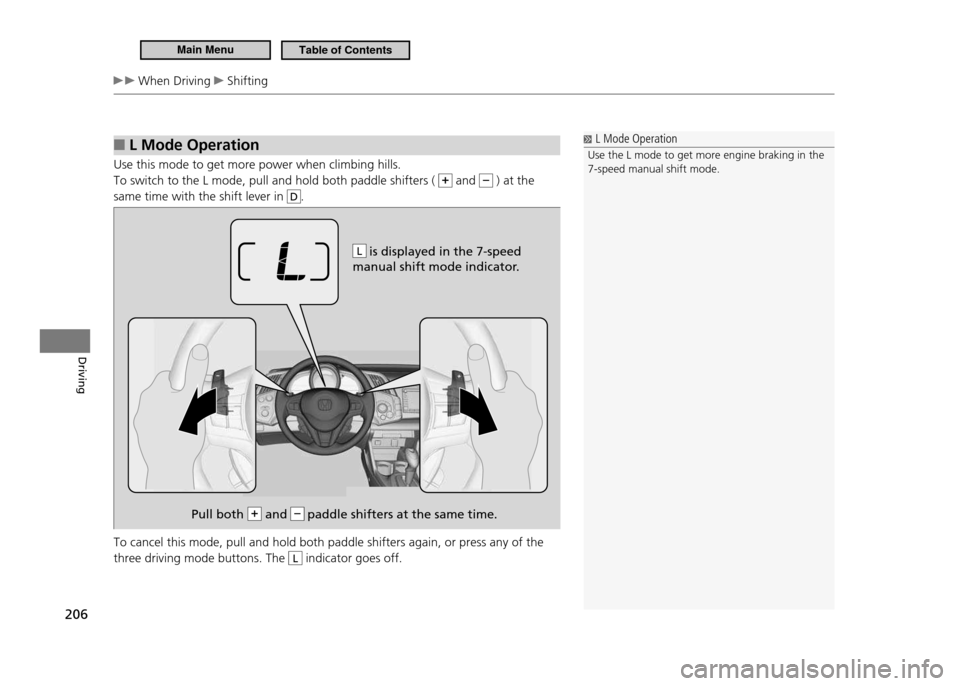
Use this mode to get more power when climbing hills. To switch to the L mode, pull and hold both paddle shifters (
and ) at the
same time with the shift lever in
D.
To cancel this mode, pull and hold both paddle shifters again, or press any of the three driving mode buttons. The
L indicator goes off.
L Mode Operation
Use the L mode to get more engine braking in the 7-speed manual shift mode.
is displayed in the 7-speed
manual shift mode indicator.
Pull both + and – paddle shifters at the same time.
L
Main MenuTable of Contents