Page 158 of 388

�µ
To listen to XM Radio, turn the
ignition switch to the ACCESSORY
(I) or the ON (II) position. Push the
power/volume knob to turn on the
audio system, and press the XM
RADIO button. Adjust the volume by
turning the knob. The last channel
you listened to will show in the
display.
You can also change to the XM
Radio while you are listening to an
FM station, AM station, disc, PC
card, etc., by touching the XM1 or
XM2iconontheaudiodisplay.
Your audio system is capable of
receiving XM
Radio anywhere in
the United States, except Hawaii,
Alaska, and Puerto Rico.
XM is a registered trademark of
Sirius XM Radio
,Inc.
XM Radio receives signals f rom two
satellites to produce clear, high-
quality digital reception. It of f ers
many channels in several categories.
Along with a large selection of
dif f erent types of music, XM Radio
allows you to view channel and
category selections in the display.
Whenyoupressandholdthe
AUDIO button, the display also
shows all XM inf ormation. You can also operate the radio using
the control buttons on the left side of
the screen. The status bar appears
on the bottom of the screen each
time you press any of the control
buttons. On the navigation screen,
you can also see the audio
inf ormation by touching the AUDIO
INFO icon on the lower part of the
screen.
To switch between
channel mode and category mode,
touch the MODE icon. In channel
mode, you can select all of the
available channels. In category mode,
such as Jazz, Rock, Classical, etc.,
you can select all of the channels
within that category. Each time you
touch and release the MODE icon,
the display changes between the
channel mode and the category
mode.
Audio System (Models with navigation system)
Operating the XM Radio
MODE
154
Main Menu
Page 165 of 388

You can use the instrument panel
brightness control buttons to adjust
the illumination of the audio system
(see page ). The audio system
illuminates when the parking lights
are on, even if the radio is of f .
You can select the background
screen to display the sound level.
There are three screen modes: level
(the sound level is shown with the
vertical bars), spectrum analysis (the
sound level appears as ripples of
water), and off. Each time you touch
the background icon, the display
changes.
If you f eel the sound is too loud,
choose low. If you f eel the sound is
too quiet, choose Hi.
You can also select the icon with the
joystick. Move it up and down to
move the highlighting and scroll
through lists. Select the icon, then
move the joystick to lef t or right to
change the setting.
The system will return to the audio
display about 5 seconds af ter you
stop adjusting a mode. 75
A udio System L ighting
Screen Mode
Audio System (Models with navigation system)
Features
161
Main Menu
Page 169 of 388
�µ�µ
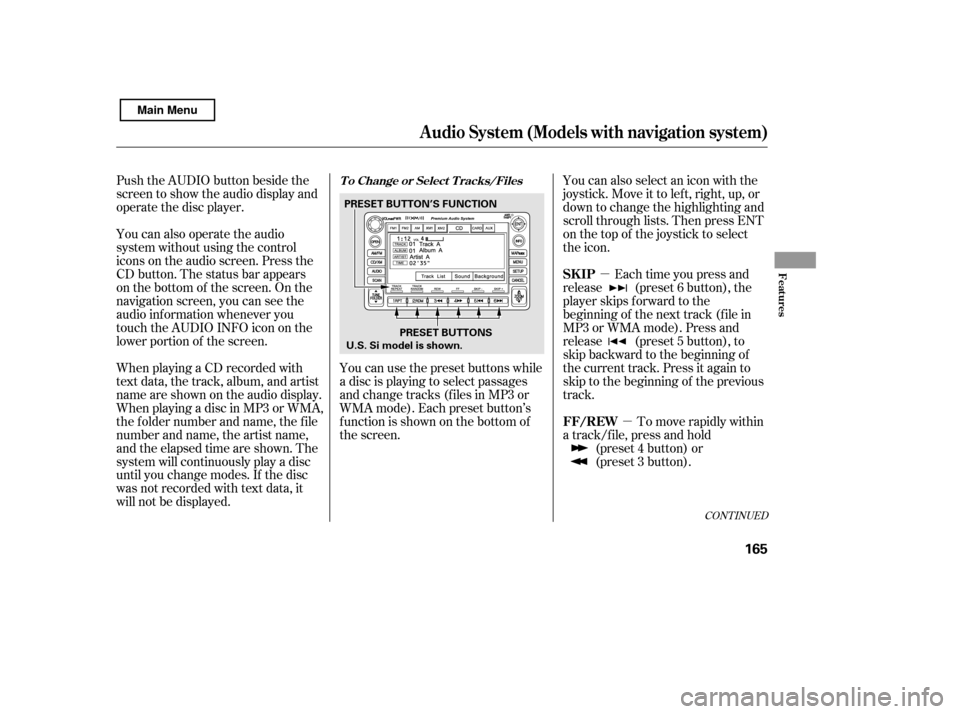
Push the AUDIO button beside the
screen to show the audio display and
operate the disc player.
You can also operate the audio
system without using the control
icons on the audio screen. Press the
CD button. The status bar appears
on the bottom of the screen. On the
navigation screen, you can see the
audio inf ormation whenever you
touch the AUDIO INFO icon on the
lower portion of the screen.
When playing a CD recorded with
text data, the track, album, and artist
name are shown on the audio display.
When playing a disc in MP3 or WMA,
the f older number and name, the f ile
number and name, the artist name,
and the elapsed time are shown. The
system will continuously play a disc
until you change modes. If the disc
was not recorded with text data, it
will not be displayed. You can also select an icon with the
joystick. Move it to left, right, up, or
down to change the highlighting and
scroll through lists. Then press ENT
on the top of the joystick to select
the icon.
Each time you press and
release (preset 6 button), the
player skips f orward to the
beginning of the next track (f ile in
MP3 or WMA mode). Press and
release (preset 5 button), to
skip backward to the beginning of
the current track. Press it again to
skip to the beginning of the previous
track.
You can use the preset buttons while
a disc is playing to select passages
and change tracks (files in MP3 or
WMA mode). Each preset button’s
f unction is shown on the bottom of
the screen.
To move rapidly within
a track/f ile, press and hold
(preset 4 button) or
(preset 3 button).
CONT INUED
T o Change or Select T racks/Files
SK IP
FF/REW
Audio System (Models with navigation system)
Features
165
PRESET BUTTON’S FUNCTION
U.S. Si model is shown. PRESET BUTTONS
Main Menu
Page 190 of 388
�µ�µ
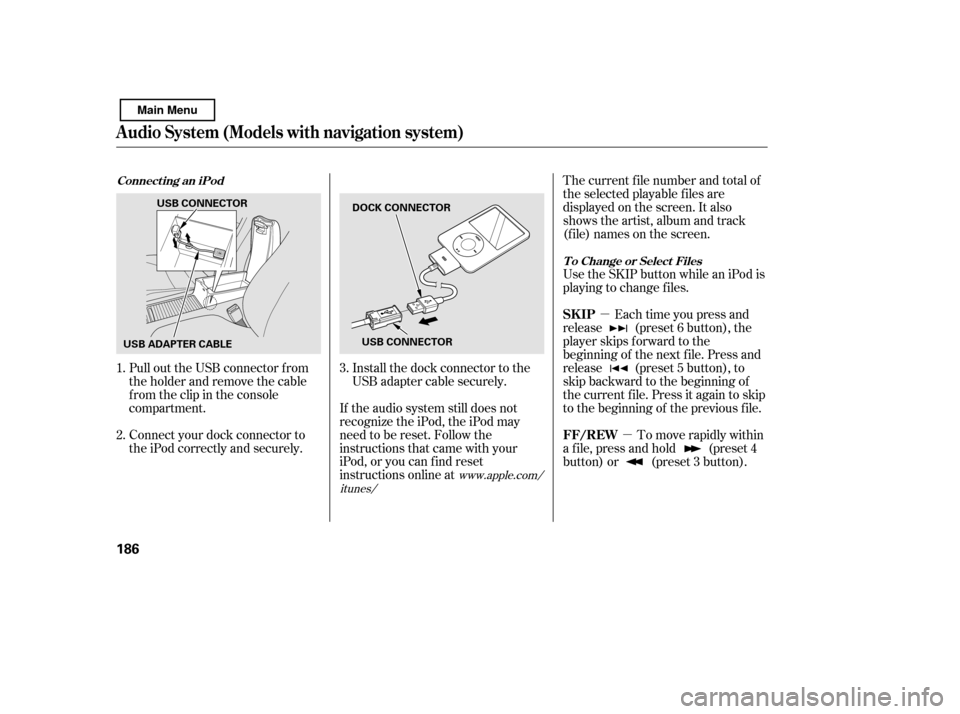
Pull out the USB connector f rom
the holder and remove the cable
f rom the clip in the console
compartment.
Connect your dock connector to
the iPod correctly and securely. Install the dock connector to the
USB adapter cable securely.
If the audio system still does not
recognize the iPod, the iPod may
need to be reset. Follow the
instructions that came with your
iPod, or you can f ind reset
instructions online at The current f ile number and total of
the selected playable f iles are
displayed on the screen. It also
shows the artist, album and track
(f ile) names on the screen.
Use the SKIP button while an iPod is
playing to change f iles.
Each time you press and
release (preset 6 button), the
player skips f orward to the
beginning of the next f ile. Press and
release (preset 5 button), to
skip backward to the beginning of
the current f ile. Press it again to skip
to the beginning of the previous file.
To move rapidly within
a f ile, press and hold (preset 4
button) or (preset 3 button).
1. 2.
3.
www.apple.com/
itunes/
Connect ing an iPod
T o Change or Select Files
Audio System (Models with navigation system)
SK IP
FF/REW
186
DOCK CONNECTOR
USB CONNECTOR
USB CONNECTOR
USB ADAPTER CABLE
Main Menu
Page 199 of 388
�Û�Ý
�µ
�µ �µ
�Ý
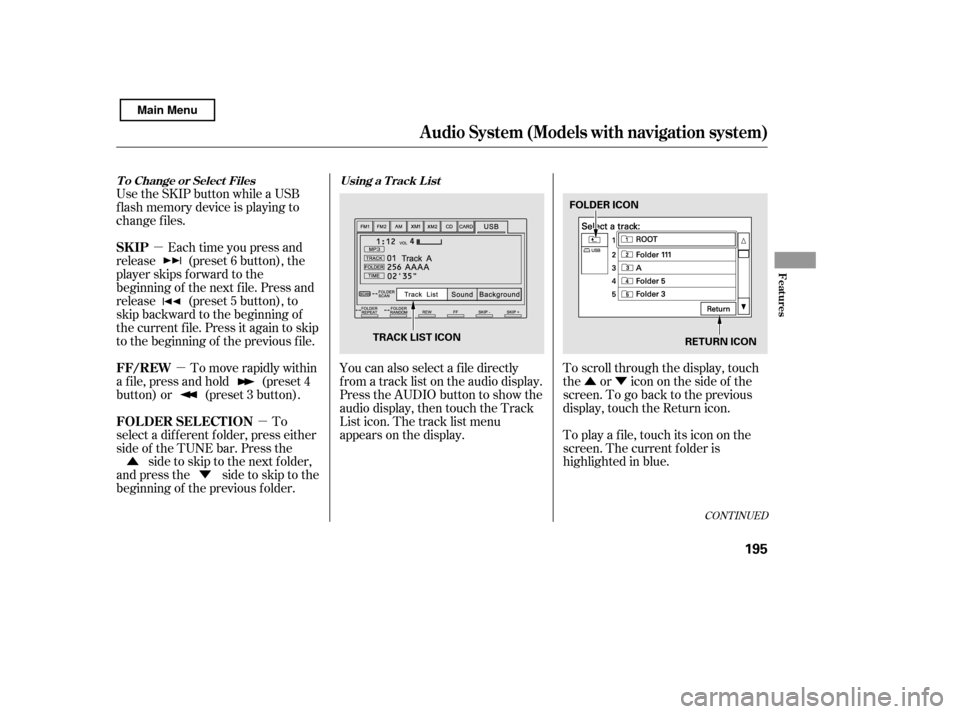
�Û You can also select a f ile directly
f rom a track list on the audio display.
Press the AUDIO button to show the
audio display, then touch the Track
List icon. The track list menu
appears on the display.
To scroll through the display, touch
the or icononthesideof the
screen.Togobacktotheprevious
display, touch the Return icon.
To play a f ile, touch its icon on the
screen. The current f older is
highlighted in blue.
Each time you press and
release (preset 6 button), the
player skips f orward to the
beginning of the next f ile. Press and
release (preset 5 button), to
skip backward to the beginning of
the current f ile. Press it again to skip
to the beginning of the previous file.
To move rapidly within
a f ile, press and hold (preset 4
button) or (preset 3 button).
To
select a dif f erent f older, press either
side of the TUNE bar. Press the side to skip to the next folder,
andpressthe sidetoskiptothe
beginning of the previous f older.
Use the SKIP button while a USB
f lash memory device is playing to
change f iles.
CONT INUED
Using a T rack L ist
T o Change or Select Files
SK IP
FF/REW
FOLDER SELECTION
Audio System (Models with navigation system)
Features
195
RETURN ICON
FOLDER ICON
TRACK LIST ICON
Main Menu
Page 208 of 388
�´�µ�´
�µ
�Û�Ý �´
�µ
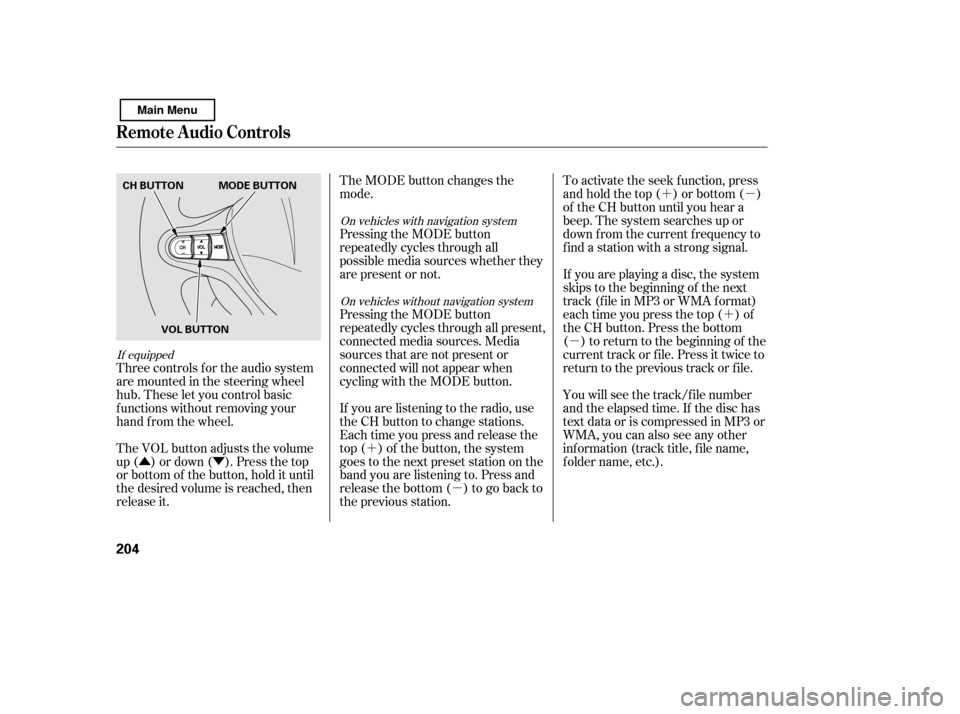
Three controls f or the audio system
are mounted in the steering wheel
hub. These let you control basic
f unctions without removing your
hand f rom the wheel. To activate the seek function, press
and hold the top ( ) or bottom ( )
of the CH button until you hear a
beep. The system searches up or
down f rom the current f requency to
find a station with a strong signal.
If you are playing a disc, the system
skips to the beginning of the next
track (f ile in MP3 or WMA f ormat)
each time you press the top ( ) of
the CH button. Press the bottom
( ) to return to the beginning of the
current track or f ile. Press it twice to
return to the previous track or f ile.
You will see the track/f ile number
and the elapsed time. If the disc has
text data or is compressed in MP3 or
WMA, you can also see any other
inf ormation (track title, f ile name,
f older name, etc.).
The VOL button adjusts the volume
up ( ) or down ( ). Press the top
or bottom of the button, hold it until
the desired volume is reached, then
release it. The MODE button changes the
mode.
Pressing the MODE button
repeatedly cycles through all
possible media sources whether they
are present or not.
Pressing the MODE button
repeatedly cycles through all present,
connected media sources. Media
sources that are not present or
connected will not appear when
cycling with the MODE button.
If you are listening to the radio, use
the CH button to change stations.
Each time you press and release the
top ( ) of the button, the system
goes to the next preset station on the
band you are listening to. Press and
releasethebottom( )togobackto
the previous station.
If equipped
On vehicles with navigation system
On vehicles without navigation system
Remote Audio Controls
204
CH BUTTON MODE BUTTON
VOL BUTTON
Main Menu
Page 211 of 388
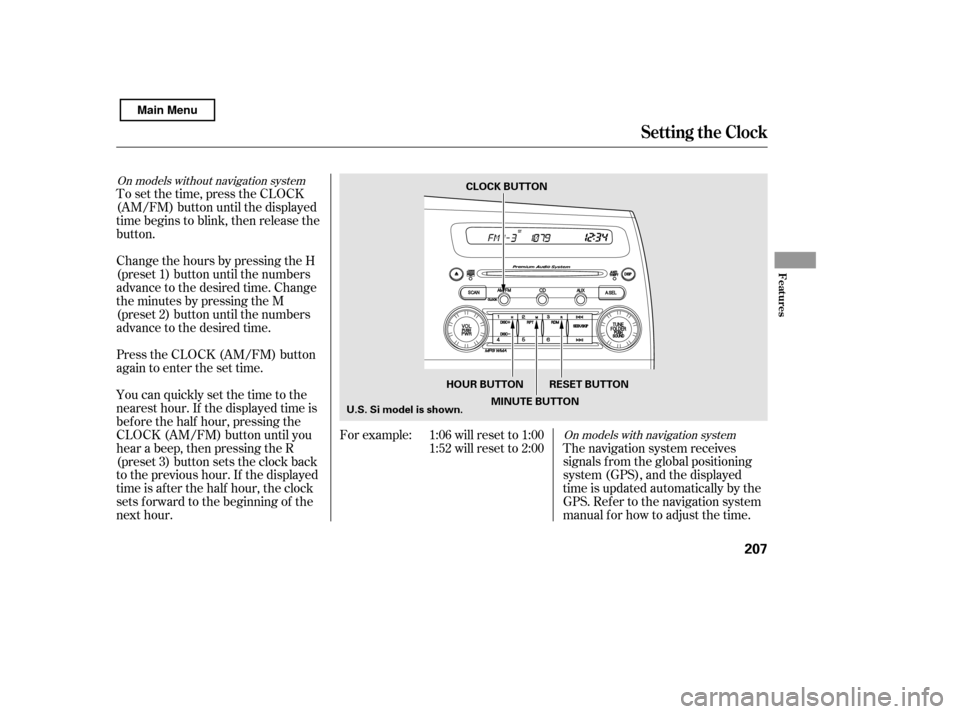
On models with navigation system
On models without navigation system
The navigation system receives
signals f rom the global positioning
system (GPS), and the displayed
time is updated automatically by the
GPS. Ref er to the navigation system
manual f or how to adjust the time.
Change the hours by pressing the H
(preset 1) button until the numbers
advance to the desired time. Change
the minutes by pressing the M
(preset 2) button until the numbers
advance to the desired time.
For example: 1:06 will reset to 1:001:52 will reset to 2:00
To set the time, press the CLOCK
(AM/FM) button until the displayed
time begins to blink, then release the
button.
Press the CLOCK (AM/FM) button
again to enter the set time.
You can quickly set the time to the
nearest hour. If the displayed time is
bef ore the half hour, pressing the
CLOCK (AM/FM) button until you
hear a beep, then pressing the R
(preset 3) button sets the clock back
to the previous hour. If the displayed
time is af ter the half hour, the clock
sets f orward to the beginning of the
next hour.
Setting the Clock
Features
207
CLOCK BUTTON
U.S. Si model is shown. RESET BUTTON
MINUTE BUTTON
HOUR BUTTON
Main Menu
Page 217 of 388
�Ì�Ì�Ì�Ì
Press and release the HFL Talk
button each time you want to
make a command. Af ter the beep,
speak in a clear, natural tone.
Try to reduce all background
noise. If the microphone picks up
voices other than yours,
commands may be misinterpreted. Many commands can be spoken
together. For example, you can
say ‘‘Call 123-456- ’’ or
‘‘Dial Peter.’’
When HFL is in use, navigation
voice commands cannot be
recognized.
To change the volume level of
HFL, use the audio system volume
knob or the steering wheel volume
controls.To hear general HFL inf ormation,
including help on pairing a phone
or setting up the system, say
‘‘Tutorial.’’
For help at any time, including a
list of available commands, say
‘‘Hands f ree help.’’
CONT INUED
BluetoothHandsFreeL ink
Help Feat ures
Features
213
Main Menu