Page 129 of 388
CONT INUED
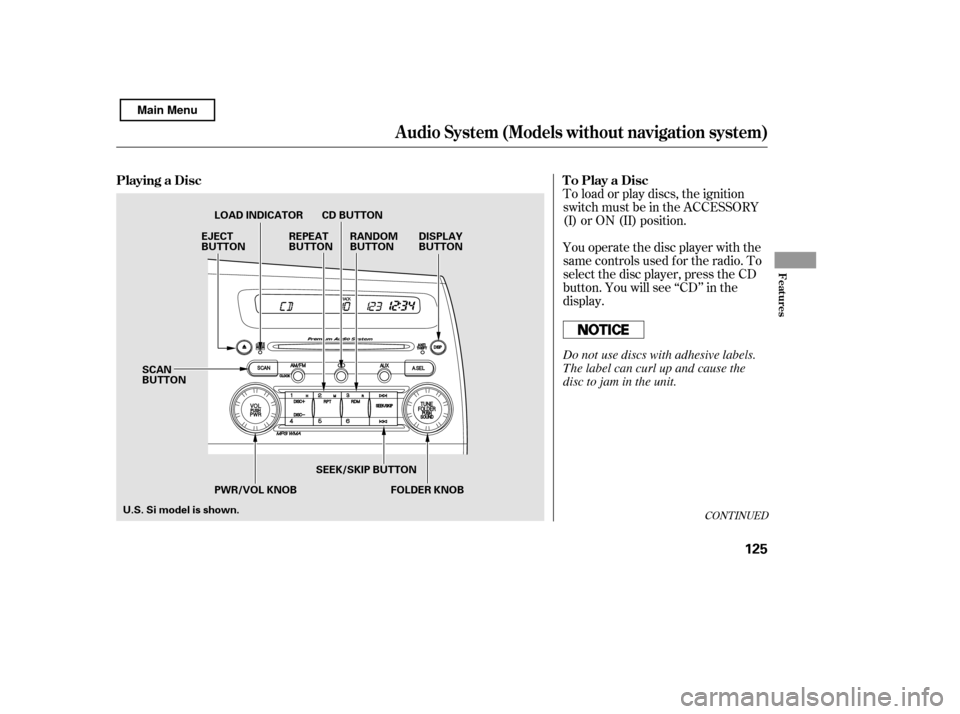
You operate the disc player with the
same controls used f or the radio. To
select the disc player, press the CD
button. You will see ‘‘CD’’ in the
display.
To load or play discs, the ignition
switch must be in the ACCESSORY
(I) or ON (II) position.
Playing a Disc
To Play a Disc
Audio System (Models without navigation system)
Features
125
PWR/VOL KNOBSEEK/SKIP BUTTON
EJECT
BUTTON
LOAD INDICATOR
DISPLAY
BUTTON
CD BUTTON
RANDOM
BUTTON
REPEAT
BUTTON
FOLDER KNOB
U.S. Si model is shown. SCAN
BUTTON
Do not use discs with adhesive labels.
The label can curl up and cause the
disc to jam in the unit.
Main Menu
Page 130 of 388

This audio system can also play
CD-Rs and CD-RWs compressed in
MP3 or WMA f ormats. When
playing a disc in MP3, you will see
‘‘MP3’’ in the display. In WMA
f ormat, ‘‘WMA’’ will appear in the
display.
A disc can support more than 99
folders, and each folder can hold up
to 255 playable f iles. When there are
more than 99 f olders on a disc, the
center display only shows two digits.Insert a disc about half way into the
disc slot. The drive will pull the disc
intherestof thewaytoplayit.You
operate the disc player with the
same controls used f or the radio.
The number of the current track and
the elapsed time are shown in the
display. When playing a disc in MP3
or WMA, the numbers of the current
f older and f ile, and the elapsed time
are shown. The system will
continuously play a disc until you
change modes.
You cannot load and play 3-inch
(8-cm)discsinthissystem.
Each time you press the DISP button,
the display shows you the text data
on a disc, if the disc was recorded
with text data.
If a f ile on WMA disc is protected by
digital rights management (DRM),
the audio unit displays CD FORMAT,
andthenskipstothenextfile.
Depending on the sof tware the f iles
were made with, it may not be
possible to play some f iles, or display
some text data.
Video CDs and DVDs do not work in
this unit.To Load a Disc
T ext Data Display Function
Audio System (Models without navigation system)
126
NOTE:
Main Menu
Page 133 of 388

�µ
�µ
Each time you press and release the
SCAN button, the mode changes
f rom f ile scan to f older scan, then to
normal play. Press the eject button ( ) to
remove the disc. If you eject the disc,
but do not remove it f rom the slot,
the system will automatically reload
it af ter 10 seconds and put it in pause
mode. To begin playing, press the
CD button.
You can also eject the disc when the
ignition switch is of f .
This
feature, when activated, samples the
f irst f ile in each f older on the disc.
To activate folder scan, press the
SCAN button twice. You will see
F-SCAN in the display.
The system plays the f irst f ile in the
f irst f older f or about 10 seconds. If
you do nothing, the system will then
play the f irst f iles in the next f olders
for 10 seconds. After playing the first
file in the last folder, the system
plays normally.
Pressing either side of the SEEK/
SKIP button, selecting a dif f erent
folder with the TUNE knob, or
pressing the SCAN button, also turns
of f the f older scan.
The scan f unction samples all tracks
(f iles in MP3 or WMA) on the disc in
the order they are recorded on the
disc. To activate scan, press the
SCAN button. In MP3 or WMA
mode, press the SCAN button
repeatedly to select SCAN. You will
see SCAN in the display. You will get
a10secondsamplingof eachtrack/
f ile on the disc. Press and hold the
SCAN button again to get out of scan
mode and play the last track/f ile
sampled.
Pressing either side of the SEEK/
SKIP button also turns of f the scan
feature.
To play the radio when a disc is
playing, press the AM/FM button.
Press the CD button again to switch
back to the CD player. Press the
AUX button to switch to an
appropriate audio unit.
In MP3 or WMA mode
CONT INUED
To Stop Playing a Disc
F-SCAN (FOLDER SCAN)
SCA N (T RA CK /FIL E SCA N)
Audio System (Models without navigation system)
Features
129
Main Menu
Page 134 of 388

�µ �´ �µ �´
Load the desired discs in the
magazine, and load the magazine in
the changer according to the
instructions that came with the unit.
To select the disc changer, press the
CD button. The disc and track
numbers will be displayed. To select
a dif f erent disc, use the preset 4
button (DISC ) or the preset 1
button (DISC ). To select the
previous disc, press the preset 4
button (DISC ), or the preset 1
button (DISC ) to select the next
disc in sequence. If you select an empty slot in the
magazine, the changer will search
f or the next available disc to load and
play.
An optional six or eight disc changer
is available f or your vehicle. This
disc changer uses the same controls
used f or the in-dash disc player or
the radio. For inf ormation on how to handle
and protect compact discs, see page.
If you turn the system of f while a
disc is playing, either with the PWR/
VOL knob or by turning of f the
ignition switch, the disc will stay in
the drive. When you turn the system
back on, the disc will begin playing
where it lef t of f .
201
Operating the Optional Disc
Changer
Protecting Discs
Audio System (Models without navigation system)
130
Main Menu
Page 143 of 388

�Î
�Î
To play the radio, press the AM/FM
button. Press the CD button to
switch to the disc mode (if a disc is
loaded). Press the AUX button to
switch the audio mode between the
XM Radio (if equipped) and iPod.
If you see an error message in the
display, see page .
The displayed message may
vary on models or versions. On
some models, there is no
message to disconnect.
When you disconnect the iPod while
it is playing, the display shows ‘‘USB
NO DATA.’’
If you reconnect the same iPod, the
system may begin playing where it
lef t of f , depending on what mode the
iPod is in when it is reconnected.
You can disconnect the iPod at any
time when you see the ‘‘OK to
disconnect’’ message in the iPod
display. Always make sure you see
the ‘‘OK to disconnect’’ message in
the iPod display bef ore you
disconnect it. Make sure to f ollow
the iPod’s instructions on how to
disconnect the dock connector f rom
the USB adapter cable.
: 140
Audio System (Models without navigation system)
Disconnect ing an iPodiPodError Messages
T o Stop Playing Your iPod
Features
139
Main Menu
Page 151 of 388

�µThis feature
samples the f irst f ile in each f older in
the order they are stored. To
activate the folder scan feature,
press the SCAN button repeatedly.
You will see ‘‘F-SCAN’’ in the display.
You will get a 10 second sampling of
the f irst f ile in each f older. Press and
hold the SCAN button to get out of
the f older scan mode and play the
last f ile sampled.
Each time you press and release the
SCAN button, the mode changes
from file scan to folder scan, then to
normal play. To play the radio, press the AM/FM
button. Press the CD button to
switch to the disc mode (if a disc is
loaded). Press the AUX button to
switch the audio mode between the
USB or XM Radio (if equipped).
When you disconnect the USB f lash
memory device while it is playing,
the display shows ‘‘USB NO DATA.’’
If you reconnect the same USB f lash
memory device, the system will
begin playing where it lef t of f .If you see an error message in the
display, see page .
You can disconnect the USB f lash
memory device at any time even if
the USB mode is selected on the
audio system. Always f ollow the USB
f lash memory device’s instructions
when you remove it. 148
Audio System (Models without navigation system)
FOL DER SCAN T o Stop Playing a USB Flash
Memory DeviceUSB Flash Memory Device Error
Messages
Disconnect ing a USB Flash Memory
Device
Features
147
Main Menu
Page 153 of 388
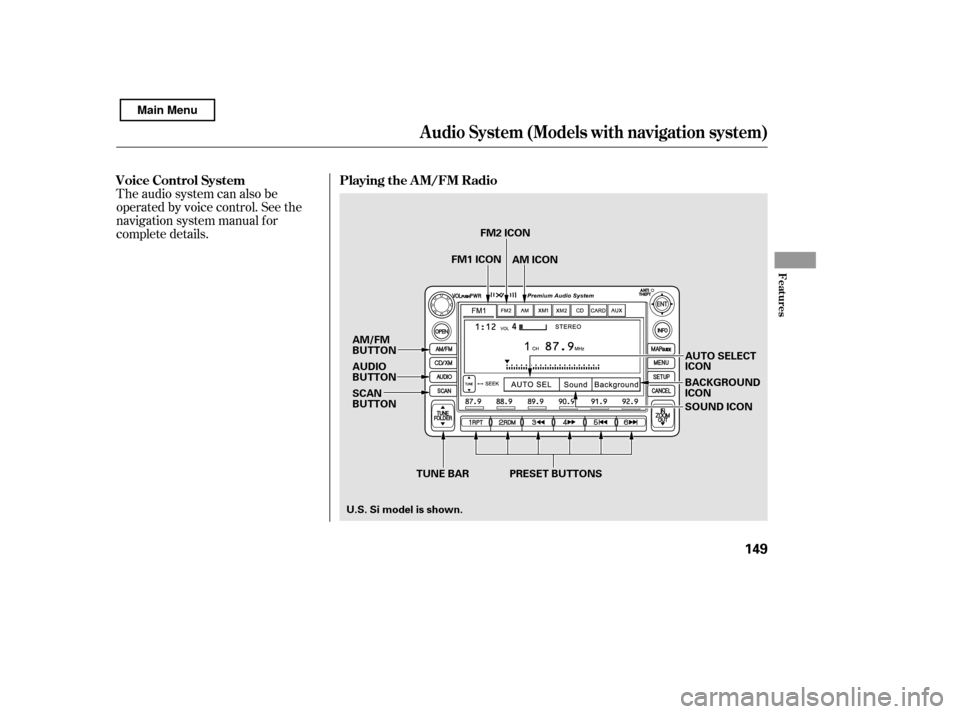
The audio system can also be
operated by voice control. See the
navigation system manual f or
complete details.Playing the AM/FM Radio
Voice Control System
Audio System (Models with navigation system)
Features
149
TUNE BAR BACKGROUND ICON
AM/FM
BUTTON
AUDIO
BUTTON
SCAN
BUTTON
PRESET BUTTONS SOUND ICON
AUTO SELECTICON
U.S. Si model is shown. FM1 ICON
FM2 ICON
AM ICON
Main Menu
Page 154 of 388

�µ�Û�Ý
�Û
�Ý
�Î �Î
�Î
The ignition switch must be in the
ACCESSORY (I) or ON (II) position.
Turn the system on by pushing the
power/volume knob or the AM/FM
button. Adjust the volume by turning
the power/volume knob.
Pushing the AUDIO button will also
turn on the system.
You can also operate the audio
system without using the control
icons on the audio screen. Use the
control buttons on the lef t side of the
screen. The status bar appears on
the bottom of the screen each time
you operate any of the control
buttons. On the navigation screen,
you can also see audio inf ormation
by touching the AUDIO INFO icon
on the lower half of the screen. You can use any of f ive methods to
f ind radio stations on the selected
band: tune, seek, scan, the preset
buttons, and auto select.
Use the TUNE bar to tune
the radio to a desired f requency.
Press the side of the bar to tune
to a higher f requency, and press the
side to tune to a lower
f requency.
Press and hold the or side of
the TUNE bar until you hear two
beeps to change the f requency
rapidly. Release the bar when the
display reaches the desired
f requency.
The band and f requency that the
radio was last tuned to are displayed.
To change bands, press the AM/FM
button, or touch the desired band
icon (FM1, FM2, AM, XM1 , or
XM2 ). On the FM band, STEREO
will be displayed if the station is
broadcasting in stereo. Stereo
reproduction on AM is not available.
If equipped
For inf ormation on XM Radio, see
page . :
153
T o Play the A M/FM Radio
T o Select a Station
TUNE
Audio System (Models with navigation system)
150
Main Menu