Page 166 of 400
�µ
Press the AUDIO button to view the
audio control icons, then touch the
AUTO SEL icon. You will see AUTO
SEL f lashing in the display, and the
system goes into scan mode f or
several seconds. It stores the
f requencies of six AM, and twelve
FM stations in the preset buttons. You will see a ‘‘0’’ displayed af ter
pressing a preset button if auto
select cannot f ind a strong station f or
every preset button.
If you do not like the stations auto
select has stored, you can store
other f requencies on the preset
buttons as previously described.
press the
AUTO SEL icon. This restores the
presets you originally set.
For inf ormation on AM/FM radio
f requencies and reception, see page .
If you are
traveling and can no longer receive
your preset stations, you can use the
auto select feature to find stations in
the local area.
214
To turn of f auto select,
Playing t he A M/FM Radio (Models wit h navigat ion syst em)
AUTO SELECT
162
Main Menu
Page 167 of 400
Playing t he XMRadio (Models with navigation system)
Features
163
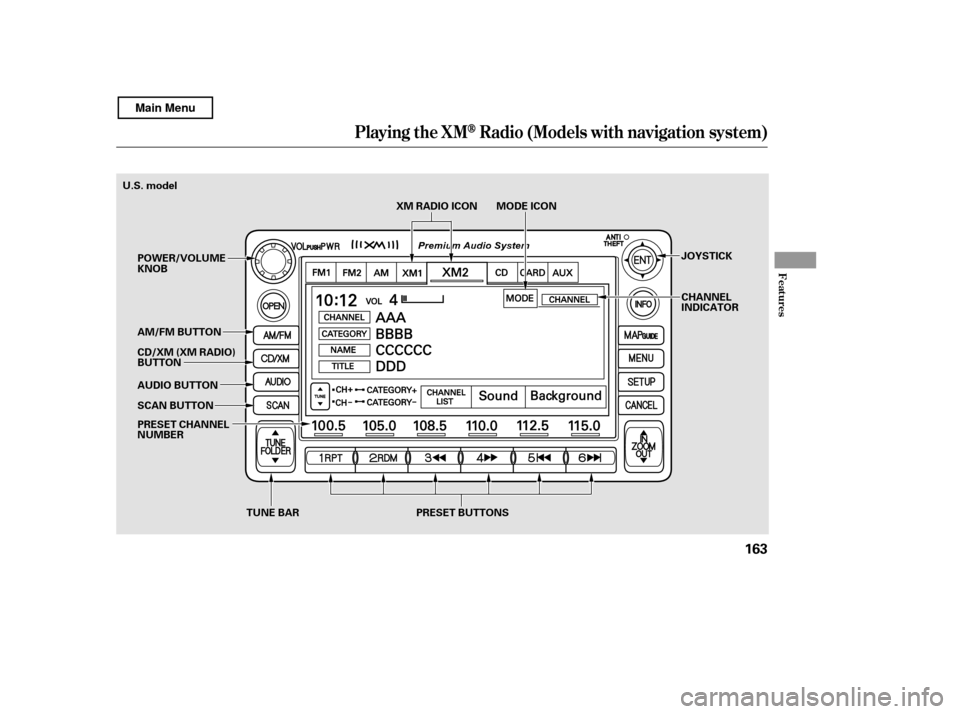
TUNE BAR PRESET BUTTONSXM RADIO ICON MODE ICON
PRESET CHANNEL
NUMBER
SCAN BUTTON
AUDIO BUTTON
AM/FM BUTTON
POWER/VOLUMEKNOB
CD/XM (XM RADIO)
BUTTON JOYSTICK
CHANNEL
INDICATOR
U.S. model
Main Menu
Page 168 of 400

�µ
XM is a registered trademark of
Sirius XM Radio
,Inc.
XM Radio receives signals f rom two
satellites to produce clear, high-
quality digital reception. It of f ers
many channels in several categories.
Along with a large selection of
dif f erent types of music, XM Radio
allows you to view channel and
category selections in the display.
Whenyoupressandholdthe
AUDIO button, the display also
shows all XM inf ormation. To switch between
channel mode and category mode,
touch the MODE icon. In channel
mode, you can select all of the
available channels. In category mode,
such as Jazz, Rock, Classical, etc.,
you can select all of the channels
within that category. Each time you
touch and release the MODE icon,
the display changes between the
channel mode and the category
mode.
To listen to XM Radio, turn the
ignition switch to the ACCESSORY
(I) or the ON (II) position. Press the
CD/XM button to select XM Radio.
Adjust the volume by turning the
power/volume knob. The last
channel you listened to will show in
the display.
Your audio system is capable of
receiving XM
Radio anywhere in
the United States, except Hawaii,
Alaska, and Puerto Rico.
You can also operate the radio using
the control buttons on the left side of
the screen. The status bar appears
on the bottom of the screen each
time you press any of the control
buttons. On the navigation screen,
you can also see the audio
inf ormation by touching the AUDIO
INFO icon on the lower part of the
screen.
You can also change to the XM
Radio while you are listening to an
FM station, AM station, disc, PC
card, etc., by touching the XM1 or
XM2iconontheaudiodisplay.
Operating the XM Radio MODE
Playing t he XMRadio (Models with navigation system)
164
Main Menu
Page 175 of 400

�µYou can use the instrument panel
brightness control buttons to adjust
the illumination of the audio system
(see page ). The audio system
illuminates when the parking lights
are on, even if the radio is of f .
You can select the background
screen to display the sound level.
There are three screen modes: level
(the sound level is shown with the
vertical bars), spectrum analysis (the
sound level appears as ripples of
water), and off. Each time you touch
the background icon, the display
changes.
The SVC mode
controls the volume based on vehicle
speed. The f aster you go, the louder
the audio volume becomes. As you
slow down, the audio volume
decreases. Touch the appropriate
icon (Low, Mid, Hi, Of f ) to select the
mode.
If you f eel the sound is too loud,
choose low. If you f eel the sound is
too quiet, choose Hi.
You can also select the icon with the
joystick. Move it up and down to
move the highlighting and scroll
through lists. Select the icon, then
move the joystick to lef t or right to
change the setting.
The system will return to the audio
display about 10 seconds af ter you
stop adjusting a mode. 76
A udio System L ighting
SVC (speed-sensitive volume
compensation)
Screen Mode
A djust ing t he Sound (Models wit h navigat ion syst em)
Features
171
Main Menu
Page 179 of 400

�µ�µ
�Û �Ý
�µ
�µ
CONT INUED
You can use the preset buttons while
a disc is playing to select passages
and change tracks (files in MP3 or
WMA mode). Each preset button’s
function is shown on the bottom of
the screen. You can also select an icon with the
joystick. Move it to left, right, up, or
down to change the highlighting and
scroll through lists. Then press ENT
on the top of the joystick to select
the icon.
Each time you press and
release (preset 6 button), the
player skips f orward to the
beginning of the next track (f ile in
MP3 or WMA mode). Press and
release (preset 5 button), to
skip backward to the beginning of
the current track. Press it again to
skip to the beginning of the previous
track. To
select a dif f erent f older, press either
side of the TUNE bar to move to the
beginning of the next f older. Press
the side of the TUNE bar to skip
to the next folder, and the side to
move to the beginning of the
previous f older.
To continuously replay
a track (f ile in MP3 or WMA mode),
press and release the RPT button
(preset 1). You will see TRACK
REPEAT in the display. Press and
hold the RPT button for 2 seconds to
turn it off.
To move rapidly within
a track/f ile, press and hold
(preset 4 button) or
(preset 3 button).
In MP3 or WMA mode
Playing a Disc (Models with navigation system)
T o Change or Select T racks/Files
SK IP FOLDER SELECTION
T RA CK REPEA T (FIL E
REPEAT)
FF/REWFeatures
175
PRESET BUTTON’S FUNCTION
U.S. model is shown. PRESET BUTTONS
Main Menu
Page 185 of 400
�µ�´
Playing a PC Card (Models with navigation system)
Features
181
OPEN BUTTON
AUDIO BUTTON SCAN BUTTON
SKIP BUTTONSKIP BUTTON
FAST FORWARD
BUTTON
REWIND BUTTON
CD/XM BUTTON
POWER/VOLUMEKNOB
JOYSTICK
TUNE BAR PLAY MODEICON
PC CARD ICON
TRACK LIST ICON
RDM (RANDOM)
BUTTON
RPT (REPEAT) BUTTON
U.S. model is shown.
Main Menu
Page 187 of 400
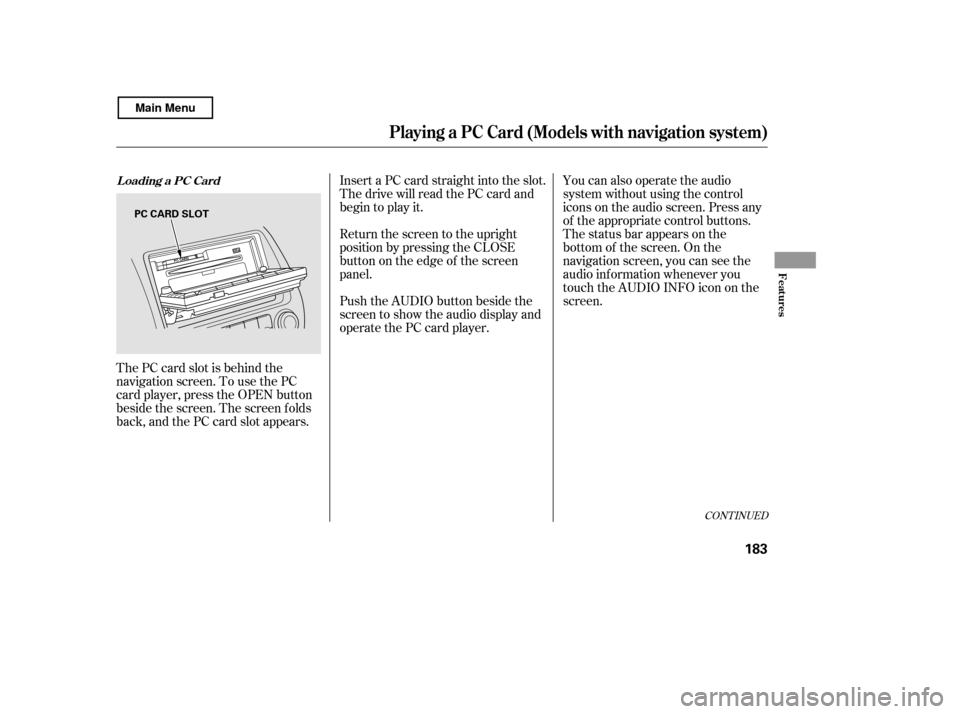
The PC card slot is behind the
navigation screen. To use the PC
card player, press the OPEN button
beside the screen. The screen f olds
back, and the PC card slot appears.Insert a PC card straight into the slot.
The drive will read the PC card and
begin to play it.
Return the screen to the upright
position by pressing the CLOSE
button on the edge of the screen
panel.
Push the AUDIO button beside the
screen to show the audio display and
operate the PC card player.
You can also operate the audio
system without using the control
icons on the audio screen. Press any
of the appropriate control buttons.
The status bar appears on the
bottom of the screen. On the
navigation screen, you can see the
audio inf ormation whenever you
touch the AUDIO INFO icon on the
screen.
CONT INUED
Loading a PC Card
Playing a PC Card (Models with navigation system)
Features
183
PC CARD SLOT
Main Menu
Page 190 of 400
If you select ‘‘Play a New Track List,’’
the system goes into the selected
play mode immediately and begins to
play the files in order to the new list.
To go back to the previous screen,
presstheCANCELbuttononthe
rightsideofthescreen.Toexitthe
play mode screens, press the AUDIO
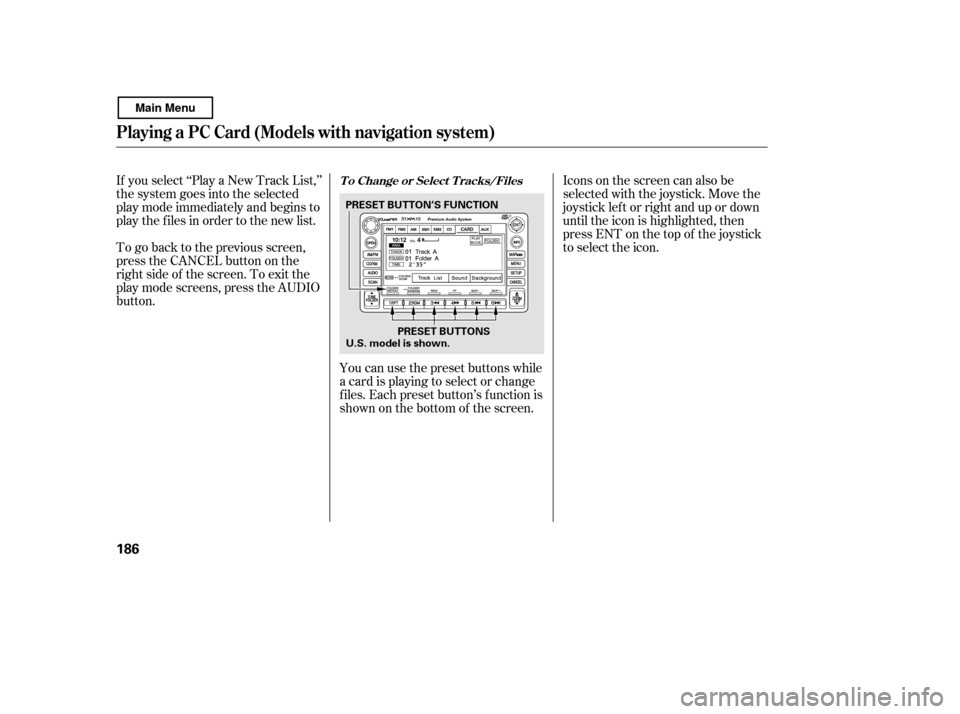
button.You can use the preset buttons while
a card is playing to select or change
f iles. Each preset button’s f unction is
shownonthebottomof thescreen.Iconsonthescreencanalsobe
selected with the joystick. Move the
joystick lef t or right and up or down
until the icon is highlighted, then
press ENT on the top of the joystick
to select the icon.T o Change or Select T racks/Files
Playing a PC Card (Models with navigation system)
186
PRESET BUTTONS
PRESET BUTTON’S FUNCTION
U.S. model is shown.
Main Menu