Page 245 of 456

�µ�µ
�µ
�µ
You can select any type of repeat,
random and scan modes on the audio
menu screen. Press the AUDIO
button to show the audio control
display on the navigation screen.
Push down the selector on the
interf ace dial to display the audio
menu items. Turntheknobontheinterfacedial
to select a play mode: f older random,
track random, folder repeat, track
repeat. Press ENTER to set your
selection.
To cancel the selected mode, push
down the selector to display the
audio menu on the audio control
display. Turn the knob on the
interf ace dial to select thehighlighted play mode, then press
ENTER to turn of f that selected
mode.
This feature
continuously plays a f ile. Pressing
either side of the SKIP bar also turns
of f this f eature. This feature
plays all the f iles in random order.
This
f eature plays the f iles in the selected
f older in random order.
This feature
replays all the f iles in the selected
f older in the order they are stored.
Pressing either side of the
CATEGORY bar also turns of f this
feature.
CONT INUED
Playing a USB Flash Memory Device (Models with navigat ion syst em)
T o Select Repeat , Random or Scan
Mode:
T RA CK REPEA T
TRACK RANDOM
FOLDER RANDOM
FOLDER REPEAT
Features
241
Main Menu
Page 248 of 456

If you see an error message in the
center display while playing a USB
f lash memory device, f ind the
solution in the chart to the right. If
you cannot clear the error message,
take your vehicle to your dealer.Error Message Solution
Cause
There is a problem with the USB adapter unit.
Disconnect the device. Then, turn the audio
systemoff,andturnitonagain.Donot
reconnect the device that caused the error.
Appears when the f iles in the USB f lash
memory device are DRM or an unsupported
format. This error message appears for about 3
seconds, then plays the next song.
Appears when the USB f lash memory device is
emptyortherearenoMP3,WMA,orAACfiles
in the USB flash memory device. Save some
MP3, WMA, or AAC files in the USB flash
memory device.
Appears when an unsupported device is
connected. See page 236 for the specification
information for the USB flash memory device.
If it appears when the supported device is
connected, reconnect the device.
USB ROM Error
Appears when an
incompatible device is
connected.
Use of unsupported
files
No files in USB flash
memory device
Use of unsupported
USB f lash memory
device
USB Flash Memory Device Error Messages (Models wit h navigation syst em)
244
USB ERROR
BAD USBDEVICE
PLEASE CHECK OWNERS
MANUAL
UNPLAYABLE FILE
USB NO SONG
UNSUPPORTED
Main Menu
Page 257 of 456

Your vehicle’s audio system may
disable itself if it is disconnected
f rom electrical power f or any reason.
To make it work again, you must
enter a specif ic f ive-digit code with
the preset buttons. Because there
are hundreds of number
combinations possible f rom the f ive
digits, making the system work
without knowing the exact code is
nearly impossible.
You should have received a radio
code card that lists your audio
system’s code and serial numbers. It
is best to store this card in a saf e
place at home. In addition, you
should write the audio system’s
serial number in this owner’s manual.
If you lose the card, you must obtain
the code number f rom your dealer.
To do this, you will need the audio
system’s serial number.The system will retain your AM and
FM presets even if power is
disconnected.
If your vehicle’s battery is discon-
nected or goes dead, the audio
system will disable itself . If this
happens, you will see
‘‘ENTER CODE’’ in the f requency
display(onthescreenonmodels
with navigation system) the next
timeyouturnonthesystem.Usethe
preset buttons to enter the five-digit
code. The code is on the radio code
card included in your owner’s
manual kit. When it is entered
correctly, the radio will start playing.
If you make a mistake entering the
code, do not start over; complete the
f ive-digit sequence, then enter the
correct code. You have ten tries to
enter the correct code. If you are
unsuccessful in ten attempts, you
must then leave the system on for 1
hour bef ore trying again.
Except LX, LX-P and U.S. SE
Radio T hef t Prot ection
Features
253
Main Menu
Page 258 of 456
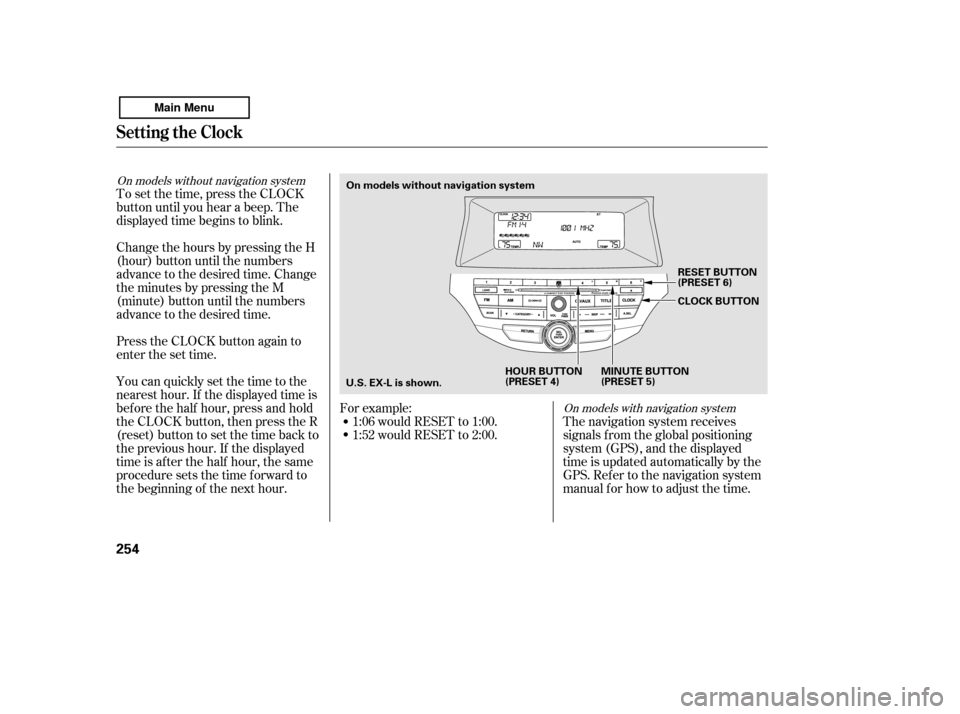
To set the time, press the CLOCK
button until you hear a beep. The
displayed time begins to blink.
Change the hours by pressing the H
(hour) button until the numbers
advance to the desired time. Change
the minutes by pressing the M
(minute) button until the numbers
advance to the desired time.
Press the CLOCK button again to
enter the set time.
You can quickly set the time to the
nearest hour. If the displayed time is
bef ore the half hour, press and hold
the CLOCK button, then press the R
(reset) button to set the time back to
the previous hour. If the displayed
time is af ter the half hour, the same
procedure sets the time f orward to
the beginning of the next hour.The navigation system receives
signals f rom the global positioning
system (GPS), and the displayed
time is updated automatically by the
GPS. Ref er to the navigation system
manual f or how to adjust the time.
1:06 would RESET to 1:00.
1:52 would RESET to 2:00.
For example:
On models with navigation system
On models without navigation system
Setting the Clock
254
On models without navigation system
MINUTE BUTTON
(PRESET 5)CLOCK BUTTON
RESET BUTTON
(PRESET 6)
HOUR BUTTON
(PRESET 4)
U.S. EX-L is shown.
Main Menu
Page 259 of 456
�Ú
You can also adjust the clock and
switch the clock display between
24-hours and 12-hours in the menu
mode.
To adjust the clock setting:
Press and release the MENU
button. The display shows you the
menu items.
You can adjust the clock setting
with the ignition switch in the
ACCESSORY (I) or ON (II)
position. Turn the selector knob to select
‘‘CLOCK ADJUST.’’
Press the selector knob (ENTER)
to enter your selection. The
display changes to the clock
adjusting display.Turn the selector knob to select
the item which you want to adjust.
Turning the selector knob will
change the selected item between
the clock display setting, hours,
minutes, and SET. The selected
item is indicated with in the
display.
1.
2. 3.4.
CONT INUED
EX, EX-L, Canadian SE, and V6 models
without navigation systemAdjusting the Clock with MENU
Button
Setting the Clock
Features
255
Main Menu
Page 263 of 456

CONT INUED
Compass operation can be af f ected
by driving near power lines or
stations, across bridges, through
tunnels, over railroad crossings, past
large vehicles, or driving near large
objects that can cause a magnetic
disturbance. It can also be af f ected
by accessories such as antennas and
roof racks that are mounted by
magnets.The compass may need to be
manually calibrated af ter exposure to
a strong magnetic field. If the
compassseemstobecontinually
showing the wrong direction and is
not self -calibrating, or the compass
display is blinking with the CAL
indicator on, do the f ollowing.
When you turn the ignition switch to
the ON (II) position, the compass is
self-calibrating, then the compass
display is shown in the display.
Do this procedure in an open
area, away f rom buildings, power
lines, and other vehicles.
Press and hold the MENU button
f or about 5 seconds until you hear
a beep. The display shows you the
compass setting menu items.
Turn the ignition switch to the ON
(II) position.
1. 2.
EX-L and EX-L V6 without navigation
system
Compass
Compass Operation Compass Calibration
Features
259
NOTE:
COMPASS
U.S. model is shown. COMPASS SETTING MENU ITEMS
Main Menu
Page 274 of 456
�µ�µ
Bluetooth
If equipped
handsf reelink.honda.
com
www.handsfreelink.ca,HandsFreeLink(HFL)
allows you to place and receive
phone calls using voice commands,
without handling your cell phone.
To use HFL, you need a Bluetooth-
compatible cell phone. For a list of
compatible phones, pairing
procedures, and special f eature
capabilities:
In the U.S., visit or call (888) 528-7876.
Press and
release to give a command or answer
a call.
Press and
release to end a call, go back to the
previous command, or cancel the
command.
In Canada, visit
or call (888) 528-7876. Using HFL
HFL Talk button
HFL Back buttonHFL Buttons
BluetoothHandsFreeL ink
270
HFL TALK BUTTON
HFL TALK BUTTON
On models with navigation system On models without navigation system HFL BACK BUTTON
NAVI VOICE
CONTROL
BUTTONS
HFL BACK BUTTON
Main Menu
Page 275 of 456
�Ì�Ì�Ì�Ì
Try to reduce all background
noise. If the microphone picks up
voices other than yours,
commands may be misinterpreted. Many commands can be spoken
together. For example, you can
say ‘‘Call 123-456- ’’ or
‘‘Dial Peter.’’
Press and release the HFL Talk
button each time you want to
make a command. Af ter the beep,
speak in a clear, natural tone.
When HFL is in use, navigation
voice commands cannot be
recognized.
To change the volume level of
HFL, use the audio system volume
knob or the steering wheel volume
controls.
Airorwindnoisefromthe
dashboard and side vents,
windows and moonroof may
interf ere with the microphone.
Adjust or close them as necessary.
CONT INUED
Voice Cont rol T ips
BluetoothHandsFreeL ink
Features
271
MICROPHONE
Main Menu


