2011 GMC TERRAIN audio
[x] Cancel search: audioPage 190 of 426

Black plate (32,1)GMC Terrain Owner Manual - 2011
7-32 Infotainment System
Searching for a Track
Tracks can be searched for by:
.Playlists
.Artists
.Albums
.Song Titles
.Genres
.Composers
.Audiobooks
The number of objects in each
category is shown in parentheses
after the category.
To search for tracks:
1. Press the MENU/SEL knob.
2. Select Search.
3. Select: Playlists, Artists, Albums, Song Titles, Genres,
Composers, or Audiobooks.
4. Select the track. The search rate increases if the MENU/SEL knob
is continuously turned while
searching in a list.
Connecting and Controlling a
USB Drive
Files that are not stored in
folders are displayed in the root
directory (USB).
Connecting a USB Drive
Connect the USB drive to the
USB port.
Disconnecting a USB Drive
A USB drive should be ejected from
the USB port before disconnecting
it. To eject a USB drive:
1. Press the MENU/SEL knob.
2. Select USB Eject.
Playing Tracks in Random Order
Press the MENU/SEL knob and
then set Shuffle Songs to On. Selecting a Track
Using the control buttons:.PressgSEEK orlSEEK to
select the previous or next track.
.Turn the MENU/SEL knob to
select a track in the current
submenu. The track will start
to play.
Selecting a track in a different
folder:
1. Press the MENU/SEL knob.
2. Select Folder List.
3. Select the folder.
4. Select the track.
Searching for Tracks
It is normal for the search feature
to take some time to display the
information after reading the device
due to the amount of information
stored.
Page 191 of 426
Black plate (33,1)GMC Terrain Owner Manual - 2011
Infotainment System 7-33
Files that do not have any meta
data stored in the ID3 tag display as
Unknown.
Tracks can be searched by:
.Playlists
.Artists
.Albums
.Song Titles
.Genres
The number of objects in each
category is shown in parentheses
after the category. To search for tracks:
1. Press the MENU/SEL knob.
2. Select Search.
3. Select: Playlists, Artists, Albums,
Song Titles, Genres,
Composers, or Audiobooks.
4. Select the track. The search rate increases if the MENU/SEL knob
is continuously turned while
searching in a list.
Recording Tracks to MEM
See Mass Storage Media (MEM) on
page 7‑24 for more information.
Rear Seat
Infotainment
Rear Seat Entertainment
(RSE) System
The vehicle may have a DVD Rear
Seat Entertainment (RSE) system.
The RSE system works with the
vehicle's infotainment system. The
DVD player is part of the front radio.
The RSE system includes a radio
with a DVD player, two rear seat
video display screens, audio/video
jacks, two wireless headphones,
and a remote control. See CD/DVD
Player on page 7‑21 or the separate
navigation system manual for more
information on the vehicle's DVD
system.
Before Driving
The RSE is for rear seat
passengers only. The driver cannot
safely view the video screen while
driving.
Page 193 of 426

Black plate (35,1)GMC Terrain Owner Manual - 2011
Infotainment System 7-35
to the A/V jacks. The headphones
are used to listen to various
multi‐media. The wireless
headphones have an On/Off button,
channel 1/2 switch, and a volume
control. Turn the headphones off
when not in use.
Push the On/Off button to turn on
the headphones. A light on the
headphones comes on. If the light
does not come on, check the
batteries. Intermittent sound or static
can also indicate weak batteries.
See“Battery Replacement” later in
this section for more information.
Infrared transmitters are on the
top of the left seatback video
screen. The headphones shut off
automatically to save the battery
power if the RSE system is shut off
or if the headphones are out of
range of the transmitters for more
than three minutes. Moving too
far forward or stepping out of the
vehicle can cause the headphones
to lose the signal or have static. To adjust the volume on the
headphones, use the volume
control.
For optimal audio performance, the
headphones must be worn correctly.
Headphones should be worn with
the headband over the top of the
head for best audio reception. The
symbol L (Left) appears on the
outside bottom edge of the ear cup
and should be positioned on the left
ear. The symbol R (Right) appears
on the outside bottom edge of the
ear cup and should be positioned on
the right ear.
Notice:
Do not store the
headphones in heat or direct
sunlight. This could damage the
headphones and repairs will
not be covered by the warranty.
Storage in extreme cold can
weaken the batteries. Keep the
headphones stored in a cool, dry
place. If the foam ear pads attached to
the headphones become worn or
damaged, the pads can be replaced
separately from the headphone set.
To purchase replacement ear pads,
call 1‐888‐293‐3332, then prompt
zero (0), or contact your dealer.
Battery Replacement
To change the batteries:
1. Loosen the screw to the battery
door located on the left side of
the headphones.
2. Slide the battery door open.
3. Replace the two AAA batteries.
4. Replace the battery door and tighten the screw.
Remove the batteries if the
headphones are not going to be
used for a long period of time.
Page 194 of 426

Black plate (36,1)GMC Terrain Owner Manual - 2011
7-36 Infotainment System
Audio/Video (A/V) Jacks
If available, the A/V jacks are
located on the rear of the floor
console. They allow audio or
video cables to be connected
from an auxiliary device such as a
camcorder or a video game system.
The A/V jacks are color coded:
.Yellow for video input.
.White for left audio input.
.Red for right audio input.
Power for auxiliary devices is not
supplied by the radio system.
To use the auxiliary inputs of the
RSE system:
1. Connect the auxiliary device cables to the A/V jacks.
2. Power on both the auxiliary device and the RSE video
screen. Changing the Source on the Video
Display Screens
The image from the auxiliary device
can be switched between the video
display screens.
To change the display:
1. Press the AUX button on the
remote control to change the
source of both video screens
from the DVD player to the
auxiliary device.
2. Press the AUX button a second time to change the left video
screen source to the DVD player
and the right video screen to the
auxiliary device.
3. Press the AUX button a third time to change the left video
screen source to the auxiliary
device and the right video
screen to the DVD player. 4. Press the AUX button a fourth
time to change the source of
both video screens to the DVD
player.
Changing the RSE Video Screen
Settings
The screen display mode,
brightness, and language can be
changed from the setup menu using
the remote control. To change a
setting:
1. Pressz.
2. Use
n,q,p,o, andrto
select the settings.
3. Press
zagain to exit the
setup menu.
Page 195 of 426
Black plate (37,1)GMC Terrain Owner Manual - 2011
Infotainment System 7-37
Audio Output
Audio from the DVD player or
auxiliary inputs can be heard
through the following:
.Wireless Headphones
.Vehicle Speakers
The RSE system transmits the
audio signal to the wireless
headphones if an audio signal is
available. See “Headphones” earlier
in this section for more information.
The front seat passengers are able
to listen to playback from the A/V
jacks through the vehicle speakers
by selecting Rear A/V as the source
on the radio.
Video Screens
The video screens are located in the
back of the driver and front
passenger seats.
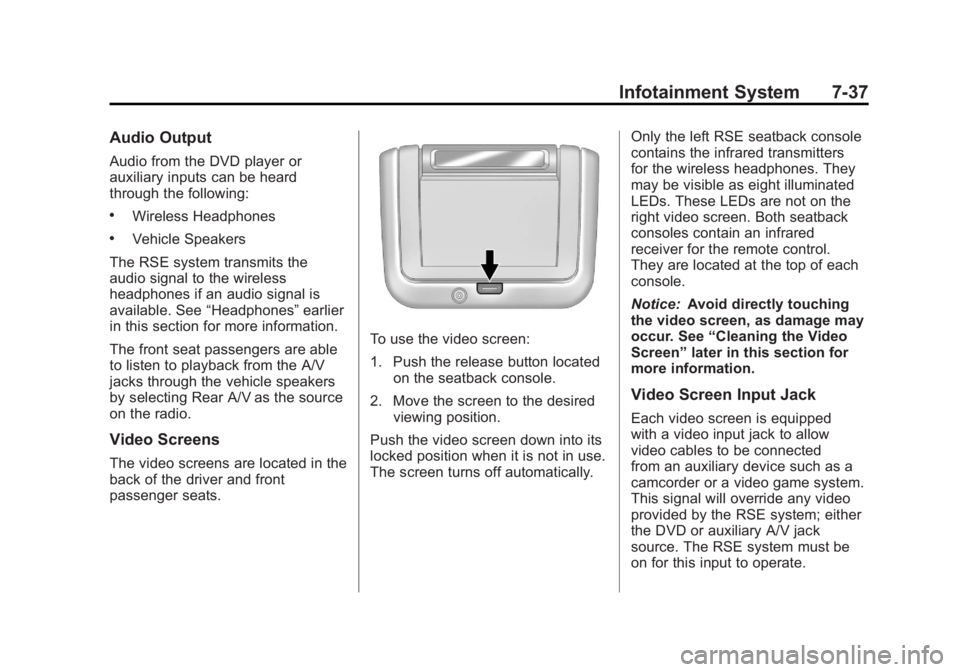
To use the video screen:
1. Push the release button located on the seatback console.
2. Move the screen to the desired viewing position.
Push the video screen down into its
locked position when it is not in use.
The screen turns off automatically. Only the left RSE seatback console
contains the infrared transmitters
for the wireless headphones. They
may be visible as eight illuminated
LEDs. These LEDs are not on the
right video screen. Both seatback
consoles contain an infrared
receiver for the remote control.
They are located at the top of each
console.
Notice:
Avoid directly touching
the video screen, as damage may
occur. See “Cleaning the Video
Screen” later in this section for
more information.
Video Screen Input Jack
Each video screen is equipped
with a video input jack to allow
video cables to be connected
from an auxiliary device such as a
camcorder or a video game system.
This signal will override any video
provided by the RSE system; either
the DVD or auxiliary A/V jack
source. The RSE system must be
on for this input to operate.
Page 197 of 426

Black plate (39,1)GMC Terrain Owner Manual - 2011
Infotainment System 7-39
z(Display Menu):Press to
adjust the brightness and screen
display mode, and display the
language menu.
q(Return): Press to exit the
current active menu and return to
the previous menu. This button
operates only when the display
menu or a DVD menu is active.
c(Stop): Press to stop playing,
rewinding, or fast forwarding a
DVD. Press twice to return to the
beginning of the DVD.
s(Play/Pause): Press to start
playing a DVD. Press to pause a
DVD while it is playing. Press again
to continue playing.
Depending on the infotainment
system in the vehicle, DVD
playback may be slowed down by
pressing
sthen[. Reverse
slow play by pressing
sthenr.
Press
sagain to cancel slow play.
t(Previous Track/Chapter):
Press to go to the start of the
current track or chapter. Press
again to go to the previous track
or chapter. This button may not
work when the DVD is playing
the copyright information or the
previews.
u(Next Track/Chapter): Press
to go to the beginning of the next
chapter or track. This button might
not work when the DVD is playing
the copyright information or the
previews.
r(Fast Reverse): Press to
quickly reverse the DVD or CD. To
stop fast reversing a DVD video,
press
s. To stop fast reversing a
DVD audio or CD, release
r. This
button might not work when the
DVD is playing the copyright
information or the previews.
[(Fast Forward): Press to fast
forward the DVD or CD. To stop fast
forwarding a DVD video, press
s.
To stop fast forwarding a DVD audio
or CD, release
[. This button might
not work when the DVD is playing
the copyright information or the
previews.
e(Audio): Press to change audio
tracks on DVDs that have this
feature when the DVD is playing.
{(Subtitles): Press to turn
ON/OFF subtitles and to move
through subtitle options when a
DVD is playing.
AUX (Auxiliary): Press to switch
the video display between the DVD
player and an auxiliary source.
Page 200 of 426

Black plate (42,1)GMC Terrain Owner Manual - 2011
7-42 Infotainment System
Tips and Troubleshooting Chart (cont.)
ProblemRecommended Action
Sometimes the wireless headphone audio cuts out or
buzzes. Check for obstructions, low batteries, reception range,
and interference from cellular telephone towers or by
using a cellular telephone in the vehicle.
Check that the headphones are on correctly using
the L (left) and R (right) on the headphones.
Check that the headphones are positioned properly with
the headband across the top of the head.
I lost the remote and/or the headphones. See your dealer for assistance.
The DVD is playing, but there is no picture or sound. Check that the RSE video screen is sourced to the DVD player by pressing the AUX button on the remote
control.
DVD Display Error Messages
The DVD display error message
depends on which radio the vehicle
has. The video screen may display
one of the following:
Disc Load/Eject Error or
Mechanical Error:There are disc
load or eject problems. Disc Format Error or Unknown
Format:
The disc is inserted with
the disc label wrong side up, or the
disc is damaged.
Disc Region Error or Disc Error:
The disc is not from a correct
region. No Disc Inserted:
No disc is
present when theXEJECT or
MEM/DVD/AUX button is pressed
on the radio.
Page 201 of 426

Black plate (43,1)GMC Terrain Owner Manual - 2011
Infotainment System 7-43
DVD Distortion
Video distortion can occur when
operating cellular phones, scanners,
CB radios, Global Position Systems
(GPS)*, two-way radios, mobile fax,
or walkie talkies.
It might be necessary to turn off the
DVD player when operating one of
these devices in or near the vehicle.
*Excludes the OnStar
®System.
Cleaning the RSE Seatback
Console
Use only a clean cloth dampened
with clean water to clean the RSE
seatback console surface.
Cleaning the Video Screen
Use only a clean cloth dampened
with clean water. Use care when
touching or cleaning the screen as
damage could result.
Rear Seat Audio (RSA)
System
Vehicles with this feature allow the
rear seat passengers to listen to
and control any of the music
sources: radio, CDs, DVDs, or
other auxiliary sources. RSA can
only control music sources that
the front seat passengers are not
listening to, except on radios where
dual control is allowed.
RSA can function when the front
radio is off.
Xdisplays on the
infotainment system when RSA
is on.
Audio can be heard through
wired headphones (not included)
plugged into the jacks on the RSA.
If the vehicle has a Rear Seat
Entertainment system with wireless
headphones, audio can also be
heard on Channel 2 of the wireless
headphones. To listen to a portable audio
device through the RSA, attach
the portable audio device to either
the front or rear auxiliary input,
if available. Turn the device on, then
choose the front auxiliary input with
the RSA SRCE button.
P(Power):
Press to turn the RSA
on or off.
Volume: Turn to increase or
decrease the volume of the wired
headphones. The left knob controls
the left headphones and the right
knob controls the right. Use the
volume control on the headphones
for wireless headphones.