Page 120 of 452
General Information
This device complies with Part 15 of the FCC rules and
RSS 210 of Industry Canada. Operation is subject to the
following conditions:
•Changes or modifications not expressly approved by
the party responsible for compliance could void the
user’s authority to operate the equipment.
•This device may not cause harmful interference.
•This device must accept any interference received,
including interference that may cause undesired
operation.
VOICE COMMAND — IF EQUIPPED
Voice Command System Operation
This Voice Command system allows you to
control your AM, FM radio, satellite radio, disc
player, and a memo recorder.NOTE:
Take care to speak into the Voice Interface
System as calmly and normally as possible. The ability of
the Voice Interface System to recognize user voice com-
mands may be negatively affected by rapid speaking or a
raised voice level.
WARNING!
Any voice commanded system should be used only
in safe driving conditions following local laws. All
attention should be kept on the roadway ahead.
Failure to do so may result in a collision causing
serious injury or death.
When you press the Voice Command
button, you
will hear a beep. The beep is your signal to give a
command.
NOTE:
If you do not say a command within a few
seconds, the system will present you with a list of options.
118 UNDERSTANDING THE FEATURES OF YOUR VEHICLE
Page 121 of 452
If you ever wish to interrupt the system while it lists
options, press the Voice Command
button, listen
for the beep, and say your command.
Pressing the Voice Command
button while the
system is speaking is known as “barging in.” The system
will be interrupted, and after the beep, you can add or
change commands. This will become helpful once you
start to learn the options.
NOTE: At any time, you can say the words “Cancel”,
“Help” or “Main Menu”.
These commands are universal and can be used from any
menu. All other commands can be used depending upon
the active application.
When using this system, you should speak clearly and at
a normal speaking volume. The system will best recognize your speech if the win-
dows are closed, and the heater/air conditioning fan is
set to low.
At any point, if the system does not recognize one of your
commands, you will be prompted to repeat it.
To hear the first available Menu, press the Voice
Command
button and say “Help” or “Main
Menu”.
Commands
The Voice Command system understands two types of
commands. Universal commands are available at all
times. Local commands are available if the supported
radio mode is active.
Changing the Volume
1. Start a dialogue by pressing the Voice Command
button.
3
UNDERSTANDING THE FEATURES OF YOUR VEHICLE 119
Page 122 of 452
2. Say a command (e.g., “Help”).
3. Use the ON/OFF VOLUME rotary knob to adjust the
volume to a comfortable level while the Voice Command
system is speaking. Please note the volume setting for
Voice Command is different than the audio system.
Main Menu
Start a dialogue by pressing the Voice Command
button. You may say “Main Menu” to switch to the main
menu.
In this mode, you can say the following commands:
•“Radio” (to switch to the radio mode)
•“Disc” (to switch to the disc mode)
•“Memo” (to switch to the memo recorder)
•“Setup” (to switch to system setup)
Radio AM
To switch to the AM band, say “AM” or “Radio AM”. In
this mode, you may say the following commands:
•“Frequency #” (to change the frequency)
•“Next Station” (to select the next station)
•“Previous Station” (to select the previous station)
•“Radio Menu” (to switch to the radio menu)
•“Main Menu” (to switch to the main menu)
Radio FM
To switch to the FM band, say “FM” or “Radio FM”. In
this mode, you may say the following commands:
•“Frequency #” (to change the frequency)
•“Next Station” (to select the next station)
•“Previous Station” (to select the previous station)
120 UNDERSTANDING THE FEATURES OF YOUR VEHICLE
Page 123 of 452
•“Menu Radio” (to switch to the radio menu)
•“Main Menu” (to switch to the main menu)
Satellite Radio
To switch to satellite radio mode, say “Sat” or “Satellite
Radio”. In this mode, you may say the following com-
mands:
•“Channel Number” (to change the channel by its
spoken number)
•“Next Channel” (to select the next channel)
•“Previous Channel” (to select the previous channel)
•“List Channel” (to hear a list of available channels)
•“Select Name” (to say the name of a channel)
•“Menu Radio” (to switch to the radio menu)
•“Main Menu” (to switch to the main menu)
Disc
To switch to the disc mode, say “Disc”. In this mode, you
may say the following commands:
•“Track” (#) (to change the track)
•“Next Track” (to play the next track)
•“Previous Track” (to play the previous track)
•“Main Menu” (to switch to the main menu)
Memo
To switch to the voice recorder mode, say “Memo”. In
this mode, you may say the following commands:
•“New Memo” (to record a new memo) — During the
recording, you may press the Voice Command
button to stop recording. You proceed by saying one of
the following commands:
“Save” (to save the memo)
3
UNDERSTANDING THE FEATURES OF YOUR VEHICLE 121
Page 138 of 452
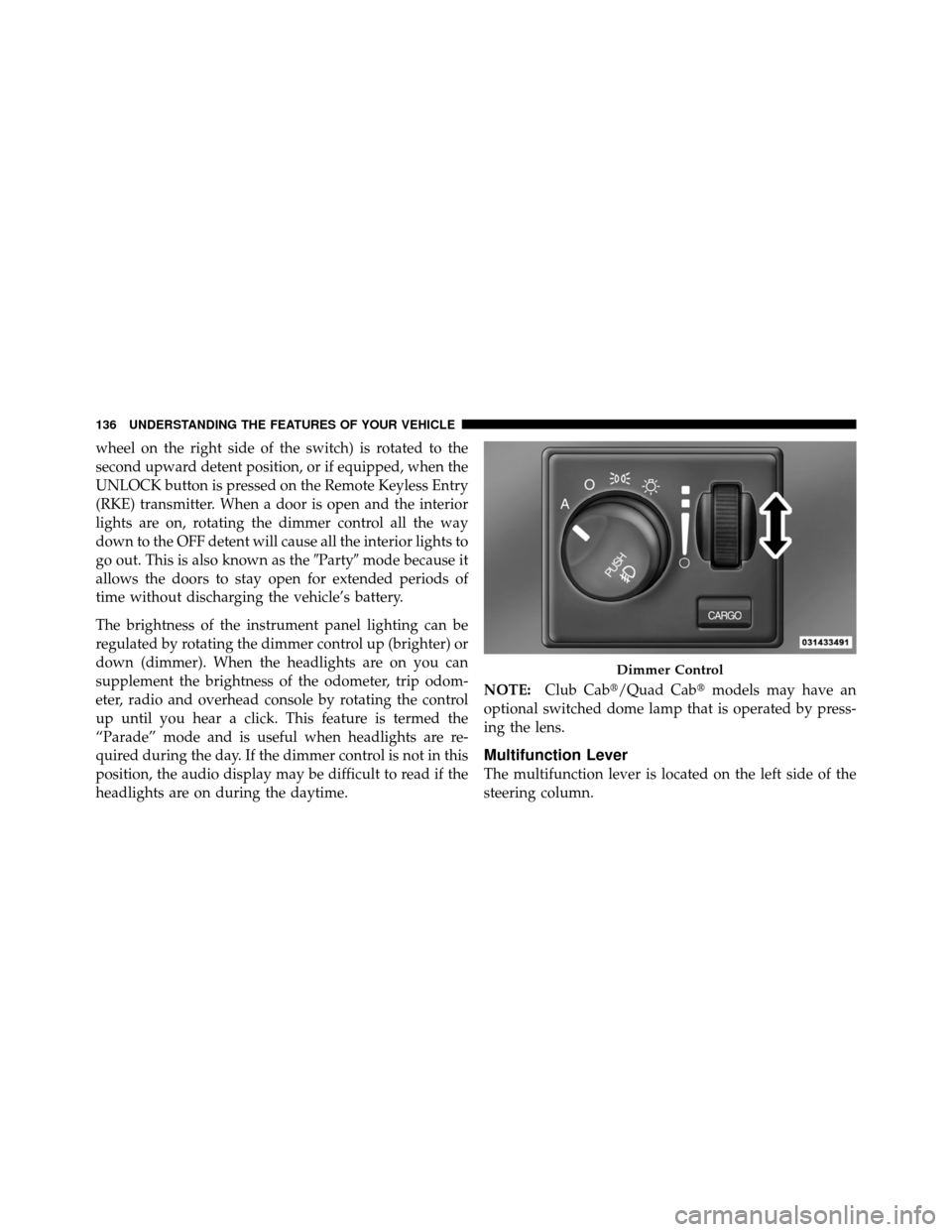
wheel on the right side of the switch) is rotated to the
second upward detent position, or if equipped, when the
UNLOCK button is pressed on the Remote Keyless Entry
(RKE) transmitter. When a door is open and the interior
lights are on, rotating the dimmer control all the way
down to the OFF detent will cause all the interior lights to
go out. This is also known as the�Party�mode because it
allows the doors to stay open for extended periods of
time without discharging the vehicle’s battery.
The brightness of the instrument panel lighting can be
regulated by rotating the dimmer control up (brighter) or
down (dimmer). When the headlights are on you can
supplement the brightness of the odometer, trip odom-
eter, radio and overhead console by rotating the control
up until you hear a click. This feature is termed the
“Parade” mode and is useful when headlights are re-
quired during the day. If the dimmer control is not in this
position, the audio display may be difficult to read if the
headlights are on during the daytime. NOTE:
Club Cab�/Quad Cab� models may have an
optional switched dome lamp that is operated by press-
ing the lens.
Multifunction Lever
The multifunction lever is located on the left side of the
steering column.
Dimmer Control
136 UNDERSTANDING THE FEATURES OF YOUR VEHICLE
Page 157 of 452
Programming HomeLink�
Before You Begin
The Compass Mini-Trip Computer (CMTC) illuminates
the HomeLink�symbol (a house with an arrow inside it)
along with 1, 2 or 3 indicators under it, when a
HomeLink� button is pressed.
Pay attention to the indicator(s), as they will flash at
different rates, or remain solid during training.
If you have not trained any of the HomeLink� buttons,
erase all channels before you begin training.
To do this, press and hold the two outside buttons for
20 seconds. Release the buttons when the indicators start
to flash.
It is recommended that a new battery be placed in the
handheld transmitter of the device being copied to
HomeLink� for more efficient training and accurate
transmission of the radio-frequency signal. Your vehicle should be parked outside of the garage
while training.
1. Turn the ignition switch to the ON/RUN position.
2. Place the handheld transmitter 1 to 3 inches (3 to 8 cm)
from the HomeLink�
buttons while keeping the
HomeLink� display in view.
For optimal training, point the battery end of the hand-
held transmitter away from the HomeLink�.
3. Simultaneously, press and hold both the chosen
HomeLink�button and the handheld transmitter button
until the indicator(s) change from a slow to a rapid flash
rate.
Then release both the HomeLink� and handheld trans-
mitter buttons.
It may take up to 30 seconds or longer in rare cases. The
garage door may open and close while you train.
3
UNDERSTANDING THE FEATURES OF YOUR VEHICLE 155
Page 159 of 452
6. Firmly press and release the LEARN or TRAINING
button. The name and color of the button may vary by
manufacturer.
NOTE:You have 30 seconds in which to initiate the next
step after the LEARN button has been pressed.
7. Return to the vehicle and press the programmed
HomeLink� button twice (holding the button for two
seconds each time). If the device is plugged in and
activates, programming is complete.
If the device does not activate, press the button a third
time (for two seconds) to complete the training.
If you are have any problems, or require assistance,
please call toll-free 1–800–355–3515 or, on the Internet at
www.HomeLink.com for information or assistance.
To program the remaining two HomeLink� buttons,
repeat each step for each remaining button. DO NOT
erase the channels.Gate Operator/Canadian Programming
Canadian radio-frequency laws require transmitter sig-
nals to “time-out” (or quit) after several seconds of
transmission – which may not be long enough for
HomeLink� to pick up the signal during programming.
Similar to this Canadian law, some U.S. gate operators are
designed to “time-out” in the same manner.
It may be helpful to unplug the device during the cycling
process to prevent possible overheating of the garage
door or gate motor.
If you are having difficulties programming a garage door
opener or a gate operator, replace “Programming
HomeLink,” Step 3, with the following:
3. Continue to press and hold the HomeLink� button,
while you press and release (“cycle”), your handheld
transmitter every two seconds until HomeLink� has
successfully accepted the frequency signal. The indica-
tor(s) will change from a slow flash to a rapid flash
when trained.
3
UNDERSTANDING THE FEATURES OF YOUR VEHICLE 157
Page 177 of 452
UNDERSTANDING YOUR INSTRUMENT PANEL
CONTENTS
�Instrument Panel Features ............... 177
� Instrument Cluster .................... 178
� Instrument Cluster Descriptions ........... 179
� Media Center 230 (REQ) — AM/FM Stereo
Radio And 6–Disc CD/DVD Changer
(MP3/WMA AUX Jack) .................. 192
▫ Operating Instructions - Radio Mode ...... 192
▫ Operation Instructions - (Disc Mode For CD
And MP3/WMA Audio Play, DVD-Video) . . . 200
▫ Notes On Playing MP3/WMA Files ....... 202▫
List Button
(Disc Mode For MP3/WMA Play) ......... 205
▫ Info Button
(Disc Mode For MP3/WMA Play) ......... 205
▫ Uconnect™ Multimedia
(Satellite Radio) — If Equipped .......... 207
� Media Center 130 (Sales Code RES) ......... 211
▫ Operating Instructions — Radio Mode ..... 211
▫ Operation Instructions — CD Mode For CD
And MP3 Audio Play ................. 214
4