Page 216 of 486
NOTE:Magnetic and battery powered devices, (such as
cell phones, iPod’s, radar detectors, PDA’s and laptops)
should be kept away from the top of the instrument
panel. This is where the compass module is located and
such devices may interfere and cause false compass
readings. To Set the Variance:
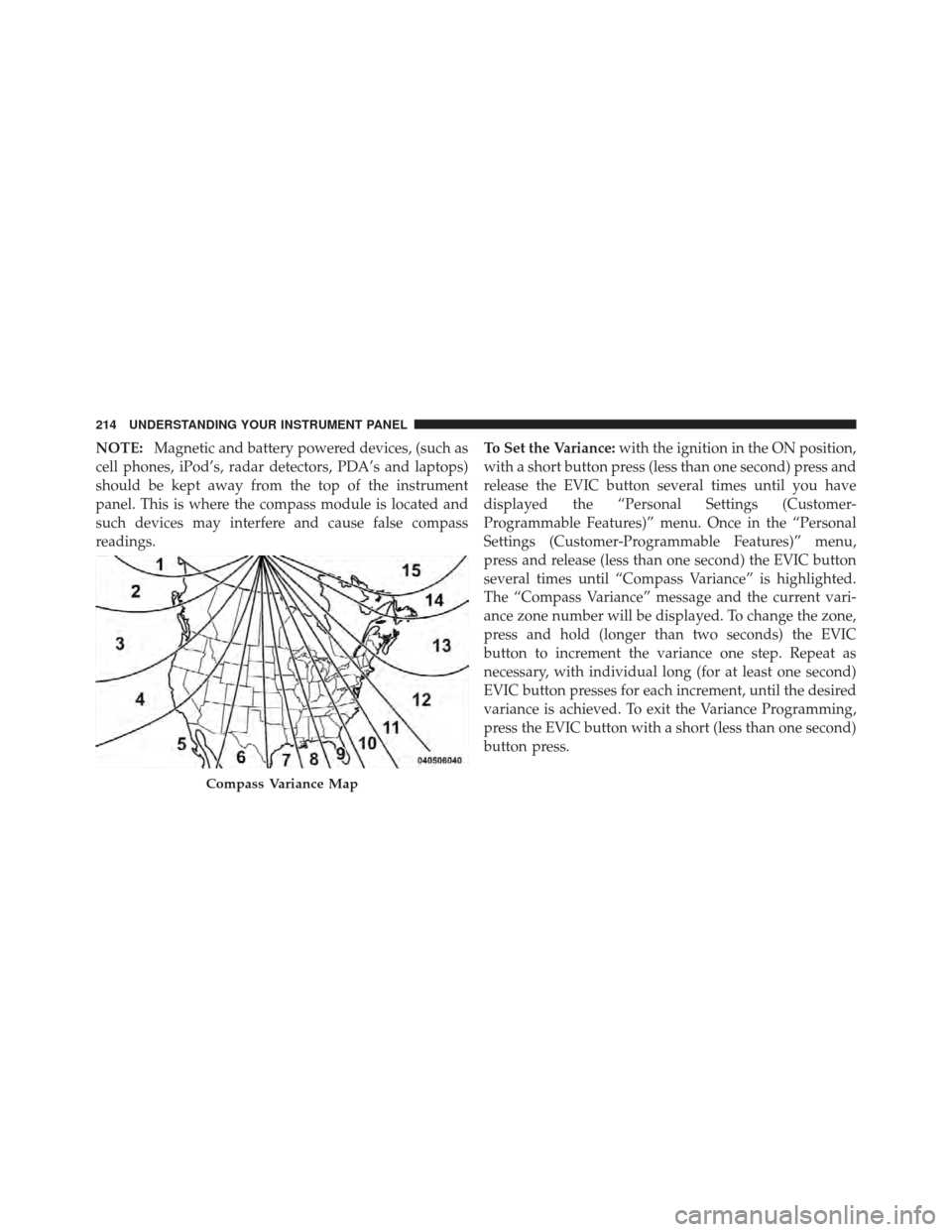
with the ignition in the ON position,
with a short button press (less than one second) press and
release the EVIC button several times until you have
displayed the “Personal Settings (Customer-
Programmable Features)” menu. Once in the “Personal
Settings (Customer-Programmable Features)” menu,
press and release (less than one second) the EVIC button
several times until “Compass Variance” is highlighted.
The “Compass Variance” message and the current vari-
ance zone number will be displayed. To change the zone,
press and hold (longer than two seconds) the EVIC
button to increment the variance one step. Repeat as
necessary, with individual long (for at least one second)
EVIC button presses for each increment, until the desired
variance is achieved. To exit the Variance Programming,
press the EVIC button with a short (less than one second)
button press.
Compass Variance Map
214 UNDERSTANDING YOUR INSTRUMENT PANEL
Page 217 of 486

NOTE:The factory default Zone is 8. During program-
ming, the Zone value will wrap around from Zone 15 to
Zone 1.
Manual Compass Calibration
If the compass appears erratic or inaccurate, and the vari-
ance has been properly set, you may wish to manually
recalibrate the compass. To manually calibrate the compass:
1. Start the engine and leave the transmission in the
PARK position.
2. Using a quick button press (less than one second),
press and release the EVIC button several times until the
EVIC displays the “Personal Settings (Customer-Pro-
grammable Features)” menu.
3. Once in the “Personal Settings (Customer-Program-
mable Features)” menu, press and release (less than one
second) the EVIC button several times until “Calibrate
Compass (Yes)” is displayed. 4. Using a long button press (more than one second)
press the EVIC button, this will place the Compass in
calibration mode. The CAL indicator will come on con-
tinuously in the EVIC display to indicate that the com-
pass is now in the calibration mode, and that the vehicle
can now be driven to calibrate.
5. To complete the compass calibration, drive the vehicle
in one or more complete 360–degree circle under 5 mph
(8 km/h) in an area free from power lines and large
metallic objects, until the “CAL” indicator turns off. The
compass will now function normally.
NOTE:
A short EVIC button press from the �Calibrate
Compass (Yes)� screen will exit the EVIC Customer-
Programmable Features, and return it to its normal
operating mode.4
UNDERSTANDING YOUR INSTRUMENT PANEL 215
Page 219 of 486
SEEK Buttons
Press and release the SEEK buttons to search for the next
listenable station in AM/FM mode. Press the right switch
to seek up and the left switch to seek down. The radio
will remain tuned to the new station until you make
another selection. Holding either button will bypass
stations without stopping until you release it.
SCAN Button
Pressing the SCAN button causes the tuner to search for
the next listenable station in AM, FM or Satellite (if
equipped) frequencies, pausing for five seconds at each
listenable station before continuing to the next. To stop
the search, press the SCAN button a second time.
Voice Command Button Uconnect™ Phone —
If Equipped
Press this button to operate the Uconnect™ Phone feature
(if equipped). Refer to “Voice Command in the Uconnect™
User Manual located on the DVD for further details.
If your vehicle is not equipped with or this feature is not
available on your vehicle, a “Not Equipped With
Uconnect Phone” message will display on the radio
screen.
Phone Button Uconnect™ Phone — If Equipped
Press this button to operate the Uconnect™ Phone feature
(if equipped). Refer to “Uconnect™ Phone” in the
Uconnect™ User Manual located on the DVD for further
details.
If your vehicle is not equipped with or this feature is not
available on your vehicle, a “Not Equipped With
Uconnect Phone” message will display on the radio
screen.
TIME Button
Press the TIME button to alternate locations of the time
and frequency display.
4
UNDERSTANDING YOUR INSTRUMENT PANEL 217
Page 220 of 486

Clock Setting Procedure
1. Press and hold the TIME button until the hours blink.
2. Adjust the hours by turning the right side TUNE/
SCROLL control knob.
3. After adjusting the hours, press the right side TUNE/
SCROLL control knob to set the minutes. The minutes
will begin to blink.
4. Adjust the minutes using the right side TUNE/
SCROLL control knob. Press the TUNE/SCROLL control
knob to save the time change.
5. To exit, press any button/knob or wait five seconds.
The clock can also be set by pressing the SETUP button
and selecting the “SET HOME CLOCK” entry. Once in
this display follow the above procedure, starting at
step 2.
INFO Button
Press the INFO button for an RDS station (one with call
letters displayed). The radio will return a Radio Text
message broadcast from an FM station (FM mode only).
RW/FF
Pressing the RW (Rewind) or FF (Fast Forward) buttons
causes the tuner to search for the next frequency in the
direction of the arrows. This feature operates in AM, FM
or Satellite (if equipped) frequencies.
TUNE Control
Turn the rotary TUNE/SCROLL control knob clockwise
to increase or counterclockwise to decrease the frequency.
Setting the Tone, Balance, and Fade
Push the rotary TUNE/SCROLL control knob and BASS
will display. Turn the TUNE/SCROLL control knob to
the right or left to increase or decrease the bass tones.
218 UNDERSTANDING YOUR INSTRUMENT PANEL
Page 221 of 486
Push the rotary TUNE/SCROLL control knob a second
time and MID will display. Turn the TUNE/SCROLL
control knob to the right or left to increase or decrease the
mid-range tones.
Push the rotary TUNE/SCROLL control knob a third
time and TREBLE will display. Turn the TUNE/SCROLL
control knob to the right or left to increase or decrease the
treble tones.
Push the rotary TUNE/SCROLL control knob a fourth
time and BALANCE will display. Turn the TUNE/
SCROLL control knob to the right or left to adjust the
sound level from the right or left side speakers.
Push the rotary TUNE/SCROLL control knob a fifth time
and FADE will display. Turn the TUNE/SCROLL control
knob to the left or right to adjust the sound level between
the front and rear speakers.
Push the rotary TUNE/SCROLL control knob again to
exit setting tone, balance, and fade.MUSIC TYPE Button
Pressing this button once will turn on the Music Type
mode for five seconds. Pressing the MUSIC TYPE button
or turning the TUNE/SCROLL control knob within five
seconds will allow the program format type to be se-
lected. Many radio stations do not currently broadcast
Music Type information.
Toggle the MUSIC TYPE button to select the following
format types:
Program Type 16-Digit Character Display
No program type or undefined None
Adult Hits Adlt Hit
Classical Classicl
Classic Rock Cls Rock
College College
Country Country
Foreign Language Language
4
UNDERSTANDING YOUR INSTRUMENT PANEL 219
Page 222 of 486
Program Type 16-Digit Character DisplayInformation Inform
Jazz Jazz
News News
Nostalgia Nostalga
Oldies Oldies
Personality Persnlty
Public Public
Rhythm and Blues R & B
Religious Music Rel Musc
Religious Talk Rel Talk
Rock Rock
Soft Soft
Soft Rock Soft Rck
Soft Rhythm and Blues Soft R & B Sports Sports
Talk TalkProgram Type 16-Digit Character Display
Top 40 Top 40
Weather Weather
By pressing the SEEK button when the Music Type icon
is displayed, the radio will be tuned to the next frequency
station with the same selected Music Type name. The
Music Type function only operates when in the FM
mode.
If a preset button is activated while in the Music Type
(Program Type) mode, the Music Type mode will be
exited and the radio will tune to the preset station.
SETUP Button
Pressing the SETUP button allows you to select between
the following items:
NOTE: Turn the TUNE/SCROLL control knob to scroll
through the entries. Push the AUDIO/SELECT button to
select an entry and make changes.
220 UNDERSTANDING YOUR INSTRUMENT PANEL
Page 223 of 486

•DVD Enter -When the disc is in DVD Menu mode,
selecting DVD Enter will allow you to play the current
highlighted selection. Use the remote control to scroll
up and down the menu (if equipped).
•DISC Play/Pause - You can toggle between
playing the DVD and pausing the DVD by
pushing the SELECT button (if equipped).
•DVD Play Options - Selecting the DVD Play Options
will display the following:
•Subtitle – Repeatedly pressing SELECT will switch
subtitles to different subtitle languages that are
available on the disc (if equipped).
•Audio Stream – Repeatedly pressing SELECT will
switch to different audio languages (if supported on
the disc) (if equipped).
•Angle – Repeatedly pressing SELECT will change
the viewing angle if supported by the DVD disc (if
equipped).
NOTE:
•The available selections for each of the above entries
varies depending upon the disc.
•These selections can only be made while playing a
DVD.
•VES™ Power - Allows you to turn VES™ ON and
OFF (if equipped).
•VES™ Lock - Locks out rear VES™ remote controls (if
equipped).
•VES™ CH1/CH2 - Allows the user to change the
mode of either the IR1 or IR2 wireless headphones by
pressing the AUDIO/SELECT button (if equipped).
4
UNDERSTANDING YOUR INSTRUMENT PANEL 221
Page 225 of 486

Audio DRC — If Equipped
Selecting this item allows you to limit maximum audio
dynamic range. The default is set to�High,�and under
this setting, dialogues will play at 11 db higher than if the
setting is �Normal.�
Aspect Ratio — If Equipped
Selecting this item allows you to choose between wide
screen, pan scan, and letter box.
AutoPlay — If Equipped
When this is set to On and a DVD video is inserted, it will
bypass the DVD menu screen and automatically play the
movie. In some rare cases, the DVD player may not
auto-play the main title. In such cases, use the MENU
button on the remote control to select desired title to play. NOTE:
The user will have to set these defaults before
loading a disc. If changes are made to these settings after
a disc is loaded, changes will not be effective. Also, the
defaults are effective only if the disc supports the
customer-preferred settings.
AM and FM Buttons
Press the buttons to select AM or FM mode.
SET Button — To Set the Pushbutton Memory
When you are receiving a station that you wish to
commit to pushbutton memory, press the SET button.
The symbol SET 1 will now show in the display window.
Select the button (1-6) you wish to lock onto this station
and press and release that button. If a button is not
selected within five seconds after pressing the SET but-
ton, the station will continue to play but will not be
stored into pushbutton memory.
4
UNDERSTANDING YOUR INSTRUMENT PANEL 223