Page 317 of 348
05
1
2
4
3
315
USING THE TELEPHONE
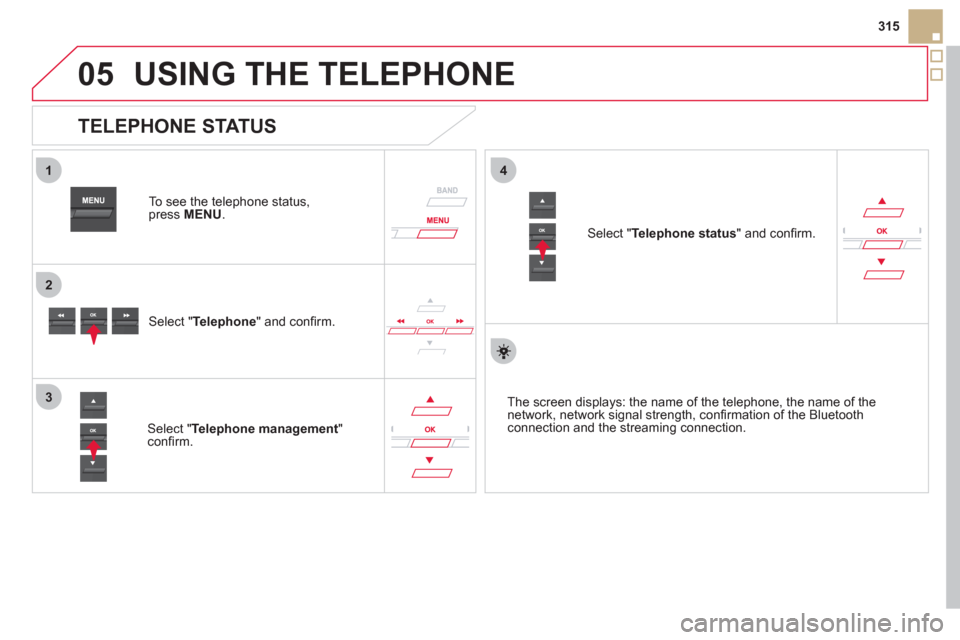
To see the telephone status,press MENU.
Select "Telephone
" and confi rm.
Select "Telephone management
" confi rm.
Select " Telephone status" and confi rm.
TELEPHONE STATUS
The screen displays: the name of the telephone, the name of thenetwork, network signal strength, confi rmation of the Bluetooth connection and the streaming connection.
Page 318 of 348

1
2
3
4
05
5
USING THE TELEPHONE
The telephone connection automatically includes hands free operation
and audio streaming.
The abilit
y of the system to connect to just one profi le depends on the
telephone. Both profi les may connect by default.
Pr
ess MENU .
Select " Bluetooth connection" andconfi rm. Indicates connection of the audio steamin
g profi le.
MANAGING CONNECTIONS
Select " Connections management"and confi rm. The list of paired
telephones is displayed.
Select a telephone and confi rm. Indicates connection o
f the hands-free profi le.
Th
en select and confi rm:
- " Connect telephon
e
"/"Disconnect
telephone ": to connect/disconnect
the telephone or the hands-free
connection only.
-
" Connect media player"/r" Disconnect media player": to rconnect/disconnect only streaming.
- " Connect tele
phone + mediaplayer
"/"rDisconnect telephone +media player
": to connect/disconnect rthe telephone (hands-free andstreaming).
-
"Delete connection ": to delete the pairing. In
dicates that a device is connected.
Page 319 of 348
1
2
1
4
2
33
05
317
USING THE TELEPHONE
To display the "TELEPHONE " menu:
-
Make along press on SOURCE.
- Or, press OK
to display thecontextual menu. Select " Call" and confi rm.
-
Or, press MENU
, select
"Telephone" and confi rm. Select
"Call
" and confi rm.
Select "Dial
" to enter a number andconfi rm.
Repeat the previous step 1
to displaythe "TELEPHONE" menu.
Select OKand confi rm to start the call.
Select "Calls list
" and confi rm.
MAKING A CALL - DIALLING
Select numbers one at a time
using the �and �buttons andconfi rm.
MAKING A CALL - RECENTLY CALLED
NUMBERS *
Select the number and confi rm to start the call.
The calls list includes calls sent and received in the vehicle usin
g the connected telephone.
*
Depending on the compatibility of the telephone.
Correction allows numbers to be deleted one at a time.
It is possible to make a call directl
y from the telephone; park the
vehicle fi rst as a safety measure.
Page 320 of 348
1
2
1
4
2
3
05
SR
C
Repeat the previous step 1to display
the " TELEPHONE" menu.
Select "Directory
" and confi rm.
An incoming call is announced by a ring and a superimposed displayin the multifunction screen.
M
obile
(depending on the informationavailable in the contact records of
the telephone connected).
"
YES
" to accept the call is selected by default.
Press OK
to accept the call.
Select " NO
" and confi rm to reject thecall.
or
Pr
ess SOURCE
or SRC
to accept the call.
MAKING A CALL -
FROM THE DIRECTORY
Select a contact then confi rm.
RECEIVING A CALL
Select the number and confi rm.
A long press on ESC
or on
SOURCEalso rejects an incomingcall.
Business
Home
Page 321 of 348
1
2a2c
2b
05
SRC
319
USING THE TELEPHONE
During a call, press OK
to display the contextual menu.
Han
g up
In the contextual menu:
-
select "Telephone mode" to
transfer the call to the telephone.
-
deselect " Telephone mode
" totransfer the call to the vehicle. In th
e contextual menu:
-
select " Micro OFF
" to switch off themicrophone.
-
deselect " Micro OFF" to switch the
microphone on.
In certain cases, the combined mode has to activated
from the
telephone.
If the contact has been cut off, when
you reconnect on returning to
the vehicle, the Bluetooth connection will be restored automatically (depending on the compatibility of the telephone).
MANAGING CALLS
A long press on SOURCE
or TEL
also ends the call.
In the contextual menu, select "Hang up"to end the call.
Secret - Mute
(so that the caller cannot hear)
Combined mode
(to leave the vehicle without ending the call)
Page 322 of 348
2e
2d
05USING THE TELEPHONE
From the contextual menu, select "DTMF tones " and confi rm to usethe digital keypad to navigate in the
interactive voice response menu.
From the contextual menu, select "Switch" and conform to return to a call left on hold.
Interactive voice response
Consultation call
Page 323 of 348
2
3
1
05
321
USING THE TELEPHONE
DIRECTORY
The telephone directory is sent to the system, depending on the compatibility of the telephone.
The directory is provisional and depends on the Bluetoothconnection.
Contacts imported from the telephone to the audio s
ystem directory
are saved in a permanent directory visible to all, whatever the
telephone connected.
To modify the contacts saved in thesystem, press MENUthen select "Telephone
" and confi rm.
Select " Directory management" andconfi rm.
Y
ou can:
-
"Consult an entry ",
-
"Delete an entry ",
-
"Delete all entries ".
Select " Directory" to see the list of contacts.
Make a lon
g press on SOURCE
for access to the directoryor press OK, and
select "Call
" and confi rm.
Page 327 of 348
09
325
SCREEN MENU MAP
SCREEN C
Multimedia
Media parameters
Choice of pla
yback mode
Choice of track listing
Telephone
Call
Dial
Directory
Calls list
Voice mail box
Directory management
Consult an entr
y
Delete an entry
Delete all entries
Telephone mana
gement
Telephone status
Hang up
Bluetooth connection
Normal
Random
R
andom all
Repeat B
y folders
B
y artists
B
y genres
B
y playlists
Radio parameters
1
2
2
1
2
2
2
2
1
2
2
2
1
2
1
1
1
3
3
3
3
3
3
3
3
1
MAIN FUNCTION
OPTION A
O
ption A1
Option A2
OPTION B
1
2
2
1
Connections management
Search for a device