Page 290 of 324
05
1
1
2
3
USB BOX
The system puts together playlists (temporary memory) created
over a period which depends on the capacity of the USB device.
The other sources are available during this time.
The playlists are updated each time the ignition is switched off or
each time a USB memory stick is connected.
When connecting for the fi rst time, the classifi cation suggested
is by folder. When you reconnect, the classifi cation selected
previously is retained.
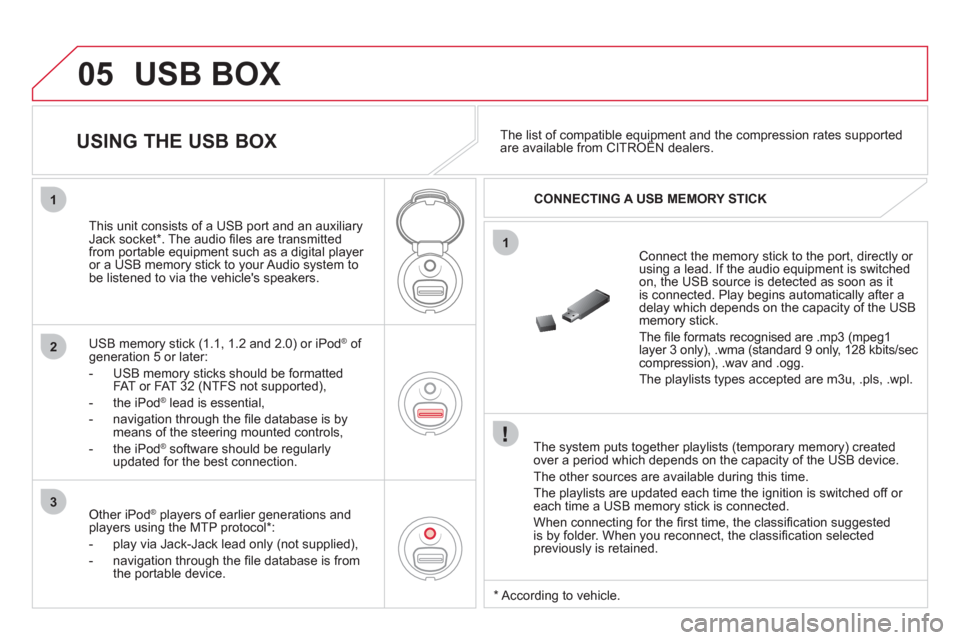
Connect the memory stick to the port, directly or
using a lead. If the audio equipment is switched
on, the USB source is detected as soon as it
is connected. Play begins automatically after a
delay which depends on the capacity of the USB
memory stick.
The fi le formats recognised are .mp3 (mpeg1
layer 3 only), .wma (standard 9 only, 128 kbits/sec
compression), .wav and .ogg.
The playlists types accepted are m3u, .pls, .wpl.
This unit consists of a USB port and an auxiliary
Jack socket * . The audio fi les are transmitted
from portable equipment such as a digital player
or a USB memory stick to your Audio system to
be listened to via the vehicle's speakers.
USB memory stick (1.1, 1.2 and 2.0) or iPod
®
of
generation 5 or later:
- USB memory sticks should be formatted
FAT or FAT 32 (NTFS not supported),
- the iPod
®
lead is essential,
- navigation through the fi le database is by
means of the steering mounted controls,
- the iPod
®
software should be regularly
updated for the best connection.
The list of compatible equipment and the compression rates supported
are available from CITROËN dealers.
USING THE USB BOX
CONNECTING A USB MEMORY STICK
Other iPod
®
players of earlier generations and
players using the MTP protocol * :
- play via Jack-Jack lead only (not supplied),
- navigation through the fi le database is from
the portable device.
*
According to vehicle.
Page 291 of 324
05
42
3
1
5
289
USB BOX
USING THE USB PORT
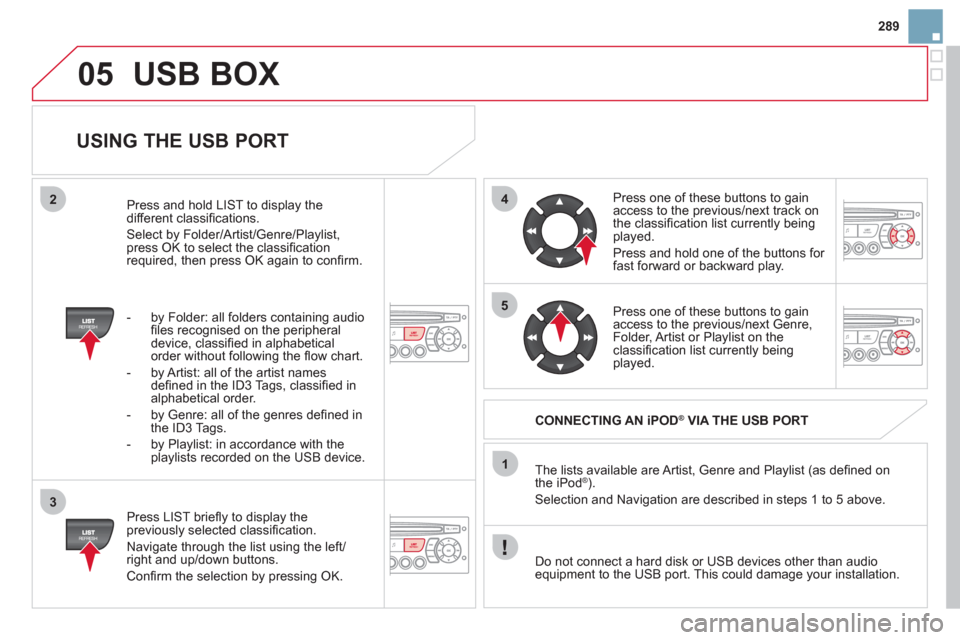
Press LIST briefl y to display the
previously selected classifi cation.
Navigate through the list using the left/
right and up/down buttons.
Confi rm the selection by pressing OK. The lists available are Artist, Genre and Playlist (as defi ned on
the iPod
® ).
Selection and Navigation are described in steps 1 to 5 above.
Do not connect a hard disk or USB devices other than audio
equipment to the USB port. This could damage your installation.
CONNECTING AN iPOD
®
VIA THE USB PORT
Press one of these buttons to gain
access to the previous/next track on
the classifi cation list currently being
played.
Press and hold one of the buttons for
fast forward or backward play.
Press one of these buttons to gain
access to the previous/next Genre,
Folder, Artist or Playlist on the
classifi cation list currently being
played.
Press and hold LIST to display the
different classifi cations.
Select by Folder/Artist/Genre/Playlist,
press OK to select the classifi cation
required, then press OK again to confi rm.
- by Folder: all folders containing audio
fi les recognised on the peripheral
device, classifi ed in alphabetical
order without following the fl ow chart.
- by Artist: all of the artist names
defi ned in the ID3 Tags, classifi ed in
alphabetical order.
- by Genre: all of the genres defi ned in
the ID3 Tags.
- by Playlist: in accordance with the
playlists recorded on the USB device.
Page 292 of 324
05
1
21
2
The display and control is via the portable device. First adjust the volume of your portable device.
Then adjust the volume of your audio
system.
USING THE AUXILIARY INPUT (AUX)
JACK SOCKET OR USB PORT (according to vehicle)
ADJUSTING THE VOLUME OF THE
AUXILIARY SOURCE
USB BOX
The auxiliary input, JACK or USB, allows the connection of
portable equipment (MP3 player...).
Do not connect a single piece of equipment via the JACK socket
and the USB port at the same time.
Connect the portable equipment
(MP3 player…) to the JACK
socket or to the USB port, using
a suitable cable (not supplied).
Press the SOURCE button several
times in succession and select AUX.
Page 300 of 324
09 SCREEN MENU MAP
Press the OK dial for access to short-cut menus according to the display on
the screen:
MONOCHROME C
activate/deactivate RDS
activate/deactivate REG mode
activate/deactivate radiotext
RADIO
activate/deactivate Intro
CD/MP3 CD
activate/deactivate track repeat
(the entire current CD for CD, the entire
current folder for MP3 CD)
activate/deactivate random play
(the entire current CD for CD, the entire
current folder for MP3 CD)
activate/deactivate track repeat
(of the current folder/artist/genre/playlist)
USB
activate/deactivate random play
(of the current folder/artist/genre/playlist)
1
1
1
1
1
1
1
1
Page 303 of 324
301
FREQUENTLY ASKED QUESTIONS
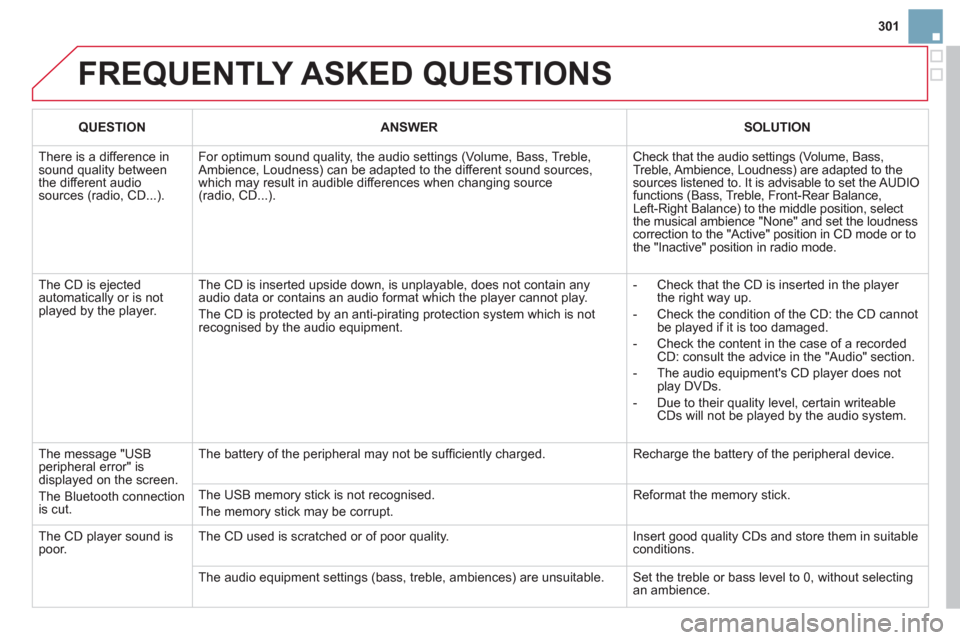
QUESTION
ANSWER
SOLUTION
There is a difference in
sound quality between
the different audio
sources (radio, CD...). For optimum sound quality, the audio settings (Volume, Bass, Treble,
Ambience, Loudness) can be adapted to the different sound sources,
which may result in audible differences when changing source
(radio, CD...). Check that the audio settings (Volume, Bass,
Treble, Ambience, Loudness) are adapted to the
sources listened to. It is advisable to set the AUDIO
functions (Bass, Treble, Front-Rear Balance,
Left-Right Balance) to the middle position, select
the musical ambience "None" and set the loudness
correction to the "Active" position in CD mode or to
the "Inactive" position in radio mode.
The CD is ejected
automatically or is not
played by the player. The CD is inserted upside down, is unplayable, does not contain any
audio data or contains an audio format which the player cannot play.
The CD is protected by an anti-pirating protection system which is not
recognised by the audio equipment.
- Check that the CD is inserted in the player
the right way up.
- Check the condition of the CD: the CD cannot
be played if it is too damaged.
- Check the content in the case of a recorded
CD: consult the advice in the "Audio" section.
- The audio equipment's CD player does not
play DVDs.
- Due to their quality level, certain writeable
CDs will not be played by the audio system.
The message "USB
peripheral error" is
displayed on the screen.
The Bluetooth connection
is cut. The battery of the peripheral may not be suffi ciently charged. Recharge the battery of the peripheral device.
The USB memory stick is not recognised.
The memory stick may be corrupt. Reformat the memory stick.
The CD player sound is
poor. The CD used is scratched or of poor quality. Insert good quality CDs and store them in suitable
conditions.
The audio equipment settings (bass, treble, ambiences) are unsuitable. Set the treble or bass level to 0, without selecting
an ambience.
Page 316 of 324
USB Box ...................................................... 122
USB por t..............................................122, 288
USB Reader ........................................122, 288
Ventilation .................................. 22, 64, 65, 68
V
Weights ...................................... 230, 234, 236
Window controls............................................ 94
Wipers ..................................................112, 114
W
Page:
< prev 1-8 9-16 17-24


