2011 CHEVROLET SUBURBAN Steering controls
[x] Cancel search: Steering controlsPage 150 of 542
Black plate (2,1)Chevrolet Tahoe/Suburban Owner Manual - 2011
5-2 Instruments and Controls
Vehicle Personalization
Vehicle Personalization (WithDIC Buttons) . . . . . . . . . . . . . . . 5-49
Universal Remote System
Universal Remote System . . . 5-57
Universal Remote SystemProgramming . . . . . . . . . . . . . . . 5-57
Universal Remote System Operation . . . . . . . . . . . . . . . . . . 5-62
Controls
Steering Wheel
Adjustment
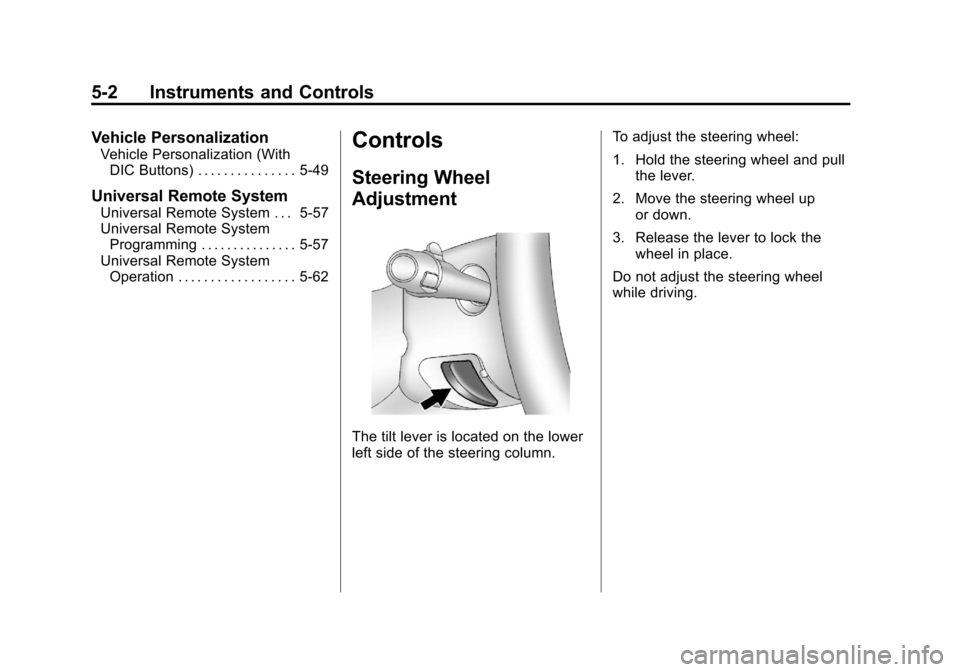
The tilt lever is located on the lower
left side of the steering column. To adjust the steering wheel:
1. Hold the steering wheel and pull
the lever.
2. Move the steering wheel up or down.
3. Release the lever to lock the wheel in place.
Do not adjust the steering wheel
while driving.
Page 151 of 542
Black plate (3,1)Chevrolet Tahoe/Suburban Owner Manual - 2011
Instruments and Controls 5-3
Steering Wheel Controls
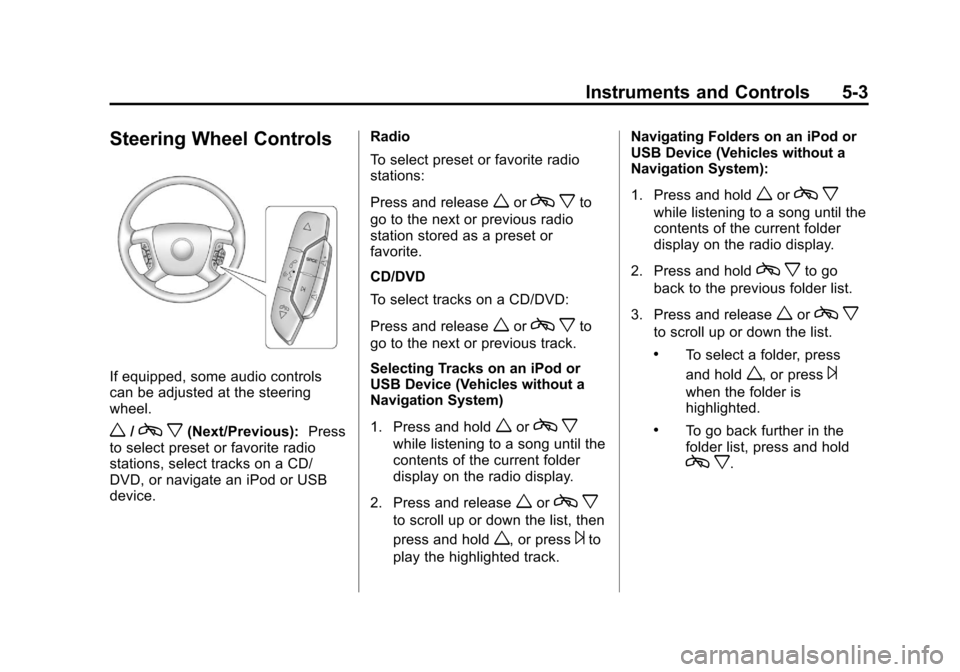
If equipped, some audio controls
can be adjusted at the steering
wheel.
w/cx(Next/Previous): Press
to select preset or favorite radio
stations, select tracks on a CD/
DVD, or navigate an iPod or USB
device. Radio
To select preset or favorite radio
stations:
Press and release
worc
xto
go to the next or previous radio
station stored as a preset or
favorite.
CD/DVD
To select tracks on a CD/DVD:
Press and release
worc xto
go to the next or previous track.
Selecting Tracks on an iPod or
USB Device (Vehicles without a
Navigation System)
1. Press and hold
worc x
while listening to a song until the
contents of the current folder
display on the radio display.
2. Press and release
worc x
to scroll up or down the list, then
press and hold
w, or press¨to
play the highlighted track. Navigating Folders on an iPod or
USB Device (Vehicles without a
Navigation System):
1. Press and hold
worc
x
while listening to a song until the
contents of the current folder
display on the radio display.
2. Press and hold
c xto go
back to the previous folder list.
3. Press and release
worc x
to scroll up or down the list.
.To select a folder, press
and hold
w, or press¨
when the folder is
highlighted.
.To go back further in the
folder list, press and hold
cx.
Page 153 of 542
Black plate (5,1)Chevrolet Tahoe/Suburban Owner Manual - 2011
Instruments and Controls 5-5
For vehicles with a navigation
system:
1. Press and hold
¨until a beep is
heard, to place the radio into
SCAN mode. A station will play
for five seconds before moving
to the next station.
2. To stop the SCAN function, press
¨again.
While listening to a CD/DVD, press
and hold
¨to quickly move forward
through the tracks. Release to stop
on the desired track.
+
e−e(Volume): Press to
increase or to decrease the volume.
Horn
To sound the horn, press the center
pad on the steering wheel.
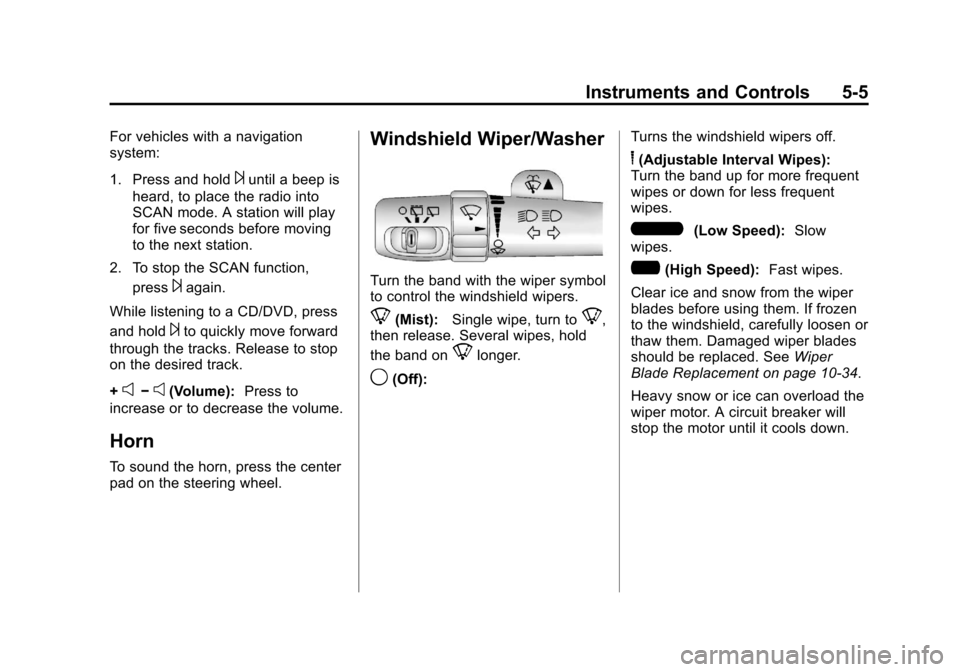
Windshield Wiper/Washer
Turn the band with the wiper symbol
to control the windshield wipers.
8(Mist): Single wipe, turn to8,
then release. Several wipes, hold
the band on
8longer.
9(Off): Turns the windshield wipers off.
6(Adjustable Interval Wipes):
Turn the band up for more frequent
wipes or down for less frequent
wipes.
6(Low Speed): Slow
wipes.
?(High Speed): Fast wipes.
Clear ice and snow from the wiper
blades before using them. If frozen
to the windshield, carefully loosen or
thaw them. Damaged wiper blades
should be replaced. See Wiper
Blade Replacement on page 10‑34.
Heavy snow or ice can overload the
wiper motor. A circuit breaker will
stop the motor until it cools down.
Page 172 of 542

Black plate (24,1)Chevrolet Tahoe/Suburban Owner Manual - 2011
5-24 Instruments and Controls
Emissions Inspection and
Maintenance Programs
Some state/provincial and local
governments may have programs to
inspect the on-vehicle emission
control equipment. For the
inspection, the emission system test
equipment is connected to the
vehicle’s Data Link
Connector (DLC).
The DLC is under the instrument
panel to the left of the steering
wheel. See your dealer if assistance
is needed.The vehicle may not pass
inspection if:
.The malfunction indicator lamp is
on with the engine running, or if
the light does not come on when
the ignition is turned to ON/RUN
while the engine is off.
.The critical emission control
systems have not been
completely diagnosed by the
system. This can happen if the
battery has recently been
replaced or if the battery has run
down. The diagnostic system
evaluates critical emission
control systems during normal
driving. This can take
several days of routine driving.
If this has been done and the
vehicle still does not pass the
inspection, your dealer can
prepare the vehicle for
inspection.
Brake System Warning
Light
With the ignition on, the brake
system warning light comes on
when the parking brake is set. If the
vehicle is driven with the parking
brake engaged, a chime sounds
when the vehicle speed is greater
than 8 km/h (5 mph).
The vehicle brake system consists
of two hydraulic circuits. If one
circuit is not working, the remaining
circuit can still work to stop the
vehicle. For normal braking
performance, both circuits need to
be working.
If the warning light comes on and a
chime sounds there could be a
brake problem. Have the brake
system inspected right away.
Page 177 of 542
Black plate (29,1)Chevrolet Tahoe/Suburban Owner Manual - 2011
Instruments and Controls 5-29
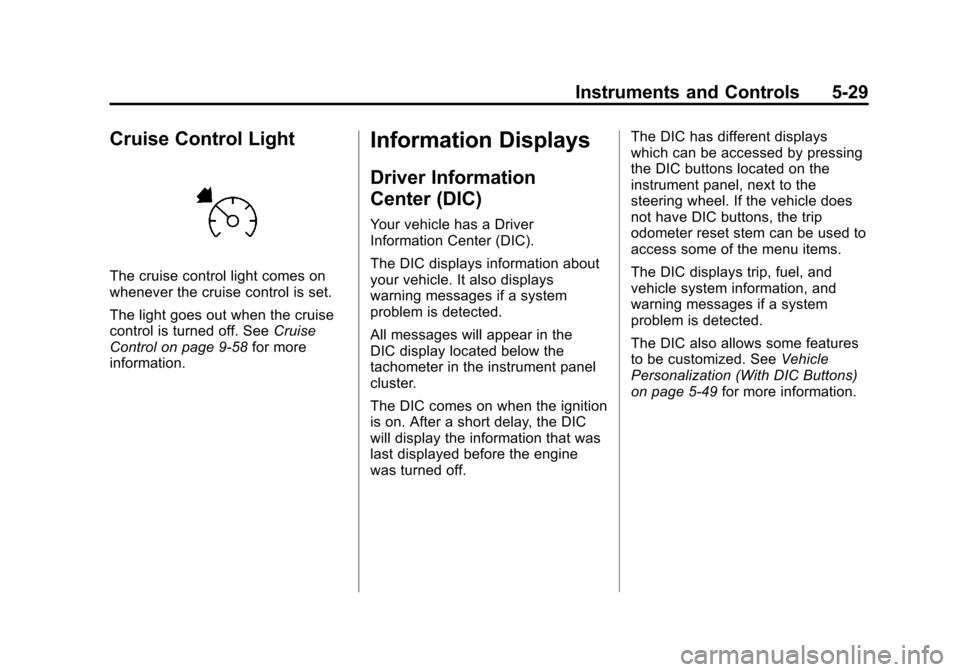
Cruise Control Light
The cruise control light comes on
whenever the cruise control is set.
The light goes out when the cruise
control is turned off. SeeCruise
Control on page 9‑58 for more
information.
Information Displays
Driver Information
Center (DIC)
Your vehicle has a Driver
Information Center (DIC).
The DIC displays information about
your vehicle. It also displays
warning messages if a system
problem is detected.
All messages will appear in the
DIC display located below the
tachometer in the instrument panel
cluster.
The DIC comes on when the ignition
is on. After a short delay, the DIC
will display the information that was
last displayed before the engine
was turned off. The DIC has different displays
which can be accessed by pressing
the DIC buttons located on the
instrument panel, next to the
steering wheel. If the vehicle does
not have DIC buttons, the trip
odometer reset stem can be used to
access some of the menu items.
The DIC displays trip, fuel, and
vehicle system information, and
warning messages if a system
problem is detected.
The DIC also allows some features
to be customized. See
Vehicle
Personalization (With DIC Buttons)
on page 5‑49 for more information.
Page 211 of 542

Black plate (1,1)Chevrolet Tahoe/Suburban Owner Manual - 2011
Lighting 6-1
Lighting
Exterior Lighting
Exterior Lamp Controls . . . . . . . . 6-1
Exterior Lamps OffReminder . . . . . . . . . . . . . . . . . . . . 6-2
Headlamp High/Low-Beam Changer . . . . . . . . . . . . . . . . . . . . . 6-2
Flash-to-Pass . . . . . . . . . . . . . . . . . 6-3
Daytime Running Lamps (DRL) . . . . . . . . . . . . . . . . 6-3
Automatic Headlamp System . . . . . . . . . . . . . . . . . . . . . . 6-4
Hazard Warning Flashers . . . . . 6-5
Turn and Lane-Change Signals . . . . . . . . . . . . . . . . . . . . . . 6-5
Fog Lamps . . . . . . . . . . . . . . . . . . . . 6-6
Auxiliary Roof-Mounted Lamp . . . . . . . . . 6-6
Interior Lighting
Instrument Panel IlluminationControl . . . . . . . . . . . . . . . . . . . . . . 6-7
Dome Lamps . . . . . . . . . . . . . . . . . 6-7
Reading Lamps . . . . . . . . . . . . . . . 6-8
Lighting Features
Entry Lighting . . . . . . . . . . . . . . . . . 6-8
Exit Lighting . . . . . . . . . . . . . . . . . . . 6-8
Battery Load Management . . . . 6-8
Battery Power Protection . . . . . . 6-9
Exterior Lighting
Exterior Lamp Controls
The exterior lamps control is located
on the instrument panel to the left of
the steering wheel.
It controls the following systems:
.Headlamps
.Taillamps
.Parking Lamps
.License Plate Lamps
.Instrument Panel Lights
Page 228 of 542
Black plate (8,1)Chevrolet Tahoe/Suburban Owner Manual - 2011
7-8 Infotainment System
Radio
AM-FM Radio
Radio Data System (RDS)
For radios with the Radio Data
System (RDS) feature, it only works
with FM stations that broadcast
RDS information. This system relies
upon receiving specific information
from these stations and only works
when the information is available.
While the radio is tuned to an
FM-RDS station, the station name
or call letters displays. In rare
cases, a radio station could
broadcast incorrect information that
causes the radio features to work
improperly. If this happens, contact
the radio station.
4(Information) (RDS Features):
For vehicles with RDS features,
press
4to display additional text
information related to the current
FM-RDS station. If information is
available, the song title information
displays on the top line of the
display and artist information
displays on the bottom line. When
information is not available, “NO
INFO” displays.
Finding a Station
BAND: Press to switch between
AM, FM, or XM™, if equipped.
f(Tune): Turn to manually select
radio stations.
©SEEK: Press to seek the
previous radio station. Press and
hold for a few seconds until a
beep sounds to scan for radio
stations in descending order, press
the
©SEEK button again to stop
scanning radio stations. The radio
only seeks and scans stations with
a strong signal that are in the
selected band.
¨SEEK: Press to seek the next
radio station. Press and hold for a
few seconds until a beep sounds to
scan for radio stations in ascending
order, press the
©SEEK button
again to stop scanning radio
stations. The radio only seeks and
scans stations with a strong signal
that are in the selected band.
sREV: Press to manually tune to
a radio station in descending order.
\FWD: Press to manually tune to
a radio station in ascending order.
FAV (Favorites): Press to select
different favorite pages for stored
radio stations.
Storing Radio Stations
Drivers are encouraged to store
radio station while the vehicle is
parked, see Defensive Driving on
page 9‑2. Tune to stored radio
stations using the presets, favorites
button, and steering wheel controls,
if the vehicle has this feature.
Page 231 of 542
Black plate (11,1)Chevrolet Tahoe/Suburban Owner Manual - 2011
Infotainment System 7-11
Adding and Removing Categories
Categories cannot be added or
removed while the vehicle is moving
faster than 8 km/h (5 mph).
To add or remove a category:
1. Press the MENU button.
2. Press the softkey located belowthe XM CAT tab.
3. Turn the
fknob to display the
category to add or remove.
4. Press the softkey located under the Add or Remove tab.
To restore all removed
categories, press the softkey
under the Restore All tab.
5. Repeat the steps to remove more categories.
Storing XM Channels
Drivers are encouraged to store XM
channels while the vehicle is
parked; see Defensive Driving on
page 9‑2. Tune to stored radio
stations using the presets, favorites
button, and steering wheel controls,
if the vehicle has this feature.
Up to 36 stations can be
programmed as favorites using the
six softkeys below the radio station
frequency tabs and by using the
FAV button. Press the FAV button to
go through up to six pages of
favorites, each having six favorite
stations available per page. Each
page of favorites can contain any
combination of AM, FM, or XM,
if equipped, stations.
Storing an XM Channel as a
Favorite
To store a station as a favorite:
1. Tune to an XM channel.
2. Press the FAV button to display the page where the station will
be stored. 3. Press and hold one of the six
softkeys until a beep sounds.
4. Repeat Steps 1 through 3 to store additional radio stations.
The number of favorites pages can
be set up using the MENU button.
To set up the number of favorites
pages:
1. Press the MENU button.
2. Press the softkey located below the FAV 1-6 tab.
3. Select the number of favorites pages by pressing the softkey
located below the displayed
page numbers.
4. Press the FAV button, or let the menu time out, to return to the
original main radio screen
showing the radio station
frequency tabs and to begin the
process of programming
favorites.