2011 CHEVROLET SILVERADO steering
[x] Cancel search: steeringPage 184 of 588

Black plate (34,1)Chevrolet Silverado Owner Manual - 2011
5-34 Instruments and Controls
The light goes out when the fog
lamps are turned off. SeeFog
Lamps
on page 6‑6for more
information.
Cruise Control Light
For vehicles equipped with
cruise control, this light comes on
whenever the cruise control is set.
The light goes out when the cruise
control is turned off. See Cruise
Control
on page 9‑73for more
information.
Information Displays
Driver Information
Center (DIC)
The vehicle has a Driver Information
Center (DIC).
The DIC displays information about
this vehicle. It also displays warning
messages if a system problem is
detected.
All messages will appear in
the DIC display located below the
tachometer in the instrument panel
cluster.
The DIC comes on when the ignition
is on. After a short delay, the DIC
will display the information that was
last displayed before the engine
was turned off. The DIC has different displays
which can be accessed by pressing
the DIC buttons located on the
instrument panel, next to the
steering wheel. If the vehicle does
not have DIC buttons, the trip
odometer reset stem can be used
to access some of the menu items.
The DIC displays trip, fuel, and
vehicle system information, and
warning messages if a system
problem is detected.
The DIC also allows some features
to be customized. See
Vehicle
Personalization (with DIC Buttons)
on page 5‑53for more information.
Page 217 of 588
Black plate (1,1)Chevrolet Silverado Owner Manual - 2011
Lighting 6-1
Lighting
Exterior Lighting
Exterior Lamp Controls . . . . . . . . 6-1
Exterior Lamps OffReminder . . . . . . . . . . . . . . . . . . . . 6-3
Headlamp High/Low-Beam Changer . . . . . . . . . . . . . . . . . . . . . 6-3
Flash-to-Pass . . . . . . . . . . . . . . . . . 6-3
Daytime Running Lamps (DRL) . . . . . . . . . . . . . . . . 6-4
Automatic Headlamp System . . . . . . . . . . . . . . . . . . . . . . 6-4
Hazard Warning Flashers . . . . . 6-5
Turn and Lane-Change Signals . . . . . . . . . . . . . . . . . . . . . . 6-6
Fog Lamps . . . . . . . . . . . . . . . . . . . . 6-6
Auxiliary Roof-Mounted Lamp . . . . . . . . . 6-7
Interior Lighting
Instrument Panel IlluminationControl . . . . . . . . . . . . . . . . . . . . . . 6-7
Cargo Lamp . . . . . . . . . . . . . . . . . . 6-8
Dome Lamps . . . . . . . . . . . . . . . . . 6-8
Reading Lamps . . . . . . . . . . . . . . . 6-8
Lighting Features
Entry Lighting . . . . . . . . . . . . . . . . . 6-9
Exit Lighting . . . . . . . . . . . . . . . . . . . 6-9
Battery Load Management . . . . 6-9
Battery Power Protection . . . . 6-10
Exterior Lighting
Exterior Lamp Controls
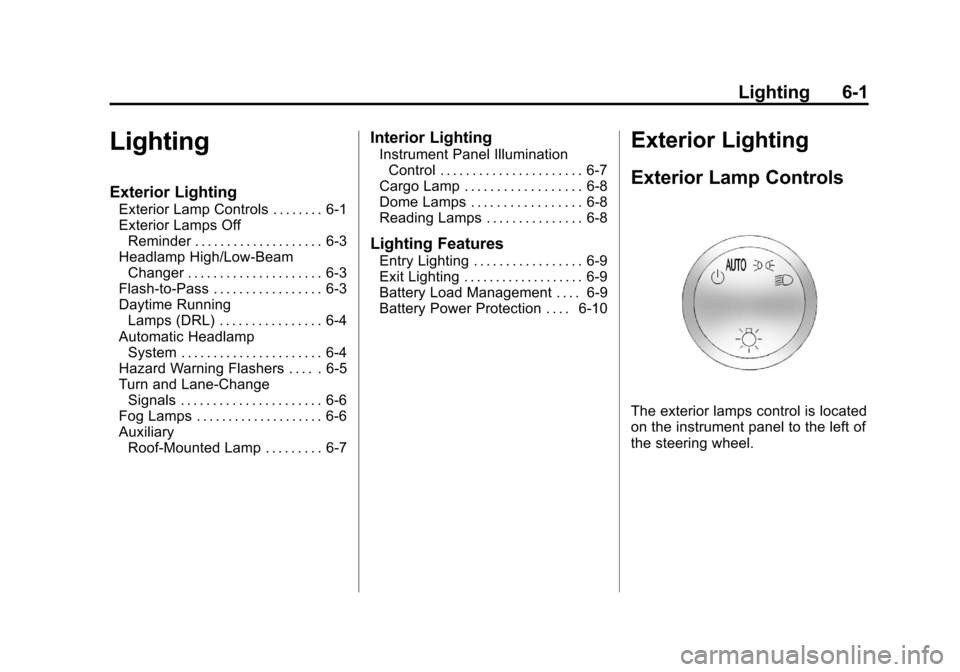
The exterior lamps control is located
on the instrument panel to the left of
the steering wheel.
Page 221 of 588

Black plate (5,1)Chevrolet Silverado Owner Manual - 2011
Lighting 6-5
The vehicle has a light sensor
located on the top of the instrument
panel in the defroster grille which
regulates when the automatic
headlamps turn on. Do not
cover the sensor, otherwise
the headlamps will come on
whenever the ignition is on.
The system may also turn on the
headlamps when driving through a
parking garage or heavy overcast
weather. This is normal.
There is a delay in the transition
between the daytime and nighttime
operation of the Daytime Running
Lamps (DRL) and the automatic
headlamp systems so that driving
under bridges or bright overhead
street lights does not affect the
system. The DRL and automatic
headlamp system are only affected
when the light sensor detects a
change in lighting lasting longer
than the delay.
If the vehicle is started in a dark
garage, the automatic headlamp
system comes on immediately.Once the vehicle leaves the garage,
it takes approximately one minute
for the automatic headlamp system
to change to DRL if it is bright
enough outside. During that delay,
the instrument panel cluster may
not be as bright as usual. Make sure
the instrument panel brightness
control is in the full bright position.
See
Instrument Panel Illumination
Control on page 6‑7.
To idle the vehicle with the
automatic headlamp system off,
turn the control to the off position.
The headlamps will also stay
on after you exit the vehicle.
This feature can be programmed
using the Driver Information Center
(DIC). See Vehicle Personalization
(with DIC Buttons) on page 5‑53.
If the vehicle is not equipped
with DIC buttons, exit lighting
is automatic. When it is dark
enough outside, the exterior lamps
remain on for 30 seconds after the
ignition is moved from ON/RUN to
LOCK/OFF. For vehicles without a radio, the
instrument panel light remains on
for 30 seconds with the driver door
closed. For vehicles with a radio,
the instrument panel light remains
on for 10 minutes with the driver
door closed. See
Retained
Accessory Power (RAP)
on
page 9‑35.
The regular headlamp system can
be turned on when needed.
Hazard Warning Flashers
|
(Hazard Warning Flashers):
Press this button located on top of
the steering column, to make the
front and rear turn signal lamps
flash on and off. This warns others
that you are having trouble. Press
again to turn the flashers off.
When the hazard warning flashers
are on, the vehicle's turn signals will
not work.
Page 222 of 588

Black plate (6,1)Chevrolet Silverado Owner Manual - 2011
6-6 Lighting
Turn and Lane-Change
Signals
An arrow on the instrument panel
cluster flashes in the direction of the
turn or lane change.
Move the lever all the way up or
down to signal a turn.
Raise or lower the lever for less
than one second until the arrow
starts to flash to signal a lane
change. This causes the turn
signals to automatically flash
three times. It will flash six times
if Tow/Haul Mode is active.Holding the turn signal lever for
more than one second will cause
the turn signals to flash until you
release the lever.
The lever returns to its starting
position whenever it is released.
If after signaling a turn or a lane
change the arrows flash rapidly or
do not come on, a signal bulb could
be burned out.
Have the bulbs replaced. If the bulb
is not burned out, check the fuse.
See
Fuses and Circuit Breakers
on
page 10‑48.
Turn Signal On Chime
If the turn signal is left on for more
than 1.2 km (0.75 miles), a chime
sounds at each flash of the turn
signal, if the vehicle has a radio.
The message TURN SIGNAL ON
will also appear in the Driver
Information Center (DIC). To turn
the chime and message off, move
the turn signal lever to the off
position.
Fog Lamps
For vehicles with fog lamps, the
control is located next to the exterior
lamps control on the instrument
panel, to the left of the steering
column.
The ignition must be in the ON/RUN
position for the fog lamps to
come on.
#(Fog Lamps): Press to turn the
fog lamps on or off. A light will come
on in the instrument panel cluster.
When the fog lamps are turned on,
the parking lamps automatically
turn on.
When the headlamps are changed
to high beam, the fog lamps also go
off. When the high-beam headlamps
are turned off, the fog lamps will
come on again.
Some localities have laws that
require the headlamps to be on
with the fog lamps.
Page 224 of 588
Black plate (8,1)Chevrolet Silverado Owner Manual - 2011
6-8 Lighting
Cargo Lamp
The cargo lamps come on by
turning the instrument panel
brightness control knob to the
farthest clockwise position.
This knob is located on the
instrument panel and also turns
on the dome lamps.
The cargo lamps can be used if
more light is needed in the cargo
area of the vehicle or in the top-box
storage units.
Dome Lamps
The dome lamps come on when any
door is opened. They turn off after
all the doors are closed.
The dome lamps can also be turned
on by turning the instrument panel
brightness knob, located on the
instrument panel to the left of the
steering column, clockwise to the
farthest position. In this position, the
dome lamps remain on whether adoor is opened or closed.
See
Instrument Panel Illumination
Control on page 6‑7.
Dome Lamp Override
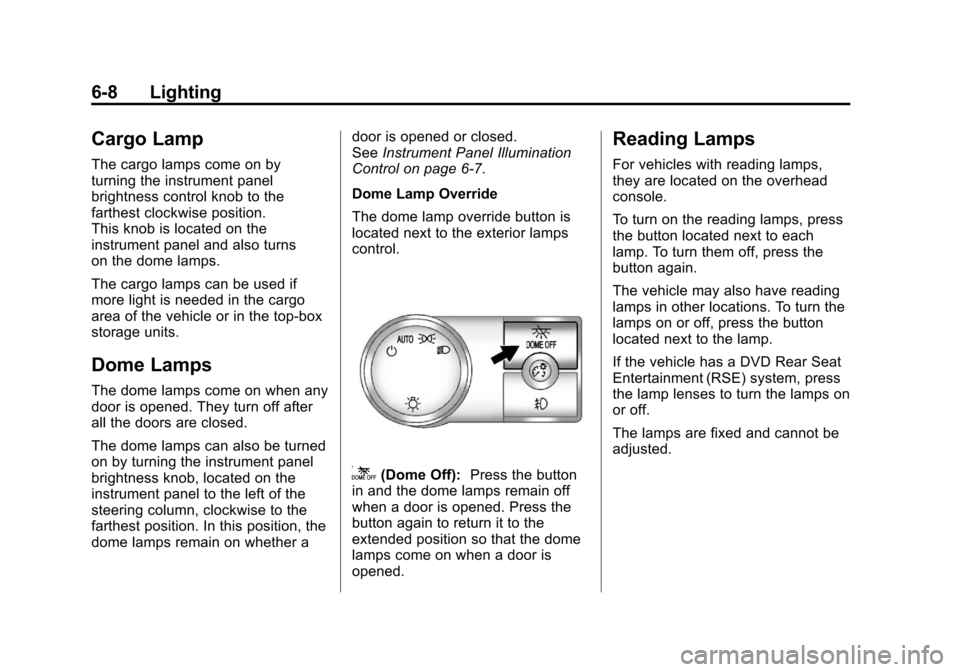
The dome lamp override button is
located next to the exterior lamps
control.
k(Dome Off): Press the button
in and the dome lamps remain off
when a door is opened. Press the
button again to return it to the
extended position so that the dome
lamps come on when a door is
opened.
Reading Lamps
For vehicles with reading lamps,
they are located on the overhead
console.
To turn on the reading lamps, press
the button located next to each
lamp. To turn them off, press the
button again.
The vehicle may also have reading
lamps in other locations. To turn the
lamps on or off, press the button
located next to the lamp.
If the vehicle has a DVD Rear Seat
Entertainment (RSE) system, press
the lamp lenses to turn the lamps on
or off.
The lamps are fixed and cannot be
adjusted.
Page 235 of 588

Black plate (9,1)Chevrolet Silverado Owner Manual - 2011
Infotainment System 7-9
Storing Radio Stations
Drivers are encouraged to store
radio station while the vehicle is
parked; seeDefensive Driving
on
page 9‑2. Tune to stored radio
stations using the presets, favorites
button, and steering wheel controls,
if the vehicle has this feature.
Radios that have a FAV button store
radio stations as favorites. Up to
36 stations can be programmed
as favorites using the six softkeys
below the radio station frequency
tabs and by using the FAV button.
Press the FAV button to go through
up to six pages of favorites, each
having six favorite stations available
per page. Each page of favorites
can contain any combination of AM,
FM, or XM, if equipped, stations.
Radios that do not have a
FAV button store radio stations
as presets. Up to 18 stations
(6 FM1, 6 FM2, and 6 AM),
can be programmed on the
six numbered pushbuttons. Setting Preset Stations
To store presets:
1. Tune to a radio station.
2. Press and hold one of the six
numbered pushbuttons for
three seconds until a beep
sounds.
3. Repeat Steps 1 and 2 to store additional radio stations.
Storing a Radio Station as a
Favorite
To store a station as a favorite:
1. Tune to a radio station.
2. Press the FAV button to display the page where the station will
be stored.
3. Press and hold one of the six softkeys until a beep sounds.
4. Repeat Steps 1 through 3 to store additional radio stations. The number of favorites pages can
be set up using the MENU button.
To set up the number of favorites
pages:
1. Press the MENU button.
2. Press the softkey located below
the FAV 1-6 tab.
3. Select the number of favorites pages by pressing the softkey
located below the displayed
page numbers.
4. Press the FAV button, or let the menu time out, to return to
the original main radio screen
showing the radio station
frequency tabs and to begin
the process of programming
favorites.
Page 237 of 588

Black plate (11,1)Chevrolet Silverado Owner Manual - 2011
Infotainment System 7-11
3. To exit the category searchmode, press the FAV button
or BAND button to display the
favorites again.
Adding and Removing Categories
Categories cannot be added or
removed while the vehicle is moving
faster than 8 km/h (5 mph).
To add or remove a category:
1. Press the MENU button.
2. Press the softkey located below the XM CAT tab.
3. Turn the
fknob to display the
category to add or remove.
4. Press the softkey located under the Add or Remove tab.
To restore all removed
categories, press the softkey
under the Restore All tab.
5. Repeat the steps to remove more categories.
Storing XM Channels
Drivers are encouraged to store
XM channels while the vehicle is
parked; see Defensive Driving
on
page 9‑2. Tune to stored radio
stations using the presets, favorites
button, and steering wheel controls,
if the vehicle has this feature.
Up to 36 stations can be
programmed as favorites using
the six softkeys below the radio
station frequency tabs and by using
the FAV button. Press the FAV
button to go through up to six pages
of favorites, each having six favorite
stations available per page. Each
page of favorites can contain any
combination of AM, FM, or XM,
if equipped, stations.
Storing an XM Channel as a
Favorite
To store a station as a favorite:
1. Tune to an XM channel.
2. Press the FAV button to display the page where the station will
be stored. 3. Press and hold one of the six
softkeys until a beep sounds.
4. Repeat Steps 1 through 3 to store additional radio stations.
The number of favorites pages can
be set up using the MENU button.
To set up the number of favorites
pages:
1. Press the MENU button.
2. Press the softkey located below the FAV 1-6 tab.
3. Select the number of favorites pages by pressing the softkey
located below the displayed
page numbers.
4. Press the FAV button, or let the menu time out, to return
to the original main radio screen
showing the radio station
frequency tabs and to begin
the process of programming
favorites.
Page 276 of 588

Black plate (50,1)Chevrolet Silverado Owner Manual - 2011
7-50 Infotainment System
Bluetooth Controls
Use the buttons located on the
steering wheel to operate the
in‐vehicle Bluetooth system.
SeeSteering Wheel Controls
on
page 5‑3for more information.
b g(Push To Talk): Press to
answer incoming calls, confirm
system information, and start
speech recognition.
c x(Phone On Hook): Press to
end a call, reject a call, or cancel an
operation.
Pairing
A Bluetooth cell phone must be
paired to the Bluetooth system and
then connected to the vehicle before
it can be used. See your cell phone
manufacturer's user guide for
Bluetooth functions before pairing
the cell phone. If a Bluetooth phone
is not connected, calls will be made
using OnStar
®Hands‐Free Calling,
if available. Refer to the OnStar
Owner's Guide for more information. Pairing Information
.Up to five cell phones can be
paired to the Bluetooth system.
.The pairing process is disabled
when the vehicle is moving.
.Pairing only needs to be
completed once, unless the
pairing information on the cell
phone changes or the cell phone
is deleted from the system.
.Only one paired cell phone can
be connected to the Bluetooth
system at a time.
.If multiple paired cell phones
are within range of the system,
the system connects to the first
available paired cell phone in the
order that they were first paired
to the system. To connect to a
different paired phone, see
“Connecting to a Different
Phone”
later in this section. Pairing a Phone
1. Press and hold
b
gfor
two seconds.
2. Say “Bluetooth.”
3. Say “Pair.”The system responds
with instructions and a four‐digit
Personal Identification Number
(PIN). The PIN is used in Step 5.
4. Start the pairing process on the cell phone that you want to pair.
For help with this process, see
your cell phone manufacturer's
user guide.