Page 168 of 446
Black plate (6,1)Chevrolet Equinox Owner Manual - 2011
6-6 Lighting
2NOTES
Page 172 of 446
Black plate (4,1)Chevrolet Equinox Owner Manual - 2011
7-4 Infotainment System
F. FAV
.Radio: Opens the
favorites list.
G. TONE
.Opens the tone menu.
H. CONFIG
.Opens the settings menu.
I. MENU/SEL
.Press: Opens the menus
and selects menu items.
.Turn: Highlights menu
items or sets values while
in a menu. Manually
selects radio stations while
listening to the radio.
J. CD Slot
.Insert a CD.
K.
k
.CD: Pauses the CD. L. CD
.Selects the CD player
when listening to a
different audio source.
M.
X(CD Eject)
.Removes a disc from the
CD slot.
N.
lSEEK
.Radio: Seeks the next
station.
.CD: Selects the next track
or fast forwards within a
track.
O. INFO
.Radio: Shows available
information about the
current station.
.CD: Shows available
information about the
current track. P.
5/>
.Opens the phone
main menu.
.Mutes the audio system.
Q.
H
.Opens the clock menu.
R.
}BACK
.Menu: Moves one
level back.
.Character Input: Deletes
the last character.
Page 174 of 446

Black plate (6,1)Chevrolet Equinox Owner Manual - 2011
7-6 Infotainment System
E. Buttons 1 to 6
.Radio: Saves and selects
favorite stations.
.MEM: Saves and selects
favorite tracks and
playlists.
F. FAV
.Radio: Opens the
favorites list.
.MEM: Opens the
favorites list.
G. TONE
.Opens the tone menu.
H. CONFIG
.Opens the settings menu.
I. MENU/SEL
.Press: Opens menus and
selects menu items.
.Turn: Highlights menu
items or sets values while
in a menu. Manually
selects radio stations while
listening to the radio. J. CD/DVD Slot
.Insert a disc.
K.
k(Play/Pause)
.Radio: Pauses time shifted
content.
.CD/DVD: Pauses
CD/DVD‐A and DVD‐V
playback. Stops DVD‐V
playback.
.MEM: Pauses MEM
playback.
L.
OREC
.CD/DVD: Records content
from audio CDs and MP3/
WMA CDs.
.AUX: Records content
from USB mass storage
devices.
M.
X(CD Eject)
.Removes a disc from the
CD/DVD slot. N.
lSEEK
.Radio: Seeks the next
station.
.CD/DVD: Selects the next
track or fast forwards
within a track.
.MEM: Selects the next
track or fast forwards
within a track.
O. INFO
.Radio: Shows available
information about the
current station.
.CD/DVD: Shows available
information about the
current track.
.MEM: Shows available
information about the
current track.
Page 176 of 446
Black plate (8,1)Chevrolet Equinox Owner Manual - 2011
7-8 Infotainment System
Menu System
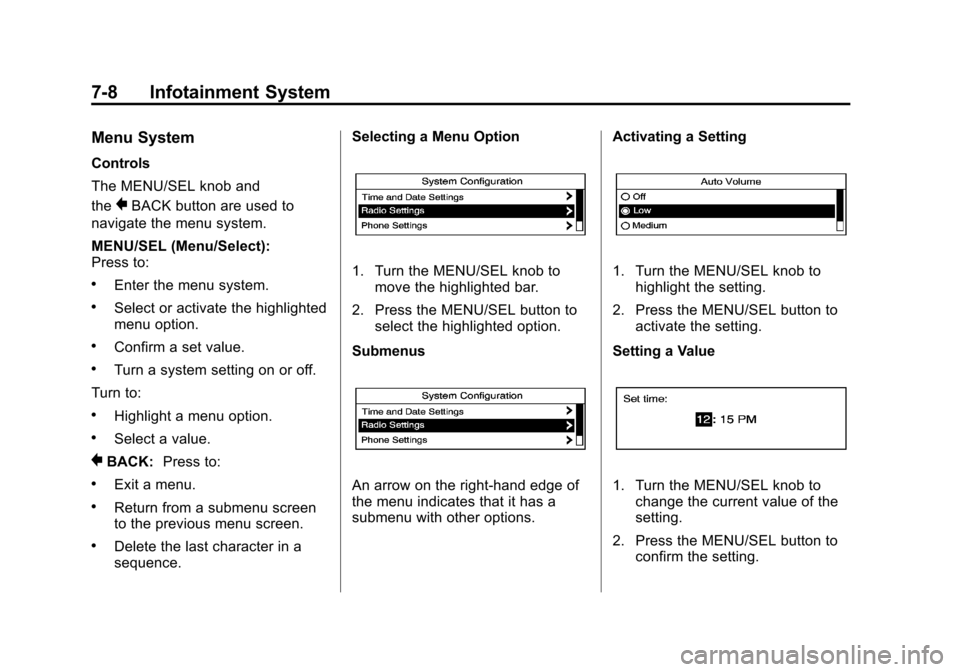
Controls
The MENU/SEL knob and
the
}BACK button are used to
navigate the menu system.
MENU/SEL (Menu/Select):
Press to:
.Enter the menu system.
.Select or activate the highlighted
menu option.
.Confirm a set value.
.Turn a system setting on or off.
Turn to:
.Highlight a menu option.
.Select a value.
}BACK: Press to:
.Exit a menu.
.Return from a submenu screen
to the previous menu screen.
.Delete the last character in a
sequence. Selecting a Menu Option
1. Turn the MENU/SEL knob to
move the highlighted bar.
2. Press the MENU/SEL button to select the highlighted option.
Submenus
An arrow on the right‐hand edge of
the menu indicates that it has a
submenu with other options. Activating a Setting
1. Turn the MENU/SEL knob to
highlight the setting.
2. Press the MENU/SEL button to activate the setting.
Setting a Value
1. Turn the MENU/SEL knob to change the current value of the
setting.
2. Press the MENU/SEL button to confirm the setting.
Page 177 of 446
Black plate (9,1)Chevrolet Equinox Owner Manual - 2011
Infotainment System 7-9
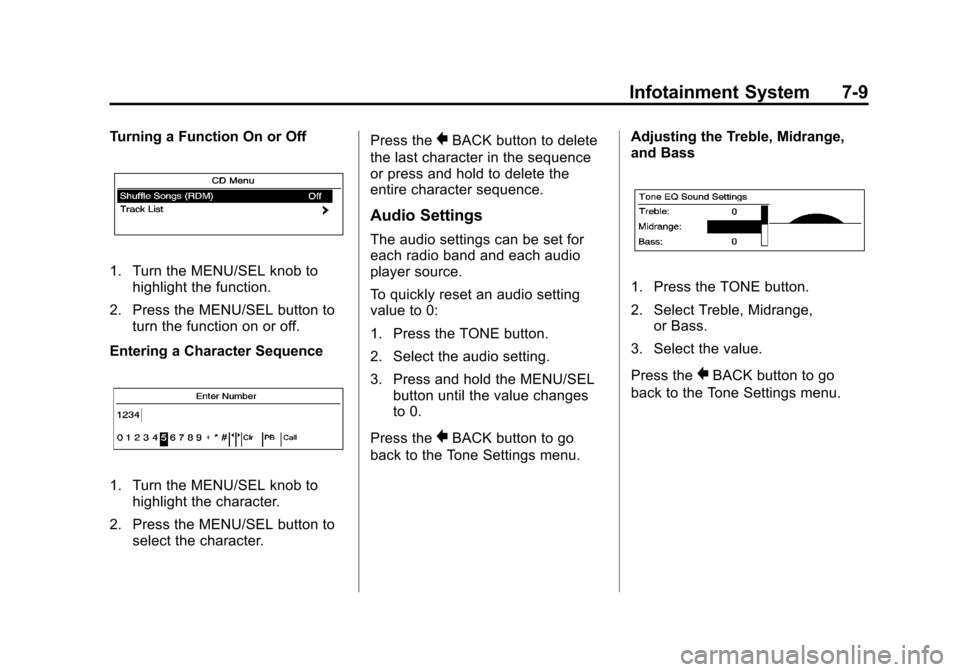
Turning a Function On or Off
1. Turn the MENU/SEL knob tohighlight the function.
2. Press the MENU/SEL button to turn the function on or off.
Entering a Character Sequence
1. Turn the MENU/SEL knob to highlight the character.
2. Press the MENU/SEL button to select the character. Press the
}BACK button to delete
the last character in the sequence
or press and hold to delete the
entire character sequence.
Audio Settings
The audio settings can be set for
each radio band and each audio
player source.
To quickly reset an audio setting
value to 0:
1. Press the TONE button.
2. Select the audio setting.
3. Press and hold the MENU/SEL button until the value changes
to 0.
Press the
}BACK button to go
back to the Tone Settings menu. Adjusting the Treble, Midrange,
and Bass
1. Press the TONE button.
2. Select Treble, Midrange,
or Bass.
3. Select the value.
Press the
}BACK button to go
back to the Tone Settings menu.
Page 183 of 446
Black plate (15,1)Chevrolet Equinox Owner Manual - 2011
Infotainment System 7-15
Selecting the XM Band
Press the RADIO/BAND button to
choose between the AM, FM, and
XM bands. The last channel played
in that band begins to play when
that band is selected.
XM Categories
XM channels are organized in
categories.
Removing or Adding Categories
Channels in a category that have
been removed can still be accessed
by using the
gSEEK orlSEEK
buttons, or the MENU/SEL knob.
To add or remove categories:
1. Press the CONFIG button.
2. Select Radio Settings.
3. Select XM Categories.
4. Turn the MENU/SEL knob to highlight the category.
5. Press the MENU/SEL knob to remove or add the category.
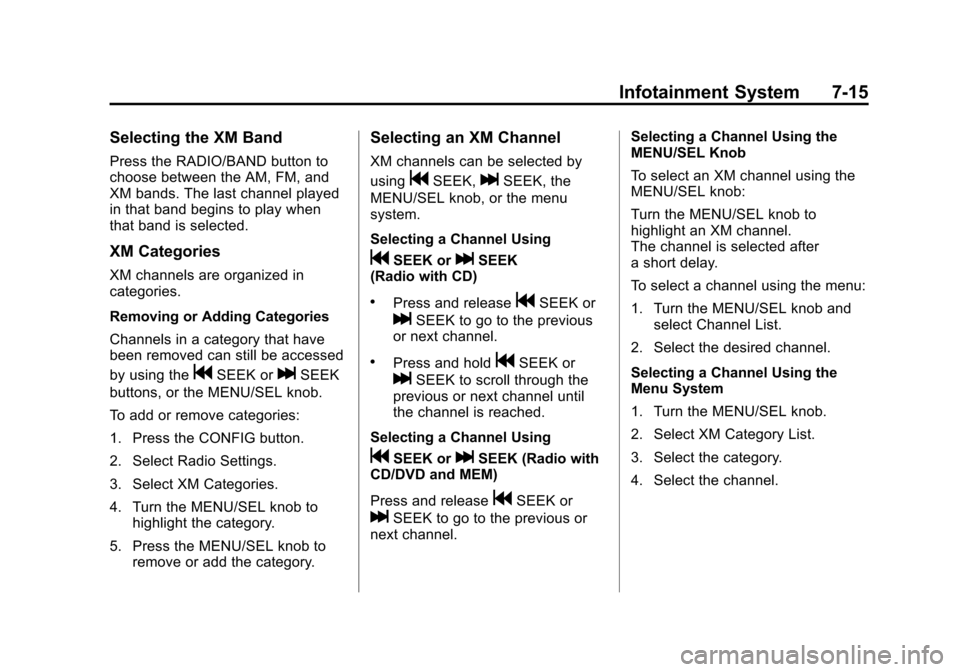
Selecting an XM Channel
XM channels can be selected by
using
gSEEK,lSEEK, the
MENU/SEL knob, or the menu
system.
Selecting a Channel Using
gSEEK orlSEEK
(Radio with CD)
.Press and releasegSEEK or
lSEEK to go to the previous
or next channel.
.Press and holdgSEEK or
lSEEK to scroll through the
previous or next channel until
the channel is reached.
Selecting a Channel Using
gSEEK orlSEEK (Radio with
CD/DVD and MEM)
Press and release
gSEEK or
lSEEK to go to the previous or
next channel. Selecting a Channel Using the
MENU/SEL Knob
To select an XM channel using the
MENU/SEL knob:
Turn the MENU/SEL knob to
highlight an XM channel.
The channel is selected after
a short delay.
To select a channel using the menu:
1. Turn the MENU/SEL knob and
select Channel List.
2. Select the desired channel.
Selecting a Channel Using the
Menu System
1. Turn the MENU/SEL knob.
2. Select XM Category List.
3. Select the category.
4. Select the channel.
Page 187 of 446
Black plate (19,1)Chevrolet Equinox Owner Manual - 2011
Infotainment System 7-19
Audio Players
CD Player
The CD player can play audio CDs
and MP3 CDs.
The CD player will not play
8 cm (3 in) CDs.
Care of CDs
Sound quality can be reduced due
to disc quality, recording method,
quality of the music recorded, and
how the disc has been handled.
Handle discs carefully and store
them in their original cases or other
protective cases away from direct
sunlight and dust. If the bottom
surface of a disc is damaged, the
disc may not play properly or at all.
Do not touch the bottom surface of
a disc while handling it; this could
damage the surface. Pick up discs
by grasping the outer edges or the
edge of the hole and the outer edge.
If the bottom surface of a disc is
dirty, take a soft lint‐free cloth,
or dampen a clean soft cloth in amild neutral detergent solution
mixed with water, and clean it.
Wipe the disc from the center to the
outer edge.
Care of the CD Player
Do not add a label to a disc, as it
could get caught in the CD player.
If a label is needed, label the top of
the recorded disc with a
marking pen.
Do not use disc lens cleaners
because they could contaminate the
lens of the disc optics and damage
the CD player.
Notice:
If a label is added to a
CD, or more than one CD is
inserted into the slot at a time,
or an attempt is made to play
scratched or damaged CDs, the
CD player could be damaged.
While using the CD player, use
only CDs in good condition
without any label, load one CD at
a time, and keep the CD player
and the loading slot free of
foreign materials, liquids,
and debris.
Control Buttons
The buttons used to control the
CD player are:
CD: Press to choose between the
CD and AUX player.
lSEEK orgSEEK: Press to
select tracks or to fast forward or
rewind within a track.
INFO: Press to display additional
information about the CD that may
be available.
MENU/SEL: Turn to select tracks.
X(Eject):Press to remove
the CD.
k: Press to pause a CD or
MP3 track; press again to resume
playback.
Inserting a CD
With the printed side facing up,
insert a disc into the CD slot until it
is drawn in.
Page 189 of 446
Black plate (21,1)Chevrolet Equinox Owner Manual - 2011
Infotainment System 7-21
CD/DVD Player
The CD/DVD player can play CDs,
DVD‐As, MP3/WMA CDs, MP3/
WMA DVDs, and DVD‐Vs.
The CD/DVD player will not play
8 cm (3 in) discs.
Care of CDs and DVDs
Sound quality can be reduced due
to disc quality, recording method,
quality of the music recorded, and
how the disc has been handled.
Handle discs carefully and store
them in their original cases or other
protective cases away from direct
sunlight and dust. If the bottom
surface of a disc is damaged, the
disc may not play properly or at all.
Do not touch the bottom surface of
a disc while handling it; this could
damage the surface. Pick up discs
by grasping the outer edges or the
edge of the hole and the outer edge.
If the bottom surface of a disc is
dirty, take a soft lint‐free cloth,
or dampen a clean soft cloth in a
mild neutral detergent solutionmixed with water, and clean it.
Wipe the disc from the center to the
outer edge.
Care of the CD/DVD Player
Do not add a label to a disc, as it
could get caught in the CD/DVD
player. If a label is needed, label the
top of the recorded disc with a
marking pen.
Do not use disc lens cleaners
because they could contaminate the
lens of the disc optics and damage
the CD/DVD player.
Notice:
If a label is added to a
CD, or more than one CD is
inserted into the slot at a time,
or an attempt is made to play
scratched or damaged CDs, the
CD player could be damaged.
While using the CD player, use
only CDs in good condition
without any label, load one CD at
a time, and keep the CD player
and the loading slot free of
foreign materials, liquids,
and debris.
Control Buttons
The buttons used to control the
CD/DVD player are:
MEM/DVD/AUX: Press to choose
between the MEM, CD/DVD,
and AUX.
lSEEK orgSEEK: Press to
select tracks or to fast forward or
rewind within a track.
INFO: Press to display additional
information about the disc that may
be available.
MENU/SEL: Turn to select tracks.
X(Eject):Press to remove a disc.
k:Press to pause a CD, DVD‐A,
or DVD‐V; press again to resume
playback. Press and hold to stop a
DVD‐V disc.
Inserting a CD or DVD
With the printed side facing up,
insert a disc into the slot until it is
drawn in.