2011 CHEVROLET CRUZE infotainment
[x] Cancel search: infotainmentPage 176 of 394
Black plate (18,1)Chevrolet Cruze Owner Manual - 2011
7-18 Infotainment System
Audio Players
CD Player
The CD player can play audio CDs
and MP3 CDs.
The CD player will not play
8 cm (3 in) CDs.
Care of CDs
Sound quality can be reduced due
to disc quality, recording method,
quality of the music recorded, and
how the disc has been handled.
Handle discs carefully and store
them in their original cases or other
protective cases away from direct
sunlight and dust. If the bottom
surface of a disc is damaged, the
disc may not play properly or at all.
Do not touch the bottom surface of
a disc while handling it; this could
damage the surface. Pick up discs
by grasping the outer edges or the
edge of the hole and the outer edge.If the bottom surface of a disc is
dirty, take a soft lint‐free cloth,
or dampen a clean soft cloth in a
mild neutral detergent solution
mixed with water, and clean it. Wipe
the disc from the center to the
outer edge.
Care of the CD Player
Do not add a label to a disc, as it
could get caught in the CD player.
If a label is needed, label the top of
the recorded disc with a
marking pen.
Do not use disc lens cleaners
because they could contaminate the
lens of the disc optics and damage
the CD player.
Notice:
If a label is added to a
CD, or more than one CD is
inserted into the slot at a time,
or an attempt is made to play
scratched or damaged CDs, the
CD player could be damaged. While using the CD player, use
only CDs in good condition
without any label, load one CD at
a time, and keep the CD player
and the loading slot free of
foreign materials, liquids, and
debris.
Control Buttons
The buttons used to control the CD
player are:
CD/AUX:
Press to use the CD
player.
l/g: Press to select tracks or
to fast forward or rewind within a
track.
INFO: Press to display additional
information about the current track
that may be available.
TUNE: Turn to select tracks.
Page 177 of 394
Black plate (19,1)Chevrolet Cruze Owner Manual - 2011
Infotainment System 7-19
MENU or MENU/SEL knob
(depending on system):Turn to
enter the menu.
SELECT: Press to select an item.
Y(Eject):Press to eject the disc.
Inserting a CD
With the printed side facing up,
insert a disc into the CD slot until it
is drawn in.
Removing a CD
Press theYbutton.
The disc is pushed out of the
CD slot.
If the disc is not removed after it is
ejected, it is pulled back in after a
few seconds.
Playing a CD or MP3 CD
Press the CD/AUX button if there is
a disc in the player; it begins
playing. Information about the disc and
current track is shown on the
display depending on the data
stored.
Selecting a CD Track
Using the control buttons:
.Press thegorlbutton to
select the previous or next track.
.Turn the TUNE knob.
Using the CD Menu:
1. Turn the MENU or MENU/ SEL knob.
2. Select Tracks list.
3. Select the track.
Playing Tracks in Random Order
Turn the MENU or MENU/SEL knob
and then set Shuffle Songs to On.
Fast Forward and Rewind
Press and hold
lorgto fast
forward or rewind within the current
track. Selecting an MP3 Track
Using the control buttons:
.Press thegorlbutton to
select the previous or next track.
.Turn the TUNE knob.
Using the CD Menu:
1. Turn the MENU or MENU/ SEL knob.
2. Select Playlists/Folders.
3. Select the playlist or folder.
4. Select the track.
Searching for MP3 Tracks
The search feature may take some
time to display the information after
reading the disc due to the amount
of information stored on the disc.
FM automatically plays while the
disc is being read.
Page 178 of 394
Black plate (20,1)Chevrolet Cruze Owner Manual - 2011
7-20 Infotainment System
Tracks can be searched by:
.Playlists
.Artists
.Albums
.Song Titles
.Genres
.Folder View
To search for tracks:
1. Turn the MENU or MENU/ SEL knob.
2. Select Search.
3. Select: Playlists, Artists, Albums, Song Titles, Genres,
or Folder View.
4. Select the track.
Auxiliary Devices
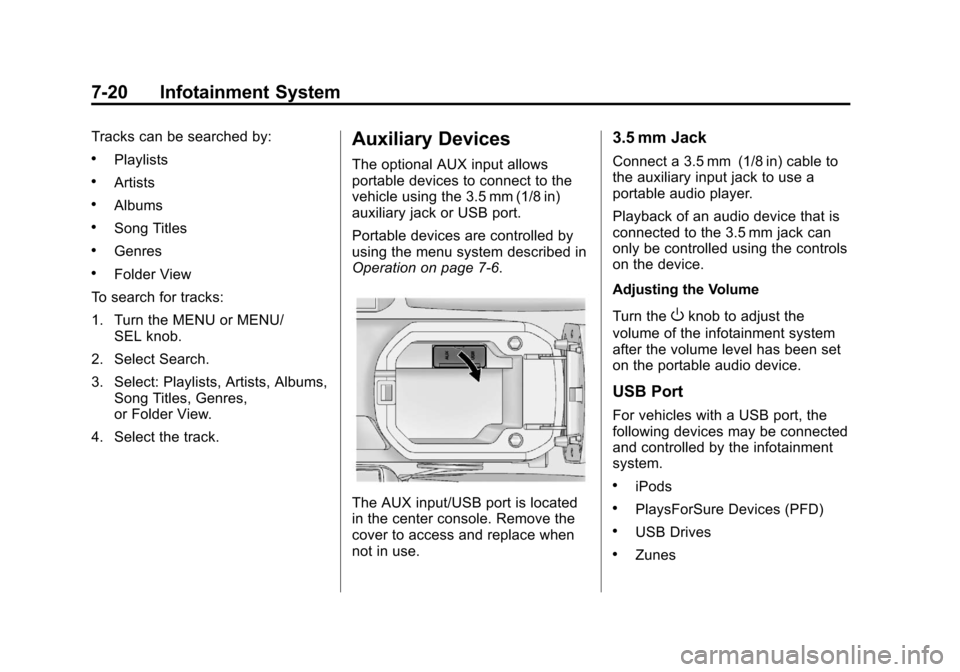
The optional AUX input allows
portable devices to connect to the
vehicle using the 3.5 mm (1/8 in)
auxiliary jack or USB port.
Portable devices are controlled by
using the menu system described in
Operation on page 7‑6.
The AUX input/USB port is located
in the center console. Remove the
cover to access and replace when
not in use.
3.5 mm Jack
Connect a 3.5 mm (1/8 in) cable to
the auxiliary input jack to use a
portable audio player.
Playback of an audio device that is
connected to the 3.5 mm jack can
only be controlled using the controls
on the device.
Adjusting the Volume
Turn the
Oknob to adjust the
volume of the infotainment system
after the volume level has been set
on the portable audio device.
USB Port
For vehicles with a USB port, the
following devices may be connected
and controlled by the infotainment
system.
.iPods
.PlaysForSure Devices (PFD)
.USB Drives
.Zunes
Page 179 of 394
Black plate (21,1)Chevrolet Cruze Owner Manual - 2011
Infotainment System 7-21
Not all iPods, PFDs, USB drives,
and Zunes are compatible with the
infotainment system. Devices are
also charged while plugged into the
USB port.
Connecting and Controlling
an iPod™
Not all iPods can be controlled by
the infotainment system.
Connecting an iPod
Connect the iPod to the USB port.
Searching for a Track
Tracks that are found can be
searched for by:
.Playlists
.Artists
.Albums
.Song Titles
.Podcasts
.Genres
.Audiobooks
.ComposersTo search for tracks:
1. Turn the MENU or MENU/
SEL knob.
2. Select Search.
3. Select: Playlists, Artists, Albums, Song Titles, Podcasts, Genres,
Audiobooks, or Composers.
4. Select the track.
Shuffle
Turn the MENU or MENU/SEL knob
and set Shuffle Songs (Random) to
On or Off, then press the BACK
button to return the main screen.
On: Plays tracks in the current
folder in random order.
Off: Plays tracks in the current
folder in sequential order.
Repeat
Turn the MENU or MENU/SEL knob
and set Repeat to On or Off, then
press the BACK button to return the
main screen. On:
Repeats the current track.
Off: Starts playback from the
beginning of the current track after
the last track finishes.
Connecting and Controlling a
PlaysForSure Device (PFD)
or Zune™
Connecting a PFD or Zune
Connect the PFD or Zune to the
USB port.
Searching for a Track
Tracks can be searched for by:
.Playlists
.Artists
.Albums
.Song Titles
.Podcasts
.Genres
Page 180 of 394
Black plate (22,1)Chevrolet Cruze Owner Manual - 2011
7-22 Infotainment System
To search for tracks:
1. Turn the MENU or MENU/SEL knob.
2. Select Search.
3. Select: Playlists, Artists, Albums, Song Titles, Podcasts,
or Genres.
4. Select the track.
Shuffle Functionality
Turn the MENU or MENU/SEL knob
and set Shuffle Songs (Random) to
On or Off.
On: Plays current tracks in random
order.
Off: Plays current tracks in
sequential order.
Repeat Functionality
Turn the MENU or MENU/SEL knob
and set Repeat to On or Off.
Repeat On: Repeats the current
track. Repeat Off:
Starts playback from
the beginning of the current track
after the last track finishes.
Connecting and Controlling a
USB Drive
The infotainment system can only
play back .mp3 and .wma files from
a USB drive.
Only the first 10,000 songs are
recognized on the device.
When a device is not supported, the
message “No supported data found.
You can safely disconnect the
device” appears.
Connecting a USB Drive
Connect the USB drive to the
USB port.
Searching for a Track
It is normal for the search feature to
take some time to display the
information after reading the device
due to the amount of information
stored. Files that do not have any meta
data stored in the ID3 tag display as
Unknown.
Tracks can be searched for by:
.Playlists*
.Artists
.Albums
.Song Titles
.Genres
.Folder View
*This only displays if a playlist is
found on the device.
To search for tracks:
1. Turn the MENU or MENU/ SEL knob.
2. Select Search.
3. Select: Playlists, Artists, Albums, Song Titles, Genres,
or Folder View.
4. Select the track.
Page 181 of 394
Black plate (23,1)Chevrolet Cruze Owner Manual - 2011
Infotainment System 7-23
Shuffle Functionality
Turn the MENU or MENU/SEL knob
and set Shuffle Songs (Random) to
On or Off.
On:Plays current tracks in random
order.
Off: Plays current tracks in
sequential order.
Repeat Functionality
Turn the MENU or MENU/SEL knob
and set Repeat to On or Off.
Repeat On: Repeats the current
track.
Repeat Off: Starts playback from
the beginning of the current track
after the last track finishes.Phone
Bluetooth (Overview)
Vehicles with a Bluetooth system
can use a Bluetooth capable cell
phone with a Hands‐Free Profile to
make and receive phone calls. The
infotainment system and voice
recognition are used to control the
system. The system can be used
while the ignition is in ON/RUN or
ACC/ACCESSORY. The range of
the Bluetooth system can be up to
9.1 m (30 ft). Not all phones support
all functions and not all phones work
with the Bluetooth system. See
www.gm.com/bluetooth for more
information about compatible
phones.
Bluetooth Controls
Use the buttons located on the
infotainment system and the
steering wheel to operate the
Bluetooth system. Steering Wheel Controls
b
g(Push To Talk): Press to
answer incoming calls, to confirm
system information, and to start
voice recognition.
$ i(End Call/Mute): Press to
end a call, reject a call, or cancel an
operation.
Infotainment System Controls
For information about how to
navigate the menu system using the
infotainment controls, see Operation
on page 7‑6.
5/>(Phone): Press to enter the
Phone main menu.
Voice Recognition
The voice recognition system uses
commands to control the system
and dial phone numbers.
Noise: The system may not
recognize voice commands if there
is too much background noise.
Page 182 of 394
Black plate (24,1)Chevrolet Cruze Owner Manual - 2011
7-24 Infotainment System
When to Speak:A tone sounds to
indicate that the system is ready for
a voice command. Wait for the tone
and then speak.
How to Speak: Speak clearly in a
calm and natural voice.
Audio System
When using the Bluetooth system,
sound comes through the vehicle's
front audio system speakers and
overrides the audio system. Turn
the
Oknob during a call to change
the volume level. The adjusted
volume level remains in memory for
later calls. The system maintains a
minimum volume level.
Other Information
The Bluetooth®word mark and
logos are owned by the Bluetooth®
SIG, Inc. and any use of such marks
by General Motors is under license.
Other trademarks and trade names
are those of their respective owners. See
Radio Frequency Statement on
page 13‑16 for FCC and Industry
Canada information.
Bluetooth (Infotainment
Controls)
For information about how to
navigate the menu system using the
infotainment controls, see Operation
on page 7‑6.
Pairing
A Bluetooth‐enabled cell phone
must be paired to the Bluetooth
system first and then connected to
the vehicle before it can be used.
See the cell phone manufacturer's
user guide for Bluetooth functions
before pairing the cell phone. If a
Bluetooth phone is not connected,
calls will be made using OnStar
®
Hands‐Free Calling, if available.
Refer to the OnStar Owner's Guide
for more information. The pairing process can be started
by using the voice recognition
system or the controls on the
infotainment system.
Pairing Information:
.Up to five cell phones can be
paired to the Bluetooth system.
.The pairing process is disabled
when the vehicle is moving.
.The Bluetooth system links with
the first available paired cell
phone in the order the phone
was paired.
.Only one paired cell phone can
be connected to the Bluetooth
system at a time.
.Pairing should only need to be
completed once, unless changes
to the pairing information have
been made or the phone is
deleted.
To link to a different paired phone,
see “Linking to a Different Phone”
later in this section.
Page 183 of 394
Black plate (25,1)Chevrolet Cruze Owner Manual - 2011
Infotainment System 7-25
Pairing a Phone
1. Press the CONFIG button.
2. Select Phone Settings.
3. Select Bluetooth.
4. Select Pair Device (Phone).A four‐digit Personal
Identification Number (PIN)
appears on the display.
If the “Add new GPS device”
option is selected, the system
will start a search for Bluetooth
“Handsfree” profile devices just
like if “Add new Phone” was
selected. The additional GPS
location feature which would
provide the vehicle's GPS
location through the Bluetooth
Serial Port Profile is not
available.
5. Start the pairing process on the cell phone that will be paired to
the vehicle. Reference the cell
phone manufacturer's user guide
for information on this process. Locate the device named
“Your
Vehicle” in the list on the cell
phone and follow the instructions
on the cell phone to enter the
four‐digit PIN provided by the
system.
6. The system prompts for a name for the phone and confirms the
name provided. This name is
used to indicate which phone is
connected.
7. The system responds with “
successfully paired” after the
pairing process is complete.
8. Repeat Steps 1 through 7 to pair additional phones.
Listing All Paired and Connected
Phones
1. Press the CONFIG button.
2. Select Phone Settings.
3. Select Bluetooth.
4. Select Device List. Deleting a Paired Phone
1. Press the CONFIG button.
2. Select Phone Settings.
3. Select Bluetooth.
4. Select Device List.
5. Select the phone to delete and
follow the on‐screen prompts.
Linking to a Different Phone
To link to a different phone, the new
phone must be in the vehicle and
available to be connected to the
Bluetooth system before the
process is started.
1. Press the CONFIG button.
2. Select Phone Settings.
3. Select Bluetooth.
4. Select Device List.
5. Select the new phone to link to and follow the on‐screen
prompts.
If delete is selected, the
highlighted phone will be
deleted.