2011 CADILLAC ESCALADE light
[x] Cancel search: lightPage 276 of 558

Black plate (70,1)Cadillac Escalade/Escalade ESV Owner Manual - 2011
7-70 Infotainment System
4. Once a state or province hasbeen selected the City name
category is automatically
selected for entry.
Enter the City Name or press the
Last 5 Cities screen button.
The Last 5 Cities screen
displays a list of the last five city
names that had been entered.
Select a city from the list and it
appears in the City name area.
If using the alpha keyboard,
finish entering the city name.
If five or less names are
available, a list displays.
If more than five are available,
the List screen button displays a
number. This number represents
the number of available cities.
Select this button to view the
list and select a city. 5. Once a city has been selected
the Street name category is
automatically selected for entry.
Start entering the street name.
If five or less names are
available, a list displays.
If more than five are available,
the List screen button displays a
number. This number represents
the number of available streets.
Select this button to view the list.
6. Once a street has been selected, press House to enter
the house number. The system
displays the house number
range that is available for the
street.
7. Select GO. The map screen, with the destination marked
displays. 8. Select the route preference
(Fastest, Shortest, or Other).
The system calculates and
highlights the route.
9. Select Start Guidance. The route is now ready to be started.
See “Getting Started on Your
Route” in this section for more
information.
To enter a destination by entering
the street name first:
1. Press the DEST control button.
2. Select
2.
3. Select the state/province screen button, if needed, to change the
current state or province. A list
of all of the available states and
provinces appear. Select the
state or province.
Page 277 of 558

Black plate (71,1)Cadillac Escalade/Escalade ESV Owner Manual - 2011
Infotainment System 7-71
4. Select Street and start enteringthe street name or press the
Last 5 Streets screen button.
If the street name is common,
the city might need to be entered
first.
The Last 5 Streets screen
displays a list of the last five
street names that had been
entered. Select a street from
the list and it appears in the
Street name area.
If using the alpha keyboard,
finish entering the street name.
If five or less names are
available, a list displays.
If more than five are available,
the List screen button displays a
number. This number represents
the number of available streets.
Select this button to view the list
and select a street. 5. Once a street has been
selected, select House to enter
the house number. The system
displays the house number
range that is available for the
street.
6. Once the house number is selected, the city name
automatically populates.
If there is more than one city
available for selection, a list of
cities display. Select the city.
7. Select GO. The map screen, with the destination marked
displays.
8. Select the route preference (Fastest, Shortest, or Other).
The system calculates and
highlights the route.
9. Select Start Guidance. The route is now ready to be started.
See “Getting Started on Your
Route” in this section for more
information. To enter a destination by entering a
cross street:
1. Press the DEST control button.
2. Select
2.
3. Select the state/province screen button, if needed, to change the
current state or province. A list
of all of the available states and
provinces appear. Select the
state or province.
4. Select Street and start entering the street name or press the
Last 5 Streets screen button.
If the street name is common,
the city might need to be entered
first.
The Last 5 Streets screen
displays a list of the last five
street names that had been
entered. Select a street from
the list and it appears in the
Street name area.
Page 278 of 558

Black plate (72,1)Cadillac Escalade/Escalade ESV Owner Manual - 2011
7-72 Infotainment System
If using the alpha keyboard,
finish entering the street name.
If five or less names are
available, a list displays.
If more than five are available,
the List screen button displays a
number. This number represents
the number of available streets.
Select this button to view the list
and select a street.
5. Once a street has been selected, select Cross Street
and start entering the cross
street name. If five or less
names are available, a list
displays. If more than five
are available, the List screen
button displays a number.
This number represents the
number of available streets.
Select this button to view the
list and select a street. 6. Select GO. The map screen,
with the destination marked
displays.
7. Select the route preference (Fastest, Shortest, or Other).
The system calculates and
highlights the route.
8. Select Start Guidance. The route is now ready to be started.
See “Getting Started on Your
Route” in this section for more
information.
Point of Interest (POI)
The Point of Interest (POI)
destination entry method lets
you select a destination from
the POI list.
iPoint of Interest: Press to
access the POI (Point of Interest)
screen. From this screen you have
two options to select/enter a
destination. Enter the name using
the alpha keyboard or select a
category from the category list.
To use the point of interest
destination entry method by entering
the name:
1. Press the DEST control button.
2. Select
i.
Page 279 of 558
Black plate (73,1)Cadillac Escalade/Escalade ESV Owner Manual - 2011
Infotainment System 7-73
3. Select the state/province screenbutton, if needed, to change the
current state or province. A list
of all of the available states and
provinces appear. Select the
state or province.
4. Enter the POI name. If five or less names are
available, a list displays.
If more than five are available,
the List screen button displays a
number. This number represents
the number of available POIs.
Select this button to view the list.
5. Select GO, located next to the POI. The map screen, with the
destination marked displays.
6. Select the route preference (Fastest, Shortest, or Other).
The system calculates and
highlights the route.
7. Select Start Guidance. The route is now ready to be started.
See “Getting Started on Your
Route” in this section for more
information. To use the point of interest
destination entry method by
selecting a category:
1. Press the DEST control button.
2. Select
i.
3. Select Browse POI Categories to view the list of POI categories.
4. Select a category.
The system displays available
POI names in the selected
category.
5. Select GO, located next to the POI. The map screen, with the
destination marked displays.
6. Select the route preference (Fastest, Shortest, or Other).
The system calculates and
highlights the route.
7. Select Start Guidance. The route is now ready to be started.
See “Getting Started on Your
Route” in this section for more
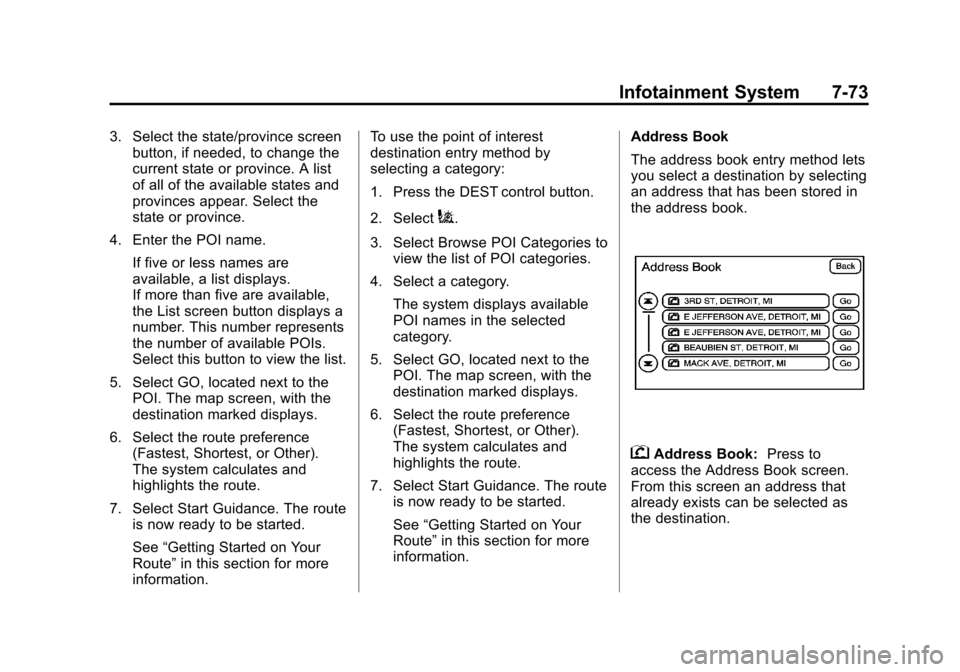
information. Address Book
The address book entry method lets
you select a destination by selecting
an address that has been stored in
the address book.
gAddress Book:
Press to
access the Address Book screen.
From this screen an address that
already exists can be selected as
the destination.
Page 280 of 558

Black plate (74,1)Cadillac Escalade/Escalade ESV Owner Manual - 2011
7-74 Infotainment System
To use the address book entry
method:
1. Press the DEST control button.
2. Select
g.
A list of the address book
addresses display.
3. Select GO, located next to the destination. The map screen,
with the destination marked
displays.
4. Select the route preference (Fastest, Shortest, or Other).
The system calculates and
highlights the route.
5. Select Start Guidance. The route is now ready to be started.
See “Getting Started on Your
Route” in this section for more
information.
See “Adding Destinations to the
Address Book” in this section. Previous Destination
The previous destination entry
method lets you select a destination
from a list of previous destination
points.
/Previous Destination:
Press to
access the Previous Destination
screen. The system stores up to
20 points that have been previously
entered. As new destinations are
entered, the system automatically
deletes the oldest destinations and
adds the new destinations. To use the previous destination
entry method:
1. Press the DEST control button.
2. Select
/.
3. Select a previous destination from the list. Use the arrow to
the right of the destination to
view the entire destination name
as necessary. Use the scroll
arrows to the left to scroll
through the list.
4. Select GO, located next to the destination. The map screen,
with the destination marked
displays.
5. Select the route preference (Fastest, Shortest, or Other).
The system calculates and
highlights the route.
6. Select Start Guidance. The route is now ready to be started.
See “Getting Started on Your
Route” in this section for more
information.
Page 281 of 558

Black plate (75,1)Cadillac Escalade/Escalade ESV Owner Manual - 2011
Infotainment System 7-75
From Map
This destination entry method allows
you to select a destination by
scrolling on the map.
)From Map:Press to enter the
From Map destination entry method.
To use this destination entry
method:
1. Press the DEST control button.
2. Select
). A map screen
displays with the scrolling
symbol. 3. Use
0/1and press on the
map to find the area that you
would like to select as your
destination.
Pressing/holding and dragging
your finger on the map activates
fast scrolling.
4. Press once on the area that you would like to set as your
destination.
The map screen displays the
address information.
5. Select GO. The map screen, with the destination marked
displays.
6. Select the route preference (Fastest, Shortest, or Other).
The system calculates and
highlights the route.
7. Select Start Guidance. The route is now ready to be started.
See “Getting Started on Your
Route” in this section for more
information. Map Coordinates
The coordinates destination entry
method lets you select a destination
by entering latitude and longitude
coordinates.
Map Coordinates:
Press to access
the Coordinates Entry screen.
Page 282 of 558

Black plate (76,1)Cadillac Escalade/Escalade ESV Owner Manual - 2011
7-76 Infotainment System
To use the coordinates destination
entry method:
1. Press the DEST control button.
2. Select From Map.
3. Select Map Coordinates.
4. Select Latitude and select eitherN (north) or S (south) to enter
the direction of the latitude
coordinate. Enter the numeric
portion of the latitude coordinate.
5. Select Longitude and select either E (east) or W (west) next
to enter the direction of the
longitude coordinate. Enter the
numeric portion of the longitude
coordinate.
6. Once both coordinates are entered, select GO. The map
screen, with the destination
marked displays. 7. Select the route preference
(Fastest, Shortest, or Other).
The system calculates and
highlights the route.
8. Select Start Guidance. The route is now ready to be started.
See “Getting Started on Your
Route” in this section for more
information.
Preset Destination
The preset destination entry
method lets you set a destination by
selecting from one of five previously
stored destinations. Besides voice
tagged destinations, these are the
only destinations available to set
while the vehicle is moving. If a
destination is not set for one of
the screen buttons, the button is
dimmed and not available for use.
See “Adding or Changing Preset
Destinations” in this section for
information on how to add a preset
destination.
To use the preset destination entry
method:
1. Press the DEST control button.
2. Select the desired preset destination screen button.
The screen buttons are labeled
with the name that was selected
for the destination when it was
stored. The map screen, with the
destination marked displays.
Page 283 of 558

Black plate (77,1)Cadillac Escalade/Escalade ESV Owner Manual - 2011
Infotainment System 7-77
3. Select the route preference(Fastest, Shortest, or Other).
The system calculates and
highlights the route.
4. Select Start Guidance. The route is now ready to be started.
See “Getting Started on Your
Route” in this section for more
information.
Map Destination Screen Functions
If the map screen is used to show
destination, it will have map screen
capabilities such as GO, Mark,
Zoom, Scroll, etc. The address is
shown at the top of the screen.
Destination Map Screen
OnStar®Destination Download
(US and Canada)
OnStar Destination Download
(if equipped) is a service available
for OnStar subscribers that makes
operating your navigation system
much simpler. It allows subscribers
to request and receive navigation
assistance on-the-go.
Using OnStar®Destination
Download (US and Canada)
Press the blue OnStar button
and an Advisor can locate a
point-of-interest or an address and
download the necessary information
or coordinates to your navigation
system. Once the destination is
downloaded, the navigation system
will search for the address in the
mapping disc's database. When the
address is found, it will be shown
on your navigation system's screen
along with the buttons described
below.