2011 BMW X3 radio
[x] Cancel search: radioPage 151 of 262

5.The phone number and an electronic serial
number, ESN, are displayed.6.Call Sirius to unsubscribe from the chan‐
nels.
Selecting channels
You can only listen to enabled channels.
The selected channel is stored for the remote
control currently in use.
Via iDrive
1."Radio"2."Satellite radio"3.Select "All channels" or the desired cate‐
gory.4.Select the desired channel.
Via the buttons on the center console
Press the button.
The next channel is selected.
Via direct channel entry
1."Radio"2."Satellite radio"3. "Set channel"4.Turn the controller until the desired channel
is reached and press the controller.
Storing a channel
1."Radio"2."Satellite radio"3.If necessary, open "All channels" or the de‐
sired category.4.Select the desired channel.5.Press the controller again.6.Press the controller again to confirm the
highlighted channel.7.Select the desired memory location.
The channels are stored for the remote control
currently in use.
The channels can also be stored on the pro‐
grammable memory buttons, refer to page 23.
Changing the list view
The list view changes every time the first symbol
on the navigation bar is pressed.
Information on the channel is displayed.
SymbolMeaning Channel name Artist Track
Selecting a category
1."Radio"2."Satellite radio"3. "Category"4.Select the desired category.
Timeshift
Approx. one hour of the program being broad‐
cast on the channel currently being listened to
is stored in a buffer. Prerequisite: the signal must
be available.
The stored audio track can be played with a de‐
lay following the live broadcast. When the buffer
is full, the older tracks are overwritten. The buf‐
fer is cleared when a new channel is selected.
Seite 151151
Online Edition for Part no. 01 40 2 606 190 - 12 10 500
ReferenceMobilityCommunicationEntertainmentNavigationDriving tipsControlsAt a glance
Page 152 of 262

Opening the timeshift function1."Radio"2."Satellite radio"3. "Replay - Time shift"▷The red arrow shows the current playback
position.▷The time difference to the live broadcast is
displayed next to the buffer bar.
For live transmissions: "live".
Timeshift menu
SymbolFunction Go to the live broadcast Playback/pause Next track Previous track Fast forward Reverse Automatic timeshift deactivated/ac‐
tivated
Automatic timeshift
When the function is activated, audio playback
is stopped automatically in the event of:
▷Incoming and outgoing telephone calls.▷Activation of the voice activation system.▷Muting.
The audio playback then continues with a time
delay.
To activate:
1."Radio"2."Satellite radio"3. "Replay - Time shift"4. "Automatic time shift"
To deactivate: "Automatic time shift".
Storing favorites
Up to 30 favorites can be stored in the favorites
list. Available favorites are artist, track, game,
league, and team.
Storing the artist, track, or game
It is only possible to store favorites that are cur‐
rently being broadcast. The channel information
must be available.
1."Radio"2."Satellite radio"3.If necessary, open "All channels" or the de‐
sired category.4.Select the desired channel.5.Press the controller again.6.Select the artist, track, or game.
Storing the league or team
Leagues or teams can be added to the favorites
from a selection list.
1."Radio"2."Satellite radio"3. "Manage favorites"4."Add sports information"5.Select the league.6.Select "Add all teams" or the desired team.Seite 152152
Online Edition for Part no. 01 40 2 606 190 - 12 10 500Radio
Page 153 of 262

Opening the favorites
If an activated favorite is played back, the fol‐
lowing message appears for approx. 20 sec‐
onds: "Favorite alert!".
"Favorites"
Select the symbol while the message is shown.
The displayed favorite is played.
If there is no message, the system changes to
the My Favorites category. All favorites currently
being broadcast can be selected from a list.
Managing the favorites
Activating/deactivating the favorites
Favorites can be activated and deactivated
globally and individually.
1."Satellite radio"2. "Manage favorites"3.Select "Activate alert" or the desired favor‐
ites.
The setting is stored for the remote control cur‐
rently in use.
Deleting favorites
1."Satellite radio"2. "Manage favorites"3.Highlight the desired favorite.4.Open "Options".5."Delete entry"
Traffic Jump
Traffic and weather information for a selected
region is broadcast every few minutes.
Selecting a region1."Radio"2."Satellite radio"3.Open "Options".4."Set jump"5.Select the desired region.
The region is stored for the remote control cur‐
rently in use.
Activating/deactivating the jump
1."Radio"2."Satellite radio"3. "Jump to:"
Information for the selected region is broadcast
as soon as it is available.
A new panel opens.
Canceling the Traffic Jump: "Cancel".
SymbolMeaning Information will be broadcast shortly. Information is currently being broad‐
cast.
Select one of the symbols to deactivate Traffic
Jump.
Automatic update
About twice a year, Sirius performs an update of
the channel names and positions. The update
takes place automatically and may take several
minutes.
Notes
▷Reception may not be available in some sit‐
uations, such as under certain environmen‐
tal or topographic conditions. The satellite
radio has no influence on this.▷The signal may not be available in tunnels or
underground garages; next to tall buildings;
or near trees, mountains or other powerful
sources of radio interference.Seite 153153
Online Edition for Part no. 01 40 2 606 190 - 12 10 500
ReferenceMobilityCommunicationEntertainmentNavigationDriving tipsControlsAt a glance
Page 154 of 262

Stored stations
General information
It is possible to store up to 40 stations.
Calling up a station1."Radio"2."Presets"3.Select the desired station.
Storing a station
The station currently selected is stored.
1."Radio"2."Presets"3."Store station"4.Select the desired memory location.
The list of stored stations is stored for the re‐
mote control currently in use.
The stations can also be stored on the program‐
mable memory buttons, refer to page 23.
Deleting a station
1."Radio"2."Presets"3.Select the desired station.4.Open "Options".5."Delete entry"Seite 154154
Online Edition for Part no. 01 40 2 606 190 - 12 10 500Radio
Page 172 of 262

Unpairing a device1."CD/Multimedia"2."Bluetooth (audio)"3.If necessary, "Bluetooth audio".4.Highlight the device that is to be unpaired.5.Open "Options".6."Remove phone from list"
What to do if...
Information on suitable devices can be found at
www.bmwusa.com/bluetooth.
Suitable mobile phones, refer to page 176.
▷The device is not supported by the vehicle.
Perform a software update*, refer to
page 172, if needed.▷The device could not be paired or con‐
nected.
Do the Bluetooth passkeys on the device
and the vehicle match? Enter the same
passkey on the device and via iDrive.
Did it take longer than 30 seconds to enter
the passkey? Repeat the pairing procedure.
Are too many Bluetooth devices connected
to the device or vehicle? Delete connections
with other devices if necessary.
Is the mobile phone in power-save mode or
does it have only a limited remaining battery
life? Charge the mobile phone in the snap-
in adapter or via the charging cable.
Depending on the mobile phone, it is possi‐
ble that only one device can be connected
to the vehicle. Unpair the connected device
from the vehicle and pair and connect only
one device.
The device no longer reacts? Switch the de‐
vice off and on again.
Repeat the pairing procedure.▷Music cannot be played back.
Start the program for playing back music
data on the device and select a track on the
device if necessary.
Switch the radio off and on again.▷Music files can only be played back softly.
Adjust the volume settings on the device.▷Playback is disturbed when buttons are
pressed or by other messages on the de‐
vice.
Switch off the button tones and other signal
tones on the device.▷Playback is interrupted by a telephone call
or traffic bulletin and is not resumed auto‐
matically.
Switch the radio off and on again.▷Playback is not possible if the mobile phone
is connected both via Bluetooth Audio and
via the extended connectivity of the music
player in the mobile phone*.
Disconnect one of the two connections; for
example, disconnect the audio connection,
refer to page 171, and restart playback.
If all points in this list have been checked and the
required function is still not available, please
contact the hotline or service center.
Software update*
The vehicle supports various external devices
depending on the current software version. A
software update may result in vehicle support of
new mobile phones or new external devices, for
example.
Software updates and related current informa‐
tion is available at www.bmw.com/update.
Displaying the current version
The currently installed software is displayed.
1."Settings"2."Software update"3."Show current version"
Updating the software
The software may only be updated when the ve‐
hicle is stationary.
Seite 172172
Online Edition for Part no. 01 40 2 606 190 - 12 10 500CD/multimedia
Page 227 of 262

Vehicle battery
Maintenance
The battery is maintenance-free, i.e., the elec‐
trolyte will last for the life of the battery.
Your service center will be glad to advise you on
questions regarding the battery.
Battery replacement Use approved vehicle batteries only.
Only use vehicle batteries that have been
approved for your vehicle by the manufacturer;
otherwise, the vehicle could be damaged and
systems or functions may not be fully availa‐
ble.◀
After a battery replacement, have the battery
registered on the vehicle by your service center
to ensure that all comfort functions are fully
available.
Charging the battery
In the vehicle, only charge the battery via the
terminals, refer to page 230, in the engine com‐
partment with the engine off.
Power failure
After a temporary power loss, some equipment
needs to be reinitialized.
Individual settings need to be reprogrammed:▷Seat and mirror memory: store the positions
again.▷Time: update.▷Date: update.▷Radio station: save again.▷Navigation system: wait for the operability of
the navigation.
Disposing of old batteries
Have old batteries disposed of by your
service center or bring them to a recy‐
cling center.
Maintain the battery in an upright position for
transport and storage. Secure the battery so
that it does not tip over during transport.
Fuses
Notes Replacing fuses
Never attempt to repair a blown fuse and
do not replace a defective fuse with a substitute
of another color or amperage rating; this could
lead to a circuit overload, ultimately resulting in
a fire in the vehicle.◀
Plastic tweezers and information on the fuse
types and locations are stored in the fuse box in
the cargo area.
In the glove compartment
Swing the cover down, arrow.
In the cargo area
Open the cover on the right side trim and remove
the sound insulation.
Information on the fuse types and locations is
found on a separate sheet.
Seite 227227
Online Edition for Part no. 01 40 2 606 190 - 12 10 500
ReferenceMobilityCommunicationEntertainmentNavigationDriving tipsControlsAt a glance
Page 228 of 262

Breakdown assistanceHazard warning flashers
The button is located in the center console.
Emergency Request*
Requirements
▷Equipment version with full preparation
package mobile phone.
An Emergency Request can be made, even
if no mobile phones are paired with the ve‐
hicle.▷BMW Assist is activated.▷The radio ready state is switched on.▷The BMW Assist system is logged in to a
wireless communications network sup‐
ported by BMW Assist.▷The Assist system is functional.
Only press the SOS button in an emergency.
Emergency Request not guaranteed
For technical reasons, the Emergency Re‐
quest cannot be guaranteed under unfavorable
conditions.◀
Service contract
▷After your contract with BMW Assist has ex‐
pired, the BMW Assist system can be deac‐
tivated by the service center without you
having to visit a workshop.
After deactivation, an Emergency Request
is no longer possible.▷Under certain circumstances, the system
can be reactivated by a service center after
you sign a new contract.
Initiating an Emergency Request
1.Press the cover briefly to open it.2.Press the SOS button until the LED in the
button lights up.▷The LED lights up: an Emergency Request
was initiated.
If the situation allows, wait in your vehicle
until the voice connection has been estab‐
lished.▷The LED flashes if the connection to the
BMW Assist Response Center has been es‐
tablished.
After the Emergency Request arrives at the
BMW Assist Response Center, the BMW
Assist Response Center contacts you and
takes further steps to help you.
Even if you are unable to respond, the BMW
Assist Response Center can take further
steps to help you under certain circumstan‐
ces.
For this purpose, data that are used to de‐
termine the necessary rescue measures,
such as the current position of the vehicle if
it can be established, are transmitted to the
BMW Assist Response Center.▷If the LED is flashing but the BMW Assist
Response Center cannot be heard on the
hands-free system, the hands-free system
may be malfunctioning. However, the BMWSeite 228228
Online Edition for Part no. 01 40 2 606 190 - 12 10 500Breakdown assistance
Page 246 of 262
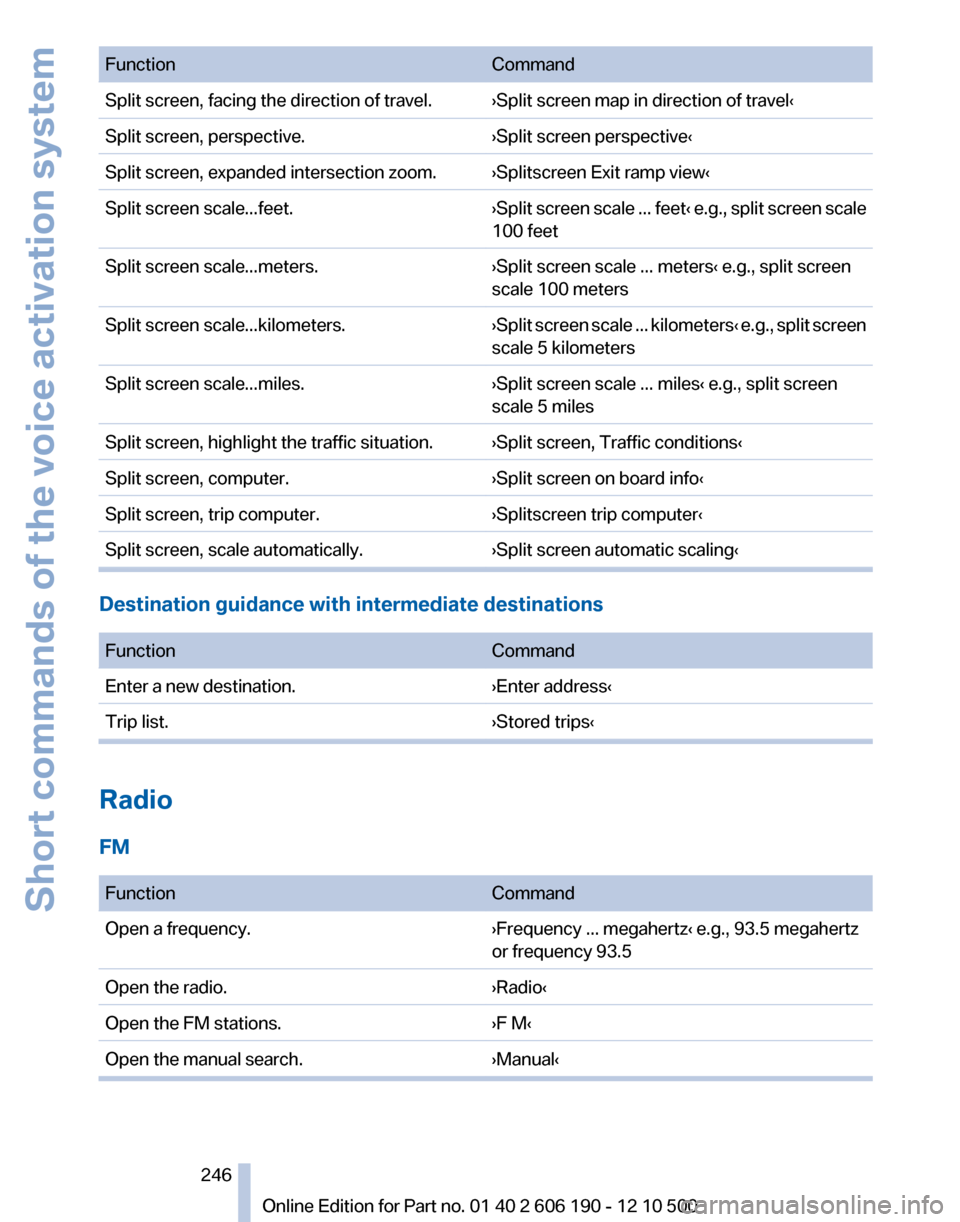
FunctionCommandSplit screen, facing the direction of travel.›Split screen map in direction of travel‹Split screen, perspective.›Split screen perspective‹Split screen, expanded intersection zoom.›Splitscreen Exit ramp view‹Split screen scale...feet.›Split screen scale ... feet ‹ e.g., split screen scale
100 feetSplit screen scale...meters.›Split screen scale ... meters‹ e.g., split screen
scale 100 metersSplit screen scale...kilometers.› Split screen scale ... kilometers ‹ e.g., split screen
scale 5 kilometersSplit screen scale...miles.›Split screen scale ... miles‹ e.g., split screen
scale 5 milesSplit screen, highlight the traffic situation.›Split screen, Traffic conditions‹Split screen, computer.›Split screen on board info‹Split screen, trip computer.›Splitscreen trip computer‹Split screen, scale automatically.›Split screen automatic scaling‹
Destination guidance with intermediate destinations
FunctionCommandEnter a new destination.›Enter address‹Trip list.›Stored trips‹
Radio
FM
FunctionCommandOpen a frequency.›Frequency ... megahertz‹ e.g., 93.5 megahertz
or frequency 93.5Open the radio.›Radio‹Open the FM stations.›F M‹Open the manual search.›Manual‹Seite 246246
Online Edition for Part no. 01 40 2 606 190 - 12 10 500Short commands of the voice activation system